Customer Ratings & Reviews








- Model:
- I7791-7452SLV-PUS
- SKU:
- 6372667
Rating by feature
- Battery Life
Rating 4.2 out of 5 stars
- Speed
Rating 4.4 out of 5 stars
- Display
Rating 4.6 out of 5 stars
Customers are saying
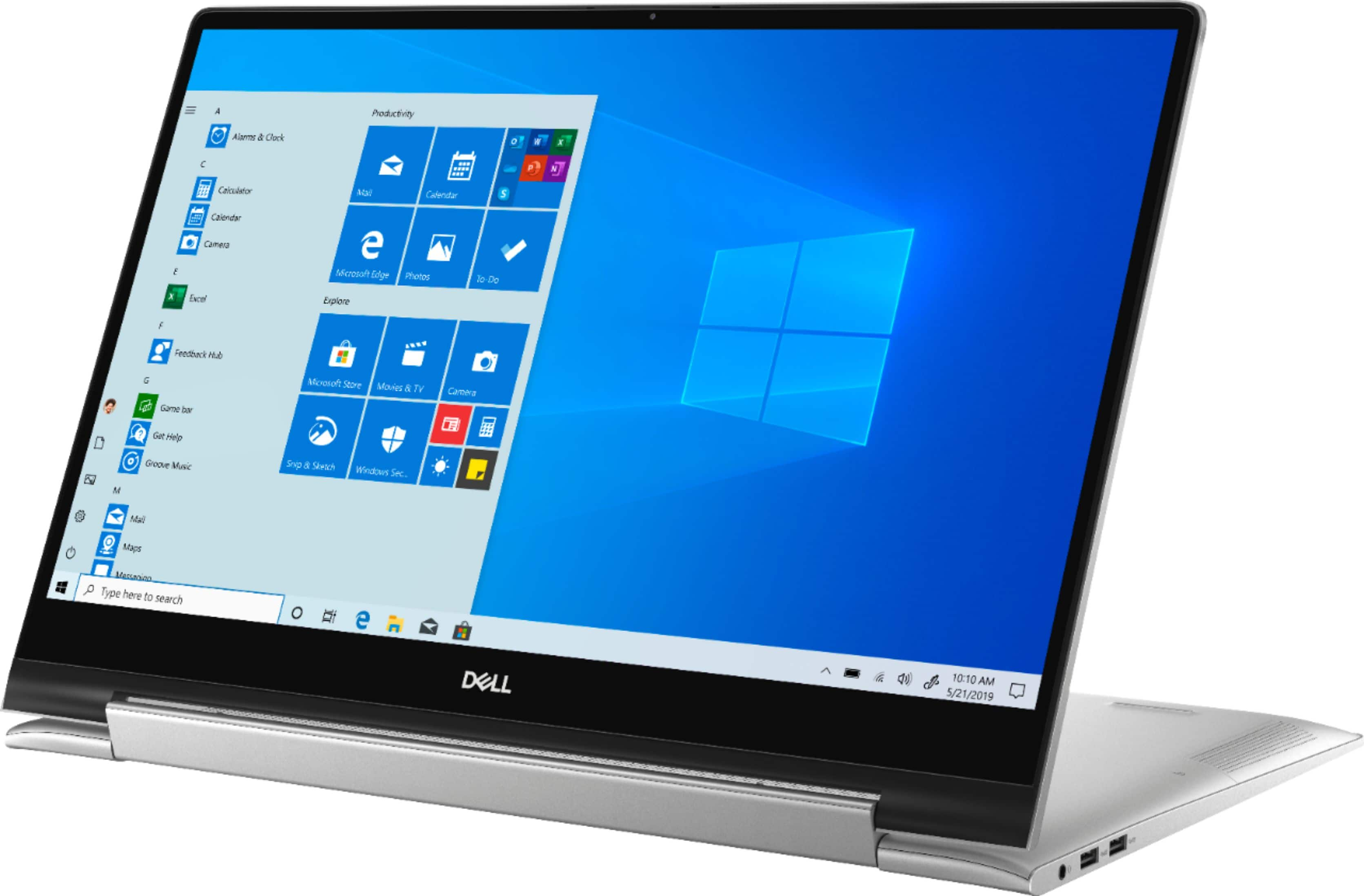
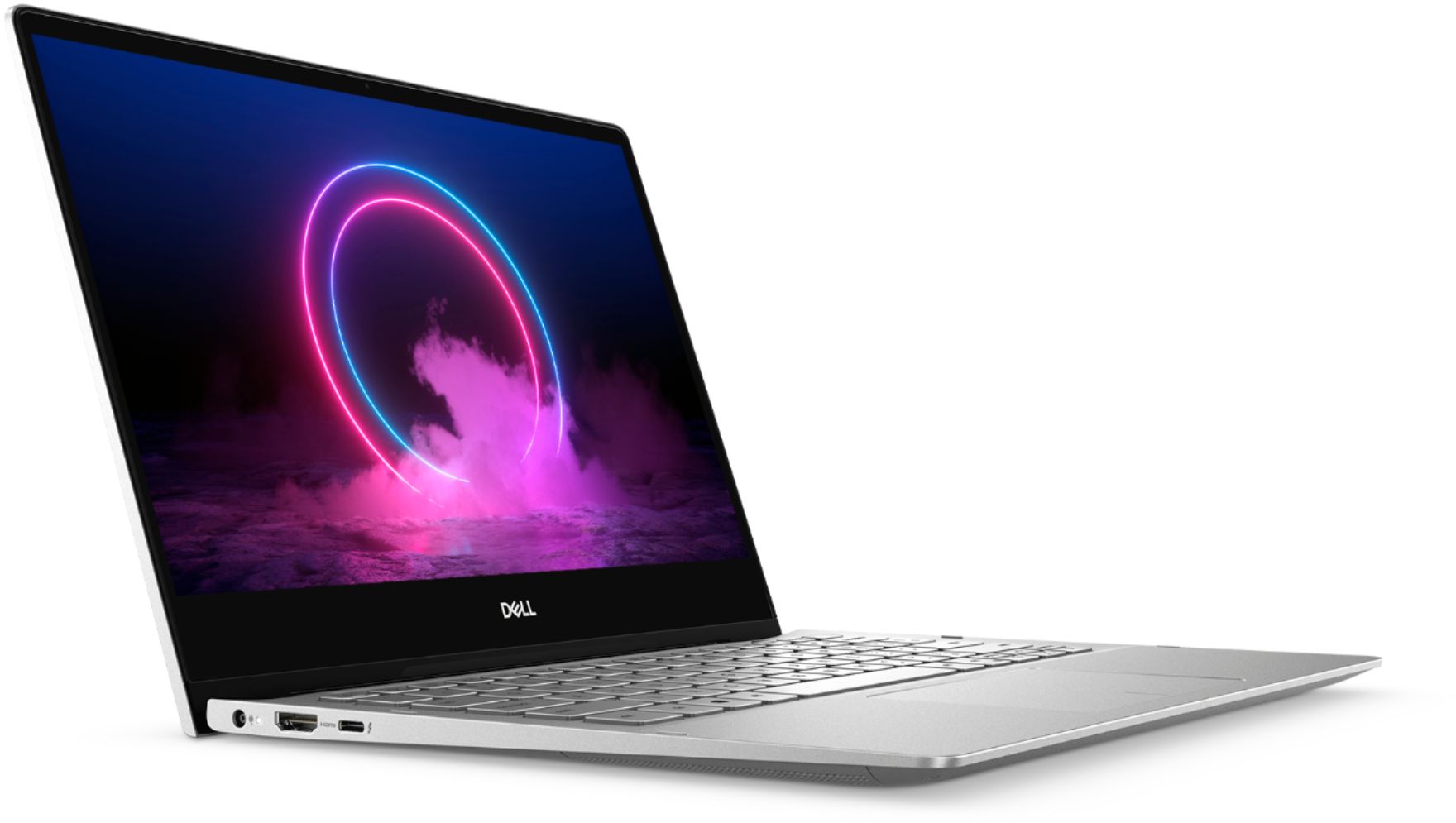
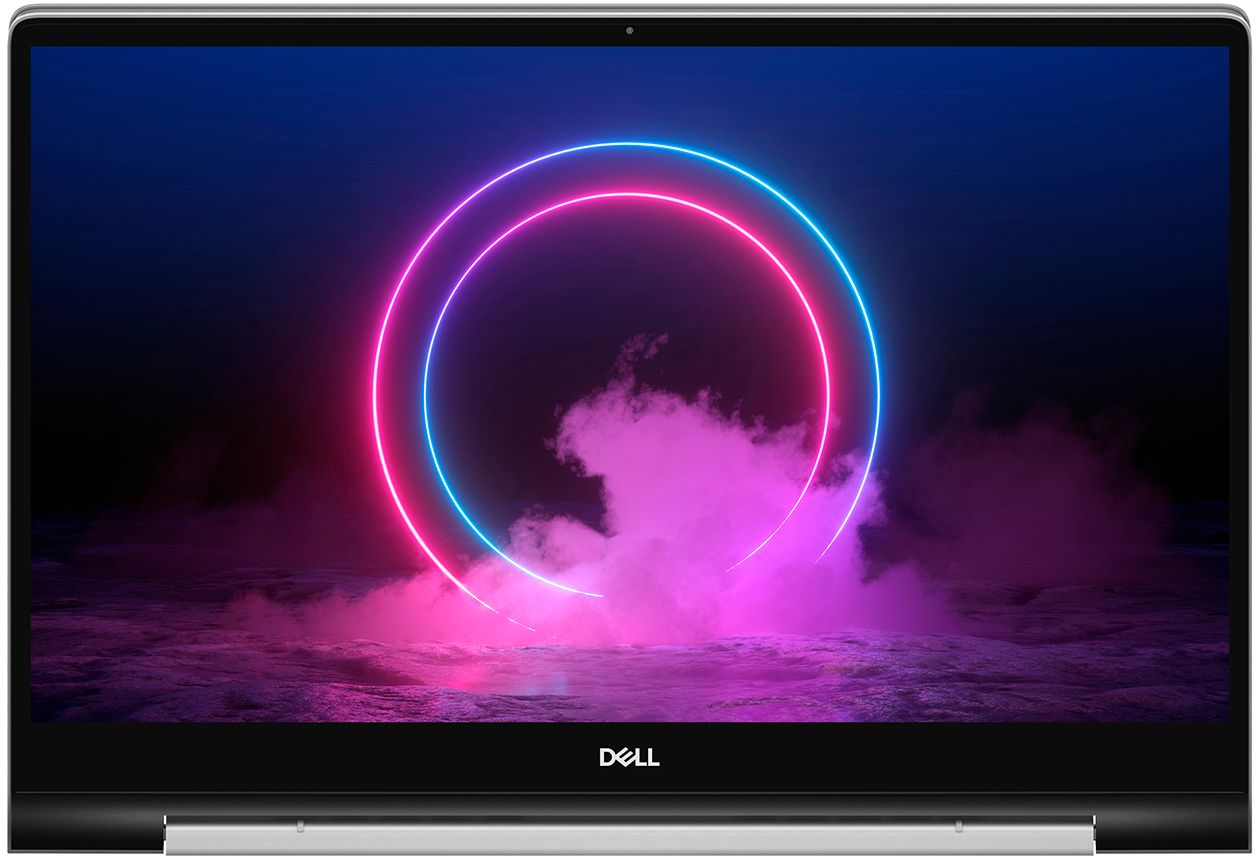
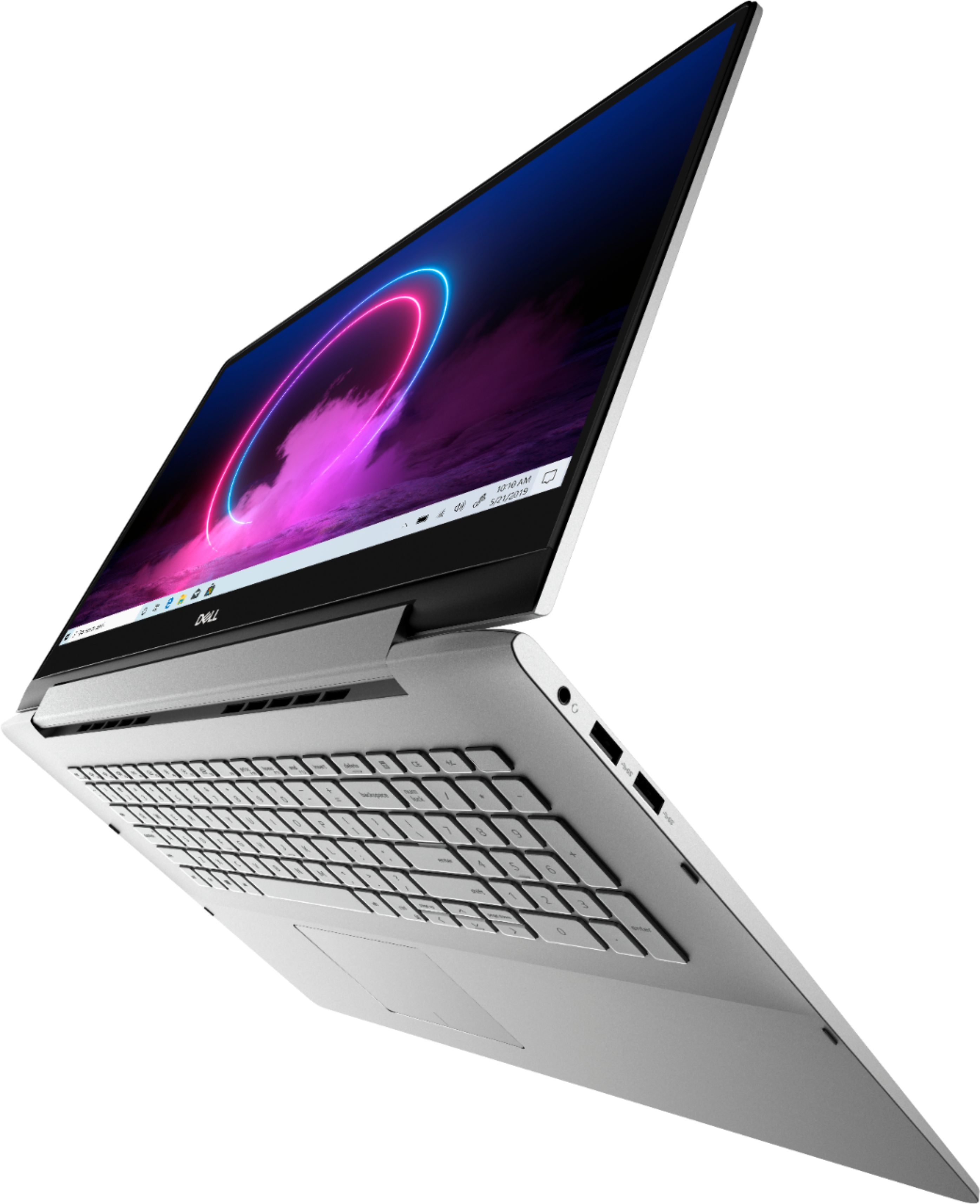
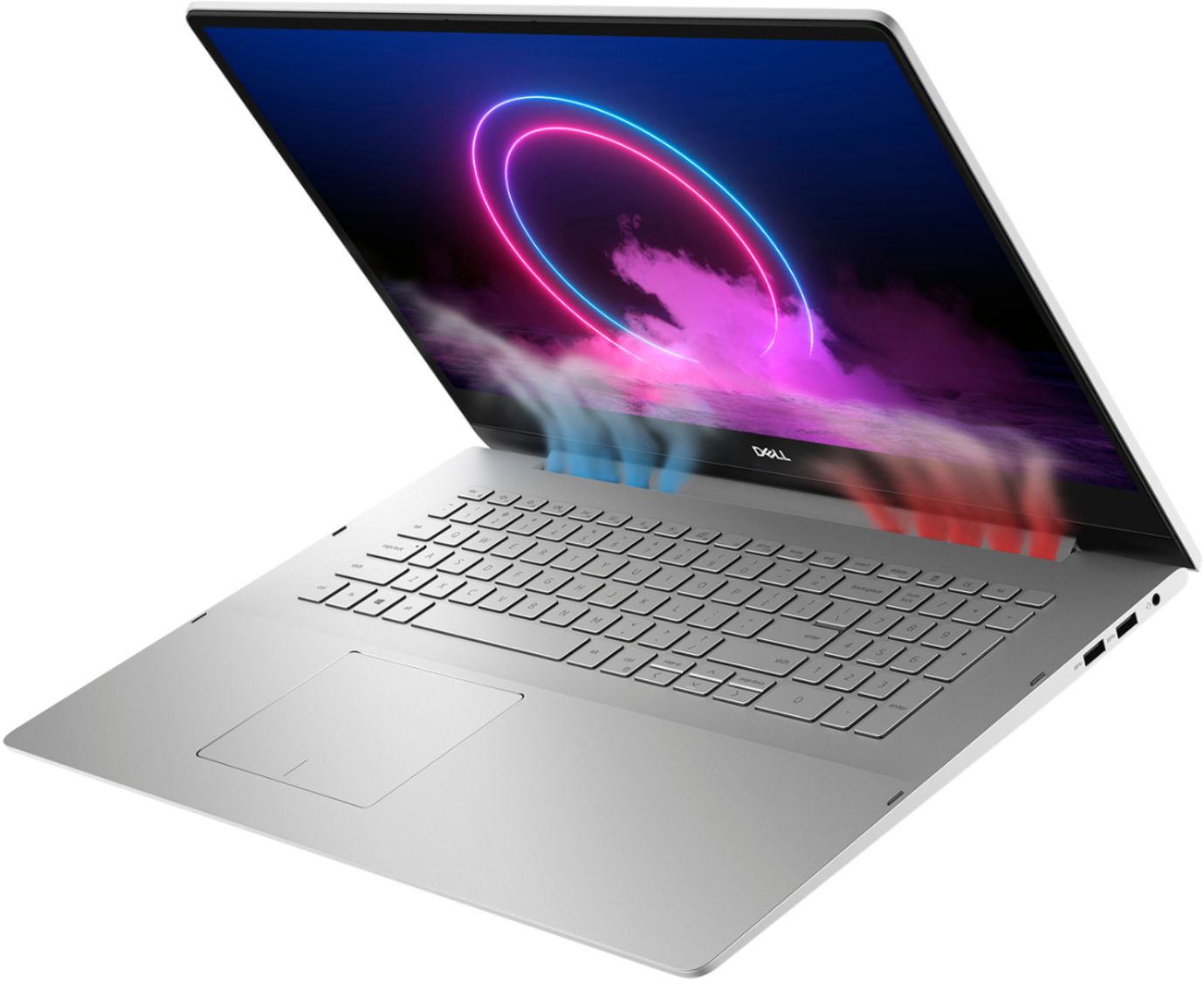
Customers commend the Inspiron 17.3" 2-in-1 laptop's large screen size, ease of use, and strong performance, frequently praising its touchscreen functionality and impressive graphics capabilities. Positive feedback also highlights the fast SSD and ample memory, along with the appreciated 2-in-1 versatility. However, some users note the laptop's considerable weight and tendency to overheat during extended use, while others find the price point to be somewhat high.
This summary was generated by AI based on customer reviews.
Dell Laptop Inspiron 7000
Posted .This reviewer received promo considerations or sweepstakes entry for writing a review.Excellent laptop. The only issue is with the keyboard. backlight is not very bright and in a well lit room, they keys are hard to see. The 17.3" screen is perfect to split screens. Highly recommend.
I would recommend this to a friendGREATLAPTOP!!!
Posted .This reviewer received promo considerations or sweepstakes entry for writing a review.Purchased in 2020 has been a great laptop. I have used daily and would highly recommend Dell products!!
I would recommend this to a friendDoesn’t last.
Posted .This reviewer received promo considerations or sweepstakes entry for writing a review.I've had this laptop since 2020. It was perfect for the first 1.5 years. I've since had to replace my laptop charger 4 or 5 times and I've also had issues with the operating system. I bought this to replace my previous Dell Inspiron which also had the charger issue. I enjoyed it while it lasted but I can no longer recommend Dell products.
No, I would not recommend this to a friend- Pros mentioned:Screen size
Upscale look but design flaws
Posted .This reviewer received promo considerations or sweepstakes entry for writing a review.This is my third 17 inch Inspiron 2-1. I've had to replace about every two years which is not Dell's fault. First one I dropped..oops. Second one started to have some type of hardware glitch - I think due to the way I was picking it up which flexed the base. You have to remember - this thing is super heavy. The third just came and I'll say this. The new look is more upscale. Case is more aluminum looking and the screen has a narrower border. The whole unit looks pretty slick. My problem is edge design. Before I bought my first Inspiron, I used a 17 in HP that had a very sharp front edge. Prior version of the Inspiron softened that front edge particularly around the track pad. This version is very sharp - particularly as the metal case on top ends just over the front lip leaving a pretty sharp edge. I also notice a sharpness on the sides of the screen. Looks like the ergonomics department did not get their hands on this. That being said, I'm using silicon laptop palm pads on both sides of the front edge which I started doing with the old sharp HP. I like the big screen and clearly this laptop works for me but this will be the last one if they don't fix the sharp edges. A laptop should not hurt.
No, I would not recommend this to a friendBrand response from YourDellTeam
Posted .jaglaw,
We're sorry to hear about the sharp edges on your new laptop. If you have any technical questions about your computer you can visit our Product Support Page here: https://dell.to/2DgLo9u.
Best,
Bryan
1-800-624-9896
Definitely worth the money
Posted .This reviewer received promo considerations or sweepstakes entry for writing a review.Decent laptop. Sturdy and holds up well. Works well for working from home and gaming
I would recommend this to a friendAvoid this laptop!!!
Posted .This reviewer received promo considerations or sweepstakes entry for writing a review.This was such a terrible purchase. The screen malfunctions by switching to horizontal touchpad mode after being closed. The battery does not hold a charge. It doesn’t update properly. Recent documents are not easy to find. There is a separation between the screen and the liner. Ergonomically, the keypad is so far ahead like you have to put some of your arm on the computer to type. I honestly can’t believe Dell is still getting away with selling mediocre products. And this is supposed to be one of their top tier models. Shame. I went from a MacBook Pro to this and I’ve regretted it ever since. I spent $1500 smh. I’m returning to a Mac this year.
No, I would not recommend this to a friendGREAT PRODUCT
Posted .This reviewer received promo considerations or sweepstakes entry for writing a review.GREAT PRODUCT... lasted without trouble throughout the warranty lapse.
I would recommend this to a friendnice and good laptop
Posted .This reviewer received promo considerations or sweepstakes entry for writing a review.It is a good laptop for engineers and students, it has a good processor and a lot of ram memory, and has a nice look
I would recommend this to a friendLow Quality and Unreliable
Posted .This reviewer received promo considerations or sweepstakes entry for writing a review.Purchased my Dell Inspiron 17 7000 2-in-1 in or about May 2019. Within days after the purchase, I noticed that it’s speaker did not function properly when the laptop ran for a little while. I didn’t not take it back because I had spent days preparing the laptop of a one-year trip abroad. I figured I could live with a less than perfect speaker. Approximately four months after purchase the computer would stall when I attempted to boot it up. For the computer to become functional, I had to turn it one three or four times. Now, 18 months after purchase, the counter requires ten to twelve reboots to become functional. I’ve had great success with Dell business computers. It’s clear that Dell consumer models are not made to the same standard.
No, I would not recommend this to a friendBrand response from YourDellTeam
Posted .Augustus,
Thanks for your review and we're sorry to hear about the speaker and performance issues that you've had with your computer. There was a new BIOS update released for your computer earlier this month. We'd encourage you to make sure that the most recent BIOS is downloaded on your computer: https://dell.to/356Ykeu.
We hope that with an updated BIOS that your computer will perform the way you want it to.
Best,
Bryan
1-800-624-9896
- Cons mentioned:Price
Poor Wifi Connectivity Bad design
Posted .This reviewer received promo considerations or sweepstakes entry for writing a review.I bought it from somewhere else. This laptop is not up to the mark with the price.
No, I would not recommend this to a friendBrand response from YourDellTeam
Posted .Koshai,
Thanks for your feedback. We're sorry that your computer is not working as well as you'd like it to. We'd recommend the following steps to help with your WiFi connectivity:
1. Download and install the latest Wireless Card driver. (https://dell.to/2th3Tpe) After updating the driver, re-establish the connection with the Wireless Access Point and check the wireless performance.
2. If the issue persists, proceed to step 3.
3. Power-cycle the local network. Shut down the Dell system, the Wireless Access Point/Router and the Modem. Wait a minimum of 60 seconds before powering up the components in the following order:
4. Power ON the Modem, and wait for it to boot fully.
5. Power ON the Wireless Access Point/Router, and wait for it to boot fully.
6. Power ON the Dell system.
7. Open Network and Sharing Center
8. In the left side navigation pane, click on Change Adapter Settings
9. Right click on the wireless connection icon and select Properties followed by the Configure button
10. Under Wireless Options, select the Wireless N mode
11. For Windows 8 or later systems click the Advanced tab and look for 802.11n Mode on the right you will be given the option to Enable or Disable. If the mode is not visible you may need to update your drivers and firmware.
12. From the drop-down menu, choose Disable followed by Ok
13. This should restore the wireless download and upload speed. Internet speed can be tested at http://speedtest.net.
Best,
Bryan
1-800-624-9896
POOR!
Posted .This reviewer received promo considerations or sweepstakes entry for writing a review.Horrible computer! Do not buy it. I bought it June 2019 and am disappointed. Best Buy has been great, but it is a new computer and should run better. Wouldn't properly load office, regularly freezes and needs to be restarted, internal speakers stop working and needs to be re started. ABSOLUTE JUNK! Never bought a Dell before and will never again. Now I have to go through the process of getting another computer up and running so that i can leave this with Best Buy to fix. That's not easy!
No, I would not recommend this to a friendBrand response from YourDellTeam
Posted .Mikey,
We're sorry that your computer is not working the way that you hoped it would. We'd recommend the following steps to help with your computer freezes:
1. Run a Computer Diagnostic. To determine if your computer is experiencing a hardware problem, run the Dell Preboot System Assessment (PSA) Diagnostics. For information on how to run Diagnostics, and to determine the issue, refer to Dell Knowledge Base Article: http://dell.to/2iaiujA.
2. Check Safe Mode for Symptoms. To boot into safe mode, please follow the instructions below:
a) Start the computer.
b) Tap 'F8' on the keyboard immediately and every one second until the Dell logo screen disappears. From there you will see the Windows Advanced Options Menu on the screen. (If the Windows Advanced Options Menu does not appear, restart the system and try again.)
c) Select Safe mode with Networking and press Enter.
d) Log on as the administrator or as a user with administrative access.
e) Open applications and test the computer in safe mode. If the symptoms exist in safe mode, please continue the troubleshooting steps in this article. If the symptoms do not exist in safe mode, the issue is likely related to a driver or software and you may wish to complete step 3 to see if you are able to resolve the lockups or freezing.
3. Check for Malware. Malware (Virus, Spyware, etc.) can definitely cause a Windows system to lock up or appear to hang. To check for malware on your system and to ensure that your computer is up to date on security software, visit Dell Knowledge Base Article: http://dell.to/2wWP1zI.
You can read the full article here - http://dell.to/2tW5m33.
Best,
Bryan
1-800-624-9896
A slow power hog with cursor problems!
Posted .This reviewer received promo considerations or sweepstakes entry for writing a review.Average boot-up time more than two minutes (compared to under 20 seconds for any of my 4 other, more heavily loaded machines). Taken to Geek Squad 3 times for problem (Jantzen Beach Geek Squad is excellent). On full charge can expect about 2-1/2 hours run time. Very slow launching APPS. Cursor bounces all over page- so cannot use machine for word processing. Third defective Dell I have bought. Will be buying no more Dells, but will buy next computer from Jantzen Beach Best Buy.
No, I would not recommend this to a friendBrand response from YourDellTeam
Posted .Nickname,
Thanks for your review. We're sorry to hear that your computer is not performing the way you'd like it to. We'd recommend limiting the number of programs that launch at startup in order to decrease your startup time:
1. Close all open windows.
2. Press CTRL + Shift + ESC key together on the keyboard.
3. In the Task Manager window, click Startup tab.
4. Select the program or application that you want to disable from loading during startup.
5. Right-click and select Disable.
6. Repeat Step 4 & 5 for all the programs or applications that you want to disable from loading during startup.
7. Restart your PC.
You can read the full article here - http://dell.to/2tSulGV.
If you'd like to extend the life of your computer's battery, you can try these tips:
Change the Power Plan:
1. On the notification area of the taskbar, right-click the Battery icon.
2. On the options list, click Power Options.
3. Select a power plan on the battery meter, such as Power Saver or Balanced. Windows 10 has a built in 'Battery Saver' mode that can be activated to extend your system's battery life. The Battery Saver mode will monitor and limit background activity and other features such as push notifications. You do have the option to enable or disable this mode within settings or within advanced Battery Saver settings, you can customize the mode to best suit your needs.
a) Click on the Action Center icon in the taskbar and select the tile for Battery Saver.
b) If running Cortana then type Battery Saver into the search box and select from the results.
Within the Battery Saver settings page, you will be able to turn on and off the feature and customize the feature to best meet your needs.
c) Turn Battery Saver On or Off.
d) Additional settings available via the Battery use and Battery saver settings links.
e) Battery use shows further info on apps and their power usage.
f) Battery Saver Settings screen allows you to customize further Battery Saver feature.
You can read the full article here - http://dell.to/2vfXWf4.
Lastly, if you'd like to re-calibrate your touchpad you can follow these steps: Some Notebooks and Tablets with Keyboards have added gesture features to the touchpad hardware and drivers. A few of these features are two or three finger scrolling, pinch zoom, circle zoom, rotate and swiping. These new features may be the reason for the erratic cursor movement since most are turned on by default. You can disable or modify the way the features work in the touchpad driver properties. Here are some tips to modify these settings:
1. In the Search box, type main.cpl.
2. Touch or click main.cpl in the list of programs.
3. Touch or click the Dell Touchpad tab.
4. Touch or click on the picture of the touchpad.
5. Touch or click Gestures (depending on your computer there may not be a Gestures option).
6. Change the options as preferred.
7. Touch or click Save.
8. Touch or click the X in the upper-right corner to close the Dell Touchpad Utility.
9. Touch or click OK on the Mouse Properties window.
10. If the touchpad still does not work after following the preceding steps, refer to Dell Knowledge Base article - http://dell.to/2iaiujA.
You can read the full article here - http://dell.to/2tqmS02.
Best,
Bryan
1-800-624-9896
too good to be true
Posted .This reviewer received promo considerations or sweepstakes entry for writing a review.I purchased it with hopes that it was everything I needed. I had to return my first one because the fan would stay on permanently and the keys skipped around so much. Returned for another brand new one and the keys are doing the same thing. I will not be purchasing another dell. Also the mouse pad is very small and not in a central or neutral location. For the price it should be perfect and is not!!!
No, I would not recommend this to a friendBrand response from YourDellTeam
Posted .rodz,
Thanks for your review. We're sorry to hear about the issues that your laptop has given you so far. If you'd like help with your keyboard we'd recommend reaching out to Dell's Technical Support Team here: http://dell.to/2sH7Qlm.
If you have questions about your computer you can always check our Product Support Page here: https://dell.to/2DgLo9u.
Best,
Bryan
1-800-624-9896
Dead out of the box
Posted .This reviewer received promo considerations or sweepstakes entry for writing a review.After the set up and during the updates the laptop died. When I turned it back on the screen went white to check the memory and then it crashed again. Returning immediately!
No, I would not recommend this to a friendBrand response from YourDellTeam
Posted .CrazyDweller,
We're sorry to hear about the crashes that your computer is experiencing. We'd recommend the following tips to try to diagnose the issue:
1. At the desktop, click the Search the web and Windows box and type "problem reports".
2. Select View all problem reports to view a list of errors that have occurred on your computer and possible solutions for them, such as updating drivers, flashing your system BIOS, or checking for updates to the software.
3. Under the Source column, look for Windows and under Summary, look for Shut down unexpectedly.
4. Right-click the line item and select Check for a solution.
We'd also suggest checking to make sure that your software and drivers are up to date on Dell's Product Page - https://dell.to/356Ykeu.
You can read the full article here - http://dell.to/2u98Cct.
If you'd like to reach out to Dell's Technical Support Team you can reach them here: http://dell.to/2sH7Qlm.
Best,
Bryan
1-800-624-9896