Customer Ratings & Reviews

- Model:
- 82FG00EQUS
- SKU:
- 6462668
to a friend
- Pros mentioned:Budget-friendlyCons mentioned:Inaccurate colors, Poor viewing angle, Short battery life
AS good as they said
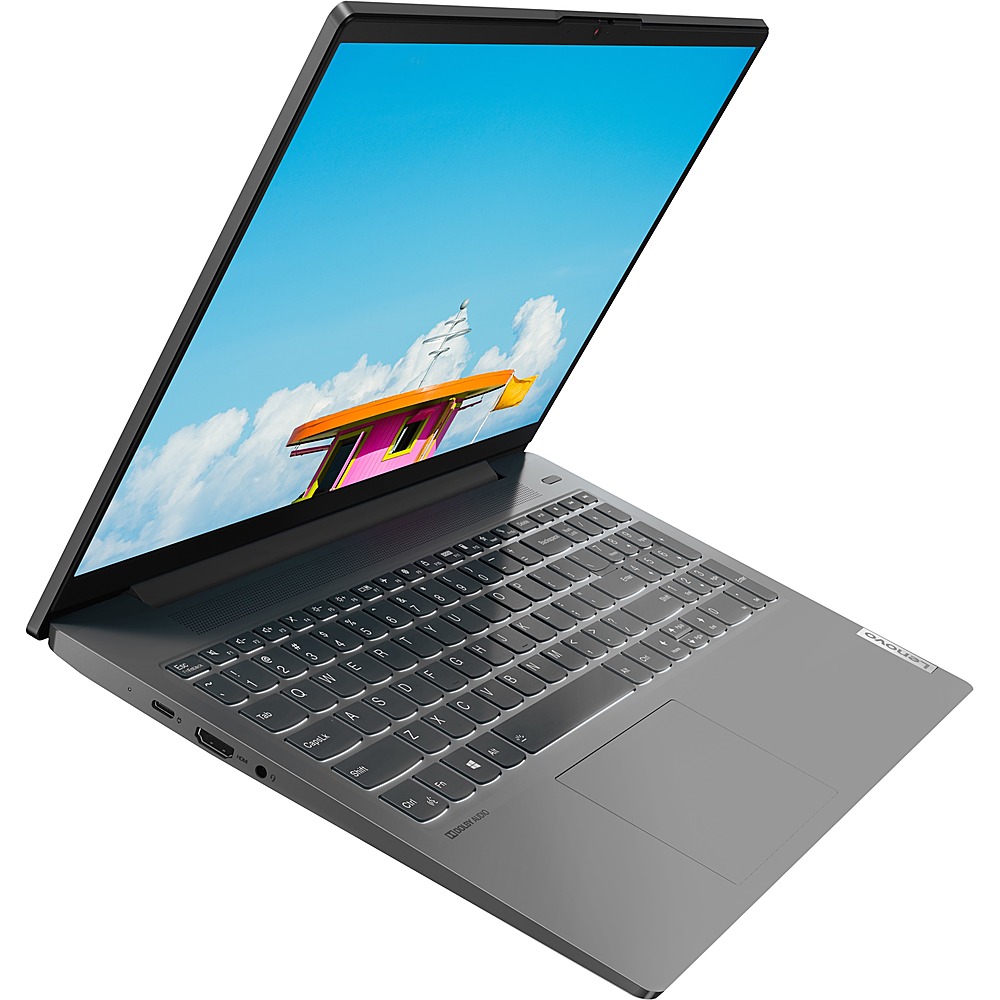
||Posted . Owned for 3 weeks when reviewed.This reviewer received promo considerations or sweepstakes entry for writing a review.Honestly, did a lot of comparison research. This is the best one i found that fit well within my budget and it also did not leave me with any shortcomings. 2 BIG hindranceS would have to be 1) the screen; if you ever owned a MacBook around 2006-07 you can see how the screens are alike. Proper viewing angle will matter with this one. The colors aren't great so this laptop is not the best for video/photo editors. Im a student and this laptop is perfect for the basics. 2) The battery life is kinda iffy. I fully charged my laptop as soon as i got it, took it off the charger, and went to see how much life the battery would have and it read out that fully charged i had about 8 hours before it dies. Kinda sucks. Anyway, if your'e just a student and need a laptop that isnt a chromebook or netbood, this IS the step above without getting extremely ripped off.
I would recommend this to a friendBrand response from Lenovo Product Expert
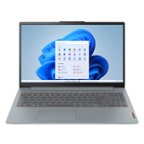
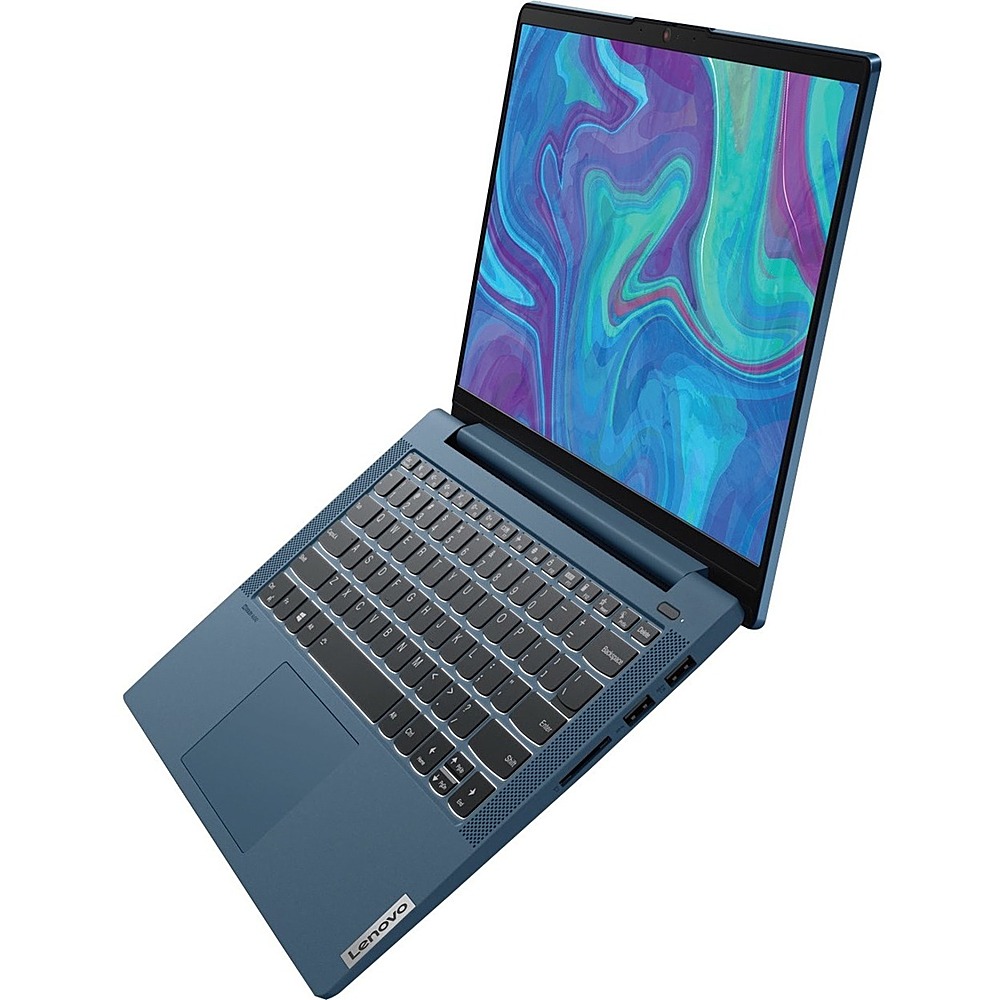
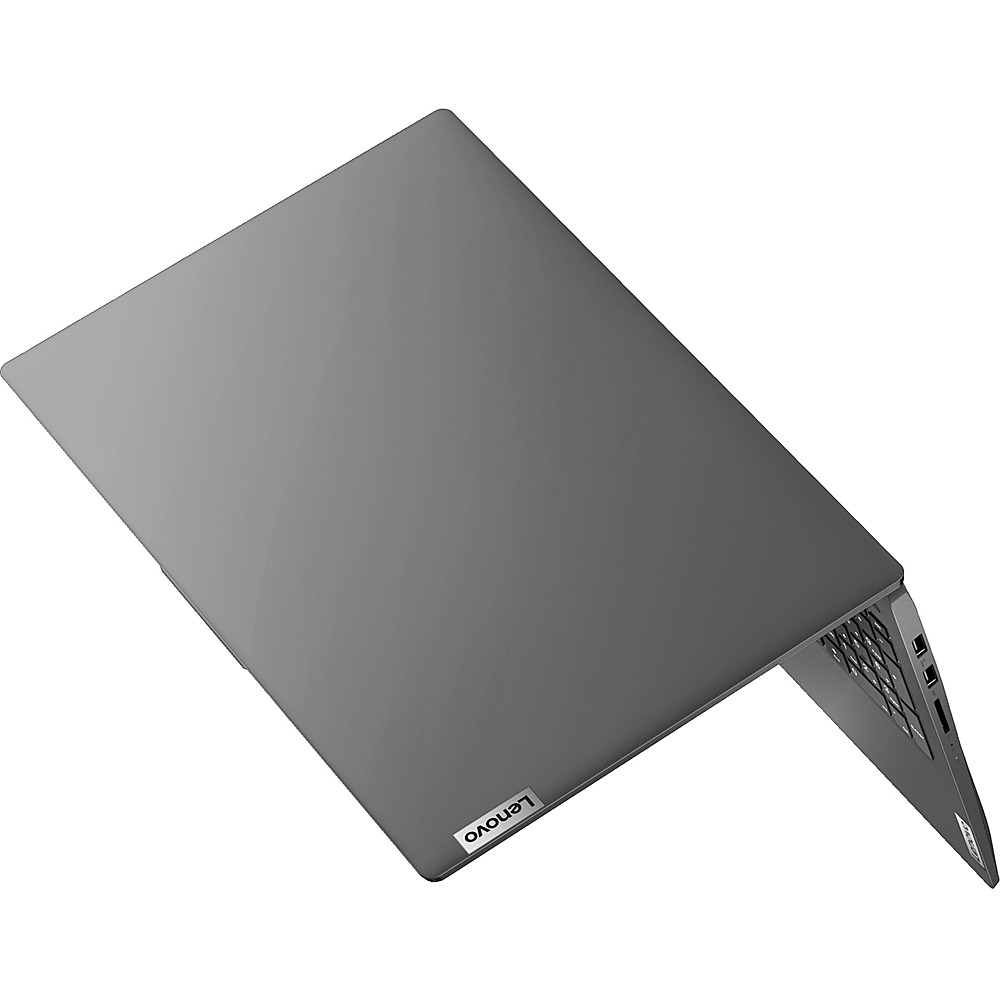
Posted .Thank you for choosing the Lenovo IdeaPad 5 15 Laptop, model number 82FG00EQUS. This model ships with a 15.6 inch (screen size measured diagonally) IPS - FHD (1920x1080) screen, with a brightness level of 300 nits, has an Anti-glare coating. This screen provides 67 Percent of the sRGB (45 Percent NTSC) color gamut. There is a 3CELL_57WH_INTERNAL, Lithium Polymer Battery within this model, which has a battery life of up to 12 hours, depending on the work the device is performing. If you are getting substantially less battery life, first, set your screen brightness at less than 100-percent - try 80-percent to start with. Then, be sure Battery conservation Mode is turned off. This power management setting should only be used when the laptop is plugged in all the time. It will prolong overall battery life by only charging the battery to 60-percent of capacity. Here is a link to instructions for turning off Battery Conservation Mode: https://support.lenovo.com/us/en/solutions/ht103159. Also check what programs are running in the background on the computer. Be sure only the programs you want running in the background are. These programs will drain the battery. Here is a link to information about how to find out what programs are running in the background on your Windows 10 computer and how to manage them for better system performance: https://www.windowscentral.com/how-prevent-apps-running-background-windows-10. Then, finally, be sure any software you installed is compatible with Windows 10. Incompatible software will drain the battery at a faster rate. There is no need to install Microsoft Office software. The software is already part of the operating system, you just need to activate the software with a purchased product key. If you have installed a copy of Microsoft Office, this is conflicting with the existing copy on the system and this will slow your system down. If you have installed a 3rd party anti-virus program, be sure that Windows Defender is turned off and that the trial version of McAfee Anti-Virus software is uninstalled. There can only be one anti-virus program on the system. You may need to restore your system to original factory default settings if any of the programming errors have occurred. You can do that by typing "restore" in the Cortana search window. Just click on the magnifying glass icon at the bottom left of your Windows 10 Desktop. Click on "Reset This PC" Then click on "Get Started" and follow the on screen directions to restore to factory defaults. If the problem persists, we recommend you contact Lenovo Tech Support at: 877-453-6686.