Customer Ratings & Reviews
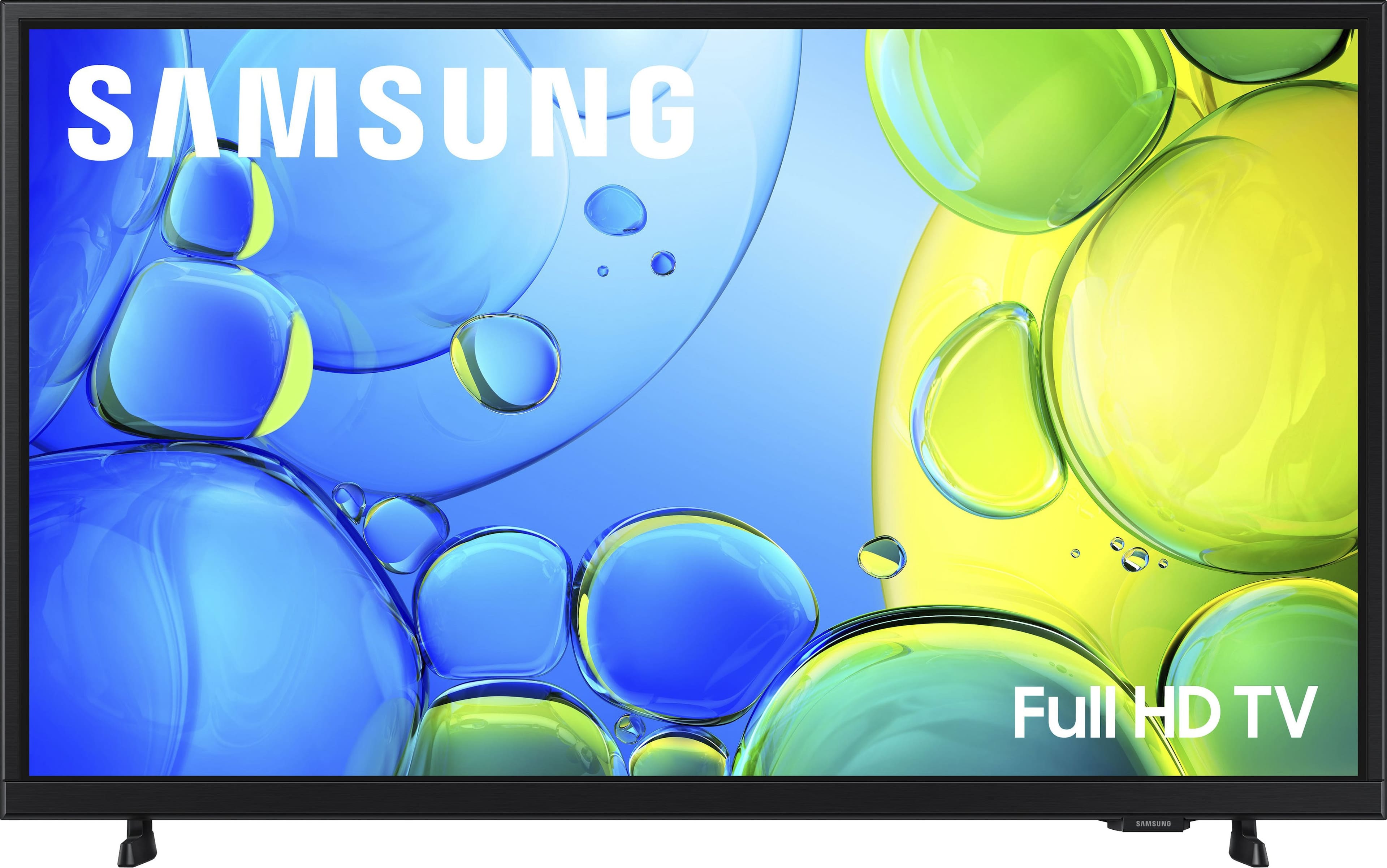


- Model:
- UN32F6000FFXZA
- SKU:
- 11997357
Rating by feature
- Picture Quality
Rating 4.8 out of 5 stars
- Sound Quality
Rating 4.5 out of 5 stars
- Brightness
Rating 4.8 out of 5 stars
Tv review
||Posted . Owned for 2 weeks when reviewed.This reviewer received promo considerations or sweepstakes entry for writing a review.Bought for RV application. Connected to my samsung phone everything is great
I would recommend this to a friendPicture Quality
||Posted .This reviewer received promo considerations or sweepstakes entry for writing a review.It worked fine for a while, then picture became fuzzy. Called Samsung they reset the TV and it is fine till now.
I would recommend this to a friendBrand response from Samsung
Posted .Hi JyotiP,
We’re sorry to hear you’re experiencing issues with a distorted picture on your Samsung F600F TV. In some cases, compression in video content - particularly during fast-moving scenes in sports or action films - can result in visible distortions. To help resolve this, we suggest checking a few key connection points:
1. Power cycle your TV and cables: Unplug and reconnect the power and HDMI cables from both the TV and any connected devices, then plug the TV back into the wall outlet.
2. If using an external device (like a Blu-ray player or streaming box), make sure it supports UHD video and is connected with a certified 4K HDMI cable. For set-top boxes, double-check the appropriate cable connections.
3. Check your internet connection if streaming content. Weak or unstable signals may result in screen distortion. Try rebooting your router and ensure the TV is receiving a strong Wi-Fi or LAN connection.
4. If issues persist, review the video output settings on your external device and ensure they match a resolution and format supported by your TV.
We hope these steps help correct the issue. If you need further assistance, please don’t hesitate to reach out to Samsung Customer Support at 1-800-SAMSUNG (available daily from 8 AM to 12 AM EST) or connect with us via live chat at Samsung Support: https://www.samsung.com/us/support/contact/
~ Samsung Advisor
Great gift
||Posted . Owned for 2 weeks when reviewed.This reviewer received promo considerations or sweepstakes entry for writing a review.I bought this for my niece as a gift. and she loves it.
I would recommend this to a friendOpen box shipping beware
||Posted . Owned for 3 weeks when reviewed.This reviewer received promo considerations or sweepstakes entry for writing a review.My review has nothing to do with the product. Bought open box and received tv broken from shipping. Best buy made it right.
I would recommend this to a friendBrand response from Samsung
Posted .Hi JeroB,
We appreciate your purchase and feedback on your open-box experience. If you ever have questions or need support, we’re here to help. Call us at 1-800-SAMSUNG, available from 8AM - 12AM EST, seven days a week. You can also connect with a LiveChat agent by clicking the ‘Support’ link on our website.
~ Samsung Advisor
GREAT TV
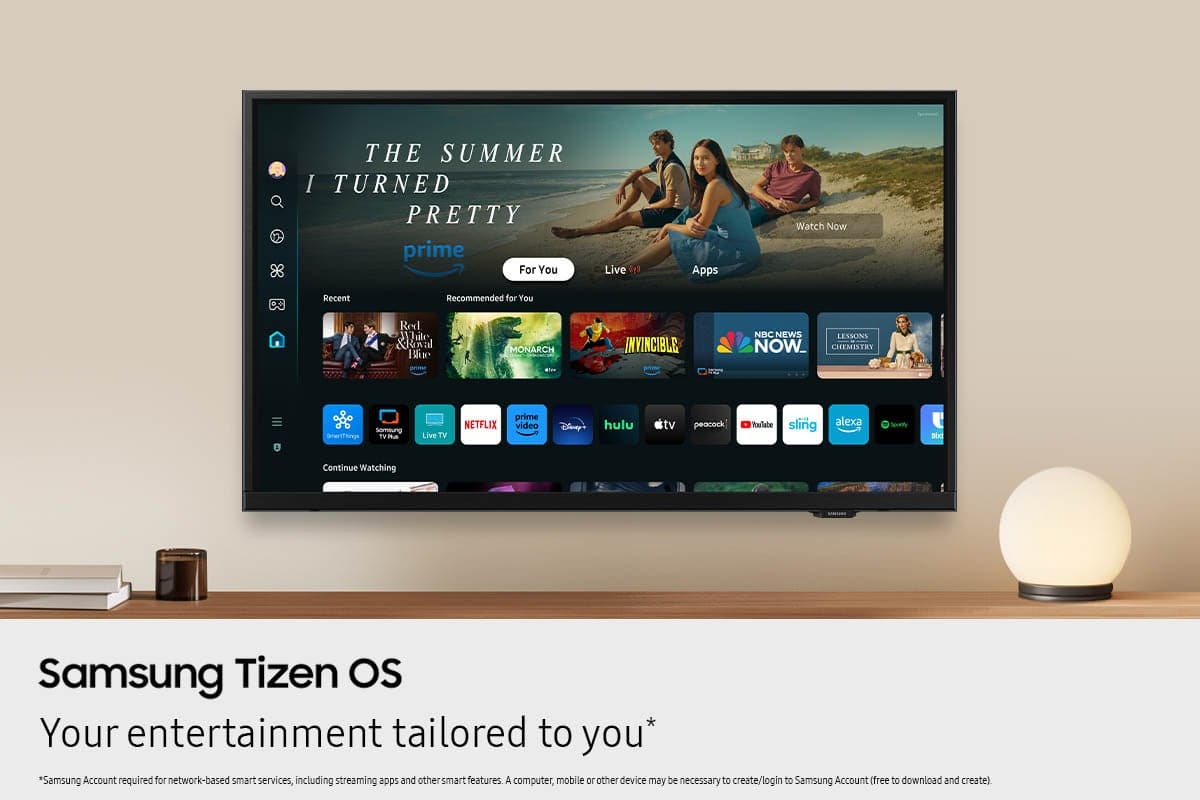
||Posted .This reviewer received promo considerations or sweepstakes entry for writing a review.Great TV for its value. Loaded with Samsung TV Plus offering hundreds of great movies and other great features.
I would recommend this to a friendValue
||Posted .This reviewer received promo considerations or sweepstakes entry for writing a review.Outstanding value, perfect price....well worth buying.
I would recommend this to a friendTV keep getting SMARTer
||Posted . Owned for 1 week when reviewed.This reviewer received promo considerations or sweepstakes entry for writing a review.Every you'd expect in a smart tv. Was a little complicated to set up the Spectrum app.
I would recommend this to a friendSamsung tv
||Posted . Owned for 1 month when reviewed.This reviewer received promo considerations or sweepstakes entry for writing a review.Had to get my son to set it up. On occasion I am still having trouble my self.
I would recommend this to a friendSamsung 32" F6000F
||Posted . Owned for 2 weeks when reviewed.This reviewer received promo considerations or sweepstakes entry for writing a review.It took a long time to get assistance. the salesman would not let me see the television or the remote. I was told I can only see it after I buy it. I purchased the 32" Samsung television, I am not satisfied with the television, sometimes it picks up the channels and sometimes it doesn't.this model will loose channels while watching a show,then unable to pick that channel up.the remote is set up to where you have to do multiple functions to get a channel. I would like a television that has a channel when I turn it on. now I have to bring it back . This could have been avoided if I saw the television in the store.
No, I would not recommend this to a friendBrand response from Samsung
Posted .Hi VincentS,
We appreciate your feedback and are sorry to hear that you are not satisfied with your purchase. If you have issues with your antenna, please try the following:
Check signal strength (for antenna users). If you're using an antenna, go to: Settings > Support > Device Care > Self Diagnosis > Broadcast Signal. Here you can view signal strength and adjust the antenna position if needed for better reception.
Run Auto Program (if not using a cable box). If your TV is connected directly to a wall cable outlet or antenna, try running Auto Program to scan for available channels: Settings > All Settings > Broadcasting > Auto Program
If you still need help, please call Samsung Support at 1-800-SAMSUNG (8AM - 12AM EST, 7 days a week). Our LiveChat agents are also available through the Support link on our website.
~Samsung Advisor
Nice low profile
||Posted .This reviewer received promo considerations or sweepstakes entry for writing a review.TV size was great with low profile to fit under a cabinet. Four stars because it takes a while for the Spectrum cable app to turn on.
I would recommend this to a friend- Cons mentioned:Responsiveness
WORST TV EVER!
||Posted .This reviewer received promo considerations or sweepstakes entry for writing a review.Don't even consider this piece of junk. This is the absolute worst TV I have ever owned. The Samsung interface is incredibly slow - push a button and wait 5 minutes for the TV to do something. The TV bombards you with ads for Samsung TV Plus WHILE you are trying to watch a program. So frustrating. I am so angry that I wasted my money on this junk.
No, I would not recommend this to a friendBrand response from Samsung
Posted .Hi ThomasM,
We appreciate your feedback regarding response time. For optimal performance, please ensure your F6000F TV is running the latest firmware. You can check this by going to: Home > left directional key > Settings > Support > Software Update
To further optimize performance, try running Device Care, which checks memory, clears unused cached data, and closes background apps: Home > left directional key > Settings > Support > Device Care > Start Device Care
If issues continue, please reach Samsung Support at 1-800-SAMSUNG, available 8AM – 12AM EST, 7 days a week.
LiveChat is also available via the ‘Support’ link on our website.
~Samsung Advisor
Replacement TV for my son
||Posted . Owned for 1 month when reviewed.This reviewer received promo considerations or sweepstakes entry for writing a review.A replacement for my son, who accidentally damaged his other TV.
I would recommend this to a friendSamsung TV
||Posted .This reviewer received promo considerations or sweepstakes entry for writing a review.Great tv for the price and great picture clarity. Would recommend to friends.
I would recommend this to a friendSamsung
||Posted . Owned for 3 weeks when reviewed.This reviewer received promo considerations or sweepstakes entry for writing a review.Love Samsung and the ability to transfer information between devices from my phone
I would recommend this to a friendNot worth it!
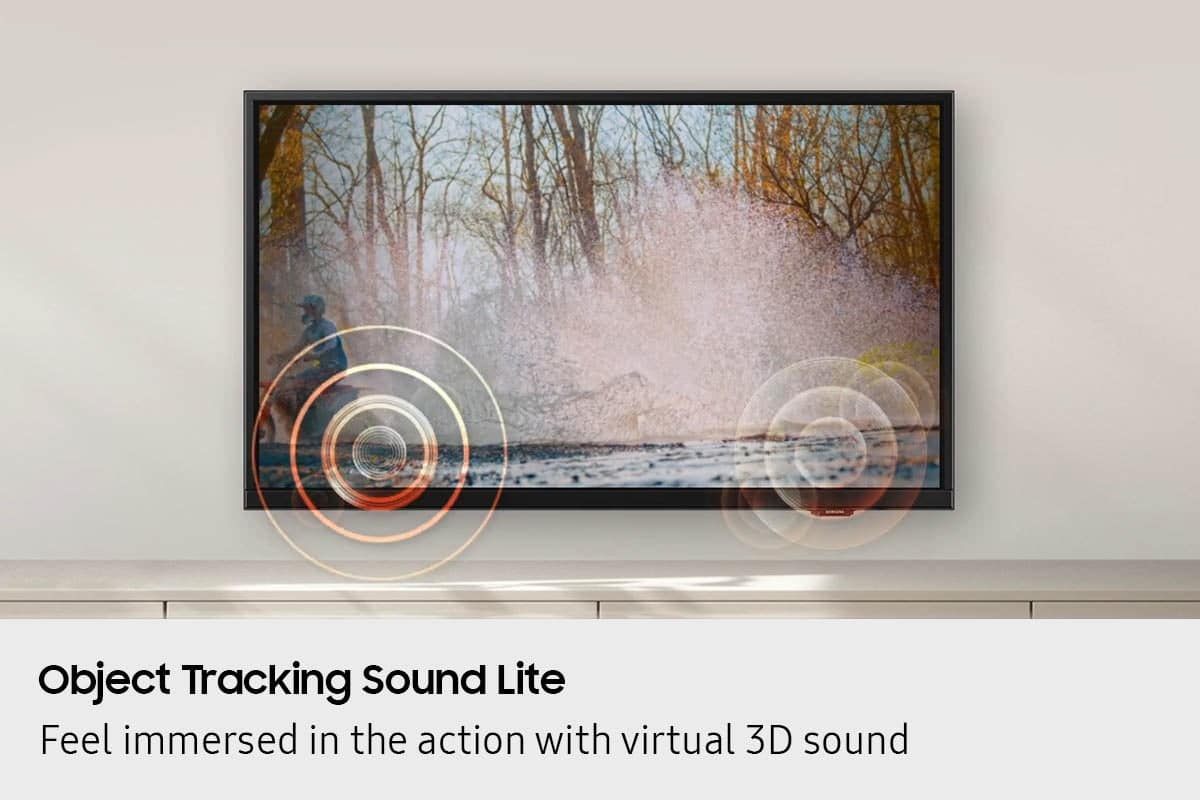
||Posted .This reviewer received promo considerations or sweepstakes entry for writing a review.Lousy TV, volume is low and can barely hear it even when it's 100%. I see 3 bouncing dots and than the tv freezes and sometimes goes off completely. Many times when I turn it on the volume is off completely and I can't hear it. I have to constantly rebute the TV. So aggravating!
No, I would not recommend this to a friendBrand response from Samsung
Posted .Hi Worthless,
I'm very sorry to hear about your experience. If your F6000F TV freezes or becomes unresponsive:
1. Cold boot – Hold the Power button on your remote for 5+ seconds until the TV restarts.
2. Update firmware – Home > left directional key > Settings > Support > Software Update > Update Now
3. Run Device Care – Home > left directional key > Settings > Support > Device Care > Start Device Care
If the volume levels are still too low on your TV after a Firmware Update, you can improve sound performance by adjusting a few key settings:
Sound Mode: Navigate to: Settings > All Settings > Sound > Sound Mode
Auto Volume: This feature helps maintain consistent volume levels across content and input sources. Turn it on under: Settings > All Settings > Sound > Expert Settings > Auto Volume = On
You can also explore Expert Settings to fine-tune sound output with adjustments for Balance, Equalizer, and more.
If the issue persists, contact Samsung Support at 1-800-SAMSUNG, 8AM – 12AM EST, 7 days a week. LiveChat is available under the ‘Support’ link on our website.
~Samsung Advisor
Awesome smart TV
||Posted .This reviewer received promo considerations or sweepstakes entry for writing a review.Awesome tv for an extra in the basement. Fast processing and does what it says.
I would recommend this to a friend- Cons mentioned:Response time
Vaey bad TV
||Posted . Owned for 2 weeks when reviewed.This reviewer received promo considerations or sweepstakes entry for writing a review.This is a bad TV. The time it takes to respond to a remote control command is too long; more than 3 seconds. Also the sound is very annoying. The quality of the images is poor. I made a mistake purchasing this TV for the kitchen.=
No, I would not recommend this to a friendBrand response from Samsung
Posted .Hi CMLPXXIX,
Thank you for your feedback on the F6000F TV. We have a few recommendations that may improve your experience.
First, let's ensure you are running the latest Firmware Update. Go to Settings > Support > Software Update > Update Now.
Next, you may want to replace the batteries in your remote control and ensure nothing is blocking the IR sensor located below the Samsung Logo on the bottom of your TV and the remote control.
You can improve your viewing experience by switching to a softer picture mode: Settings > All Settings > Picture > Picture Mode – Try Movie or Filmmaker Mode for darker rooms.
For more control, adjust brightness, contrast, and sharpness under: Settings > All Settings > Picture > Expert Settings. You can also disable Contrast Enhancer for a softer image.
To improve your sound, try different Sound Modes (Standard, Optimized, Amplify), or fine-tune your setup in Expert Settings under: Settings > All Settings > Sound.
For further help adjusting your settings, feel free to reach Samsung Support at 1-800-SAMSUNG (8AM – 12AM EST, 7 days a week) or visit the Support link on our website.
~Samsung Advisor
Nice extra TV
||Posted .This reviewer received promo considerations or sweepstakes entry for writing a review.Perfect TV for my kitchen. Also does not draw too much power from battery generator in a power outage.
I would recommend this to a friendSamsung 32" TV
||Posted . Owned for 3 weeks when reviewed.This reviewer received promo considerations or sweepstakes entry for writing a review.I bought for Mother's Day for my mom. It's easy to use remote control, She loves it. Thank you and yes I would buy it again.
I would recommend this to a friendGood business
||Posted . Owned for 3 weeks when reviewed.This reviewer received promo considerations or sweepstakes entry for writing a review.I was in and of the store in less than 30 minutes satisfied with my purchase.
I would recommend this to a friend