Customer Ratings & Reviews
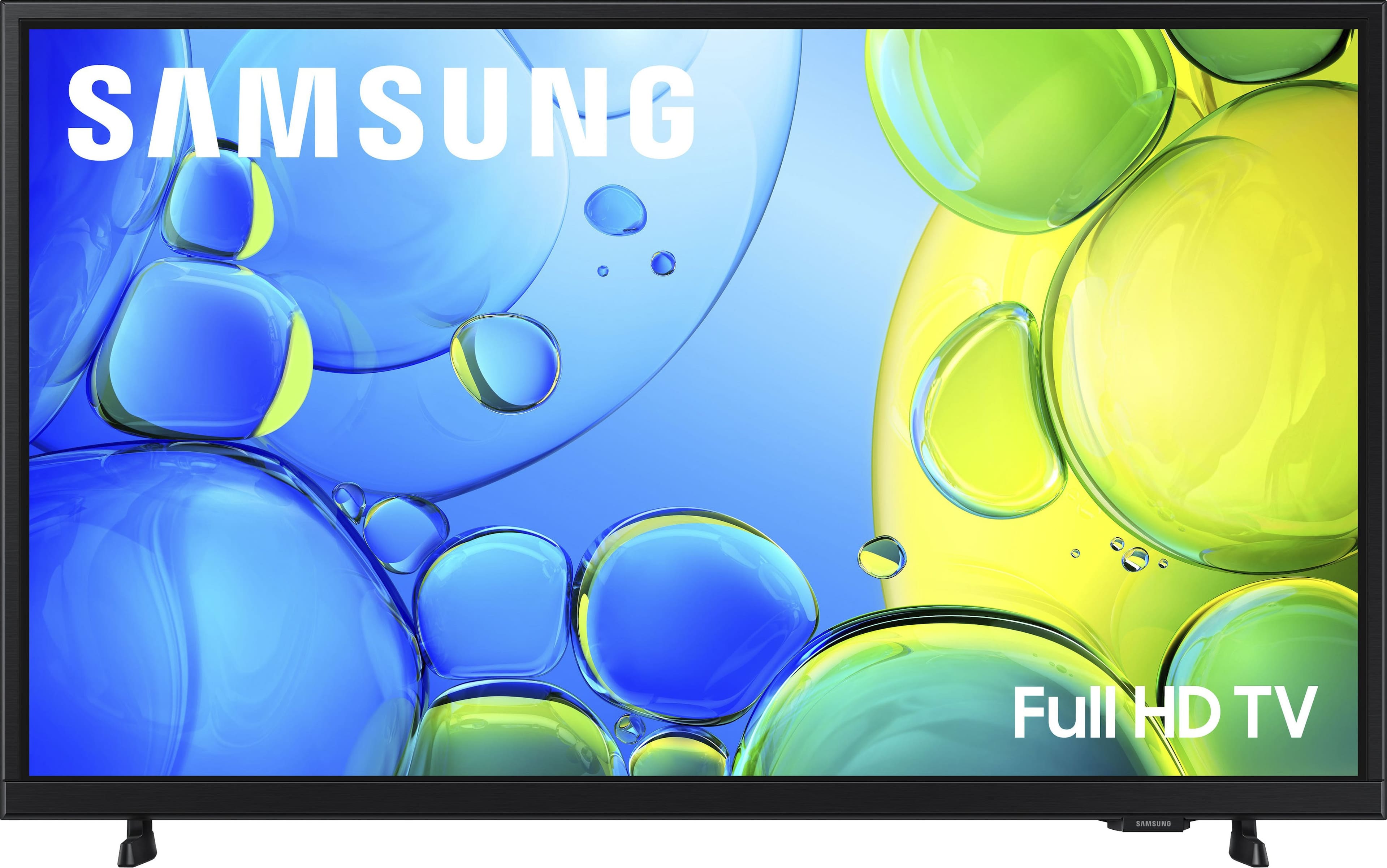
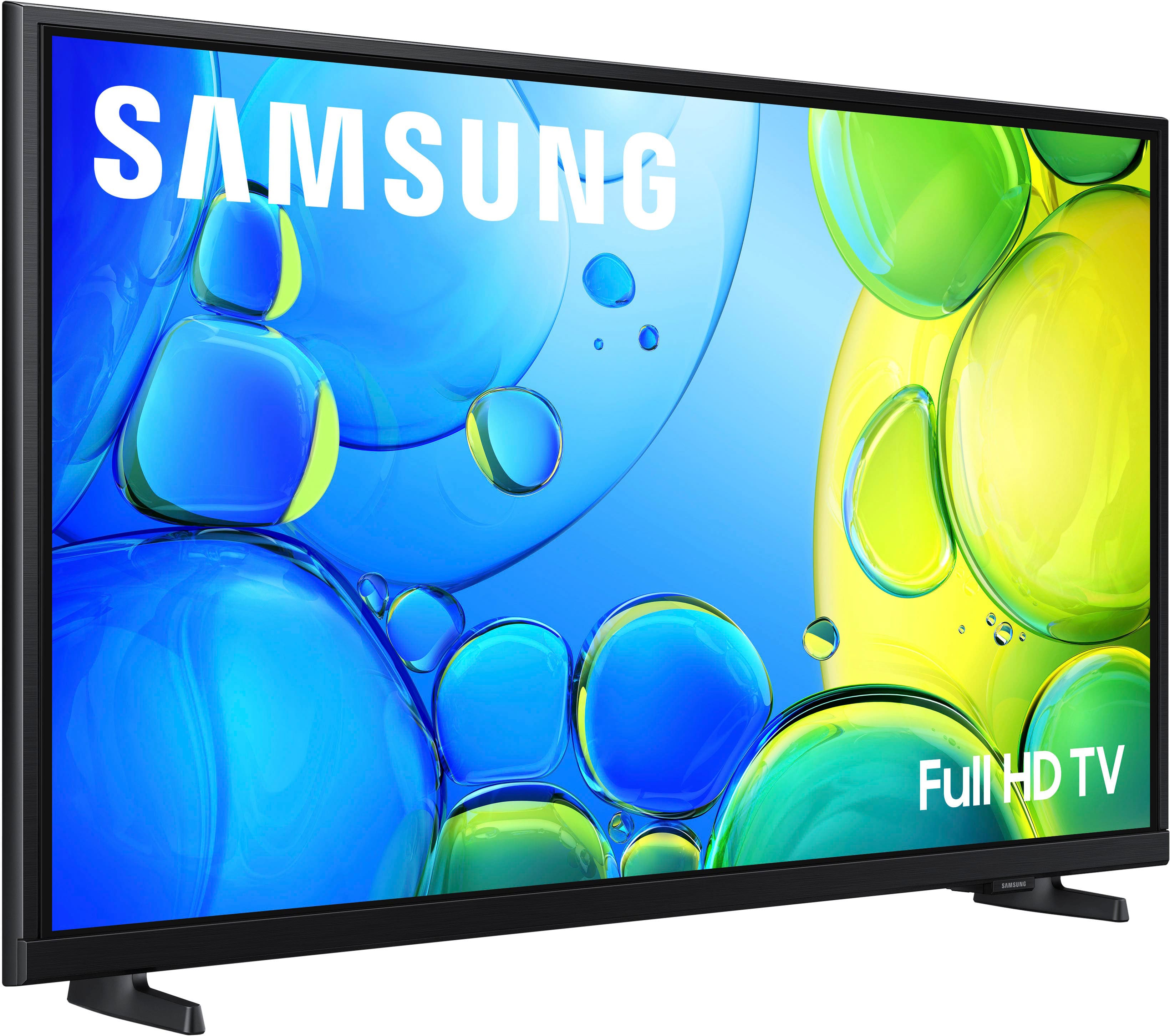
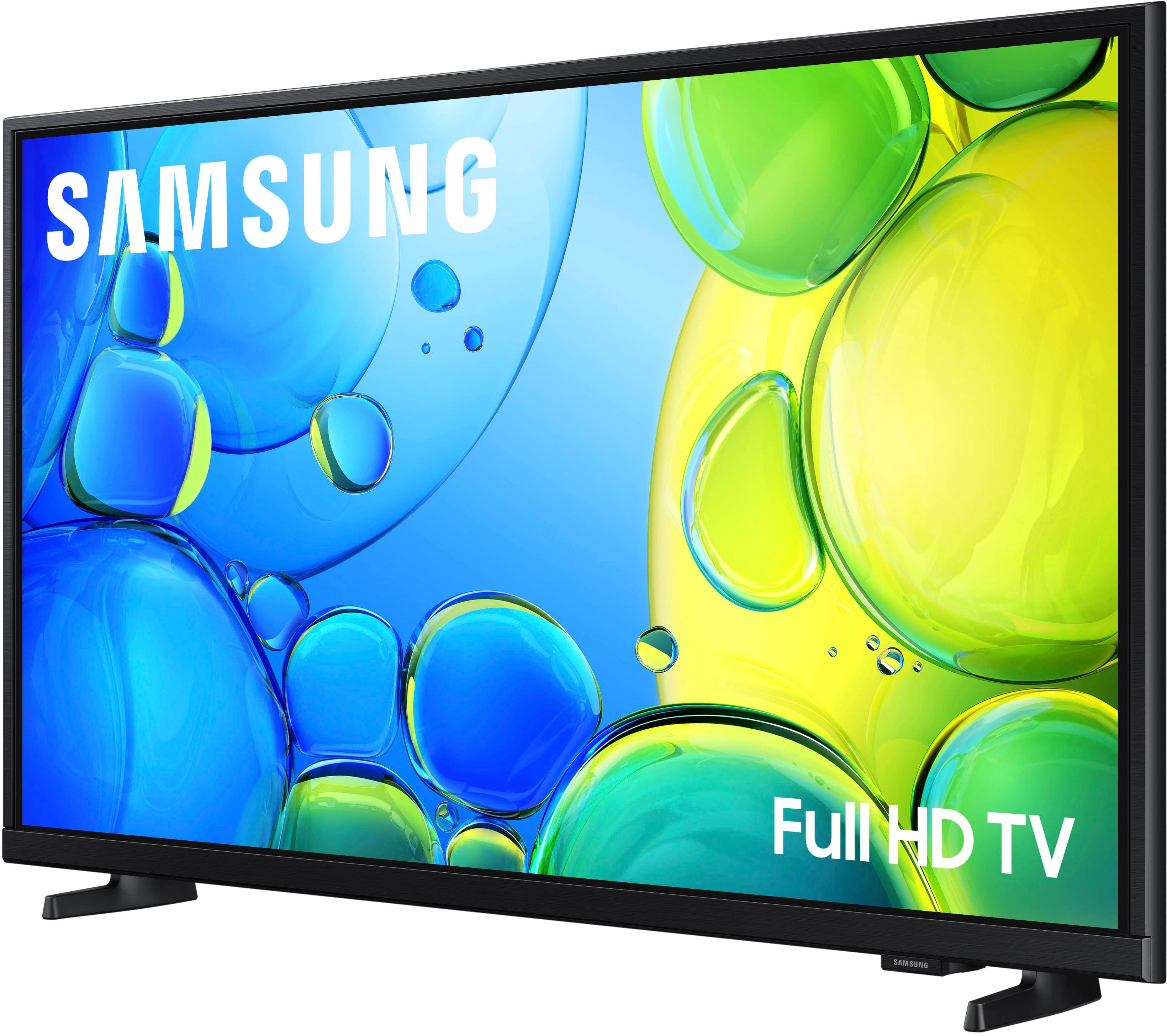
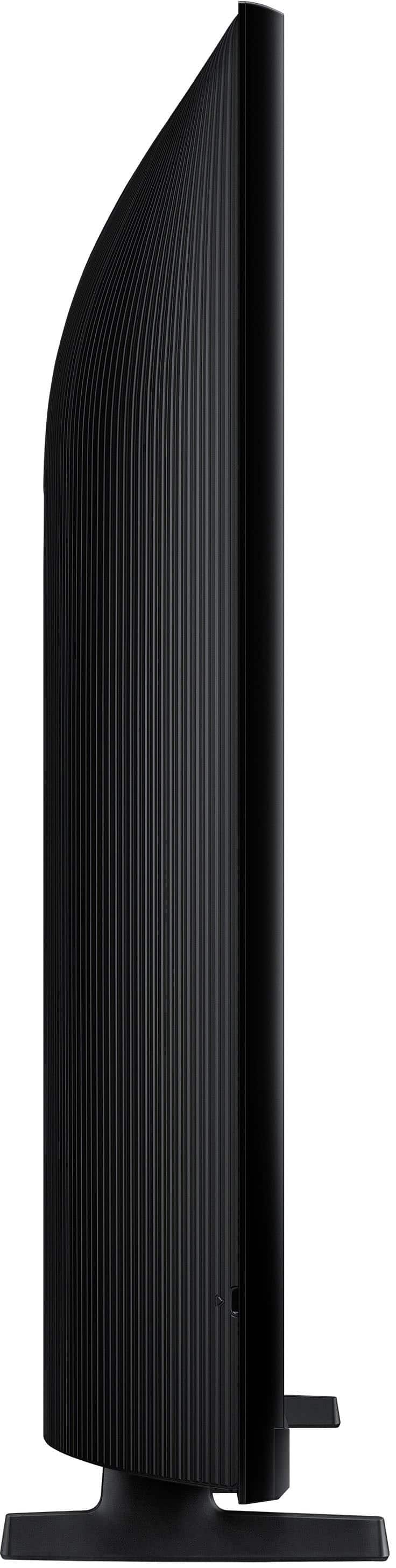


- Model:
- UN32F6000FFXZA
- SKU:
- 12172361
Rating by feature
- Picture Quality
Rating 4.8 out of 5 stars
- Sound Quality
Rating 4.5 out of 5 stars
- Brightness
Rating 4.8 out of 5 stars
Returned this TV
||Posted . Owned for 1 month when reviewed.This reviewer received promo considerations or sweepstakes entry for writing a review.Samsung’s operating system leaves a LOT to be desired. Slow and difficult to navigate. This model can not download and play several apps that are critically important for my application. The manual says to use the voice remote to navigate and search for apps. Too bad this TV is not equipped with a voice remote. I hope Samsung gets it together soon.
No, I would not recommend this to a friendBrand response from Samsung
Posted .Hi MattR,
Thank you for your feedback on the F6000F TV. Please know your opinion is important to us and will be shared with our internal teams.
Should you give Samsung another look in the future, we’d be glad to assist with setup, settings, or features. You can contact us at 1-800-SAMSUNG, 8AM – 12AM EST daily, or LiveChat with a representative at the ‘Support’ link on our website.
~ Samsung Advisor
DISAPOINTED
||Posted . Owned for 3 weeks when reviewed.This reviewer received promo considerations or sweepstakes entry for writing a review.No Voice capability. Very hard to attach the two stands. Screws would not seat properly without the risk of stripping the hole, therefore an unstable tv.
No, I would not recommend this to a friendBrand response from Samsung
Posted .Hi JAB3,
Thank you for your review. When installing the legs, please make sure your TV’s legs are installed correctly - “R” on the right, “L” on the left - with each leg slanting outward toward the edges of the TV.
For detailed instructions, please refer to the Installation Guide included in the box. To remove the stand, simply follow the attachment steps in reverse. You can also download the Installation Guide from our website here:
https://www.samsung.com/us/support/downloads/
If you need additional support, Samsung is here to help. Please call us at 1-800-SAMSUNG, available daily from 8AM - 12AM EST. You can also chat with a LiveChat agent by clicking the ‘Support’ link on our website.
~ Samsung Advisor
Worst TV ever
||Posted .This reviewer received promo considerations or sweepstakes entry for writing a review.Do not buy this TV unless you want to spend literally hours of frustration getting it to work. I've had it about 7 months and have threatened to take it outside and smash it with a hammer numerous times. Bought a Firestick to try to speed it up, which worked for a short time until the Firestick decided to top working. After I'd had it too long to return i did find some research that this TVs operating system was slow. Thats an understatement.
No, I would not recommend this to a friendBrand response from Samsung
Posted .RobinR,
We appreciate your feedback regarding response time. For optimal performance, please ensure your TV is running the latest firmware. You can check this by going to: Home > left directional key > Settings > Support > Software Update
To further optimize performance, try running Device Care, which checks memory, clears unused cached data, and closes background apps: Home > left directional key > Settings > Support > Device Care > Start Device Care
If issues continue, please reach Samsung Support at 1-800-SAMSUNG, available 8AM – 12AM EST, 7 days a week.
LiveChat is also available via the ‘Support’ link on our website.
~ Samsung Specialist
Slow menu
||Posted .This reviewer received promo considerations or sweepstakes entry for writing a review.The menu on this tv is so painfully slow I considered pulling it off the wall after I mounted it and returning this thing to where it belongs.
No, I would not recommend this to a friendBrand response from Samsung
Posted .Hi bby757,
We appreciate your feedback regarding response time. For optimal performance, please ensure your F6000F TV is running the latest firmware. You can check this by going to: Home > left directional key > Settings > Support > Software Update
To further optimize performance, try running Device Care, which checks memory, clears unused cached data, and closes background apps: Home > left directional key > Settings > Support > Device Care > Start Device Care
If issues continue, please reach Samsung Support at 1-800-SAMSUNG, available 8AM – 12AM EST, 7 days a week.
LiveChat is also available via the ‘Support’ link on our website.
~ Samsung Advisor
ZERO STARS!!
||Posted .This reviewer received promo considerations or sweepstakes entry for writing a review.This is the worst TV. I needed one for a smaller space and have always had good luck with Samsung. BUT the picture reminds me of old TVs from the past. I've tried adjusting the settings but no luck. I'm past the point of returning it but it's so awful I'll either give it away or donate it. I have always bought my electronics from Best Buy but the quality has really gone downhill. I will start looking elsewhere for my TVs, laptops, etc.
No, I would not recommend this to a friendBrand response from Samsung
Posted .Hi MonicaM,
We're very sorry to hear that you are not satisfied with your TV. We would love to be able to assist you with any adjustments or troubleshooting. Call 1-800-SAMSUNG from 8AM - 12AM EST, seven days a week, or connect with a LiveChat agent anytime by selecting ‘Support’ on our website.
~Samsung Advisor
Damaged
||Posted . Owned for 3 weeks when reviewed.This reviewer received promo considerations or sweepstakes entry for writing a review.Picked up at the store installed the next day and the screen was damaged. Returned the following day. Staff was very helpful and polite.
No, I would not recommend this to a friendBrand response from Samsung
Posted .Hi Krkoch,
We're sorry to hear you received a damaged TV and appreciate your patience in having to go through the hassle of an exchange. If there’s anything we can ever help with, please call us at 1-800-SAMSUNG, 8 AM - 12 AM EST, seven days a week. Or visit us on the Samsung website and click on the ‘Support’ link for:
1) LiveChat
2) Manuals, Software, & Warranty Info
~ Samsung Advisor
Customer Service Going Downhill!
||Posted .This reviewer received promo considerations or sweepstakes entry for writing a review.The remote that came with the TV has a "TTX/MIX" key in place of the hyphen key. This is useless for direct tuning OTA digital signals such as 2-1, 32-3 etc. Contacted BBY Customer Service almost 3 weeks ago. I was hoping they could exchange the remote, but have not heard back from them. Very disappointed with their service, and will keep it in mind when shopping in the future...
No, I would not recommend this to a friendBrand response from Samsung
Posted .Hi BBYuzr,
Thank you for sharing your experience. Samsung remotes are designed to offer convenient control, but we understand if you’d prefer to use a universal remote. Many third-party remotes work well with Samsung TVs, though setup steps may vary by brand and model.
To get started, we recommend checking the manufacturer’s instructions for programming codes and pairing methods. If you run into any trouble or have compatibility questions, Samsung Support is happy to help. You can reach us at 1-800-SAMSUNG, 8AM – 12AM EST, 7 days a week. LiveChat agents are also available at the ‘Support’ link on our website.
~ Samsung Advisor
- Cons mentioned:Smart functionality
Smart TV
||Posted . Owned for 2 weeks when reviewed.This reviewer received promo considerations or sweepstakes entry for writing a review.Not smart enough to show on-screen closed captions when playing a DVD.
No, I would not recommend this to a friendBrand response from Samsung
Posted .Hi CharlesDrake,
You can turn your F6000F TV’s Closed Captions on/off and change the settings, such as separating it from the broadcast screen, font color, background color, size, position, language, etc., by going to: Settings > All Settings > General & Privacy > Accessibility > Caption Settings.
If we can help with anything else, please call us at 1-800-SAMSUNG, 8AM - 12AM EST, 7 days a week. LiveChat with an agent as well as manuals, software, and warranty info can be found at the ‘Support’ link on our Samsung website.
~ Samsung Advisor
Samsung TV
||Posted . Owned for 1 month when reviewed.This reviewer received promo considerations or sweepstakes entry for writing a review.It is slow to turn on and receive a picture. Not happy with this TV.
No, I would not recommend this to a friendBrand response from Samsung
Posted .JenniferM,
We appreciate your feedback regarding response time. For optimal performance, please ensure your TV is running the latest firmware. You can check this by going to: Home > left directional key > Settings > Support > Software Update
To further optimize performance, try running Device Care, which checks memory, clears unused cached data, and closes background apps: Home > left directional key > Settings > Support > Device Care > Start Device Care
If issues continue, please reach Samsung Support at 1-800-SAMSUNG, available 8AM – 12AM EST, 7 days a week.
LiveChat is also available via the ‘Support’ link on our website.
~ Samsung Specialist
Spend a bit more. This TV is not worth the price
||Posted . Owned for 2 weeks when reviewed.This reviewer received promo considerations or sweepstakes entry for writing a review.The sound quality is poor even after adjusting equalizer, etc. Additionally the response rate when selecting apps is extremely slow taking at times four to five seconds or more for the app to open..
No, I would not recommend this to a friendBrand response from Samsung
Posted .Hi Best,
Thank you for your review. If the volume on your Samsung F6000F TV seems too low, we recommend checking for firmware updates: Settings > Support > Software Update > Update Now.
If volume levels still seem too low, you can improve sound performance by adjusting a few key settings:
Sound Mode: Navigate to: Settings > All Settings > Sound > Sound Mode
Auto Volume: This feature helps maintain consistent volume levels across content and input sources. Turn it on under: Settings > All Settings > Sound > Expert Settings > Auto Volume = On
You can also explore Expert Settings to fine-tune sound output with adjustments for Balance, Equalizer, and more.
If you’re considering enhancing your setup, Samsung’s Q- and S-Series Soundbars feature Q-Symphony, which syncs your TV and soundbar speakers for a fuller, more immersive sound experience.
For personalized support with these settings or selecting a soundbar to complement your setup, contact Samsung Support at 1-800-SAMSUNG (8AM – 12AM EST, 7 days a week) or use LiveChat via the ‘Support’ link on our website.
~ Samsung Advisor
- Cons mentioned:App performance
Glitch
||Posted . Owned for 2 weeks when reviewed.This reviewer received promo considerations or sweepstakes entry for writing a review.Tv is glitchy. Apps don't work and the video will glitch.
No, I would not recommend this to a friendBrand response from Samsung
Posted .Hi Bradley,
We appreciate your feedback. For optimal performance, please ensure your F6000F TV is running the latest firmware. You can check this by going to: Home > left directional key > Settings > Support > Software Update
To further optimize performance, try running Device Care, which checks memory, clears unused cached data, and closes background apps: Home > left directional key > Settings > Support > Device Care > Start Device Care
If issues continue, please reach Samsung Support at 1-800-SAMSUNG, available 8AM – 12AM EST, 7 days a week.
LiveChat is also available via the ‘Support’ link on our website.
~Samsung Advisor
It works but could be better.
||Posted .This reviewer received promo considerations or sweepstakes entry for writing a review.It works but has a very slow UI integration. Take forever sometimes to load up YouTube etc. Other than the slow UI, everything else work as intended.
No, I would not recommend this to a friendBrand response from Samsung
Posted .Hi Chan,
We appreciate your feedback regarding response time. For optimal performance, please ensure your F6000F TV is running the latest firmware. You can check this by going to: Home > left directional key > Settings > Support > Software Update
To further optimize performance, try running Device Care, which checks memory, clears unused cached data, and closes background apps: Home > left directional key > Settings > Support > Device Care > Start Device Care
If issues continue, please reach Samsung Support at 1-800-SAMSUNG, available 8AM – 12AM EST, 7 days a week. LiveChat is also available via the ‘Support’ link on our website.
~ Samsung Advisor
Samsung 32" TV
||Posted . Owned for 2 weeks when reviewed.This reviewer received promo considerations or sweepstakes entry for writing a review.Remote bad, tv reverts to homepage when watching!!
No, I would not recommend this to a friendBrand response from Samsung
Posted .Hi FrankM,
Thank you your sharing your experience. Please give us a call so we can better assist you. Call us at 1-800-SAMSUNG, available from 8AM - 12AM EST, seven days a week. You can also connect with a LiveChat agent by clicking the ‘Support’ link on our website.
~ Samsung Advisor
- Cons mentioned:Responsiveness
Samsung 32 inch TV
||Posted . Owned for less than 1 week when reviewed.This reviewer received promo considerations or sweepstakes entry for writing a review.I love Samsung televisions I have two in my house, a 65 inch and a 55 inch so I bought a 32 inch for my wife’s bedroom or our bedroom and the stupid thing is a piece of junk to control. Doesn’t wanna work on it right it just jumps all over the place. I wished I had never bought it.
No, I would not recommend this to a friendBrand response from Samsung
Posted .Hi Charlies,
I'm very sorry you are experiencing issues with your new TV. So we can better understand the issues you are experiencing, please reach out to us at 1-800-SAMSUNG, 8AM - 12AM EST, 7 days a week. Or visit us on the Samsung website and click on the ‘Support’ link for:
• LiveChat
• Manuals, Software, & Warranty Info
~Samsung Advisor
Best Buy should have explained it to me.
||Posted . Owned for 2 weeks when reviewed.This reviewer received promo considerations or sweepstakes entry for writing a review.Optimum no longer supports smart tv’s. You need to use the tv remote and your optimum remote to now operate your tv. Optimum no longer has an app on any of the new smart tv’s. I bought a Samsung TV and was told by Optimum that any problems with the tv I had to get in touch with Samsung. After several hours trying to get intouch with Samsung they told me that it was an Optimum problem. I just got so disgusted I returned the new TV the next day. I will not deal with all this problem with a new TV.
No, I would not recommend this to a friendBrand response from Samsung
Posted .Hi JohnM,
We're very sorry to hear about your experience. Should you ever decide to give Samsung TVs another try and have questions or need help with settings, setup, or features, please know we’re here to help. Call us at 1-800-SAMSUNG, 8AM - 12AM EST, 7 days a week.
LiveChat with an agent as well as manuals, software, and warranty info can be found at the ‘Support’ link on our Samsung website.
We hope to regain you as a customer in the future.
~ Samsung Advisor
No help if needed
||Posted .This reviewer received promo considerations or sweepstakes entry for writing a review.I bought this because of the help Samsung provided with my previous 32" over 10 years. Several times this one has no sound and when I contacted Samsung for help I got none. Totally different from my previous experience.
No, I would not recommend this to a friendBrand response from Samsung
Posted .Hi Topeka,
Thank you for your review and for sharing your experience with audio interruptions on your F6000F TV. If you're experiencing sound dropouts, the steps below are designed to help you troubleshoot across different connection types.
HDMI ARC / eARC Connection
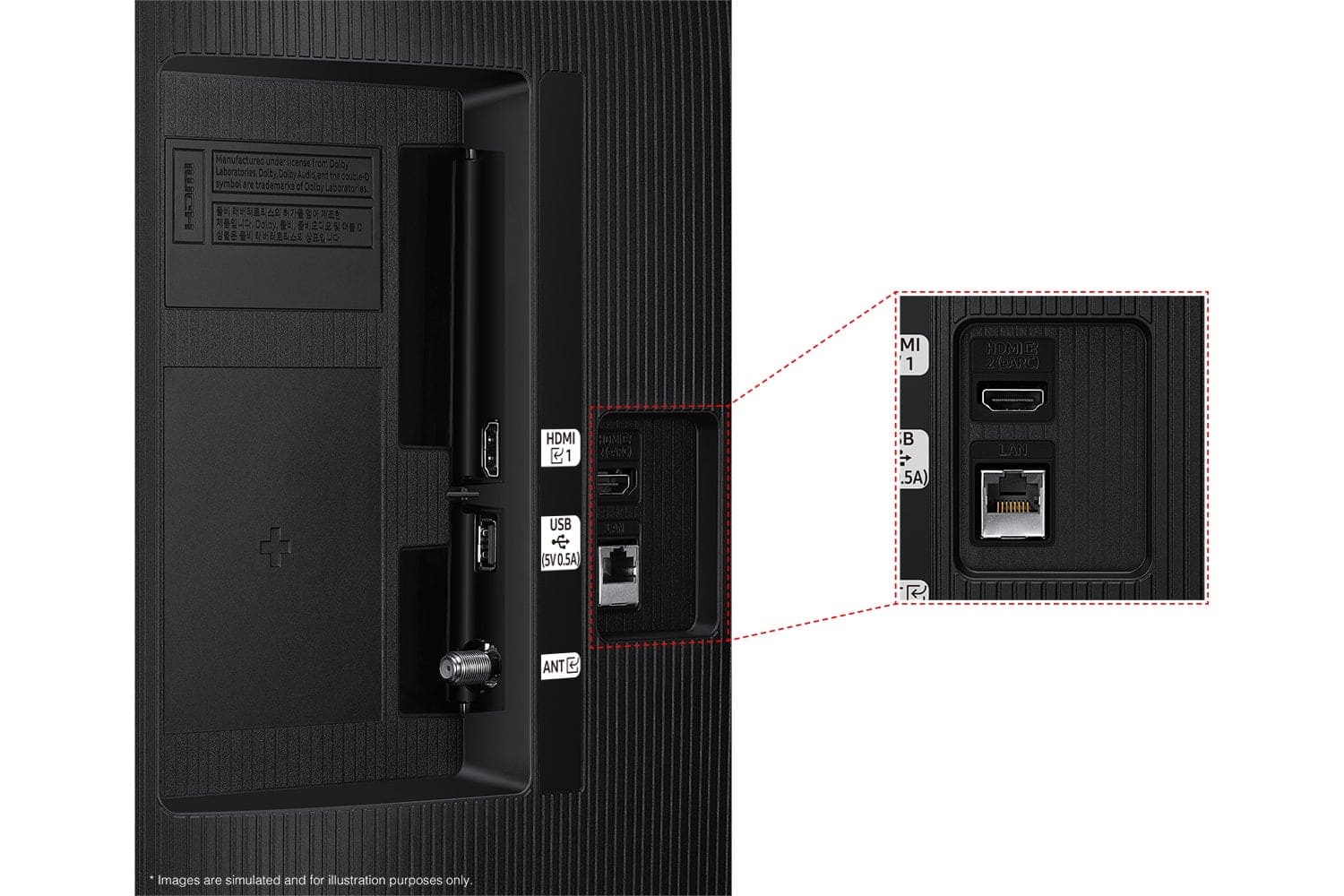
1. Use a certified High-Speed HDMI cable with Ethernet and ensure it's firmly connected to the HDMI eARC ports on both the TV and soundbar/receiver.
2. Enable ARC/eARC settings on your TV:
o Settings > All Settings > Sound > Expert Settings > HDMI eARC Mode = Auto
o Settings > All Settings > General & Privacy > External Device Manager > Anynet+ (HDMI-CEC) = On
3. Adjust Digital Output Audio Format:
o Settings > All Settings > Sound > Expert Settings > Digital Output Audio Format
o Set this to Auto unless you're using a device that specifically requires Pass-Through.
4. Cold boot your TV by holding the power button on your remote for 5+ seconds.
Bluetooth Connection
1. Bluetooth connections can be sensitive to distance and interference. Keep the Bluetooth device close to the TV, and remove nearby sources of interference (e.g., wireless routers or other Bluetooth devices).
2. For improved stability, use a 5GHz Wi-Fi network if available.
3. If issues persist, we recommend switching to a wired connection (HDMI ARC or Optical) for a more reliable audio experience.
Wi-Fi / Wireless Speaker Connections
1. Make sure both your TV and audio device are on the same network band (5GHz is ideal for stability).
2. If you're using Samsung’s Wireless Audio features (e.g., Wi-Fi Speaker Surround Setup), ensure your speaker system is properly added in: Settings > All Settings > Sound > Sound Output > Wi-Fi Speaker Surround Setup
3. If signal issues continue, disconnect and reconnect the speaker from the network and re-add it to the TV.
Also Try:
• Update your TV's firmware: Settings > Support > Software Update > Update Now
• Run a Sound Test to verify internal sound functions: Settings > Support > Device Care > Self Diagnosis > Sound Test
If you’ve tried the steps above and are still experiencing issues, we’re here to help. You can call Samsung Support at 1-800-SAMSUNG, 8AM – 12AM EST, 7 days a week. Our LiveChat agents are also available by clicking the ‘Support’ link at Samsung.com.
~ Samsung Advisor
3rd times the charm
||Posted . Owned for 1 week when reviewed.This reviewer received promo considerations or sweepstakes entry for writing a review.well the first one would not connect to internet. The second one the power light in bottom right corner kept flashing even if plugged into different outlets. Theb third one seems to be just right
I would recommend this to a friendBrand response from Samsung
Posted .Hi JaneS,
Thank you for your continued patience and for choosing Samsung. If there is ever anything we can do to help you, please reach out to us at 1-800-SAMSUNG, available daily from 8AM - 12AM EST. You can also visit the Samsung website and click on ‘Support’ for:
• Live Chat
• Manuals, Software, & Warranty Info
~ Samsung Advisor
Samsung TV
||Posted .This reviewer received promo considerations or sweepstakes entry for writing a review.The picture was not as clear as I thought it would be. It was a bit grainy, and the sound was not good either, it was too low, and I had to turn it up to almost the top of the volume to be able to hear it well. The color was OK.
No, I would not recommend this to a friendBrand response from Samsung
Posted .Hi TriciaM,
Thank you for your feedback on the Samsung F6000F TV. If the picture appears unclear, dull, or lacks definition, there are several settings you can adjust to improve clarity and overall image quality. Go to: Settings > All Settings > Picture > Expert Settings, and review these key settings:
Picture Clarity Settings: While originally intended for motion handling, these can also impact overall clarity
• Off: Disables motion enhancements
• Auto: Automatically adjusts based on content
• Custom: Lets you fine-tune:
o Judder Reduction – Helps smooth out uneven motion
o LED Clear Motion – Boosts sharpness in fast-moving content
o Noise Reduction – Reduces distortion and enhances detail in lower-resolution sources
Core Picture Settings
• Brightness – Controls overall screen brightness
• Contrast – Enhances the difference between bright and dark areas
• Sharpness – Adjusts edge definition; closer to 20 increases detail
• Color – Enhances depth and intensity of colors
And don’t forget to check for the latest firmware, which may improve performance: Settings > Support > Software Update > Update Now.
If volume levels seem too low, you can improve sound performance by adjusting a few key settings:
Sound Mode: Navigate to: Settings > All Settings > Sound > Sound Mode
Auto Volume: This feature helps maintain consistent volume levels across content and input sources. Turn it on under: Settings > All Settings > Sound > Expert Settings > Auto Volume = On
You can also explore Expert Settings to fine-tune sound output with adjustments for Balance, Equalizer, and more.
For personalized support with these settings or selecting a soundbar to complement your setup, contact Samsung Support at 1-800-SAMSUNG (8AM – 12AM EST, 7 days a week) or use LiveChat via the ‘Support’ link on our website.
~Samsung Advisor
Terrible 32” TV
||Posted . Owned for 1 month when reviewed.This reviewer received promo considerations or sweepstakes entry for writing a review.Sound would not come on when you turned it on. Took it back to get another on, Canmore, and had problems with sound on it. Terrible 32” TV
No, I would not recommend this to a friendBrand response from Samsung
Posted .Hi DaleS,
Thank you for sharing your experience with your F6000F TV. If you're not hearing sound or if the sound cuts out and you're using only the TV’s built-in speakers (no soundbar or external device), try the following steps:
1. Check volume and mute settings, and make sure the Sound Output is set to TV Speaker: Settings > All Settings > Sound > Sound Output > TV Speaker
2. Run a Sound Test to help diagnose the issue: Settings > Support > Device Care > Self Diagnosis > Sound Test
3. Cold boot your TV by holding the power button on the remote until the TV turns off and back on (Or unplug the TV from power for 30 seconds, then plug it back in)
4. Reset sound settings to default: Settings > All Settings > Sound > Expert Settings > Reset Sound
5. Update your TV’s software in case a firmware issue is affecting audio: Settings > Support > Software Update > Update Now
If none of these steps restore your sound, please contact us for further assistance. You can reach Samsung Support at 1-800-SAMSUNG, 8AM – 12AM EST, 7 days a week. LiveChat is also available via the ‘Support’ link on our website.
~ Samsung Advisor
Samsung tv
||Posted .This reviewer received promo considerations or sweepstakes entry for writing a review.It’s ok , not the best in the world. Seems to load super slow and lose connection.
No, I would not recommend this to a friendBrand response from Samsung
Posted .Hi BrandyG,
We appreciate your feedback regarding response time. For optimal performance, please ensure your F6000F TV is running the latest firmware. You can check this by going to: Home > left directional key > Settings > Support > Software Update
To further optimize performance, try running Device Care, which checks memory, clears unused cached data, and closes background apps: Home > left directional key > Settings > Support > Device Care > Start Device Care
If issues continue, please reach Samsung Support at 1-800-SAMSUNG, available 8AM – 12AM EST, 7 days a week.
LiveChat is also available via the ‘Support’ link on our website.
~ Samsung Advisor