Customer Ratings & Reviews
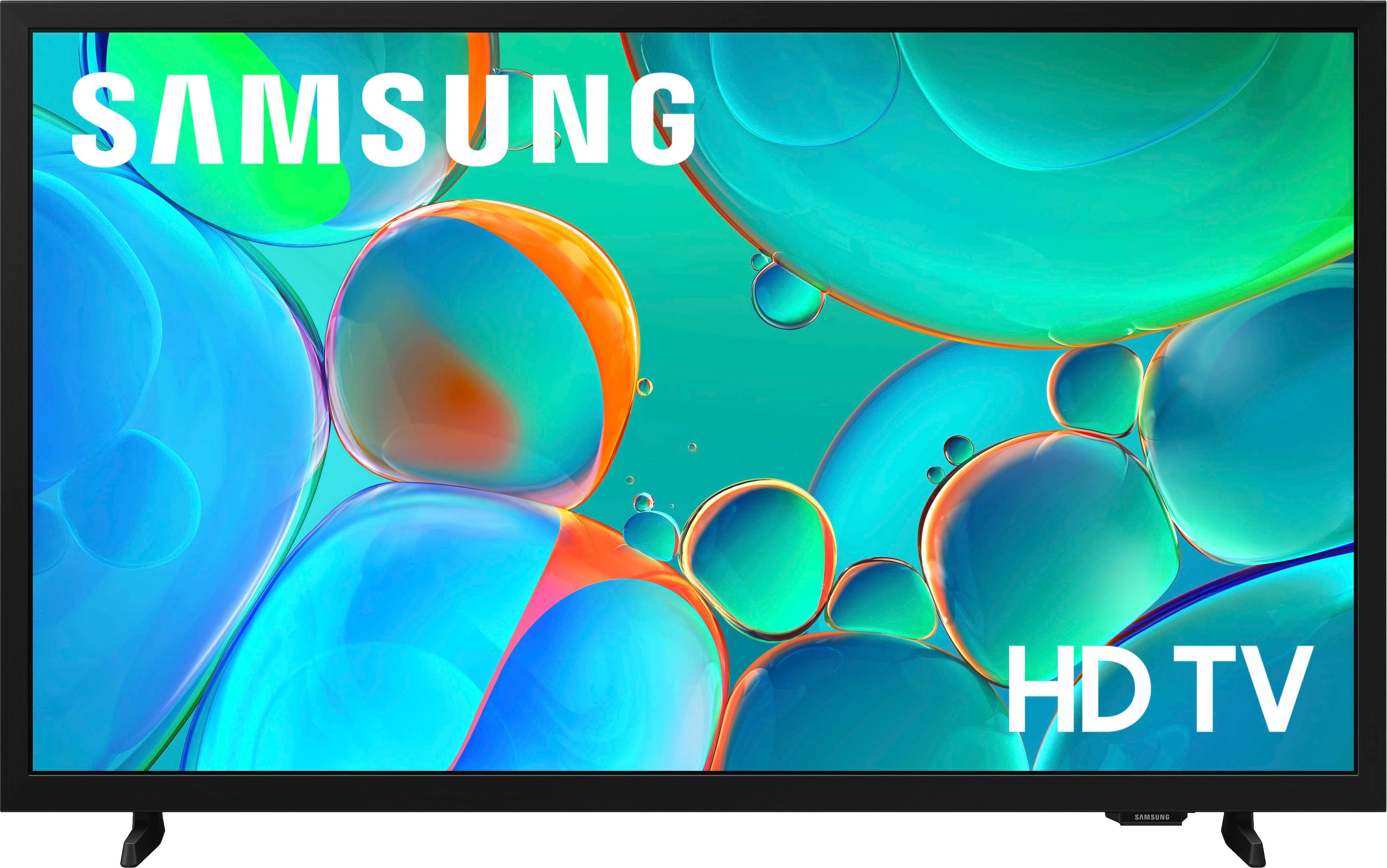
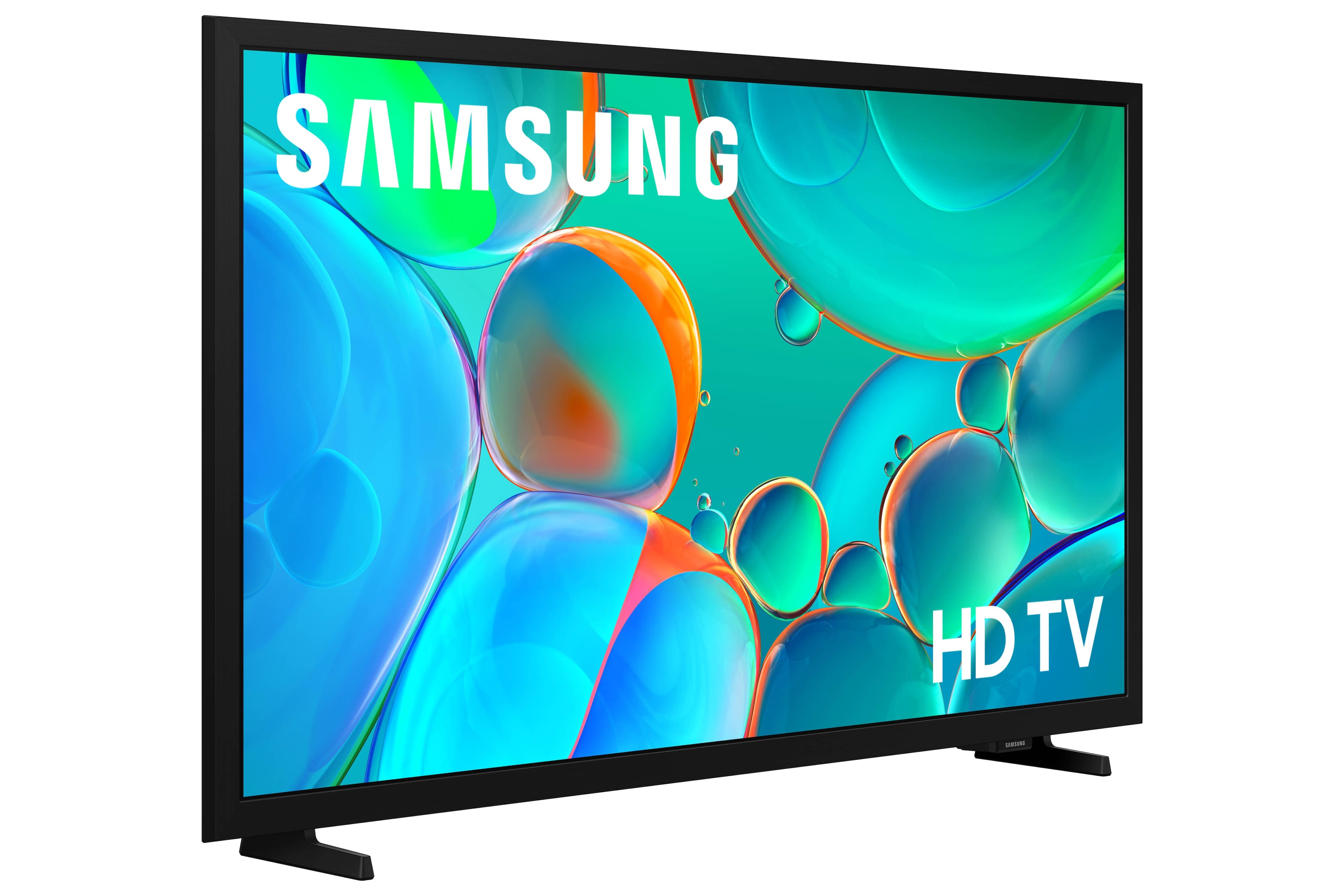
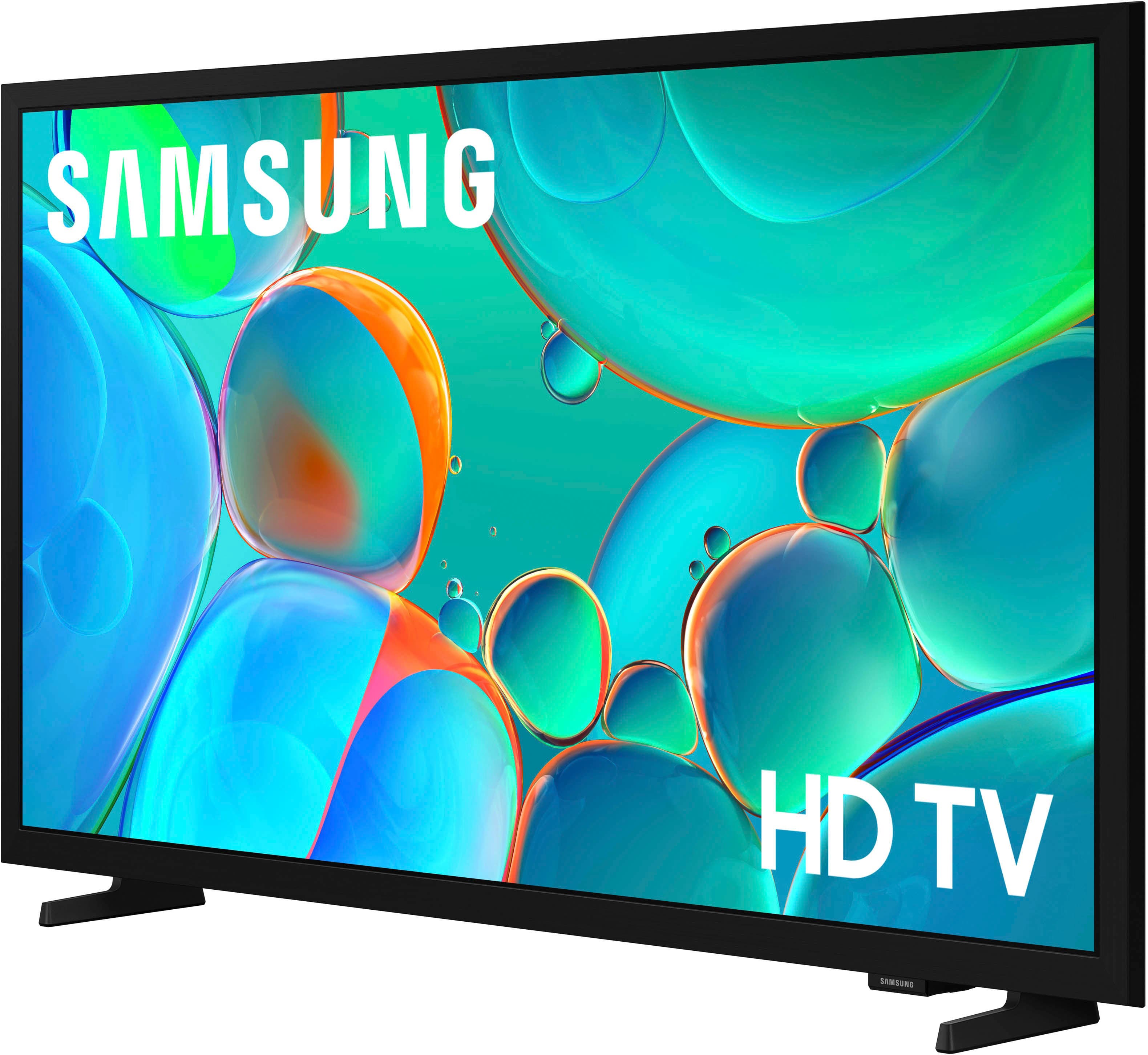
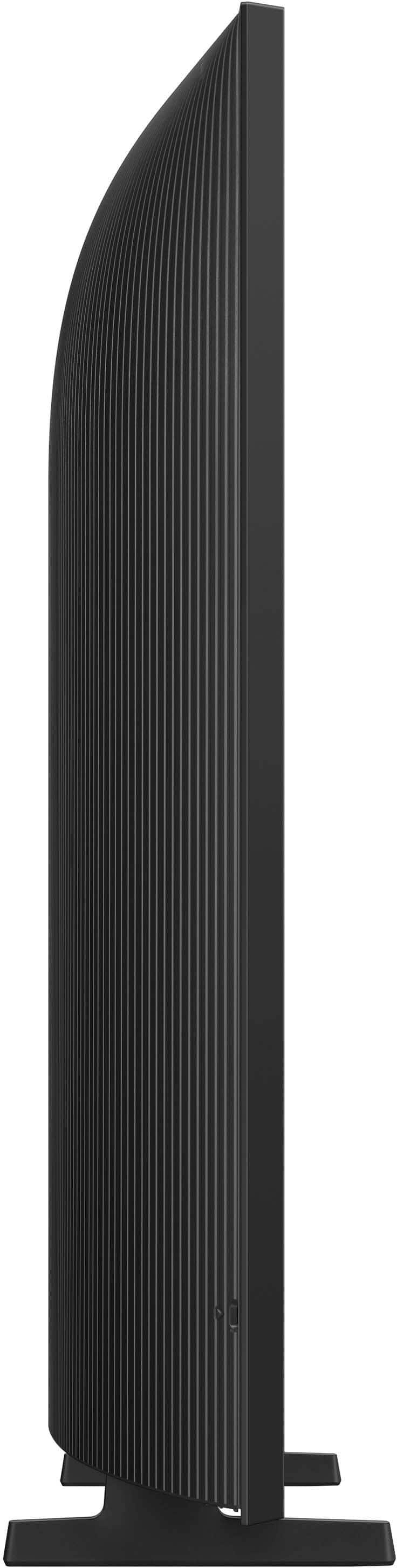
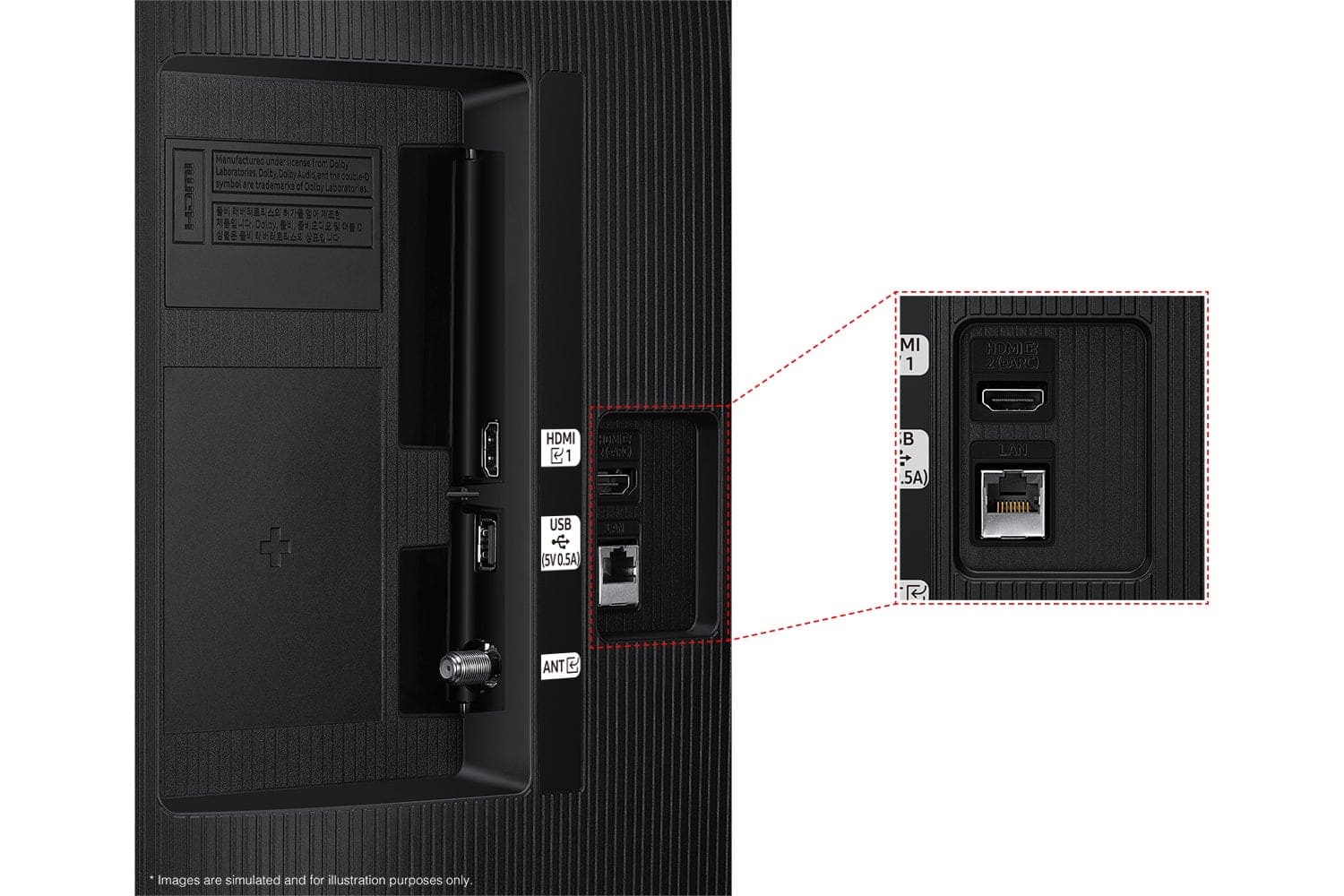


- Model:
- UN32H5000FFXZA
- SKU:
- 11232026
Rating by feature
- Picture Quality
Rating 4.8 out of 5 stars
- Sound Quality
Rating 4.6 out of 5 stars
- Brightness
Rating 4.7 out of 5 stars
Samsung
||Posted . Owned for 2 weeks when reviewed.This reviewer received promo considerations or sweepstakes entry for writing a review.To hard to set up remote hard to use setting for spectrum
No, I would not recommend this to a friendBrand response from Samsung
Posted .Hi Bruce,
Thank you for sharing your experience. Samsung remotes are designed to offer convenient control, but we understand if you’d prefer to use a universal remote. Many third-party remotes work well with Samsung TVs, though setup steps may vary by brand and model.
To get started, we recommend checking the manufacturer’s instructions for programming codes and pairing methods. If you run into any trouble or have compatibility questions, Samsung Support is happy to help. You can reach us at 1-800-SAMSUNG, 8AM – 12AM EST, 7 days a week. LiveChat agents are also available at the ‘Support’ link on our website.
~ Samsung Advisor
tv junk
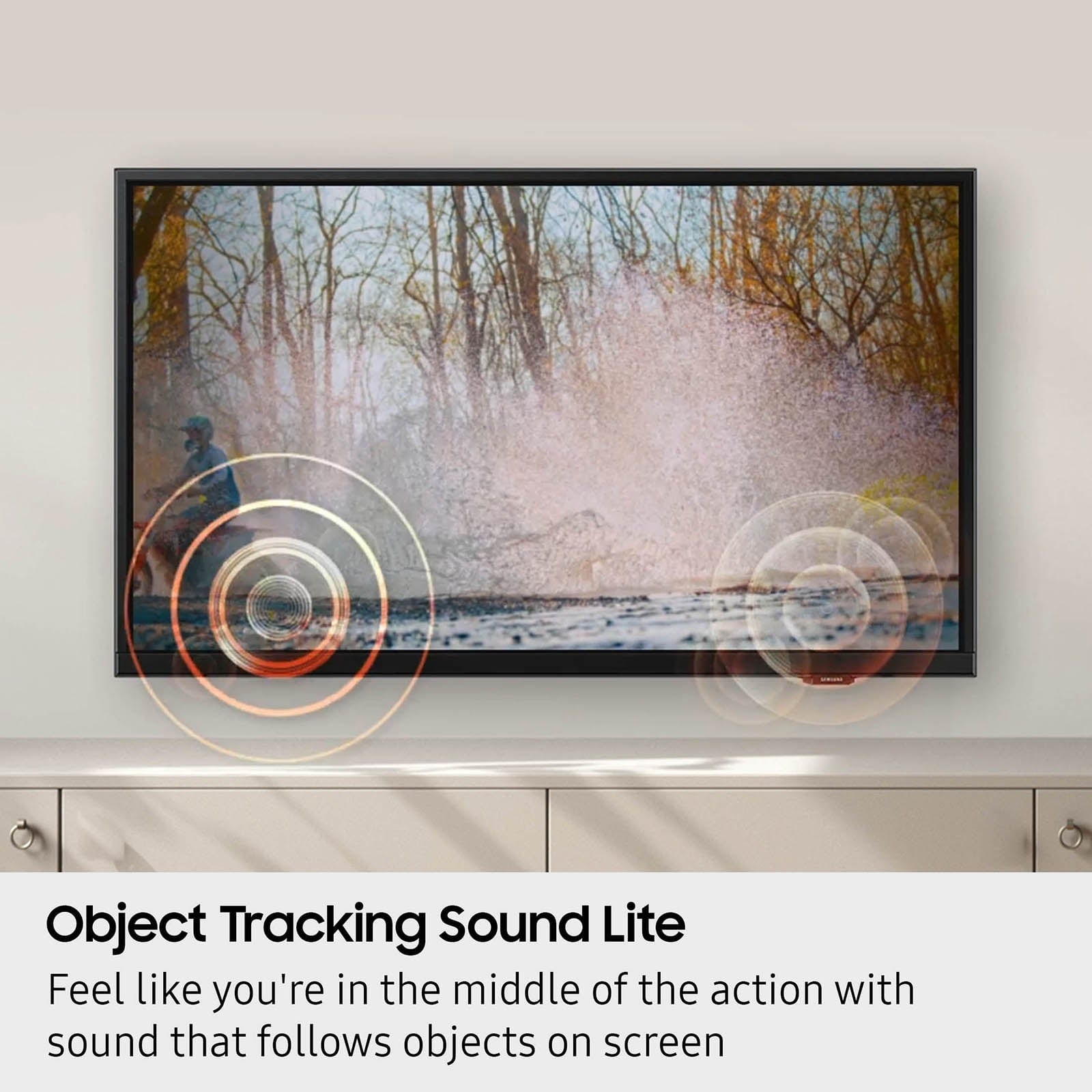
||Posted . Owned for 3 weeks when reviewed.This reviewer received promo considerations or sweepstakes entry for writing a review.worked one week and now has no sound! what junk! would not buy another Samsung!
No, I would not recommend this to a friendBrand response from Samsung
Posted .Hi JohnH,
Thank you for your review. If you're not hearing sound from your H5000F TV, please try the following:
• Check your volume and mute settings, and confirm external speakers are powered on.
• If using HDMI ARC/eARC, make sure you’re using a certified HDMI cable and go to: Settings > All Settings > Sound > Expert Settings > HDMI eARC Mode = Auto. Also enable Anynet+ (HDMI-CEC) under External Device Manager.
• For Bluetooth, try unpairing and reconnecting: Settings > Sound > Sound Output > Bluetooth Speaker List
• For Wi-Fi speakers, use: Sound Output > Wi-Fi Speaker Surround Setup and make sure both devices are on the same network.
You can also try running a Sound Test: Settings > Support > Device Care > Self Diagnosis > Sound Test
If your issue continues, we’re happy to help at 1-800-SAMSUNG, 8AM – 12AM EST, 7 days a week. Our LiveChat agents are also available by clicking the ‘Support’ link at Samsung.com.
~ Samsung Advisor
Difficult
||Posted . Owned for 2 weeks when reviewed.This reviewer received promo considerations or sweepstakes entry for writing a review.Not user friendly. Hard to even change Channel. Long pauses to do anything.
No, I would not recommend this to a friendBrand response from Samsung
Posted .Hi STEELES,
We appreciate you sharing your user experience. To help you get the most from your TV, you can download the full e-Manual and more by visiting Samsung’s website then navigating to: Support > Manual & Software > TVs & Home Theater. From there, you can search for and select your xxx TV model to view or download the available guides.
The e-Manual and Remote Control Guide are also conveniently built into your TV: Settings > Support > Tips and User Guides
If you need additional help, please contact Samsung Support at 1-800-SAMSUNG, 8AM – 12AM EST, 7 days a week. LiveChat agents are also available through the ‘Support’ link on our website.
~ Samsung Advisor
“The poor choice “
||Posted . Owned for 1 week when reviewed.This reviewer received promo considerations or sweepstakes entry for writing a review.The stand is too small, bumping into the cabinet makes the TV tip over. The sound is poor.
No, I would not recommend this to a friendBrand response from Samsung
Posted .Hi MicrowaveDiva,
Thank you for sharing your concerns. Please know that the TV stand was solidly designed and extensively tested for stability. If your stand seems wobbly or looks crooked, please ensure the legs are installed correctly: “R” on the right, “L” on the left. The legs should slant outward toward the edges of the TV, and you should hear a “click” once they’re fully inserted. Also, make sure the TV is placed on a flat, level surface to avoid tilt or instability.
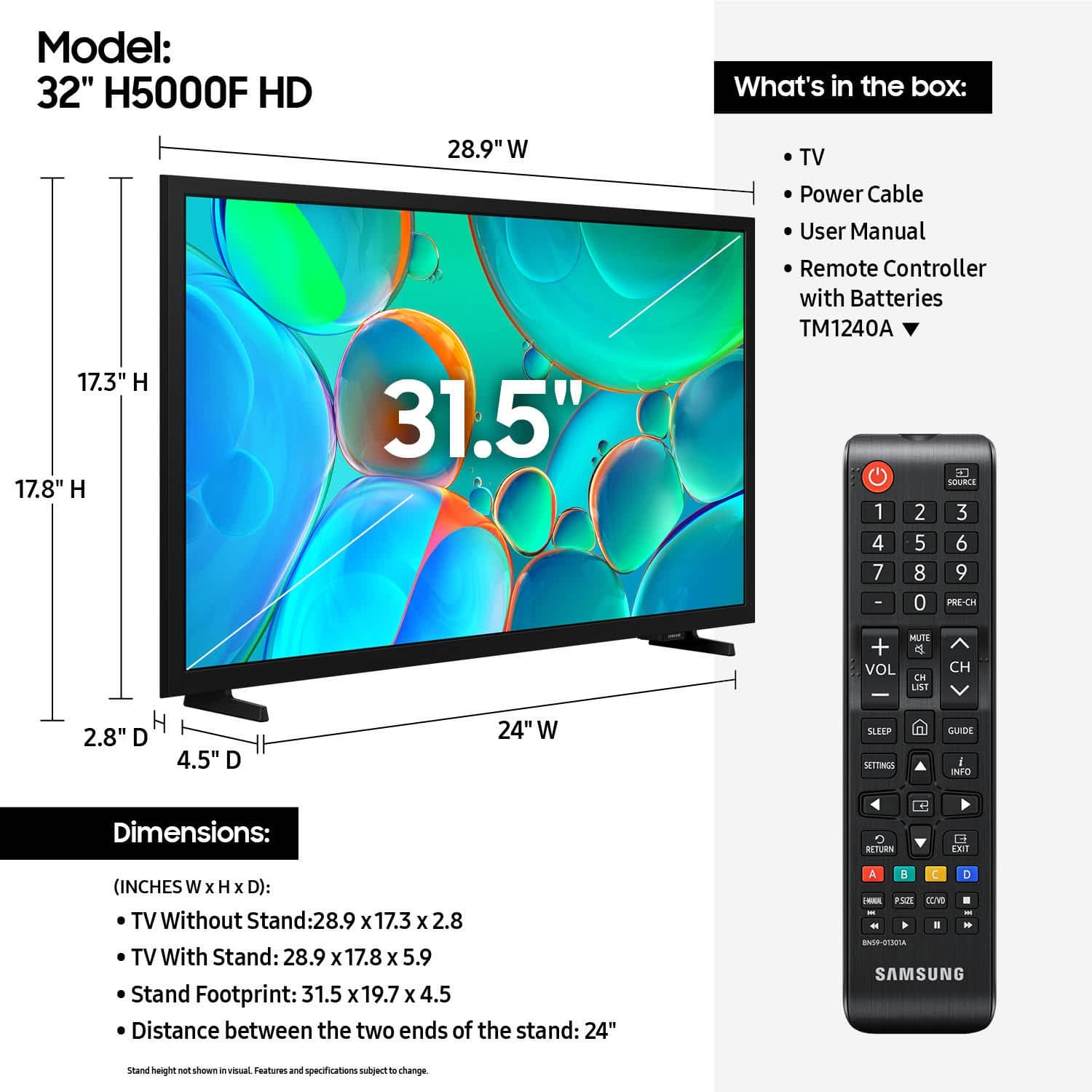
For step-by-step setup, refer to the Installation Guide included in the box, or download it at: https://www.samsung.com/us/support/downloads/
If you need more help, please reach out to Samsung Support at 1-800-SAMSUNG, available daily from 8AM - 12AM EST. You can also visit the Samsung website and click on ‘Support’ for:
• Live Chat
• Manuals, Software, & Warranty Info
~ Samsung Advisor
Jimbo
||Posted .This reviewer received promo considerations or sweepstakes entry for writing a review.This 32" Samsung TV really worked out well for us & a excellent price.
I would recommend this to a friendBrand response from Samsung
Posted .Hi user307374,
Thanks for reviewing Samsung’s H5000F TV. If you’re experiencing specific issues that prevented this TV from receiving a higher star rating, please know Samsung Customer Support is here to help. Reach out by calling 1-800-SAMSUNG between 8AM - 12AM EST, any day of the week. You can also chat with us online by visiting the ‘Support’ section of our website.
~ Samsung Advisor
- Pros mentioned:Picture quality
Nice TV
Posted .This reviewer received promo considerations or sweepstakes entry for writing a review.Nice bargain TV for our kitchen. We enjoy viewing content on this television.
I would recommend this to a friend Samsung tv
Posted .This reviewer received promo considerations or sweepstakes entry for writing a review.I like shopping at Best Buy because of the service.
I would recommend this to a friendPerfect small TV
Posted .This reviewer received promo considerations or sweepstakes entry for writing a review.Perfect small TV with clear screen to use for a video within our showroom floor.
I would recommend this to a friendIt’s ok
Posted .This reviewer received promo considerations or sweepstakes entry for writing a review.Not really good quality compared to the newer versions.can’t complain about the price
No, I would not recommend this to a friendBrand response from Samsung
Posted .Hi Cruz,
We appreciate your feedback on the quality of Samsung’s H5000F TV. If the image doesn’t quite match your preferences, there are several adjustments you can make to better suit your viewing environment and content type.
First, please ensure your TV is running the latest firmware, as updates may include important picture quality enhancements. Go to: Home > Left directional button > Settings > Support > Software Update > Update Now
To explore picture mode options, navigate to: Home > Left directional button > Settings > All Settings > Picture > Picture Mode. Options include:
• Standard – Ideal for general viewing
• Dynamic – Brighter and more vibrant for well-lit spaces
• Eco – Optimized for energy efficiency
• Movie – Best for viewing in low light
• Filmmaker Mode – Preserves the content creator’s intent and disables motion smoothing for supported content
You can further customize your image by going to: Settings > All Settings > Picture > Expert Settings, where you can adjust Brightness, Contrast, Color Tone, Sharpness, Contrast Enhancer and more.
If you’d like help finding the best picture settings for your preferences, please don’t hesitate to contact Samsung Support at 1-800-SAMSUNG, available 8AM – 12AM EST, 7 days a week. You can also LiveChat with an agent or explore additional resources on our website by clicking the ‘Support’ link.
~ Samsung Advisor