Customer Ratings & Reviews
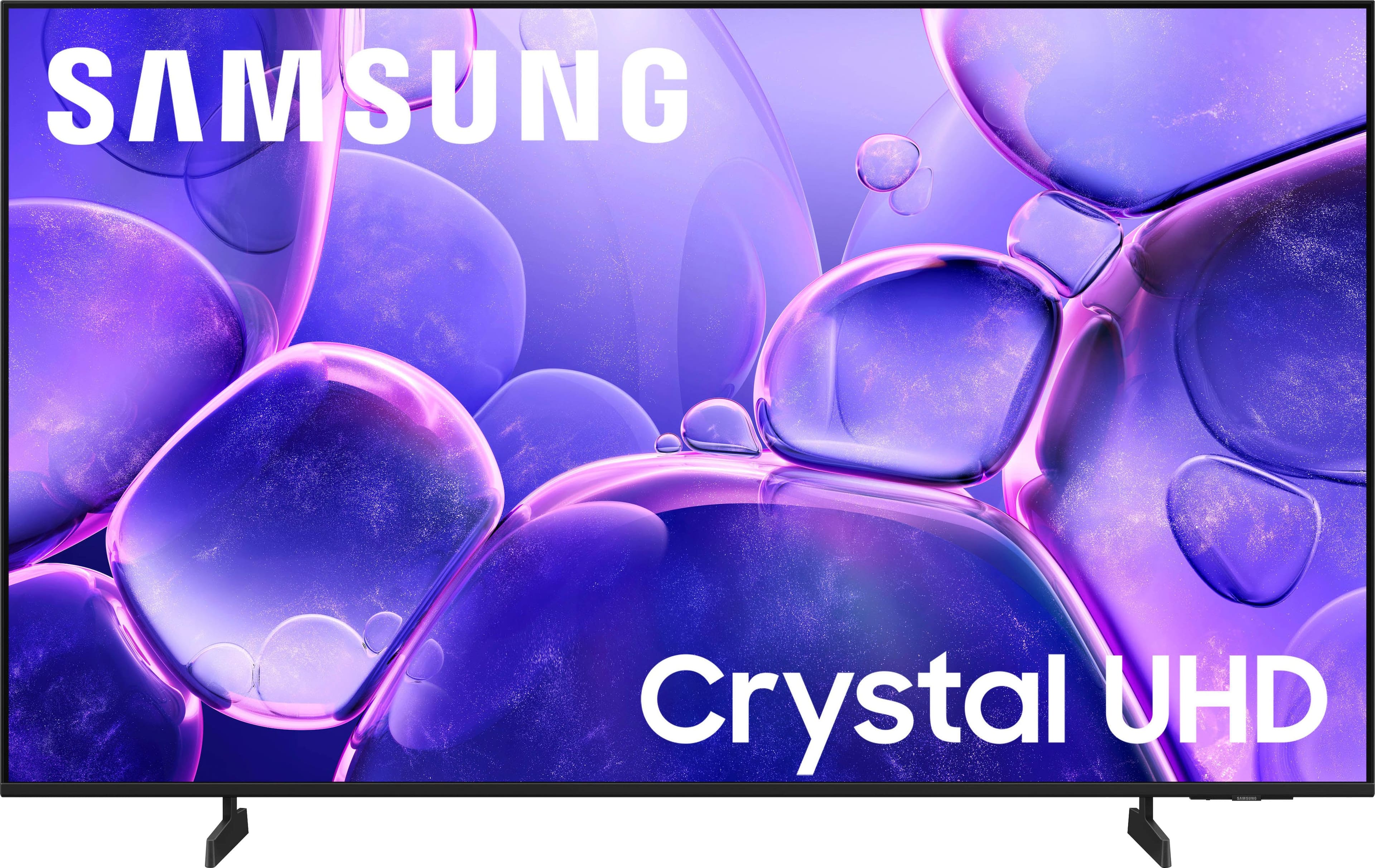
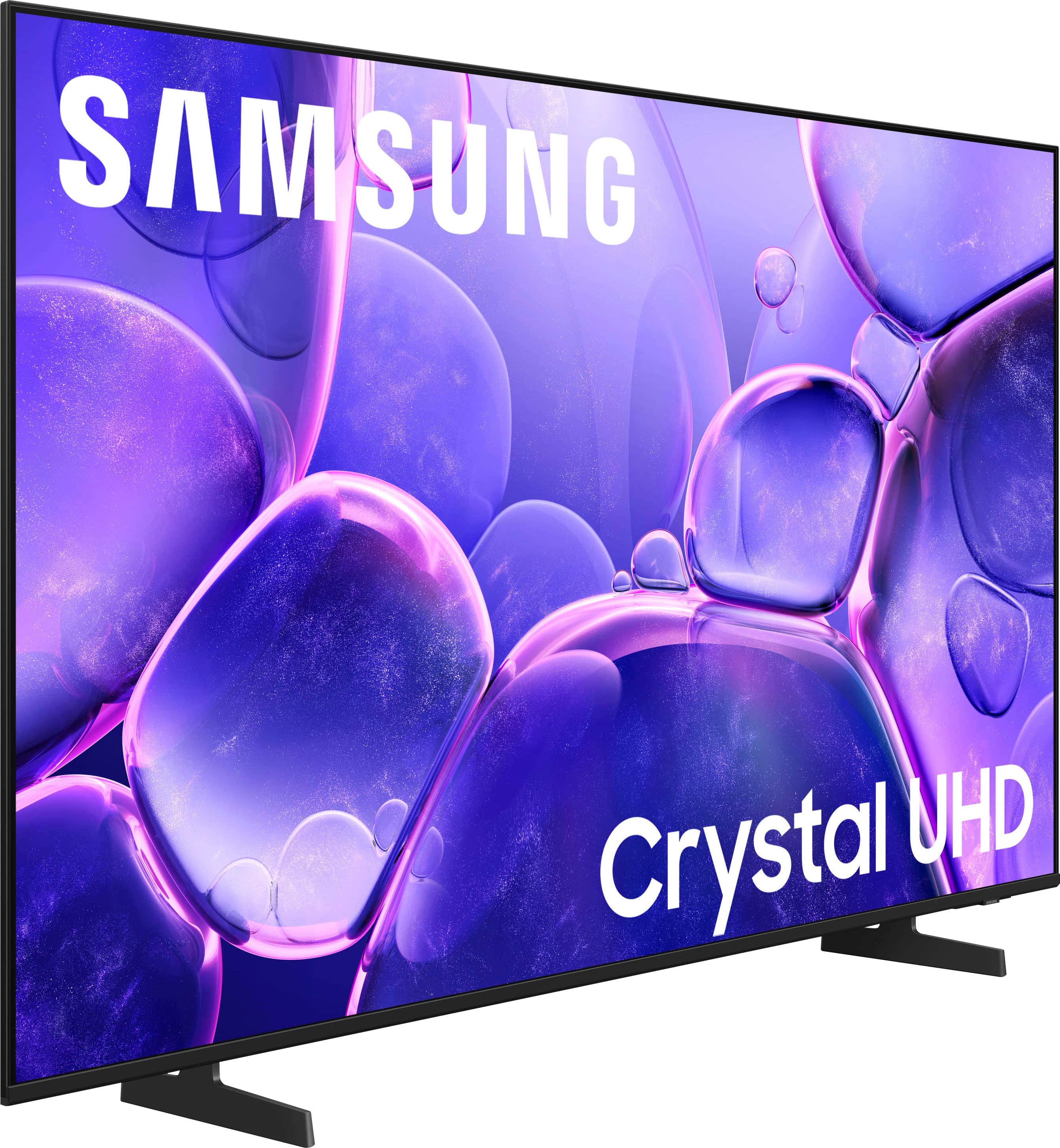
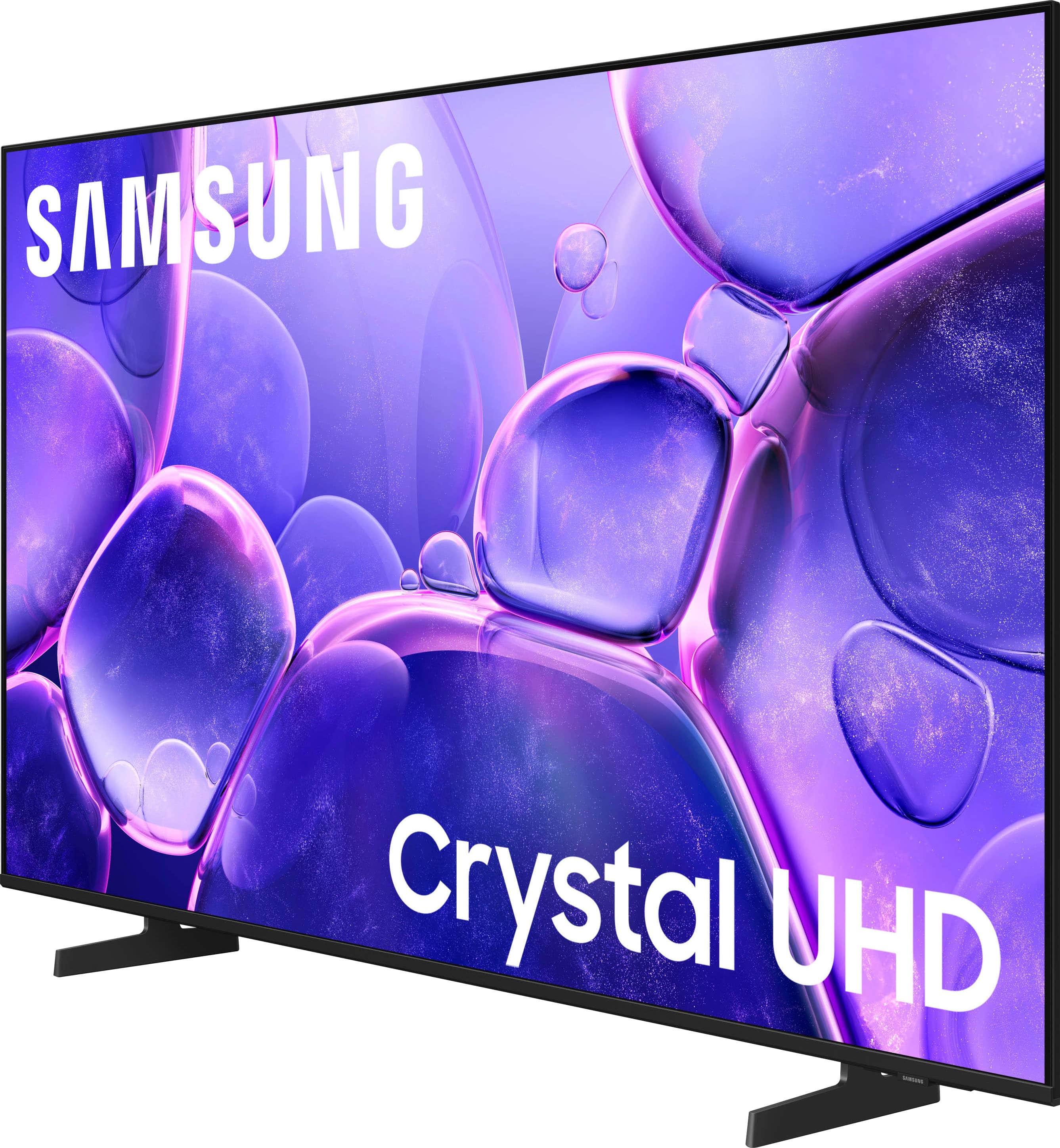


- Model:
- UN43U8000FFXZA
- SKU:
- 12161418
Rating by feature
- Picture Quality
Rating 4.8 out of 5 stars
- Sound Quality
Rating 4.6 out of 5 stars
- Brightness
Rating 4.7 out of 5 stars
Great TV & monitor
||Posted . Owned for 3 weeks when reviewed.This reviewer received promo considerations or sweepstakes entry for writing a review.Great TV for the price. We mostly use it as a computer monitor and this has the required resolution to work really well.
I would recommend this to a friendOne of the best tvs i’ve ever owned
||Posted . Owned for 2 weeks when reviewed.This reviewer received promo considerations or sweepstakes entry for writing a review.one of the best tvs i have ever owned. very happy with the stunning display and great deal.
I would recommend this to a friendReview on Samsung Tv
||Posted .This reviewer received promo considerations or sweepstakes entry for writing a review.It’s a great product, but I hate how it’s too advanced. Even trying to change the brightness requires it to be connected to the internet. On Roku TV’s, it’s not like that, they’re much simpler.
I would recommend this to a friend- Cons mentioned:Connectivity
TV won't stay on
||Posted .This reviewer received promo considerations or sweepstakes entry for writing a review.TV will not stay on, if I can get it to turn on. It may stay on for 10 minutes or 10 seconds. Either way, its unusable and has done this since we first set it up. Since we bought it in advance for a build out, we are past the return window and now stuck with a brick.
No, I would not recommend this to a friendBrand response from Samsung
Posted .Hi Lorris,
We're sorry to hear about the issues you are experiencing with your TV. Please give us a chance to make this right by calling us at 1-800-SAMSUNG, available daily from 8AM - 12AM EST. You can also visit the Samsung website and click on ‘Support’ for:
• Live Chat
• Manuals, Software, & Warranty Info
~ Samsung Advisor
TV for my daughters room
||Posted . Owned for 2 weeks when reviewed.This reviewer received promo considerations or sweepstakes entry for writing a review.Working very well so far. It is for my daughters room qnd she likes the features it has.
I would recommend this to a friend- Cons mentioned:Brightness
Nice Set
||Posted .This reviewer received promo considerations or sweepstakes entry for writing a review.Nice set have trouble get a great picture. Color, Contrast, and Brightness off
I would recommend this to a friendBrand response from Samsung
Posted .Hi Tippy,
We appreciate your feedback on the picture quality of Samsung’s U8000F TV. If the image doesn’t quite match your preferences, there are several adjustments you can make to better suit your viewing environment and content type.
First, please ensure your TV is running the latest firmware, as updates may include important picture quality enhancements. Go to: Home > Left directional button > Settings > Support > Software Update > Update Now
To explore picture mode options, navigate to: Home > Left directional button > Settings > All Settings > Picture > Picture Mode. Options include:
• Standard – Ideal for general viewing
• Dynamic – Brighter and more vibrant for well-lit spaces
• Eco – Optimized for energy efficiency
• Movie – Best for viewing in low light
• Filmmaker Mode – Preserves the content creator’s intent and disables motion smoothing for supported content
You can further customize your image by going to: Settings > All Settings > Picture > Expert Settings, where you can adjust Brightness, Contrast, Color Tone, Sharpness, Contrast Enhancer and more.
If you’d like help finding the best picture settings for your preferences, please don’t hesitate to contact Samsung Support at 1-800-SAMSUNG, available 8AM – 12AM EST, 7 days a week. You can also LiveChat with an agent or explore additional resources on our website by clicking the ‘Support’ link.
~ Samsung Advisor
- Cons mentioned:Brightness
Low quality
||Posted . Owned for 3 weeks when reviewed.This reviewer received promo considerations or sweepstakes entry for writing a review.The TV jas relly low light light and the colors look horrible. For being a Samsung its very bad. I jad to teturn it and get my money back. This model of Samsung is Terrible, i do not recommend.
No, I would not recommend this to a friendBrand response from Samsung
Posted .Hi Diggles,
We're very sorry to hear about your experience, which caused the return of your Samsung TV. Please know we are available and would have been happy to troubleshoot any issues or settings.
If you decide to explore Samsung TVs again in the future, we’re always here to support you - whether it’s setup, features, or troubleshooting. Reach us anytime at 1-800-SAMSUNG (8AM – 12AM EST, 7 days a week), or visit the ‘Support’ section of our website for LiveChat, manuals, and more.
~ Samsung Advisor
New 43'' tv.
||Posted . Owned for 2 weeks when reviewed.This reviewer received promo considerations or sweepstakes entry for writing a review.This Samsung Crystal is an excellent value for a mid size tv.
I would recommend this to a friendWorst customer service in the world!
||Posted .This reviewer received promo considerations or sweepstakes entry for writing a review.Good deal ,but the worst customer service in the world!
I would recommend this to a friendGreat TV. Perfect size for our breakfast nook.
||Posted .This reviewer received promo considerations or sweepstakes entry for writing a review.Great TV. Perfect size for our breakfast nook. Easy set up and really appreciate the built in apps that allowed us to go away with our Roku box. Starts up fast!
I would recommend this to a friendBowie Best has exceptional customer service!
||Posted . Owned for 3 weeks when reviewed.This reviewer received promo considerations or sweepstakes entry for writing a review.Excellent personable customer service in the Bowie Best Buy.
I would recommend this to a friendDebbie
||Posted . Owned for less than 1 week when reviewed.This reviewer received promo considerations or sweepstakes entry for writing a review.Wow, it has been a long time since I bought a tv. I am beyond pleased with all of the features I am learning to use.
I would recommend this to a friendUsed TV
||Posted . Owned for 2 weeks when reviewed.This reviewer received promo considerations or sweepstakes entry for writing a review.Bought used and said it was in good condition, but I’ve found two minor defects. The corner of the plastic was coming off, and there is a dark spot that won’t come off on the screen. Good enough for a guest room tv.
I would recommend this to a friendBrand response from Samsung
Posted .Hi Raymond,
We appreciate your feedback on the open box item you purchased. If you ever have questions or need support, we’re here to help. Call us at 1-800-SAMSUNG, available from 8AM - 12AM EST, seven days a week. You can also connect with a LiveChat agent by clicking the ‘Support’ link on our website.
~Samsung Advisor
Samsung t.v.
||Posted . Owned for 3 weeks when reviewed.This reviewer received promo considerations or sweepstakes entry for writing a review.Not a bad t.v. for the price. i would recommend to a friend for a starter t.v.
I would recommend this to a friendBrand response from Samsung
Posted .Hi GrandpaJ,
We appreciate your feedback. If you ever have questions or need support, we’re here to help. Call us at 1-800-SAMSUNG, available from 8AM - 12AM EST, seven days a week. You can also connect with a LiveChat agent by clicking the ‘Support’ link on our website.
~ Samsung Advisor
TV purchase.
||Posted .This reviewer received promo considerations or sweepstakes entry for writing a review.The purchase, the delivery, and the set up was easy, on time, and professional.
I would recommend this to a friend- Cons mentioned:Connectivity
Samsung Smart Tv
||Posted . Owned for 3 weeks when reviewed.This reviewer received promo considerations or sweepstakes entry for writing a review.I bought this TV for my girlfriend as part of her Christmas gifts. And a few days after Christmas she took it out the box and set everything up and said it played fine. Later that night she said it wouldnt turn on just a black screen and she's tried it several times afterwards and till nothing. So yea its definitely going back to the store for a return or refund. Hopefully I bought just a bad apple out of the bunch.
No, I would not recommend this to a friendBrand response from Samsung
Posted .Hi JamesT,
Thanks for your review. If you're seeing intermittent black screens, it's often related to HDMI cable connection or an issue with an external device. We'd appreciate the opportunity to walk you through a few checks and help get things working as expected.
Please call Samsung Support at 1-800-SAMSUNG, 8AM – 12AM EST, 7 days a week. LiveChat with an agent as well as product manuals, software, and warranty info can also be found under the ‘Support’ link on our website.
~Samsung Advisor
Samsung 43" Smart TV
||Posted . Owned for 3 weeks when reviewed.This reviewer received promo considerations or sweepstakes entry for writing a review.The TV worked out perfect for my 12 year old daughters bedroom.
I would recommend this to a friendGreat tv
||Posted . Owned for 2 weeks when reviewed.This reviewer received promo considerations or sweepstakes entry for writing a review.Excellent tv for my boys room. Easy to set up and menu maneuver
I would recommend this to a friendBeat little fridge
||Posted . Owned for 3 weeks when reviewed.This reviewer received promo considerations or sweepstakes entry for writing a review.It’s wonderful! It has life changing to me to have the freezer on the bottom and fridge on top!
I would recommend this to a friendExperience the first sound glitch
||Posted . Owned for 2 weeks when reviewed.This reviewer received promo considerations or sweepstakes entry for writing a review.Bought this tv to replace another Samsung that started to show vertical lines. Bought the brand again, but noticed sound was not too good, have to use it at almost maximum volume and now less than a month after purchase tv didn’t have sound. Had to unplug and plug again as per instructions on troubleshooting. Will wait to see how it behaves and repost.
No, I would not recommend this to a friendBrand response from Samsung
Posted .Hi SoniagR,
Thank you for your review and for sharing your experience with your U8000 TV. If you’re not hearing any sound, whether using TV speakers or an external audio device, here are several steps that can help get things working again.
1. Start with Basic Checks
• Make sure the TV isn’t muted and the volume is turned up.
• If using an external audio device, ensure it’s powered on, set to the correct source, and the volume is turned up there as well.
• Unplug your TV for 30 seconds, then plug it back in and power it on.
2. HDMI ARC / eARC Connection
• Use a certified High-Speed HDMI cable with Ethernet. Connect it to the HDMI eARC ports on both the TV and the soundbar/receiver.
• Enable these settings:
o Settings > All Settings > Sound > Expert Settings > HDMI eARC Mode = Auto
o Settings > All Settings > General & Privacy > External Device Manager > Anynet+ (HDMI-CEC) = On
• Check the digital audio format: Settings > All Settings > Sound > Expert Settings > Digital Output Audio Format
o If you're not sure what your connected device supports, set it to Auto.
4. Bluetooth Audio Connection
• Pair your Bluetooth device: Settings > All Settings > Sound > Sound Output > Bluetooth Speaker List
• If your Bluetooth device doesn’t appear or won’t connect, move it closer to the TV, ensure it’s in pairing mode, and select Scan.
• If paired but no sound, unpair the device and try reconnecting.
5. Wi-Fi / Wireless Speakers
• Confirm the speakers and the TV are on the same Wi-Fi network. Use: Settings > All Settings > Sound > Sound Output > Wi-Fi Speaker Surround Setup
• Reboot both the TV and the Wi-Fi speakers, and check your router for connection strength.
6. Other Helpful Tips
• Run a Sound Test: Settings > Support > Device Care > Self Diagnosis > Sound Test
• Update TV firmware to rule out compatibility issues: Settings > Support > Software Update > Update Now
• If using a cable box or external streaming device, double-check that the device’s audio output settings are set to HDMI or the appropriate output.
If you still don’t hear sound after following these steps, please don’t hesitate to reach out so we can assist further. You can call Samsung Support at 1-800-SAMSUNG, 8AM – 12AM EST, 7 days a week. Our LiveChat agents are also available by clicking the ‘Support’ link at Samsung.com
~Samsung Advisor