Customer Ratings & Reviews

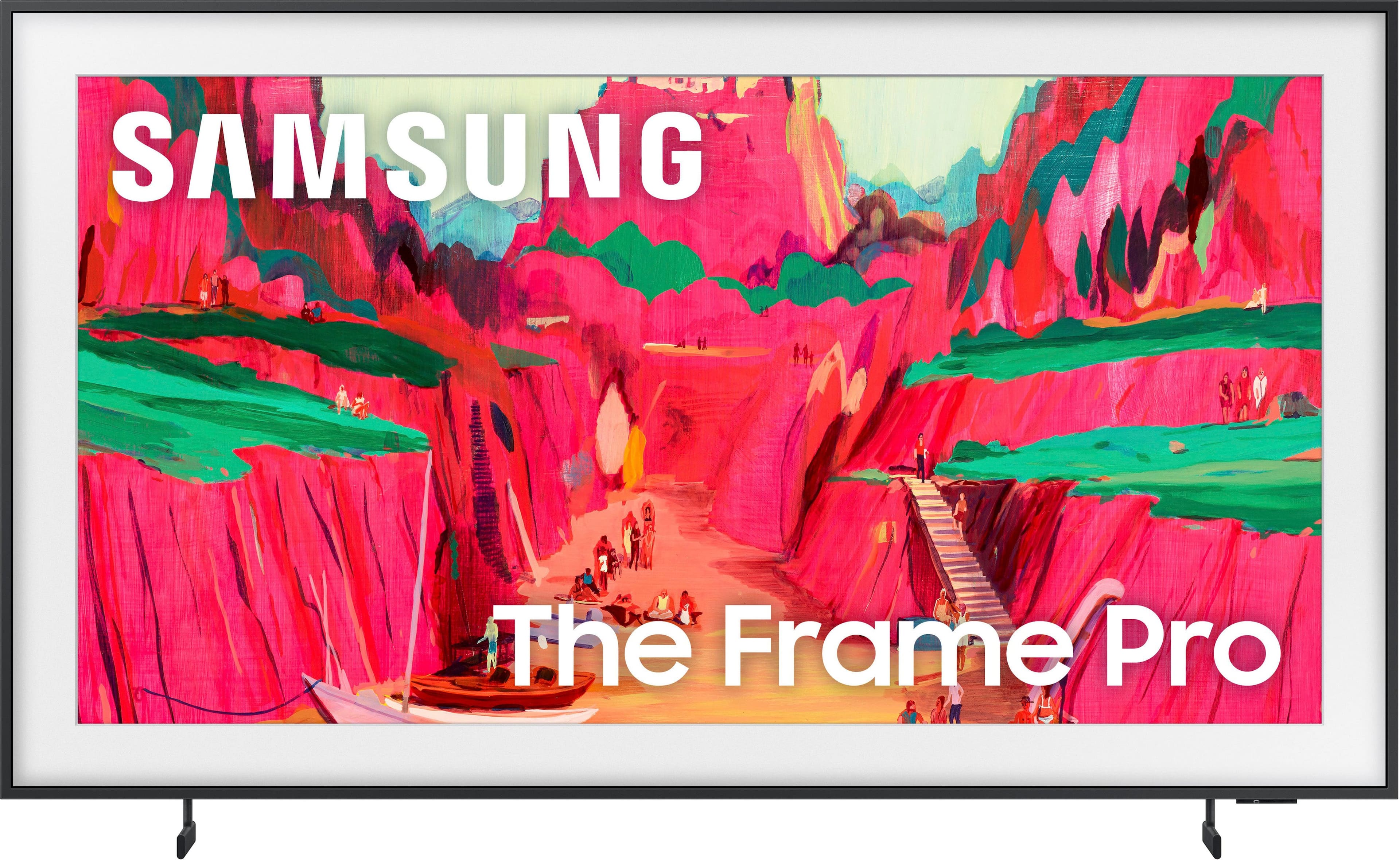
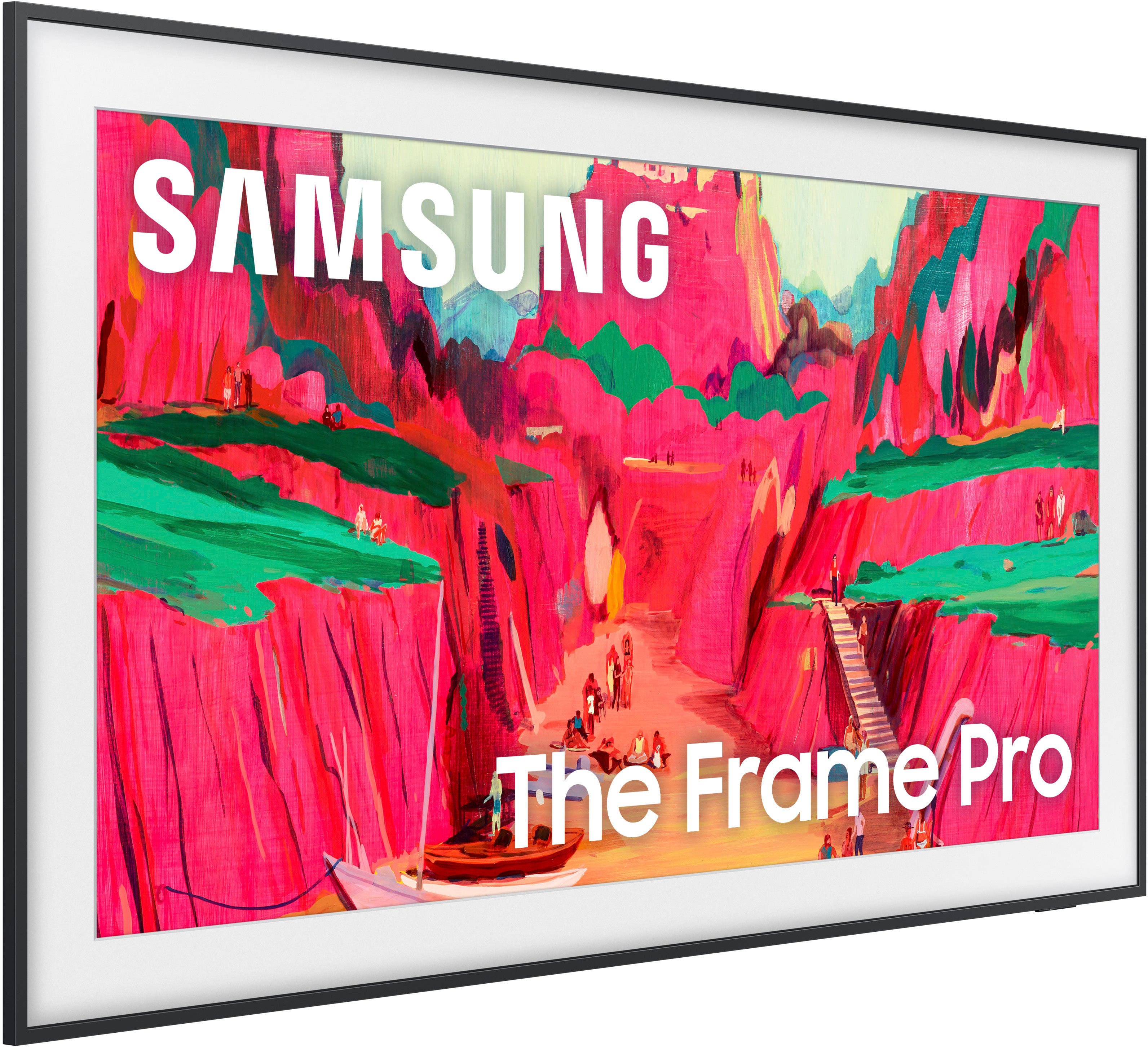
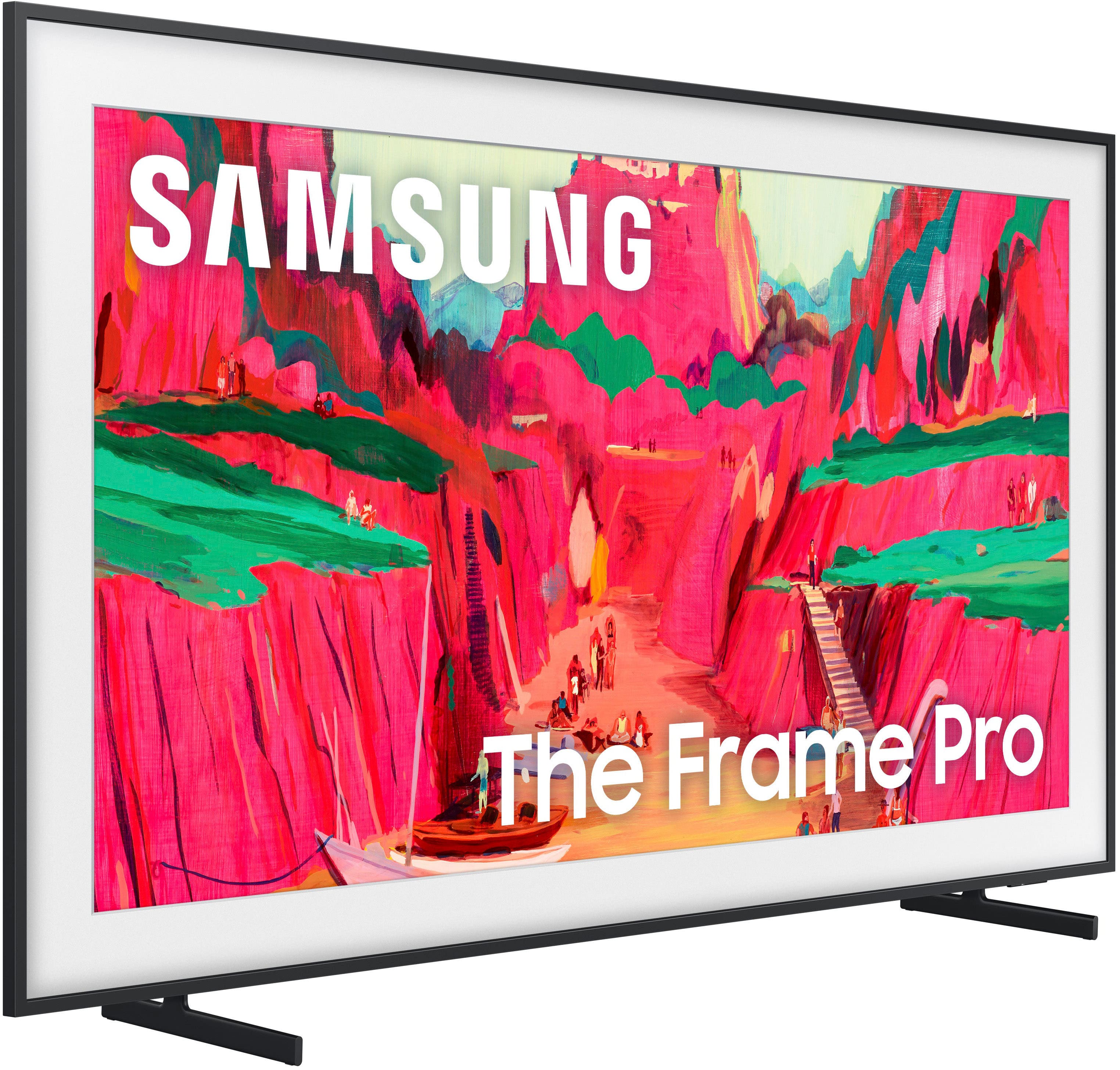
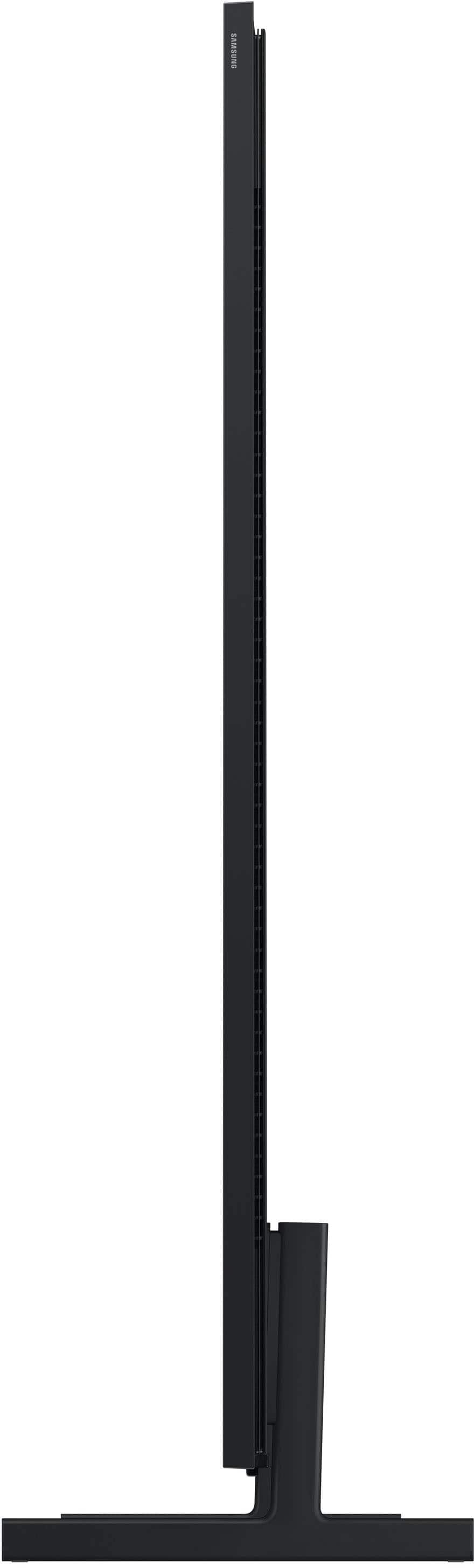



- Model:
- QN65LS03FWFXZA
- SKU:
- 10313281
Rating by feature
- Picture Quality
Rating 4.8 out of 5 stars
- Sound Quality
Rating 4.5 out of 5 stars
- Brightness
Rating 4.8 out of 5 stars
Samsung TV
||Posted . Owned for 2 weeks when reviewed.This reviewer received promo considerations or sweepstakes entry for writing a review.Television had be replaced less than a month after purchase. Also disappointed with attempting to schedule service through your system.
No, I would not recommend this to a friendBrand response from Samsung
Posted .DanielM,
It’s unfortunate to hear about your experience with Samsung’s Frame Pro TV. We’re committed to delivering quality, value, and the best possible product experience. This TV is backed by a 1-year limited manufacturer’s warranty, which includes authorized repair for eligible defects when purchased brand-new from an authorized retailer. To review full warranty terms, you can enter your model number here: https://www.samsung.com/us/support/warranty/
We’d appreciate the opportunity to assist further. Please contact Samsung Customer Support at 1-800-SAMSUNG (8AM – 12AM EST, 7 days a week), or connect with a LiveChat agent by clicking the ‘Support’ link on our website.
~ Samsung Specialist
Buyer be ware
||Posted .This reviewer received promo considerations or sweepstakes entry for writing a review.Never shop at Best Buy. Horrific experience and service. Go elsewhere. 0 upside to shopping at Best Buy. Only reason to shop here is if you want a stressful and irritating experience. The lack of customer service is appalling.
No, I would not recommend this to a friendBrand response from Samsung
Posted .user579065,
We're sorry to hear of your experience with Best Buy, though please note that your 1-star review is attached to the Samsung Frame Pro TV. We encourage you to share your feedback directly with Best Buy so they can address your concerns.
Should you have any questions or need assistance with the TV itself, Samsung is here to help at 1-800-SAMSUNG, 8AM – 12AM EST, 7 days a week. You can also connect with us via LiveChat at the ‘Support’ link on our website.
~ Samsung Specialist
Picture TV
Posted .This reviewer received promo considerations or sweepstakes entry for writing a review.excellent choice with great picture and sound looks good on the wall
I would recommend this to a friendSamsung Frame TV 65"
Posted .This reviewer received promo considerations or sweepstakes entry for writing a review.I have wanted a Frame TV for some time and finally purchased one. My only concern is that it takes forever to turn on the tv and turn it off. The lag, while the tv is "thinking" is longer than I would like. Other than that, it is a beautiful.
I would recommend this to a friendSamsung 65” Frame Pro
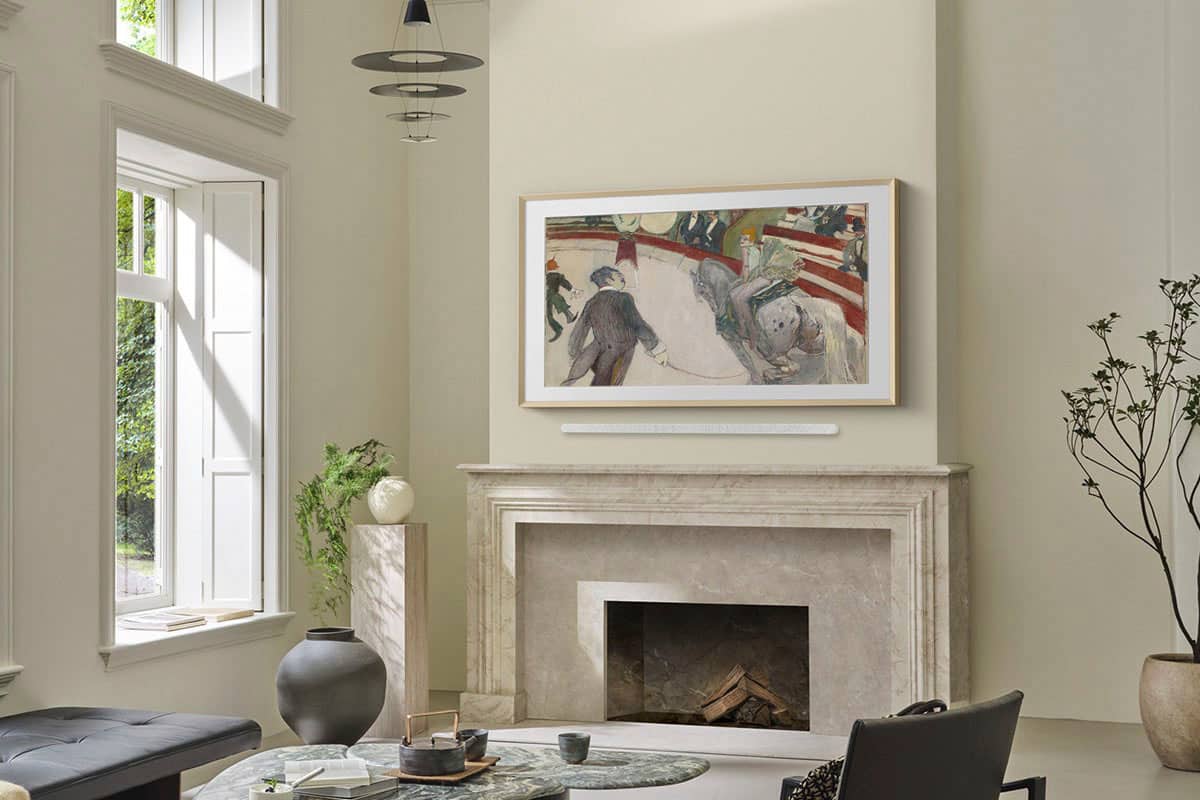
Posted .This reviewer received promo considerations or sweepstakes entry for writing a review.This TV is fantastic. Sits flat against the wall. Great picture quality. Anti glare for a room with a lot of light. Highly recommend.
I would recommend this to a friendFrame TV
Posted .This reviewer received promo considerations or sweepstakes entry for writing a review.Product was good. Delivery scheduling stinks. The actual installation was good but scheduling needs a lot of improvement.
I would recommend this to a friendBad follow through after sale,
Posted .This reviewer received promo considerations or sweepstakes entry for writing a review.Bad customer service. No update on delivery delays. Hard to get info on anything. Not sure if I can buy anything from best buy. Go AMAZON
No, I would not recommend this to a friendBrand response from Samsung
Posted .SijuC, Please know that you're leaving a review and 1-star rating for The Frame Pro TV, but we’re sorry to hear of your experience with Best Buy, nonetheless. You may want to consider providing your feedback directly to the Best Buy store where the purchase was made. If you have questions about the TV itself, Samsung is here to help. You can reach us at 1-800-SAMSUNG, 8AM – 12AM EST, 7 days a week. LiveChat agents are also available by clicking the ‘Support’ link on our website. ~ Samsung Specialist
Frame pro
Posted .This reviewer received promo considerations or sweepstakes entry for writing a review.Save your money. For one. you won't be able to install. You'll need someone for that. For two. The Bluetooth connection drops constantly. For three. It only connects Bluetooth. There is no longer a wire connecting the one connect to the TV. So it gets it's image through Bluetooth. I've been installing these TV's since they came out. I can tell you this. Every model is worse than the one before. They're constantly downgrading it. Instead of upgrading.
No, I would not recommend this to a friendBrand response from Samsung
Posted .RogerV,
We're sorry to hear that you've experienced challenges installing The Frame Pro, as well as issues with maintaining a stable connection. You may first want to ensure your TV is running the latest firmware, as updates may include important connectivity enhancements. Go to: Home > Left directional button > Settings > Support > Software Update > Update Now
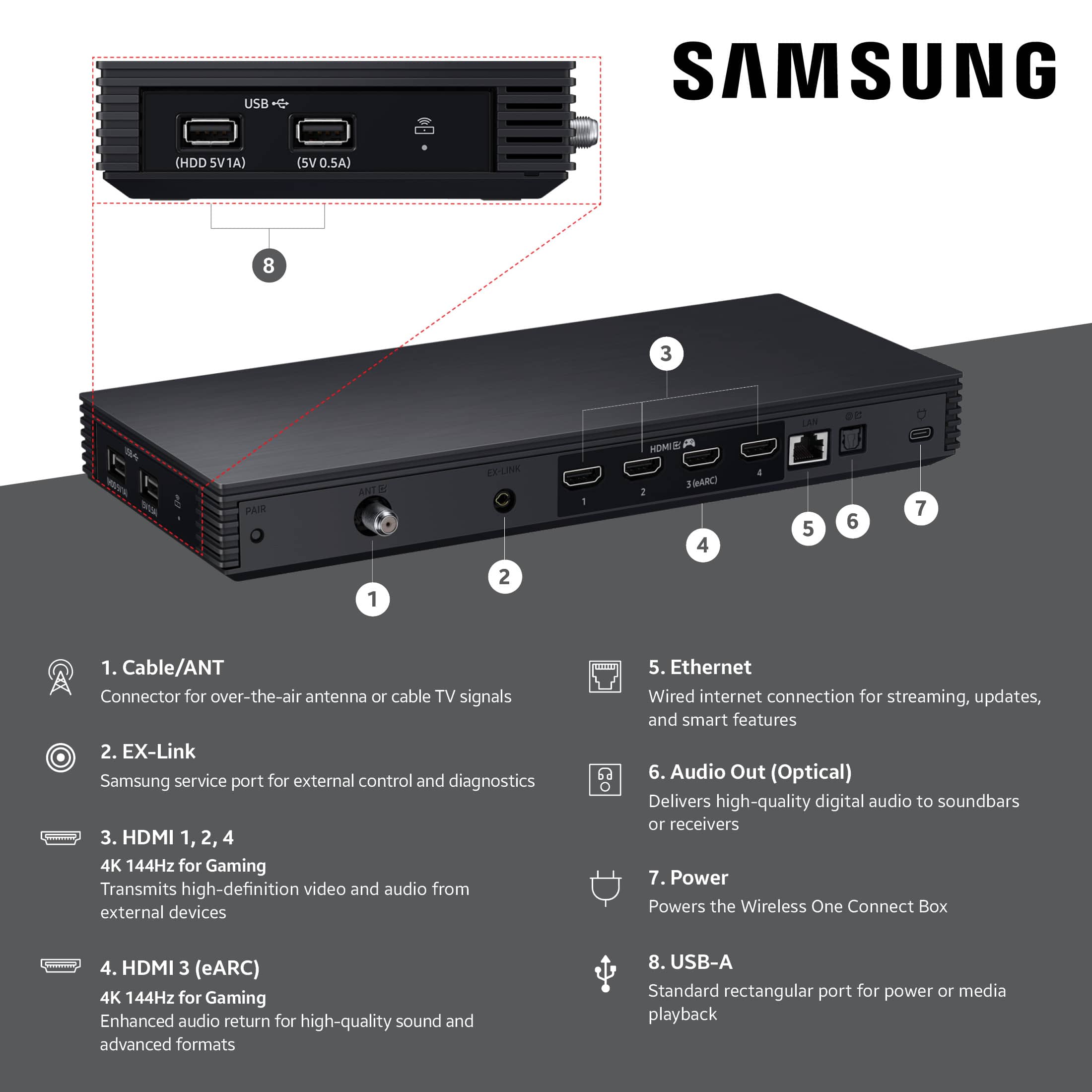
Since the Wireless One Connect Box (WOCB) connects via its specialized peer-to-peer network, we also recommend running Device Care to check both the power supply and connection for the WOCB, as well as your TV's Wi-Fi status:
• Home > left directional key > Settings > Support > Device Care > Self Diagnosis > Wireless One Connect Test
• Home > left directional key > Settings > Support > Device Care > Self Diagnosis > Wi-Fi
To ensure consistent, optimal performance, please keep the following in mind:
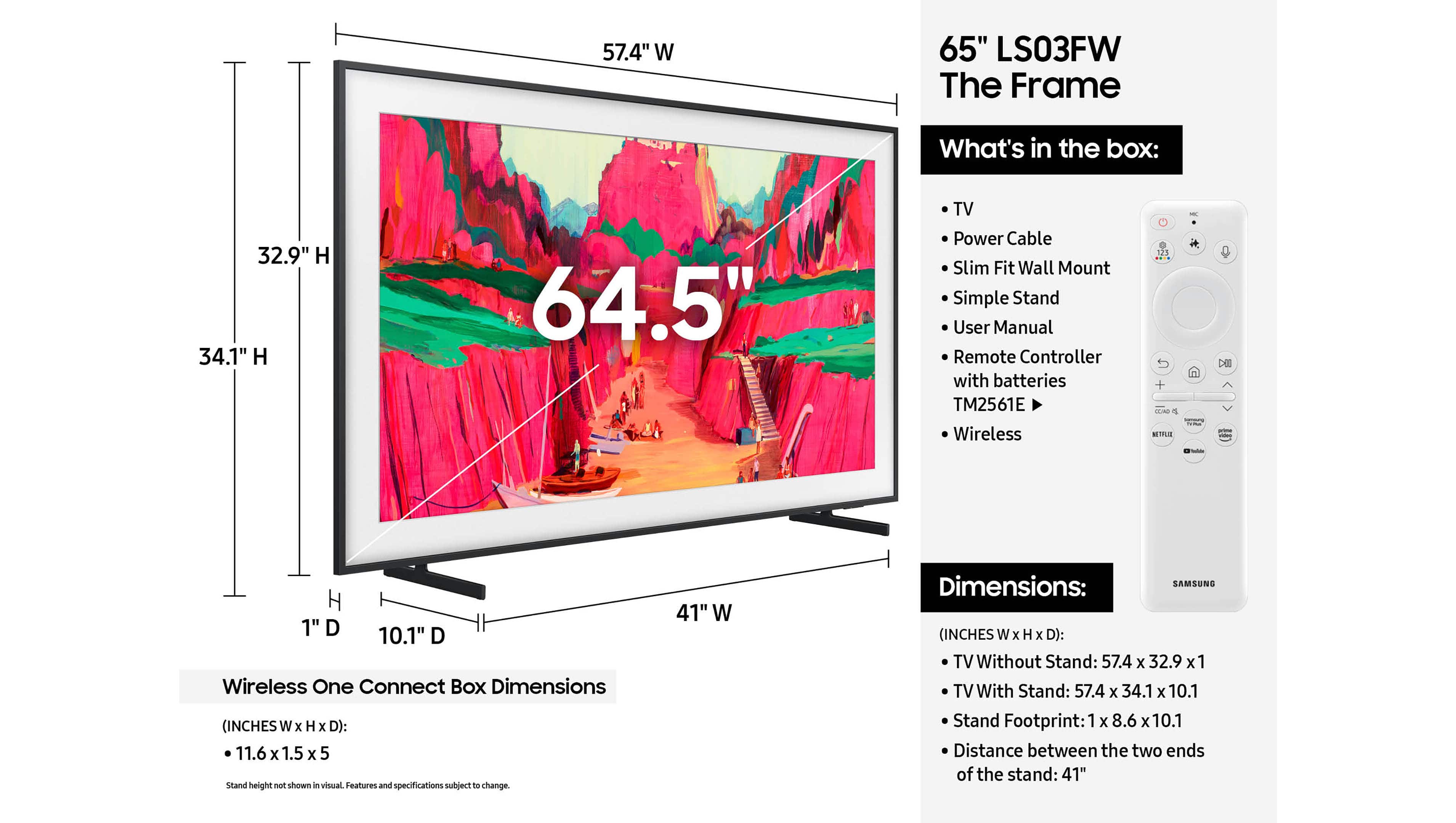
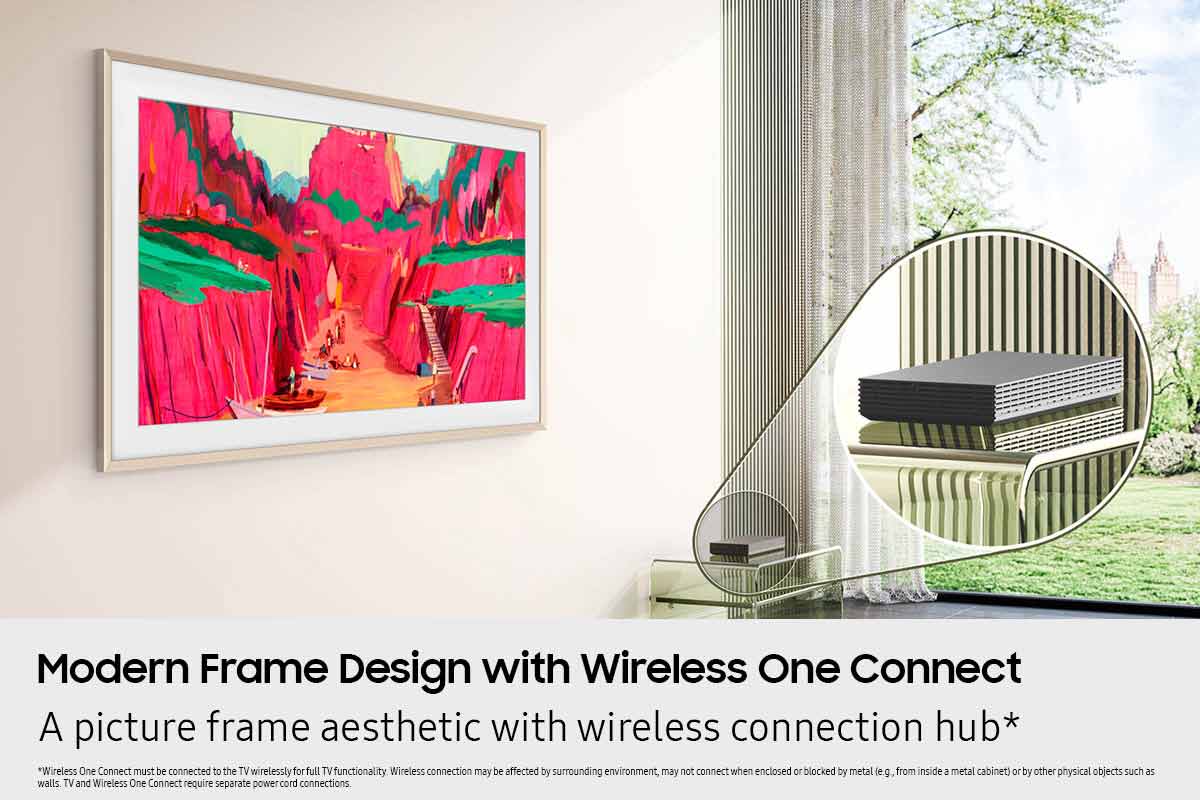
• The Wireless One Connect Box should be placed within 10m (~33 ft) of the TV with minimal obstructions.
• It can be stored in a recessed in-wall box or in a shelf or credenza below the TV, as long as the material isn’t too thick to block signals.
• Wireless performance may be affected by the surrounding environment and may not work properly if the box is enclosed or blocked by metal (e.g., inside a metal cabinet) or other physical barriers like walls.
• Malfunction (e.g., choppy video or audio) may occur, depending on the wireless transmission quality and installation distance.
• If the Wireless One Connect is left disconnected from the screen for an extended period, automatic reconnection may not work properly. Please check the power supply and refer to the LED indicator light to assess the connection:
o Blue = Very good connection
o Yellow = Bad connection
o Red = Very bad connection
o White = Power saving mode
If you're seeing a message that says "Wireless One Connect is disconnected" while watching content from an external source (such as a set-top box, game console, or antenna), this typically means the TV has lost its wireless connection to the Wireless One Connect Box.
To resolve the above disconnection scenarios, please try the following steps:
1. Check that the Wireless One Connect Box is powered on. If it’s turned off, power it back on. Once powered, the TV should automatically reconnect when the signal is strong enough.
2. If the unit is powered on but still disconnected, you may need to adjust the alignment: Home > left directional key > Settings > All Settings > Connections > Wireless One Connect > Wireless One Connect Status > Adjust, then carefully adjust the Wireless One Connect Box’s position until the antenna icon turns blue, which indicates a strong signal and a successful connection.
If your TV doesn’t automatically reconnect to the Wireless One Connect after adjusting its position, you may also need to manually pair the device:
1. Unpair the Wireless One Connect. Go to: Home > left directional key > Settings > All Settings > Connections > Wireless One Connect > Wireless One Connect Status > Unpair
2. Enter Pairing Mode on the Wireless One Connect. Press and hold the PAIR button on the Wireless One Connect device for 3 seconds. You'll know it's in pairing mode when the LED indicator on the side begins blinking blue.
3. Re-establish the Connection. Go to: Settings > All Settings > Connections > Wireless One Connect > Set up Wireless One Connect, then follow the prompts to search for the device and reconnect it.
If the issue continues after these steps, please contact Samsung Support at 1-800-SAMSUNG, 8AM – 12AM EST, 7 days a week. LiveChat with an agent and additional support resources are also available on the Samsung website under the ‘Support’ section.
~ Samsung Specialist