Save up to 50% on 3-Day Sale deals.Ends 12/7.Shop now

Skip to content
Gift Ideas
Main Content

Customer Ratings & Reviews
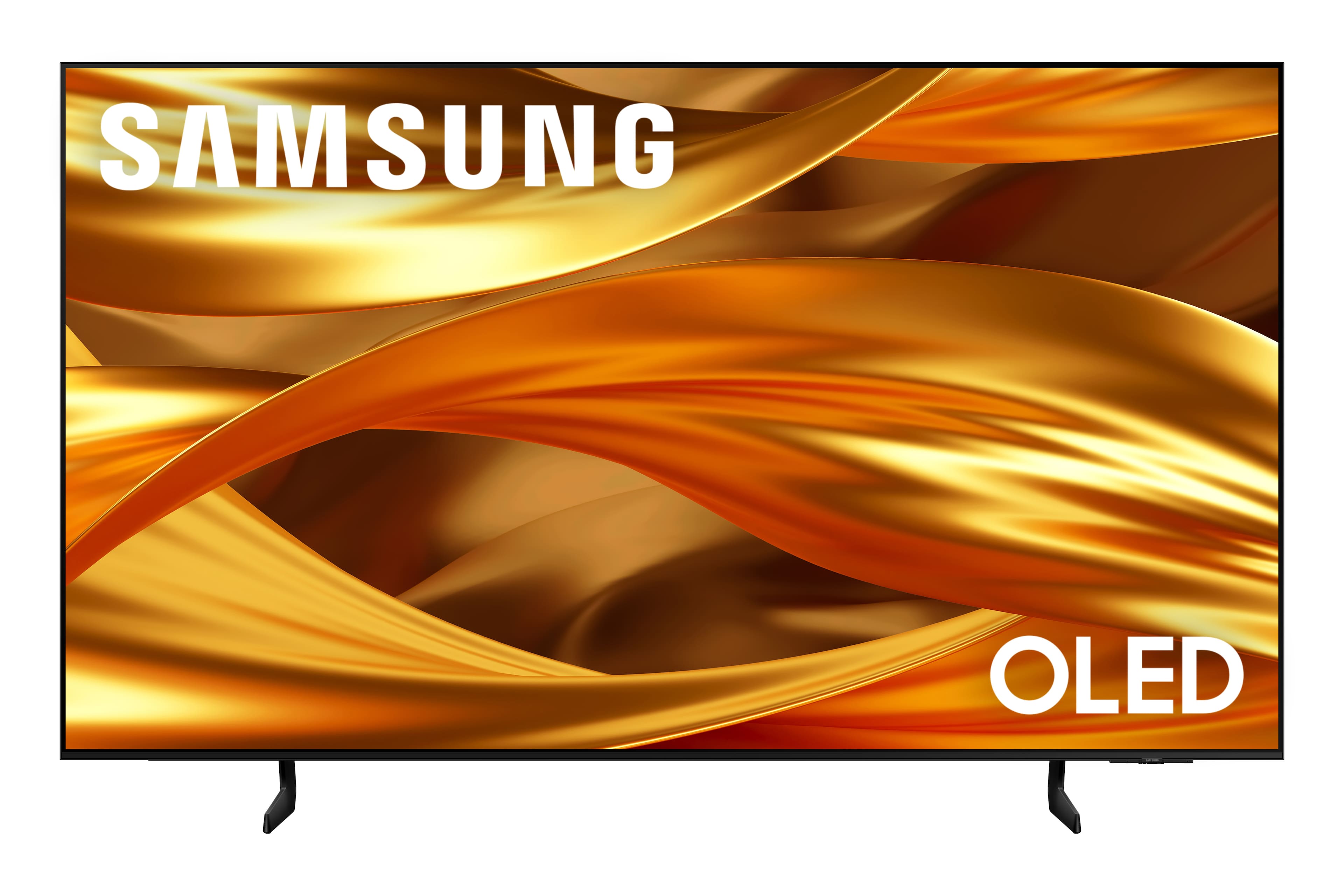
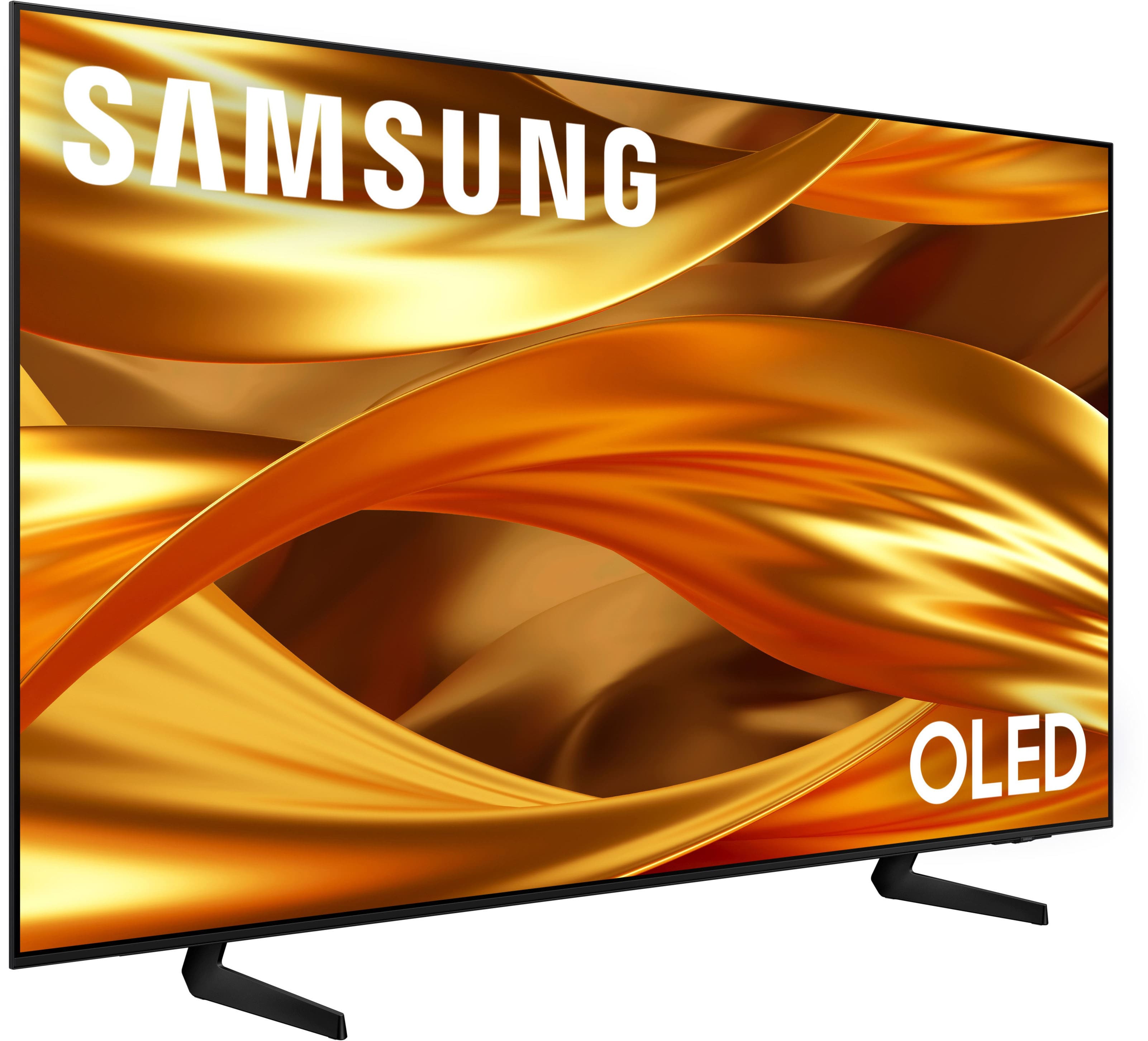
3-Day Deal
Your price for this item is $899.99
The comparable value price is $1,999.99

Customer reviews

Rating 4.8 out of 5 stars with 222 reviews

Rating Filter

Rating by feature

  • Picture Quality

    Rating 4.8 out of 5 stars

  • Sound Quality

    Rating 4.6 out of 5 stars

  • Brightness

    Rating 4.7 out of 5 stars

Pros mentioned filter

Cons mentioned filter

There aren't enough negative mentions yet.
94%would recommend to a friend
The vast majority of our reviews come from verified purchases. Reviews from customers may include My Best Buy members, employees, and Tech Insider Network members (as tagged). Select reviewers may receive discounted products, promotional considerations or entries into drawings for honest, helpful reviews.
Page 11 Showing 201-220 of 222 reviews
  • Rated 5 out of 5 stars

    GOOD TV

    |
    |
    Posted . Owned for 1 week when reviewed.
    This reviewer received promo considerations or sweepstakes entry for writing a review.

    Good TV! Quality mid range option with crisp picture

    I would recommend this to a friend
  • Rated 3 out of 5 stars

    Mixed Bag Results

    |
    |
    Posted .
    This reviewer received promo considerations or sweepstakes entry for writing a review.

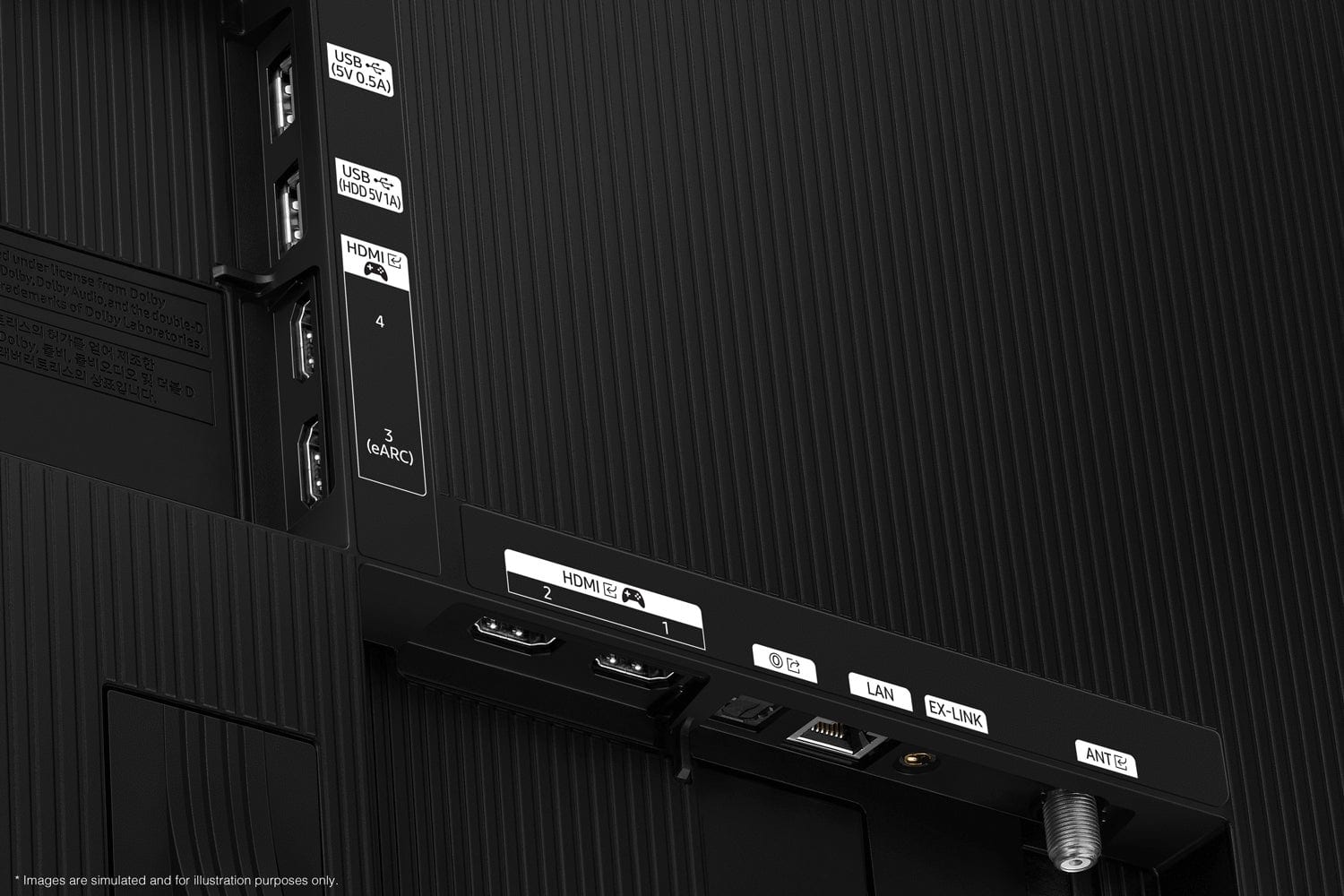
    Mixed bag. TV picture great. Sound surprisingly good. Connections frustrating. User manual surprisingly non-helpful. Remote is one of the worst designs I have ever used. Mouse-trapped by Best Buy on pricing history; unable to contact for resolution of this issue.

    I would recommend this to a friend
    • Brand response from Samsung
      Posted .

      DarvinL,

      We appreciate you sharing your experience. To help you get the most from your TV and remote functions, you can download the full e-Manual and more by visiting Samsung’s website then navigating to: Support > Manual & Software > TVs & Home Theater. From there, you can search for and select your S84F TV model to view or download the available guides.

      The e-Manual & Remote Control Guide are also conveniently built into your TV: Settings > Support > Tips and User Guides.

      For additional guidance, your TV also includes Accessibility features designed to assist with navigation and remote use.
      • Learn Menu Screen provides audio guidance for on-screen menus by announcing the name and function of each item as you scroll – without making any changes. This is especially helpful for users who are visually impaired or new to Smart TV menus. Enable via: Settings > All Settings > General & Privacy > Accessibility > Learn Menu Screen. To exit, press the Return key twice.
      • Learn TV Remote helps users become familiar with the layout and function of each button on the Samsung remote. Pressing a button (other than Power) will prompt the TV to announce its name and purpose, again without affecting TV operation. Enable via: Settings > All Settings > General & Privacy > Accessibility > Learn TV Remote. To exit, press the Return key twice.

      If you’d like more assistance with these features, please reach Samsung Support at 1-800-SAMSUNG, available 8AM – 12AM EST, 7 days a week. LiveChat agents are also available through the ‘Support’ link on our website.

      ~ Samsung Specialist Samsung

  • Rated 4 out of 5 stars

    Samsung OLEF 65

    |
    |
    Posted . Owned for 1 week when reviewed.
    This reviewer received promo considerations or sweepstakes entry for writing a review.

    Love the picture quality. AI Smart is a bonus. Size is perfect for my family room

    I would recommend this to a friend
  • Rated 4 out of 5 stars

    Good tv for price

    |
    |
    Posted .
    This reviewer received promo considerations or sweepstakes entry for writing a review.

    Clear picture, very good tv for the price. Easy to mount, sounds is solid. Will enjoy the tv

    I would recommend this to a friend
  • Rated 4 out of 5 stars

    Defective

    |
    |
    Posted . Owned for 2 weeks when reviewed.
    This reviewer received promo considerations or sweepstakes entry for writing a review.

    The color was all green out the box. Other than the color I like the tv. I exchanged it for another set.

    I would recommend this to a friend
  • Rated 4 out of 5 stars

    Buy this..

    |
    |
    Posted . Owned for 1 week when reviewed.
    This reviewer received promo considerations or sweepstakes entry for writing a review.

    Good price for awesome TV. Would recommend buying.

    I would recommend this to a friend
  • Rated 4 out of 5 stars

    65" oled Samsung tv

    |
    |
    Posted .
    This reviewer received promo considerations or sweepstakes entry for writing a review.

    Its a great tv. Love the picture!! Looks great in my room too

    I would recommend this to a friend
  • Rated 3 out of 5 stars

    It’s ok

    |
    |
    Posted . Owned for 1 week when reviewed.
    This reviewer received promo considerations or sweepstakes entry for writing a review.

    Only thing I’m really noticing is the tv seems too square for my needs. Also the screen stays on when playing music. Wish it could turn off when only music is playing.

    No, I would not recommend this to a friend
    • Brand response from Samsung
      Posted .

      Hi PatrickL,

      Thank you for your feedback. If you’d like to listen to audio without the screen on, Auto Picture Off allows you to do just that. This feature keeps the sound playing while turning off the screen to help save energy. Pressing Volume or Power will not wake the screen, but any other button on the remote will. To activate Auto Picture Off: Home > left directional key > Settings > All Settings > General & Privacy > Accessibility > Auto Picture Off.

      I hope this tip is helpful. If you have any questions, please call us at 1-800-SAMSUNG between 8AM - 12AM EST, seven days a week. You can also access LiveChat, manuals, software, and warranty info by clicking the ‘Support’ link on our website.

      ~ Samsung Advisor Samsung

  • Rated 3 out of 5 stars

    If bright whites are your thing don’t buy this tv.

    |
    |
    Posted .
    This reviewer received promo considerations or sweepstakes entry for writing a review.

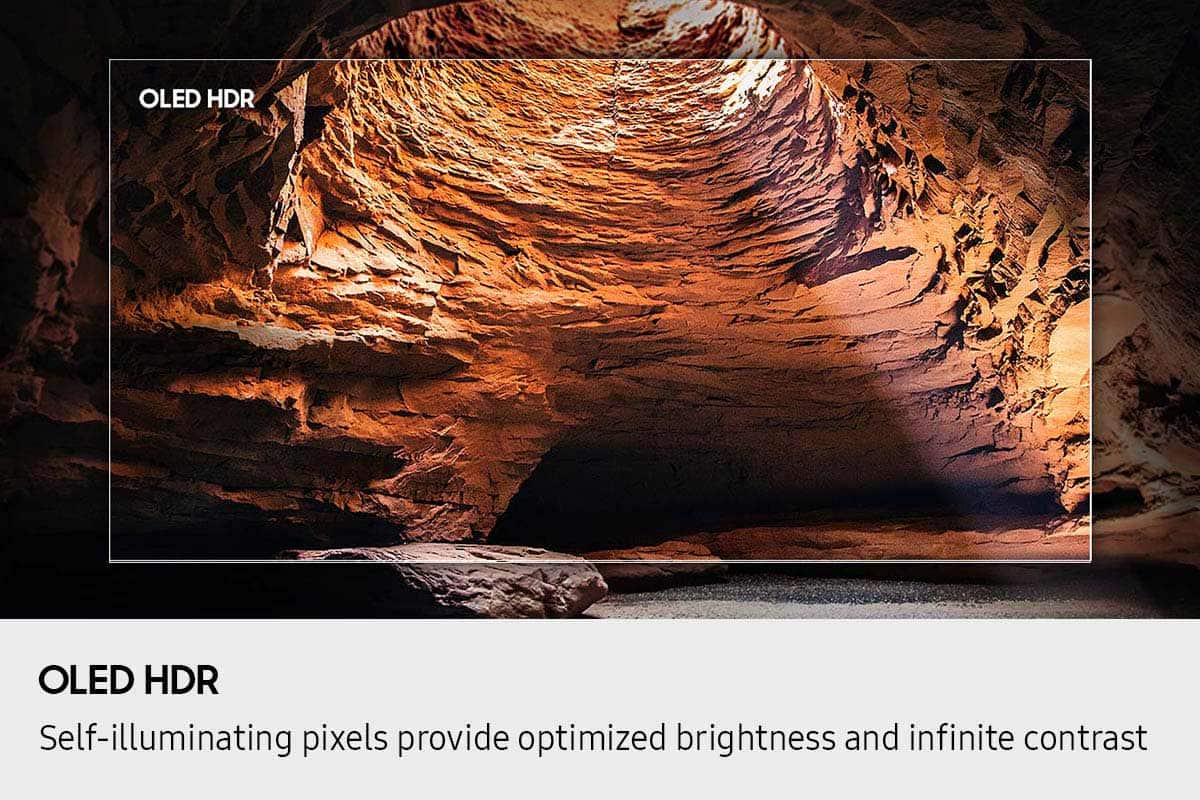
    I am a fan of bright whites. This tv doesn’t have that. The whitest whites are dim and gray. I have brightness turned all the way up and it’s still very dim.

    No, I would not recommend this to a friend
    • Brand response from Samsung
      Posted .

      ClaudeJ,

      We appreciate your input on the picture quality of Samsung’s S84F TV. If the image isn’t meeting your expectations, there are several adjustments you can make to improve your viewing experience.

      First, please ensure your TV is running the latest firmware, as updates may include important picture quality enhancements. Go to: Home > Left directional button > Settings > Support > Software Update > Update Now

      Then, select a Picture Mode that best fits your environment: Home > Home > left directional key > Settings > All Settings > Picture > Picture Mode
      1. Standard – Default mode for general viewing
      2. Dynamic – Brighter and clearer in well-lit rooms
      3. Eco – Optimized for energy saving
      4. Movie – Best for watching in dark environments
      5. Filmmaker Mode – Preserves content exactly as intended by creators

      You can also enhance your experience by enabling AI Mode, which automatically adjusts picture and sound based on your surroundings and usage patterns: Settings > All Settings > Advanced Features > AI Mode Settings > AI Mode

      If these adjustments don’t improve your picture quality, feel free to contact Samsung Customer Support at 1-800-SAMSUNG, available 8AM – 12AM EST, 7 days a week. You can also LiveChat with an agent or find helpful guides by visiting the ‘Support’ section of our website.

      ~ Samsung Specialist Samsung

  • Rated 3 out of 5 stars

    Samsung oled

    |
    |
    Posted . Owned for 2 weeks when reviewed.
    This reviewer received promo considerations or sweepstakes entry for writing a review.

    It’s a nice tv, but I’m not wowed by it. There’s a few adds that can not be removed from the main screen. Can be slow to switch from apps.

    No, I would not recommend this to a friend
    • Brand response from Samsung
      Posted .

      ShannonJ,

      We appreciate your feedback regarding response time. For optimal performance, please ensure your TV is running the latest firmware. You can check this by going to: Home > left directional key > Settings > Support > Software Update

      To further optimize performance, try running Device Care, which checks memory, clears unused cached data, and closes background apps: Home > left directional key > Settings > Support > Device Care > Start Device Care

      If issues continue, please reach Samsung Support at 1-800-SAMSUNG, available 8AM – 12AM EST, 7 days a week.
      LiveChat is also available via the ‘Support’ link on our website.

      ~ Samsung Specialist Samsung

  • Rated 4 out of 5 stars

    Oled tv

    |
    |
    Posted . Owned for 1 week when reviewed.
    This reviewer received promo considerations or sweepstakes entry for writing a review.

    OLED is the way. Good picture quality , fast response

    I would recommend this to a friend
  • Rated 2 out of 5 stars

    Way too much total black

    |
    |
    Posted .
    This reviewer received promo considerations or sweepstakes entry for writing a review.

    This television has great features and was a great price, HOWEVER, the blacks and dark blues are so dark the gradients disappear. BLACK, you cannot believe this is intentional, there are no ways to adjust the picture so it doesnt look like contras is out of control. Gaming resolution is amazing, not like movie and tv, gaming has gradients of black. Why?

    No, I would not recommend this to a friend
    • Brand response from Samsung
      Posted .

      Ricco,

      We appreciate your input on the picture quality of Samsung’s S84F TV. If the image isn’t meeting your expectations, there are several adjustments you can make to improve your viewing experience.

      First, please ensure your TV is running the latest firmware, as updates may include important picture quality enhancements. Go to: Home > Left directional button > Settings > Support > Software Update > Update Now

      Then, select a Picture Mode that best fits your environment: Home > Home > left directional key > Settings > All Settings > Picture > Picture Mode
      1. Standard – Default mode for general viewing
      2. Dynamic – Brighter and clearer in well-lit rooms
      3. Eco – Optimized for energy saving
      4. Movie – Best for watching in dark environments
      5. Filmmaker Mode – Preserves content exactly as intended by creators

      You can also enhance your experience by enabling AI Mode, which automatically adjusts picture and sound based on your surroundings and usage patterns: Settings > All Settings > Advanced Features > AI Mode Settings > AI Mode

      If these adjustments don’t improve your picture quality, feel free to contact Samsung Customer Support at 1-800-SAMSUNG, available 8AM – 12AM EST, 7 days a week. You can also LiveChat with an agent or find helpful guides by visiting the ‘Support’ section of our website.

      ~ Samsung Specialist Samsung

  • Rated 3 out of 5 stars

    Inferior picture quality

    |
    |
    Posted .
    This reviewer received promo considerations or sweepstakes entry for writing a review.

    The picture quality is not nearly as good as Samsungs that we have had in the past.

    No, I would not recommend this to a friend
    • Brand response from Samsung
      Posted .

      SherrilC,

      We appreciate your input on the picture quality of Samsung’s S84F TV. If the image isn’t meeting your expectations, there are several adjustments you can make to improve your viewing experience.

      First, please ensure your TV is running the latest firmware, as updates may include important picture quality enhancements. Go to: Home > Left directional button > Settings > Support > Software Update > Update Now

      Then, select a Picture Mode that best fits your environment: Home > Home > left directional key > Settings > All Settings > Picture > Picture Mode
      1. Standard – Default mode for general viewing
      2. Dynamic – Brighter and clearer in well-lit rooms
      3. Eco – Optimized for energy saving
      4. Movie – Best for watching in dark environments
      5. Filmmaker Mode – Preserves content exactly as intended by creators

      You can also enhance your experience by enabling AI Mode, which automatically adjusts picture and sound based on your surroundings and usage patterns: Settings > All Settings > Advanced Features > AI Mode Settings > AI Mode

      If these adjustments don’t improve your picture quality, feel free to contact Samsung Customer Support at 1-800-SAMSUNG, available 8AM – 12AM EST, 7 days a week. You can also LiveChat with an agent or find helpful guides by visiting the ‘Support’ section of our website.

      ~ Samsung Specialist Samsung

  • Rated 2 out of 5 stars

    Picture is disappointing

    |
    |
    Posted . Owned for 1 week when reviewed.
    This reviewer received promo considerations or sweepstakes entry for writing a review.

    Not thrilled with this TV to me the pictures slightly fuzzy and the colors just seem more muted and darker than what I’m used to Best Buy is going to come and see if they can adjust the settings but disappointed overall with this TV

    No, I would not recommend this to a friend
    • Brand response from Samsung
      Posted .

      DianneN,

      We appreciate your input on the picture quality of Samsung’s S84F TV. If the image isn’t meeting your expectations, there are several adjustments you can make to improve your viewing experience.

      First, please ensure your TV is running the latest firmware, as updates may include important picture quality enhancements. Go to: Home > Left directional button > Settings > Support > Software Update > Update Now

      Then, select a Picture Mode that best fits your environment: Home > Home > left directional key > Settings > All Settings > Picture > Picture Mode
      1. Standard – Default mode for general viewing
      2. Dynamic – Brighter and clearer in well-lit rooms
      3. Eco – Optimized for energy saving
      4. Movie – Best for watching in dark environments
      5. Filmmaker Mode – Preserves content exactly as intended by creators

      You can also enhance your experience by enabling AI Mode, which automatically adjusts picture and sound based on your surroundings and usage patterns: Settings > All Settings > Advanced Features > AI Mode Settings > AI Mode

      If these adjustments don’t improve your picture quality, feel free to contact Samsung Customer Support at 1-800-SAMSUNG, available 8AM – 12AM EST, 7 days a week. You can also LiveChat with an agent or find helpful guides by visiting the ‘Support’ section of our website.

      ~ Samsung Specialist Samsung

  • Rated 2 out of 5 stars

    Get what tou pay for…

    |
    |
    Posted . Owned for 2 weeks when reviewed.
    This reviewer received promo considerations or sweepstakes entry for writing a review.

    Looked like a great television online and with no display or reviews, I took a chance…and lost. Good 4k picture but regular HD was not good, poor upscaling. Spend a little more and get much more.

    No, I would not recommend this to a friend
    • Brand response from Samsung
      Posted .

      Ted5,

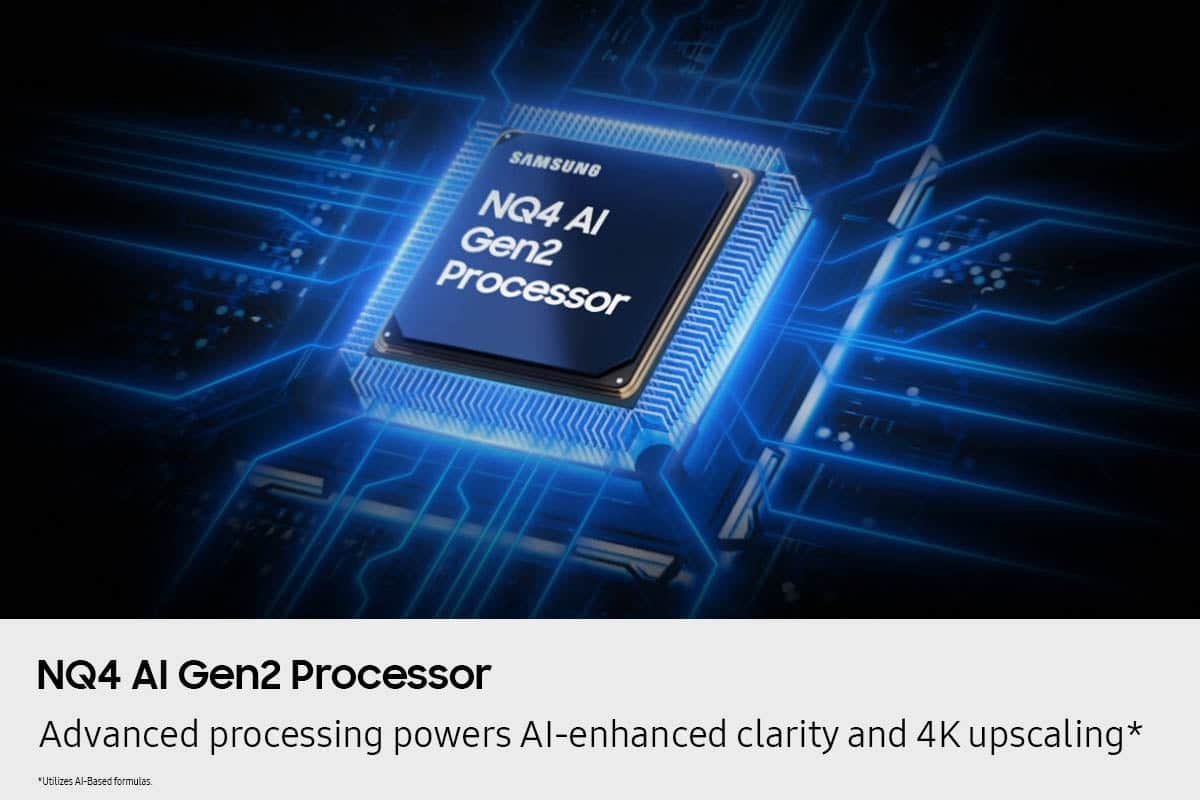
      Thank you for sharing your thoughts on your Samsung S84F TV’s image quality. Your TV is designed to upscale content to the best possible quality based on the resolution of the source. In general, the closer your content is to native 4K, the sharper and more detailed it will appear on screen.

      Here are some tips to help improve picture clarity and overall upscaling performance:
      1. Use HDMI cables for the best high-definition signal.
      2. If you’re using an analog cable or satellite box, consider upgrading to a digital box for better signal quality.
      3. Change the output resolution of connected devices (like a cable box, streaming device, or IPTV box) to UHD or HD, if supported.
      4. Go to Settings > All Settings > Picture > Expert Settings to fine-tune options like Sharpness, Brightness, Contrast, and Color.
      5. Select a Picture Mode that fits your environment: Settings > All Settings > Picture > Picture Mode – try Dynamic, Movie, or Filmmaker Mode.
      6. Explore Picture Clarity Settings under Expert Settings for added detail enhancement. Use Auto or Custom to adjust Judder Reduction, LED Clear Motion, and Noise Reduction.
      7. Enable AI Mode, which automatically analyzes the content and your environment to deliver optimized picture and sound. Go to: Settings > All Settings > Advanced Features > AI Mode Settings
      8. Ensure your TV is running the latest firmware to benefit from performance improvements and the latest enhancements: Settings > Support > Software Update > Update Now

      If you’d like personalized help fine-tuning these settings, please reach out to Samsung Support at 1-800-SAMSUNG, available daily from 8AM - 12AM EST. You can also visit the Samsung website and click on ‘Support’ for:
      • Live Chat
      • Manuals, Software, & Warranty Info

      ~ Samsung Specialist Samsung

  • Rated 1 out of 5 stars

    I'm returning it immediately because it's junk

    |
    |
    Posted .
    This reviewer received promo considerations or sweepstakes entry for writing a review.

    I must have got a bad one because the picture is way too dark no matter what settings I try. I went to the store to compare it and yep, the one I got is bad. I'm returning it for a Bravia and will never buy a Samsung again. Don't they have quality control? Apparently not. Thanks for a horrible experience.

    No, I would not recommend this to a friend
    • Brand response from Samsung
      Posted .

      Hi Dontbuysamsung,

      We’re sorry to hear you’re not fully satisfied with the picture quality on your Samsung S84 TV. If the image appears too dark, we suggest disabling certain energy-saving features, which can automatically adjust brightness and affect how the screen looks.

      You may also want to check if energy saving or AI settings are enabled.
      • For energy settings, go to: Settings > All Settings > General & Privacy > Power and Energy Saving
      • For AI settings, go to: Settings > All Settings > Advanced Features > AI Mode Settings

      You can also adjust the Picture Mode to better suit your environment: Settings > All Settings > Picture > Picture Mode
      • Standard – Default mode for general viewing
      • Dynamic – Brighter and clearer, ideal for well-lit rooms
      • Movie – Best for dark room viewing
      • Eco – Energy-saving mode
      • Filmmaker Mode – Preserves content as intended by creators

      To fine-tune brightness, go to: Home > left directional key > Settings > All Settings > Picture > Expert Settings, then adjust the Brightness level (0–50) to your preference.

      Lastly, please make sure your TV is running the latest firmware: Home > Home > left directional key > Settings > Support > Software Update > Update Now

      We hope these tips help improve your viewing experience. If you need further support, feel free to contact us at 1-800-SAMSUNG, 8AM – 12AM EST, 7 days a week. LiveChat is also available via the ‘Support’ link on our website.

      ~ Samsung Advisor Samsung

  • Rated 1 out of 5 stars

    Liars

    |
    |
    Posted .
    This reviewer received promo considerations or sweepstakes entry for writing a review.

    Do not buy from Best Buy - they are dishonest and will rip you off.

    No, I would not recommend this to a friend
    • Brand response from Samsung
      Posted .

      JuSmo,

      Please know that you're leaving a review and 1-star rating for the TV, but we’re sorry to hear of your experience with Best Buy, nonetheless. You may want to consider providing your feedback directly to the Best Buy store where the purchase was made.

      If you have questions about the TV itself, Samsung is here to help. You can reach us at 1-800-SAMSUNG, 8AM – 12AM EST, 7 days a week. LiveChat agents are also available by clicking the ‘Support’ link on our website.

      ~ Samsung Specialist Samsung

  • Rated 5 out of 5 stars

    Oled tv

    Posted .
    This reviewer received promo considerations or sweepstakes entry for writing a review.

    Freaking love this tv best gift ever picture quality is amazing my own personal theater right at home!

    I would recommend this to a friend
  • Rated 5 out of 5 stars

    Samsung Oled

    Posted .
    This reviewer received promo considerations or sweepstakes entry for writing a review.

    Amazing tv and wonderful price during Black Friday. Picture is fantastic

    I would recommend this to a friend
  • Rated 5 out of 5 stars

    Beautiful Colors

    Posted .
    This reviewer received promo considerations or sweepstakes entry for writing a review.

    Incredible visual quality and great colors. Snappy controls when navigating menus. Very easy to mount and set up soun equipment with.

    I would recommend this to a friend