Customer Ratings & Reviews






- Model:
- MZ-VAP2T0B/AM
- SKU:
- 11013188
Rating by feature
- Value
Rating 4.6 out of 5 stars
- Quality
Rating 5.0 out of 5 stars
- Ease of Use
Rating 4.9 out of 5 stars
the best
||Posted .This reviewer received promo considerations or sweepstakes entry for writing a review.amazing, cant say enough about the quality. amazeballs
I would recommend this to a friendSolid upgrade
||Posted . Owned for 1 week when reviewed.This reviewer received promo considerations or sweepstakes entry for writing a review.Great value for size, and notable upgrade from the 990 I had in previous build. Works as expected!
I would recommend this to a friendGreat speed and quality!
||Posted .This reviewer received promo considerations or sweepstakes entry for writing a review.If you can grab it for $200 nothing can beat it!! Great quality!
I would recommend this to a friendLightning fast!
||Posted . Owned for 2 weeks when reviewed.This reviewer received promo considerations or sweepstakes entry for writing a review.Very nice upgrade from the 980 pro. Glad I did the upgrade and very happy with it.
I would recommend this to a friend
Best out right now
|Posted . Owned for 3 weeks when reviewed.This reviewer received promo considerations or sweepstakes entry for writing a review.Great ssd to future proof for any new pc build with the 5 series nvidia or 9 series amd
I would recommend this to a friendFast and easy to install.
||Posted . Owned for 1 week when reviewed.This reviewer received promo considerations or sweepstakes entry for writing a review.The drive is fast and easy to install. there are utils available for advanced control from the manufacturer.
I would recommend this to a friendSeems high quality
||Posted . Owned for 1 week when reviewed.This reviewer received promo considerations or sweepstakes entry for writing a review.Can't confirm advertised speeds since my MacBook Pro TB4 ports max out around 5000 MB/s.
I would recommend this to a friendGreat addition to any PC
||Posted . Owned for 1 month when reviewed.This reviewer received promo considerations or sweepstakes entry for writing a review.Really simple to put into a pc to help get more storage
I would recommend this to a friendGreat product
||Posted . Owned for 1 week when reviewed.This reviewer received promo considerations or sweepstakes entry for writing a review.I wanted this and glad I got it just wish I bought another
I would recommend this to a friendDrive
||Posted . Owned for less than 1 week when reviewed.This reviewer received promo considerations or sweepstakes entry for writing a review.It’s a excellent drive but too expensive for the price
I would recommend this to a friendLike samsung ssd products
||Posted . Owned for less than 1 week when reviewed.This reviewer received promo considerations or sweepstakes entry for writing a review.I have issues with a dead drive form corsair. I bought this it's at best buy dorp save $20
I would recommend this to a friendBrand response from Samsung
Posted .Meow1982:
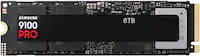
Thanks for purchasing Samsung's 9100 PRO SSD. I am happy to see that this drive is meeting your needs.
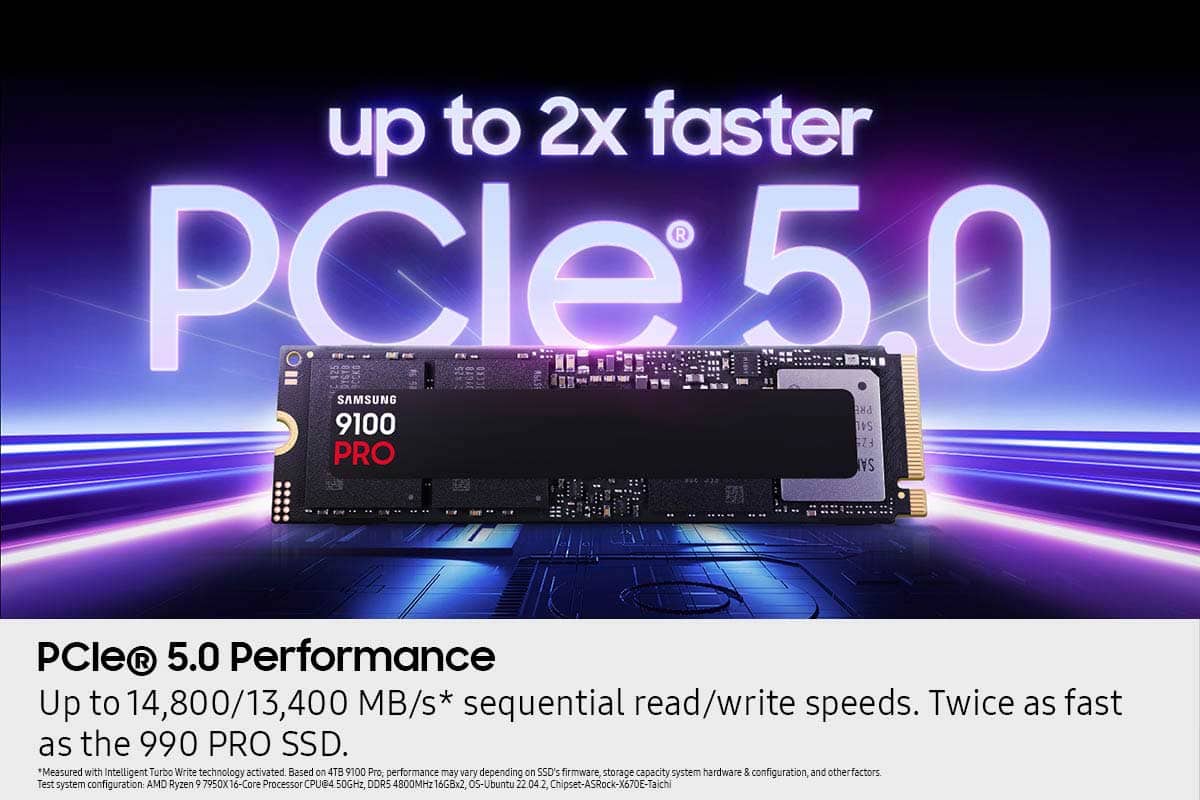
Supercharge your workflow and gaming with PCIe 5.0. Blazing fast speeds and next-gen power for your most demanding tasks.
Should you ever have questions or need assistance using this product, please know we’re always here to help.
1) Call: 1-800-SAMSUNG (ask for Memory). Available 9AM - 12AM EST (Mon-Fri)
2) Email: [email protected]
3) LiveChat 9AM-9PM EST (Mon-Fri) - https://www.livehelpnow.net/lhn/lcv.aspx?d=34834&ms=&zzwindow=0&lhnid=29783
Thanks for choosing Samsung for your memory storage needs!
- Samsung Memory

Blazing Speed But Not For Everyone
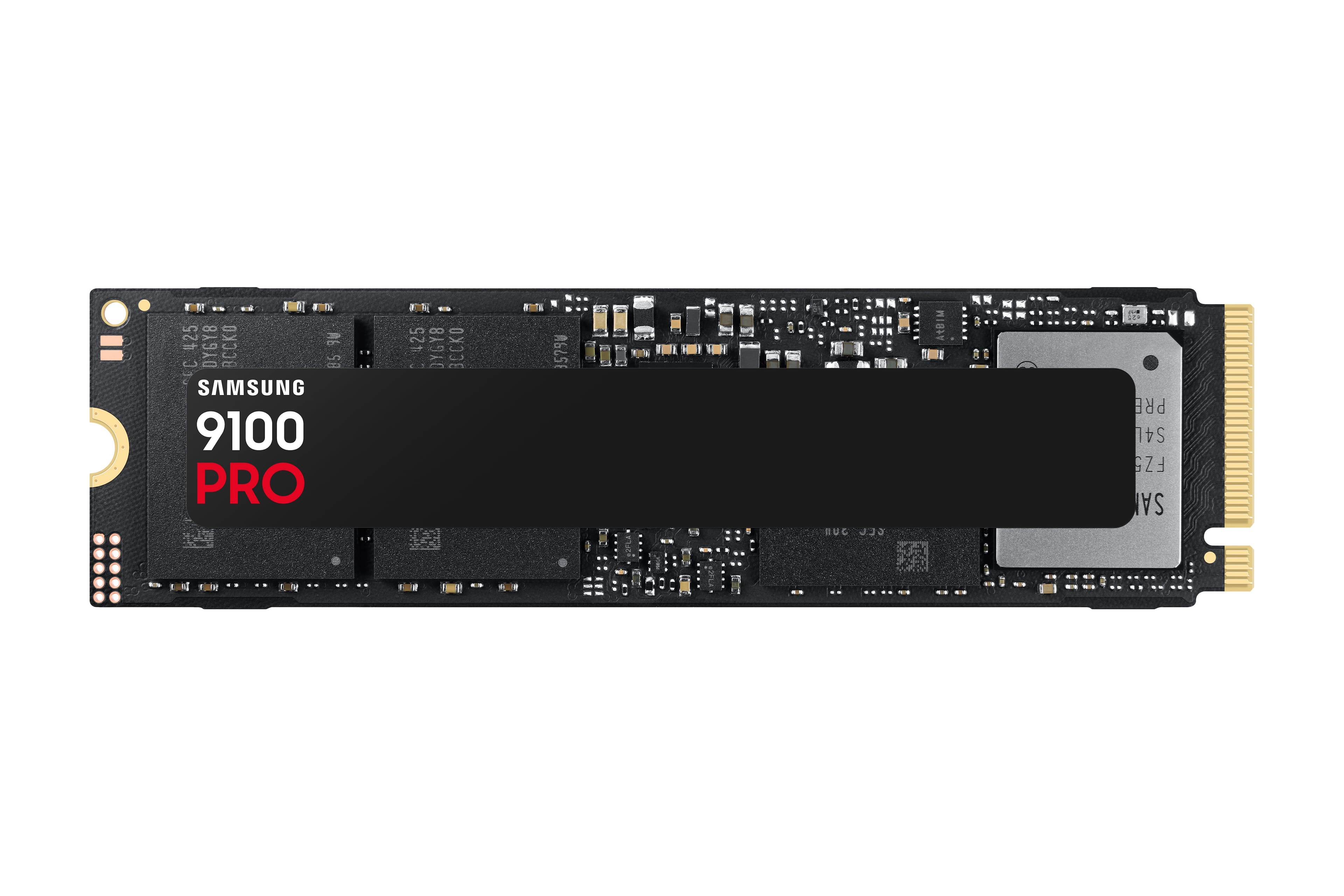
|Posted .This reviewer received promo considerations or sweepstakes entry for writing a review.This Samsung 9100 Pro SSD (9100 Pro) is not just the fastest I’ve ever used, it’s leaps ahead. It has one major problem though – it’s so cutting edge it’s only useful right now to a small group of users, though that will change as soon as computers catch up. Those who can benefit right now need to use a PCIe 5.0 equipped computer, capable of taking advantage of the 9100 Pro’s speed, and be able to financially rationalize it’s cost premium over the next fastest Samsung SSD, which is no slouch, just not as advanced as the 9100 Pro. USE IN THUNDERBOLT 4 ENCLOSURE vs INTERNAL PCIe 5.0 M.2 NVMe SLOT The 9100 Pro is backwards compatible and will work on any computer or external enclosure with an M.2 NVMe slot, but using the 9100 Pro in these situations, in my mind, is wasted money and speed. Consider this – I did quick benchmark speed test in a PCIe 5.0 equipped desktop routinely got nearly 12K Mb/s sequential read and write, which is only about 15% off from its top theoretical speed. Amazing. But when I put the 9100 Pro in a Thunderbolt 4 enclosure, which until very recently was the speed “gold standard” for portable devices, it “only” registered about 2.8K Mb/s sequential read and write. That’s over 400% slower performance than when it’s in a PCIe 5.0 equipped computer. From these tests, it’s clear to me that the “Pro” in the 9100 Pro’s name is all business and not meaningless marketing jargon. It is a “real deal” pro-level product that demands specific hardware to reach it’s potential. If you can’t abide with its hardware demands, you and your wallet are better off buying the Gen 4 version. “REAL WORLD” TEST EDITING 4K VIDEO Now if you are still here, after I completed the benchmark tests above, I tried a “real world” test, using it as a scratch drive, editing a five-minute-long test video using Canon 4K/60 sRAW clips. Also, because I only make short videos comprised of even shorter clips I edit with the actual files, not proxies. This is how I normally shoot so my goal was to find out if the 9100 Pro would appreciably make my work go faster than when I use “slower” but still upper end internal SSDs running around 4.5K Mb/s. As I was working on my video it became clear the 9100 Pro is special. Scrubbing though clips was buttery and even complex effects rendered significantly faster than what I’m used to. I didn’t notice the momentary pause I sometime get as my computer tries to catch up with my actions. And even though the 9100 Pro gets toasty almost immediately upon use this didn’t seem to affect performance. It was a smooth experience the entire time. But, of course, my source video and edits were not pushing anything on my rig to its limits either. Using it for editing is a great experience, like “how it should be,” yet I had guilt pang and felt a little silly I was underutilizing its power, only editing short 4K clips. It’s like when you see an exotic super car in the mall valet lot on a sunny day. The 9100 Pro, I think, is really built for more beefier uses like 8K or even 4K/240, things that cause bottlenecks. And this is how I eventually concluded that the 9100 Pro, until computer manufacturers catch up to its PCIe 5.0 tech en masse, is best for serious professional endeavors given its premium over Samsung’s next best SSD. For casual or general business use it’s hard to justify since it’s power can’t be harnessed in older (and even many newer) computers or even Thunderbolt 5 enclosures. BOTTOM LINE This is an elite SSD. It will shine if your computer has the latest specs and you push it to its limit every day. For everyone else that still wants speed at an affordable price, the best PCIe Gen 4.0 models are still fast and the fastest most computers right now can handle anyway. I’m not a serious gamer, but I can see where it might benefit those users since they tend to have high end rigs and latency is everything to them.
Missing screw
||Posted . Owned for 3 weeks when reviewed.This reviewer received promo considerations or sweepstakes entry for writing a review.Good product but I did not come with that screw that i needed to install
No, I would not recommend this to a friendBrand response from Samsung
Posted .Cordorito:
Thank you for purchasing the Samsung 9100 PRO SSD. Please know that these drives are not delivered with mounting screws since motherboard manufacturers typically provide the specific screws and spacers that fit the proprietary needs of each motherboard.
Should you ever have questions or need assistance using this product, please know we are always here to help.
You can reach us at:
1) Call: 1-800-SAMSUNG (ask for Storage Devices). Available 9AM - 12AM EST (Mon-Fri)
2) Email: [email protected]
3) LiveChat 9AM-9PM EST (Mon-Fri) - https://www.livehelpnow.net/lhn/lcv.aspx?d=34834&ms=&zzwindow=0&lhnid=29783
Thank you for choosing Samsung for your memory storage needs!
- Samsung Memory
Perfect SSD!
|Posted .This reviewer received promo considerations or sweepstakes entry for writing a review.Samsung – 9100 PRO 2TB Internal SSD is an absolute beast of a drive. If you're buying this, I am going to assume that you know how to install this wonderful piece of hardware onto your motherboard. If you're unsure of where your m.2 slot is, there are a plethora of resources available to assist you with that portion. Once you have this on your PC and formatted, it is ready to rock and roll. This drive actually took the place of my C drive because I liked the performance so much that I went and purchased another one to hold the games. The speed is perfect for gaming. The temperature of the SSD is staying relatively cool. Overall, the performance is wonderful, I have yet to find a complaint. Actually, the only complaint is that once you have this one, you're never going to want to go back to anything else. As previously stated, this SSD is a powerhouse, and I have yet to find anything that it lags on. I am very pleased with this SSD, and I highly recommend it to anyone who wants a decent SSD.
I would recommend this to a friendBlazing fast
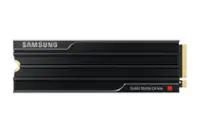
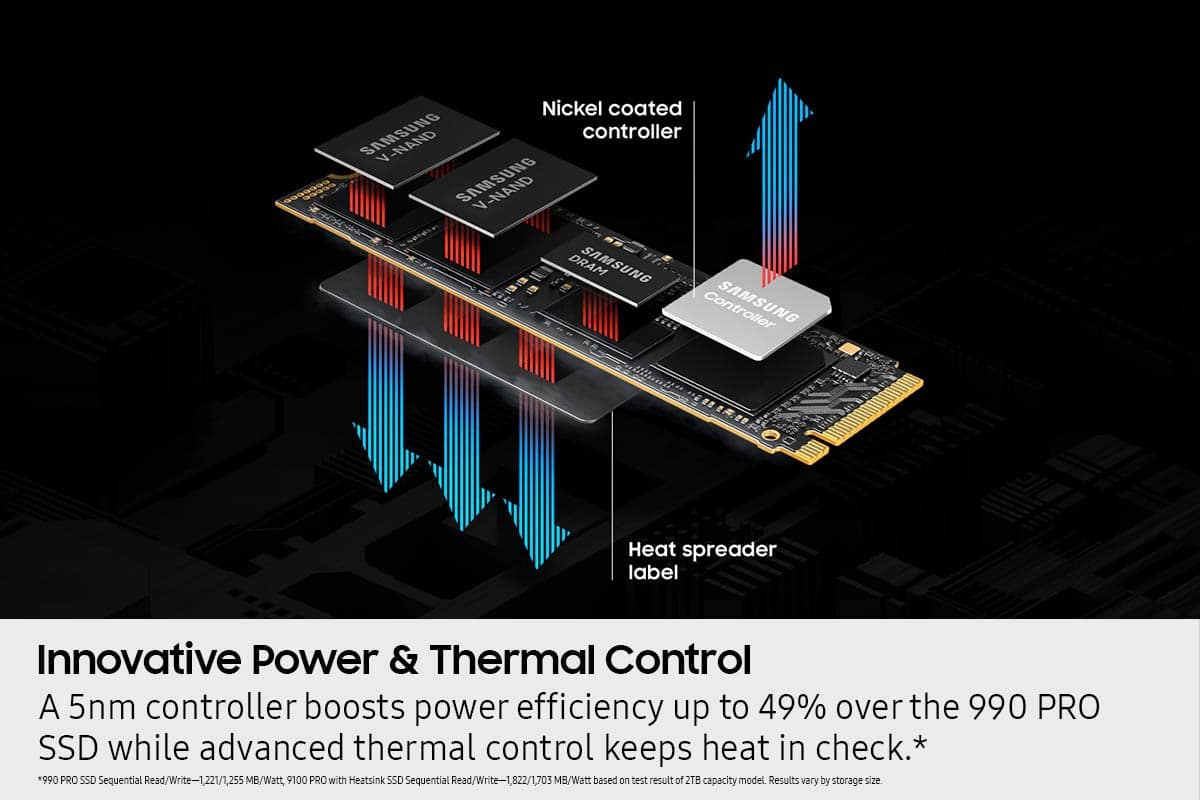
|Posted .This reviewer received promo considerations or sweepstakes entry for writing a review.After using many earlier versions of Samsung SSDs, and being impressed with their performance, this one stands well ahead of anything else on the market. I don't have the hardware to put it fully to the maximum capability of the rated speed. I installed it in PCIe Gen 4 slot, and everything just worked right out of the box. I used Samsung Magician in the install process to make certain there were no issues. Absolutley flawless start up. I can find nothing to complain about and remain impressed with Samsung's ability to keep raising the bar. Two TB is just the right size for my needs, but they make it up to 4 TB if you want that much space. The MTBF is rated a bit lower than I expected, but it will still far exceed anything I will use it for. I do not have space for the heatsink version, but get that one if you have the physical room. As expected, it runs on the hot side. Just a bit more insurance to protect your investment. If you have a PCIe Gen 5 slot, this is the drive you want.
I would recommend this to a friendGreat 2TB upgrade
|Posted .This reviewer received promo considerations or sweepstakes entry for writing a review.I put this in my laptop that only had 512 gb. Install was easy, no issues with compatibility, and works great. I decided to just do a full reinstall so I didn’t try to do any backups to see if there would be any issues, but that really is more a software and main computer issue if it didn’t work anyway. Loaded up all my games and they went flawlessly. I like how fast it is, but honestly I didn’t notice much of a difference. It’s probably because my last hard drive was pretty fast as well, just smaller, so the hard drive wasn’t the bottleneck in my system. If I had gotten too much slower of one I may have had a different experience. I did try to test it by loading up various files (music, pictures, etc) and try to see if I felt like it went pretty fast. It did seem to go pretty fast, but nothing shocking. Again I don't know if the limiting factor was the speed of transfer for the hard drive or the connectors into my computer. But I was happy with all the speeds I saw. 2 TB should be good enough for me for a while, and I don't think I'll need bigger until I upgrade my laptop anyway. Its overall a great drive and I highly recommend.
I would recommend this to a friendRock solid and stupid fast!
|Posted .This reviewer received promo considerations or sweepstakes entry for writing a review.I needed an updated portable external storage solution that I could use to transport data between a number of Windows devices. The size and sheer number of files that I found myself working with has increased exponentially since I started doing video editing with my drone footage. I also have been backing up my DVDs into a library that I can access via my media player and display in my home theater. Ideally I wanted an external drive that was fast enough to allow me to do my editing directly on the portable drive rather than transferring it to my internal SSD first and then transferring it back after I was done. I have several NAS units that I use daily and they provide me with ample bulk storage that is protected via RAID arrays and duplicated across different units for redundancy. However, I have found that the transfer speed from the NAS to my editing PCs is not sufficient to deal with the volume. I have used thumb drives, external spinning media USB drives, and SSD hard drives mounted in external enclosures as solutions. While these all work they are still too slow and/or lack sufficient capacity. So, when I discovered the new Gen5 Samsung 9100 PRO NVMe SSD I was intrigued! I am very familiar with the Samsung SSD products having upgraded several of my systems to their drives in the past. I find their hardware to be rock solid, reliable and fast. I also appreciate the capacity options that are offered. Furthermore, I have been pleased with the thermal envelope and have experienced no problems with overheating or throttling. My first mounted the 9100 PRO in a USB 3 external enclosure and compared the performance using CrystalDiskMark 8.0.6 Aoi Edition x64 to my laptop's internal SSD. I then ordered a USB 4 external enclosure and mounted the drive in that and repeated all of the tests. All testing was completed on a 2025 Samsung Galaxy Book5 Pro laptop with an Intel Core Ultra 7, 16GB Memory and a 1TB internal SSD. The results were extremely impressive! Samsung Laptop Samsung 9100 PRO - 2TB Lexar Thumb drive Internal SSD USB 3 enclosure USB 4 enclosure ----------------------- ---------------------- ---------------------- --------------------- Read - MB/s 178.2 3080.8 1048.2 3844.1 Write - MB/s 4.4 848.8 1038.6 1312.6 Short and sweet - I can now work directly off my portable storage device and the performance is indistinguishable from working on the internal hard drive. Furthermore, transferring files is blazingly fast! I can transfer a 70GB file in under two minutes! Best of all, since the 9100 PRO is a Gen5 device, I will be ready when laptops supporting future generations of USB/Thunderbolt start appearing! I can simply buy an upgraded external case/controller and transfer my NVMe drive (a 10 minute operation!) I highly recommend the Samsung 9100 PRO for your high speed/high capacity portable needs!
I would recommend this to a friendThey get bigger and faster all the time
|Posted .This reviewer received promo considerations or sweepstakes entry for writing a review.I use an M.2 SSD on most of my home computers, but my daughter's media server was still running a dual core CPU and was pretty outdated. I a newer Ryzen 3 motherboard lying around that supports M.2 so I decided to update it for her. Her system had suffered a hard drive failure, so it needed a new C drive anyway. When this SSD arrived, I installed it and went into the BIOS. I was surprised that the card didn't appear. After checking all the BIOS settings I could find nothing amiss. I was concerned this PCI 5.0 card would not work on a PCI 3.0 motherboard, but everything pointed to it being supported. Finally I found a post in Reddit that said another person had the same issue, but clearing the BIOS and starting from scratch fixed it. So I cleared the BIOS, but the card still did not appear. I decided to run the Windows 10 install anyway, and discovered the card was now visible (I had tried the install previously but the card didn't appear). Once I installed Windows the BIOS now showed the installed M.2 card, and I successfully enabled the TPM settings for secure booting. So, if you install this (or another) M.2 card and it doesn't appear in the BIOS or the install, try a BIOS reset. Since this 5.0 M.2 SSD is far faster than the 3.0 motherboard, I wasn't expecting mind-blowing performance. But in reality using an M.2 SSD speeds up the OS operations so much it really was a powerful computer now. Windows 10 boots in a matter of seconds, and with 2 TB of space it has tons of space if the media server software needs to transcode anything the hard drive will not be a limiting factor. I installed both Plex Media Server and Serviio DLNA server, and both performed extremely well. So, if you run into setup issues, see my comments above. Yes, you can use a 5.0 M.2 SSD on an older motherboard without any problem. You won't get the full performance from the SSD, but compared to a normal SATA hard drive it's fantastic using a SSD hard drive in its place.
I would recommend this to a friendEasy installation and setup, works well
|Posted .This reviewer received promo considerations or sweepstakes entry for writing a review.Solid-state drives (SSDs) have in many cases replaced mechanical hard drives as basic computer storage, although mechanical drives are still very popular and likely will be for some time to come. My current computer has both types. As far as solid-state drives, the motherboard can hold up to four of these drives (also often called “M-2" drives, in my experience), and two of the slots were already filled, each with a 1 TB drive, so I have room for more. I put this new drive, which, at 2 TB, has the capacity of the other two combined, in the third slot. To my mind, computer disk space is like shelf space or closet space—you can never have too much. Even if you use the extra drive space just for backing up your main storage drive, which is what I primarily plan to do with this one. Setup in software once the drive is physically installed and the computer buttoned back up is very simple. In Windows 11, right-click on the Start button and select Disk Management. Windows should find the drive, but it will need to be partitioned, and I made it a single drive with one drive letter. Once complete, Windows told me the drive needed to be formatted, which took an additional 30 seconds. So after about a minute of working in Windows, my new drive is fully functional and ready to accept whatever I want to store on it. One of the best features of SSDs is that there are no moving parts, so read and write speeds are about as fast as they can be. I do notice this difference when reading or writing to one of the mechanical drives in my system versus reading or writing to one of the SSDs. With the mechanical drives, I can hear the drives spinning up when there is a read or write request to that drive, and that adds a few seconds to the read/write process. Not that this is a big deal, but you do notice the difference once you get used to working with SSDs. I see no reason why this Samsung drive shouldn’t give me years of excellent service.
I would recommend this to a friendVery Fast Even as an External SSD
|Posted .This reviewer received promo considerations or sweepstakes entry for writing a review.I had to review this as an external USB-3 SSD rather than a fully mounted PCIe NVMe SSD. My new system is not up and running yet and this SSD is to be my C: drive with Windows 11 Pro on it. I currently own a Samsung 980 Pro Drive in a Win 10 system and it is very, very fast. I do not own a Samsung 990 Pro when I selected this Samsung 9100 Pro. It was meant to be the main component of my new system. I’m really looking forward to it because it is two steps up from anything else that I have that is even close to it. So, the only test that I can come up with for this SSD, was to mount it in my MOKIN NVMe enclosure and run it as an external USB-3 SSD data drive. Even as an external USB-3 drive, it did not disappoint. I copied 12.4 GB made up of 149 files and 12 folders to a new root directory on the Samsung 9100 Pro 2 TB drive. Then I made three other folders off the root of the new drive. When I copied the 12.4 GB worth of files to each directory these were the times; 22.41 seconds, 22.45 seconds, and 22.38 seconds. I know it’s not scientific, but it works for me. Keeping in mind that with this was from a directory on the Samsung 9100 SSD, through USB-3, to an Intel 7 processor, back out USB-3, to the Samsung 9100 SSD, and to the new directory. I was impressed with these times! Once the Samsung 9100 SSD is installed on the motherboard, and my new system is up and running, I will repeat the test, and all will be handled internally. I would imagine the times will be down around 2- to 3-seconds to copy 12.4 GB of files. That’s almost unimaginable to an old guy like me! I run nothing but Samsung drives and will repeatedly swear by their speed and durability. I’m looking forward to it. For right now, I can definitely recommend this Samsung 9100 Pro 2 TB drive to anyone who is looking to build a new system or seriously upgrade an older system. It will not disappoint!
I would recommend this to a friend