Customer Ratings & Reviews






- Model:
- K50S30
- SKU:
- 10562724
Rating by feature
- Picture Quality
Rating 4.8 out of 5 stars
- Sound Quality
Rating 4.5 out of 5 stars
- Brightness
Rating 4.7 out of 5 stars
TV
||Posted . Owned for 1 month when reviewed.This reviewer received promo considerations or sweepstakes entry for writing a review.Perfect Tv for room. Size is great, color is amazing.
I would recommend this to a friendBrand response from SonyListens
Posted .Hi zaddy, Thank you for the great review! We're very happy to hear that this TV fits perfectly in your TV room and thank you appreciate the size and amazing colors. Thanks for choosing Sony! -Sam

Inferior TV
||Posted . Owned for 1 month when reviewed.This reviewer received promo considerations or sweepstakes entry for writing a review.TV Is inferior. Shuts on and off unexpectedly. Very disappointing.
No, I would not recommend this to a friendBrand response from SonyListens
Posted .Hi JohnF,
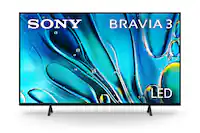
We're truly sorry to hear that your experience with the Sony - BRAVIA 3 has been disappointing, especially with the TV shutting on and off unexpectedly. We understand how frustrating this can be, and we'd like to help you resolve it. Here are some troubleshooting steps you can try:
1. Power reset the TV by unplugging it from the power source, wait two minutes, and plug it back in.
2. Update your TV software, you can do this by going to settings > system > about > system software update.
3. Disable the HDMI CEC settings, this can sometimes cause unexpected power behaviors. You can disable it by going to settings > channels and inputs > external inputs > HDMI CEC Settings > Set to off
For additional troubleshooting steps, you can check this guide: https://www.sony.com/electronics/support/articles/00032613?utm_source=glean
If the issue still persists after these steps, we encourage you to reach out to our technical support team so they can investigate further and provide a solution. You can contact them at: https://us.esupport.sony.com/support/s/support-contact?language=en_US&category=tv
We truly appreciate your feedback, and we want to make sure your TV delivers the performance you expect.
Thank you for considering Sony products.
Regards,
Dominick
Sony bravia 3
||Posted . Owned for 2 weeks when reviewed.This reviewer received promo considerations or sweepstakes entry for writing a review.Great tv for our bedroom Would definitely recommend to anyone looking fir a new 4ktv in 2024. Now for the bravia 9 for the living room
I would recommend this to a friendBrand response from SonyListens
Posted .Hi PaulP, Awesome! We are so glad to hear that you are happy with your new TV! Thank you for choosing Sony! -Carl
Never buying another Sony TV
||Posted . Owned for 3 months when reviewed.This reviewer received promo considerations or sweepstakes entry for writing a review.I've had Sony TVs in the past and really liked them and never had any issues. I decided to replace a 10-yr old Vizio with this Bravia tv. My input source is Nvidia Shield. I have the shield settings all set to turn on the tv, turn to source etc., when shield is activated and the TV settings to turn on to active source when the tv is turned on. This should enable me to use the shield remote to turn the shield and the tv on and the tv should automatically go to the shield hmdi port. But it doesn't. More often than not, the tv either doesn't turn on at all or turns on but with a blank screen. I either have to use the tv remote and change the source manually or I can use the shield remote and turn it on and off a couple of times and usually the tv will then turn on and show the shield home screen. What a hassle. This should be the simplest function to perform other than plugging it in. I have 3 other tvs (LG, older Sony, Roku) all hooked up to a shield source and none of them have this issue. I can active all of them with the shield remote and they all go directly to the shield home screen. For the Bravia, I did set the power on option to 'last used input' and I did set the hdmi input to automatic when a source is activated but neither of those help much. I don't want to use 2 remotes to turn the tv on but I'm stuck with it now and I'll never get another Sony if this is how they will perform going forward. LG is much better all around, at least with the TVs I own. Also, the color only looks really good when your head is directly in the center of the screen. If you move to the side at all, the color looks faded and washed out.
No, I would not recommend this to a friendBrand response from SonyListens
Posted .Hi WillG, We apologize for the inconvenience you're experiencing with your new Bravia 3 TV and Nvidia Shield setup. It seems like there might be an issue with the HDMI-CEC function not working as intended. Here are a few steps you can try to fix the issue:
Ensure that the HDMI cable is securely connected between the Nvidia Shield and the TV. It’s recommended to use high-speed HDMI cables for better performance
Make sure both your TV and Nvidia Shield have the HDMI-CEC function enabled. For the TV, go to Settings > Channels & Inputs > BRAVIA Sync settings > BRAVIA Sync control > turn it ON. And please reach out to NVIDIA to make sure that the HDMI CEC function is enabled.
Ensure that your TV's firmware is updated to the latest version. Updating can resolve compatibility issues and bugs.
Try performing a power reset on both the TV and Nvidia Shield. Unplug them from the power outlet, wait for about 60 seconds, and then plug them back in and turn them on.
If these steps do not resolve the issue, please contact our product support team through this link: https://us.esupport.sony.com/support/s/service?language=en_US. Or email us at [email protected] with the following details:
Name:
Username:
Model Number:
Issue:
Telephone Number:
Sincerely,
Sam
New Sony TV
||Posted . Owned for 1 month when reviewed.This reviewer received promo considerations or sweepstakes entry for writing a review.The salesperson was helpful and the installation tech was timely and did a great job. We are enjoying the new Sony TV.
I would recommend this to a friendBrand response from SonyListens
Posted .Hi JohnT, Thank you for your awesome review! We are glad to hear about your awesome shopping experience! Thank you for choosing Sony! -Carl
super bravia
||Posted . Owned for 3 weeks when reviewed.This reviewer received promo considerations or sweepstakes entry for writing a review.beatyfull tv everything looks good the tv come nice color sound and super smart i liked i make the best shop he
I would recommend this to a friendBrand response from SonyListens
Posted .Hi JoseT, Awesome! We are so glad to hear that you are happy with your new TV! Thank you for choosing Sony! -Carl
WilliamF
||Posted . Owned for 1 week when reviewed.This reviewer received promo considerations or sweepstakes entry for writing a review.delivery and installation were on time, efficient and well done!
I would recommend this to a friendBrand response from SonyListens
Posted .Hi there WilliamF! Thank you so much for your review! We are so glad to hear that you are happy with your new TV! Thank you for choosing Sony! -Carl
Sony - 50" Class BRAVIA 3 LED 4K UHD Smart Google
||Posted . Owned for 1 month when reviewed.This reviewer received promo considerations or sweepstakes entry for writing a review.Sony - 50" Class BRAVIA 3 LED 4K UHD Smart Google TV (2024)
I would recommend this to a friendBrand response from SonyListens
Posted .Hi RussellB,
We appreciate the 5-star rating. Thank you for choosing Sony and enjoy your TV!
-David
Lightweight
||Posted . Owned for 2 weeks when reviewed.This reviewer received promo considerations or sweepstakes entry for writing a review.I liked how lightweight it was. Cant say anything else. Mine was defective.
No, I would not recommend this to a friendBrand response from SonyListens
Posted .Hi AlecL, We are sorry to hear about your experience with our Bravia 3 TV. We'd love to make sure that you are getting the best experience out of your TV.
May we contact you to help? If so, please email the below information to [email protected]
Apologies if you disclosed some of this information in your review and to customer service, we just want to ensure that we have your accurate details at the time of communication.
Full Name:
Username:
Telephone Number:
Model Number:
Issue:
Regards,
Carl
Nice TV
||Posted . Owned for 1 week when reviewed.This reviewer received promo considerations or sweepstakes entry for writing a review.Seems a little complicated to go from cable to streaming. Sometimes inconsistent steps.
I would recommend this to a friendBrand response from SonyListens
Posted .Hi babbs, Thank you for choosing Sony! We are glad to hear that you are enjoying your new TV! For more information on the TV's features please check out our help guide link: https://helpguide.sony.net/tv/husltn2/v1/en-003/print.html
I hope this helps!
Regards,
Carl
Sony tv
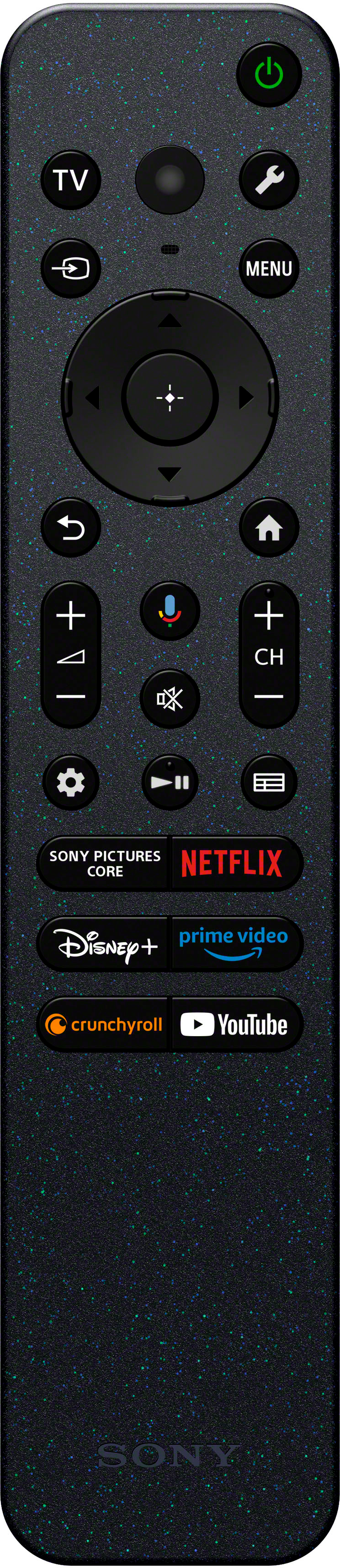
||Posted . Owned for 2 weeks when reviewed.This reviewer received promo considerations or sweepstakes entry for writing a review.Its great quality just odd have to purchase the remote separate
I would recommend this to a friendBrand response from SonyListens
Posted .Hi TurtleBeach, Thanks for the feedback. We're glad you like the quality of the TV. If you purchase the TV brand new, it should come with a Voice Remote Control. If you're missing the remote control, kindly reach out to your dealer. Hope this helps. Regards, -Craig
New Television
||Posted . Owned for 3 weeks when reviewed.This reviewer received promo considerations or sweepstakes entry for writing a review.Good TV. A little pricey. Geek squad installation excellent.
I would recommend this to a friendBrand response from SonyListens
Posted .Hi RogerB, Awesome! We are so glad to hear that you are happy with your new TV! Thank you for choosing Sony! -Carl
Good product
||Posted . Owned for 1 month when reviewed.This reviewer received promo considerations or sweepstakes entry for writing a review.Its a pretty good TV with LED bright screen but sometimes takes time for loading.
I would recommend this to a friendBrand response from SonyListens
Posted .Hi Siddharthp, Awesome! We are so glad to hear that you are happy with your new TV! Thank you for choosing Sony! -Carl
Television
||Posted . Owned for 1 month when reviewed.This reviewer received promo considerations or sweepstakes entry for writing a review.I like the TV. I purchased one in 2016. Geek squad was great
I would recommend this to a friendBrand response from SonyListens
Posted .Hi KathyL, Congratulations on your new purchase! We're thrilled to hear that your Sony BRAVIA 3 TV is to your liking and that you had a great experience purchasing it. Thank you for taking the time to share your wonderful feedback. We truly appreciate your trust in Sony, and we hope you continue to enjoy many more years of exceptional experiences with your Sony TV! -Maria
TV
||Posted . Owned for 1 week when reviewed.This reviewer received promo considerations or sweepstakes entry for writing a review.The TV was delivered and set up by the Geek squad. Thank you all so much.
I would recommend this to a friendBrand response from SonyListens
Posted .Hi Karen, Thanak you so much for your review! We are glad to hear that you are happy with your new TV! Thank you so much for choosing Sony and for the 5-star rating! -Carl
Great Picture
||Posted . Owned for 1 week when reviewed.This reviewer received promo considerations or sweepstakes entry for writing a review.I always have good luck with Sony TV’s, and I can get the MLB app to work.
I would recommend this to a friendBrand response from SonyListens
Posted .Hi Dans,
Thank you for the 5-star rating! We're glad to hear that you like the picture quality of the TV. Thank you for choosing Sony and have a great day!
-David
Sony
||Posted . Owned for 3 weeks when reviewed.This reviewer received promo considerations or sweepstakes entry for writing a review.I always enjoy shopping at Best Buy. The TV I recently purchased has a few issues. The screen sometimes goes to start up mode in the middle of a program. The remote does not have a number display.
I would recommend this to a friendBrand response from SonyListens
Posted .Hi Printersupplies, We apologize for the issues you're experiencing with your Sony BRAVIA 3. For the screen going to start-up mode in the middle of a program, we recommend performing a soft reset.
Regarding the remote not having a number display, we understand this can be inconvenient. We appreciate your feedback and will consider it for future improvements. If you continue to experience issues, please email us at [email protected] with the following details:
Name:
Username:
Model Number:
Issue:
Telephone Number:
Regards,
Sam
no comment
||Posted . Owned for 1 week when reviewed.This reviewer received promo considerations or sweepstakes entry for writing a review.everything was done very professionally and the installers were very knowledgeable
I would recommend this to a friendBrand response from SonyListens
Posted .Hi nothankyou, Thank you so much for your review! We are glad to hear that you are enjoying your new TV and got a professional experience with the installation of your new Bravia 3! Thank you for choosing Sony! -Carl
Sony Smart TV
||Posted . Owned for 3 weeks when reviewed.This reviewer received promo considerations or sweepstakes entry for writing a review.Great TV overall, though audio could be improved..
I would recommend this to a friendBrand response from SonyListens
Posted .Hi JnLL, Awesome! We are so glad to hear that you are happy with your new TV! Thank you for choosing Sony! -Carl
Tv turns itself on every night.
||Posted . Owned for 2 months when reviewed.This reviewer received promo considerations or sweepstakes entry for writing a review.I have owned this TV about 2 months, and this Sony Bravia 3 turns itself on every night all by itself. I have exhausted all resources I can find, and done everything all of them listed as possible solutions, and it still does it. Apparently, Sony knows this problem exists, and doesn’t know why. I have disabled all settings that supposedly would allow the TV to self start, but it seems to have a mind of it’s own. I have resorted to turning volume down to 0 so it doesn’t make noise when it does this. This is my last Sony product. There should be a recall of all Sony Tv’s, and complete refunds to people who bought them.
No, I would not recommend this to a friendBrand response from SonyListens
Posted .Hi JamesM,
Since you've already attempted troubleshooting steps and the issue persists, let's ensure everything has been addressed properly. If any steps were overlooked, please give them a try.
First, perform a power reset by unplugging the TV from the electrical outlet for at least 60 seconds. After that, check for any software updates. If you're unsure how to do this, you can find instructions here: https://www.sony.com/electronics/support/lcd-tvs-android-bravia-3-s30-/k-43s30/software/00340195.
Next, adjust your Energy Settings. Navigate to Settings > System > Power and Energy, and disable any energy-saving features such as "Idle TV standby" or "Auto shut-off."
Additionally, disconnect any external devices (like HDMI or USB) to determine if they might be causing the shutdown issue.
If the problem persists after these steps, consider resetting the TV to its factory settings. For detailed instructions, please visit: https://www.sony.com/electronics/support/articles/00159487?utm_source=glean.
We hope you find this information helpful. Thank you for choosing Sony.
Best regards,
Aldair