Memory Cards For Samsung Galaxy
-
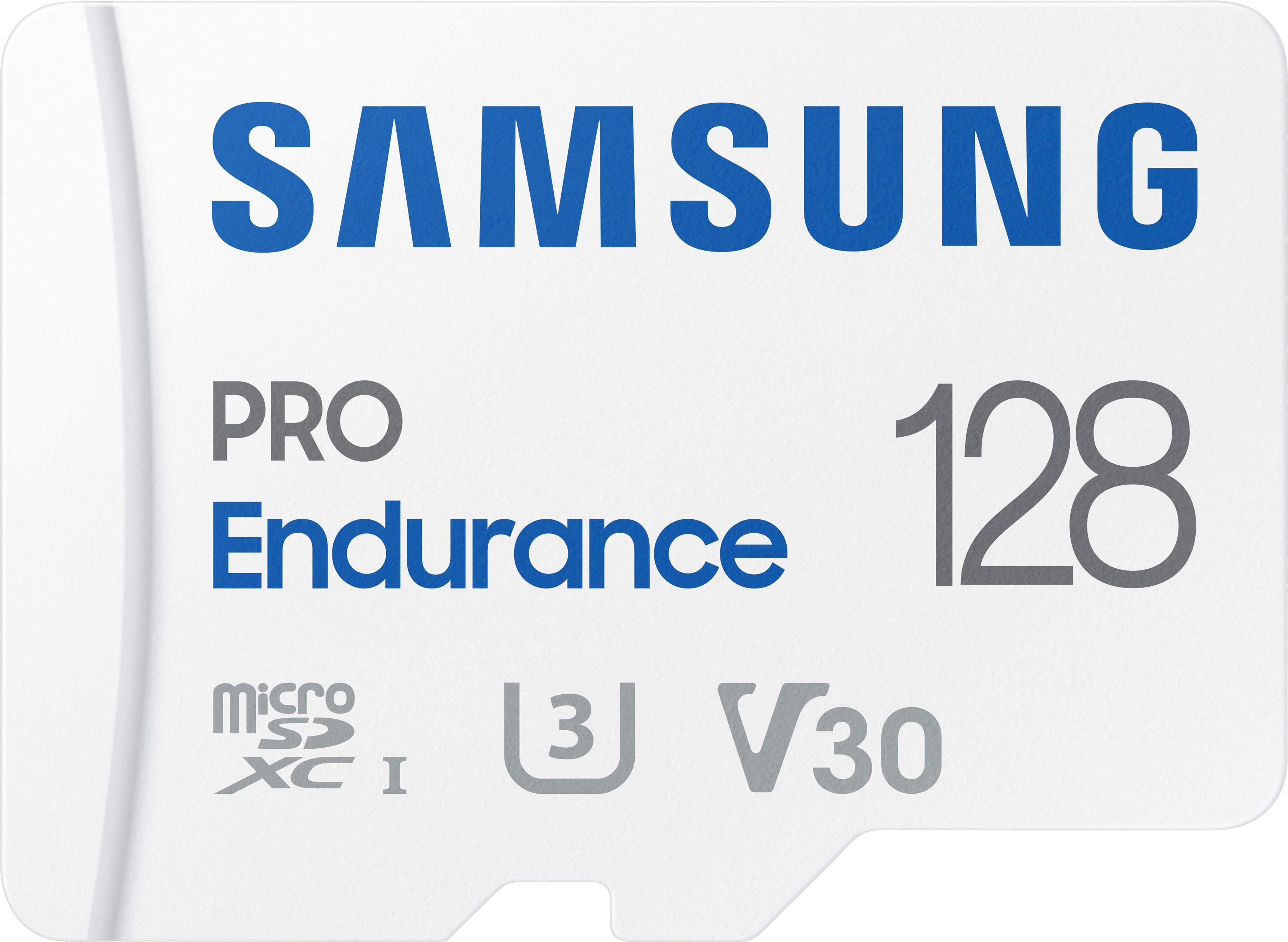
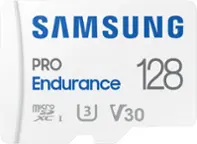
Samsung - PRO Endurance 128GB microSDXC SD Memory Card
SKU: J3ZYG2JZWKCalled Best buy for a reason...Great product, no issues, best price around by far great service...Best quality and price. Great for dash cam and cameras.
See all microSDXCProduct Description
A durable white microSDXC card offering 128GB storage, water resistance, and fast FHD/4K recording performance.Your price for this item is $76.99 -
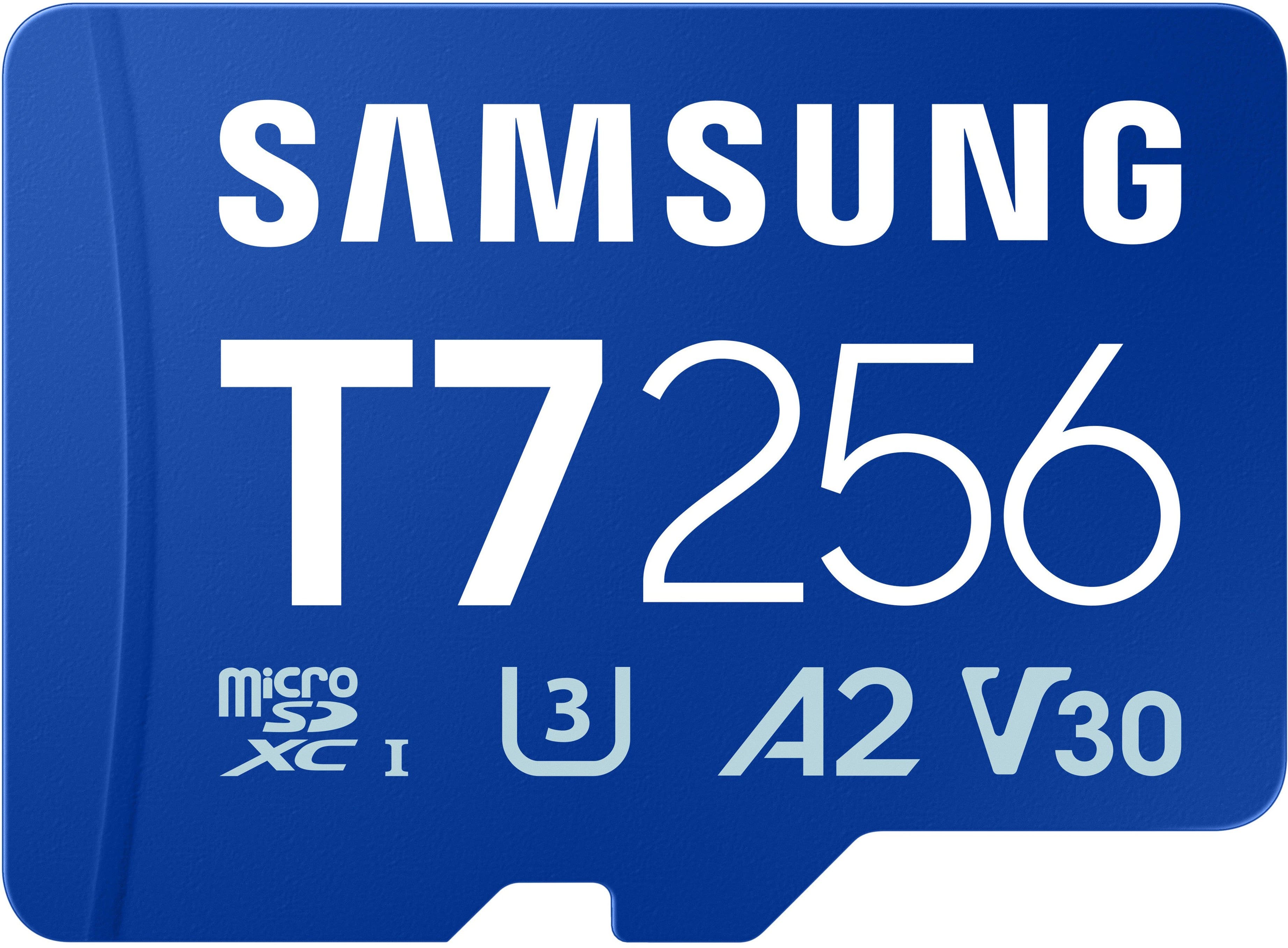
Samsung - microSDXC T7 256GB, Transfer Speeds Up to 170 MB/s (MB-MB256T/WW)
SKU: JJGRF3SK9LGreat capacity!...Really great capacity! If you need something with reliability this product is the best!...Works great will be buying more wish i had bought the bigger one I love these
See all microSDXCProduct Description
A blue water-resistant microSDXC card offering 256GB storage, 170 MB/s transfer speeds, and A2 app performance.Your price for this item is $119.99 -
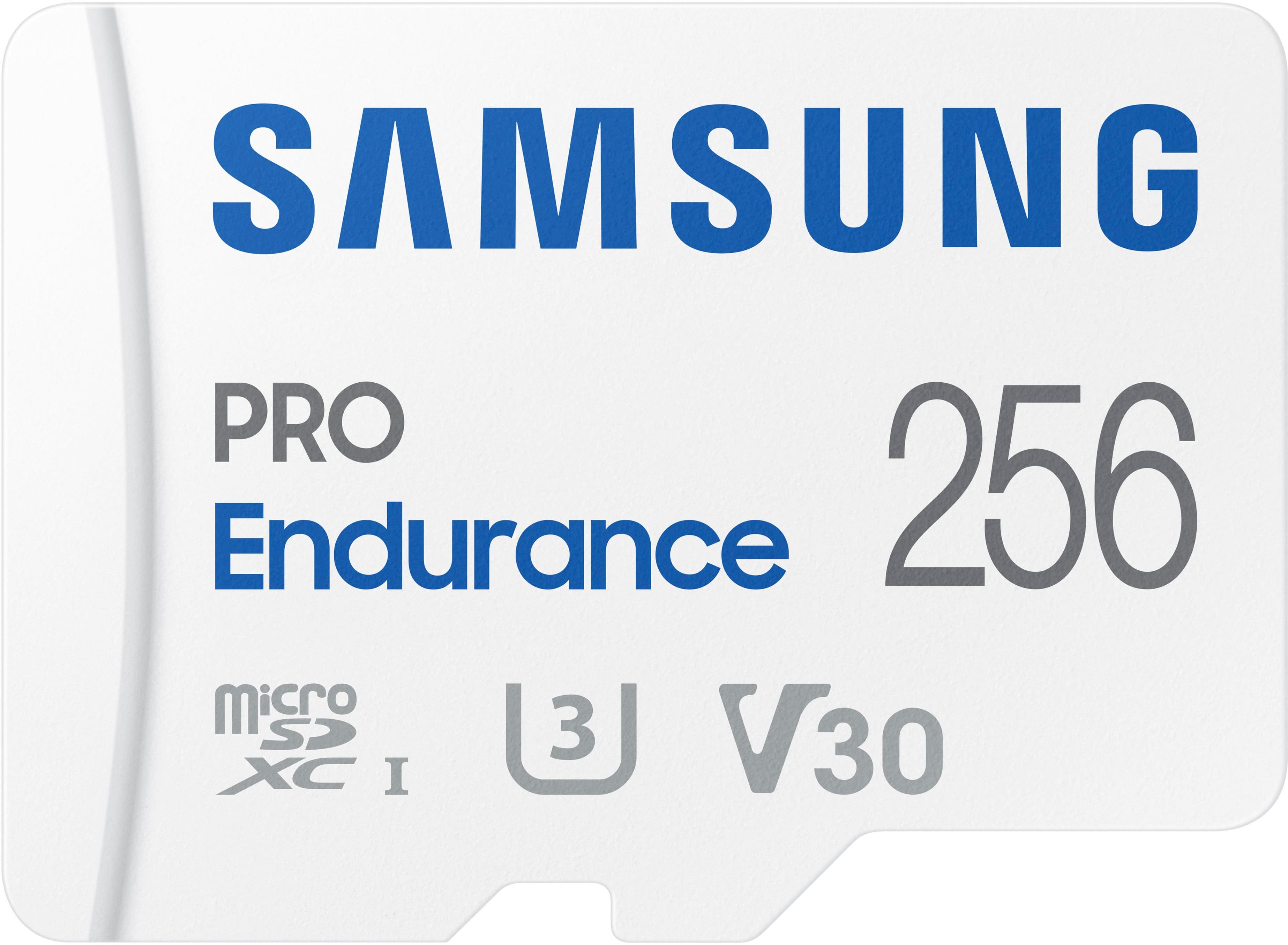
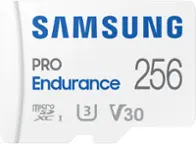
Samsung - PRO Endurance 256GB MicroSDXC Memory Card
SKU: J3ZYG2JZK7It works as advertised no problems, great buy at the bargain price at Best buy....Great Micro SD...The Samsung Micro SD card's is the best you can buy!
See all microSDXCProduct Description
A durable white microSDXC card offering 256GB storage, water resistance, and fast FHD/4K recording performance.Your price for this item is $153.99 -
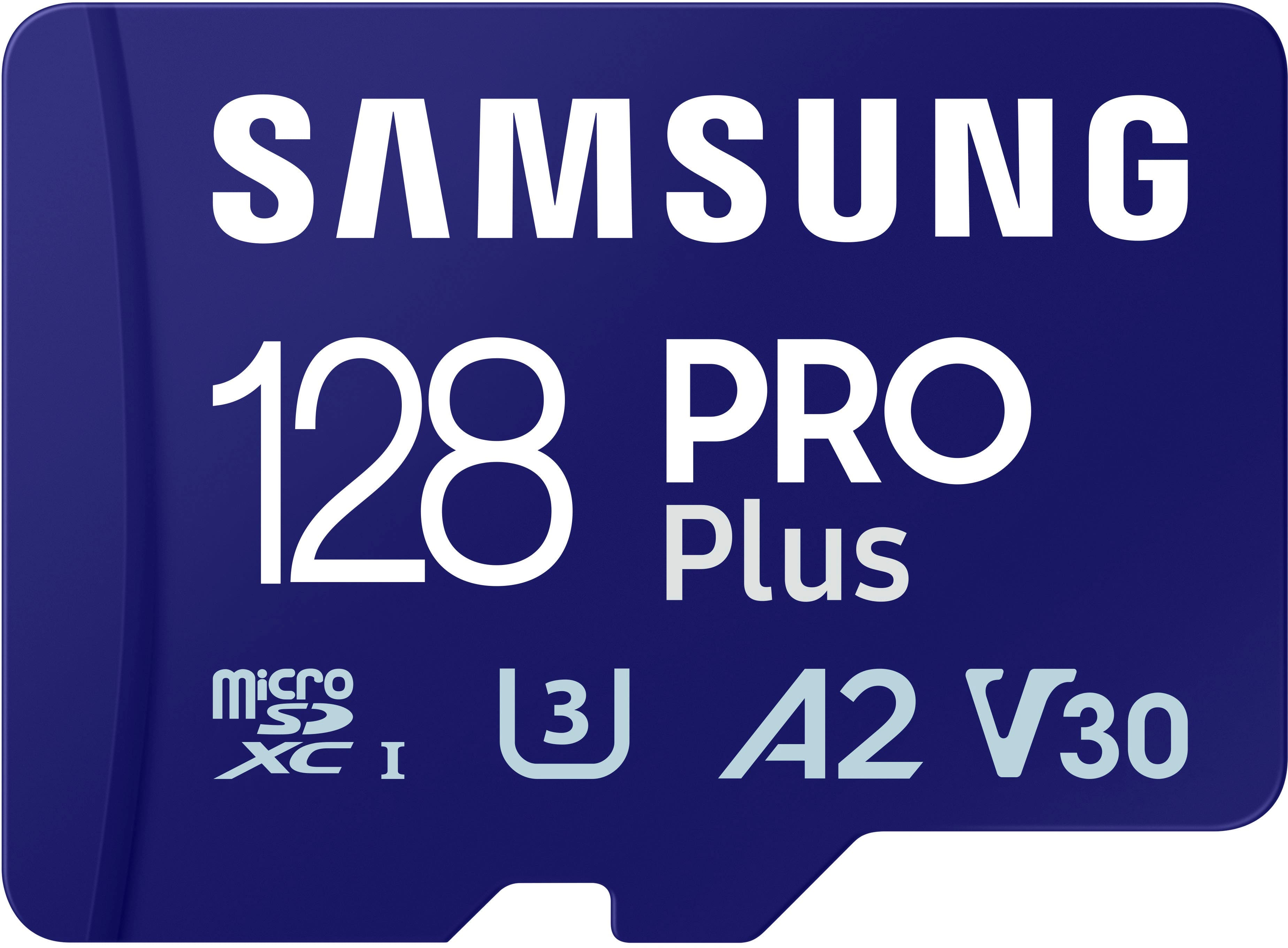
Samsung - Pro Plus 128 GB microSDXC Memory Card
SKU: J3ZYG2PH6CI absolutely love this SD Card I use it with my Nintendo switch and it read and write my games flawlessly...BEST OVER ALL...Great
See all microSDXCProduct Description
A high-speed 128GB microSDXC card with adapter, ideal for 4K video, gaming, and expanded storage.Your price for this item is $49.99 -
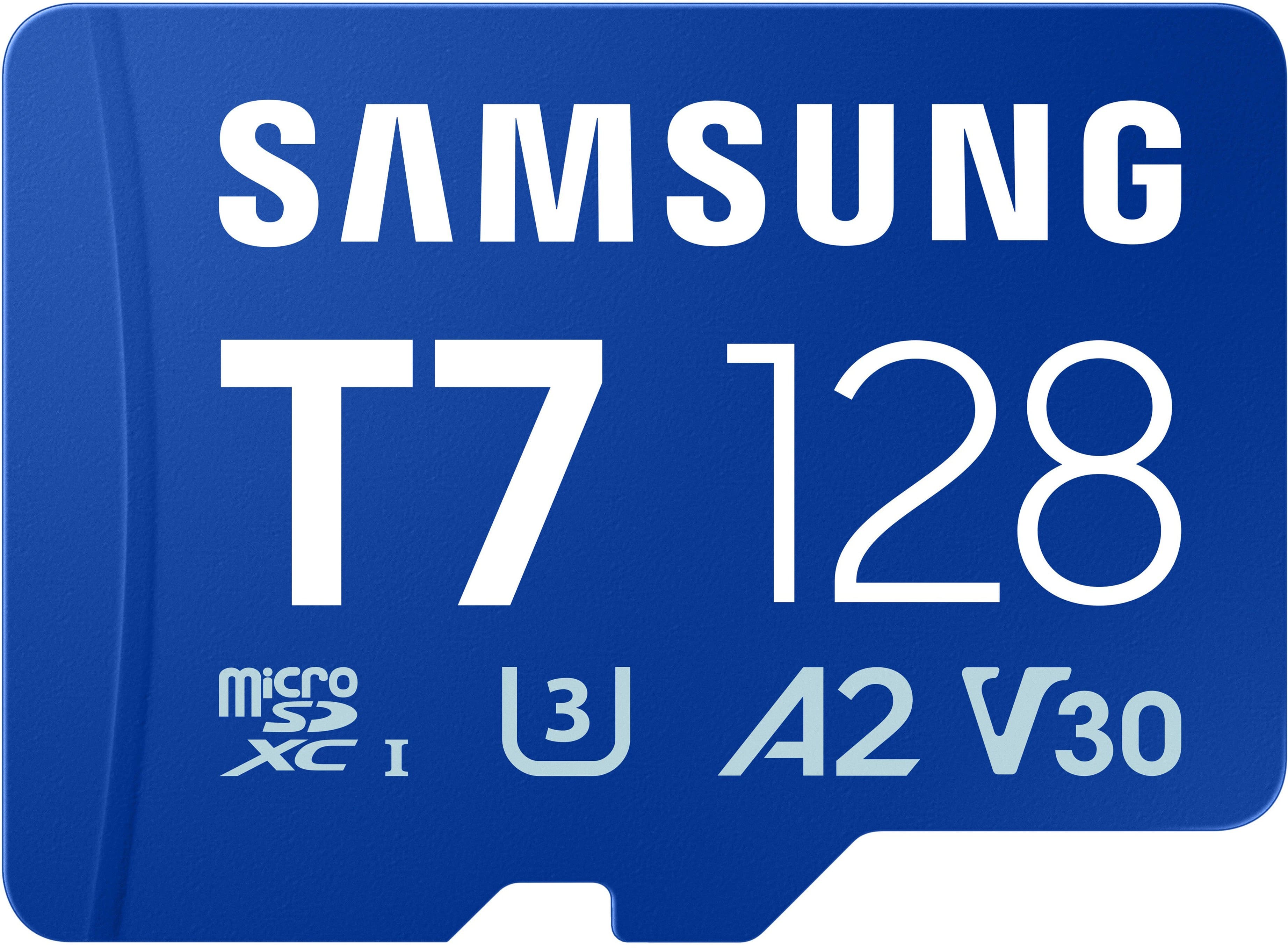
Samsung - microSDXC T7 128GB, Transfer Speeds Up to 170 MB/s (MB-MB128T/WW)
SKU: JJGRF3SKSTbest data storage i love it...Love the different styles n models of Samsung and how they keep track of your data....Best for people who live to organize their data....Great awesome thank you Samsung is...
See all microSDXCProduct Description
A blue microSDXC card offering 128GB storage, up to 170 MB/s transfer speeds, and water resistance.Your price for this item is $79.99 -
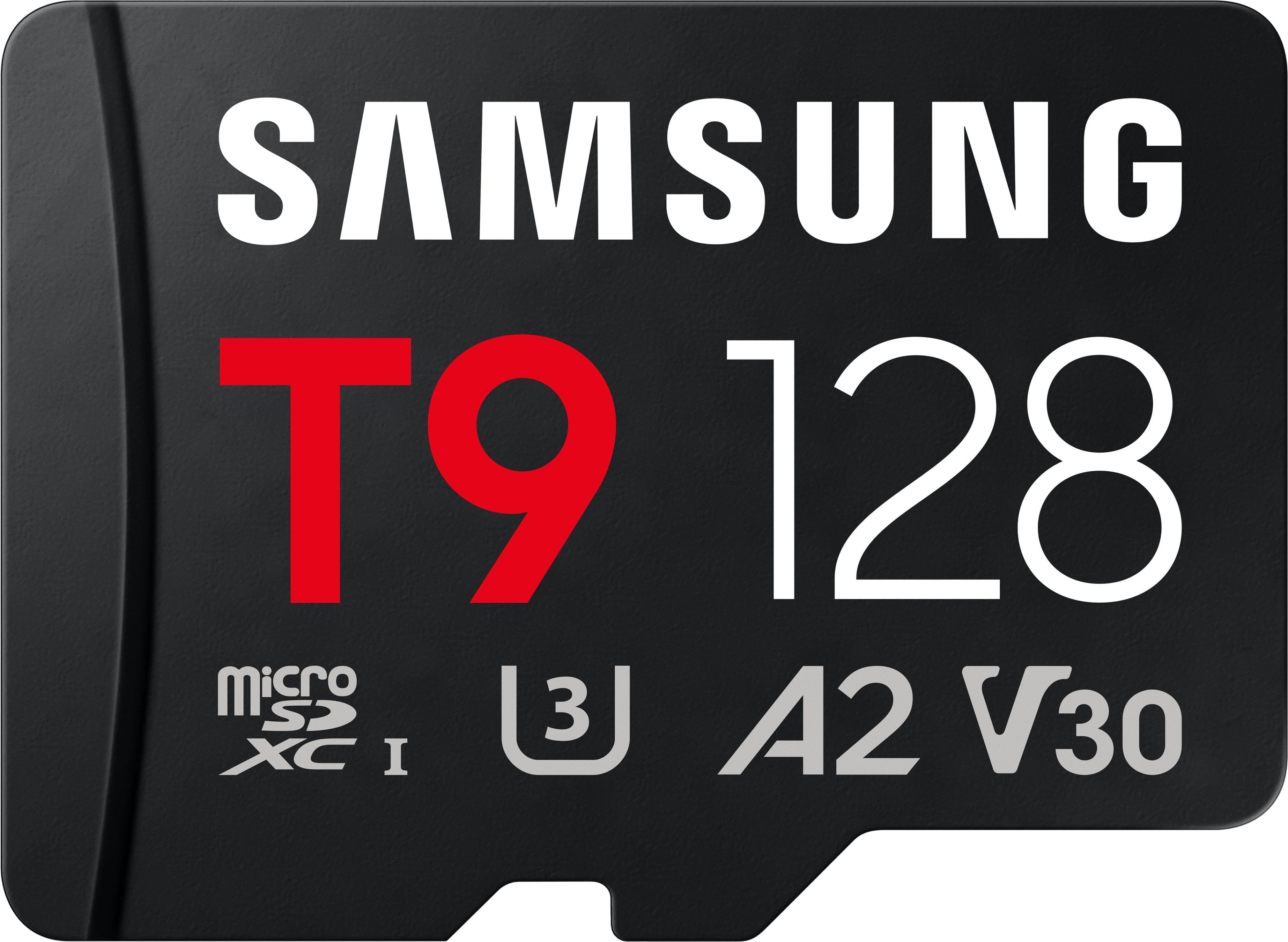
Samsung - microSDXC T9 128GB, Read/Write Speeds Up to 200/130 MB/s (MB-MH128T/WW)
SKU: JJGRF39K24Great capacity...Best memory ever! Nothing beats it!...the best impression and the best option
See all microSDXCProduct Description
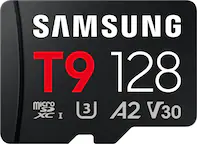
A black microSDXC card offering 128GB storage, water resistance, and up to 200/130 MB/s read/write speeds.Your price for this item is $99.99 -
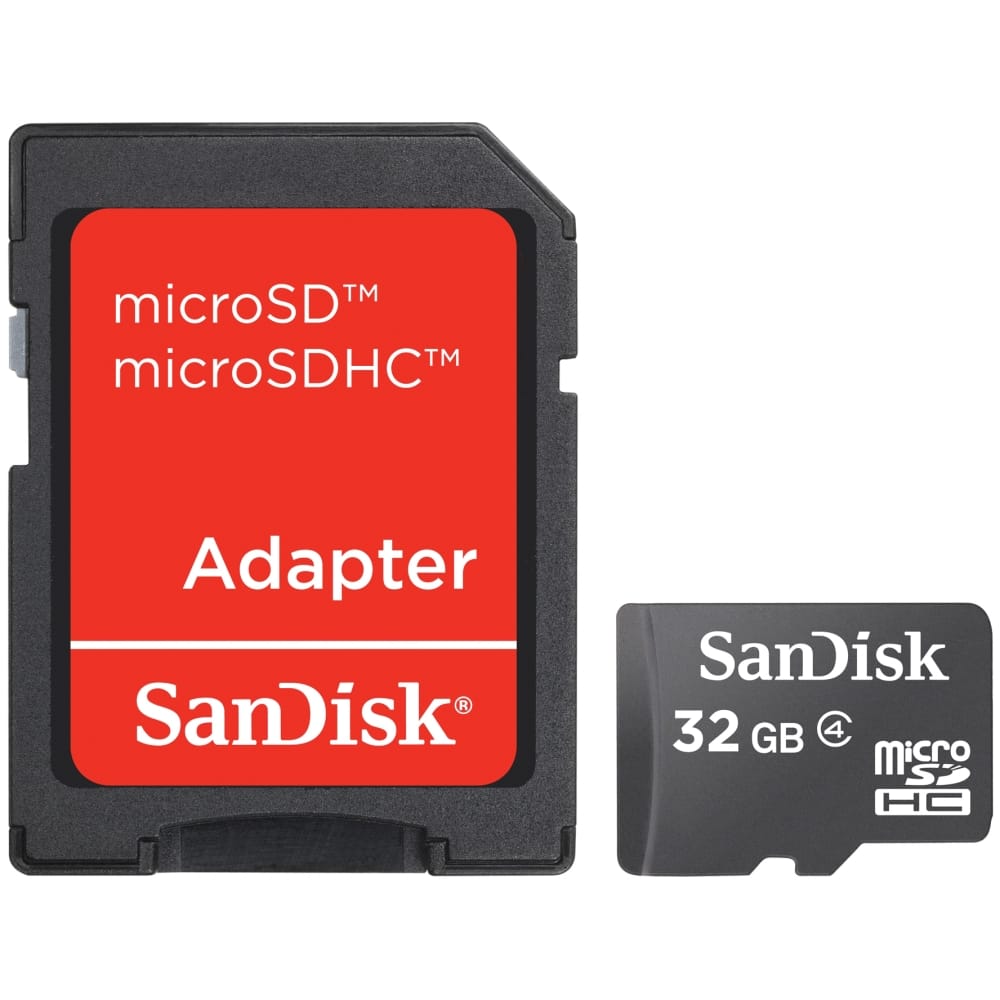
SanDisk - 32 GB microSDHC
SKU: JXJ62CXFHSSee all microSDHCProduct Description
A multi-colored microSDHC card offering 32GB storage for photos, Full HD videos, and music.Your price for this item is $42.68Save $20The previous price was $62.74
Best Sellers

Related Pages
FAQ
Not all memory cards are compatible with every Samsung Galaxy device. It's important to check your device's specifications to ensure the memory card format and speed class are supported.
To install a memory card, power off your Samsung Galaxy, locate the SIM/microSD tray (usually on the side or top), use the ejector tool to open it, place the memory card in the slot, and reinsert the tray before powering the device back on.
Yes, you can use a memory card to store photos, videos, music, and certain files. Some Samsung Galaxy models also allow you to move compatible apps to the memory card for additional storage space.
The main differences are storage capacity and compatibility. microSD cards offer up to 2GB, microSDHC up to 32GB, and microSDXC cards can store more than 32GB. Make sure your Samsung Galaxy supports the type you choose.
Insert the memory card into your device, go to Settings > Device Care > Storage > SD Card, and select the option to format. This will prepare the card for use and ensure compatibility with your Samsung Galaxy.