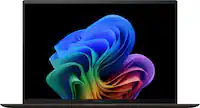
ASUS - ProArt P16 16" 4K OLED Touch Screen Laptop - Copilot+ PC - AMD Ryzen AI 9 HX 370 with 32GB Memory - RTX 5070 - 2TB SSD - Nano Black
- Key Specs
- Screen Type: AMOLED
- Screen Size: 16 inches (Size of the screen, measured diagonally from corner to corner.)
- Screen Resolution: 3840 x 2400 (Screens come in a range of resolutions (measured in pixels, horizontal x vertical). The higher the resolution, the greater the picture quality.)
- Touch Screen: true (Touch-screen devices make navigating more intuitive. Using a touch-screen display, you can do things such as tap to select, hold and drag to move items, swipe to scroll, and pinch to zoom.)
- Refresh Rate: 60Hz (The number of frames per second the device can produce natively without enhancement. Higher rates help produce smooth, seamless pictures.)
- Brightness: 500 nits (A measure of the total light output.)
- Processor Model: AMD Ryzen AI 300 Series (Your computer's processor is like its brain. Working in combination with system memory, the power of the processor determines the complexity of software you can run, how many programs you can have open at the same time, and how fast those programs will run. Most computers feature an AMD, Intel or Snapdragon processor.)
- CPU Base Clock Frequency: 2 gigahertz (Actual central processing unit (CPU) speed may vary by device configuration and design. The average rate at which the processor is able to execute tasks under normal operating conditions as asserted by the manufacturer.)
- Storage Type: SSD
- Total Storage Capacity: 2000 gigabytes
- System Memory (RAM): 32 gigabytes (Random-access memory (RAM) is a computing device's short-term data storage, which allows active information to be accessed quickly. The size and type of RAM determines how efficiently the device can handle large amounts of information at one time. For example, gaming or video editing requires more RAM for optimal performance.)
- Graphics: NVIDIA GeForce RTX 5070 (Often referred to as a "graphics processing unit" (GPU), this device is responsible for displaying image content and decoding/encoding video content in programs and games.)
- Display Connector(s): 1 x HDMI 2.1 (The number and type of connectors used to connect to an external display.)
- Battery Chemistry: Lithium-ion
- 2-in-1 Design: false (A laptop and a tablet combined in one lightweight, portable device. Sometimes referred to as "convertible" or "hybrid" laptops, these devices deliver the processing power and keyboard of a laptop. When you're ready to play, either detach the screen or fold your 2-in-1 into tablet mode to comfortably watch movies, play games, read an e-book and more.)
- Backlit Keyboard: true (Integrated lights allow for visibility of the keys in low-light conditions.)
- General
- Brand: ASUS
- Model Number: H7606WP-P16.R95070
- Product Name: ProArt P16 16" 4K OLED Touch Screen Laptop - Copilot+ PC - AMD Ryzen AI 9 HX 370 with 32GB Memory - RTX 5070 - 2TB SSD
- Color: Nano Black
- Year of Release: 2025
- Display
- Display Type: OLED
- Screen Type: AMOLED
- Screen Size: 16 inches (Size of the screen, measured diagonally from corner to corner.)
- Screen Resolution: 3840 x 2400 (Screens come in a range of resolutions (measured in pixels, horizontal x vertical). The higher the resolution, the greater the picture quality.)
- Touch Screen: true (Touch-screen devices make navigating more intuitive. Using a touch-screen display, you can do things such as tap to select, hold and drag to move items, swipe to scroll, and pinch to zoom.)
- Refresh Rate: 60Hz (The number of frames per second the device can produce natively without enhancement. Higher rates help produce smooth, seamless pictures.)
- Brightness: 500 nits (A measure of the total light output.)
- Color Gamut (NTSC): 100 percent
- Processor
- Processor Brand: AMD
- Processor Model: AMD Ryzen AI 300 Series (Your computer's processor is like its brain. Working in combination with system memory, the power of the processor determines the complexity of software you can run, how many programs you can have open at the same time, and how fast those programs will run. Most computers feature an AMD, Intel or Snapdragon processor.)
- Processor Model Number: AI 9 HX 370
- CPU Base Clock Frequency: 2 gigahertz (Actual central processing unit (CPU) speed may vary by device configuration and design. The average rate at which the processor is able to execute tasks under normal operating conditions as asserted by the manufacturer.)
- CPU Boost Clock Frequency: 5.1 gigahertz (Actual central processing unit (CPU) speed may vary by device configuration and design. The maximum rate at which the processor is able to execute tasks, typically only used for a short period of time as needed. This rate may temporarily boost the processor's performance, but may result in overheating, shutdown, or damage to equipment if sustained.)
- Number of CPU Cores: 12-core (A core, or "brain" of a CPU, allows it to receive and execute instructions. Each core can work independently or together to perform parallel operations.)
- Unlocked Processor: false
- Neural Processing Unit (NPU): true (Whether the product comes with an integrated neural processing unit (NPU) that performs computations for AI (artificial intelligence) functions to increase proficiency of the CPU and reduce power consumption.)
- Maximum NPU Performance: 50 trillions operations per second (The maximum neural processing unit (NPU) computations performed. NPUs increase proficiency of the CPU and reduce power consumption for AI (artificial intelligence) functions.)
- Storage
- Storage Type: SSD
- Total Storage Capacity: 2000 gigabytes
- Solid State Drive Capacity: 2000 gigabytes (The amount of data that can be stored on the device's solid state drive (SSD). SSD is a flash-based storage with faster speeds than a hard disk drive (HDD).)
- Solid State Drive Interface: PCIe 4.0 (Connects the solid state drive to the host system. PCI and SATA interfaces are the most common; PCI interfaces are typically faster, but SATA interfaces are compatible with a wider range of systems.)
- Memory
- System Memory (RAM): 32 gigabytes (Random-access memory (RAM) is a computing device's short-term data storage, which allows active information to be accessed quickly. The size and type of RAM determines how efficiently the device can handle large amounts of information at one time. For example, gaming or video editing requires more RAM for optimal performance.)
- Type of Memory (RAM): LPDDR5X (Each type of RAM delivers a different level of speed, bandwidth, energy efficiency and performance.)
- System Memory RAM Speed: 7500 megahertz (How fast the information-storing hardware operates. The faster the RAM, the faster memory can be transferred to other system components. Ultimately, faster RAM improves operational efficiency.)
- Graphics
- Graphics Type: Dedicated (Dedicated graphics uses a separate graphics card for processing video images. Because it does not use memory from the system's RAM, there is no extra burden on the CPU and graphics are processed more efficiently. Integrated graphics shares system RAM to process video images.)
- GPU Brand: NVIDIA
- Graphics: NVIDIA GeForce RTX 5070 (Often referred to as a "graphics processing unit" (GPU), this device is responsible for displaying image content and decoding/encoding video content in programs and games.)
- Advanced Graphics Rendering Technique(s): DLSS 4 (Deep Learning Super Sampling), Ray tracing (Imaging technology designed to improve graphics rendering.)
- Unlocked GPU: false
- GPU Video Memory (RAM): 8 gigabytes (Random-access memory (RAM) is a GPU’s, or graphics cards, short-term data storage, which allows active information to be accessed quickly. The size and type of RAM determines how efficiently the GPU can handle large amounts of information at one time. For example, larger amounts of RAM for gaming or video editing increases performance.)
- GPU Video Memory Type (RAM): GDDR7 (Each type of RAM delivers a different level of speed, bandwidth, energy efficiency and performance.)
- Compatibility
- Operating System: Windows 11 Home (The operating system manages all software and hardware, including files, memory and connected devices. Most importantly, it lets you interact with your device and your programs in a visual way; otherwise, you'd be typing computer code to get anything done.)
- Connectivity
- Display Connector(s): 1 x HDMI 2.1 (The number and type of connectors used to connect to an external display.)
- Number of HDMI Outputs (Total): 1
- USB Ports: 2 x USB-A 3.2, 1 x USB-C 3.2, 1 x USB-C 4 (The number and type of USB ports the product has.)
- Number of USB Ports (Total): 4
- Number of USB-C Charging Ports: 2
- Headphone Jack: true (The device features an interface that allows for the connection of headphones.)
- Microphone Input: true (The device features an input for connecting an external microphone.)
- Wireless Connectivity: Wi-Fi, Bluetooth (The manner in which a device sends data to another device over a short distance without the use of wires or cables.)
- Wireless Standard: BE (The wireless networking protocol used by the device. Each iteration of the protocol is based on the 802.11 standard developed by the Institute of Electrical and Electronics Engineers (IEEE) Standards Association. Denoted by letters following 802.11 (802.11a, 802.11ac, etc.), each version, published in alphabetical order, encompasses all previous versions.)
- Wireless Networking Standard: Wi-Fi 7 (The wireless networking standard used by the device. Each iteration of the standard developed by the Wi-Fi Alliance corresponds to an existing IEEE 802.11 protocol; for example, standard 802.11ac (or AC) is termed Wi-Fi 5. Refers specifically to the standard the device is designed to use, but ultimately determines product interoperability and backward compatibility including previous versions.)
- Cooling
- CPU Cooling System: Air
- GPU Cooling System: Air
- Power
- Power Supply Maximum Wattage: 200 watts
- Battery Cells: 4-cell
- Battery Chemistry: Lithium-ion
- Camera
- Front-Facing Camera: true
- Front Facing Camera Video Resolution: 1080p (Refers to the number of pixels, both horizontally and vertically, used by the camera facing the user to capture video. The higher the resolution the finer the video detail that can be seen.)
- Built-In Microphone: true
- Features
- 2-in-1 Design: false (A laptop and a tablet combined in one lightweight, portable device. Sometimes referred to as "convertible" or "hybrid" laptops, these devices deliver the processing power and keyboard of a laptop. When you're ready to play, either detach the screen or fold your 2-in-1 into tablet mode to comfortably watch movies, play games, read an e-book and more.)
- Backlit Keyboard: true (Integrated lights allow for visibility of the keys in low-light conditions.)
- Customizable Keyboard Lighting: Yes
- Foldable Screen: false
- GPS Enabled: false
- Media Card Reader: true (A hardware device that allows for access to data on a memory card and enables the transfer of its files to a computer. These devices may have one or multiple slots for various types of memory cards, and may be integrated into the computer or available as an external device.)
- Media Card Slot: Secure Digital
- Customizable Case Lighting: false
- Audio Technology: Harman Kardon
- Windows AI: Copilot+ PC
- Security Features: Facial recognition
- Dimensions
- Product Height: 0.68 inches (The out of box height of the item. Height is measured as the vertical distance from the bottom of the item to the top as it would be primarily used or placed.)
- Product Width: 13.97 inches (The out of box width of the item. Width is measured as the horizontal distance from one side of the item to the other as it would be primarily used or placed.)
- Product Depth: 9.72 inches (The out of box depth of the item. Depth is measured as the distance from the front of the item to the back as it would be primarily used or placed.)
- Product Weight: 4.08 pounds (The out of box weight of the item.)
- Certifications Listings & Approvals
- ENERGY STAR Certified: true (Devices carrying the ENERGY STAR service mark, such as computer products and peripherals, kitchen appliances, and other products, generally use 20% to 30% less energy than required by federal standards.)
- EPEAT Qualified: false (The Electronic Product Environmental Assessment Tool (EPEAT) was designed to provide an environmental assessment tool for purchasers. In order to qualify for EPEAT, a product must meet all 23 required criteria.)
- Included
- Included Software: MyASUS, ProArt Creator Hub, ScreenXpert, GlideX, MuseTree, StoryCube
- Optical Drive Type: None (An optical disk drive (ODD) uses a laser light to read data from or write data to an optical disc. These discs include CDs, DVDs, and Blu-ray Discs. This allows you to play music or watch movies using prerecorded discs.)
- Numeric Keypad: false
- Stylus Included: false
- Warranty
- Warranty - Parts: 1 year
- Warranty - Labor: 1 year
- Other
- UPC: 197105958838
Meet ProArt P16 – your ultimate creative companion for the studio and on the move. Its OLED touchscreen ensures precise color accuracy for flawless proofing, while versatile I/O ports seamlessly connect all your peripherals. This NVIDIA Studio-validated laptop packs GeForce RTX 5070 graphics and AMD Ryzen AI 9 HX 370 processor with 50 TOPs NPU, a pairing that will supercharge all your creative endeavors. With AI-enhanced creative features and a long-lasting battery, ProArt P16 transforms any setting into your studio.
- Copilot+ PCs. A New AI Era Begins: New AI superpowers. Discover the power of Recall (preview), improved Windows search, and Click to Do (preview) on Copilot+ PCs. Effortlessly locate past content, perform natural searches, and interact with text and images – all while ensuring your data remains private and you stay productive*.
- Powerful AMD Ryzen AI 9 HX Processor: Step into the future of content creation with the AMD Ryzen AI 9 HX 370 processor. Boasting 50 TOPs of NPU AI processing power, it delivers AI-enhanced efficiency
- Ultrafast GeForce RTX 5070 Graphics: Elevate your creative prowess with accelerated 4K encoding and GPU-accelerated effects, ensuring smooth rendering, playback, and real-time editing across video editing and 3D design
- 32GB RAM, More Performance Freedom: ProArt P16 has massive RAM capacity, using fast LPDDR5X modules running at 7500 MHz, ensuring plenty of headroom to run all your other productivity tools
- 2TB of Unmatched Storage: Quickly save large files and applications and never worry about space
- 4K OLED Lumina Touch Display: Discover boundless creativity with the ProArt P16, featuring the ASUS Lumina OLED touchscreen. This durable 4K OLED touchscreen (stylus sold separately) enhances projects with vibrant colors and sharp details
- Exclusive ASUS DialPad for Intuitive Control: The customizable intuitive physical controller gives you fingertip control over parameters in your creative, productivity and media entertainment apps. You can easily change brush size in Photoshop, scroll through PowerPoint slides, or skip tracks in music apps
- Generate images with MuseTree: Articulate your vision or provide a simple sketch - and AI assists in crafting images to bring your vision to life
- One-Stop File Management with StoryCube: Use AI to automatically sort and categorize your digital photos or videos. Additionally, effortlessly share memories through automatically generated short videos
- Military-grade Toughness: Crafted to conquer, ProArt P16 exceeds the stringent MIL-STD 810H military standard, promising unparalleled durability and reliability. Engineered for the extremes, it guarantees longevity and sustainability, empowering you to work, travel, and unwind with absolute confidence
- Comprehensive I/O ports: There’s one 40 Gbps USB4 for fast charging and external displays, the latest HDMI 2.1 port; and an SD Express 7.0 card reader for quick transfers. Ultrafast Wi-Fi 7 ensures seamless connectivity anywhere
- Copilot+ PCs. A New AI Era Begins: New AI superpowers. Discover the power of Recall (preview), improved Windows search, and Click to Do (preview) on Copilot+ PCs. Effortlessly locate past content, perform natural searches, and interact with text and images – all while ensuring your data remains private and you stay productive*.
- Powerful AMD Ryzen AI 9 HX Processor: Step into the future of content creation with the AMD Ryzen AI 9 HX 370 processor. Boasting 50 TOPs of NPU AI processing power, it delivers AI-enhanced efficiency
- Ultrafast GeForce RTX 5070 Graphics: Elevate your creative prowess with accelerated 4K encoding and GPU-accelerated effects, ensuring smooth rendering, playback, and real-time editing across video editing and 3D design
- 32GB RAM, More Performance Freedom: ProArt P16 has massive RAM capacity, using fast LPDDR5X modules running at 7500 MHz, ensuring plenty of headroom to run all your other productivity tools
- 2TB of Unmatched Storage: Quickly save large files and applications and never worry about space
- 4K OLED Lumina Touch Display: Discover boundless creativity with the ProArt P16, featuring the ASUS Lumina OLED touchscreen. This durable 4K OLED touchscreen (stylus sold separately) enhances projects with vibrant colors and sharp details
- Exclusive ASUS DialPad for Intuitive Control: The customizable intuitive physical controller gives you fingertip control over parameters in your creative, productivity and media entertainment apps. You can easily change brush size in Photoshop, scroll through PowerPoint slides, or skip tracks in music apps
- Generate images with MuseTree: Articulate your vision or provide a simple sketch - and AI assists in crafting images to bring your vision to life
- One-Stop File Management with StoryCube: Use AI to automatically sort and categorize your digital photos or videos. Additionally, effortlessly share memories through automatically generated short videos
- Military-grade Toughness: Crafted to conquer, ProArt P16 exceeds the stringent MIL-STD 810H military standard, promising unparalleled durability and reliability. Engineered for the extremes, it guarantees longevity and sustainability, empowering you to work, travel, and unwind with absolute confidence
- Comprehensive I/O ports: There’s one 40 Gbps USB4 for fast charging and external displays, the latest HDMI 2.1 port; and an SD Express 7.0 card reader for quick transfers. Ultrafast Wi-Fi 7 ensures seamless connectivity anywhere
Whats Included
- H7606WP-P16.R95070 Laptop
- H7606WP-P16.R95070 Laptop
Disclaimers
- * Copilot+ PC experiences vary by device and market and may require updates continuing to roll out through 2025; Recall and Click to Do will be coming to European Economic Area later in 2025; timing varies. See aka.ms/copilotpluspcs.
- * Copilot+ PC experiences vary by device and market and may require updates continuing to roll out through 2025; Recall and Click to Do will be coming to European Economic Area later in 2025; timing varies. See aka.ms/copilotpluspcs.
Q: Does this display wide color gamut (Adobe RGB, DCI-P3)?
A: The ASUS H7606WP features a 16-inch 4K OLED display with 100% DCI-P3 color gamut coverage, making it suitable for professional visual work. However, it does not support the Adobe RGB color space. https://www.asus.com/laptops/for-creators/proart/proart-p16-h7606/
Q: Can I put an SD card in the SD card reader for additional memory storage?
A: Not worth it, because of the speed it is mostly for transfering data between devices (camera, dron, other laptop). A better option is to install an aditional SSD in the second M.2 internal port it has.
A: Yes it's built in on mouse pad, and you can turn on and off on the fly.
Q: What type of sound system and number of speakers?
A: The ASUS H7606WP features a six-speaker stereo sound system with Smart Amp Technology. https://www.asus.com/laptops/for-creators/proart/proart-p16-h7606/
Q: How many GB is the graphics card?
A: The GeForce RTX 5070 GPU on this laptop model has 8GB GDDR7 VRAM.
Q: what is the VRAM that comes with this RTX-5070?
A: Per one of the reviewers: An NVIDIA RTX 5070 with 8GB of GDDR7 memory and DLSS 4,
Q: Is the memory expandable to 64GB on this model?
A: Have to order it with 64GB. RAM is soldered on this model so what you order is what it is.