How to Find Your Wi-Fi Network Password

Purpose:  This article provides instructions for obtaining the Wi-Fi password on a computer that’s already connected to the Wi-Fi network.

NOTE:  If you have not done so already, check your router for a sticker with network information from your Internet Service Provider. If not found, or if you have already set up a different password, follow the instructions below for the operating system of the computer connected to the Wi-Fi network.


macOS


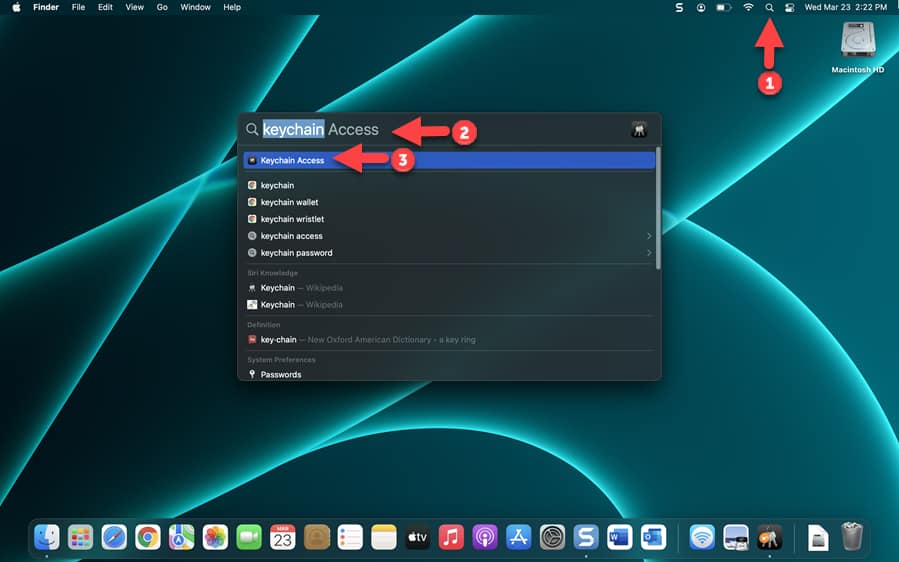
  1. Click the (magnifying glass) icon, type "Keychain access" and select Keychain Access (macOS Figure 1).

    screenshot

    macOS Figure 1


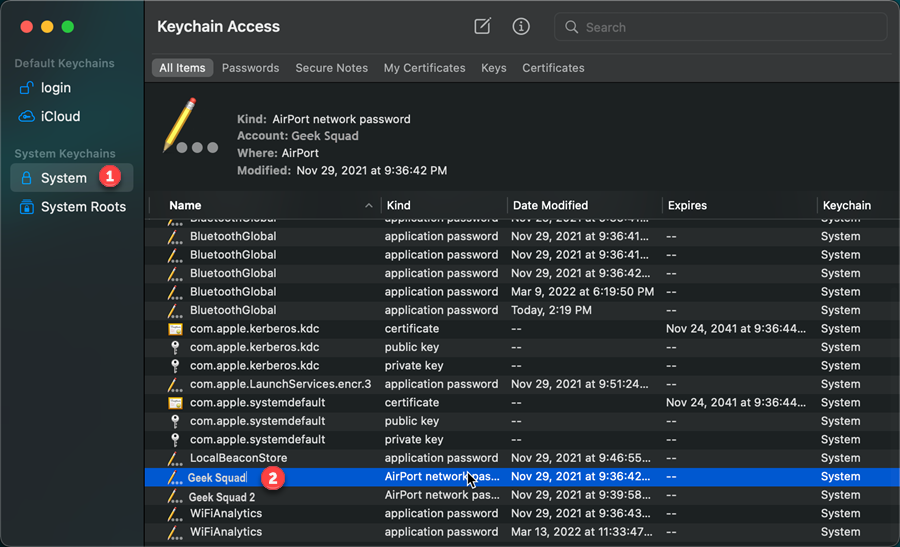
  2. Click System and double-click your account name (macOS Figure 2).


    screenshot

    macOS Figure 2


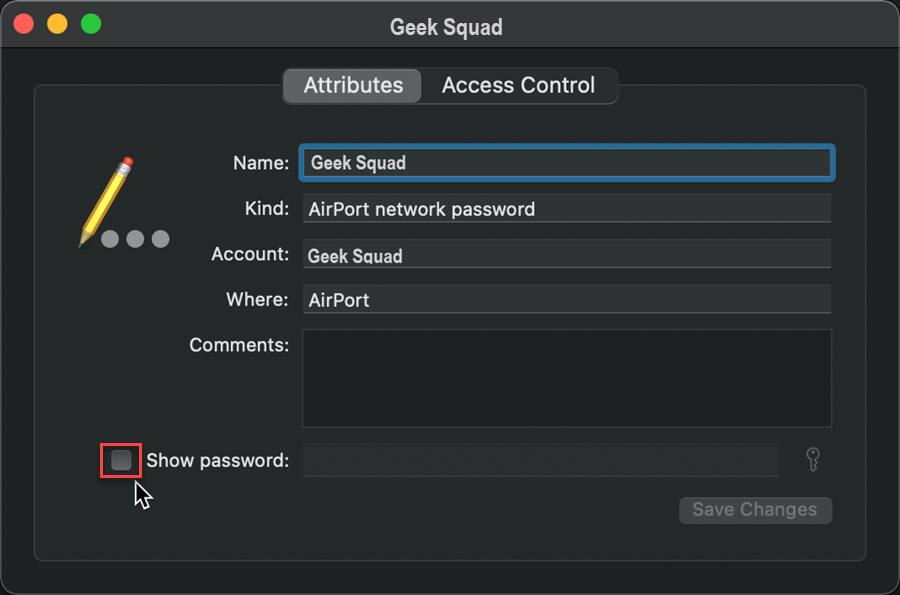
  3. Check the Show password box (macOS Figure 3).


    screenshot

    macOS Figure 3


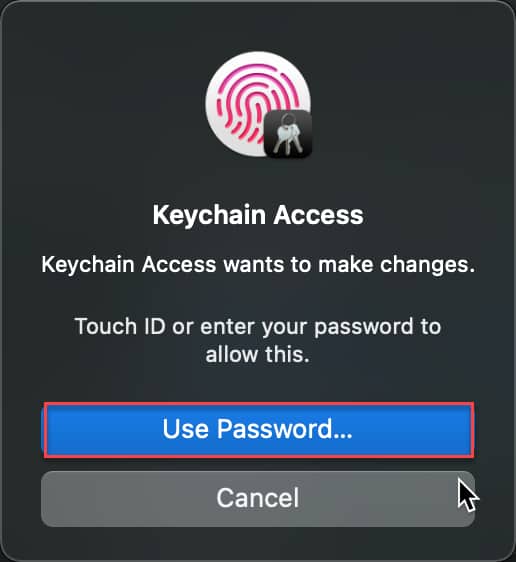
  4. Click Use Password... (macOS Figure 4).


    screenshot

    macOS Figure 4


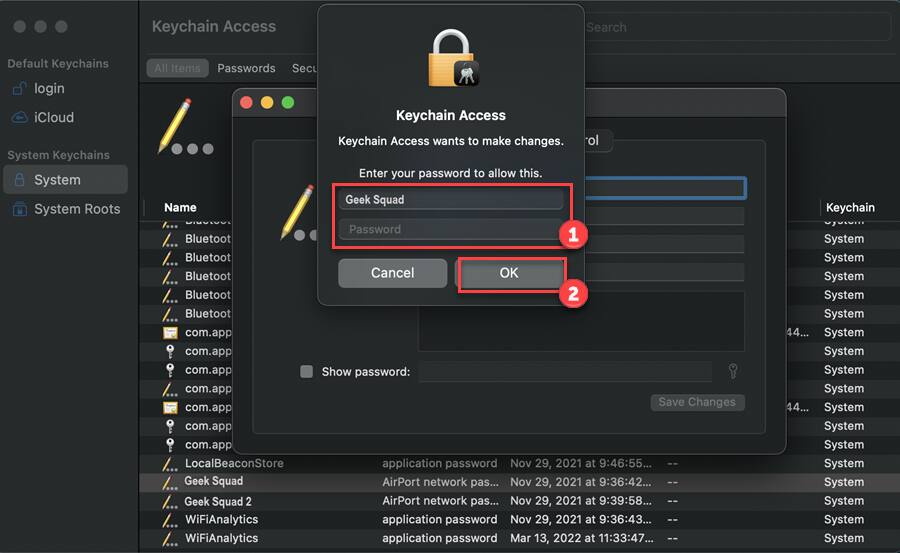
  5. Type in your user credentials (computer password) and click OK (macOS Figure 5).


    screenshot

    macOS Figure 5


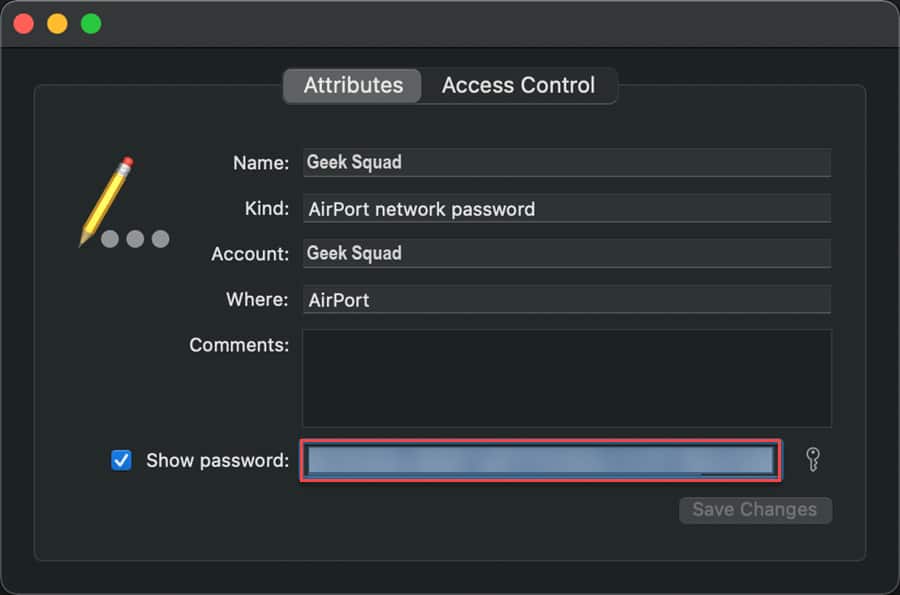
  6. Ensure the Show password: option is checked. If your credentials have been entered properly, the Wi-Fi password will be displayed (macOS Figure 6).


    screenshot

    macOS Figure 6

Windows 11

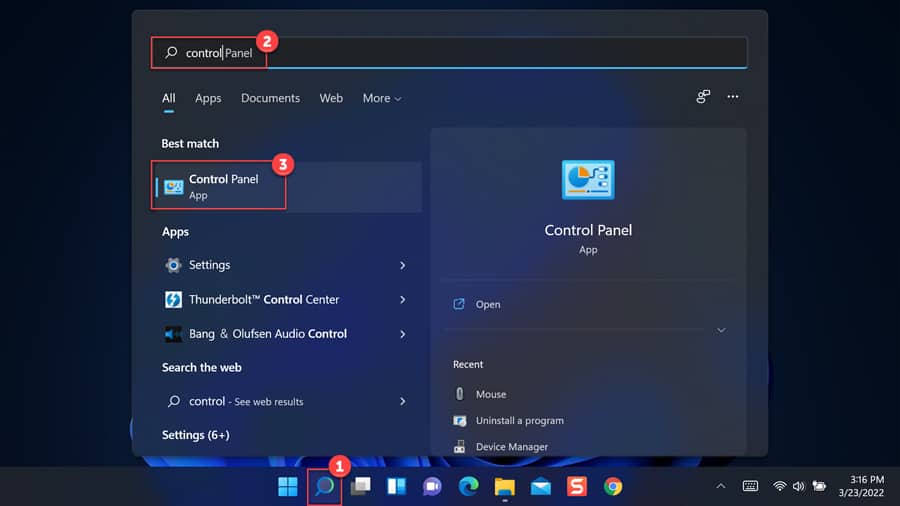
  1. Click the (magnifying glass) icon, type in "Control Panel" and select Control Panel (Win11 Figure 1).

    screenshot

    Win11 Figure 1


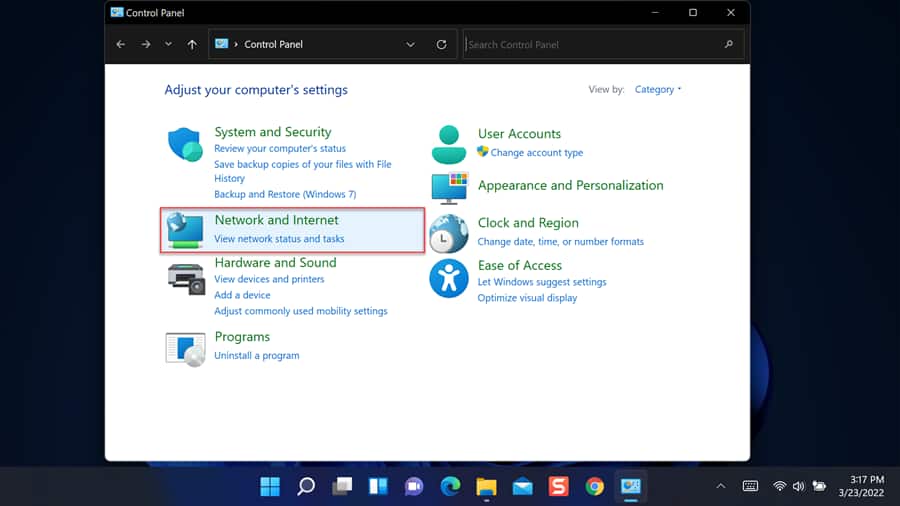
  2. Click Network and Internet (Win11 Figure 2).


    screenshot

    Win11 Figure 2


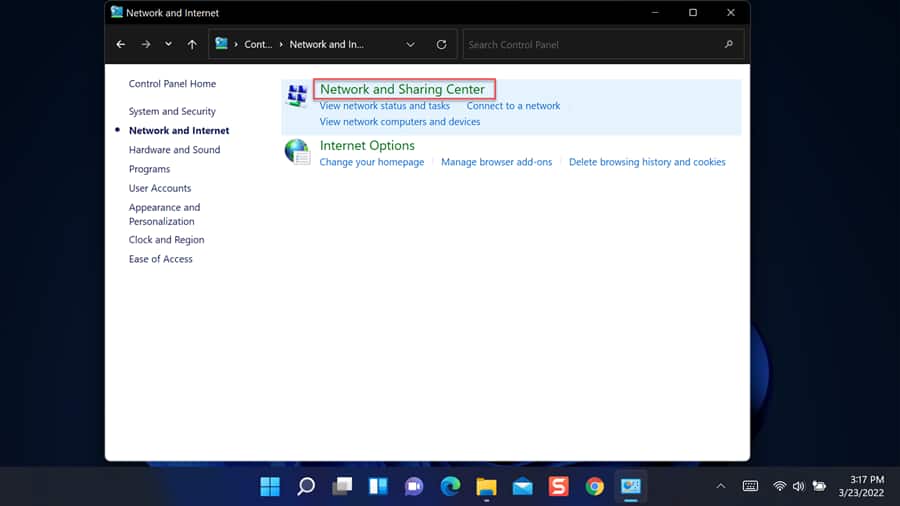
  3. Click Network and Sharing Center (Win11 Figure 3).


    screenshot

    Win11 Figure 3


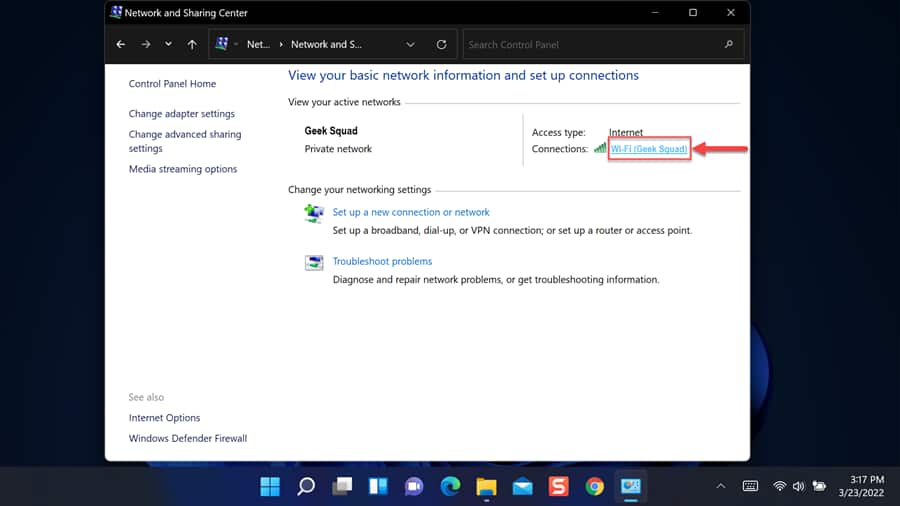
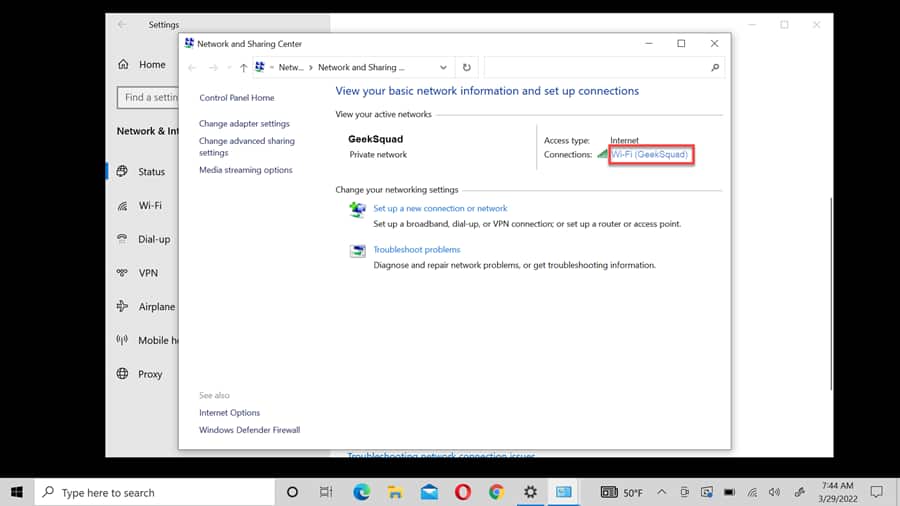
  4. Click your Wi-Fi network name (Win11 Figure 4).


    screenshot

    Win11 Figure 4


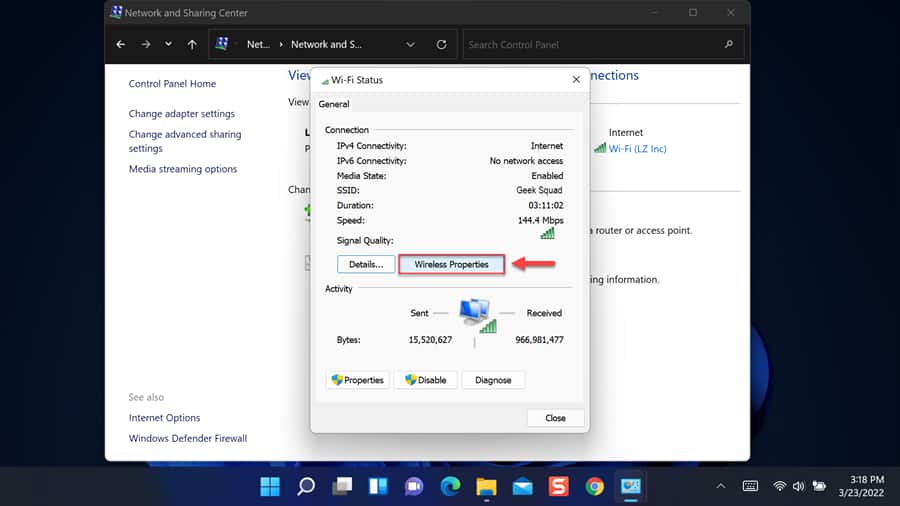
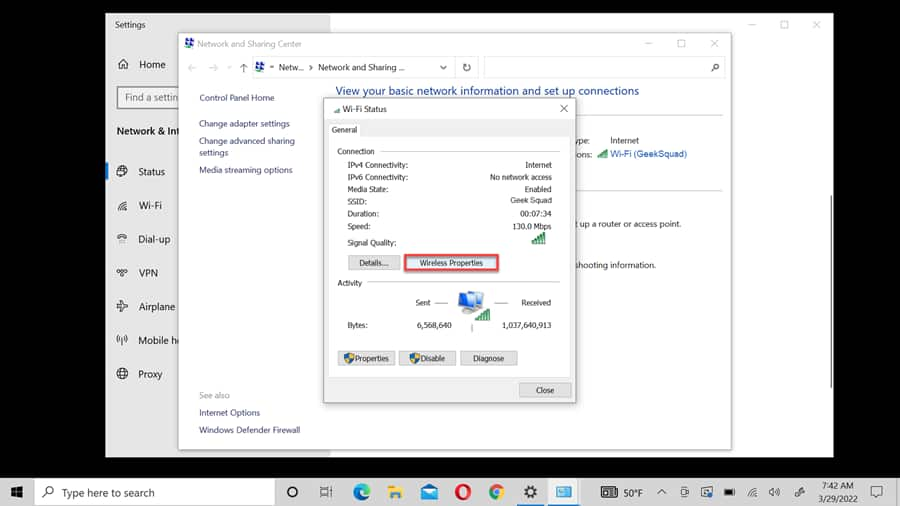
  5. Click Wireless Properties (Win11 Figure 5).


    screenshot

    Win11 Figure 5


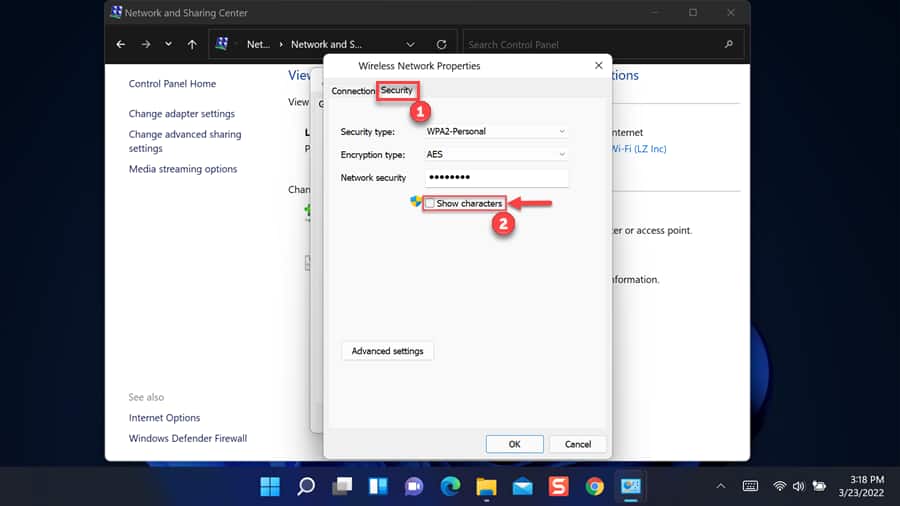
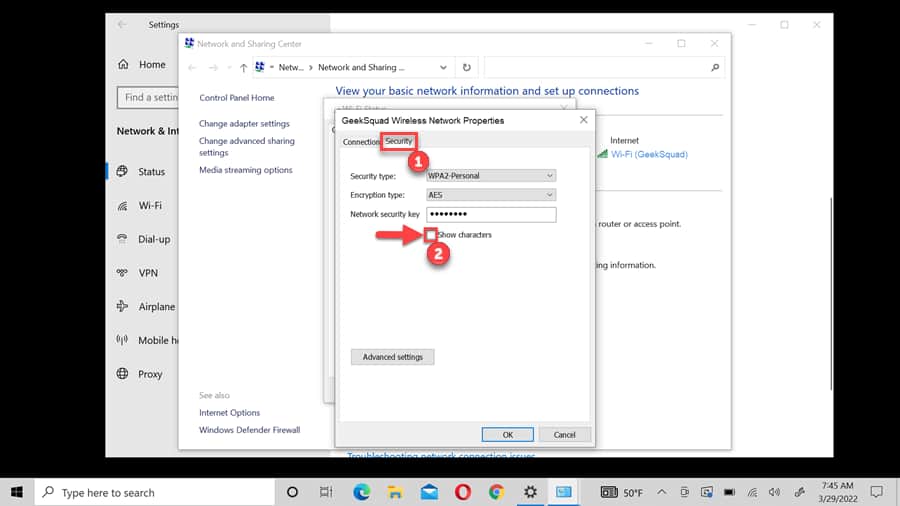
  6. Select the Security tab and check the Show characters box (Win11 Figure 6).


    screenshot

    Win11 Figure 6


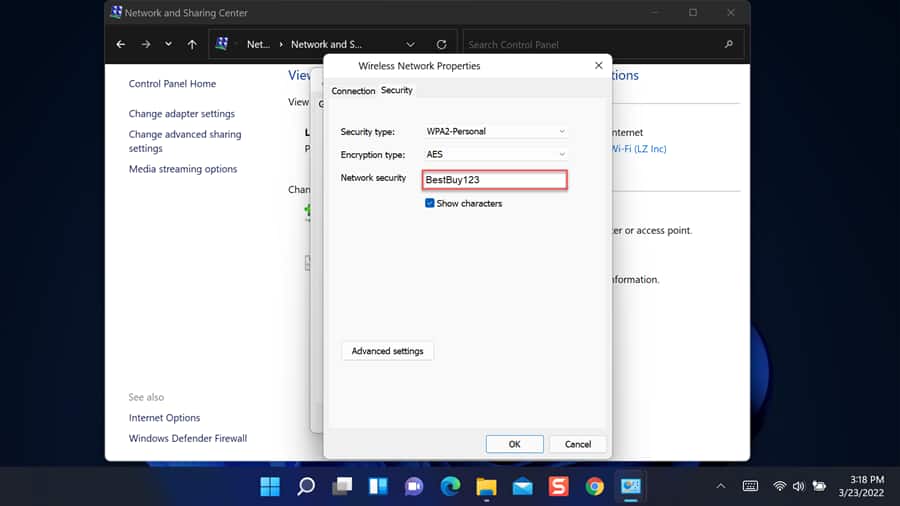
  7. The Wi-Fi password will be displayed (Win11 Figure 7).


    screenshot

    Win11 Figure 7

Windows 10


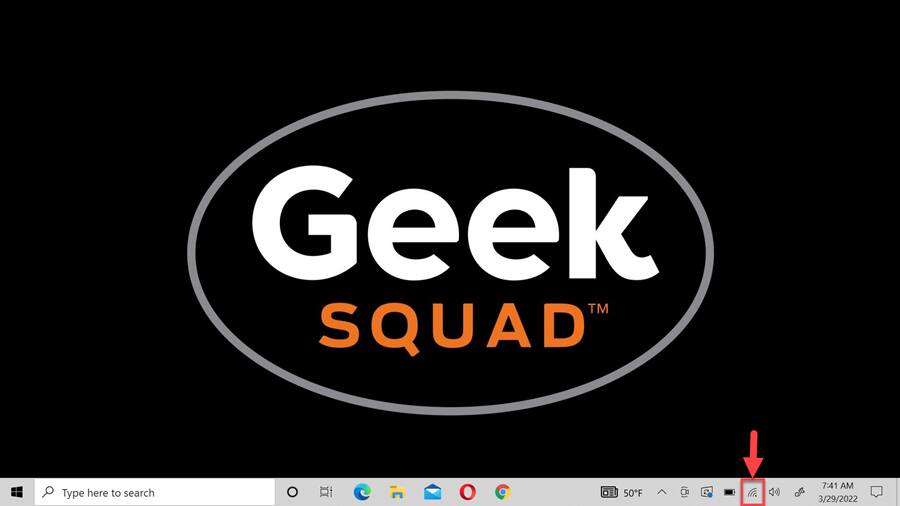
  1. Right-click the (Network) icon on the bottom right of your screen (Win10 Figure 1).

    screenshot

    Win10 Figure 1


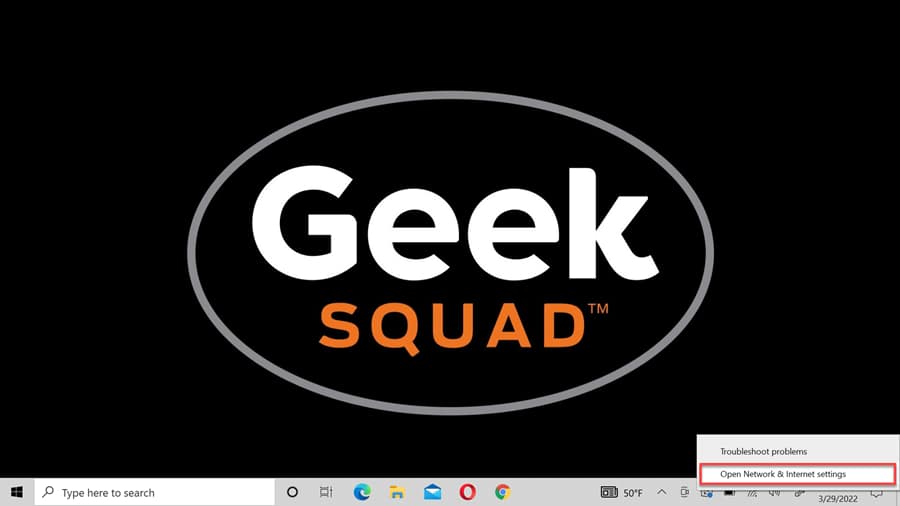
  2. Select Open Network & Internet settings (Win10 Figure 2).


    screenshot

    Win10 Figure 2


  3. Select Network and Sharing Center (Win10 Figure 3).


    screenshot

    Win10 Figure 3


  4. Click the Wi-Fi network name (Win10 Figure 4).


    screenshot

    Win10 Figure 4


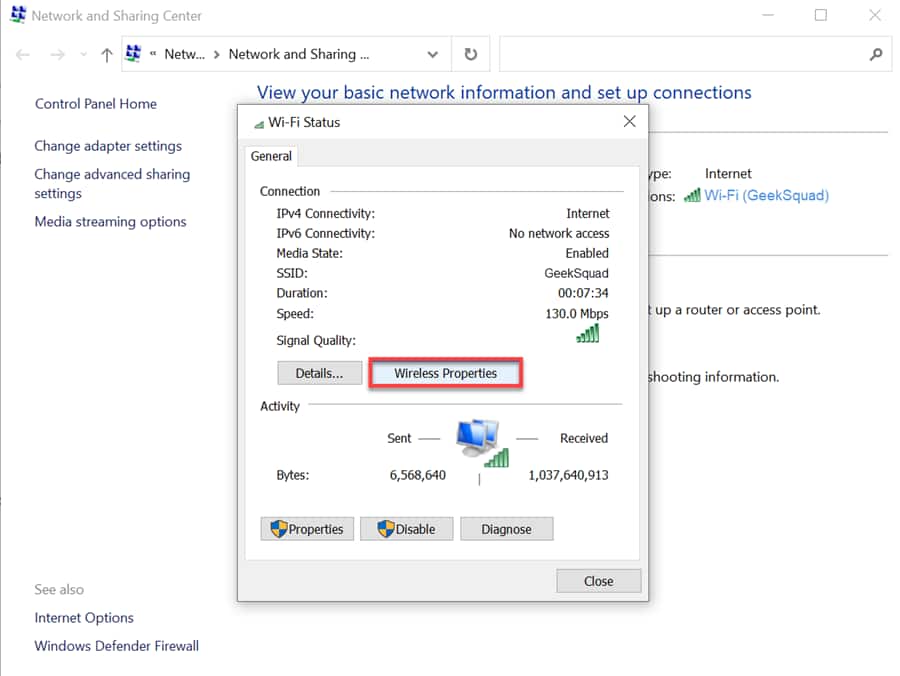
  5. Click Wireless Properties (Win10 Figure 5).


    screenshot

    Win10 Figure 5


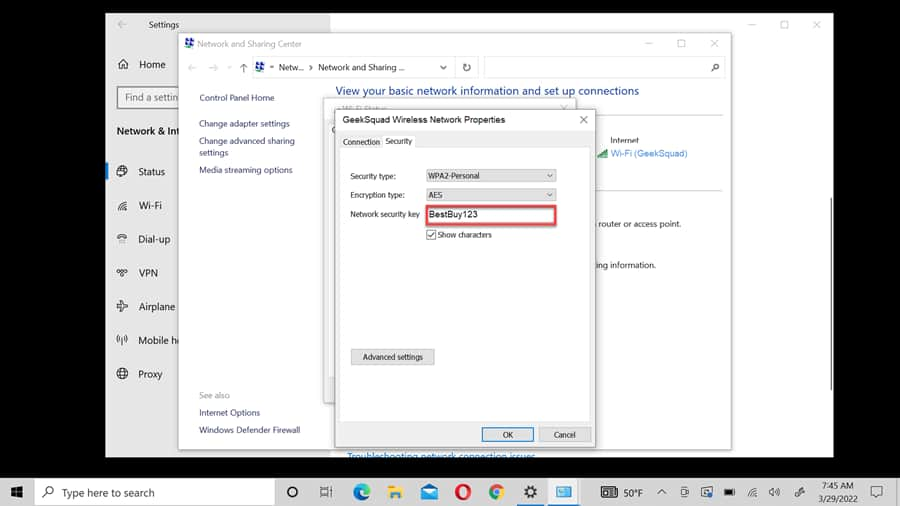
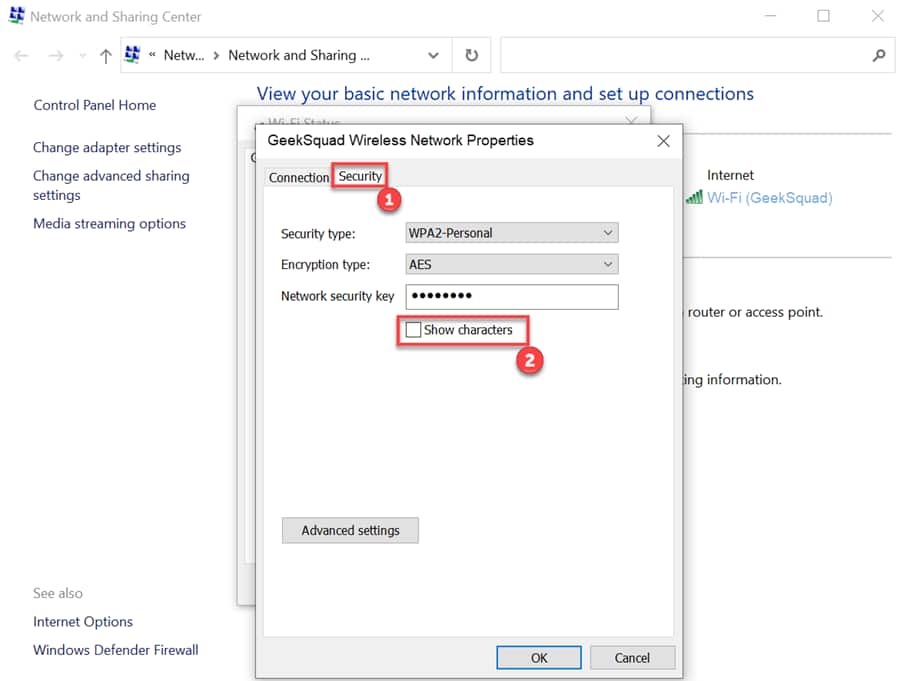
  6. Select the Security tab and check the Show characters box (Win10 Figure 6).


    screenshot

    Win10 Figure 6


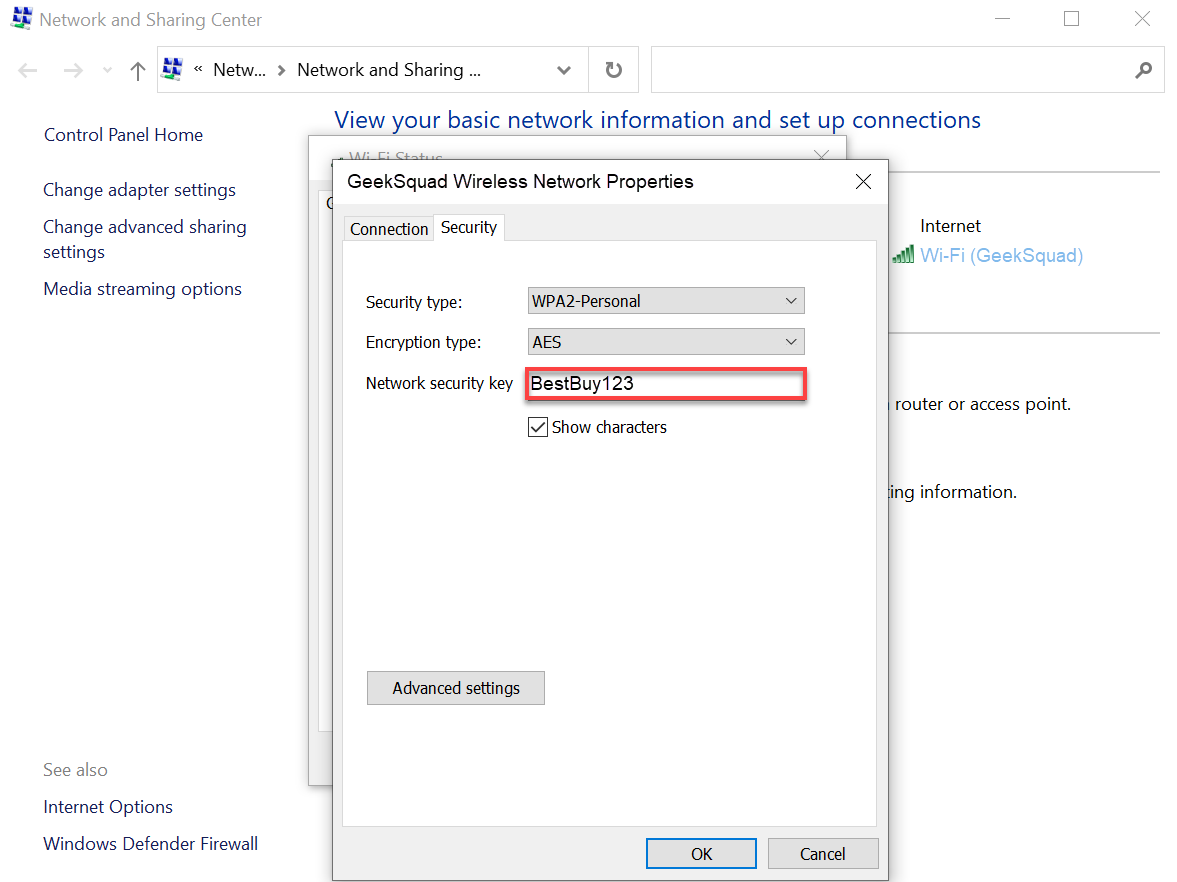
  7. The Wi-Fi password will be displayed (Win10 Figure 7).


    screenshot

    Win10 Figure 7


Windows Vista/7/8/8.1

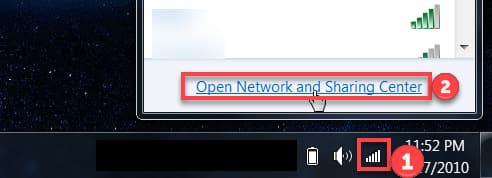
  1. Click the (Network) icon and select Open Network and Sharing Center (Win8 Figure 1).

    screenshot

    Win8 Figure 1


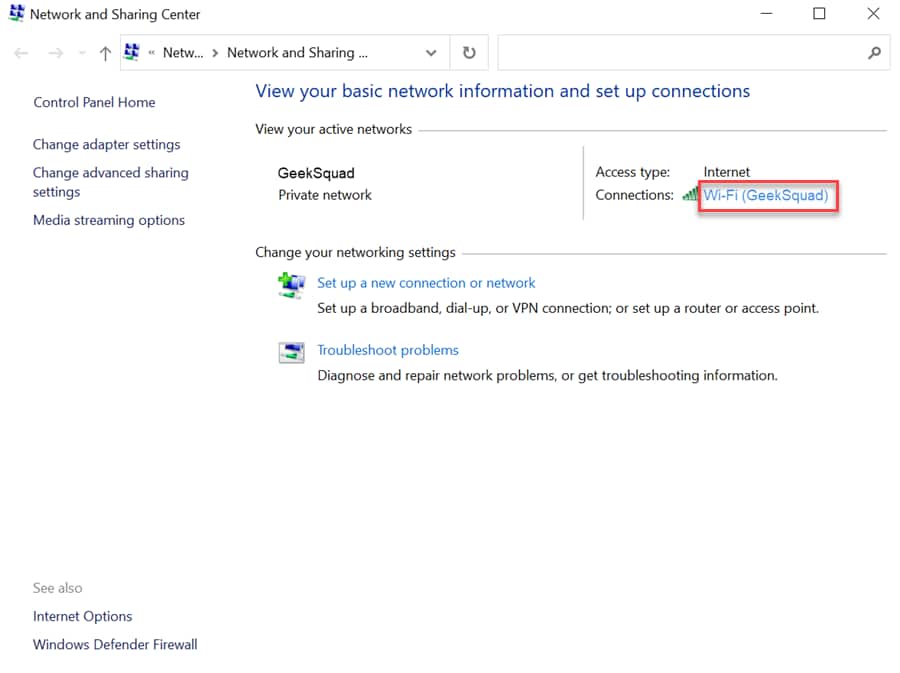
  2. Click the Wi-Fi network name (Win 8 Figure 2).


    screenshot

    Win8 Figure 2


  3. Click Wireless Properties (Win8 Figure 3).


    screenshot

    Win8 Figure 3


  4. Select the Security tab and check the Show characters box (Win8 Figure 4).


    screenshot

    Win8 Figure 4


  5. The Wi-Fi password will be displayed (Win8 Figure 5).


    screenshot

    Win8 Figure 5


Keywords: Wi-Fi, WIFI, wireless, network, password, Windows, 11, 10, 8.1, 8, 7, Vista, Mac, MacOS