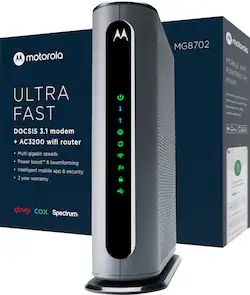
Motorola - MG8702 32x8 DOCSIS 3.1 Cable Modem + AC3200 Router - Black
- Key Specs
- Internet Service Provider (ISP) Compatibility: XFINITY from Comcast, Cox Communications, Charter Communications, Spectrum (The internet service provider(s) that the device is able to work with and/or connect to with minimal setup.)
- DOCSIS Certification: 3.1 (DOCSIS (Data over Cable Service Interface Specification) is a telecommunications standard that allows high-bandwidth data transfer via a coaxial cable for internet access. Each version updates the previous standard and is backwards compatible with other versions.)
- Downstream Data Speed: 1000 megabits per second (The maximum speed at which data is downloaded from the internet.)
- Upstream Data Speed: 766 megabits per second (The maximum speed at which data can be transferred from the client to the server, or the upload speed.)
- Channel Bonding: 32 x 8 (The process of combining adjacent channels within a given frequency band to deliver faster broadband speeds. Channel bonding combinations are indicated as "downstream x upstream" e.g. 16x4 (16 channels dedicated for downloading data and 4 channels for uploading). The more channels, the more network traffic the device can support.)
- Number of LAN Ports: 4 (Number of devices able to be connected to the Local Area Network (LAN). LAN ports allow wired connections to other networking devices (wireless access points, range extenders, etc.) in order to share the internet connection received through a WAN port.)
- General
- Brand: Motorola
- Model Number: MG8702
- Product Name: MG8702 32x8 DOCSIS 3.1 Cable Modem + AC3200 Router
- Color: Black
- Network
- Quality Of Service (QoS) Traffic Prioritization: false (Allows a user to manage a device's network performance by configuring the types of traffic that receive top priority for transmission. High priority functions and applications receive maximum network performance, while low priority traffic receives minimum performance.)
- Input/Output Technology: MU-MIMO (Multi-user Multiple-Input Multiple Output) (Generally, multiple-input multiple-output communication technologies allow for more signals to be transmitted at a single time, which can improve the device's overall performance.)
- Certifications Listings & Approvals
- DOCSIS Compliant: true
- ENERGY STAR Certified: false (Devices carrying the ENERGY STAR service mark, such as computer products and peripherals, kitchen appliances, and other products, generally use 20% to 30% less energy than required by federal standards.)
- Features
- Auto Connect: true
- Speed
- Wired Speed: 1000 megabits per second (The maximum rate at which data is transferred between a network device and router using an Ethernet cable.)
- Gigabit Ethernet Speed: true (Supports the gigabit Ethernet networking standard, which has a data rate of at least one gigabit per second, or 1,000 Mbps.)
- Compatibility
- System Requirements: Cable Internet service, AC power, PC (Windows, Mac, or Linux) or Smart device (iOS or Android) with web browser (The software that a product must have for it to be able to integrate with another product.)
- Voice Assistant Built-in: Not Applicable, Not Applicable (A digital assistant built into the device that uses voice commands to answer questions and control smart devices.)
- Dimensions
- Product Height: 12.5 inches (The out of box height of the item. Height is measured as the vertical distance from the bottom of the item to the top as it would be primarily used or placed.)
- Product Length: 10.1 inches (The out of box length of the item. Length is measured as the longest dimension of the item.)
- Product Width: 3.2 inches (The out of box width of the item. Width is measured as the horizontal distance from one side of the item to the other as it would be primarily used or placed.)
- Product Weight: 2.15 pounds (The out of box weight of the item.)
- Other
- Modem Type: High speed
- UPC: 855631006804
The Motorola MG8702 Gigabit Cable Modem with built-in AC3200 4X4 Router supports Gigabit Ethernet speed with advanced WiFi performance. Approved for Comcast Xfinity, Cox, and Charter Spectrum services, this cable modem is also backwards compatible with 32x8 DOCSIS 3.0.
- Ultra-fast DOCSIS 3.1 performance: Active Queue Management (AQM) reduces lag for faster page loads and enhanced interactive applications. Backwards compatible with 32x8 DOCSIS 3.0. Supports speeds up to 1 Gigabit.
- Powerful AC3200 4x4 router: Power Boost™ and AnyBeam WiFi beamforming enable quality streaming, gaming, and connecting throughout the home. MU-MIMO seamlessly manages multiple device connections.
- Extreme cost savings: Save up to $168 per year on modem rental fees with your internet provider. Certified for Comcast Xfinity, Cox, and Spectrum.
- Intelligent mobile app: Set up in minutes using the motosync app. Access speed tests, guest network, signal strength, and malware blocking. Create family profiles to filter content, set schedules, monitor usage, and more.
- Easy and reliable: Easy self-installation. Comes with a 2-year warranty and free support from our team of US-based technicians.
Whats Included
- Motorola 32 x 8 DOCSIS 3.1 Cable Modem with built-in AC3200 Router
- AC Adapter
- Ethernet cable and tie
- Coax connection tool
- Quick Start Guide
- User's Manual
Product Manuals
A: So fr works well in 3300 squarfoot house.
Q: Is this a wifi 6 router also ?
A: No, it is WiFi 5 spec. The two newer spec's are WiFi 6 AND WiFi 6E The 6E spec takes advantage of new spectrum split off for WiFi use. It is probably the one to wait for. So... on the Price / Performance curve, do want to buy at the bleeding edge, or wait until the price for the advanced performance comes in to you? Assume that this thing lasts 3 to 5 years, and also calculate that you'll need new phones / computers / devices that are also rated at 6 or 6E specs before having a 6 spec router will be of any benefit at all.
A: I would recommend the Motorola MG8702 if you have high speed internet connection available. This unit has very good WiFi capability and is easy to set up. Have had many modems and routers and this is one of the easiest to set up.
Q: anyone have this setup with cox? and did they give you difficulty activating.
A: It wasn't difficult to activate, but I was clearly throttle below my limit, this modem can do maximum speeds of XFinity / Cox. the biggest improvement of this from my last modem was upload speed went to 40Mbps vs 5 that the old one I had was maxed out at.
Q: is this compatible with xfinty for what they want me to use for giga speed requirements.
A: Yes it is, plug the coaxial cable in, use the Xfinity app and it will set itself up! I got 800 mb package and I'm getting 900 in some cases
A: I went with the 8702 because of the DOCSIS 3.1 for future compatibility.
Q: It has USB Port , What is use of USB port , Can I attach Network Drive to USB.
A: Correct, the USB can be used for file sharing. From User Manual: A USB 3.0 port is located on the back of the MG8702. You can choose to use this port for File Sharing by the devices on your local network. Log in to the Configuration Manager (see Configuration Manager section above) Navigate to Advanced > Advanced Router > File Sharing. If it isn’t already checked, click the Enable checkbox for Windows File Sharing (SAMBA)...
People also viewed
 $300.99The price was $329.00
Today's top picks
 $499.99The price was $749.99
 $199.99The price was $249.99
 $789.99The price was $1,049.99