Skylight - Calendar 2: 15 Inch Touchscreen Smart Calendar and Chore Chart - Charcoal
Skylight - Calendar 2: 15 Inch Touchscreen Smart Calendar and Chore Chart - Charcoal
Color
CharcoalRelated Item

- General
- Brand: Skylight
- Model Number: 152UEKa
- Product Name: Calendar 2: 15 Inch Touchscreen Smart Calendar and Chore Chart
- Color: Charcoal
- Dimensions
- Product Width: 9.375 inches (The out of box width of the item. Width is measured as the horizontal distance from one side of the item to the other as it would be primarily used or placed.)
- Product Height: 1.25 inches (The out of box height of the item. Height is measured as the vertical distance from the bottom of the item to the top as it would be primarily used or placed.)
- Product Depth: 15 inches (The out of box depth of the item. Depth is measured as the distance from the front of the item to the back as it would be primarily used or placed.)
- Product Weight: 6 pounds (The out of box weight of the item.)
- Imaging
- Image Resolution (Display): 1920 x 1080 (Refers to the number of pixels, both horizontally and vertically, used to either capture an image or display it. The higher the resolution the finer the image details.)
- Compatibility
- Memory Card Compatibility: None (The type of memory card(s) recommended for use with the product.)
- Interface(s): None (Refers to the types of connections that devices use to interact and communicate with each other.)
- Minimum System Requirements: Not Applicable
- Wireless Connectivity: Wi-Fi (The manner in which a device sends data to another device over a short distance without the use of wires or cables.)
- Features
- Screen Size: 15 inches (Size of the screen, measured diagonally from corner to corner.)
- Built-in Storage: 16 gigabytes
- Warranty
- Warranty - Parts: 120 Days
- Warranty - Labor: 120 Days
- Other
- UPC: 850067427483
Skylight Calendar 2 - 15" Digital Calendar with removable Shadowbox Frame. Daily Planner and Touchscreen Smart Display for Family Schedules, Work, and Office. Get the whole family organized with chore charts, meal planning, and customizable lists on a WiFi-connected system with a beautiful and intuitive digital display.
- Skylight All-in-one Smart Home WiFi Touchscreen Digital Calendar: Effortlessly organzie the whole family with the touchscreen display for all your calendar events, chores meal plans and tasks.
- Quick Set-up: Simply plug it in, connect to Wi-Fi, and sync your calendars – all your events will automatically populate and sync. Add events or chores directly on the device or use the free to download mobile app. Support available at email [email protected].
- Stay effortlessly organized with seamless calendar syncing:: Automatically connect with Google Calendar, iCloud Calendar, Outlook, and more. Empower your family’s independence with the interactive Tasks Manager, turning daily routines and chores into fun, healthy habits. Stay organized at a glance with customizable color-coding and flexible day, week, month, or schedule views.
- Beautiful and Intuitive HD Smart Display:: 15” touchscreen wall mount in portrait or landscape to fit your space, as well as 180° adjustable tabletop stand in landscape.Touch screen display that allows easy schedule creation, viewing and display.
- Simplify your family’s routine with smart features designed to make life smoother:: Plan meals with ease so you’ll never hear “What’s for dinner?” again. Motivate kids and celebrate progress with the built-in Rewards system that turns good habits into fun achievements. And let Magic Import do the work for you — automatically transforming emails, PDFs, and photos into calendar events. Upgrade to Plus to unlock these powerful tools and bring a little extra magic to every day. Sold separately.
- Skylight All-in-one Smart Home WiFi Touchscreen Digital Calendar: Effortlessly organzie the whole family with the touchscreen display for all your calendar events, chores meal plans and tasks.
- Quick Set-up: Simply plug it in, connect to Wi-Fi, and sync your calendars – all your events will automatically populate and sync. Add events or chores directly on the device or use the free to download mobile app. Support available at email [email protected].
- Stay effortlessly organized with seamless calendar syncing:: Automatically connect with Google Calendar, iCloud Calendar, Outlook, and more. Empower your family’s independence with the interactive Tasks Manager, turning daily routines and chores into fun, healthy habits. Stay organized at a glance with customizable color-coding and flexible day, week, month, or schedule views.
- Beautiful and Intuitive HD Smart Display:: 15” touchscreen wall mount in portrait or landscape to fit your space, as well as 180° adjustable tabletop stand in landscape.Touch screen display that allows easy schedule creation, viewing and display.
- Simplify your family’s routine with smart features designed to make life smoother:: Plan meals with ease so you’ll never hear “What’s for dinner?” again. Motivate kids and celebrate progress with the built-in Rewards system that turns good habits into fun achievements. And let Magic Import do the work for you — automatically transforming emails, PDFs, and photos into calendar events. Upgrade to Plus to unlock these powerful tools and bring a little extra magic to every day. Sold separately.
Whats Included
- Skylight Calendar
- Detachable Decorative Frame
- Mounting Brackets & Screws
- Power Adapter
- Skylight Calendar
- Detachable Decorative Frame
- Mounting Brackets & Screws
- Power Adapter
A: Hi there! Yes, our Calendars are touch screen.
Q: How long is the power supply cord?
A: Hi there! The power supply cord is 6 feet long.
Q: What is the difference between Skyllivht 16 and Skylight 15 2
A: Hi there! Calendar 2 includes a few hardware upgrades compared to the 15 inch model. It features interchangeable Snap Frames, a redesigned tabletop stand, and improved processing power. Both devices run the same Skylight software, so you’ll have access to the same free and Plus features on either one.
Q: Does the screen turn off or always on?
A: Hi there! Great question. The screen does not have to stay on all the time. The Skylight Calendar has a sleep mode, and you can set a sleep schedule so the screen turns off during the hours you choose, like overnight!
Compare similar products
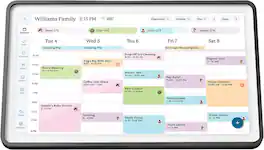
Skylight Calendar 2 - 15" Digital Calendar with removable Shadowbox Frame. Daily Planner and Touchscreen Smart Display for Family Schedules, Work, and Office. Get the whole family organized with chore charts, meal planning, and customizable lists on a WiFi-connected system with a beautiful and intuitive digital display.

Skylight Calendar is an innovative touchscreen display for all your calendar events, to-do’s, grocery list, and chores to help you organize your family’s busy schedule. It has a 15” touch screen that displays your family’s schedule in HD clarity making it a beautiful centerpiece for your home. It is the perfect size for a kitchen counter or can be mounted on a wall. High-quality metal stand and wall mount included.
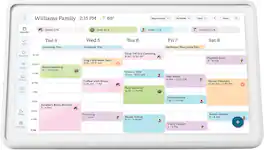
Skylight Calendar 2 - 15" Digital Calendar with removable Shadowbox Frame. Daily Planner, Touchscreen Smart Display for Family Schedules, Work, and Office. Get the whole family organized with chore charts, meal planning, and customizable lists on a WiFi-connected system with a beautiful and intuitive digital display.

The all-in-one tool that simplifies family scheduling for busy households. Sync your calendars with Google, Apple, Yahoo, Outlook or Cozi. Create task and to-do lists, schedule events, plan meals and more with the eCalendar app for download on iOS / Android devices. Enjoy and feature photos and videos with the digital photo frame feature all controlled through the app. Your photos will be displayed on the IPS LCD screen in 1280 x 800 resolution. Experience incredible HD clarity in rich and vibrant colors at an ideal 16:10 aspect ratio. No subscription fees.
Specs
Reviews
Customer Images
The vast majority of our reviews come from verified purchases. Reviews from customers may include My Best Buy members, employees, and Tech Insider Network members (as tagged). Select reviewers may receive discounted products, promotional considerations or entries into drawings for honest, helpful reviews.
- Rated 4 out of 5 stars
Great product. Where do you mount it?
As soon as this product became available, I asked to review it, and with a specific place in mind to mount it: on my refrigerator. We cleared all the magnets and junk off the side, and waited for our Skylight Calendar 2 to arrive, and, out of the box, it seemed to meet every expectation. It is very attractive, and the clear set up instructions provided for two ways to mount the device: on wall after drilling holes in the wall, or, for landscape orientation only, using the provided stand which allows placement on a horizontal surface, like a conventional picture frame. The lack of any provision for refrigerator mounting with magnets was a disappointment for me, because I had that mounting scheme in my head, and, quite frankly still do. Admittedly, I had ordered mounting magnets from a third party source, assuming they would fit the Calendar 2. They did not, so I was relegated to using the provided stand. As you can see in my pictures, the calendar looks great on my kitchen counter, even if the placement is not what I originally envisioned. It only took a few minutes to set up the calendar and consolidate my and my wife’s Gmail and Outlook calendars. This was easily accomplished with the Skylight iOS app. The calendar is a very convenient way to cross-check our family activities, and all the calendars are now two-way synced, so they can also be changed from any computer we use at home or, our iPhones, or by manually using the keyboard on the Skylight calendar. Very practical and convenient. And an Alexa skill is also available that will allow you to ask you know who to add items to your calendar or grocery list. You can also add recipes and family pictures with a paid Calendar plus subscription in the Skylight software. I have subscribed to this on a monthly basis to see how we like it. The jury is out on that: we wanted the Skylight primarily for the calendar feature. Even more features are available for an additional charge at the Skylight plus level. We have not sampled that feature. So, now I have an attractive and practical calendar, but I have not been able to put it where I want to put it - on the fridge - and that is an issue for me and my wife. The third party solution I tried will not work with this new model, and I think it is telling that Skylight does not offer such an accessory. Perhaps the magnet solution has other issues that have generated concerns that I am not aware of. I do not want to drill holes in my walls to mount any device. I would rather use the stand, but a refrigerator mount would be perfect for my situation. I recommend this product for its attractiveness, functionality and usability. If you need to put it on the refrigerator, you probably need to look elsewhere.
mobilelawyer Posted
- Rated 5 out of 5 stars
Skylight - Put a Spotlight on Family Schedules!
My spouse and I are both extremely busy and constantly juggling our schedules with meetings, events, and appointments (like everyone these days). We have been using a dry erase board calendar in our bedroom closet to keep in sync…but it is so analog…every month my spouse had to sit down, open a planner, phone, and computer and then use a marker to manually download our lives onto 1970 technology… insane! UNTIL NOW. Skylight promised to do all that in real time and 100% accessible for both of us anytime. Big promises so we were excited to give it a shot. Overall, it exceeded our expectations and revolutionized how we stay in-sync with each other. Set up was tricky though. It was not as easy as I hoped and took effort to get all our digital calendars to talk and there is a major consideration regarding secure company outlook calendars and permissions. First off it comes with everything you need for a wall mount or a stand. We chose a stand to make sure it was going to work for us before I cut holes in walls and ran cables. We have had it for a week, and I am leaning towards a wall mount at our garage mudroom entryway. I will see it every day, and that’s important because this thing can do more than just show you a calendar which it does amazingly well but it can also count down days to a vacation, it can show you tasks (like take out trash), to do lists, grocery lists, and meals in the fridge to cook. It really is a comprehensive real time coalescence of me and my spouses’ lives that we can both see at any time thanks to the app. Truly innovative. I really love the app incorporation with the calendar hardware. It is so amazingly handy to have the freedom to add appointments on the spot and know that it all syncs up and is ready to go…no more wasted time trying to manually aggregate all the info! The app is very intuitive and easy to use. A good app can make or break the tech it comes with, and this is for sure a huge plus for the Skylight. The calendar itself has a crisp bright touch screen that can be “pinched” or “zoomed” with your fingertips to get the spacing of the appointments or events just the way you want them. The motion of swiping or tapping events is crisp, fast and smooth. It’s heavier than I thought it would be, but who cares, it’s not going to be portable. We got the 15” and I find it to be the perfect size for us. Big enough to see but not too big that it is an eye sore. I also love setting up profiles and all the color coding makes it super easy to read at a glance. The hardware is solid and well built. Now a little about set up…. I started with my Apple account calendar. I really don’t use it that much and live and die by my work Outlook calendar. You have to go into Apple and create a password specific for Skylight. Then you have Skylight ask Apple for permission, then give permission via the password you selected. You have to go a couple screens deep into your Apple settings into places I had never gone before. Not necessarily hard…but not a walk in the park either. Watch the tutorials and step by steps and I got frustrated (I am not patient). I had to take a step back and understand that this is my home calendar and security is important…step by step and finally got it synched. If you’re looking at the Skylight calendar you are probably somewhat tech savvy so you’ll get it…but again…not like subscribing to a streaming service…it was a little more in-depth. Once my Apple calendar was set up …everything synced up quick and easy. It is super cool to tell Siri to add an appointment and boom its on my Skylight.. No more having to make it on my phone and “put it” on the dry erase board. Super awesome! So then I tried my Outlook….I work in a Municipal government job and our email is sunshinable, secure and sensitive…. I tried to sync and Outlook sent a request to my City’s IT department asking for permission to sync to my work calendar…. needless to say…I highly doubt they will grant permission… it’s been a week and no approval emails. So if you are in the same boat that could be an issue. ON THE OTHER HAND,… My work appointments and schedules are not family critical appointments… “meet Bob about staffing” is not something I necessarily need on my home calendar for my spouse to know… So, I have decided to use my Apple calendar for all family appointments and events and use my Outlook for work only. Now if it’s something they do need to know and its work related…I have to remember to put in my Apple calendar so it will sync into Skylight. Which to be honest is probably not a bad idea anyway. I also got to thinking that all the crap on my work Outlook calendar would completely clutter up my “family” calendar so in retrospect…It actually works out better for me keeping them separate. My spouse on the other hand is a CPA, and her firm also needed administrative approval before she could sync up her work Outlook calendar. She had to take the Skylight calendar into their IT guy who also had to configure it for her. It took a few steps, but he was able to do that and her Outlook is synched. My spouse having her work calendar on Skylight works for her and helps me. She travels occasionally and I can see the dates now well in advance. NOTE: with Apple and Google calendars etc. if you put an event on the Skylight Calendar manually, it will go to the Apple and Google calendars as well and the Skylight app BUT Outlook is a one way street. If you put an event in Outlook, it will sync to Skylight but not the other way around. Microsoft security protocols do not allow Skylight to add events to Outlook currently. Overall, amazing and useful tech which is really organizing and streamlining our family flow. Even after a week I can see that this is going to really be a huge help and a vital part of how we run our household and manage our busy lives! 5 stars and kudos to Skylight. Just be patient and persistent on the setup and you too can be organized to the hilt with this baby. Again, the set up is not hard but you have to know where to go and find the right pages to allow for the access you need to give Skylight, which can be tricky.
JC1503 Posted
- Rated 5 out of 5 stars
This Skylight Calendar 2 Is Really Great!
I was delighted to receive the 15" Skylight Calendar 2, which I had been eagerly anticipating. The package included the calendar itself, a sleek black magnetic metal frame, a support stand, a wall mount with screws and anchors, a cable wrap adapter, a power adapter, a small screwdriver, and a Quick Start Guide. The guide was clear, thoughtfully designed, and easy to follow, providing instructions for assembly either on the wall or the table stand. After assembling it with the horizontal table stand, I used the QR code from the guide to download the Skylight app. I connected the calendar to my Wi-Fi by selecting my network and entering the password. Then, I created an account, provided the calendar’s email address, and chose CALENDAR as the device type. A six-digit code was sent to my email, which I entered directly on the calendar using its on-screen keyboard. Within the Settings menu, I configured various options displayed along the left side of the screen, including setting the correct time zone and entering my zip code for precise weather updates. The app also allows syncing with existing online calendars via phone or web versions. By tapping the plus sign on either the device or app, I could add individual events to the calendar. Skylight offers a free online Masterclass for new users, as well as a subscription service called Skylight PLUS, which unlocks additional features like Photo & Video Screensaver, Meal Planning, and Magic Import, available for a monthly or yearly fee. For now, I opted to stick with the free version. I selected the monthly screen view so all the days were visible and added my husband as a secondary profile user. The calendar can be programmed to enter sleep mode at set times and wake up accordingly, but there’s also a handy Sleep button on the screen that immediately darkens the display, overriding any scheduled settings. I found it incredibly easy to add appointments and calls, and the calendar itself looks fantastic. From the initial setup to everyday use, the process was smooth and straightforward. Although some of the advanced features require a monetary upgrade, I’m very pleased with my choice and would definitely recommend it. It has already proven invaluable in helping us keep track of important dates!
Mizshutterbug Posted