Computer setup steps

Windows laptop setup.
Six tips to make the most of your laptop when you first use it.
Battery life.
Your new laptop will not be fully charged when you take it out of the box. For best results, plug it in at first use, especially when downloading and installing updates.
Connecting to the internet.
Connect to your home Wi-Fi when you start your new computer so you don't miss critical updates. See how to ensure the most seamless setup experience in the Windows Computer Setup video.
Account creation.
When you start your new computer, Windows will prompt you to create an account. Many applications, such as Office and the Windows Store, require a Microsoft Account to function properly.
Windows updates.
Your new computer will likely need to complete some software updates to make sure your security software is current, and to provide you with the most recent Windows and driver updates. Updates usually happen in the background while you’re using your computer, but could install over several hours and may make your computer a little slower while it works to complete the updates. Once the updates are complete, you’ll get the safest and fastest performance from your new computer.
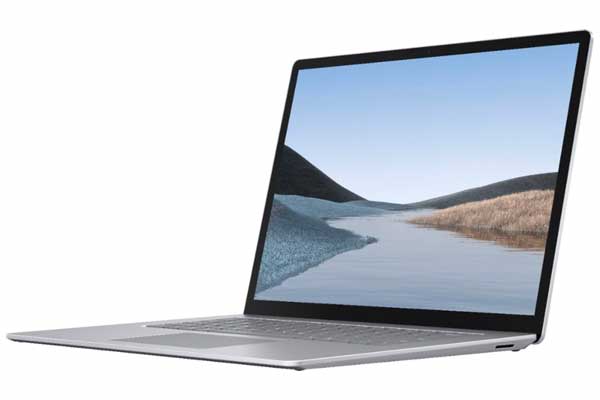
Cooling.
Premium PCs can handle multitasking and more advanced programs without the waiting and stuttering you might find on a typical computer. When in high performance mode, you might notice the fans working to keep the internal components from getting hot. To maintain an optimal temperature, use your computer on a hard, flat surface and close programs when you aren’t using them.
Speed.
When you are downloading and installing updates on your new computer, you won’t be able to complete other tasks as quickly as you will when those updates are complete. To make sure all resources are free for what you want to do, it’s recommended that you force all Windows updates after initial setup. Type “Update” in the Windows search bar to check for updates. Find out how to look for updates in the Windows Computer Setup video.
Connecting to wireless devices.
Wireless printers, mice, keyboards, speakers and headphones can connect via Bluetooth. To connect one of these devices to your computer, select or search “Settings” in the Windows search bar and “Bluetooth and other devices.” To finish connecting the device, select “Bluetooth” and then follow the prompts.

Questions about your new computer? We've got answers.
Give us a call at 1-866-501-9356, seven days a week.

Chromebook computer setup.
Three tips to help you maximize the performance of your Chromebook.
Battery life.
Your new Chromebook will not be fully charged when you take it out of the box. Plug it in at first use, especially when downloading and installing apps.
Storage and account setup.
Your Chromebook comes with a cloud storage account, called Google Drive, to back up your data instead of storing data on your Chromebook. Google offers this service for secure backup and easy access to your files from any computer. If you prefer to store your files on the Chromebook, you can do that too, and easily add additional storage with a flash drive. You will learn how to create a Google Drive account in the Chromebook Computer Setup video.
Downloading Chromebook apps.
With the Chrome operating system, you download apps instead of buying software, similar to a smartphone or tablet. With your Chromebook, you have access to many apps, including Google office productivity applications like Docs (which offers word processing, similar to what you’ll find with Microsoft Word), Sheets (which offers the ability to create spreadsheets, similar to what you’ll find with Microsoft Excel), and Slides (a presentation tool, similar to what you’ll find with Microsoft PowerPoint). These apps are compatible with most other office productivity software. App downloads will allow you to get the most of your Chromebook’s functionality.
Questions about your new computer? We've got answers.
Give us a call at 1-866-501-9356, seven days a week.
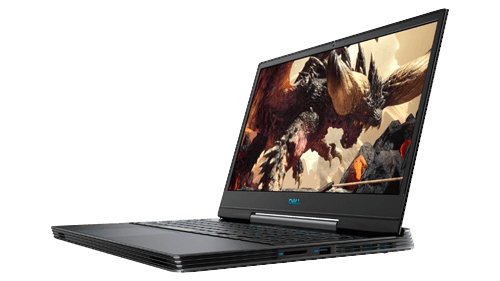
PC gaming setup.
Addressing five key features will help you maximize the performance of your gaming laptop.

Speed.
Computers with a mechanical hard drive will load programs slower than computers with a solid state drive. The speed of your computer is also impacted by the type of built-in graphics card. Integrated graphics cards are less powerful than dedicated graphics cards but conserve energy as they only use a portion of a computer system’s memory (RAM).
Look at the specifications of the games you’re interested in, most should have a minimum and recommended level of hardware to play the game. Adjust settings as necessary to improve speed of play.
Overheating.
Highly intense graphics can push your gaming laptop to overheat. To help properly circulate and vent out heat, manufacturers often use internal fans. There are a few reasons your fans might fire up. If the environment is hot, your laptop will need to work harder to dissipate heat, which means more fan noise. If you’re covering the vents at all, which can often happen when using a laptop on soft furnishings (like a bed), the laptop will get hot.
To ensure vents are not blocked, place your laptop on a flat surface and/or use a cooling stand or pad.

Keyboard.
Most standard laptop keyboards aren’t designed to take as much of a beating as desktop keyboards. Consider purchasing an external gaming keyboard that’s better equipped to handle a gaming workload while also adding a unique flair with backlit keys. Backlit keys will take a toll on your laptop battery, so ensure you’re plugged in to a power source for uninterrupted gaming.

Battery life.
Some tips to help you improve your battery life include: minimizing overheating, lowering brightness settings and turning off features like Bluetooth. Keeping your laptop plugged in to a power source will allow you to get the most out of your gaming.

Screen.
To further conserve battery life, certain hardware will set the screen brightness very low and/or dim the screen when running on the battery. Using an external gaming monitor will offer you a more immersive gaming experience.
Questions about your new computer? We've got answers.
Give us a call at 1-866-501-9356, seven days a week.
Questions about your new computer? We've got answers.
Give us a call at 1-866-501-9356, seven days a week.
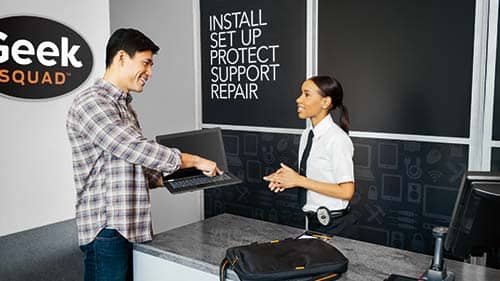
Geek Squad® computer services.
Our Geek Squad Agents can help set up a new computer, transfer data to a new computer, or set up and troubleshoot your Wi-Fi.
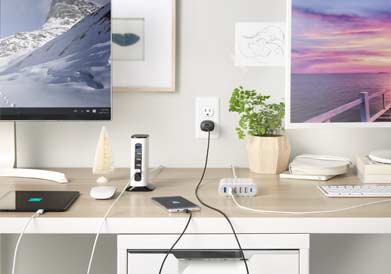
Geek Squad Home Wi-Fi Setup.
You love your smart devices, but they demand attention from your Wi-Fi. That's going to slow things down, unless you have a great wireless network. That's where Home Wi-Fi Setup or Troubleshooting by Geek Squad comes in.
Geek Squad Basic Computer Training.
Meet with an Agent at your home or office for an hour of one-on-one instruction.
Still need help setting up your computer?
Our Geek Squad Agents will help you get your new computer up and running.

Total Tech Support.
The heart of Total Tech Support gives you unlimited support for all your tech and appliances, no matter where you purchased them.