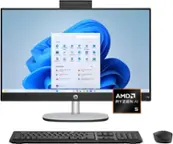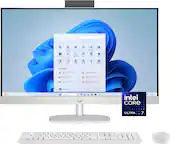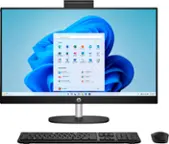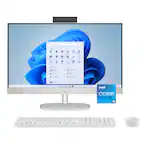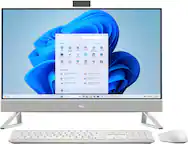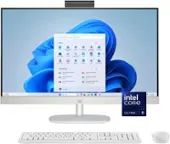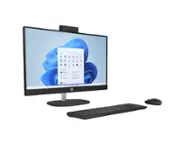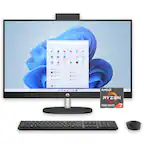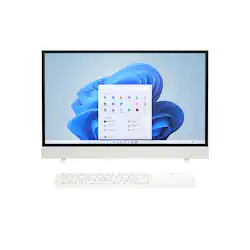
HP - Envy Move 23.8" QHD Touch-Screen Portable All-in-One - Intel Core i5-1335U 2023 - 8GB Memory - 512GB SSD - Shell White
- Key Specs
- Screen Size: 23.8 inches (Size of the screen, measured diagonally from corner to corner.)
- Processor Model: Intel 13th Generation Core i5 (Your computer's processor is like its brain. Working in combination with system memory, the power of the processor determines the complexity of software you can run, how many programs you can have open at the same time, and how fast those programs will run. Most computers feature an AMD, Intel or Snapdragon processor.)
- Storage Type: SSD
- Total Storage Capacity: 512 gigabytes
- System Memory (RAM): 8 gigabytes (Random-access memory (RAM) is a computing device's short-term data storage, which allows active information to be accessed quickly. The size and type of RAM determines how efficiently the device can handle large amounts of information at one time. For example, gaming or video editing requires more RAM for optimal performance.)
- Graphics: Intel UHD Graphics (Often referred to as a "graphics processing unit" (GPU), this device is responsible for displaying image content and decoding/encoding video content in programs and games.)
- General
- Brand: HP
- Model Number: 24-CS0074/8B911AA#ABA
- Product Name: Envy Move 23.8" QHD Touch-Screen Portable All-in-One - Intel Core i5-1335U 2023 - 8GB Memory - 512GB SSD
- Color: Shell White
- Year of Release: 2023
- Display
- Display Type: LED
- Screen Type: IPS
- Screen Size: 23.8 inches (Size of the screen, measured diagonally from corner to corner.)
- Screen Resolution: 2560 x 1440 (QHD) (Screens come in a range of resolutions (measured in pixels, horizontal x vertical). The higher the resolution, the greater the picture quality.)
- Touch Screen: true (Touch-screen devices make navigating more intuitive. Using a touch-screen display, you can do things such as tap to select, hold and drag to move items, swipe to scroll, and pinch to zoom.)
- Processor
- Processor Brand: Intel
- Processor Model: Intel 13th Generation Core i5 (Your computer's processor is like its brain. Working in combination with system memory, the power of the processor determines the complexity of software you can run, how many programs you can have open at the same time, and how fast those programs will run. Most computers feature an AMD, Intel or Snapdragon processor.)
- Processor Model Number: 1335U
- CPU Boost Clock Frequency: 4.6 gigahertz (Actual central processing unit (CPU) speed may vary by device configuration and design. The maximum rate at which the processor is able to execute tasks, typically only used for a short period of time as needed. This rate may temporarily boost the processor's performance, but may result in overheating, shutdown, or damage to equipment if sustained.)
- Number of CPU Cores: 10-core (A core, or "brain" of a CPU, allows it to receive and execute instructions. Each core can work independently or together to perform parallel operations.)
- CPU Cache Memory Level: L3
- L3 Cache: 12 megabytes (Cache memory, also called CPU memory, is random-access memory (RAM) that a computer microprocessor can access more quickly than it can access regular RAM. This memory is typically integrated directly with the CPU chip or placed on a separate chip that has a separate bus interconnect with the CPU.)
- Storage
- Storage Type: SSD
- Total Storage Capacity: 512 gigabytes
- Solid State Drive Capacity: 512 gigabytes (The amount of data that can be stored on the device's solid state drive (SSD). SSD is a flash-based storage with faster speeds than a hard disk drive (HDD).)
- Memory
- System Memory (RAM): 8 gigabytes (Random-access memory (RAM) is a computing device's short-term data storage, which allows active information to be accessed quickly. The size and type of RAM determines how efficiently the device can handle large amounts of information at one time. For example, gaming or video editing requires more RAM for optimal performance.)
- Type of Memory (RAM): LPDDR5 (Each type of RAM delivers a different level of speed, bandwidth, energy efficiency and performance.)
- Number Of Memory Slots: 0
- Graphics
- Graphics Type: Integrated (Dedicated graphics uses a separate graphics card for processing video images. Because it does not use memory from the system's RAM, there is no extra burden on the CPU and graphics are processed more efficiently. Integrated graphics shares system RAM to process video images.)
- GPU Brand: Intel
- Graphics: Intel UHD Graphics (Often referred to as a "graphics processing unit" (GPU), this device is responsible for displaying image content and decoding/encoding video content in programs and games.)
- Compatibility
- Operating System: Windows 11 Home (The operating system manages all software and hardware, including files, memory and connected devices. Most importantly, it lets you interact with your device and your programs in a visual way; otherwise, you'd be typing computer code to get anything done.)
- Connectivity
- Display Connector(s): 1 x HDMI (The number and type of connectors used to connect to an external display.)
- Number of HDMI Outputs (Total): 0
- Number of DisplayPort Outputs (Total): 0
- Number of Thunderbolt Ports (Total): 0
- Number of VGA Ports: 0 (VGA (Video Graphics Adapter or Video Graphics Array) is a display standard that transmits via analog signals. This type of interface is typically used to connect a computer to a display device such as a monitor, projector, or TV.)
- USB Ports: 1 x USB-C 3.1, 1 x USB-A 3.1 (The number and type of USB ports the product has.)
- Number of USB Ports (Total): 2
- Microphone Input: true (The device features an input for connecting an external microphone.)
- Wireless Connectivity: Bluetooth, Wi-Fi (The manner in which a device sends data to another device over a short distance without the use of wires or cables.)
- Wireless Networking Standard: Wi-Fi 6 (The wireless networking standard used by the device. Each iteration of the standard developed by the Wi-Fi Alliance corresponds to an existing IEEE 802.11 protocol; for example, standard 802.11ac (or AC) is termed Wi-Fi 5. Refers specifically to the standard the device is designed to use, but ultimately determines product interoperability and backward compatibility including previous versions.)
- Number Of Ethernet Ports: 0
- Power
- Power Supply Maximum Wattage: 90 watts
- Expansion
- Number of M.2 Slots: 2 (This interface is most commonly used for high-speed solid state drives (SSDs), and is often used in laptops due to its small size.)
- Camera
- Built-In Webcam: true
- Front-Facing Camera: true
- Front Facing Camera Megapixels: 5 megapixels (The more megapixels, the more detail that the camera facing the user can capture.)
- Built-In Microphone: true
- Features
- Media Card Reader: false (A hardware device that allows for access to data on a memory card and enables the transfer of its files to a computer. These devices may have one or multiple slots for various types of memory cards, and may be integrated into the computer or available as an external device.)
- Media Card Slot: None
- Audio Technology: Adaptive Audio
- Dimensions
- Product Height: 14.43 inches (The out of box height of the item. Height is measured as the vertical distance from the bottom of the item to the top as it would be primarily used or placed.)
- Product Width: 21.74 inches (The out of box width of the item. Width is measured as the horizontal distance from one side of the item to the other as it would be primarily used or placed.)
- Product Depth: 5.85 inches (The out of box depth of the item. Depth is measured as the distance from the front of the item to the back as it would be primarily used or placed.)
- Product Weight: 9.04 pounds (The out of box weight of the item.)
- Certifications Listings & Approvals
- ENERGY STAR Certified: true (Devices carrying the ENERGY STAR service mark, such as computer products and peripherals, kitchen appliances, and other products, generally use 20% to 30% less energy than required by federal standards.)
- EPEAT Qualified: true (The Electronic Product Environmental Assessment Tool (EPEAT) was designed to provide an environmental assessment tool for purchasers. In order to qualify for EPEAT, a product must meet all 23 required criteria.)
- EPEAT Level: Gold (The Electronic Product Environmental Assessment Tool (EPEAT) was designed to provide an environmental assessment tool for purchasers. In order to qualify for EPEAT, a product must meet all 23 required criteria. Products are rated Bronze, Silver or Gold based on how many of 28 optional criteria they meet (below 50%, 50%, 75%).)
- Included
- Optical Drive Type: None (An optical disk drive (ODD) uses a laser light to read data from or write data to an optical disc. These discs include CDs, DVDs, and Blu-ray Discs. This allows you to play music or watch movies using prerecorded discs.)
- Wireless Keyboard: true
- Wireless Mouse: true
- Speaker(s) Included: true
- Warranty
- Warranty - Parts: 1 year
- Warranty - Labor: 1 year
- Other
- UPC: 197192440056
Move beyond the desktop. Don’t just sit there—move. HP Envy Move 23.8-inch All-in-One PC is movable and rechargeable. So you can take your business, recipes and workouts from the desktop to the countertop to the tabletop and back again. Plus, with a big screen and an Intel processor, you’ll be transported too.
- Movable and rechargeable: HP Envy Move 23.8” All-in-One PC lets you take your business, recipes and workouts from the desktop to the countertop and back again. Unplug. Lift. And take on the move.
- Get a fresh perspective with Windows 11: From a rejuvenated Start menu, to new ways to connect to your favorite people, news, games, and content—Windows 11 is the place to think, express, and create in a natural way.
- All-in-One for one and all: Transform your living room into a yoga studio and patio into a private theater, thanks to the 23.8-inch diagonal screen and tilt adjustment. Plus, it's designed for your viewing pleasure with auto brightness adjustment and a screen that blurs if you get too close.
- 13th Generation Intel Core i5-1335U processor: This processor advances real-world computing and delivers more ultra-efficient multi-tasking.
- QHD IPS touchscreen: Control your entertainment right from the screen and enjoy it with captivating QHD definition.
- Three-sided micro-edge display: See more of your screen with a three-sided micro-edge display that maximizes your viewing area.
- 8GB LPDDR5-6400MHz RAM memory: Experience speedy and responsive performance with the power efficient LPDDR5 memory. Designed to support higher data rates with less latency, plus faster file transfers and application load.
- Intel Unison: Unlock your connected world and enjoy the freedom to work across operating systems. Intel Unison seamlessly connects your PC and devices for a universal, easy to use experience.
- Intel UHD Graphics: Smoothly stream 4K content and play your favorite games in 720p.
- 512GB PCIe NVMe M.2 Solid-State Drive: Get up to 15x faster performance than a traditional hard drive.¹
- HP True Vision 5MP IR camera: The high-quality camera lets you video chat with the entire family in stunning detail, at up to 2592 x 1944 resolution. It also features temporal noise reduction, dual array mics and ambient light sensors.
- Camera Shutter: Ensure your privacy and security with a visible, physical shutter that turns off your PC’s camera when not in use.
- HP Fast Charge: Go from 0 to 50% charge in approximately 45 minutes.²
- HDMI in: Plug in and enjoy your favorite content on a bigger screen.
- USB Type-C 10Gbps signaling data rate: Plug in your external storage with this USB Type-C port, featuring 10Gbps signaling data rate. And it’s reversible, so you never have to worry about plugging in upside down.
- USB Type-A 10Gbps signaling data rate: Plug in your external storage with this USB Type-A port, featuring 10Gbps signaling data rate.
- Effortlessly connected: Enjoy faster speeds, improved performance and greater capacity with Wi-Fi 6 and Bluetooth 5.3 wireless card.
- Eyesafe Certified Display: Eyesafe certified displays meet TÜV low blue light requirements and Eyesafe standards for protecting your eyes from harmful blue light without distorting colors to reduce eyestrain when working for long periods of time.
- Adaptive Audio: Amplify any experience with Adaptive Audio. Thanks to advanced audio technology developed by HP, your PC automatically adapts to where you are in the room and provides a consistent surround sound experience.
- Audio by B&O: HP speakers, custom-tuned in collaboration with experts at B&O, deliver rich, authentic sound.
- Enjoy 1-month of high-quality games.: Use the Xbox App to play hundreds of high-quality PC games with friends including new day one titles and get an EA Play membership. With games added all the time, you always have something new to play.
- Sustainably designed and responsibly sourced: HP Envy Move uses recycled materials and post-consumer ocean-bound plastics in an EPEAT Gold and ENERGY STAR certified design that does amazing things for you and the planet.
- Movable and rechargeable: HP Envy Move 23.8” All-in-One PC lets you take your business, recipes and workouts from the desktop to the countertop and back again. Unplug. Lift. And take on the move.
- Get a fresh perspective with Windows 11: From a rejuvenated Start menu, to new ways to connect to your favorite people, news, games, and content—Windows 11 is the place to think, express, and create in a natural way.
- All-in-One for one and all: Transform your living room into a yoga studio and patio into a private theater, thanks to the 23.8-inch diagonal screen and tilt adjustment. Plus, it's designed for your viewing pleasure with auto brightness adjustment and a screen that blurs if you get too close.
- 13th Generation Intel Core i5-1335U processor: This processor advances real-world computing and delivers more ultra-efficient multi-tasking.
- QHD IPS touchscreen: Control your entertainment right from the screen and enjoy it with captivating QHD definition.
- Three-sided micro-edge display: See more of your screen with a three-sided micro-edge display that maximizes your viewing area.
- 8GB LPDDR5-6400MHz RAM memory: Experience speedy and responsive performance with the power efficient LPDDR5 memory. Designed to support higher data rates with less latency, plus faster file transfers and application load.
- Intel Unison: Unlock your connected world and enjoy the freedom to work across operating systems. Intel Unison seamlessly connects your PC and devices for a universal, easy to use experience.
- Intel UHD Graphics: Smoothly stream 4K content and play your favorite games in 720p.
- 512GB PCIe NVMe M.2 Solid-State Drive: Get up to 15x faster performance than a traditional hard drive.¹
- HP True Vision 5MP IR camera: The high-quality camera lets you video chat with the entire family in stunning detail, at up to 2592 x 1944 resolution. It also features temporal noise reduction, dual array mics and ambient light sensors.
- Camera Shutter: Ensure your privacy and security with a visible, physical shutter that turns off your PC’s camera when not in use.
- HP Fast Charge: Go from 0 to 50% charge in approximately 45 minutes.²
- HDMI in: Plug in and enjoy your favorite content on a bigger screen.
- USB Type-C 10Gbps signaling data rate: Plug in your external storage with this USB Type-C port, featuring 10Gbps signaling data rate. And it’s reversible, so you never have to worry about plugging in upside down.
- USB Type-A 10Gbps signaling data rate: Plug in your external storage with this USB Type-A port, featuring 10Gbps signaling data rate.
- Effortlessly connected: Enjoy faster speeds, improved performance and greater capacity with Wi-Fi 6 and Bluetooth 5.3 wireless card.
- Eyesafe Certified Display: Eyesafe certified displays meet TÜV low blue light requirements and Eyesafe standards for protecting your eyes from harmful blue light without distorting colors to reduce eyestrain when working for long periods of time.
- Adaptive Audio: Amplify any experience with Adaptive Audio. Thanks to advanced audio technology developed by HP, your PC automatically adapts to where you are in the room and provides a consistent surround sound experience.
- Audio by B&O: HP speakers, custom-tuned in collaboration with experts at B&O, deliver rich, authentic sound.
- Enjoy 1-month of high-quality games.: Use the Xbox App to play hundreds of high-quality PC games with friends including new day one titles and get an EA Play membership. With games added all the time, you always have something new to play.
- Sustainably designed and responsibly sourced: HP Envy Move uses recycled materials and post-consumer ocean-bound plastics in an EPEAT Gold and ENERGY STAR certified design that does amazing things for you and the planet.
Whats Included
- Envy Move 23.8" QHD Touch-Screen Portable All-in-One - Intel Core i5 - 8GB Memory - 512GB SSD
- Envy Move 23.8" QHD Touch-Screen Portable All-in-One - Intel Core i5 - 8GB Memory - 512GB SSD
Product Manuals
Q: What is the storage capacity of this HP computer?
A: This HP computer comes with a 512GB PCIe NVMe M.2 Solid-State Drive.
Q: What type of RAM does this HP computer have?
A: This computer is equipped with 8GB of LPDDR5-6400MHz RAM.
Q: What generation is the Intel Core i5 processor in this HP computer?
A: This HP computer comes with a 13th Generation Intel Core i5-1335U processor.
Q: Does this HP computer have a built-in webcam?
A: Yes, it has an HP True Vision 5MP IR camera with temporal noise reduction, dual array mics, and ambient light sensors.
Q: How is the audio quality on this HP computer?
A: The audio is tuned in collaboration with experts at B&O to deliver a rich and authentic sound experience.
Q: Does this HP computer have a touch screen?
A: Yes, the HP Envy Move has a QHD IPS touchscreen.
Q: Can I easily use the computer as a larger screen for my work laptop when working from home?
A: Hello, thank you for your question. By plugging your Laptop into this All-In-One Computer's HDMI-In port, you can utilize the monitor portion as a larger monitor or dual-screen. There are even programs to remote desktop from your laptop onto this All-In-One Desktop Computer.
Q: Can a printer be wired to this computer?
A: Yes it can but you would use up the one and only USB port. You need to buy USB extender. The one I use has four ports. They come with up to six I think.