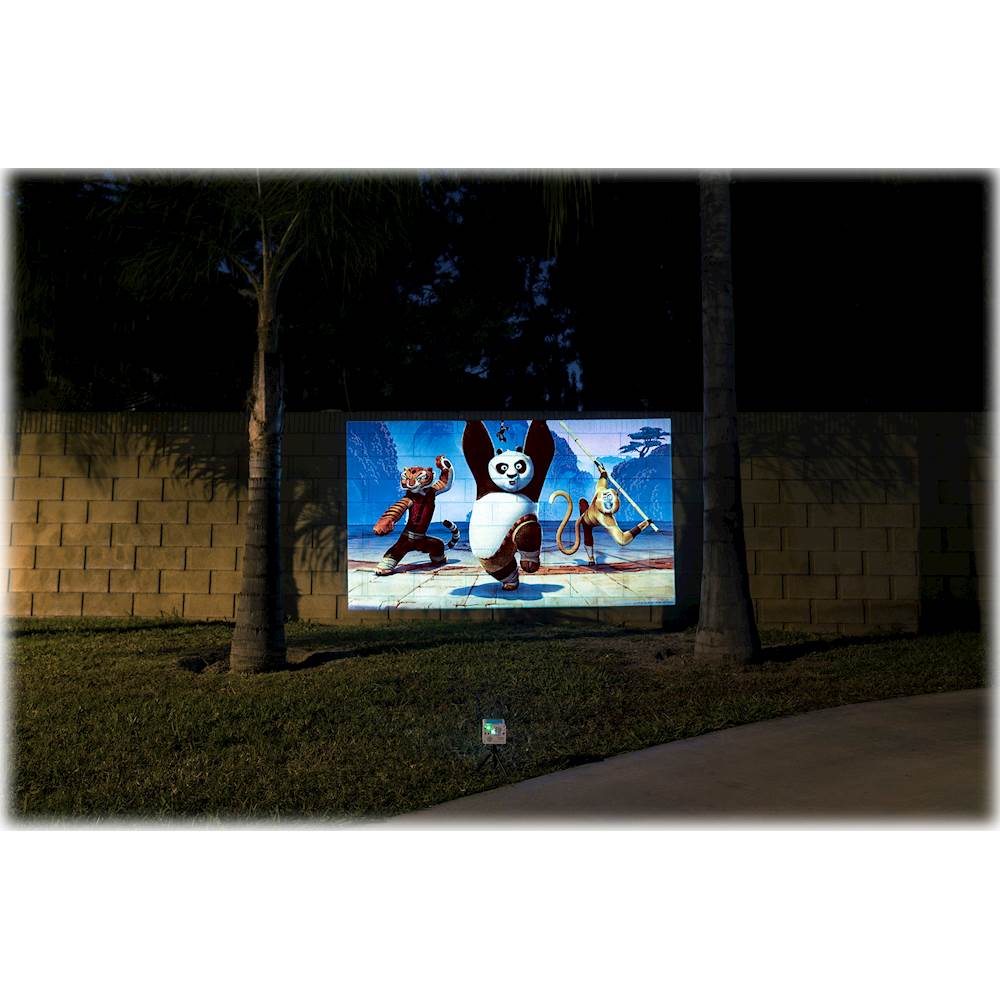
A:AnswerYes it can be but in a low lit environment and the screen size is relatively not that big. I would recommend 500 Lumens or more if being used outside for the best results.
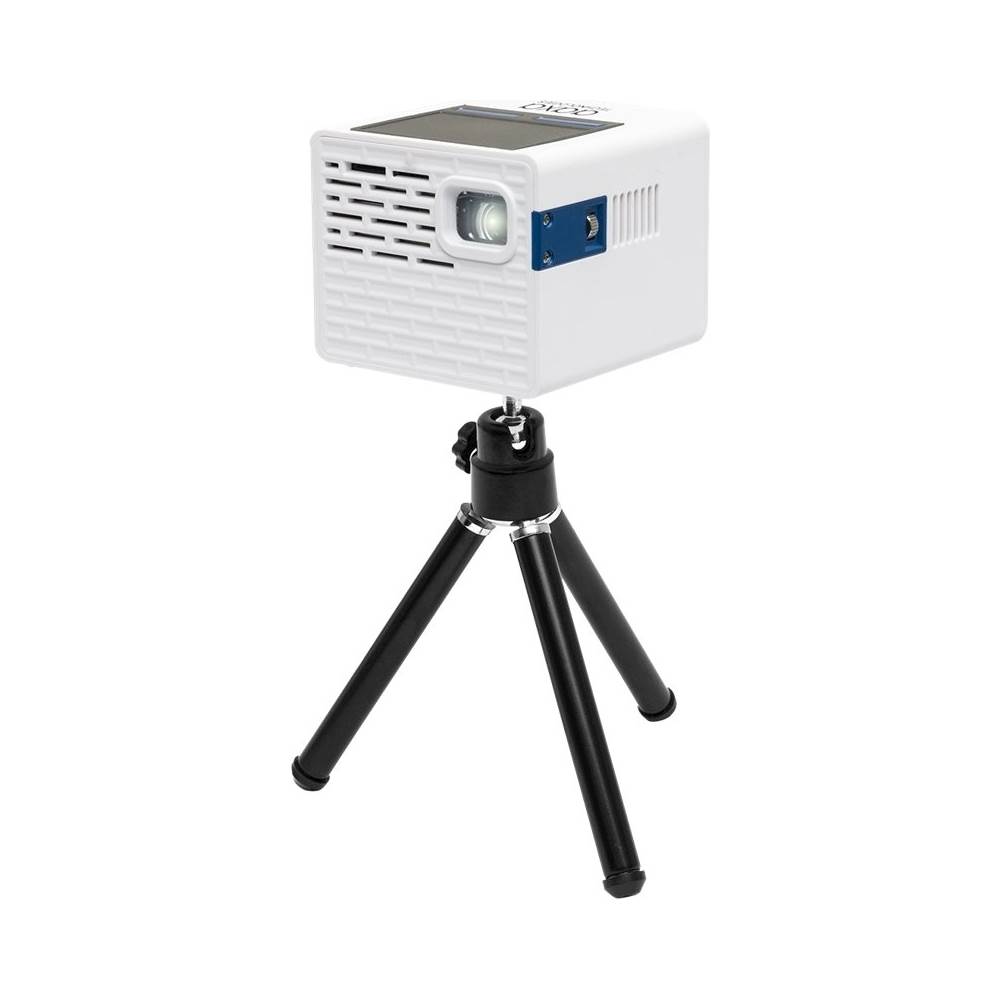
A:AnswerThe tripod it comes with is not able to extend its legs. You are able to use any standard camera tripod with it. The tripod screw size will be 1/4" 20 threads.
A:AnswerIt sounds like the third party adapter you are using for your iPhone does not support video streaming. I recommend to get the lighting digital a/v adapter directly from Apple and they will be able to play with no problems.
A:AnswerPlease make sure the projector is the selected audio output device for the audio to come out from the projector. You will need to check in the sound settings of your device. You can also connect Bluetooth speakers directly to the device to play audio through there as well.
A:AnswerIf your LG Android phone has video out capabilities then you will be able to connect with an adapter /cable and you will be able to mirror over your phone from there to project video from streaming services.
A:AnswerYes it will work through Airplay using the third party mirroring app we have on the projector. You will be able to connect it through the lighting digital a/v adapter as well.
A:AnswerNo the tripod it comes with is a regular table top tripod. You will need a different tripod if you would like to have the projector facing downwards.
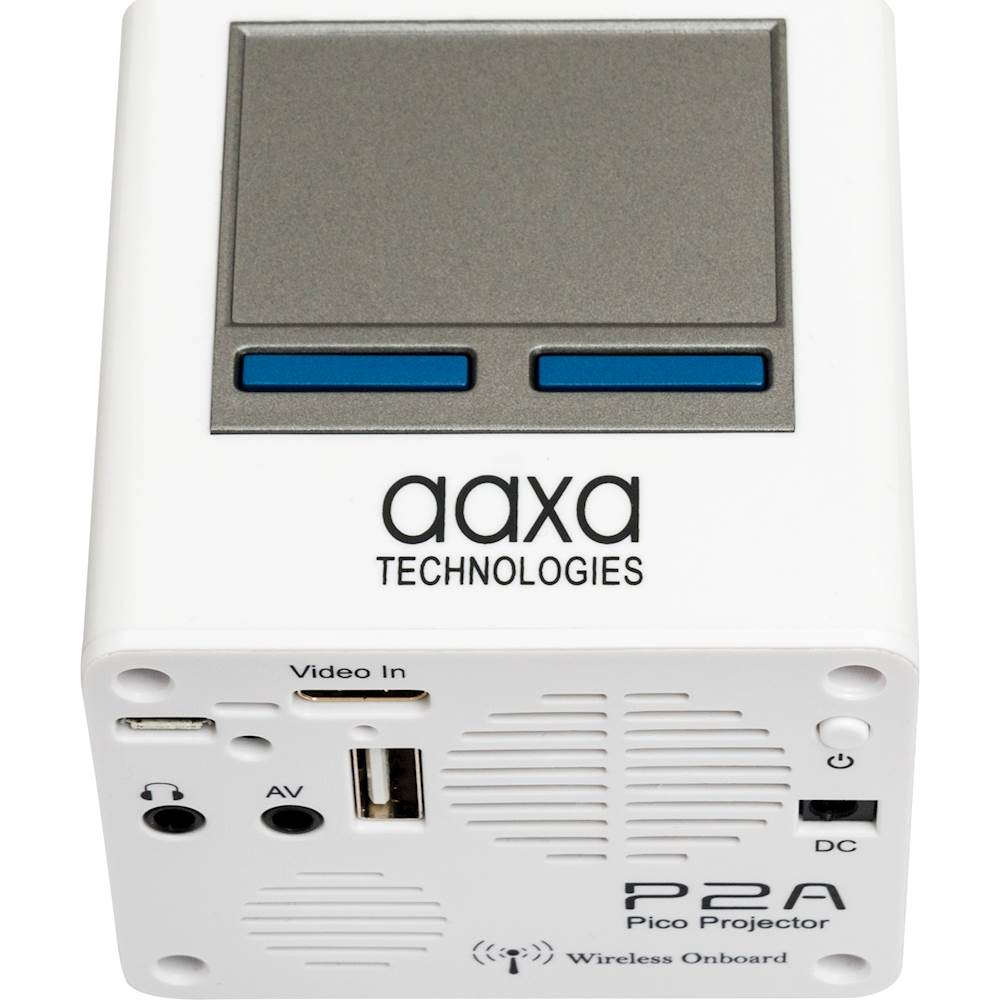
A:AnswerYes the P2A will work with the S10. Connecting through a USB-C adapter or you may connect wirelessly through the third party mirroring app on the projector. It will not connect through Bluetooth. It will have onbaord speakers already if you need more sound then you may get any external speakers and connect directly to the projector with an AUX cable. Or if you get a Bluetooth speaker you may connect your S10 directly to the speakers.
A:AnswerThe smart part will mean that the projector will have Wifi and Bluetooth capabilities. So you will be able to connect to the internet directly on the projector to use the many streaming apps on there already. You will need to connect the Chromecast directly to the projector's HDMI port if you wanted to use it. It will not affect the Bluetooth or wifi of the projector since it will be completely separate from the Chromecast.
A:AnswerYes you will be able to project Hulu from your iPhone. There is also the Hulu app preinstalled on the projector that you will be able to play directly from there as well.
A:AnswerYes this projector will work with an iPhone or iPad. You will just need to get the correct adapter to connect through the mini-HDMI port. You can also connect through Airplay with our third party app on the projector but please note there will be limitations so hard wire is the best option to connect them. You can pair the speaker to the iPhone or the projector depending on how you have the Apple device connected to the projector.
A:AnswerYes you can using the third party mirroring app we have on the projector. It will not fully support video streaming but you can mirror over still images fine. You will need a internet connection to connect and mirror using airplay from the iPad.
A:AnswerYes you are able to project on the ceiling. Please take note of where the fans are and make sure nothing is blocking it to keep the projector well ventilated.
A:AnswerNo it will work best in dimly lit environments. If there is a lot of light, it is recommend to have a lot of lumens for the projection to be seen. So I recommend the M5 or M6 projector for this case.