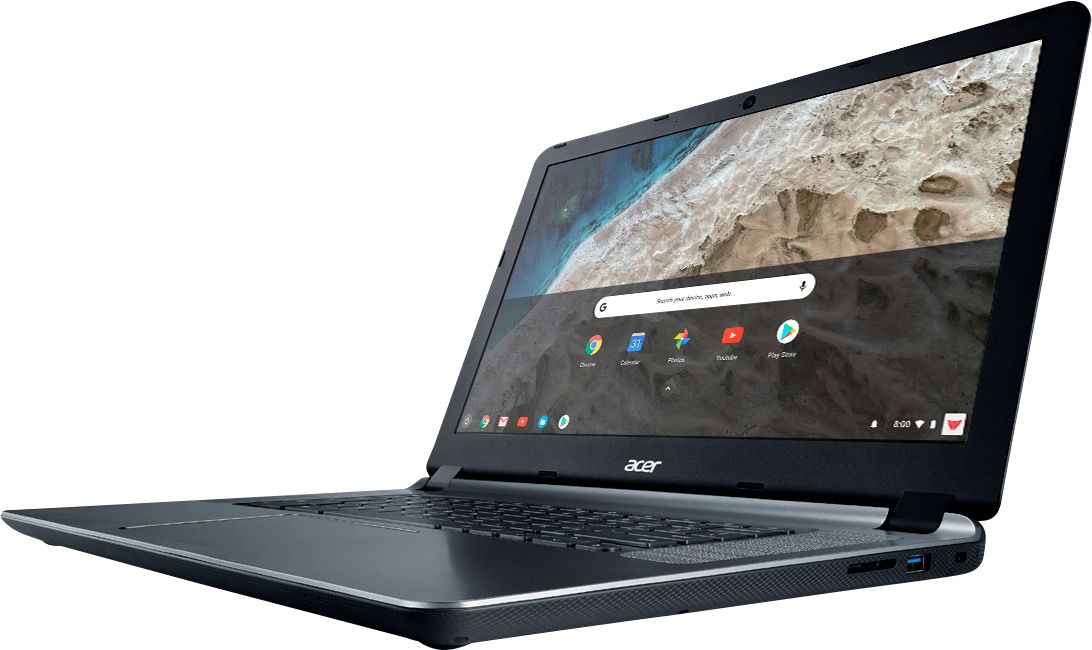
A:AnswerHi Jam,
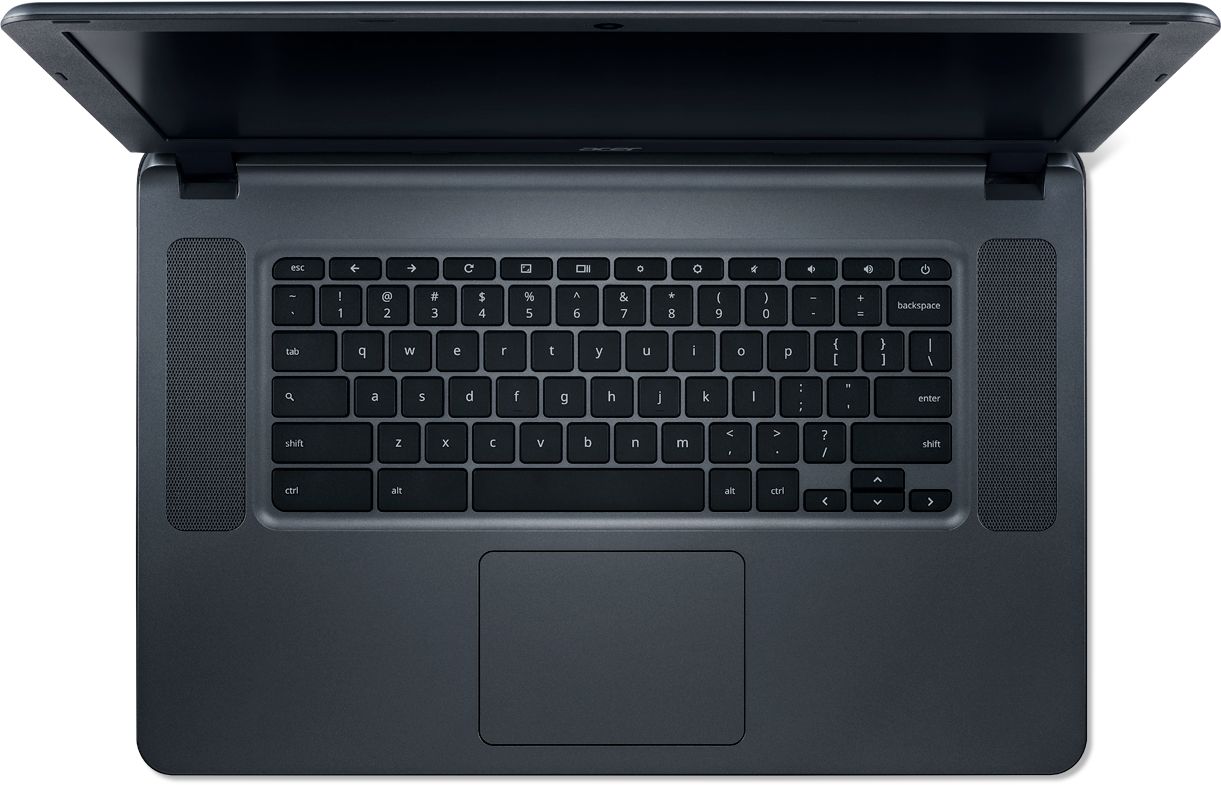
You can page up and page down by pressing the up and down arrow keys under the shift key on the lower right hand side of the keyboard.
Thank you,
Acer America
A:AnswerNo, but here is a link that has information on how to enable it on a Chromebook: https://www.androidguys.com/tips-tools/enable-google-assistant-chromebooks/
A:AnswerIf the game is available as an Android app or through Google Playstore, yes. Chromebooks are different from standard laptop products in that they are designed to be used primarily while connected to the Internet, with most applications and documents living in the cloud. Because of this they don’t have much for on board storage but they also are not expensive either. Chromebooks run off apps like an Android phone or tablet so you cannot download and install applications or .exe files. If you need to use third party software applications that must be installed on the computer, a Chromebook is likely not for you, where a Windows laptop would suit you better.
A:AnswerYes you can use printers with Chromebooks. Here is a link you might find helpful: http://cbookreviewguide.com/chromebook-compatible-printers-cloud-ready/
A:AnswerGreat inexpensive laptop for viewing videos, playing games and listening to music online. It does not have a disk drive, but I got an external CD-RW/DVD-RW PLAYER/BURNER ON EBAY FOR $18.00.
A:AnswerThe storage is a 16GB eMMC flash drive. This is designed to be used primarily on the Internet using Cloud storage. If you need other storage options you can use a USB flash drive or external USB hdd.
A:AnswerIt runs google chrome, so it's not a Windows machine. It's more of an internet/email machine, but can be used for docs and spreadsheets...with google help.
A:AnswerMaking assumption that this is an earlier Chromebook, you might try:
Try simultaneously pressing CTRL and Shift and + (addition sign) keys OR CTRL and Shift and - (minus sign) keys,
OR
Go to Settings and then Search on Display and adjust "Display Size" or Search on "Font" and adjust the font size or customize the font
OR
On the Chrome tab settings, adjust the "Zoom" option
If you're running an older Chrome OS version, then you might also try updating your OS and then trying the above. To force an update, when you're in Settings press the three parallel lines to the left of the title "Settings" and go to "About Chrome OS" and "Check for Updates"
If this is a Windows machine you might try searching on display to see if you can customize.