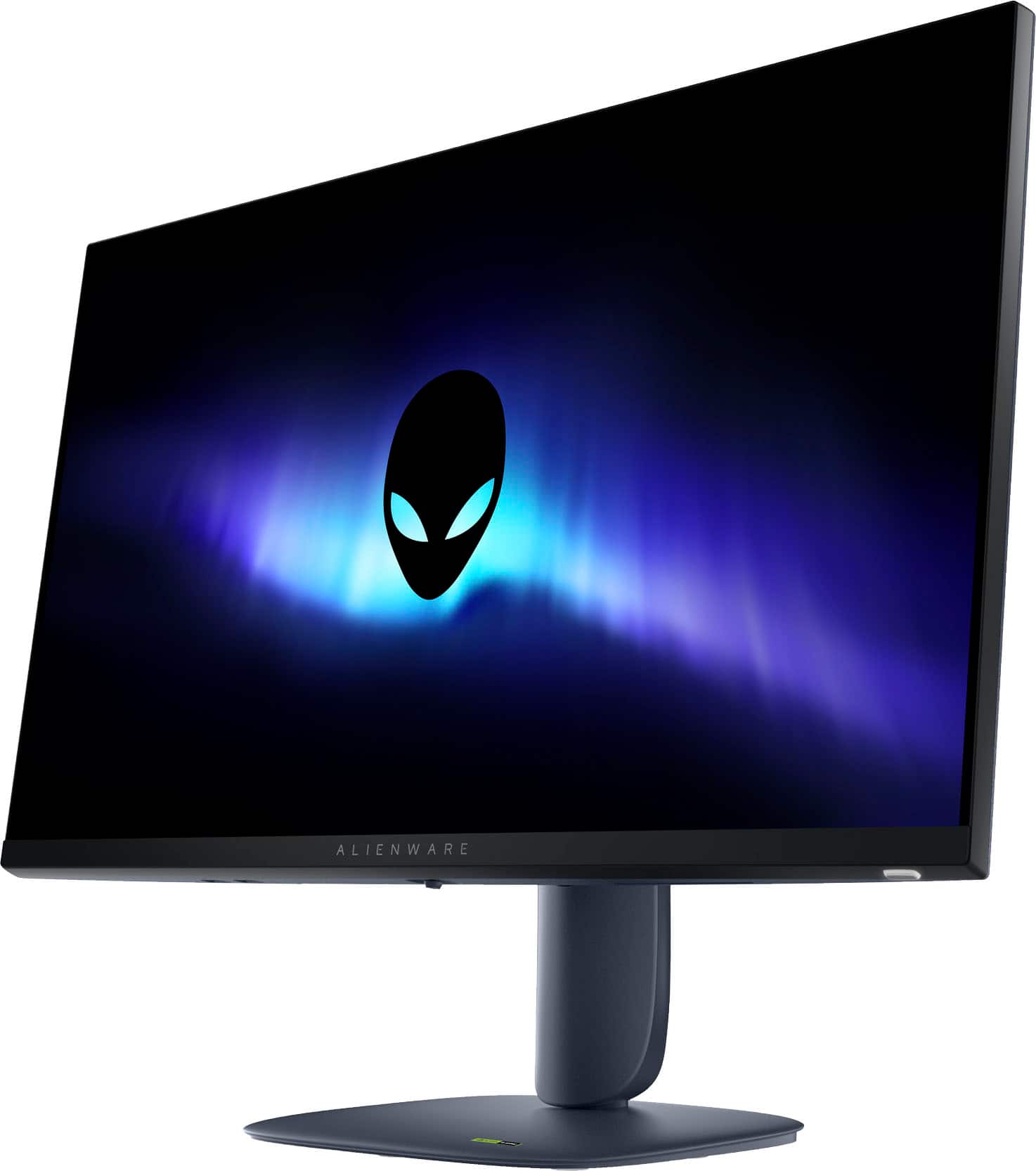
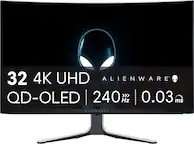
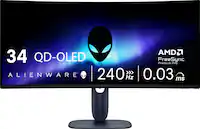
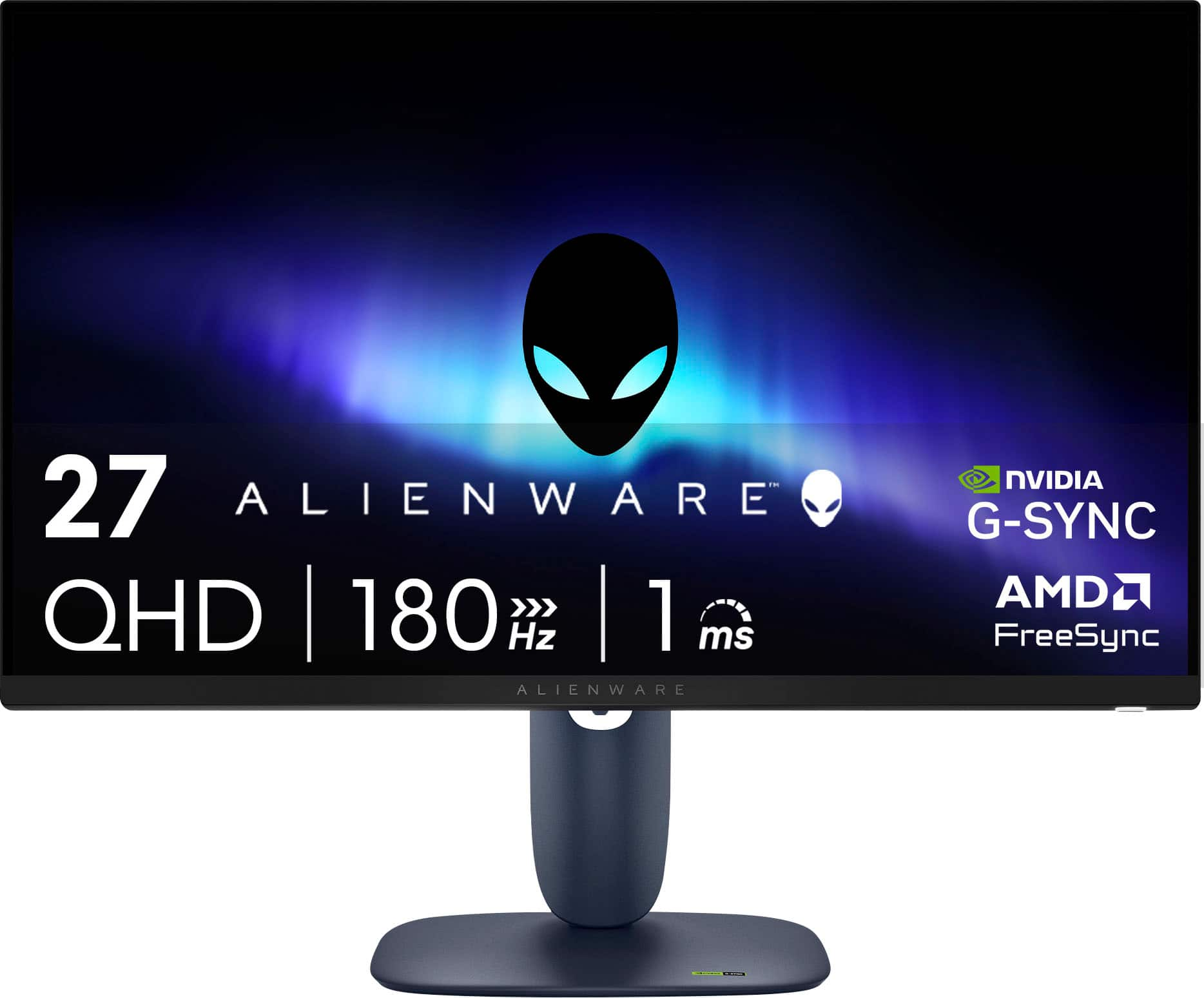
A:AnswerYes! The Alienware AW2725DM monitor supports features that work great with Xbox Series X:
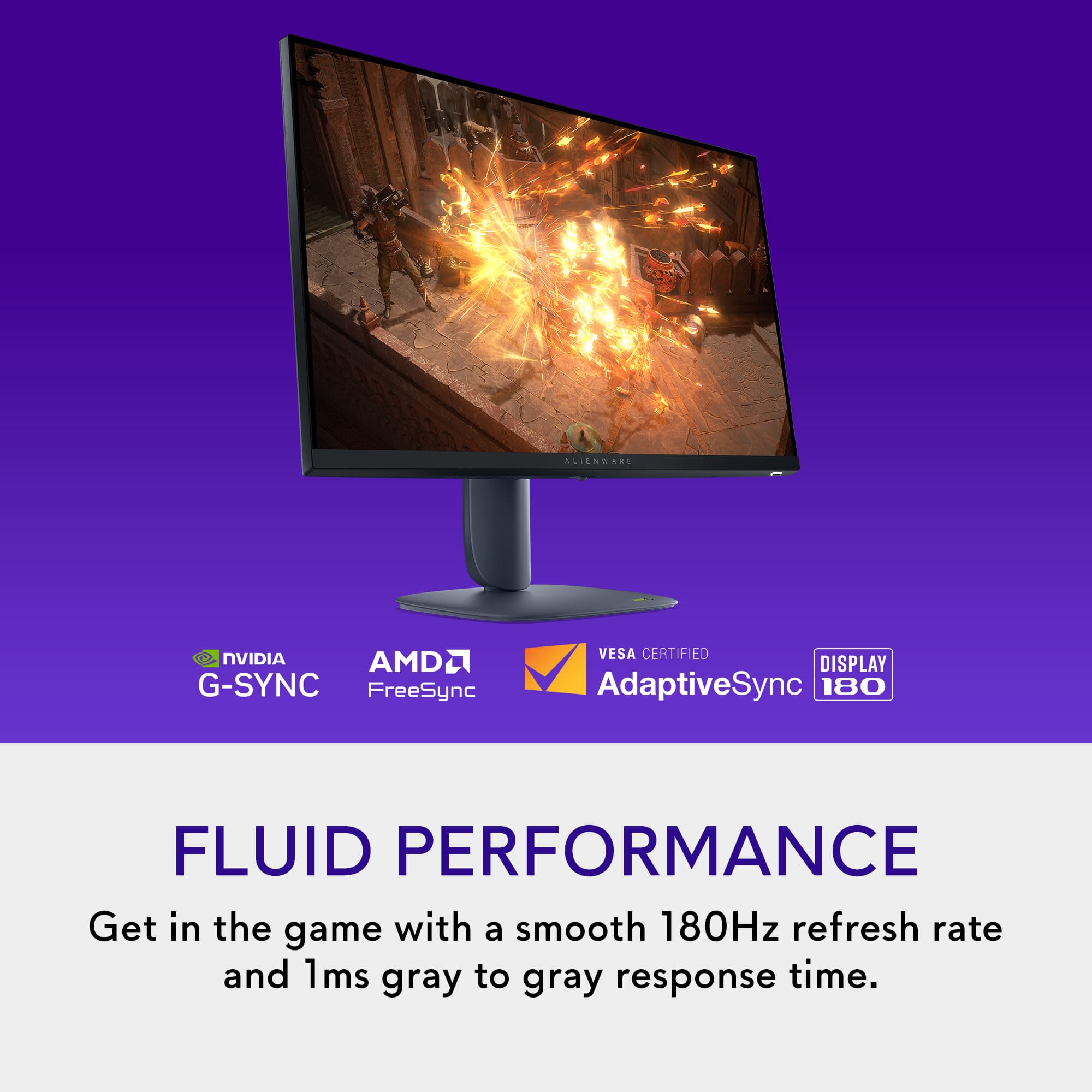
VRR (Variable Refresh Rate): ✅ Supported through AMD FreeSync Premium Pro and NVIDIA G-Sync Compatible. Xbox Series X uses FreeSync for VRR, so this monitor will handle it smoothly.
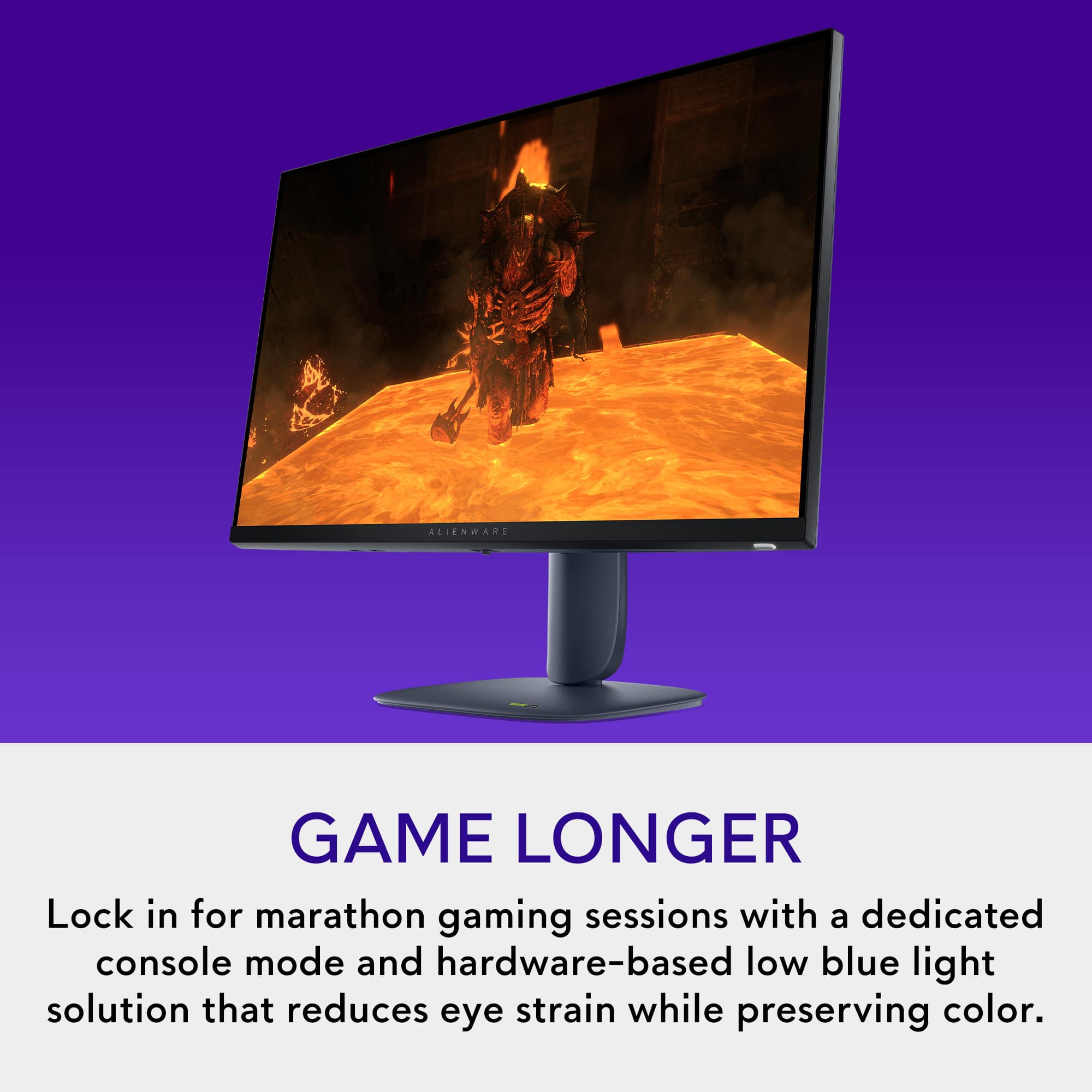
Game Mode: ✅ Alienware monitors include preset game modes (FPS, RPG, Sports, etc.) in the on-screen display for optimized visuals and response times.
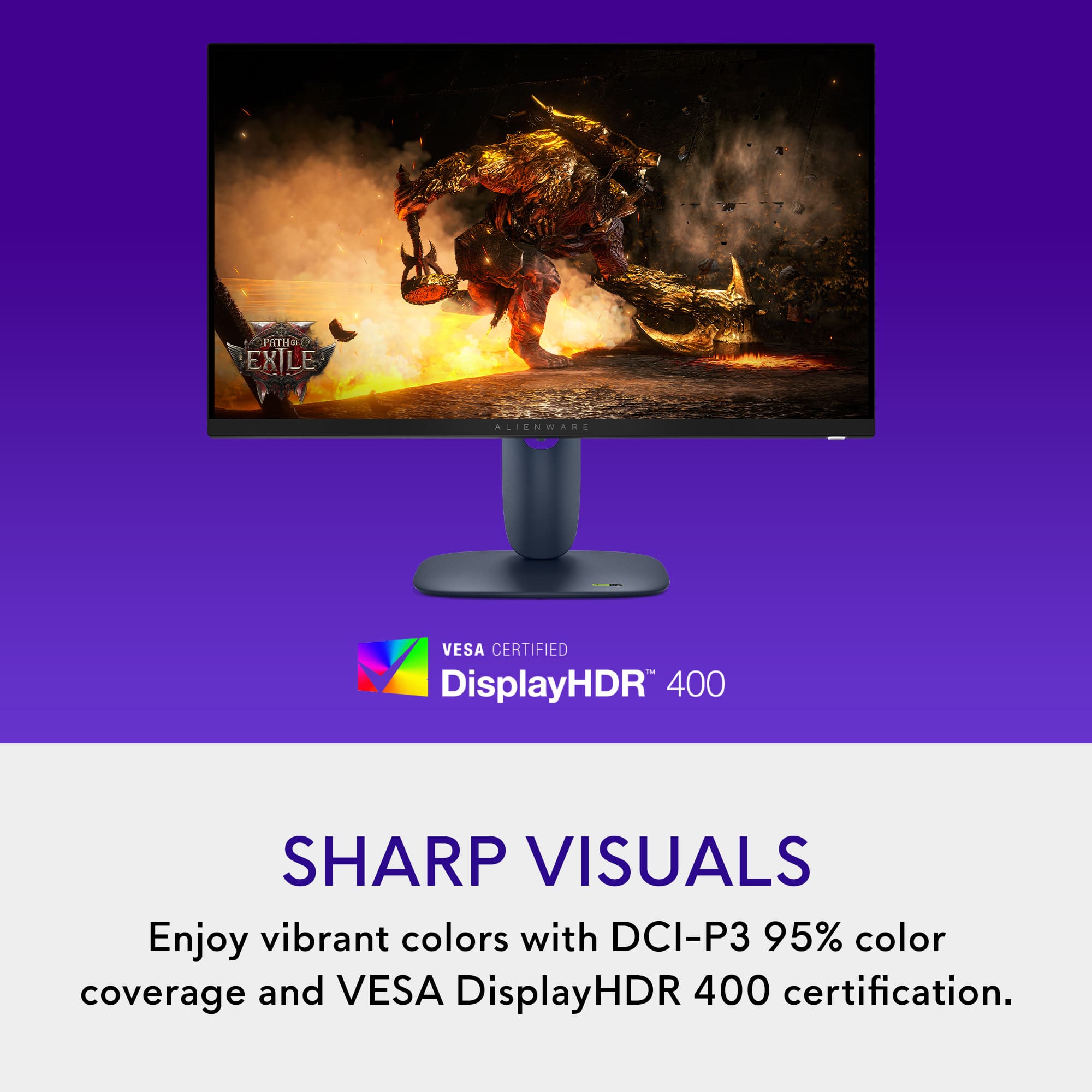
HDR: ✅ It supports HDR (VESA DisplayHDR 600), which Xbox Series X can use for enhanced color and contrast.
Refresh Rate: Up to 180Hz, though Xbox Series X will max out at 120Hz at QHD resolution.
So yes, this monitor is an excellent choice for Xbox Series X gaming.
A:AnswerYes, you can use an Amazon Fire TV Stick with the Alienware AW2725DM monitor. you can pair Bluetooth headphones/speakers directly to the Fire TV Stick for audio function.
A:AnswerYes, the headset comes with built in Bluetooth for phones and other accessories but also comes with a USB dongle, I’d recommend just use the dongle for immediate usage but it is a usb 2.0 and ps5 using the usb c you’ll need an adapter, but try it with just the Bluetooth feature first I use it to talk on my iPhone as well and have no issues
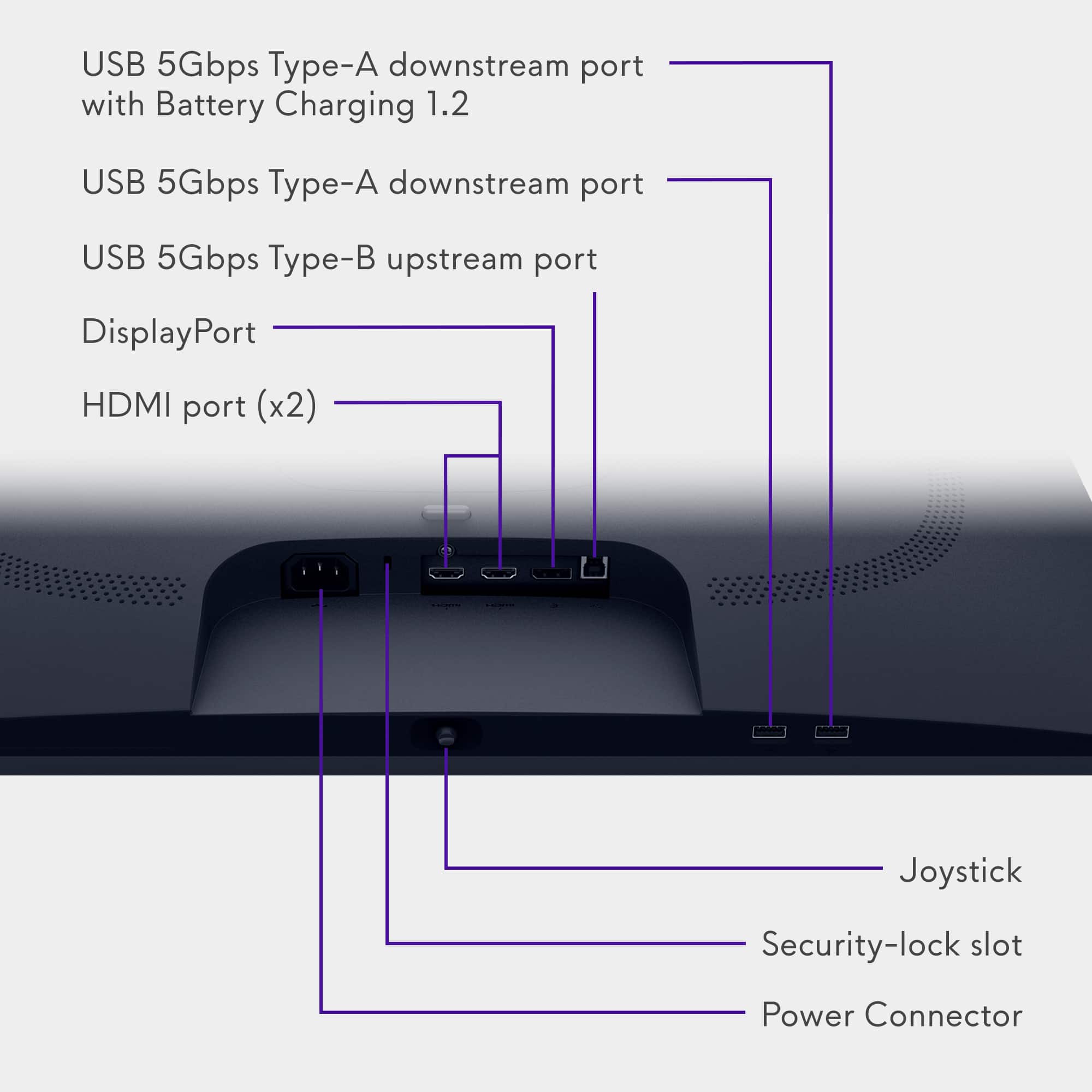
A:AnswerGreat question! the gaming monitor does not have built-in speakers or a headphone jack, so you’ll need an alternative audio solution. Here are your options:
Use Your PC or Laptop’s Audio Output:
Connect external speakers or headphones directly to your computer’s 3.5mm audio jack or USB port.
Use HDMI Audio:
If your monitor is connected via HDMI, the audio signal goes to the monitor—but since it has no speakers, you’ll need to route sound back to your PC or use an HDMI audio extractor (splits audio to a 3.5mm or optical output).
USB or Bluetooth Speakers:
Connect Bluetooth speakers or a soundbar to your PC.
Or use USB-powered speakers for a simple wired setup.
Gaming Headset:
Plug a headset into your PC or controller (if gaming on console).