A:AnswerYou can either copy the music to the internal memory of the frame by connecting the frame to a computer or you can have the music on a SD card with the pictures.
A:AnswerThe frame will auto rotate the pictures but the picture itself will need to have that info embedded. If it is not, you will need to rotate and save the picture on your computer.
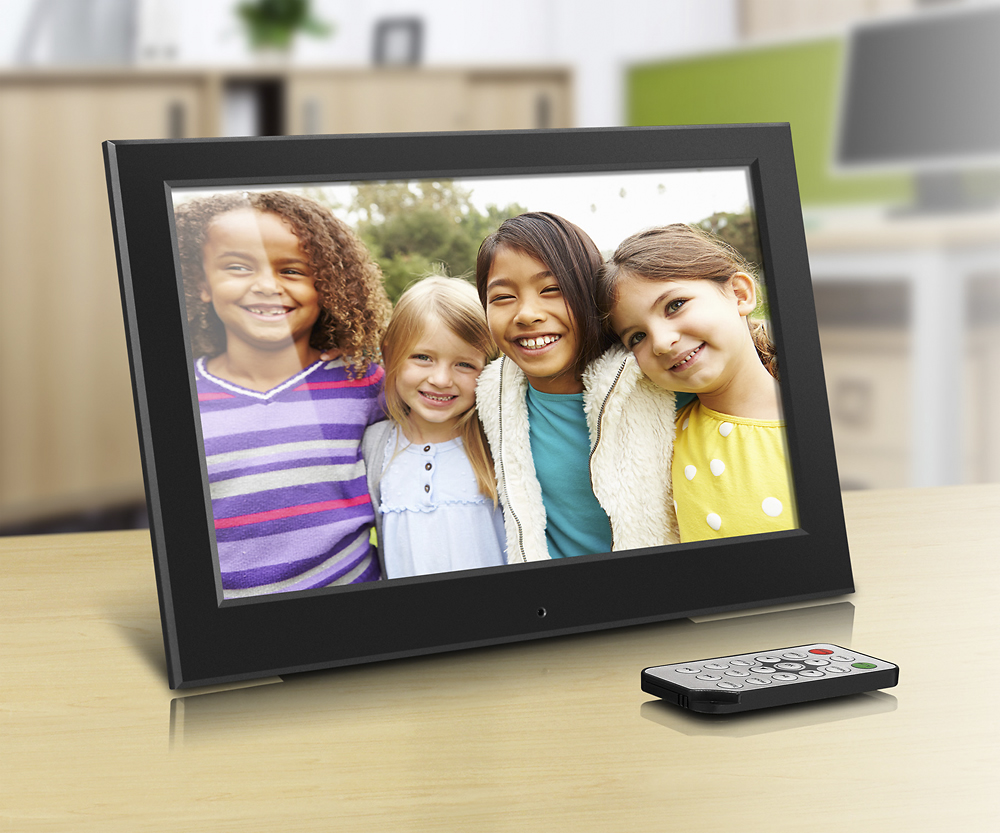
A:AnswerAccording to their documentation the frame will support both digital pictures and play back videos. I added a video to my memory card I just have not tried to play it yet.
A:AnswerThe reason might be that your pictures are in different aspect ratio. For example, if the pictures are in 4;3 ratio, once it is set to fit the 16:10 display, it will get distorted. I would suggest to keep it in the original size setting.
A:AnswerFirst thing, check your power supply to make sure the frame is getting uninterrupted power. It does not have an internal battery and thus depends on power pulled from its supplied power cord. Secondly, there is a setting where you can have it turn on and off at certain times of the day. Make sure that is set how you want it.
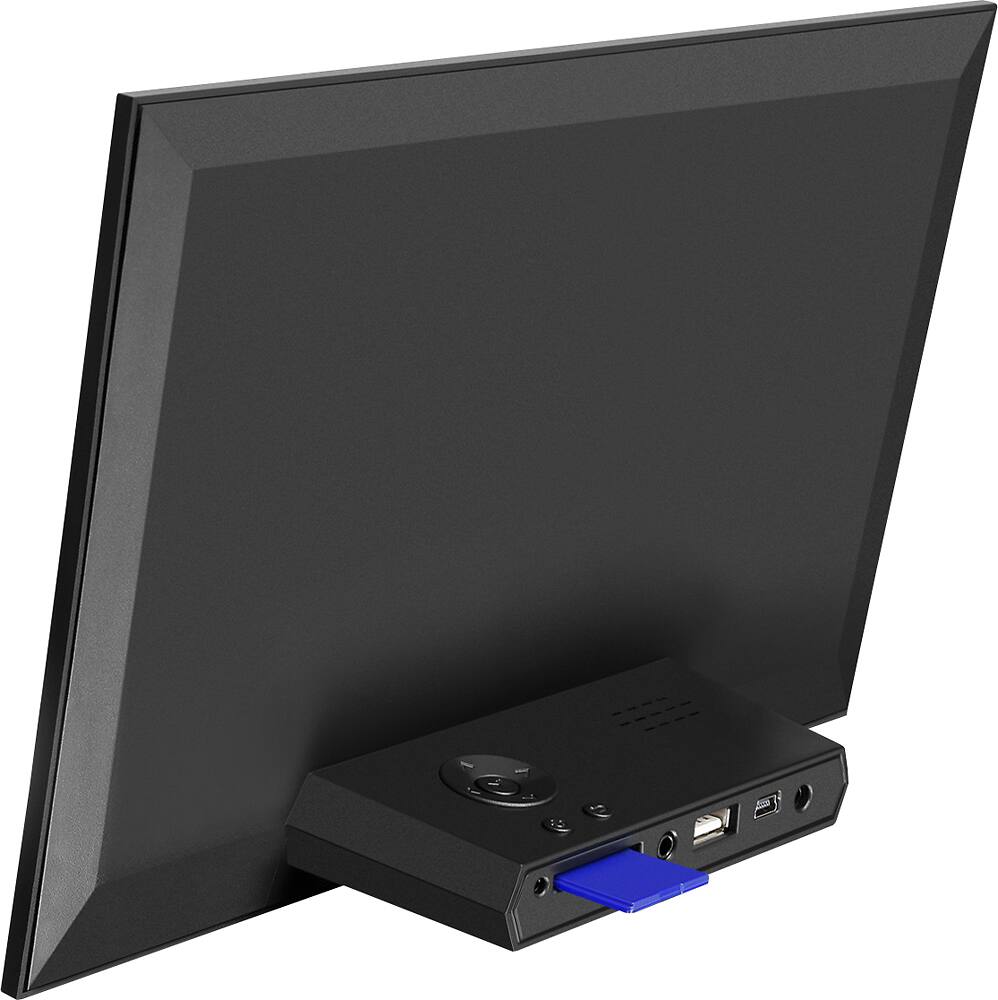
A:AnswerNo, it does not come with one. It has an SD card slot, but you must use one that you already have. There is also on-board memory to which you can upload photos from your computer using the USB cable provided.
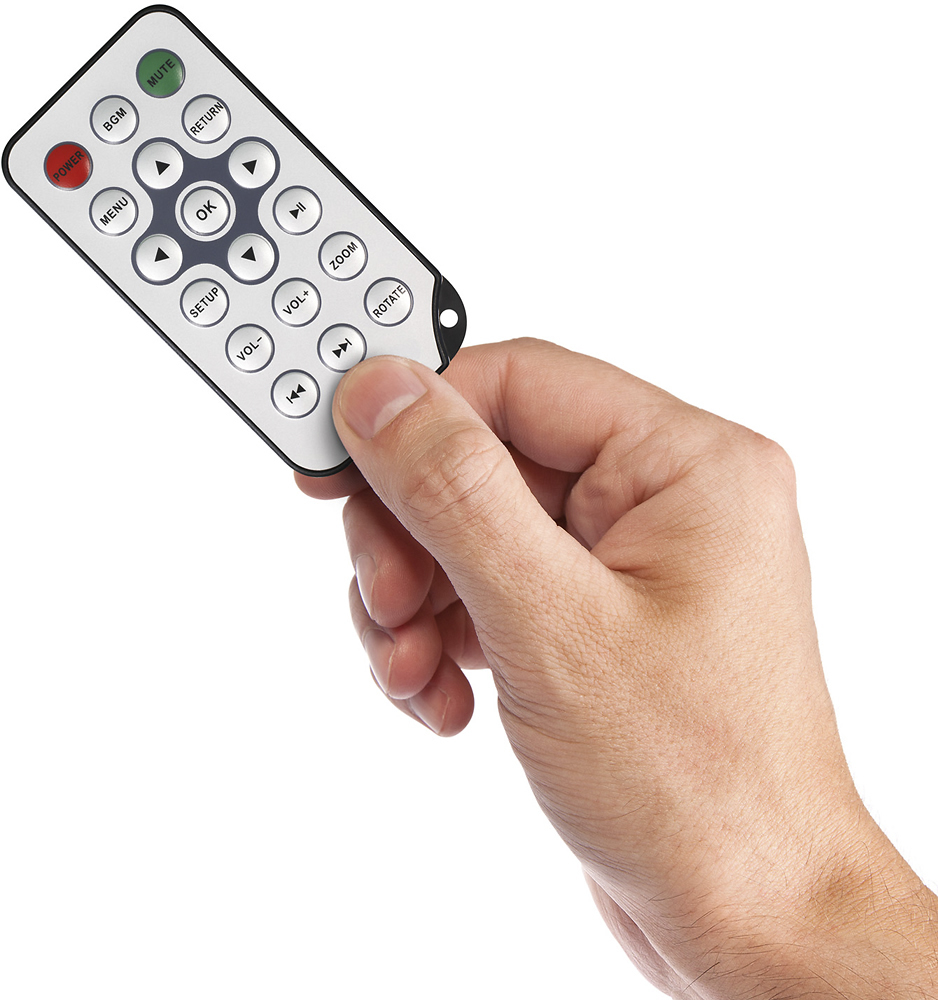
A:AnswerYou can go to the folder/browse menu on the frame. Scroll to the picture that you want to delete and press the left arrow button. A popup menu will show the delete option and click OK to delete.
A:AnswerPlease go to Folder/Browse function on the frame, and highlight the picture that you want to delete and press the left arrow button. A popup menu will appear with delete option. Please click the enter button and select "Yes" to delete the picture.