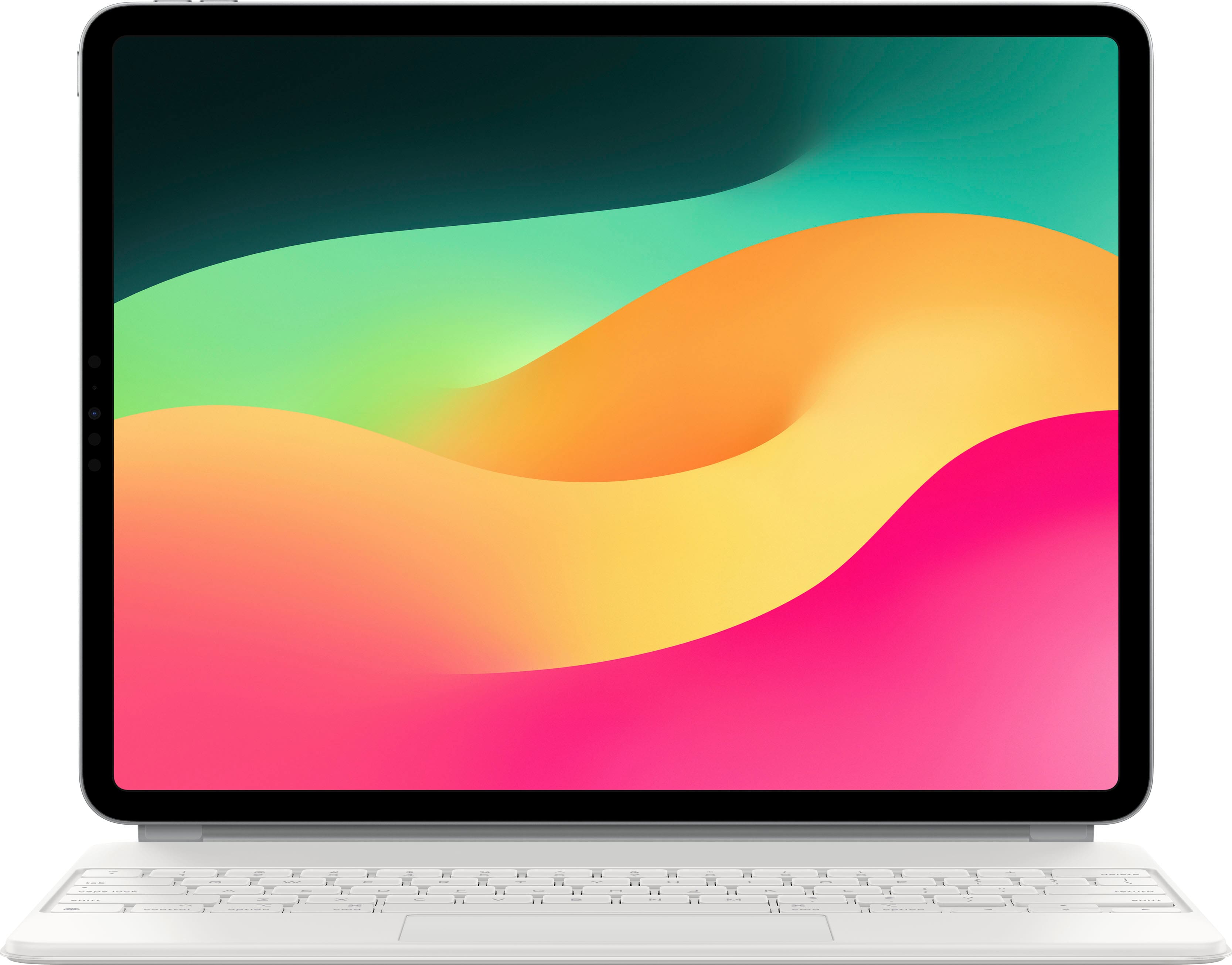
A:AnswerNot to my knowledge, but from the App Store you can download different keyboards. In “Settings” > General > Keyboards > keyboard > “Add a keyboard” you can select a keyboard in another language or specialty keyboards you have downloaded from the App Store. Pressing the “Globe” key left bottom corner you can cycle through keyboards you have added. At the bottom right corner of the iPad is a keyboard icon. Click on that after you have selected your keyboard and a keyboard template will show the foreign keyboard, for example. At that point you can touch the keys on the iPad or use the Magic Keyboard, using the “template” as a guide as to what keys on the keyboard will produce what characters since letters on the Magic Keyboard won’t match the foreign language keyboard.When done cycle through the keyboards you have added until you get back to the English keyboard. [There are 3 Spanish keyboards in “Settings” - Mexican, Latin America, Spain.]
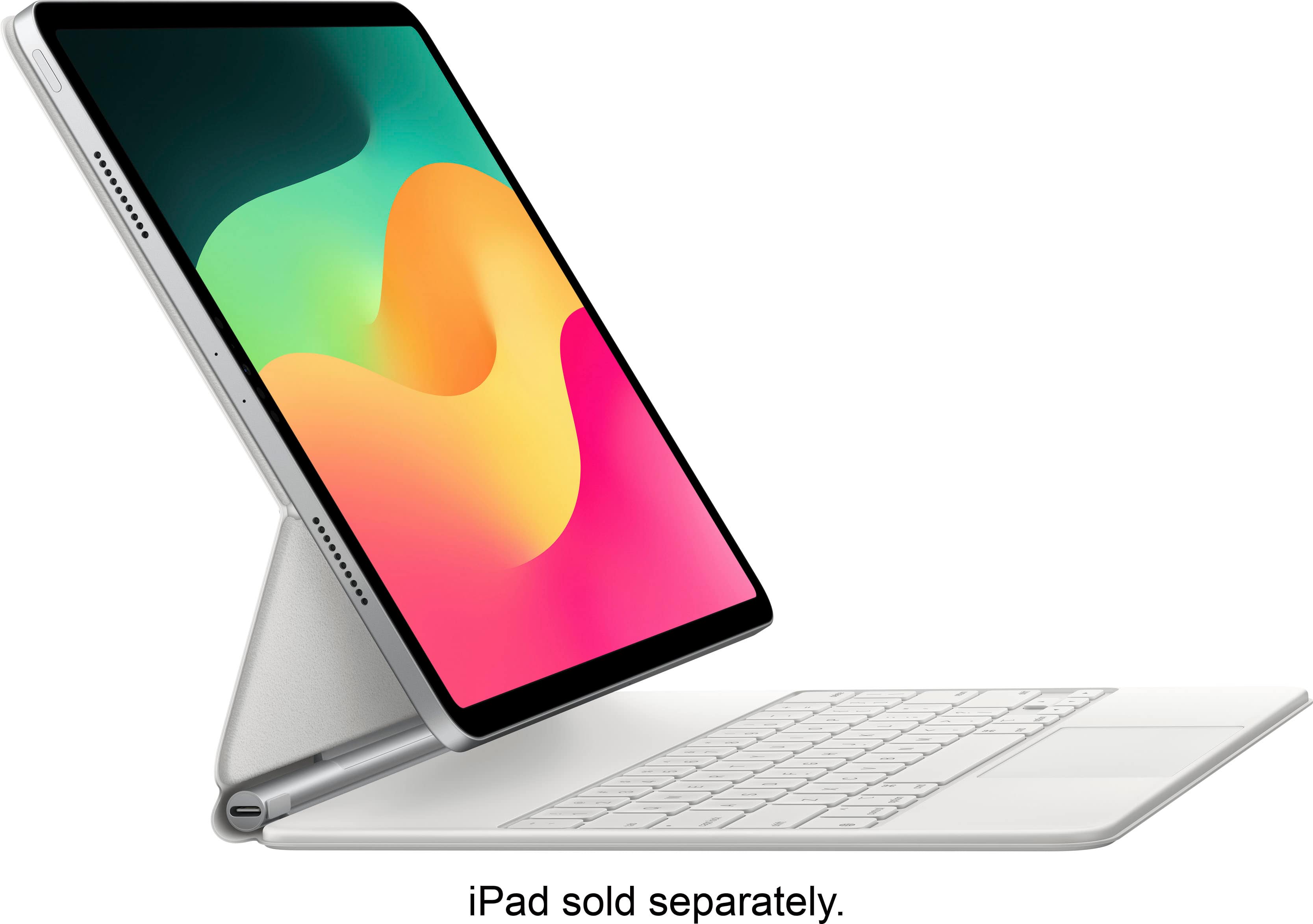
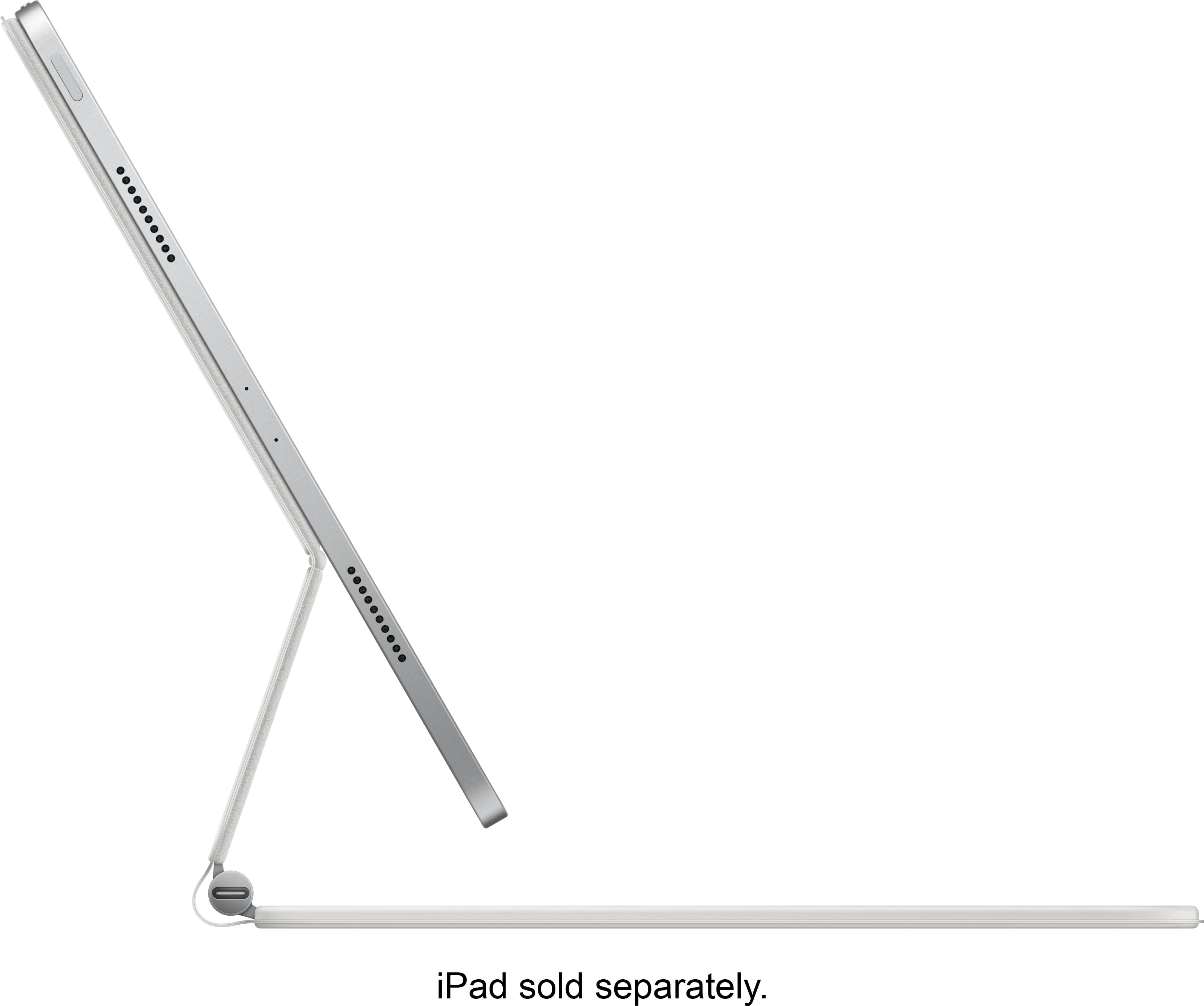
A:AnswerYes, you can. The Magic Keyboard has a USB-C port on the left hinge that allows pass-through charging. You just plug your charger into the keyboard, and it will charge your iPad while it’s attached. The port on the keyboard only supports charging—it does not transfer data or connect accessories—but it’s super convenient for keeping your iPad powered while keeping the main USB-C port free.