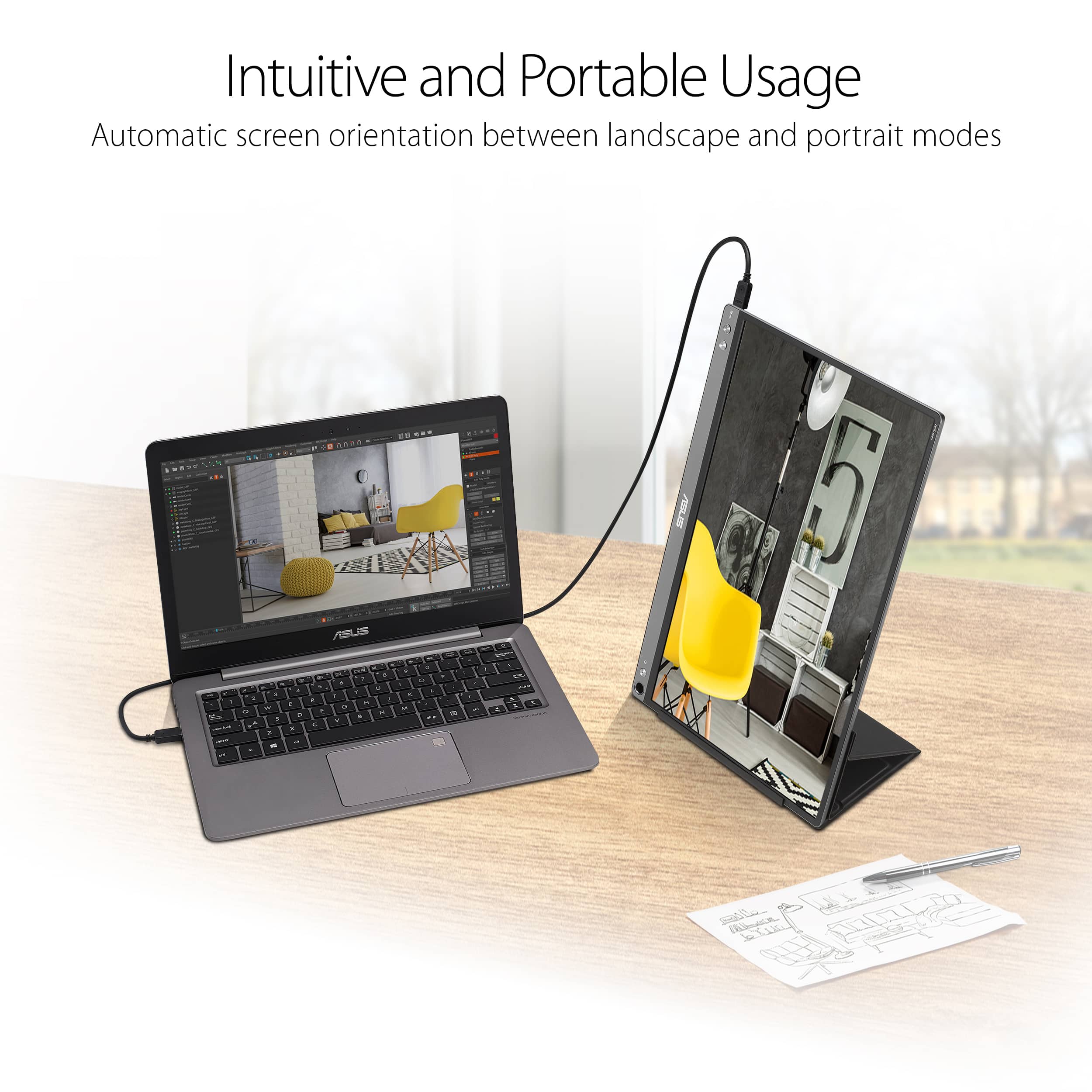
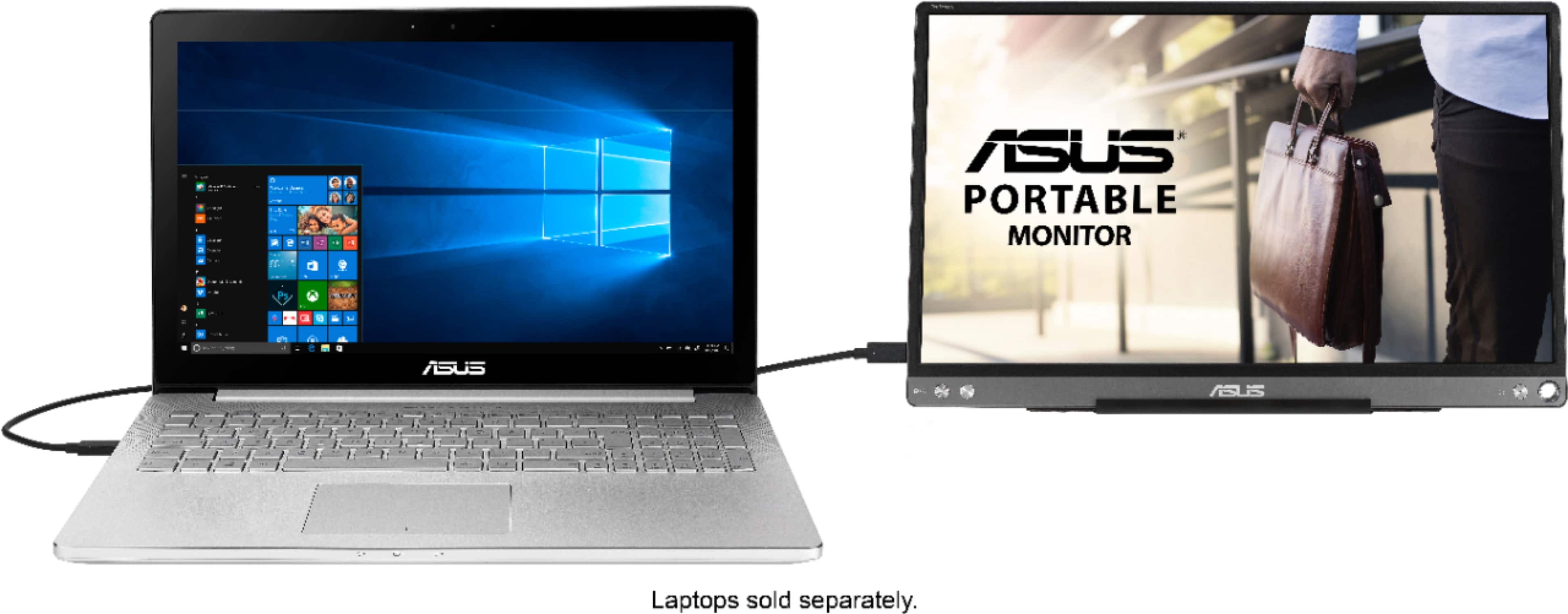
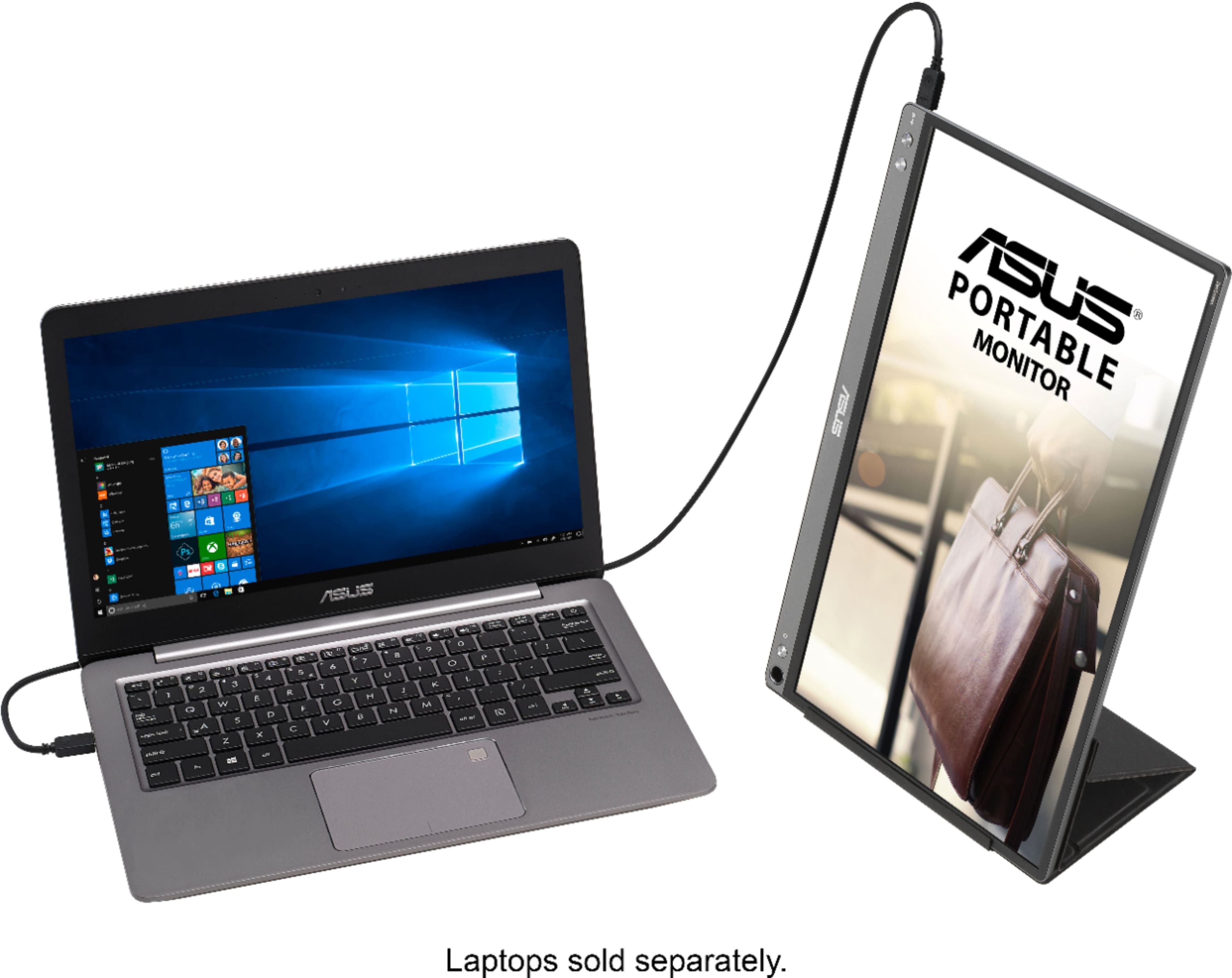
A:Answergo to your settings and display option on your computer and you should be able to add a second display. On mine, it's under the multiple displays and click "extend these displays"
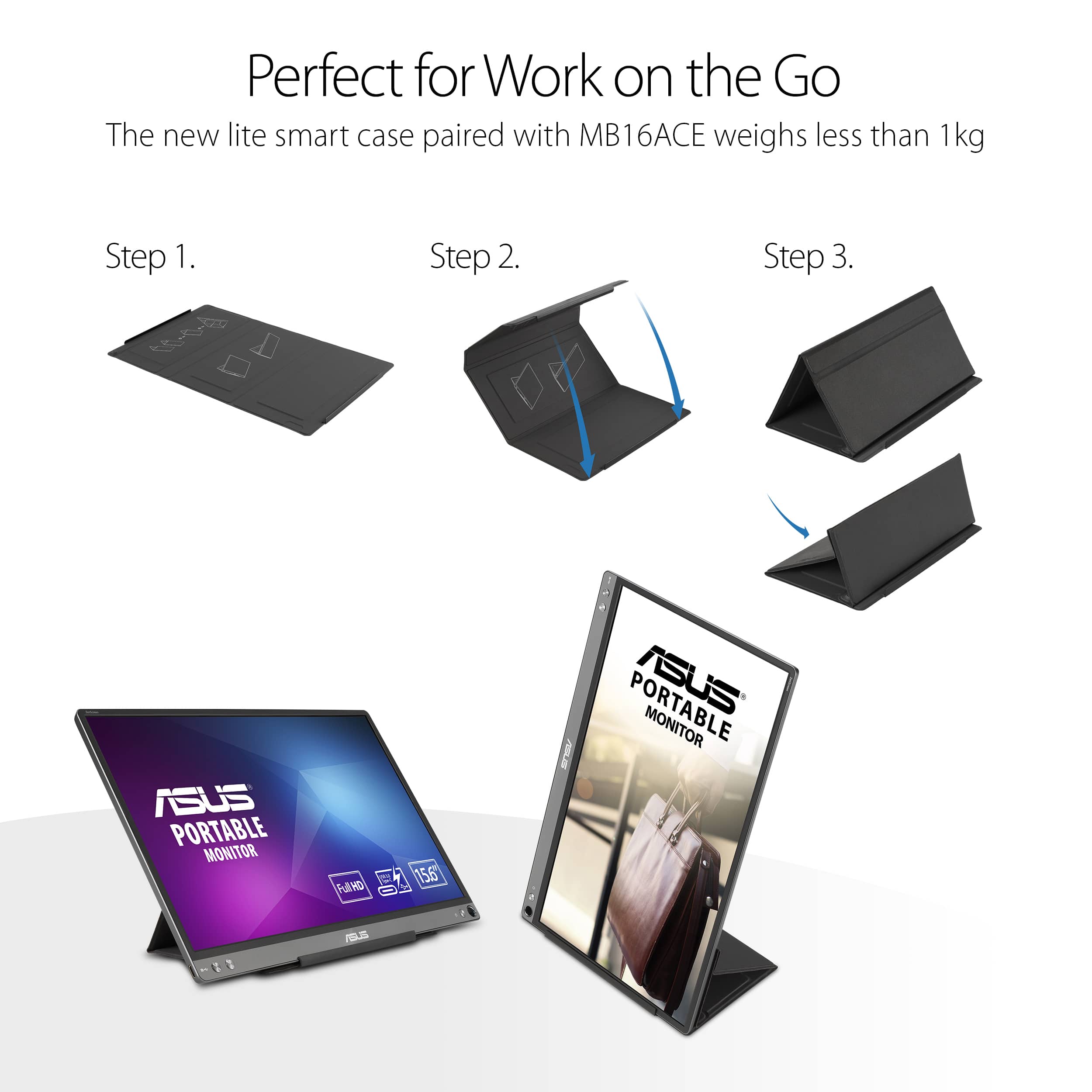
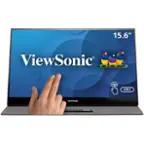
A:AnswerNo these do not have the ability to be mounted by the standard 4 screw brackets.
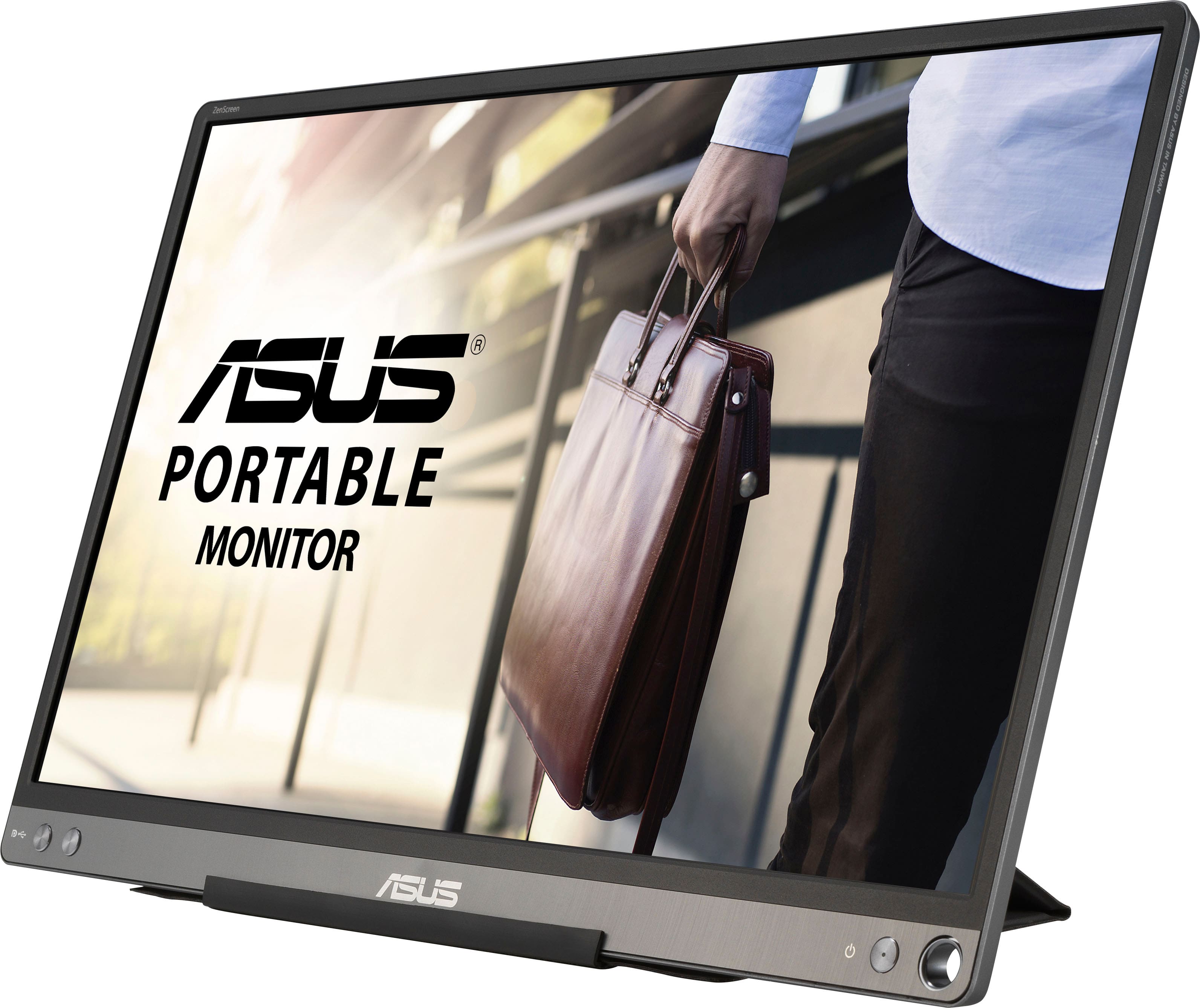
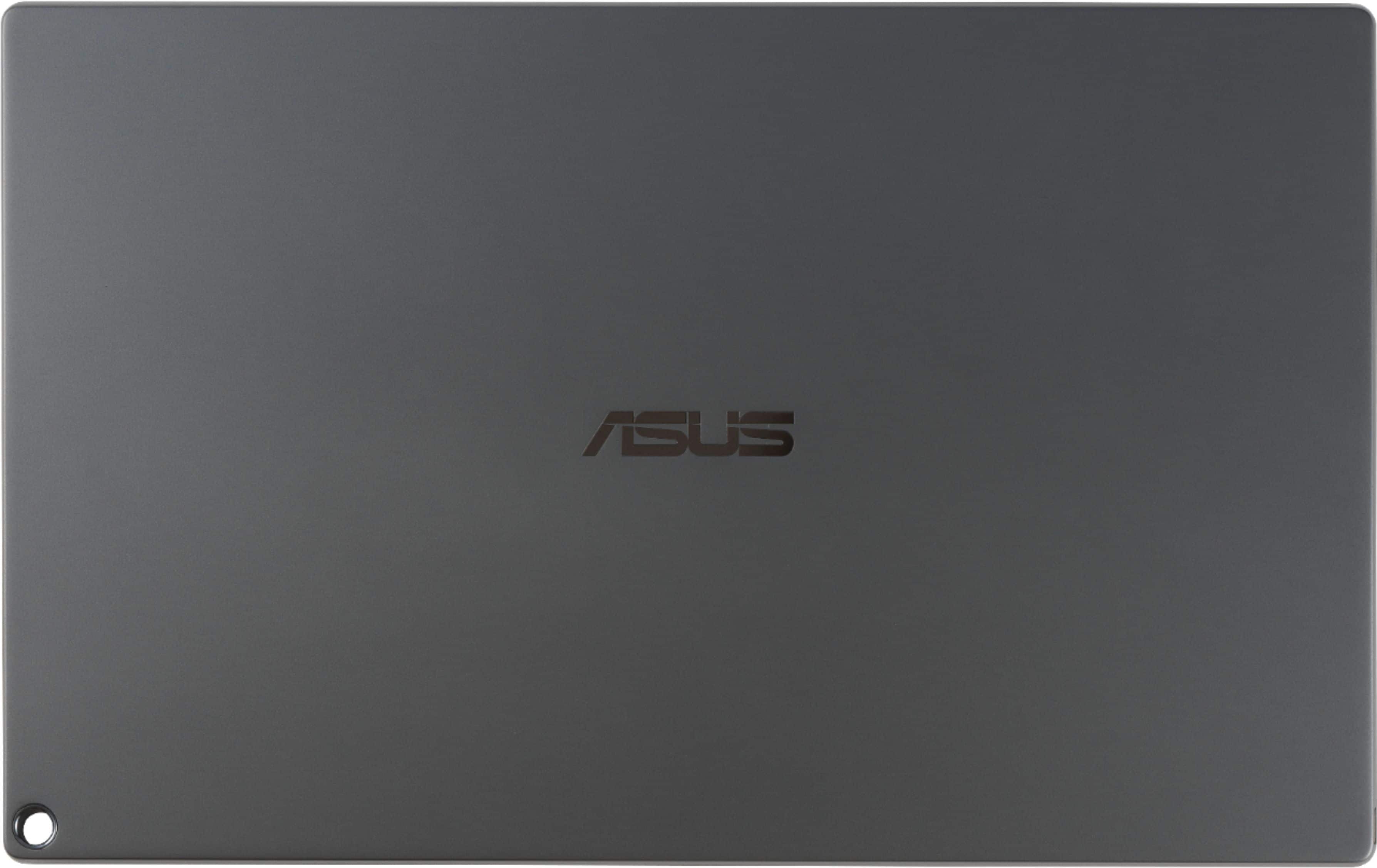
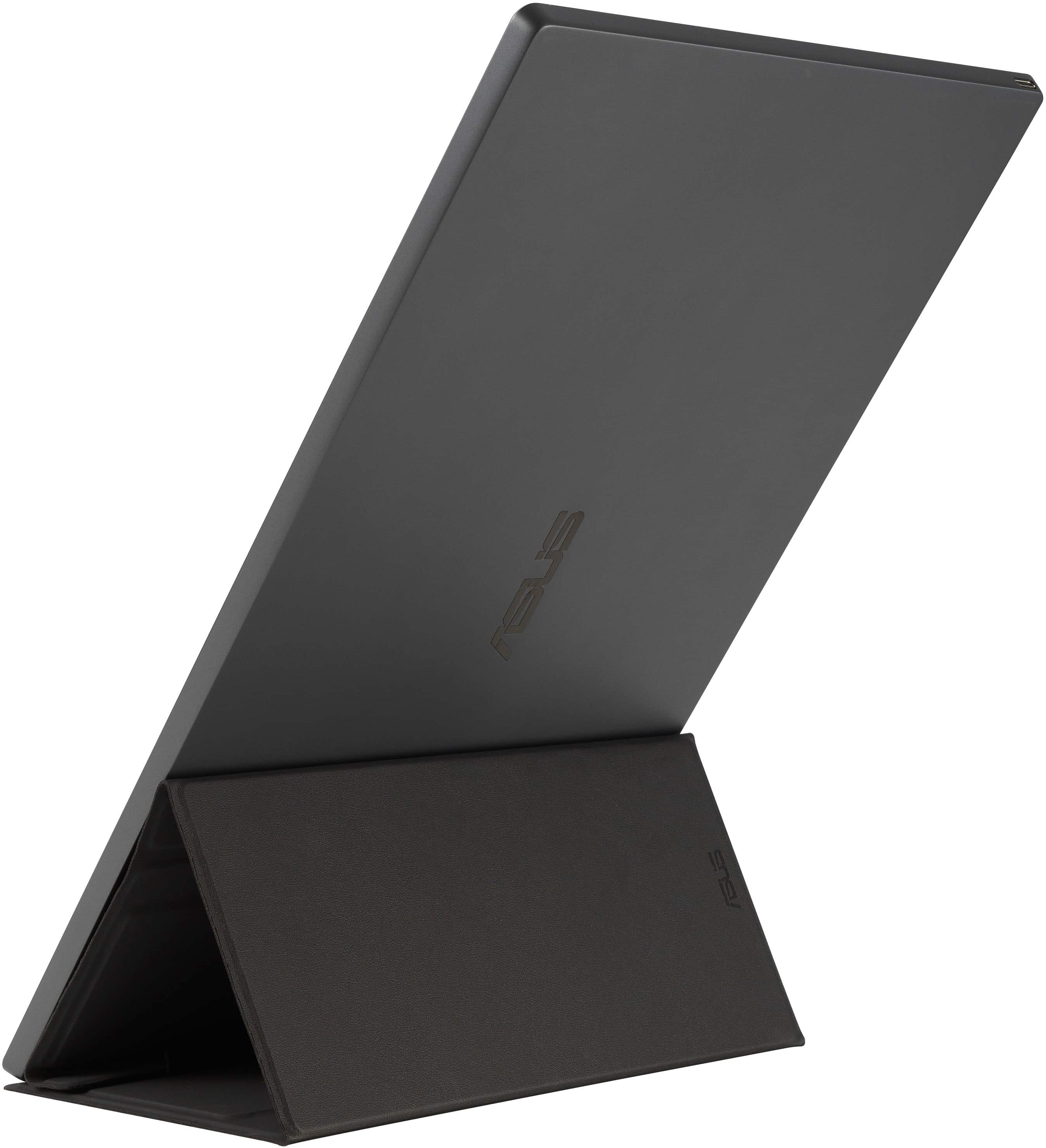
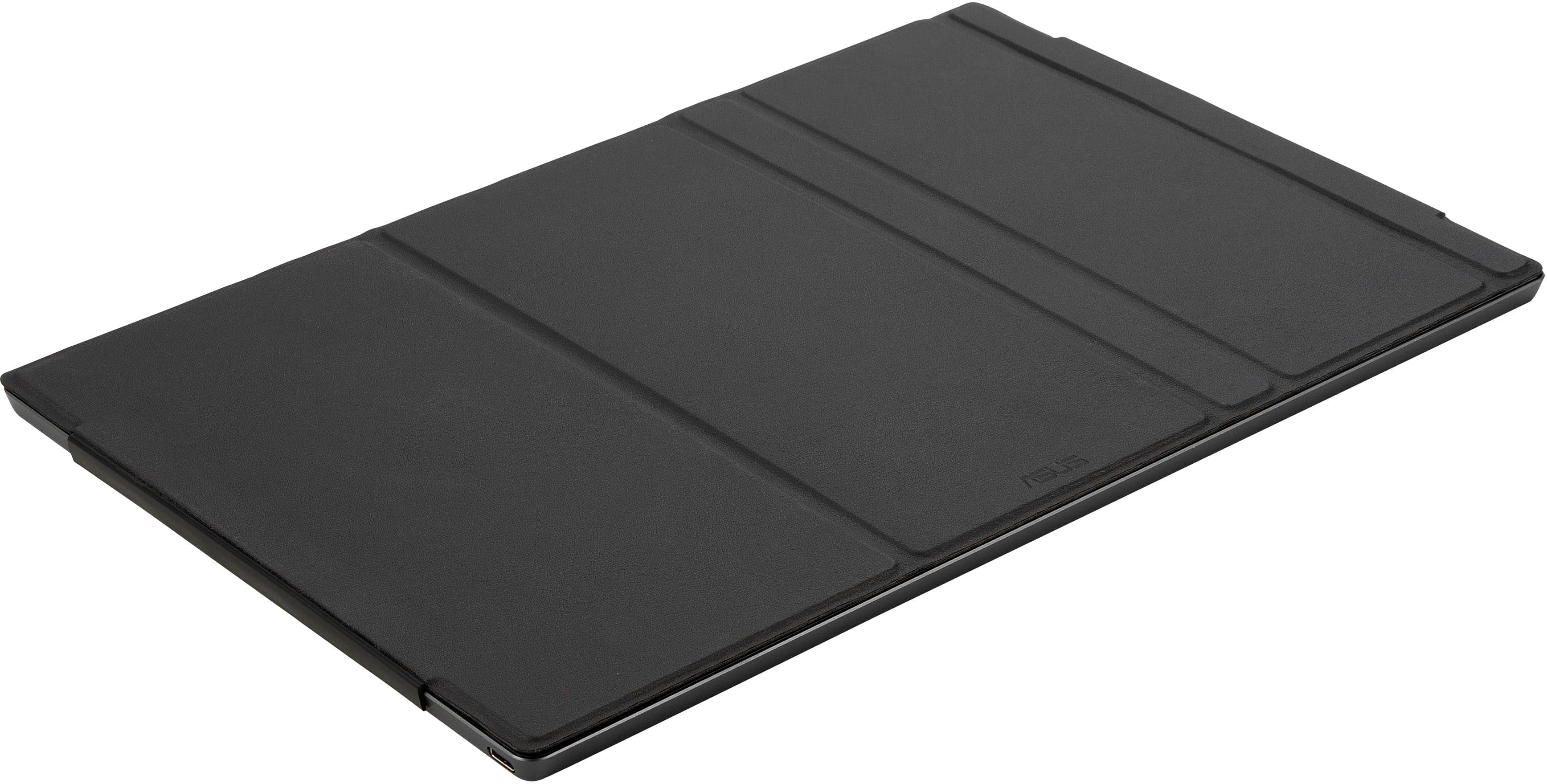
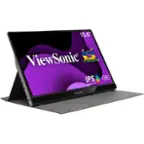
Back of device is similar to an ipad and has no mounting points.
Your mounting bracket would need to clamp the device from the edges similar to how a phone holder for the car works.
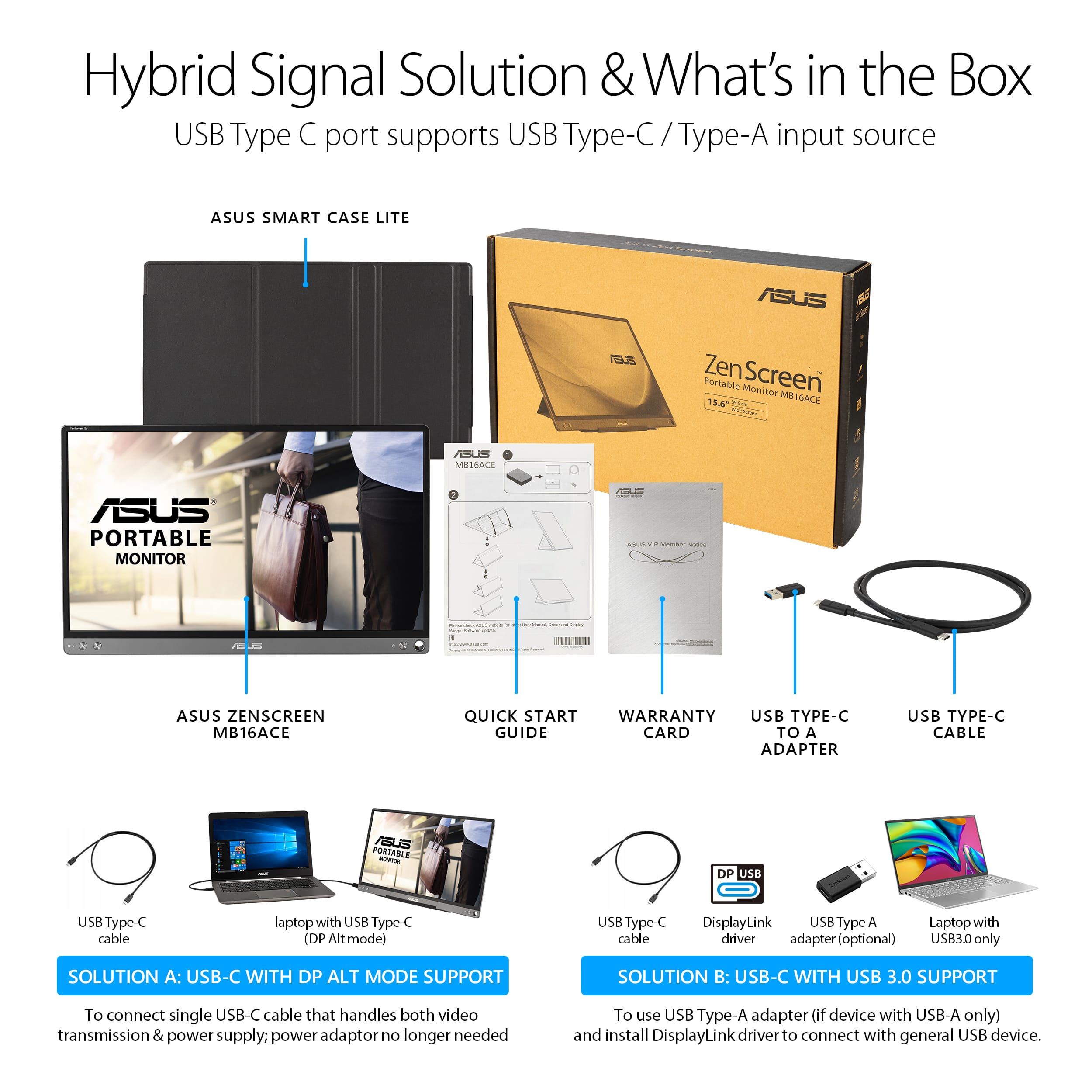
A:AnswerThis works through my USB 3 port. The device comes with an USB adaptor. I love this monitor. I work from home, and getting my kids ready requires me to be out of my office. This helps setting up quickly in the kitchen.
A:Answergotta love people that give wrong answers.
you can set your lid to not shut off, or put your pc to sleep when closed under power settings. it should be on the left sidebar. once you close the lid, this monitor will still work as the main display
A:AnswerThis is not a setting of the monitor but of the computer software. Go into display settings and choose to extend screens instead of duplicating.
A:AnswerThe display should work once the unit supports Type-C Interface, however, if the device only has USB 3.0 please install the official driver from the Asus website. Please make sure the USB Type-C cable and Type-C to A adapter is connected between the USB monitor and the system.
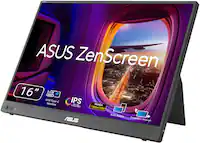
A:AnswerThis device does not support Thunderbolt 3. Only a USB-C cable is required for full functionality. https://www.asus.com/us/Displays-Desktops/Monitors/ZenScreen/ZenScreen-MB16ACE/techspec/