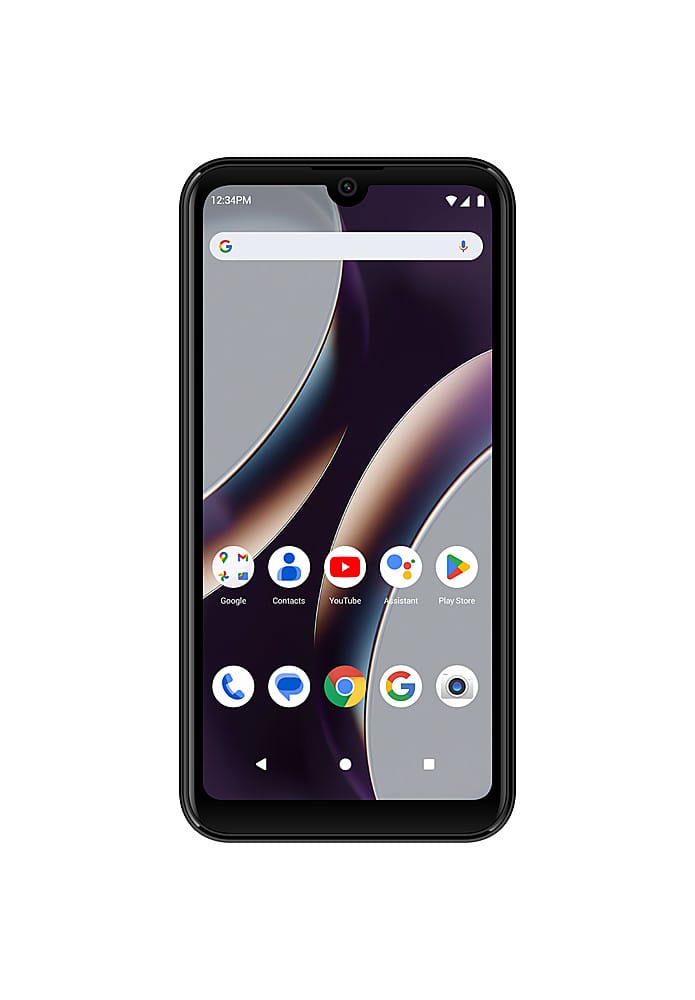
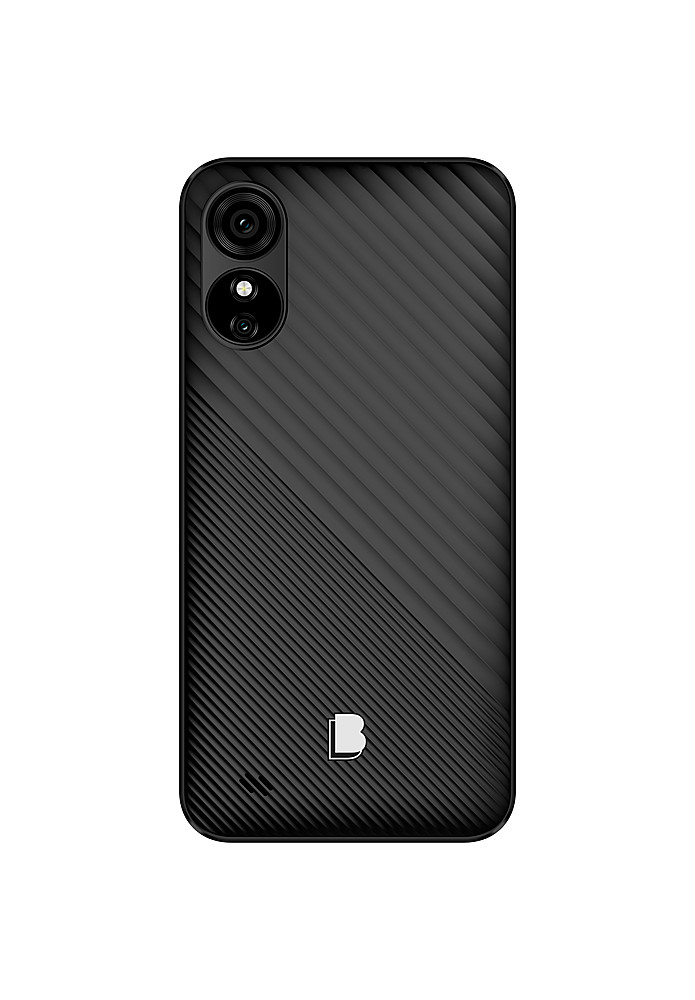
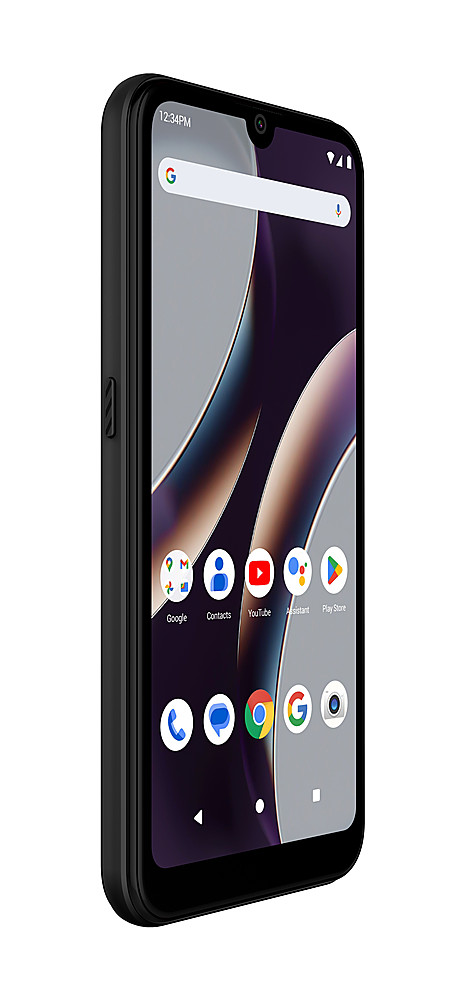
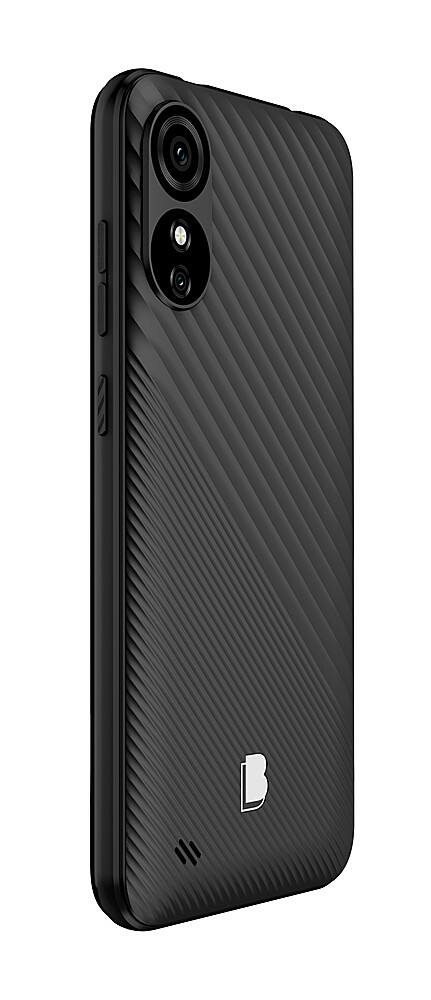
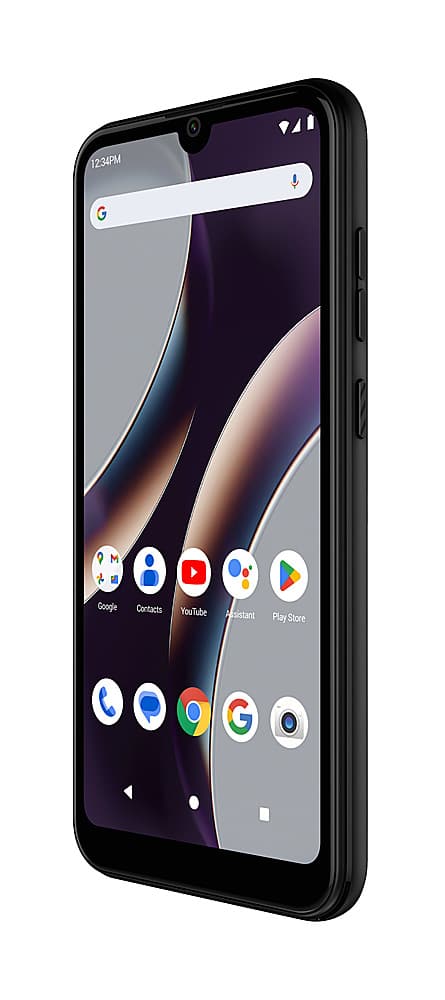
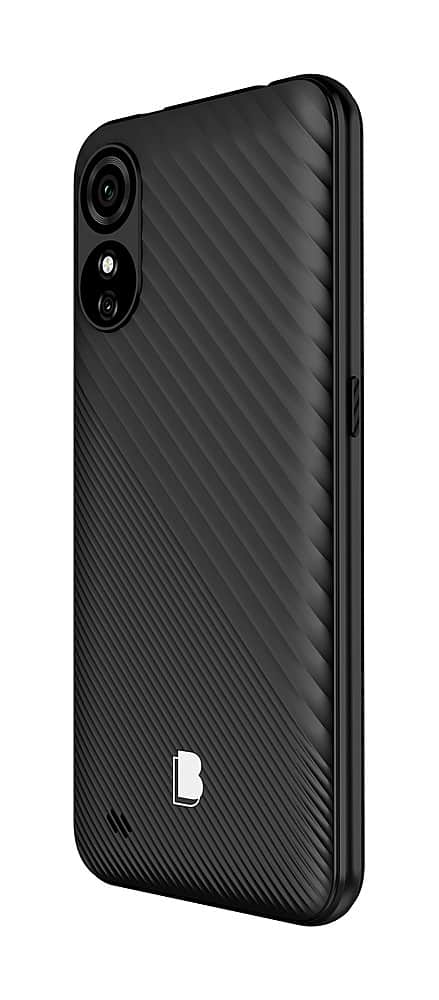
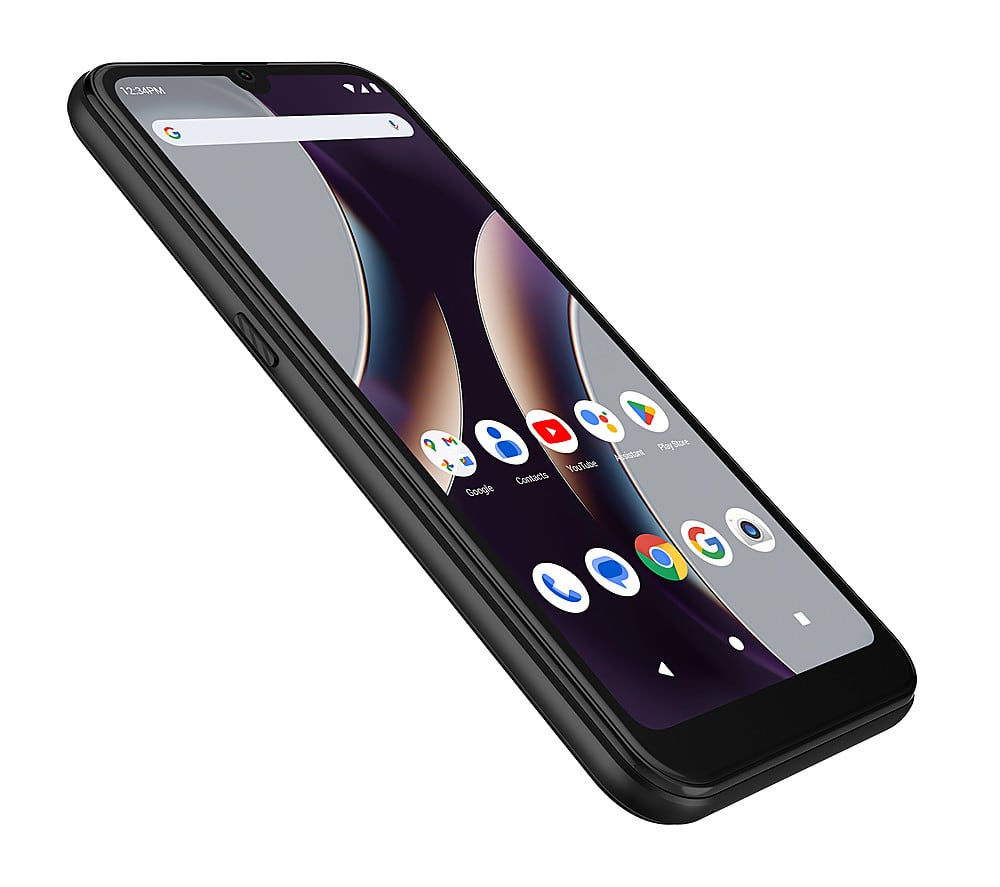
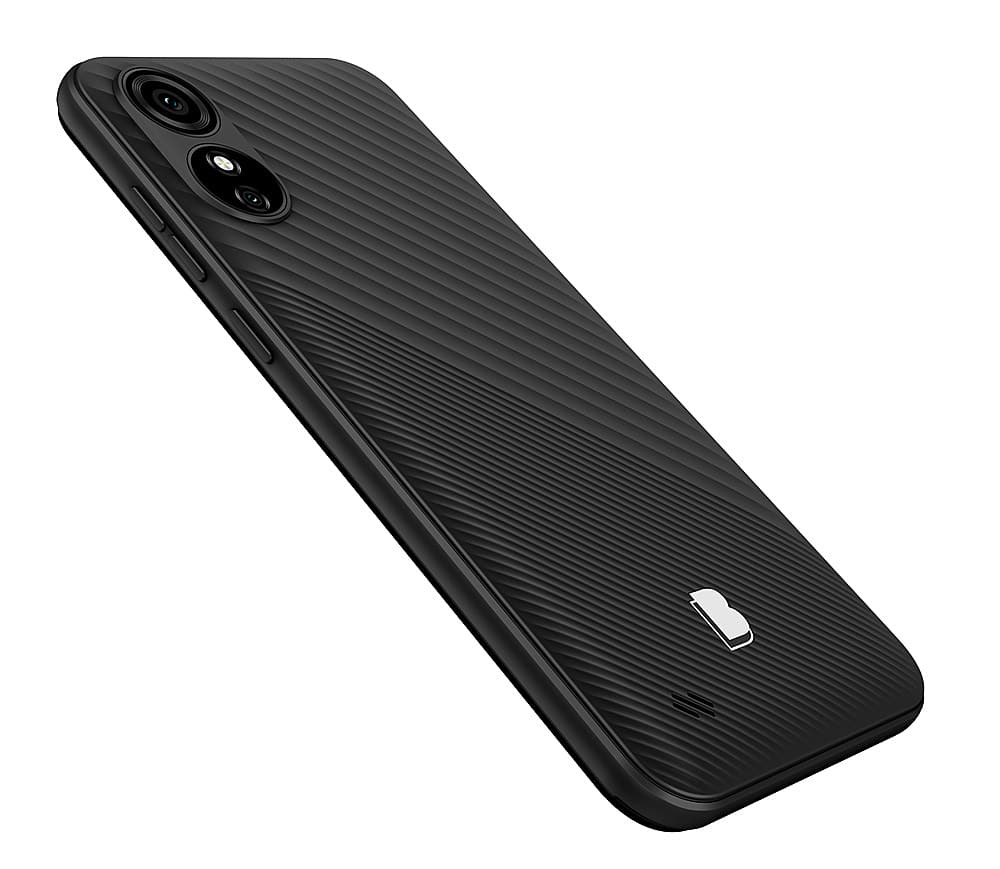
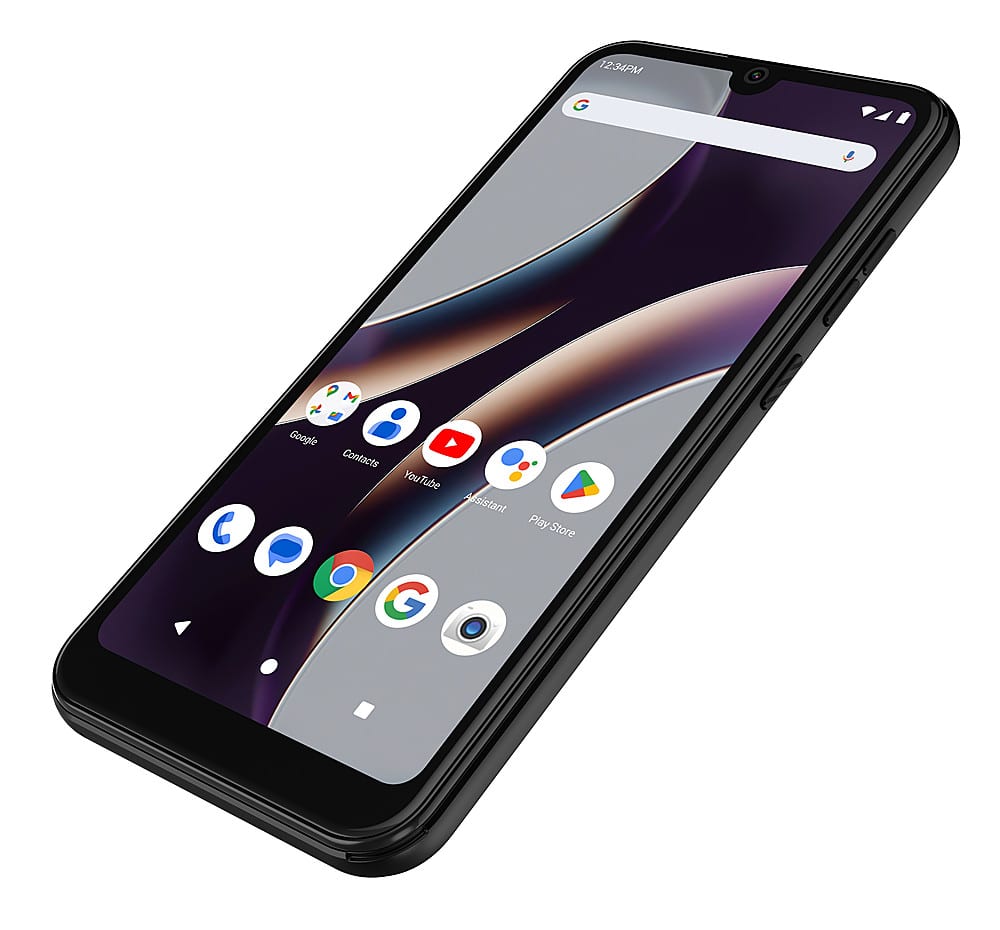
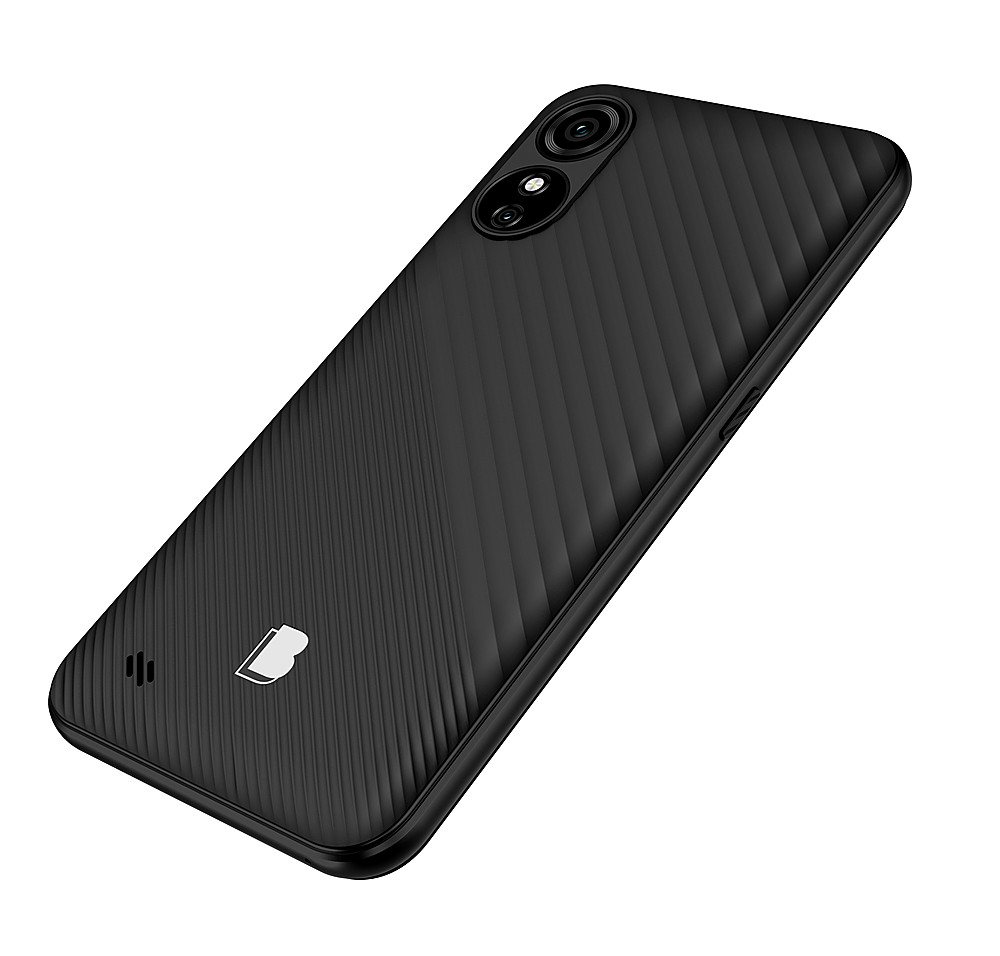
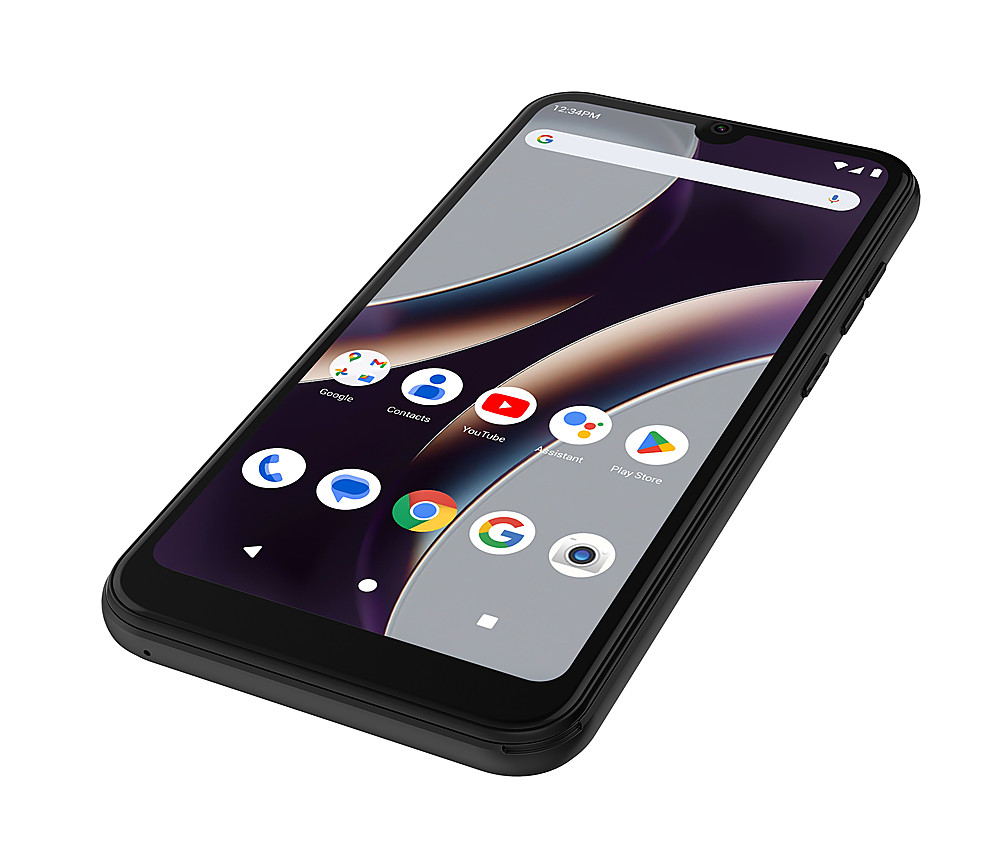
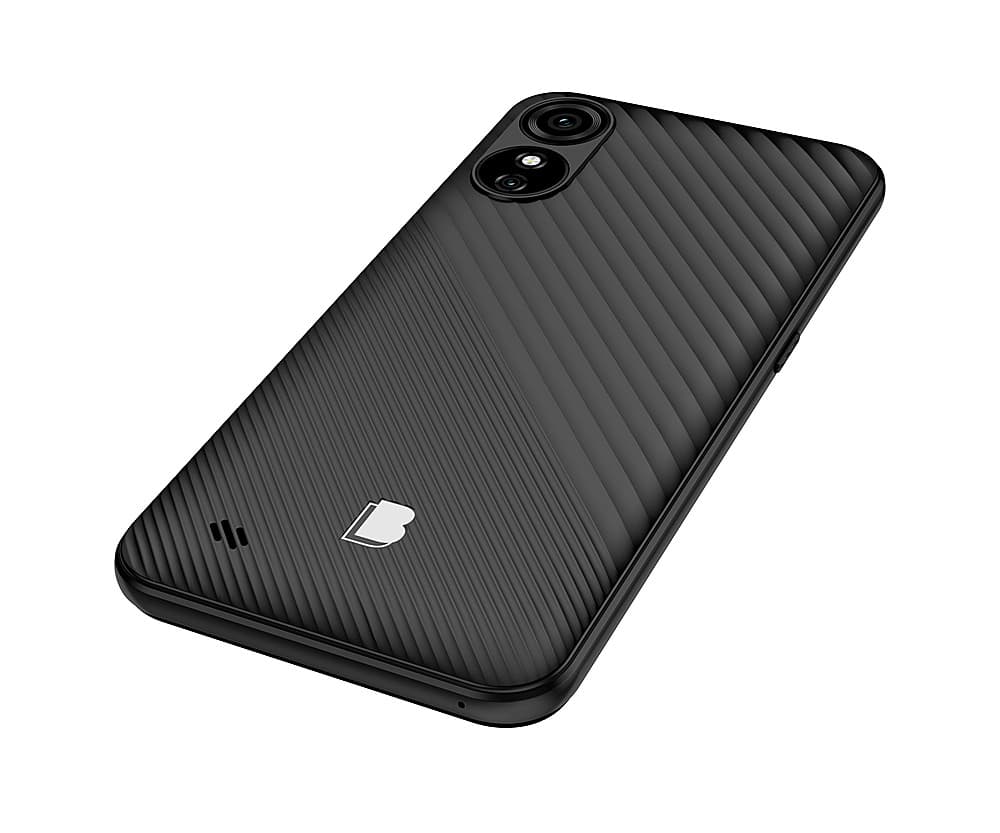
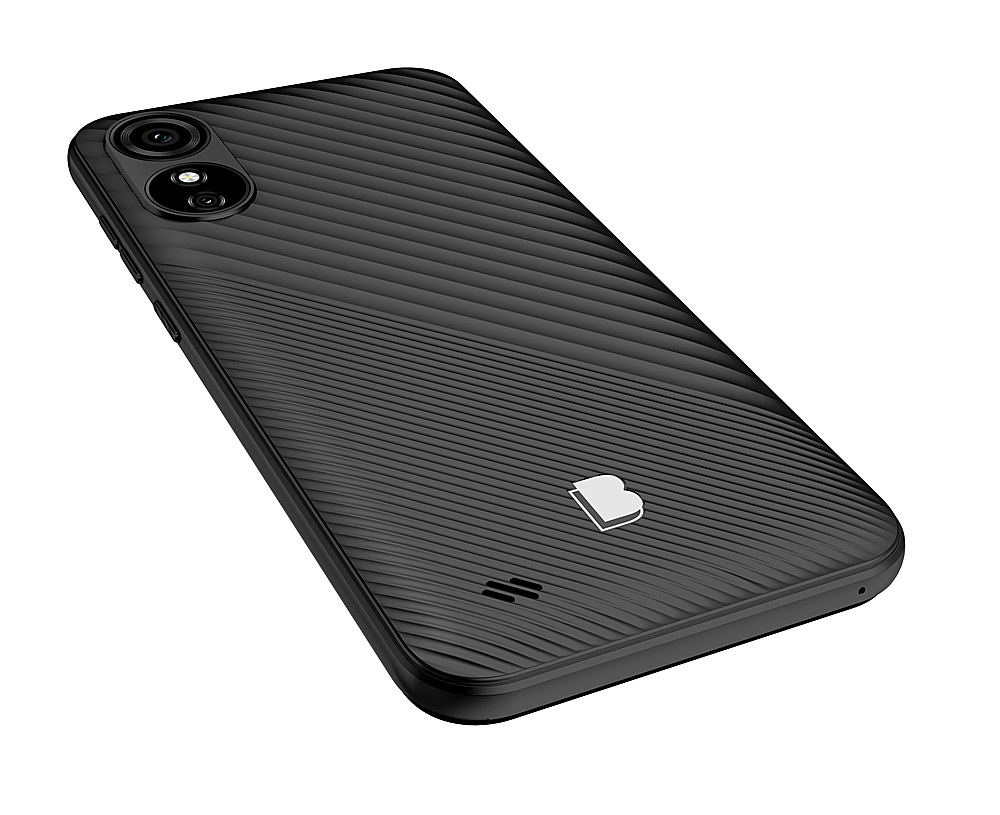
A:AnswerTo remove the back cover on your BLU G33, you can follow these steps:
Find a Starting Point:
Look for a small gap or notch at one of the corners of the back cover. This is where you can begin to pry it open.
Use Your Fingernail or a Tool:
Gently insert your fingernail or a plastic tool (like a spudger) into the gap. Be careful not to use anything too sharp that could damage the cover.
Pry Open the Cover:
Slowly pull apart the cover from the corner. It may be a bit stiff the first time, but it should start to come off. Work your way around the edges to loosen it.
Remove the Cover:
Once you have loosened it all around, you should be able to lift the back cover off completely.
If you encounter any resistance, double-check that you are not missing any clips or screws that might be holding it in place. Enjoy working on your device
A:AnswerTo my understanding, unlocked means that any sim card should work in this phone. I received a Q Link sim card, which I activated and the phone was ready for use.
A:AnswerTo change the digital clock display format on your BLU G33 phone, you may need to follow these steps:
Check Clock Settings:
Open the Clock app on your phone.
Look for a Settings option, usually represented by three dots or a gear icon.
See if there are options to change the clock format (12-hour vs. 24-hour).
Adjust Display Settings:
Go to the Settings menu on your phone.
Navigate to Display or Lock Screen settings.
Look for any options related to the clock display. If there are no options available, it may be limited by the device's software.
Consider Factory Reset (as a last resort):
If you cannot find the desired settings, restoring to factory settings may help, but this will erase all data on your device. Make sure to back up important information first.
If these steps do not resolve the issue, it may be a limitation of the device's software.
A:AnswerIf you've forgotten the screen lock code on your BLU G33 16GB, you have two main options to regain access: performing a factory reset or using Google recovery. Here’s a brief overview of both methods:
1. Factory Reset
A factory reset will erase all data on your device, including apps, settings, and personal files. Here are the steps to perform a factory reset:
Turn Off the Phone: Press and hold the Power button until the device powers off.
Enter Recovery Mode:
Press and hold the Volume Up and Power buttons simultaneously until the BLU logo appears.
Release the buttons when you see the Android recovery menu.
Navigate the Menu:
Use the Volume buttons to navigate to "Wipe data/factory reset."
Press the Power button to select it.
Confirm the Reset:
Navigate to "Yes" and confirm the action.
Reboot the Device: Once the reset is complete, select "Reboot system now."
2. Google Recovery
If your device is linked to a Google account, you may be able to unlock it using Google’s Find My Device feature. Here’s how:
Visit Find My Device: On a computer or another device, go to the Google Find My Device website.
Sign In: Log in with the Google account associated with your BLU G33.
Select Your Device: Choose your BLU G33 from the list of devices.
Choose "Erase Device": This will remotely wipe your phone, similar to a factory reset.
Drawbacks and Considerations
Data Loss: Both methods will result in the loss of all data on your device. If you have not backed up your data, you will lose it permanently.
Google Account: After a factory reset, you may need to enter the Google account credentials that were previously synced to the device to access it again (this is part of Google's Factory Reset Protection).
Errors: If you make an error during the reset process, it could lead to further complications, such as being unable to access the device or encountering issues with the operating system.
If you are unsure about performing these steps, consider seeking assistance or contacting customer support for guidance