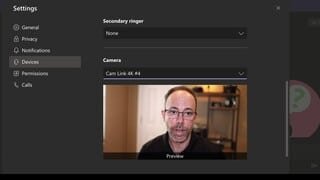
A:AnswerMy tablet that I used for Zoom meeting had a lighting problem. I was going to see if I could use the camera through the tablet with HTML first. Pretty sure it will do it.
FYI this is not 4K but very good camcorder. Took a while to figure out viewfinder brightness so I could see outside. Download the online manual. It is very complete.
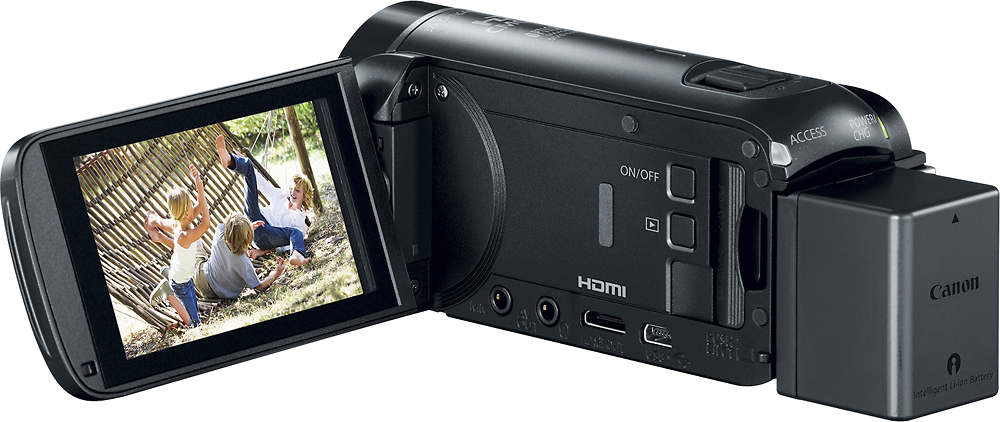
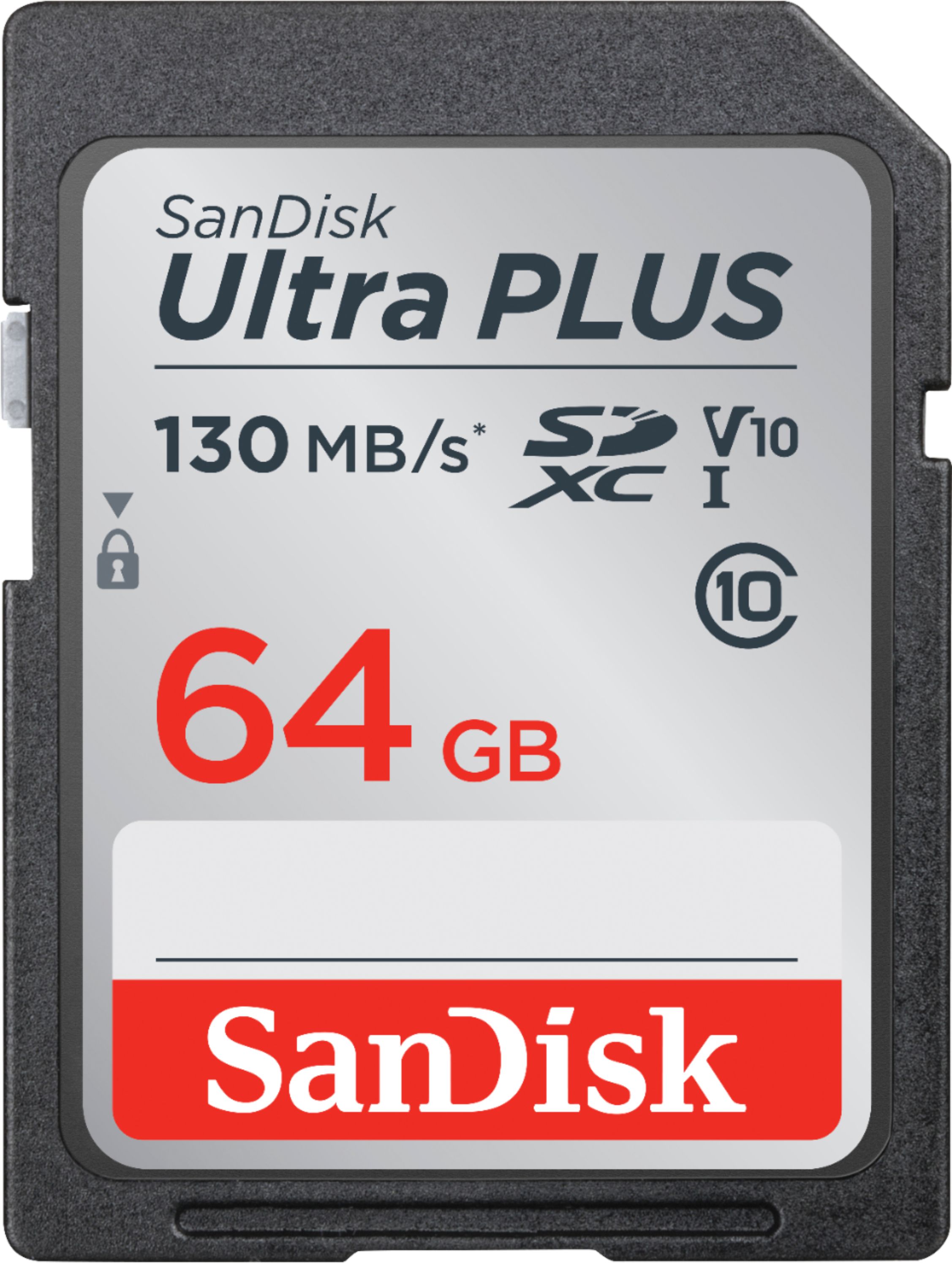
A:AnswerYes it comes with its personal HDMI Cable and its charger + Battery. It does NOT come with a SD card (Memory card) , so make sure you buy it separate to save your recordings and photos.
A:AnswerNot sure about the macbook pro, but a large card can record a VERYlong time depending on what resolution you shoot at. The Higher the rez the shorter the overall time allowed.
A:AnswerYes you can. You can actually take photos while recording at the same time by pressing the little camera icon on the bottom left of the screen and you can also take a photo of a already recorded video in your cameras gallery by again pressing the little camera icon on the bottom left corner. Just make sure you pause it first on whatever part of the video you want a photo of.
A:AnswerWe bought this camera sometime in late February or early March for live streaming our church services. So far we have not been able to get it to work, and everything that BB suggested we buy to make it work has FAILED to make it work. I don't know if the problem was with the camera, or Best Buy's "helpful" advice, but so far, it has been a complete waste of time, and a waste of the substantial amount of money we spent on it (and the recommended accessories). We are not happy with it at all. To make things worse, with the COVID issues, we haven't been able to get out and try to figure out what we need to do. But that's, obviously, out of everyone's hands. It's just a frustrating situation overall.
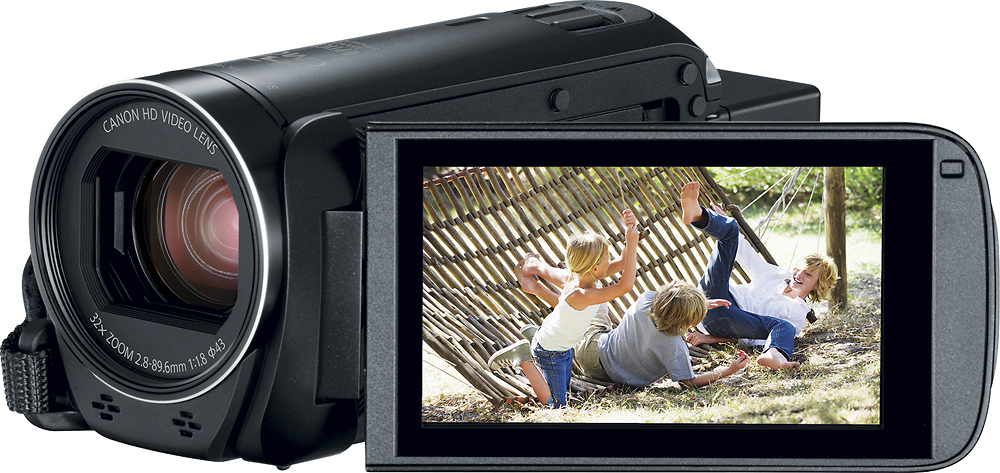
A:AnswerYou will probably need a video capture card (like an Elgato HD60) to convert the HDMI output of the camera to a USB 3.0 input acceptable to the Mac.
A:AnswerWhen placed in Program Mode you have complete control over Exposure and White Balance. You can adjust exposure -3/+3 in 0.25 increments. For white balance you have Auto, Daylight, Tungsten, and Custom. For Custom mode just place a white card in front of the camera and press the WB button and it adjusts the white balance to make the card appear white.