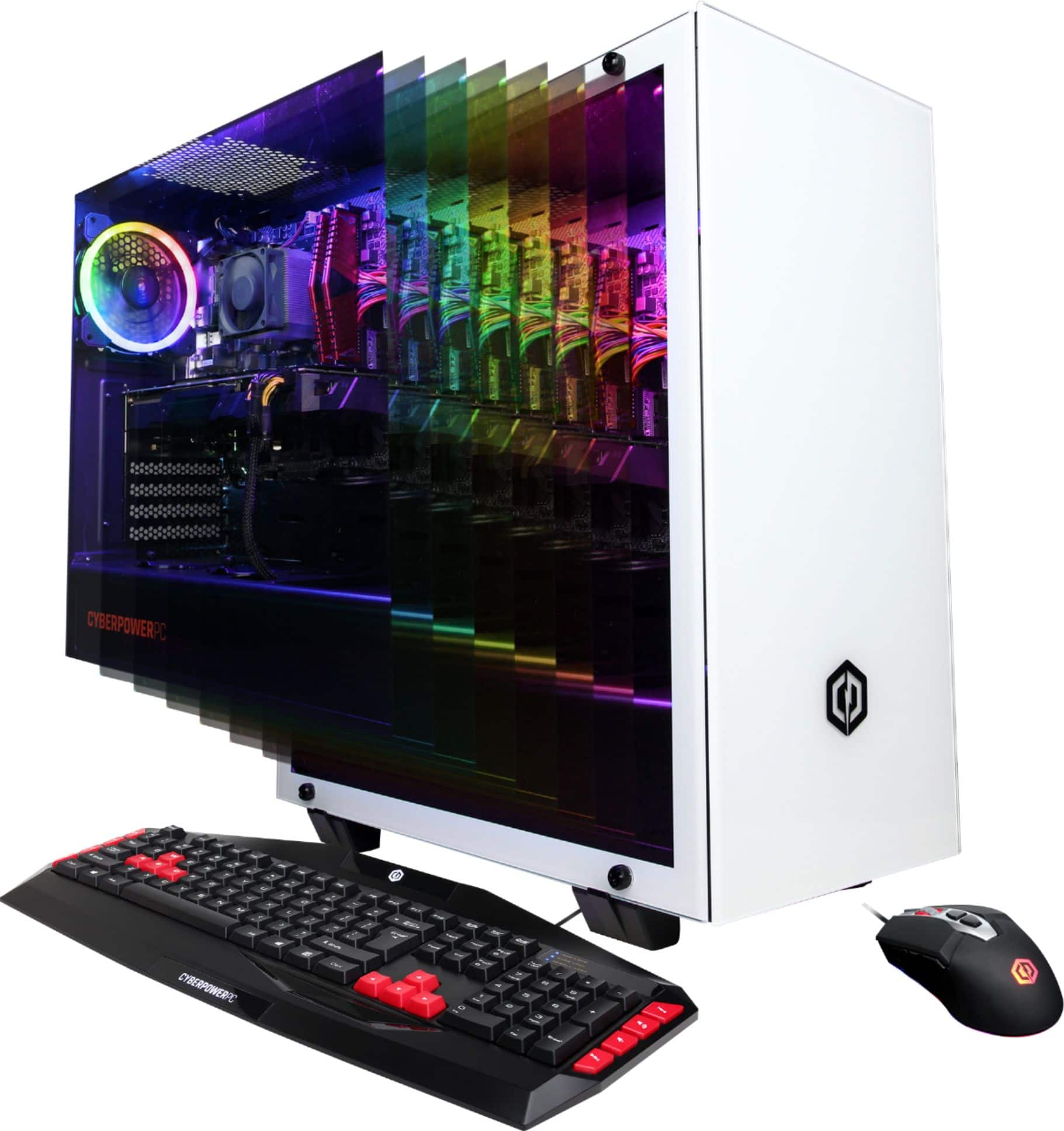
A:AnswerYes, but why wouldn't you buy a version of this (perhaps from CyberpowerPC directly?) with a 2080ti already installed so you're not paying for an expensive RTX2070 that you're not going to use?
A:AnswerIn general, there are two types of pastes: Those that conduct electricity, and those that don’t. The former typically have metal components like Arctic Silver 5 (which contains microscopic silver bits) and conduct heat better, but their electrical conductivity can damage components if they accidentally get squirted in the wrong areas. Ceramic- and carbon-based pastes, on the other hand, aren’t electrically conductive and are safer (and easier) for newcomers looking to apply it themselves. Yet they don’t transfer heat as well, leaving your CPUs a few degrees hotter—which likely won’t matter unless you’re either running a serious performance machine or using your computer in a hot environment.
For anyone who isn’t severely overclocking their computer and keeping it in a climate-controlled room, most thermal pastes work fine. Cost matters, of course, but with prices ranging from around $15 for expensive liquid metal TIMs to $2 for generic paste, none will break your bank even if you replace it every year, as some computer builders prefer to do. (This varies depending on who you ask, as most compounds can last for years without needing to be replaced.)
Ask a forum of enthusiasts which paste to buy, however, and they’ll quickly form ranks around their favorites, as the lineup hasn’t changed much in the last few years. Arctic Silver 5 is the longstanding metal paste favorite, though it takes significantly longer to set (up to 200 hours and several thermal cycles). Of the non-conductive pastes, Ceramic-based Noctua NT-H1 and Tuniq TX-4 pastes are regular and affordable options, while the carbon-based Arctic MX-4 is known to be easy to apply.
There is another type of paste that belongs in a category of its own: the aforementioned liquid metal compounds. These, like CoolLaboratory Liquid Ultra or the newer Thermal Grizzly Conductonaut, regularly outperform other pastes by a serious margin of eight to ten degrees Celsius, in some tests, giving users more leeway to overclock their computers. The catch, of course, is their electrically-conductive metal makeup could seriously damage components if they’re accidentally splashed around your machine’s innards. They also corrode aluminum surfaces, so don’t use them with such heat sinks. Lastly, they’re messy to apply and remove.
Your build matters, too. If your components are much closer together—say, if you have a laptop—it’s probably wiser to choose a non-conductive paste, unless you’re really confident in your application skills. You might want to opt for a higher-efficiency paste if you haven’t swapped out your stock cooling system (typically a meager air-cooling fan) for a more powerful setup. Conversely, if you’ve got a hefty liquid-cooled heat sink, you won’t need to go the hassle of applying liquid metal TIM unless you’re setting up for high performance.
There have been other odd variations on the TIM front, too, like the Indigo Xtreme, billed as a ‘phase change alloy.’ In other words, it’s not technically a paste: When it’s placed on the CPU, it melts from the heat and spreads evenly across the processor, essentially forming a layer of metal that theoretically conducts heat better than paste. But irregularly-shaped motherboards and other factors make applying the Indigo Xtreme potentially fraught, as this application guide points out.
If your computer has been getting too hot and automatically throttles itself to cool down, it might be time to change your thermal paste. But before you go shopping, clean out the inside of your machine with compressed air to clear out dust, especially around externally-facing vents. This could be enough to bring your computer’s internal temps back to reasonable levels. If that’s not enough, examine how the previous layer of paste was laid in, as misapplied compound (too much, too little or if there are air bubbles) can reduce how much heat is bridging over to your cooling system. If your machine is still overheating, and you want to dive in to apply new paste yourself, relax: there are plenty of guides to show you the ropes on how best to get the job done yourself.
A:AnswerYou can change the fan settings in the bios and there it will tell you what temp they turn on. My CyberPowerPC had a cheap aftermarket cpu heatsink and fan. After running too hot I replaced it with a water cooled unit from Corsair.
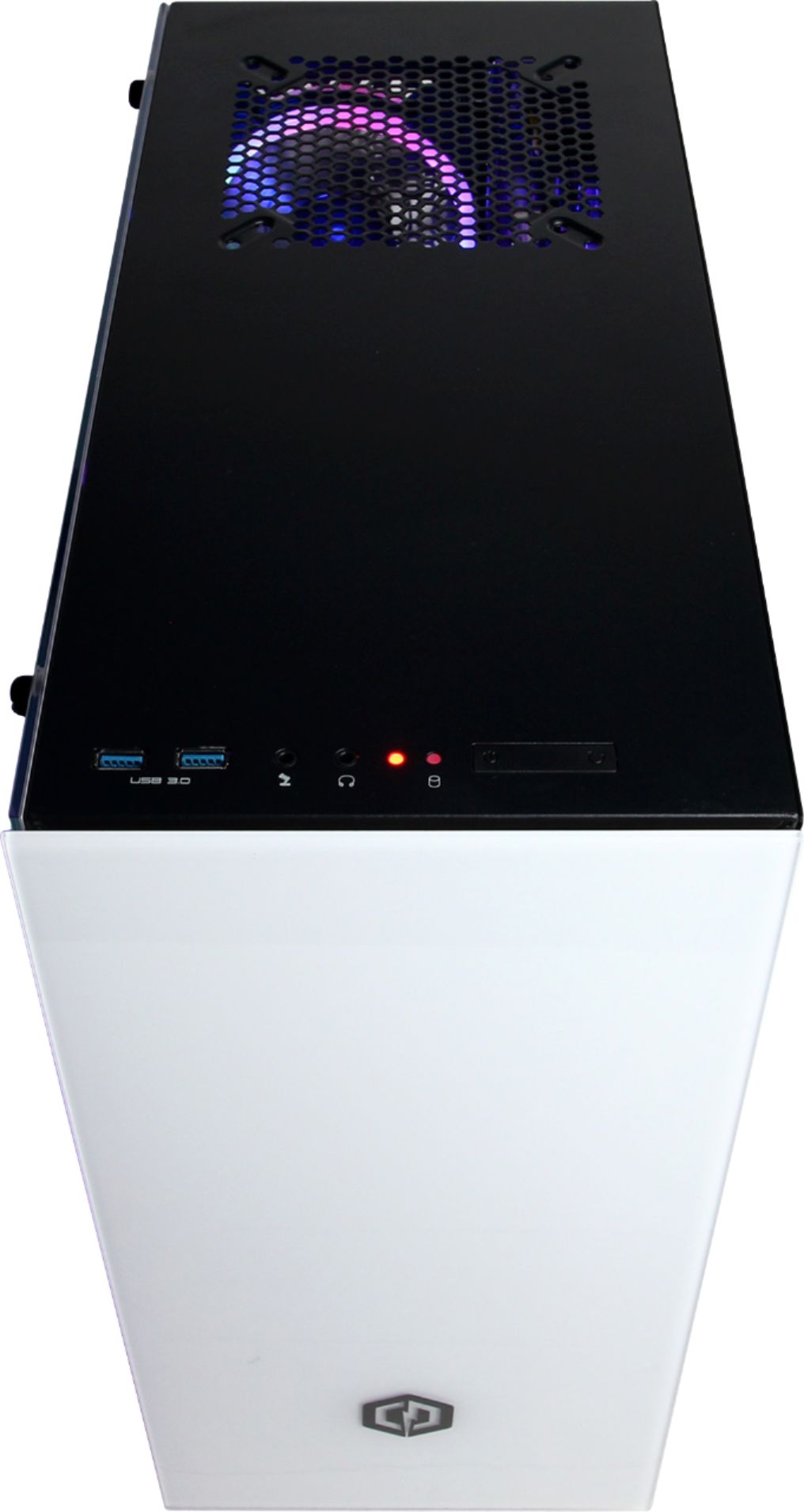
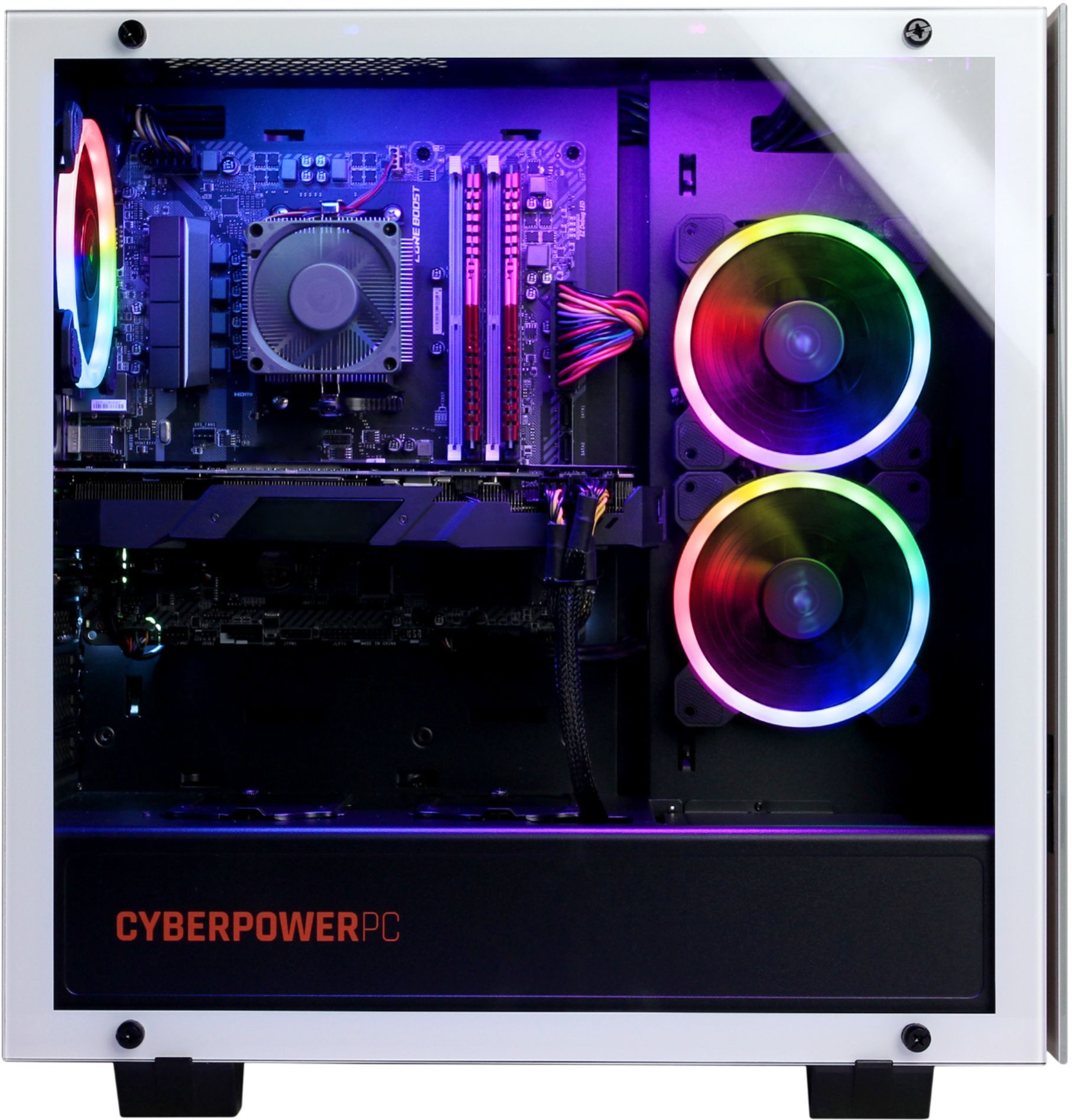
A:AnswerNo liquid cooling from cyberpower . You can put a 240mm radiator where the rgb exhaust fans are toward the front of the case. I’d totally encourage that route due to lack of air flow overall in this case.
A:AnswerThanks for reaching out BigSteve. The promotion code should be either emailed to you or should be on your receipt. Please contact BestBuy if you still have not received your code.
-CyberpowerPC Support
A:AnswerDoes it function normal to you? Does it reboot okay? Or with error message?
Well those cable ar expansion cable part of the harness... the new packaging shipped without the foam... mine work well. Just fir protection
A:AnswerThanks for reaching out Julian. Replacing or upgrading a motherboard is relatively simple as well as their are guides online. However, you need to make sure that the components inside the PC are compatible with the motherboard. This motherboard should support the latest Ryzen 7 series. If you have any further questions or concerns then please do not hesitate to give our tech support agents a call for any assistance; we're always happy to help.
Tech support:
(888)937-5582
-CyberpowerPC Support
A:AnswerThanks for reaching out Ang. This PC should be able to run editing software such as Premier Pro as it does come with a Ryzen 7 2700X which should be able to handle the brunt of editing softwares. If you have any further questions or concerns then please do not hesitate to give our tech support agents a call for any assistance; we're always happy to help.
Tech support:
(888)937-5582
-CyberpowerPC Support
A:AnswerThanks for reaching out Arashikitsune. The back ports configuration could vary for each system as the brand and model may vary as well as we use whatever was available at the time of assembly.This PC should come with a WiFi network card, in which you will need to attach the two antennas. If you have any further questions or concerns then please do not hesitate to give our tech support agents a call for any assistance; we're always happy to help.
Tech support:
(888)937-5582
-CyberpowerPC Support
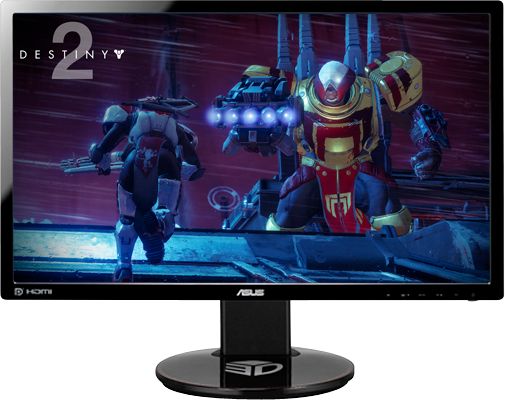
A:AnswerAny monitor will work fine with it. You'll definitely want an HDMI or DisplayPort enabled one. Finding a G-Sync or Freesync (as they're now "compatible") will enable you to take advantage of anti-aliasing and faster refresh rates. Look for a 144hz if you want the best with no resolution issues.
A:AnswerThanks for reaching out. The motherboard should be able to support up to 64GB of RAM in total. However, please double check your motherboard to make sure to see which the speeds of RAM the motherboard may support. If you have any further questions or concerns then please do not hesitate to give our tech support agents a call for any assistance; we're always happy to help.
Tech support:
(888)937-5582
-CyberpowerPC Support
A:AnswerThanks for reaching out theredbaron. The GTX 1080Ti is more powerful than the RTX 2070, however, this PC should be able to run Lockheed's Prepar3d V4 as it meets the requirements. If you have any further questions or concerns then please do not hesitate to give our tech support agents a call for any assistance; we're always happy to help.
Tech support:
(888)937-5582
-CyberpowerPC Support