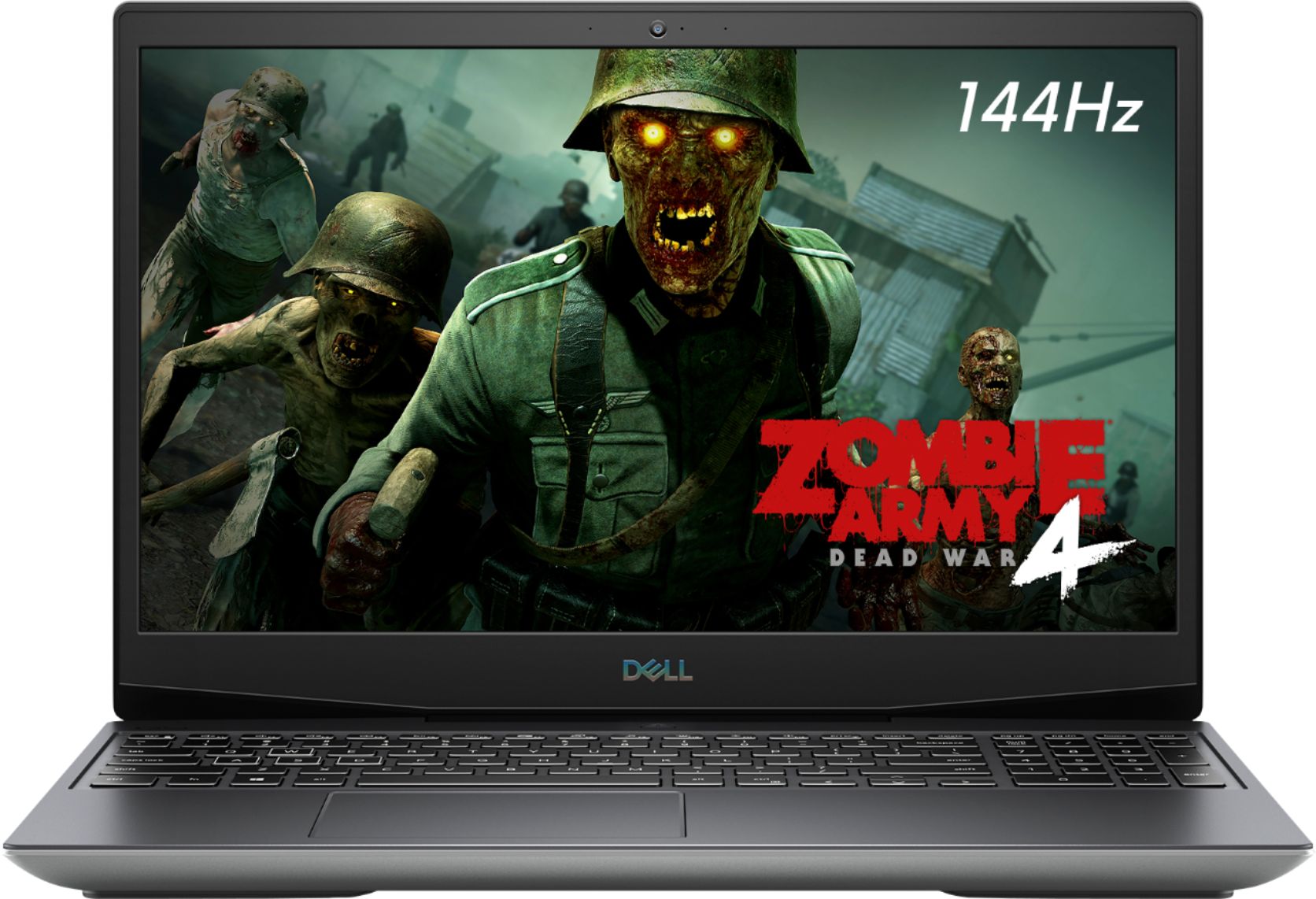
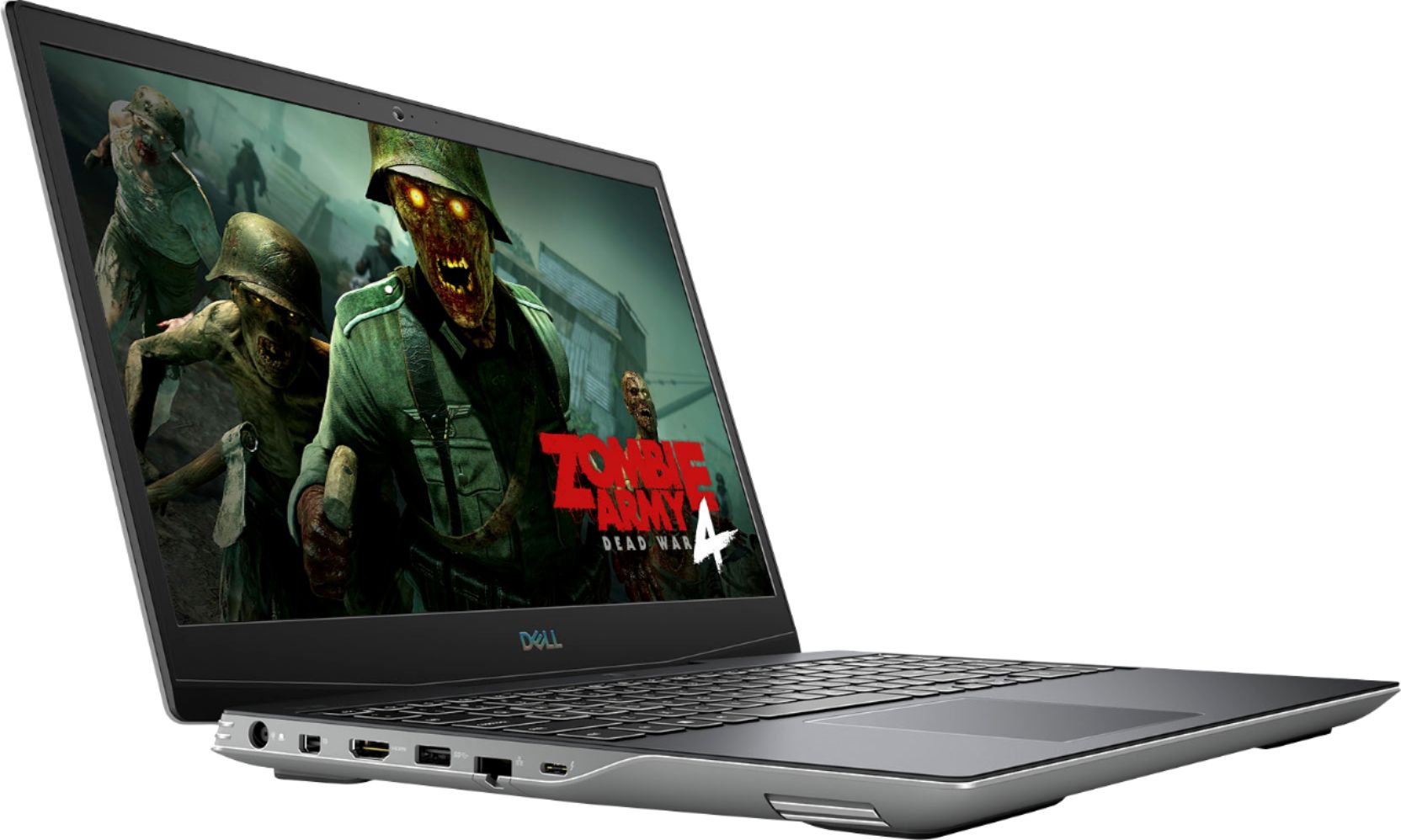
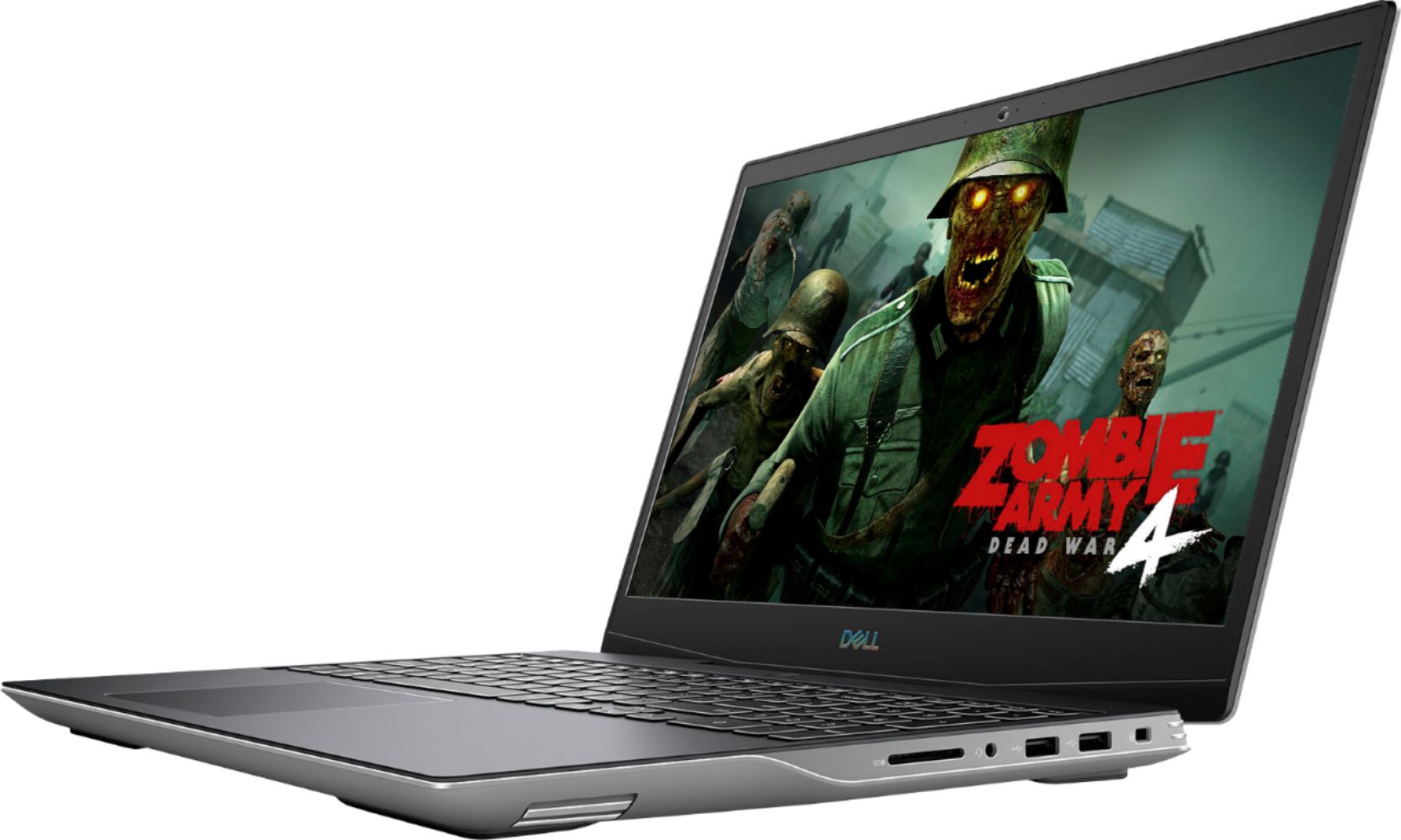
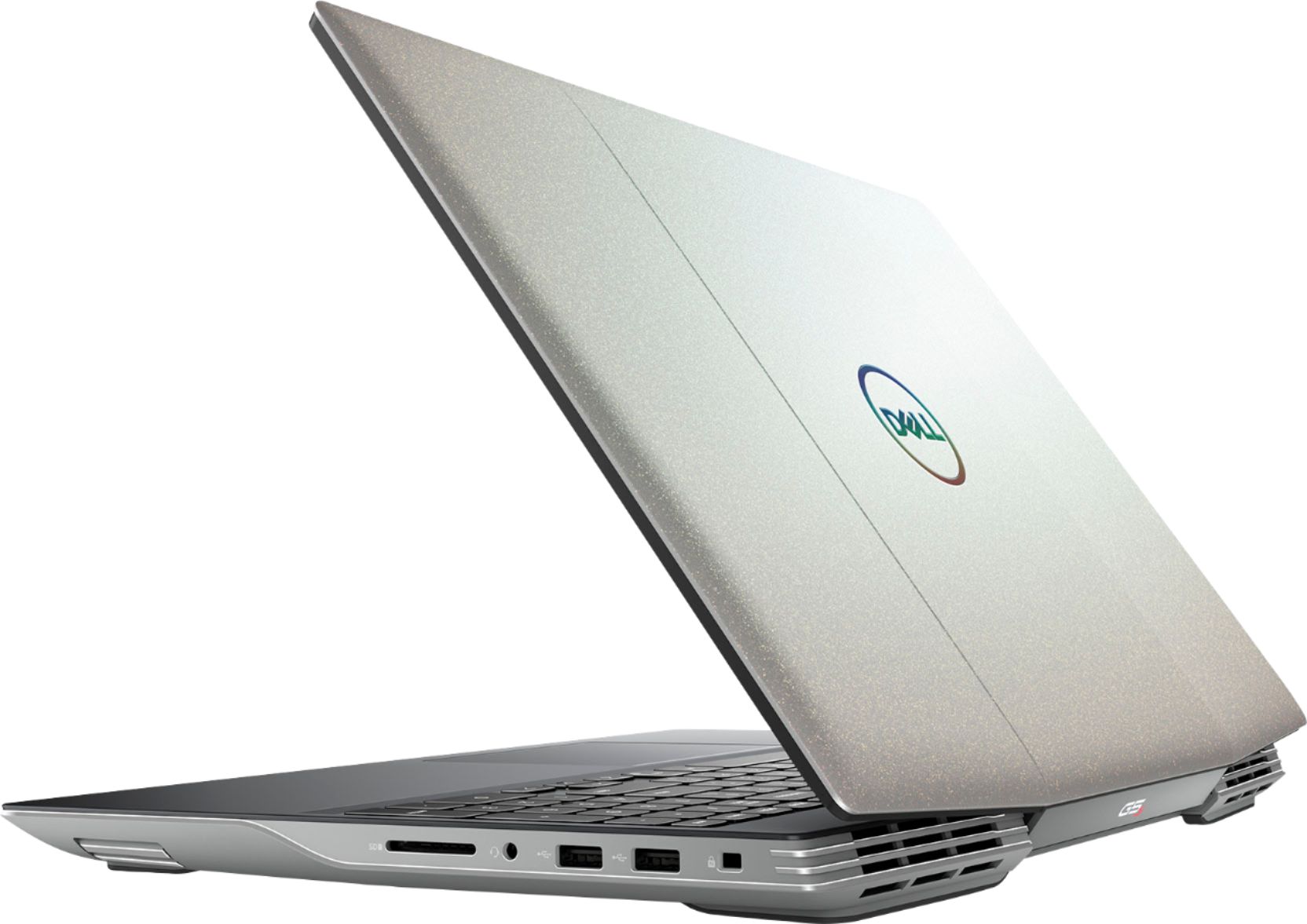
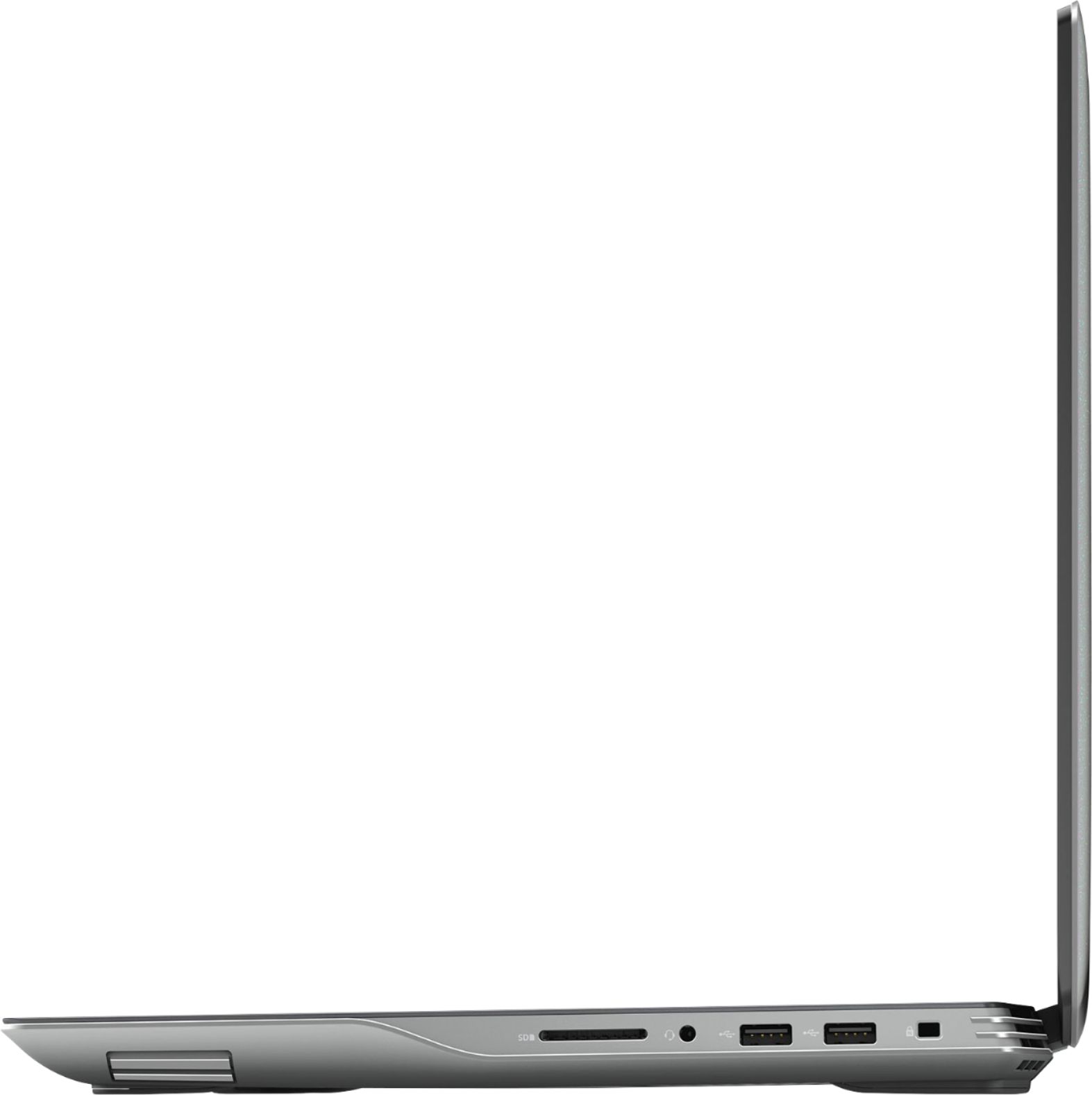
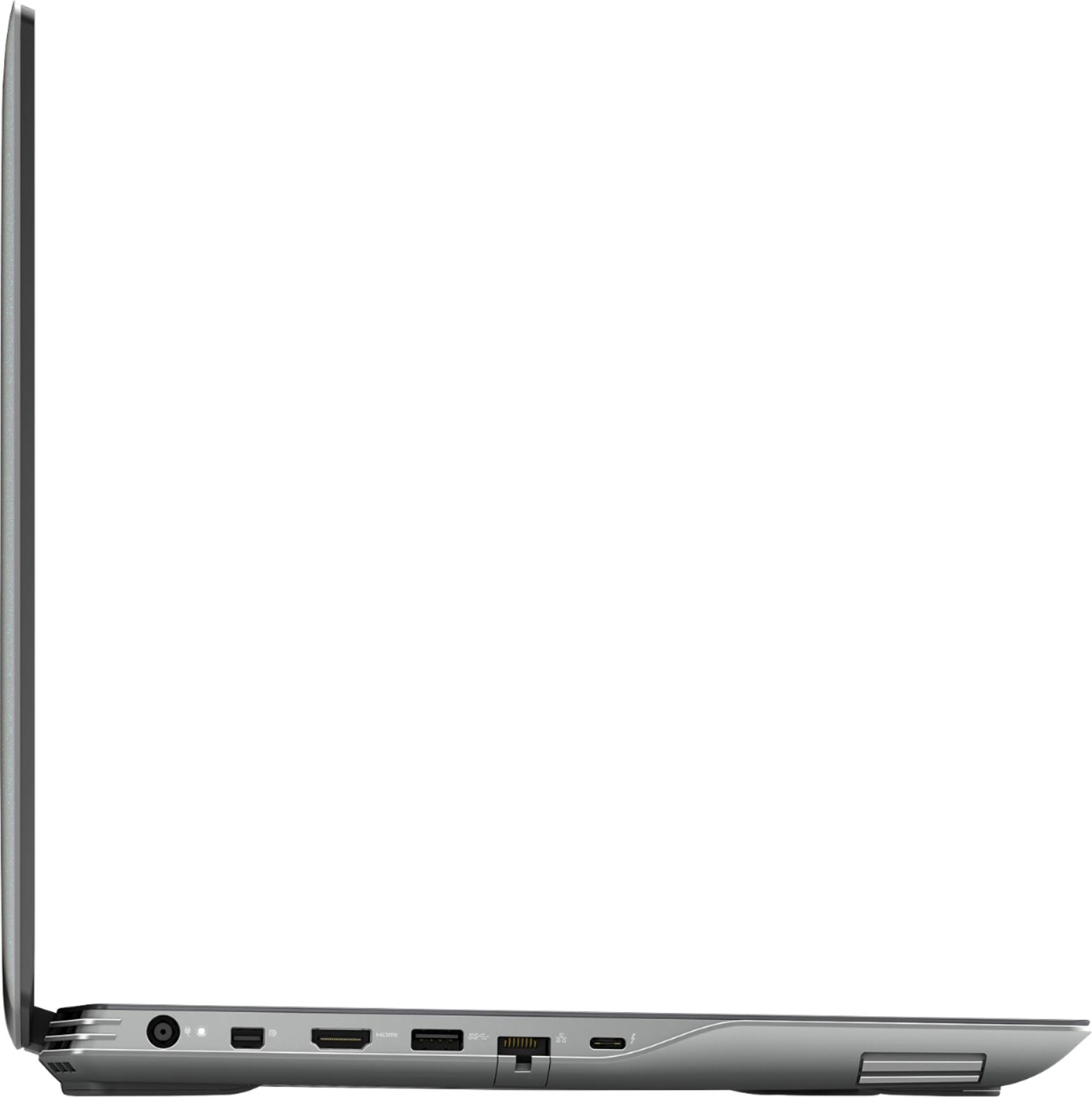
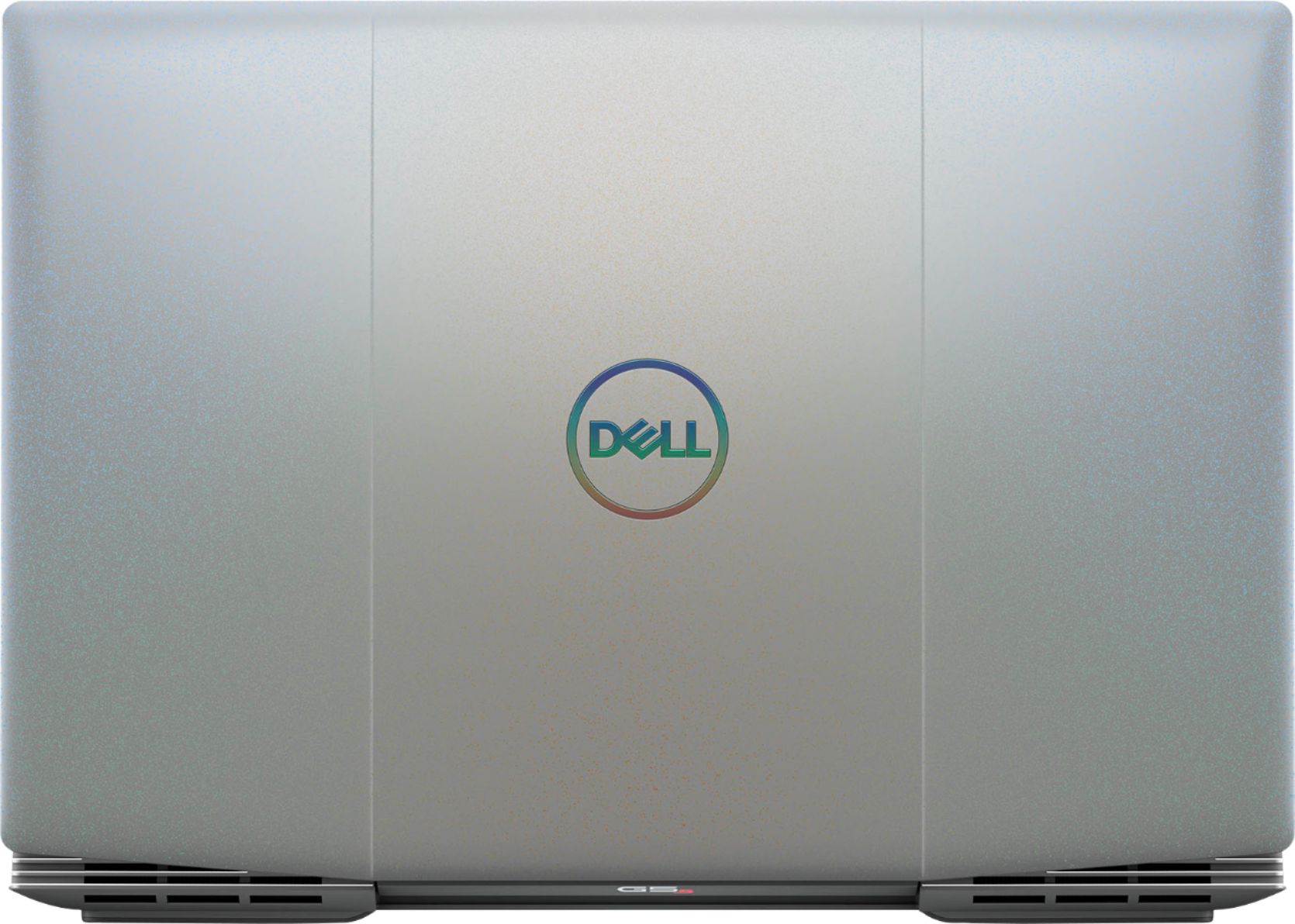
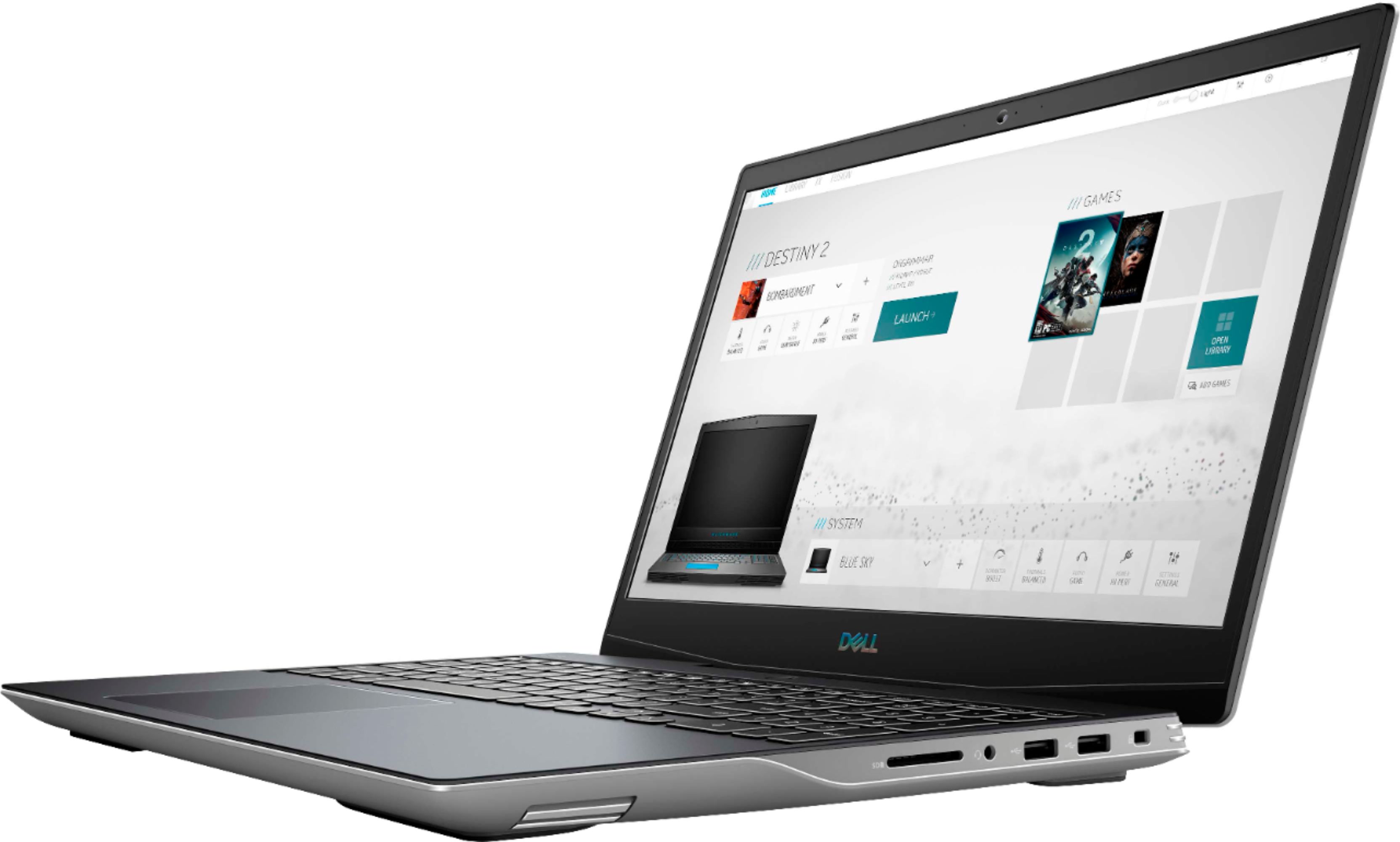
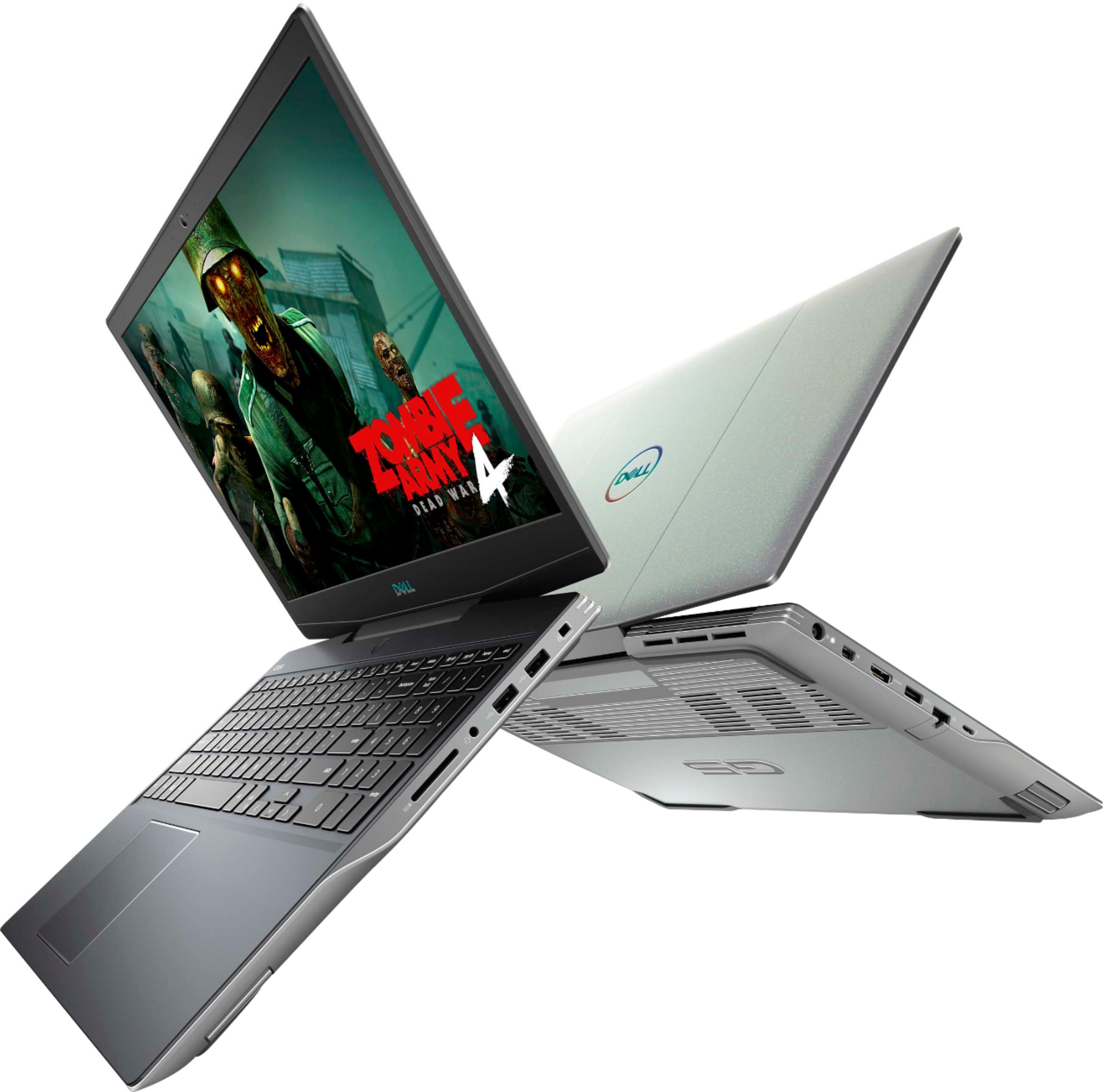
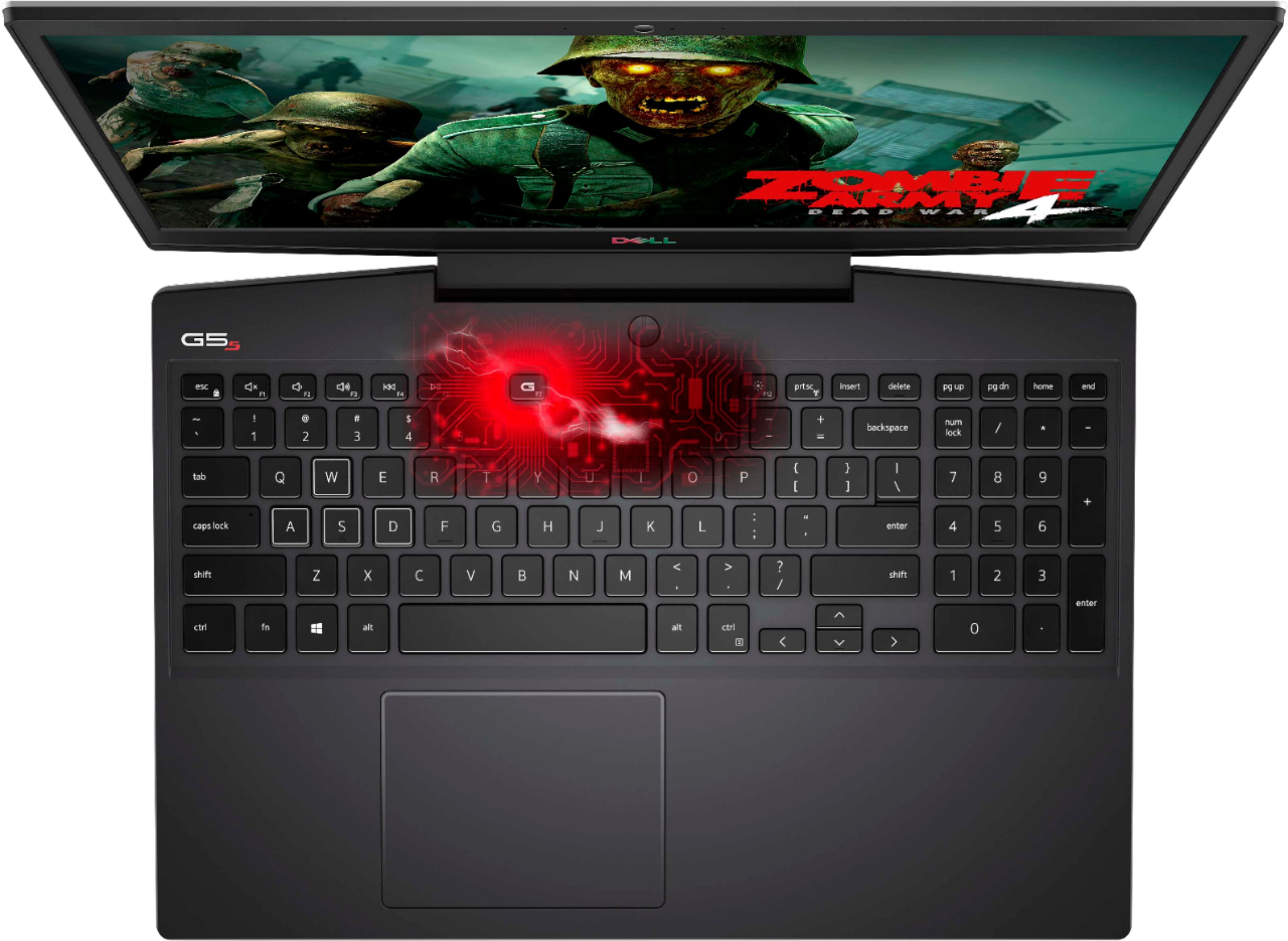
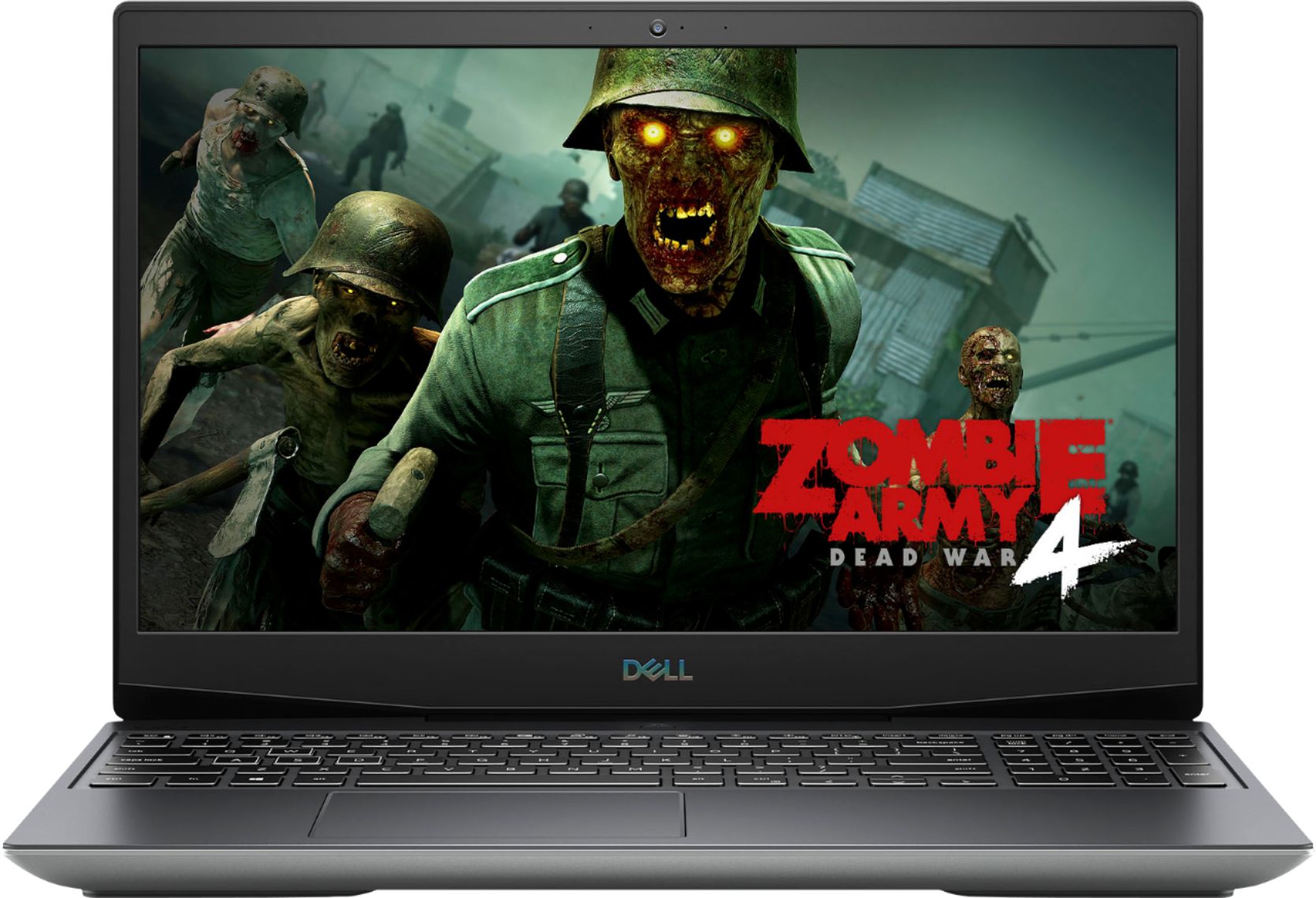
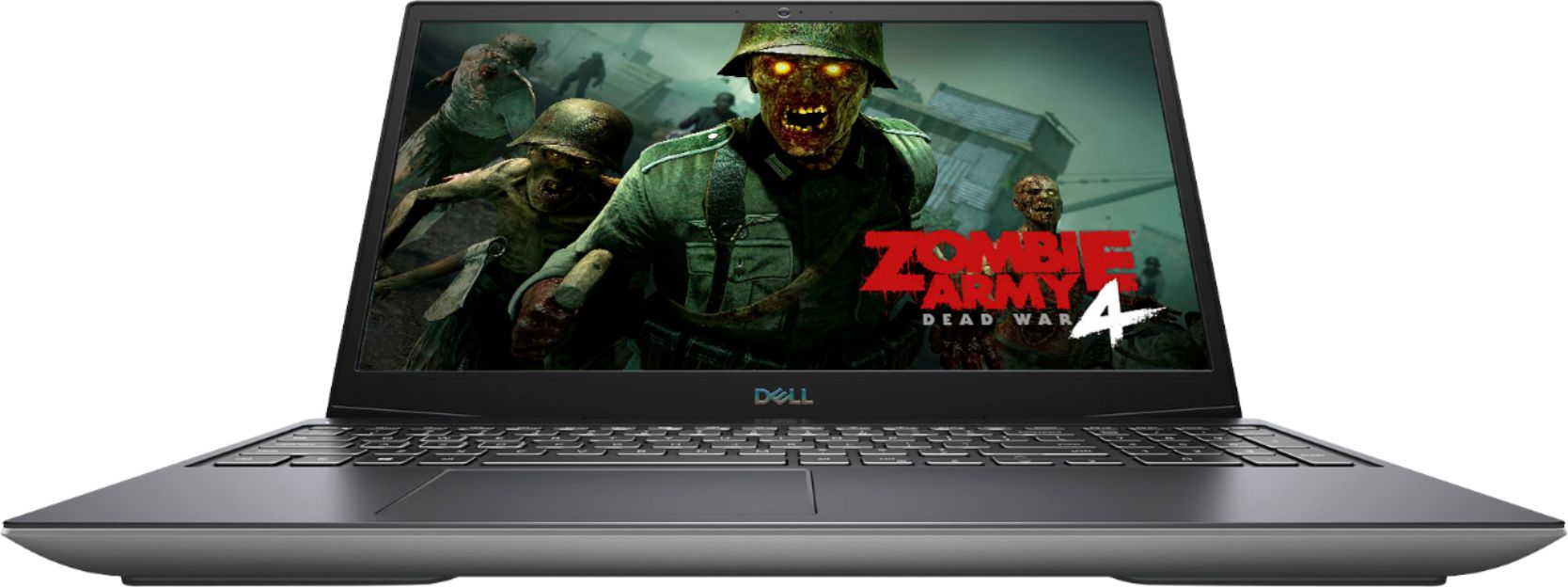
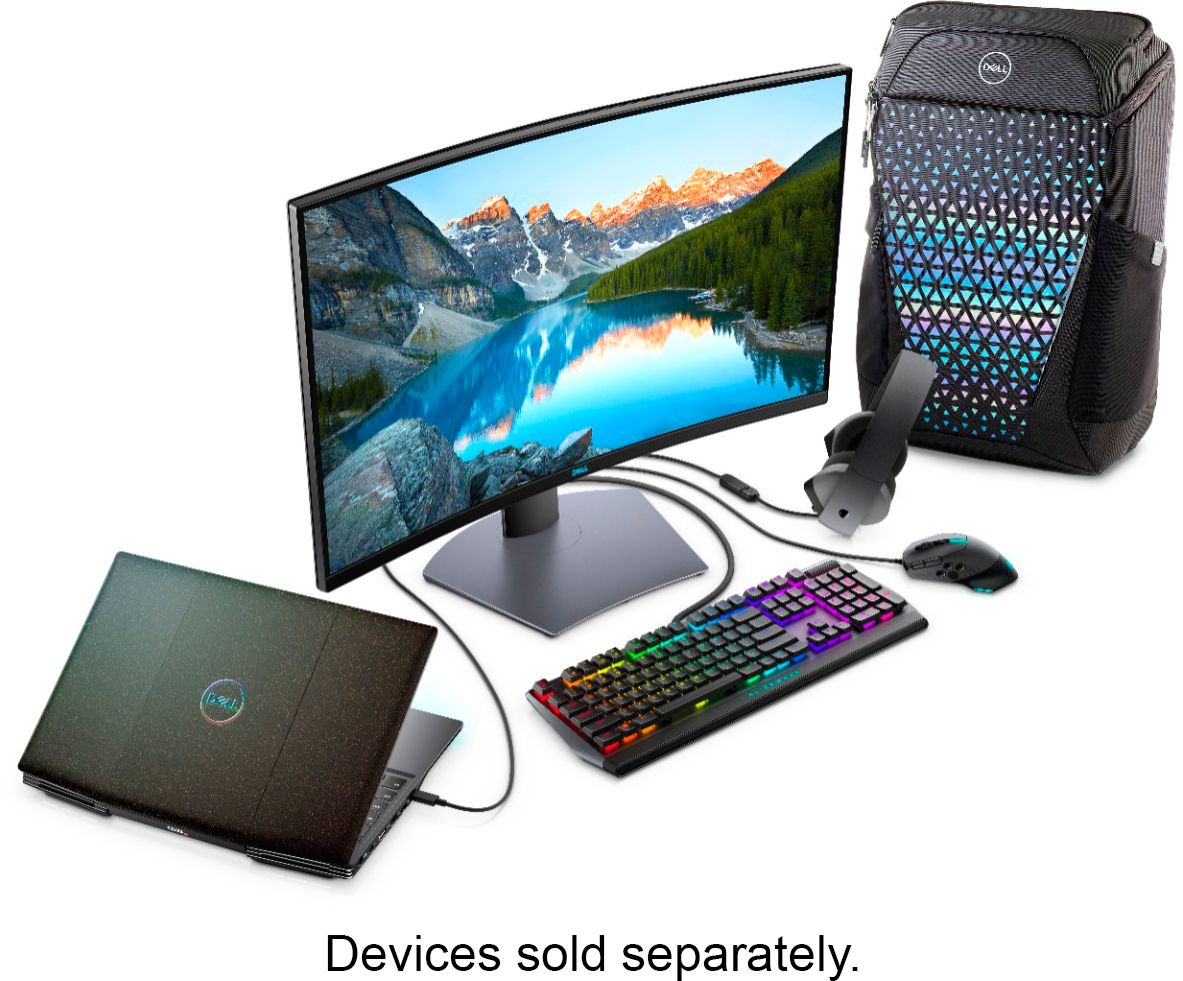
A:AnswerYour Dell G5 15 5505 supports two M.2 2230/2280 solid-state drives and you can upgrade up to a max of 32 GB of DDR4 3200 Mhz RAM. It comes with 3-cell lithium-ion battery.
A:AnswerThe Dell G5 15 5505 supports two M.2 2230/2280 solid-state drives and is usually offered with storage space up to a max of 1 TB. It does not support 2.5" storage form factor. The system is powered by a 3-cell lithium-ion battery along and supports to a max of 32 GB RAM.
A:AnswerJay, i had to figure this out too, go the alienware control app in your start menu then you should be able to figure it out from there in the themes section.
A:AnswerUnfortunately you can not change the processor on this because it is integrated into the motherboard. Most laptops are not upgradable when it comes to processor.
A:AnswerThe battery operating time varies depending on operating conditions and can significantly reduce under certain power-intensive conditions.
Should you notice any unusual draining of the battery charge, do reach out to the Dell technical support team. They will review and assist you to resolve the issues if any.
A:AnswerYes you can update the memory and ssd. You can go up to 32 GB of ram, and the sad is an nvme drive. There is room for a second ssd if you want it. Replacing them is a bit of a trick because you have to take off the back which is screwed and snapped on. The instructions are on dell's website.
A:AnswerSlot 1 has a a 2230 in it and a screw hole for a 2280. I didn't see a screw hole for a 2230 in slot 2 when I installed the 2280. I could be wrong because I wasn't specifically looking for a 2230 spot in slot 2 but I did check to make sure I could put a 2280 in slot 1 later. Also, there is no heatsink or mounting screw included for slot 2.
A:AnswerThis system has a USB 3.2 Gen 2 (Type-C) port with DisplayPort capabilities. You can connect peripherals such as external storage devices, printers, and external displays. The port provides data transfer rate of up to 10 Gbps. Supports DisplayPort 1.4 and also enables you to connect an external display using a display adapter.
NOTE: A USB Type-C to DisplayPort adapter (sold separately) is required to connect a DisplayPort device.