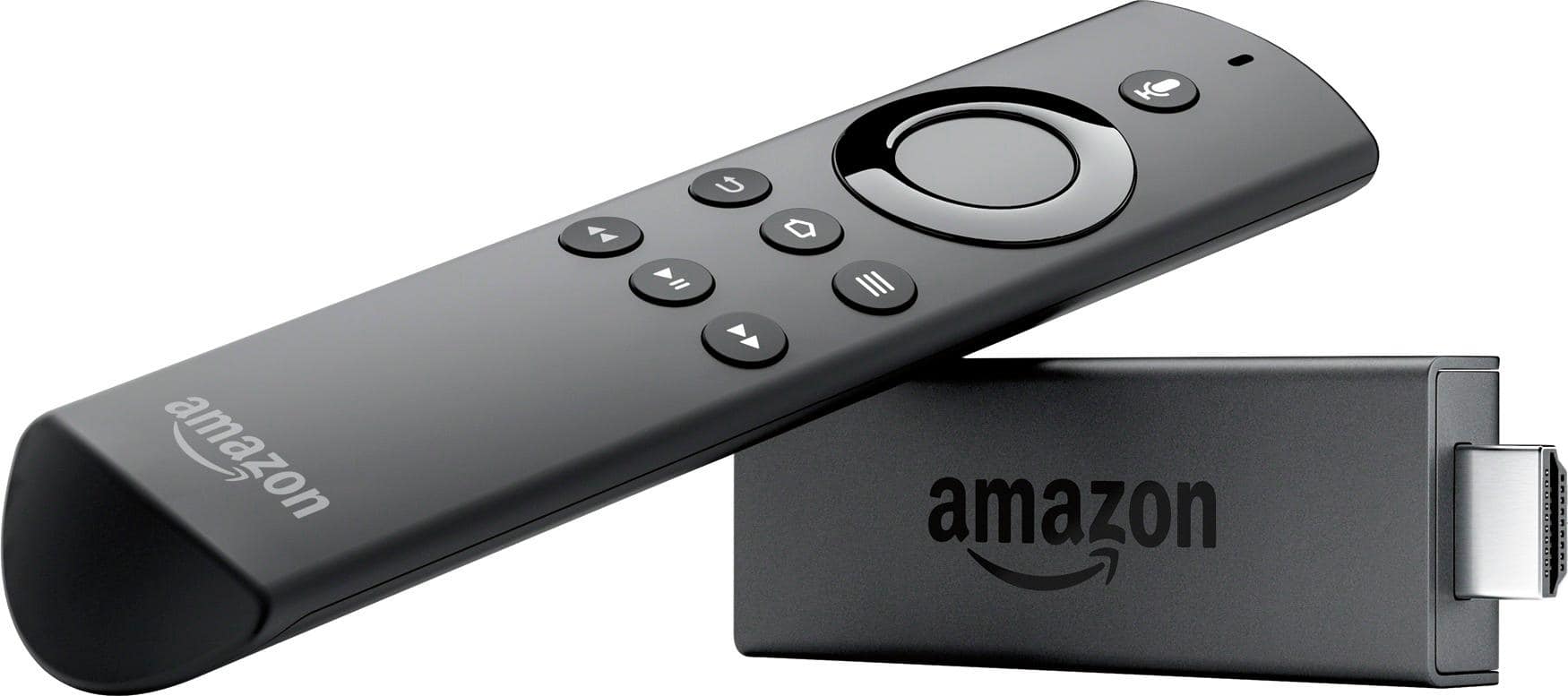
A:AnswerThat remote is not accurate. If you have the same one as I do, it is the same button that is located top left of the OK button. Its a fast track back to HDMI 1 by default. You can change what HDMI it goes to by going to: Menu> Settings> System> Advanced Settings> Default Live TV Input. There you can change what Input you want that button to take you to. Hope that helps.
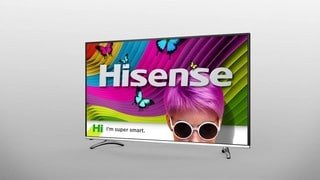
A:AnswerThe TV's operating system is OperaTV to the best of my knowledge. That said you will need a streaming device as the unit's built in apps and app store are limited. Hulu, CBS All Access for example are not available.
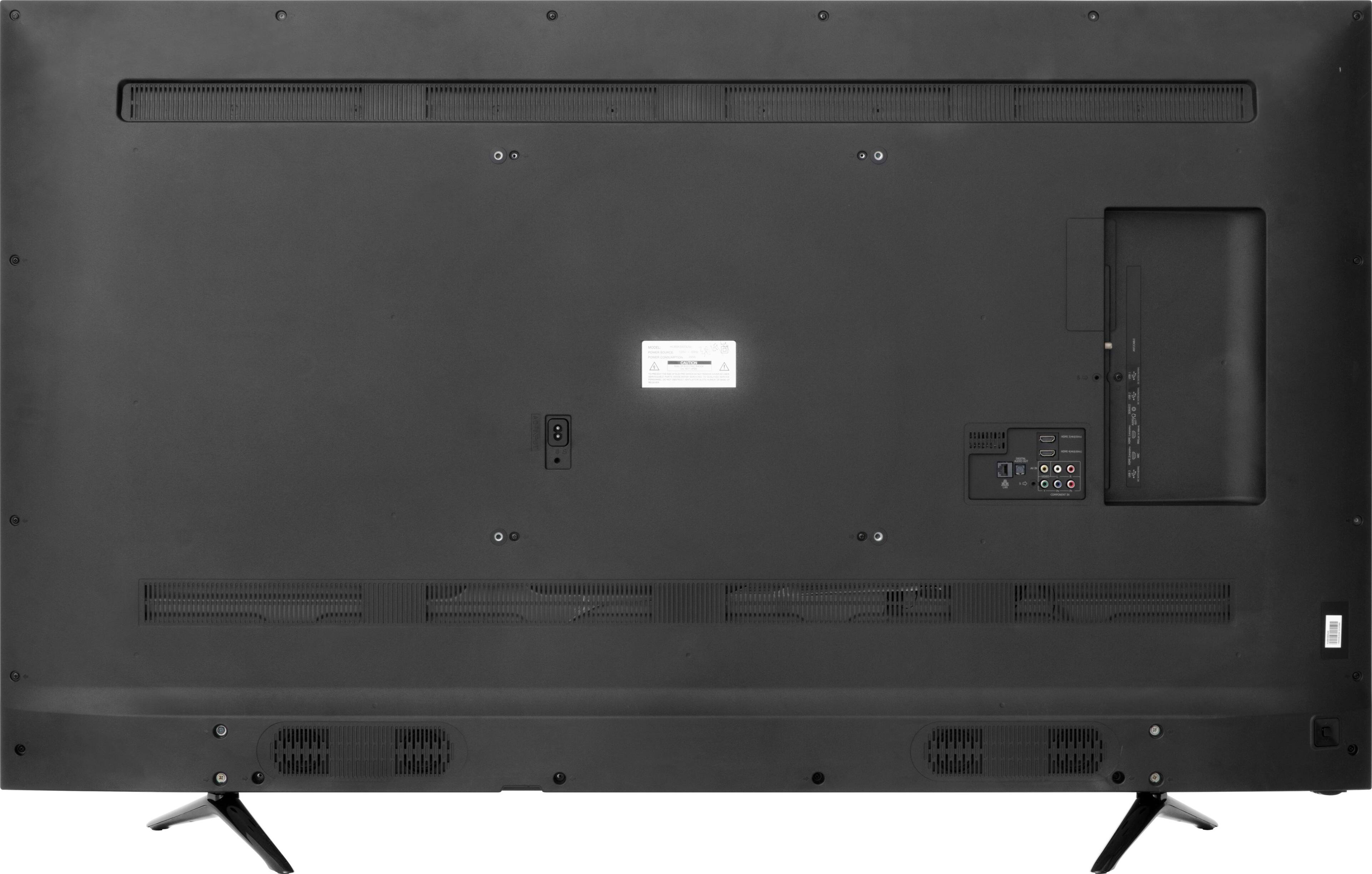
A:AnswerHello. I had some trouble with getting ARC to work. I called the help number and they walked me through the issue. Turns out, you need to go in the "CEC" part of the menu and turn it on there. Sure wasn't obvious. Also, don't forget to use the "ARC-enabled" HDMI port on the back (I think it is #2). Get the latest firmware if you haven't already done so. And finally, you will need to make sure that ARC is enabled on your sound bar (I have no experience with sound bars, but I needed to do that on my receiver). I did find that the audio sync'ing was much better on the ARC channel vs. the optical cable.
Good Luck.
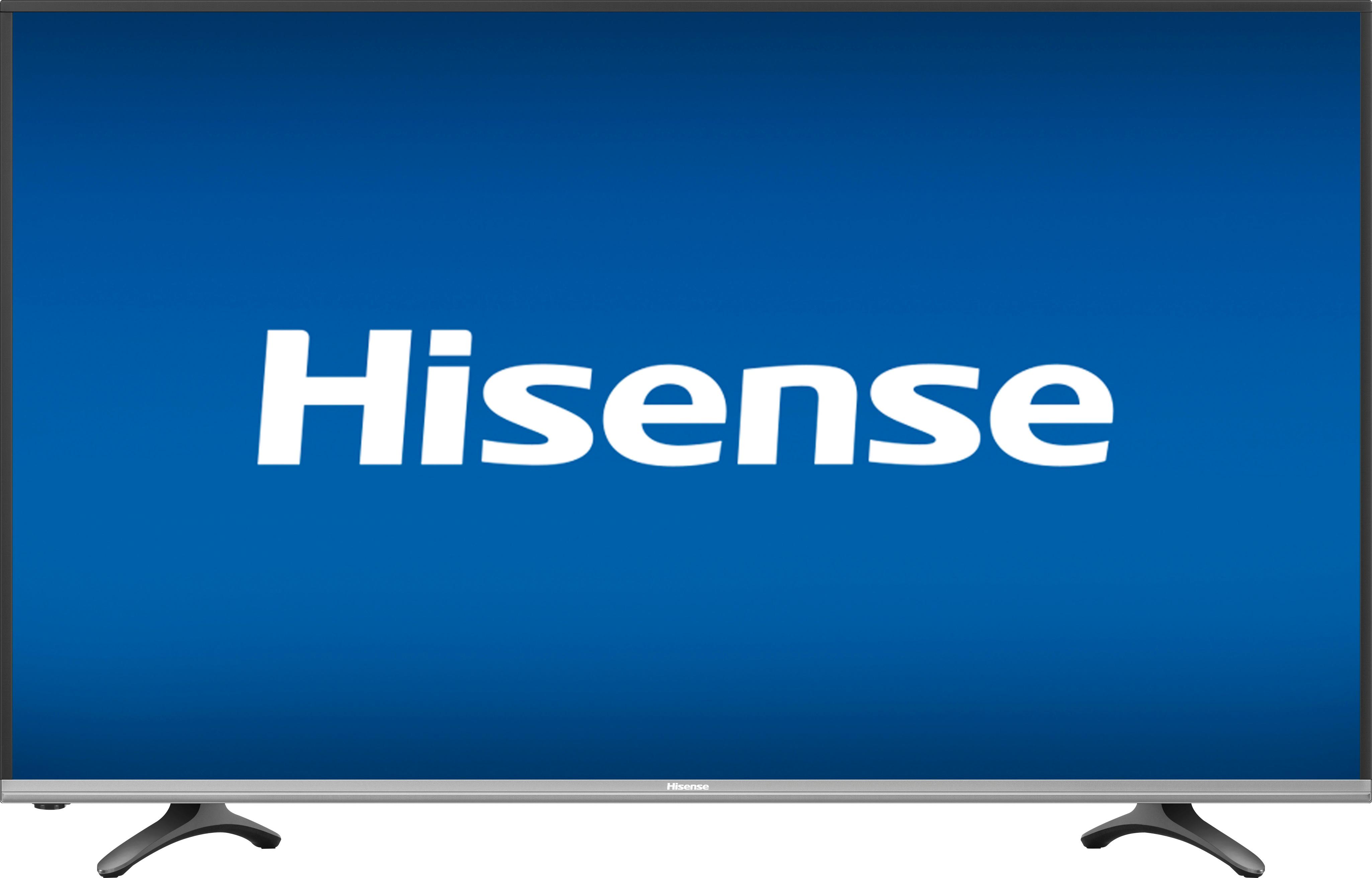
A:AnswerThe 50" 4K H- series DOES come with a 4-year warrantee. This is confirmed by looking at the chart on the warrantee card/booklet included in the packaging.
A:AnswerIf you have a true cable or satellite provider then you'll need the cable/satellite box. You may be able to connect to the box wirelessly, however, so the box may not have to be in the same room depending on the model. I have DirecTV NOW which is streamed through the internet so no cable box is required in this case...I stream it through my Amazon Fire Stick which cost me about 30 bucks.
A:AnswerDo you have an Ethernet cable plugged into the TV directly? I had an issue with that at first, and adjusted to a direct connect. I'm not sure if that can fix your problem, but it fixed mine!
A:AnswerPlease direct message us on the Hisense USA Facebook page (https://www.facebook.com/hisenseusa/) with your contact info so we can better assist you on this issue. Make sure you include the review when you message us.
A:AnswerYou have to first put it on the input then play a movie on the Apple TV 4K. Then go into the tv settings with out changing input and go into the support setting and click on the channel signal. It should display resolution and if HDR is being used. Also, make sure HDR is set to automatic under setting for all inputs.
A:AnswerThe warranty is not real clear. At one point it states it is a limited warranty and if returning the TV, it must be in the original packaging. I have already gotten rid of that. At another point it states the tv is warranted for 1 year for parts and labor. Hoping not to have to use the warranty.
A:AnswerUnplug your Hisense TV for 2-minutes, plug and turned it on, go to settings, thclick support reset it to factory default and connect it to your WiFi
A:AnswerInput is on left side--easy to access. I use $10 flat indoor antenna, and get over 70 channels. It will depend on antenna location and your distance from the broadcast towers.
A:AnswerI deliver products for Best Buy all over the Midwest,our trailers are not climate controlled.I've been in temps well below -15 degrees Fahrenheit.Operating the tv should be at a temp no lower then 41 degrees Fahrenheit.