A:AnswerHello, and thank you for your question! HP Warranty decisions are determined by HP Technical Support. Unfortunately, this Q&A forum does not have information on how hypothetical or potential issues are resolved, as each issue is unique and has its own set of circumstances and solutions.
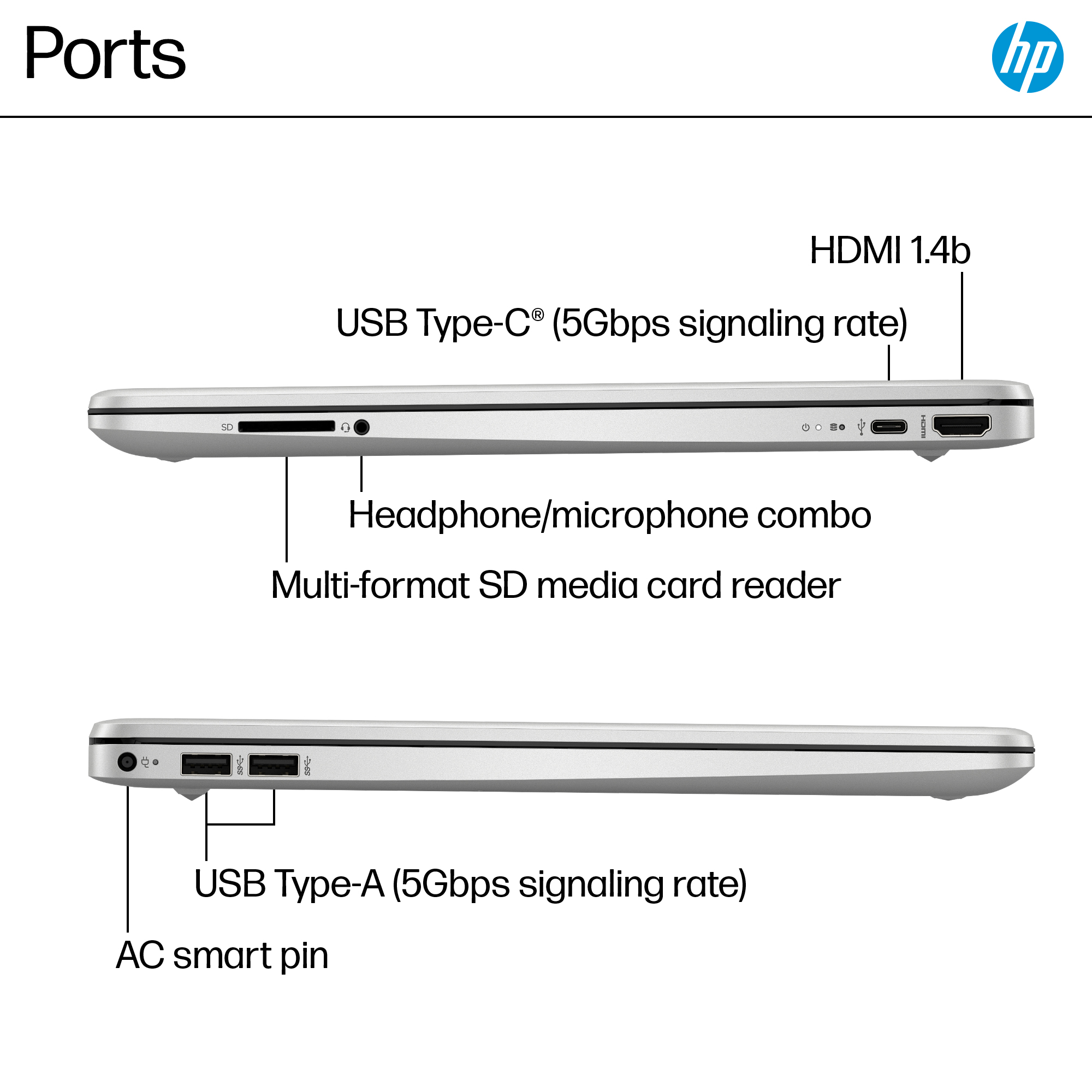
A:AnswerI am sorry that you are having an issue with ethernet connectivity. The best way to tell is to try a different USB port for the ethernet adapter: If it loses the ethernet connection in a different port, then the issue lies with either the adapter or the modem. Another place to contact is with Microsoft as the adapter works at the operating system level.
A:AnswerThank you for the question, apologies for what you're experiencing. Please be certain that you've turned off Wi-Fi. Go to settings>network and internet>Ethernet and select your network, Check that the Ethernet cable is firmly connected to your router/internet modem and to the adapter connected to your laptop's USB port. If you've done this and still experience connection issues, please reach out to HP Support to assist.
A:AnswerThank you for the question. Yes, you can create a password of your choosing. Yes, you can upgrade to Windows 11. Please visit the Microsoft site for pricing options.
A:AnswerI'm not that computer literate so I don't know what S mode is. As far as not using the touch screen the answer is yes, I use a wireless mouse. I hope this helps you out some.
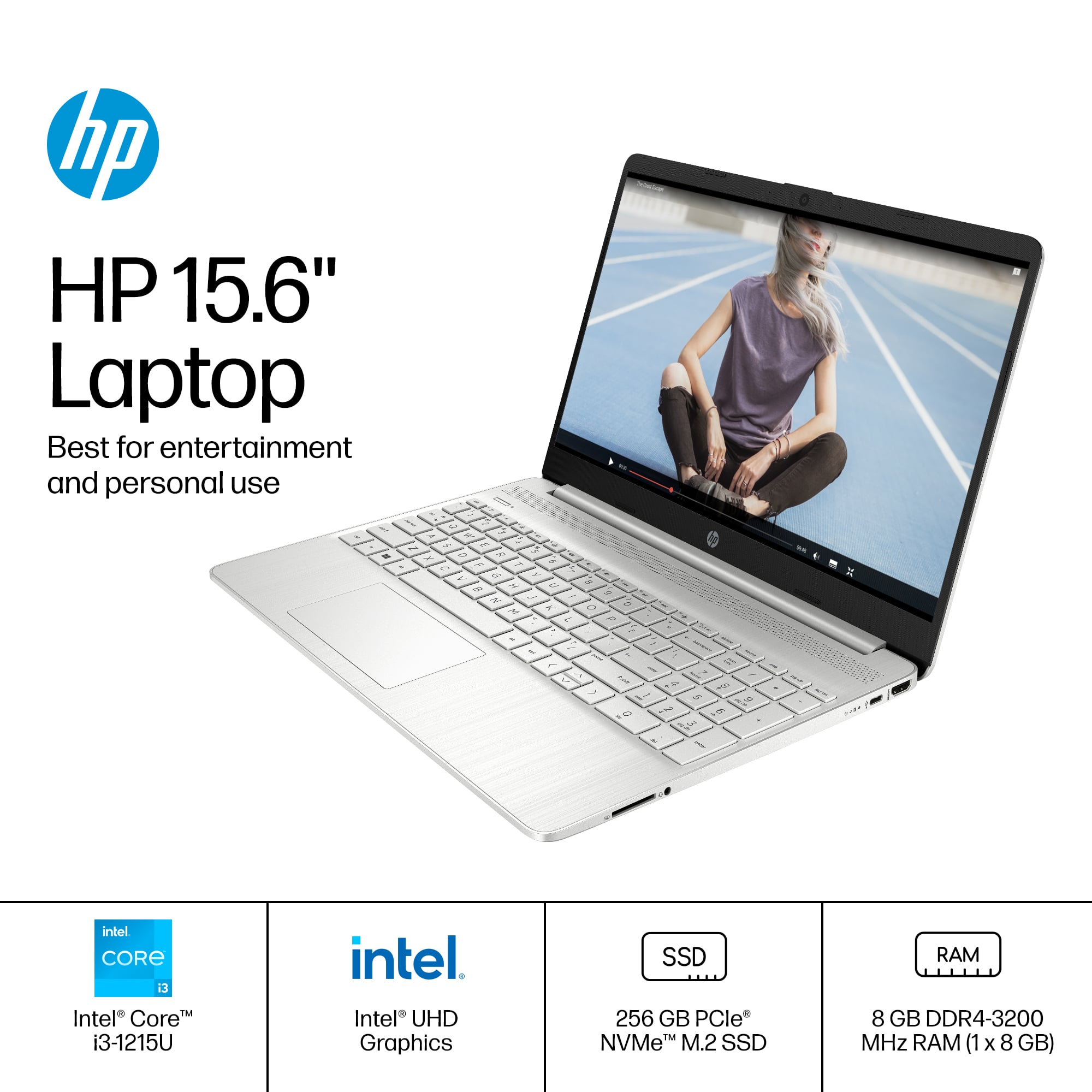
A:Answer¡Gracias por tu pregunta Gilberto! Esta computadora incluye Windows 11 Home junto con pruebas de 30 días de Microsoft Office y McAfee LiveSafe.
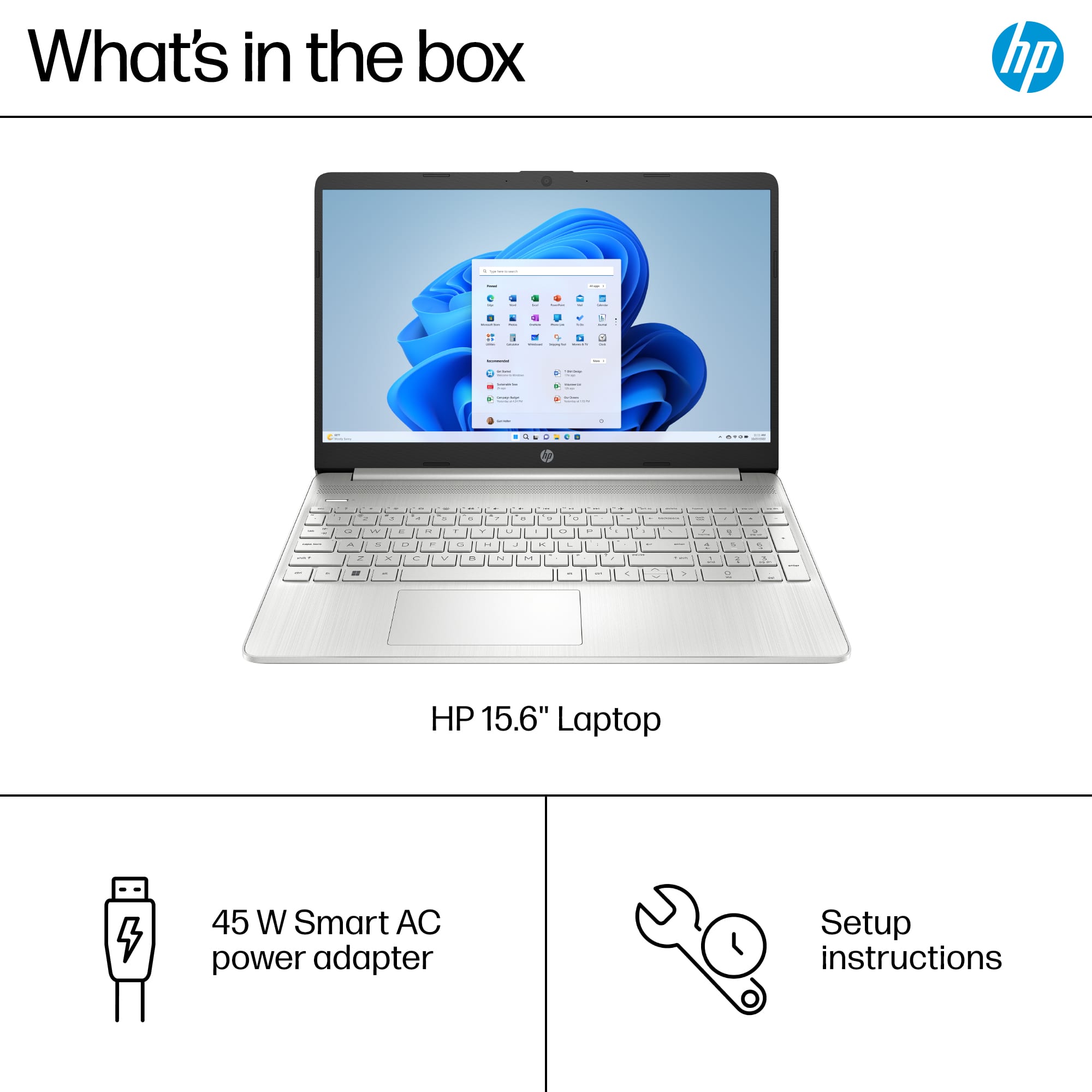
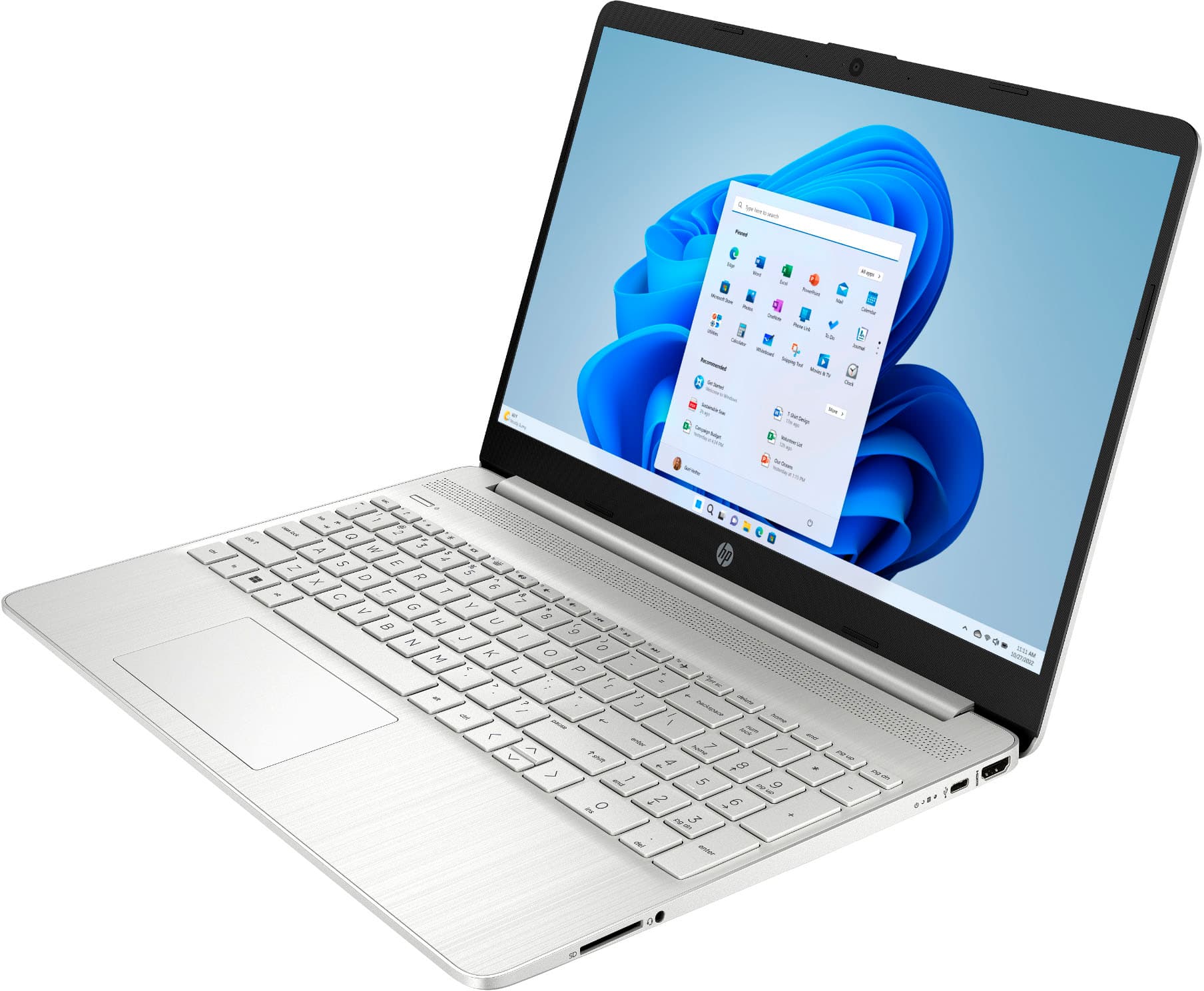
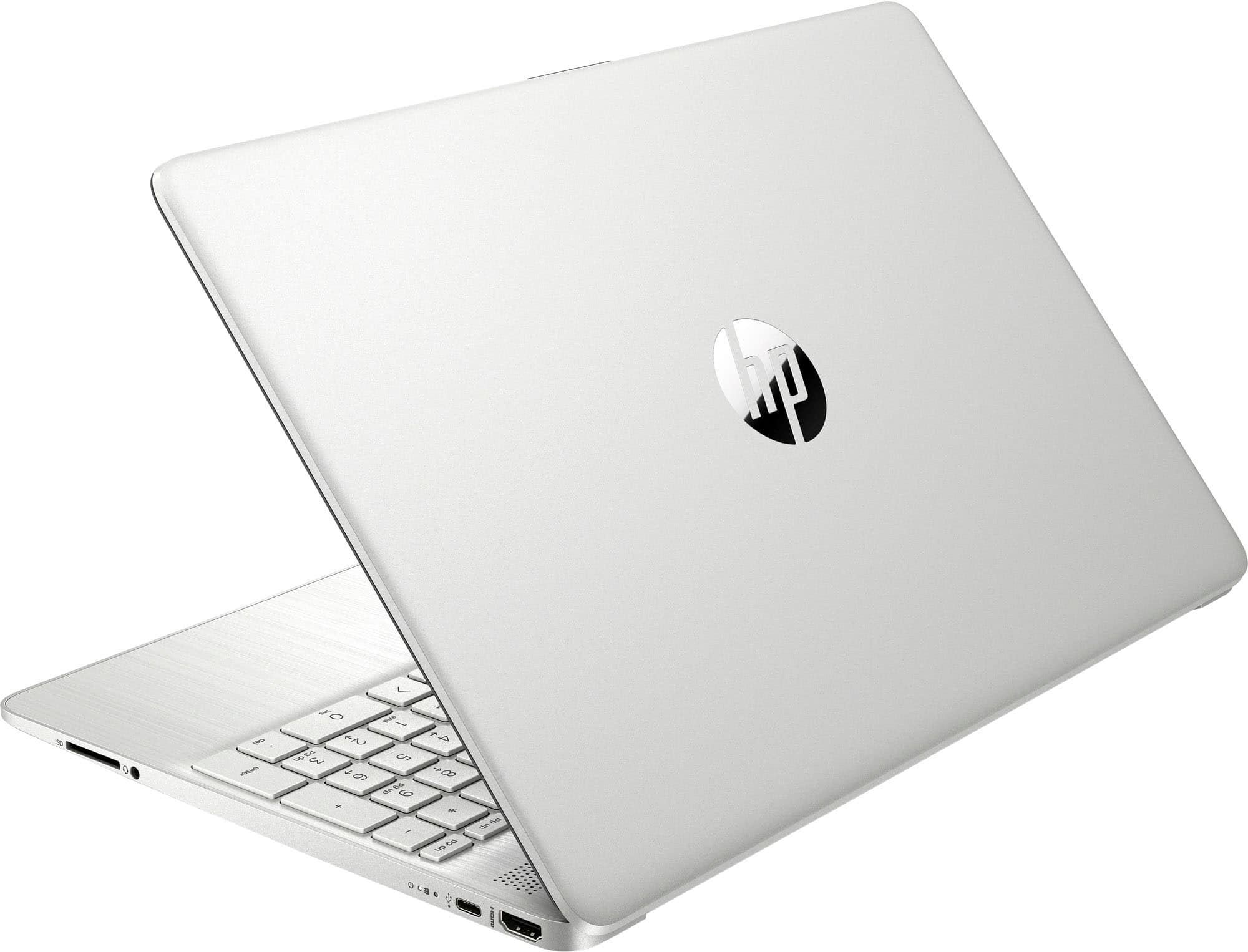
A:AnswerHi there. Thank you for your question! This HP laptop (model 15-DY5033DX) will not support charging from the USB-C port. It can be charged with the included 45 W Smart AC power adapter.

A:AnswerThank you for your question! This question is difficult to answer without knowing the software you will be using. As different software have different requirements, it is recommended to choose your software, then make sure your PC matches the requirements.
A:AnswerUse Bluetooth. Go to settings Bluetooth devices and click on receive file. On your phone open the picture and hit share, Bluetooth and when the screen comes up that indicates your computer tap it.