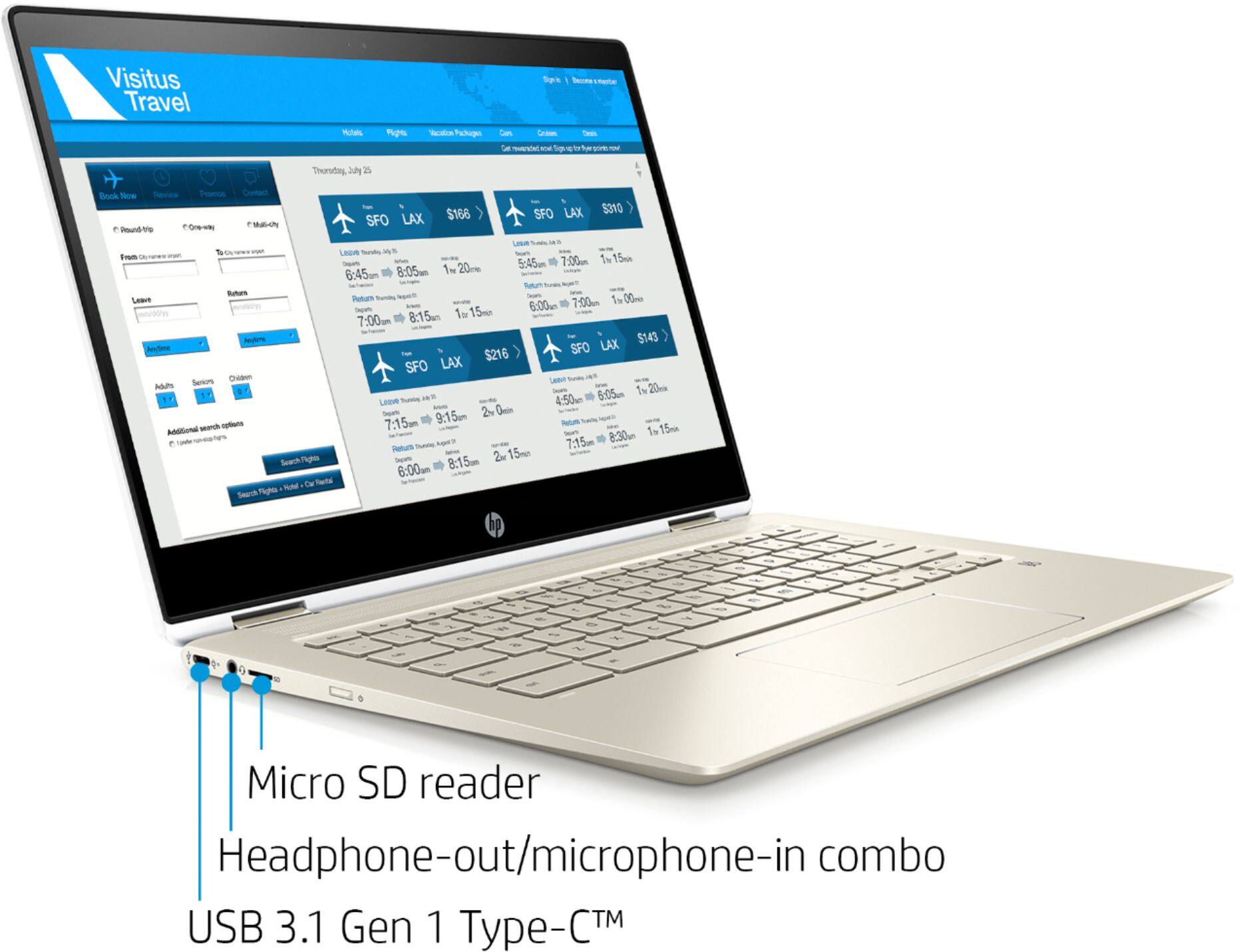
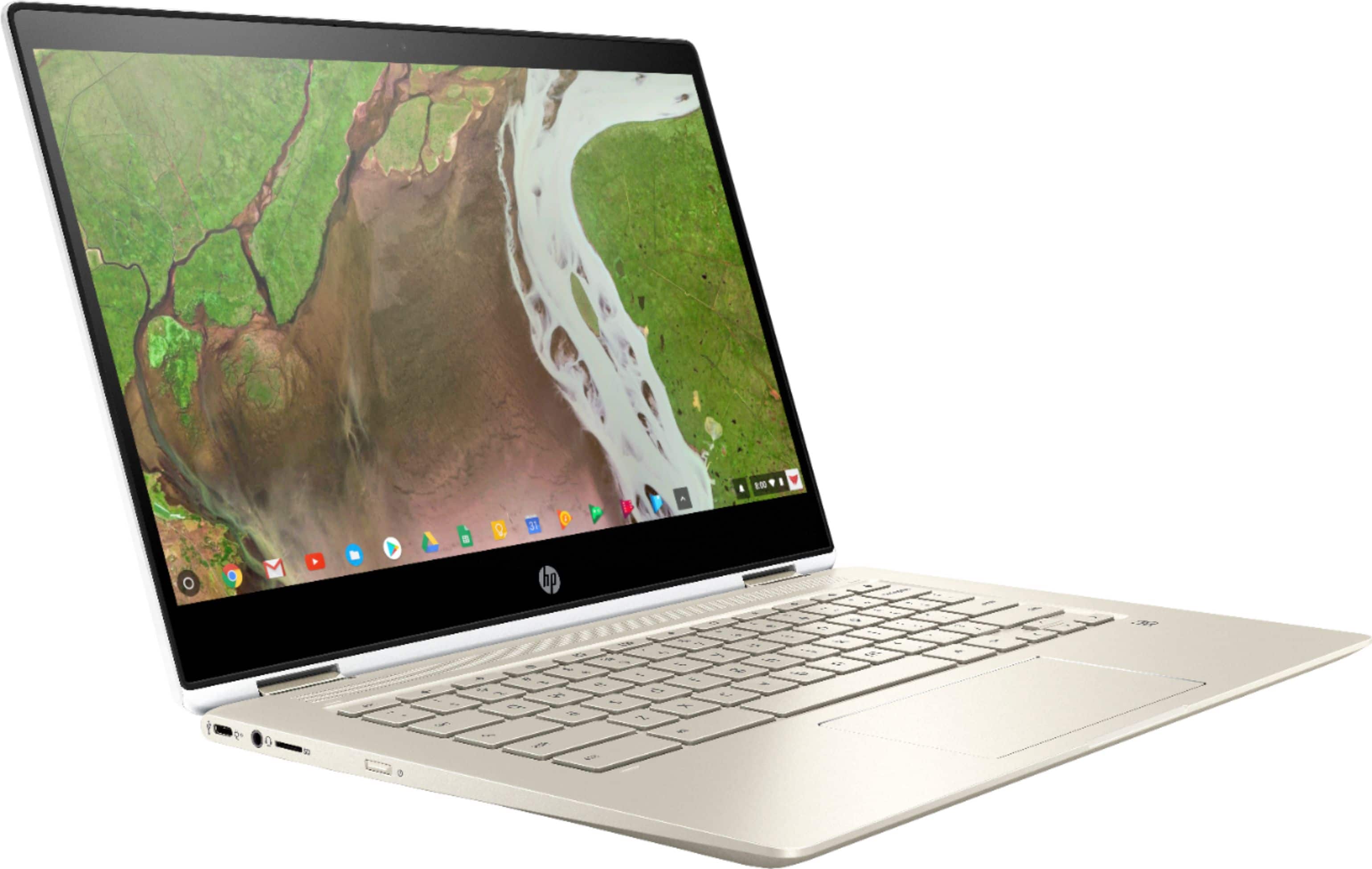
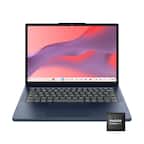
A:AnswerIt depends by what you mean by full substitute. You should clearly think through your use case before switching operating systems. It will run Microsoft apps from the google play store or office 360 online. You can also use online banking and check book apps from google play store. You can run most media apps with no problem (notable exception - iTunes, although you can run Apple Music if you are willing to ‘sideload’, but this is a hack). Chrome will open PDF’s with a Chrome extension. You can store files locally, but the Chromebook user should think in terms of using google drive as default storage, with internal storage used for files needed for offline access. And don’t let the 64GB of internal storage deter you. This Chromebook also features a micro SDcard slot so you can easily add storage by inserting a micro SDcard. BE AWARE THAT PRINTERS are a special subject in the Chrome OS world. Make sure you are aware of your options if you intend to print from a Chromebook.
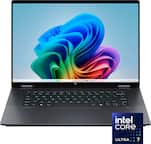
A:AnswerIt has a core i3 processor that does have a cooling fan, unlike a lot of other Chromebook models which use fanless core M or celeron processors. So far the fan is the one thing I haven't been thrilled with on this computer. It's not terribly loud, and it doesn't run all the time, but it also doesn't take very long of using the computer for the fan to come on. Like I said, it's not all that loud, so really this has been a minor inconvenience rather than a dealbreaker, although that's definitely more of a personal preference thing. Overall I've been really pleased with this model- the core i3-8130u is crazy fast (faster than the fanless models used on most Chromebooks- that's the trade-off!), and this model might have the nicest trackpad and keyboard I've ever used on a laptop, period.
A:AnswerThe keyboard backlight can be turned on or off using the Alt-Bright key combination. It has several levels of brightness that it cycles through with each press of the Bright key (the same key used to increase screen brightness, but combined with Alt to control the backlighting).
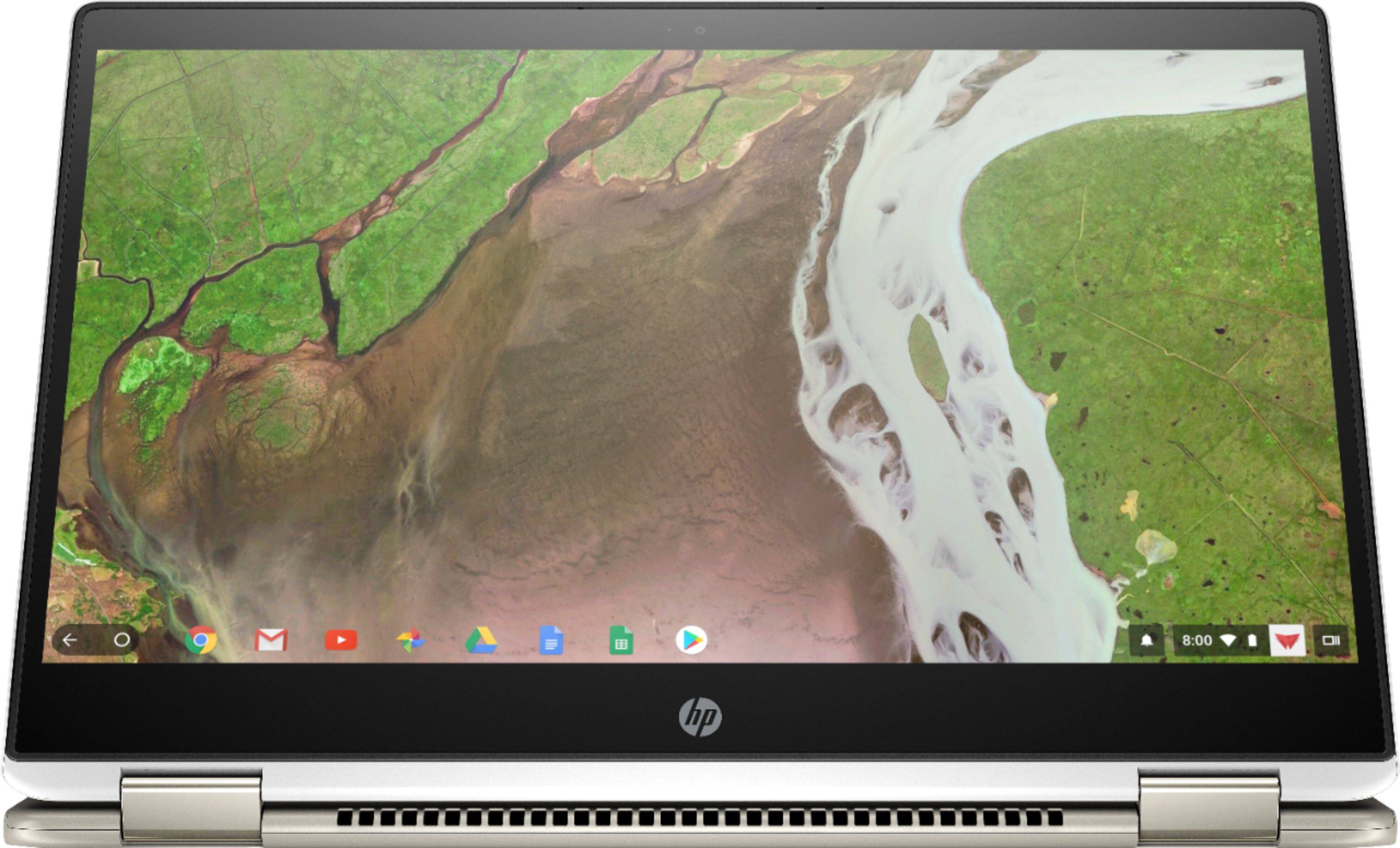
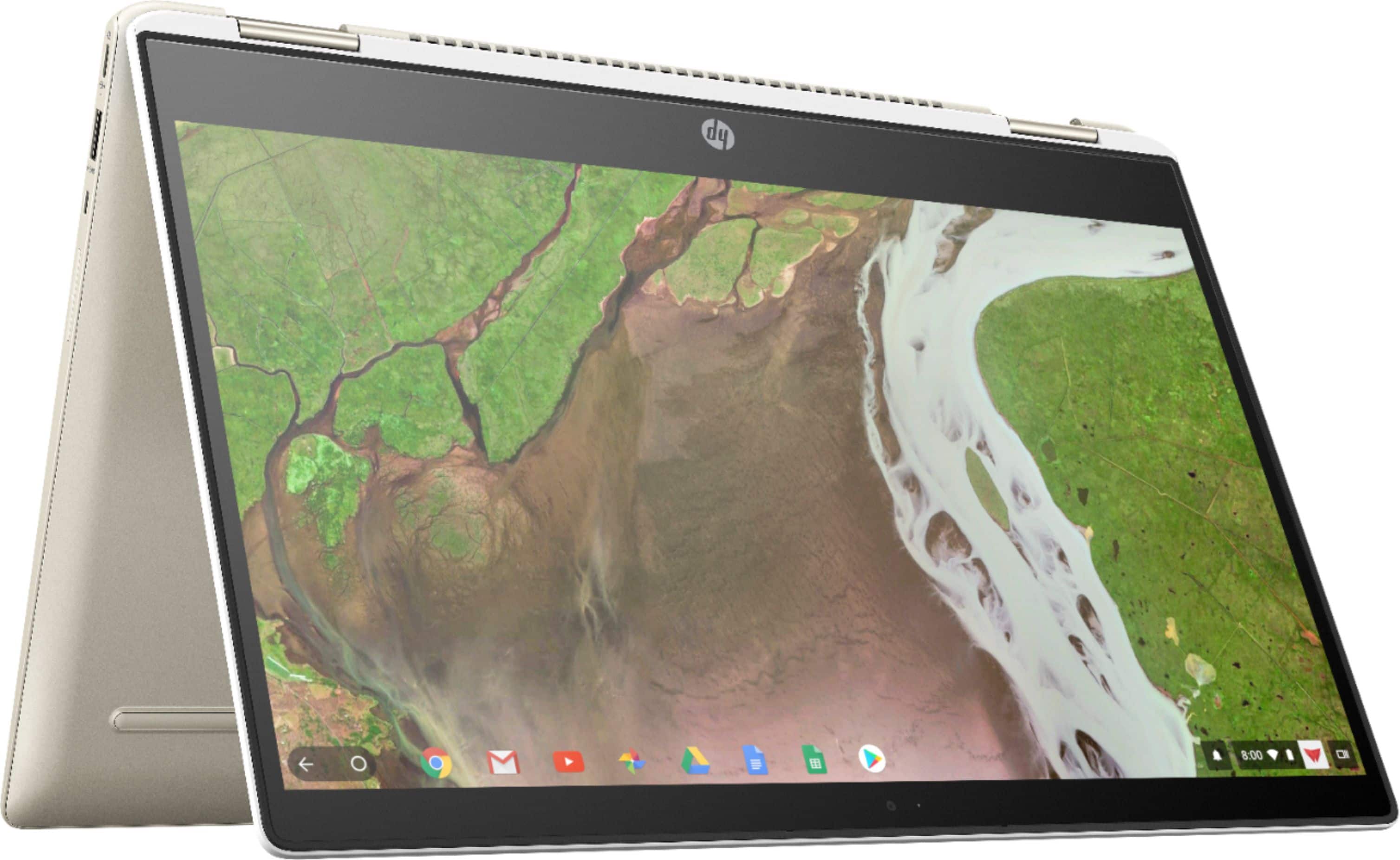
A:AnswerThis is a capacitive touch screen so most stylus will work but you can just as easily use your finger most of the time. Wacom makes very nice ones or Insignia makes nice ones that are a bit less expensive with a bigger tip.
A:AnswerIf you didn't tell me it had a fan, I wouldn't know. The machine's latest-generation Intel Core i3 processor, plus improved thermal management and metallic construction mean that the fan rarely runs at more than a whisper. I would definitely not worry about it.
A:AnswerThe HP x360 currently (Feb 2019) runs Chrome OS version 72, which does not (yet) support running apps off of the SD card. That capability is said to be in the dev channel now, at least for Android apps. With 64Gb of internal memory (52 Gb free for user to use), you've got a lot of space to install apps and extensions on this Chromebook. The SD card can house nearly all app data like email, photos, audio files, video files etc. And of course, when you buy one of these, Google gives you two years of 100Gb storage on your Google Drive.
A:AnswerZach, I totally agree. I'm sure BBY knows the situation because they do it quite often. They're only matching reviews by description; ideally, for more accuracy Best Buy should match reviews and Q&A by sku numbers.
A:AnswerLet me amend the previous answer. You can use it with a *passive* or *capacitive* stylus but NOT an active stylus (one that requires a battery).
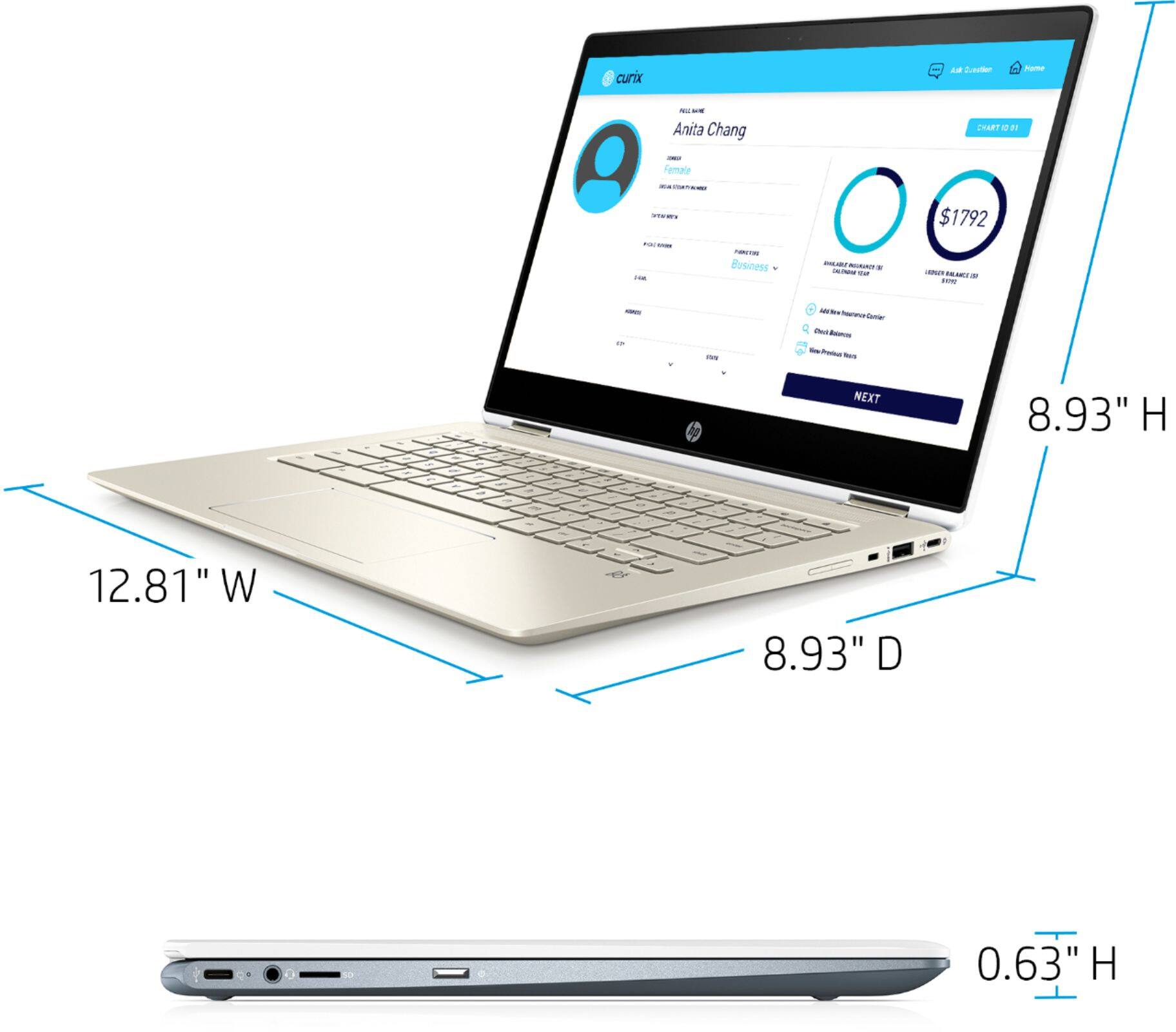
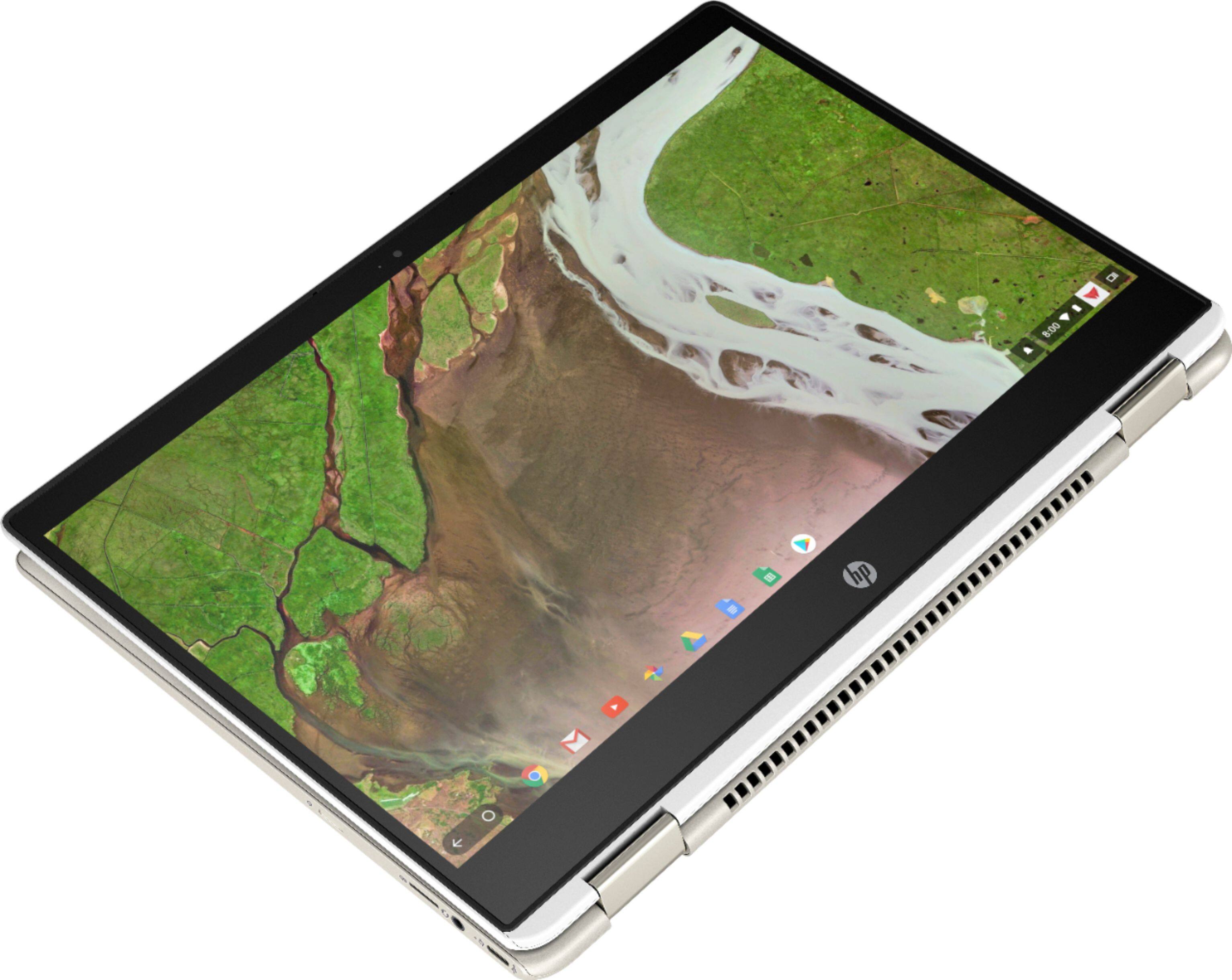
A:AnswerIt's pretty thin but a bit heavy to use in tablet mode one handed - can be done in portrait mode though. I don't have a caliper (or the laptop with me at work) to get the exact measurements but you should be able to find the specs on HP's website.
A:AnswerYes, you can install AOL - News, Mail & Video app from the Google Play Store or you can access your AOL email through the Chrome browser on this HP Chromebook.
A:AnswerGood question. The app is not in the Google Play app store. Zoom is a web app for Chromebooks (basically a web page that runs in its own window). Hop onto Chrome and head over to the Google Chrome store and search for Zoom!
A:AnswerSorry for the confusion. However, there is only one answer that has been given, before and currently ... it does NOT support a PEN. A pen is a hard-tipped type of stylus that is designed to mimic an actual pen-to-paper experience. It is compatible with certain computers including many of our x360 products, but not standard laptop form factors such as this.
This Chromebook WILL, however, support a standard rubber capacitive stylus, as has been mentioned several times. This standard rubber stylus (the same one that works on any capacitive touchscreen device, including a phone) is NOT classified as a pen.
Hope that clarifies things for you!