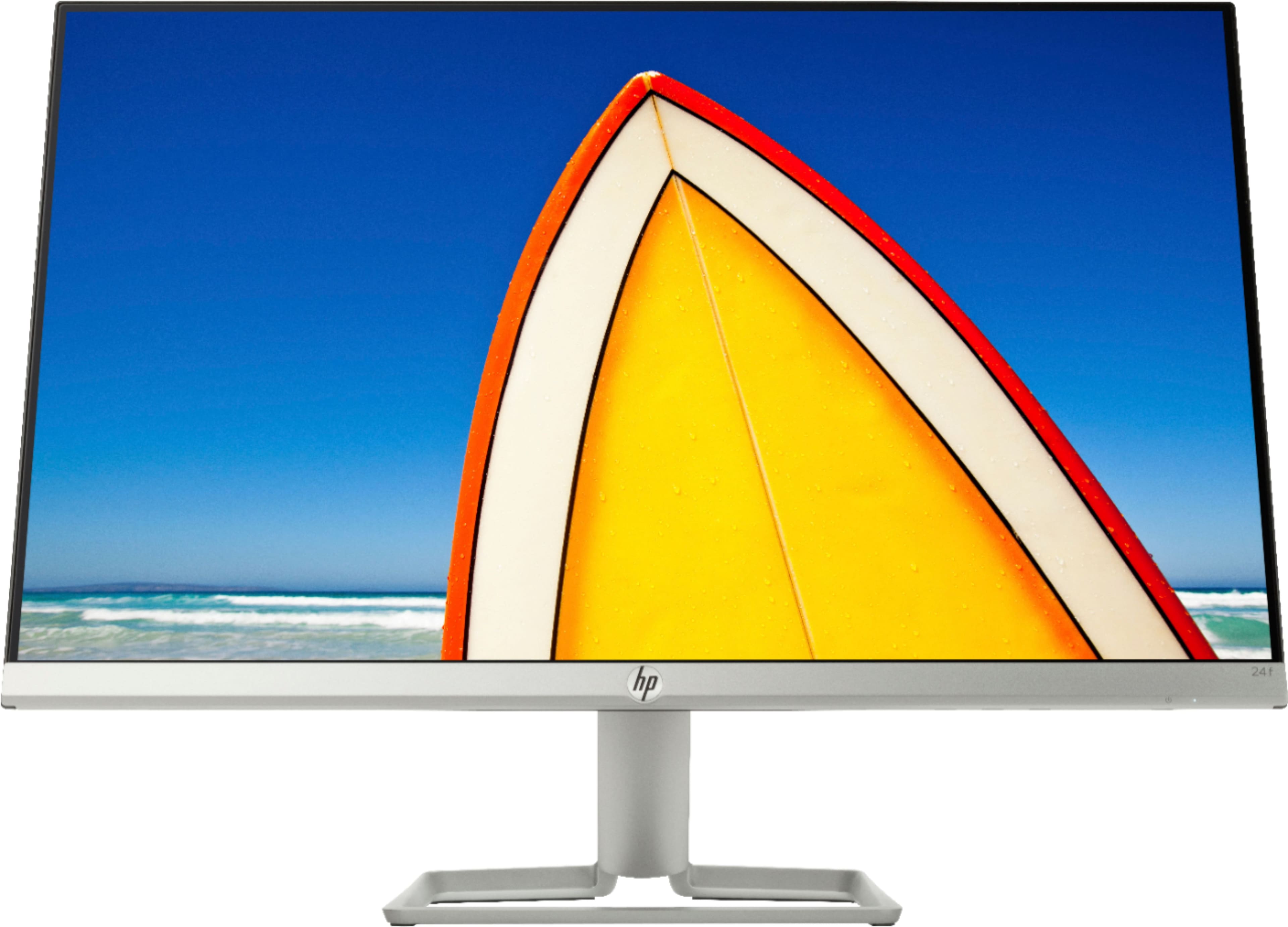
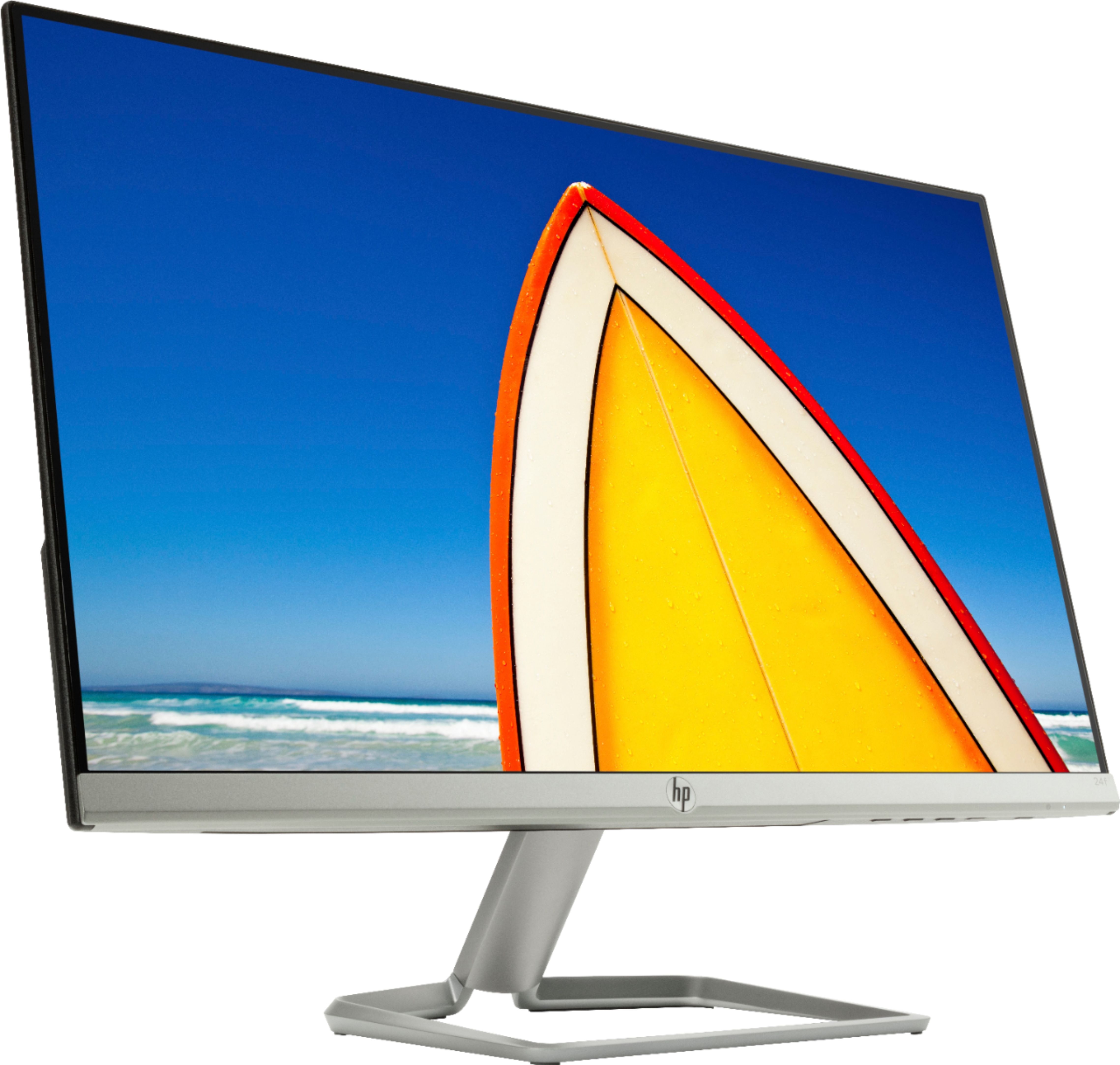
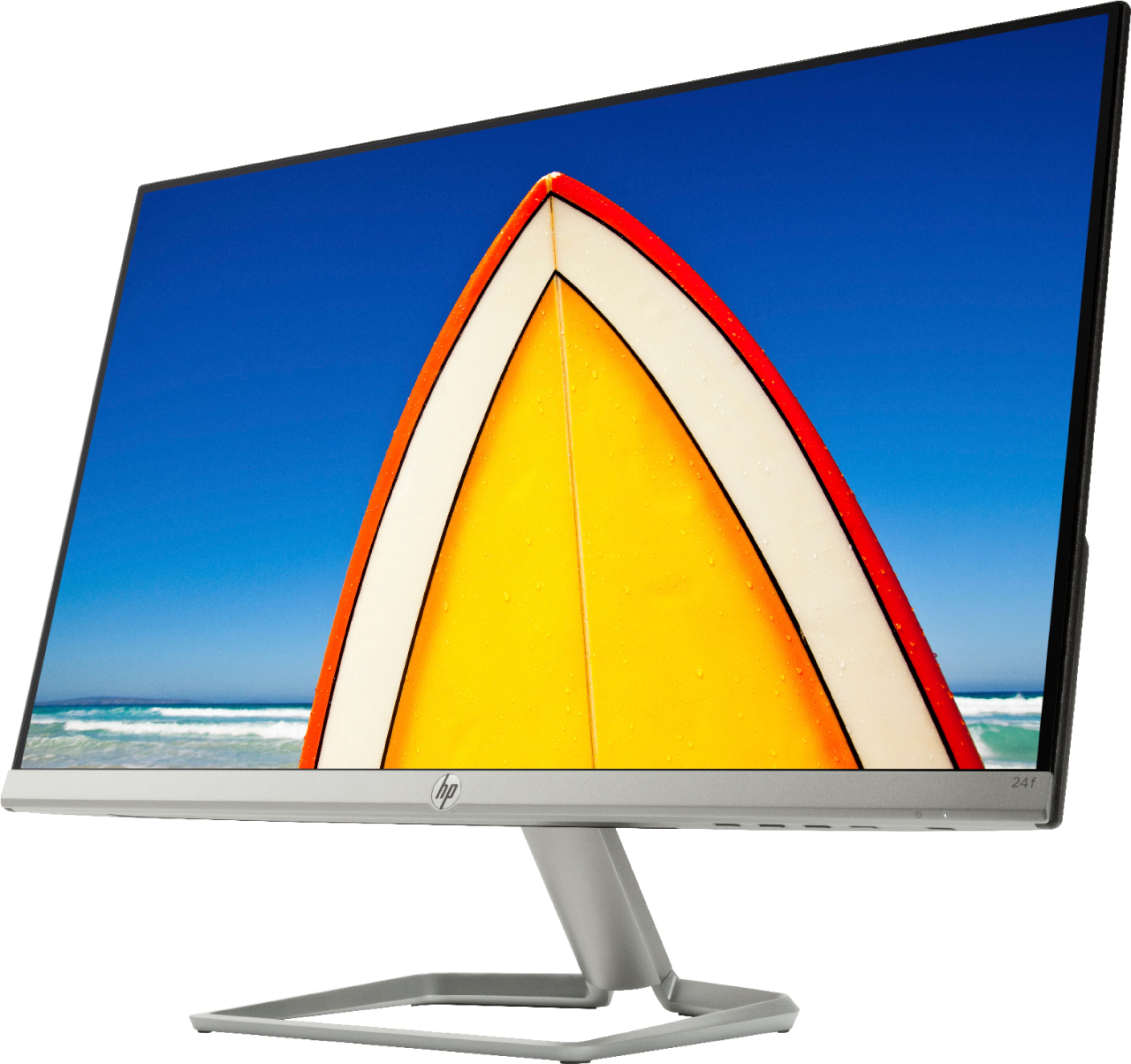
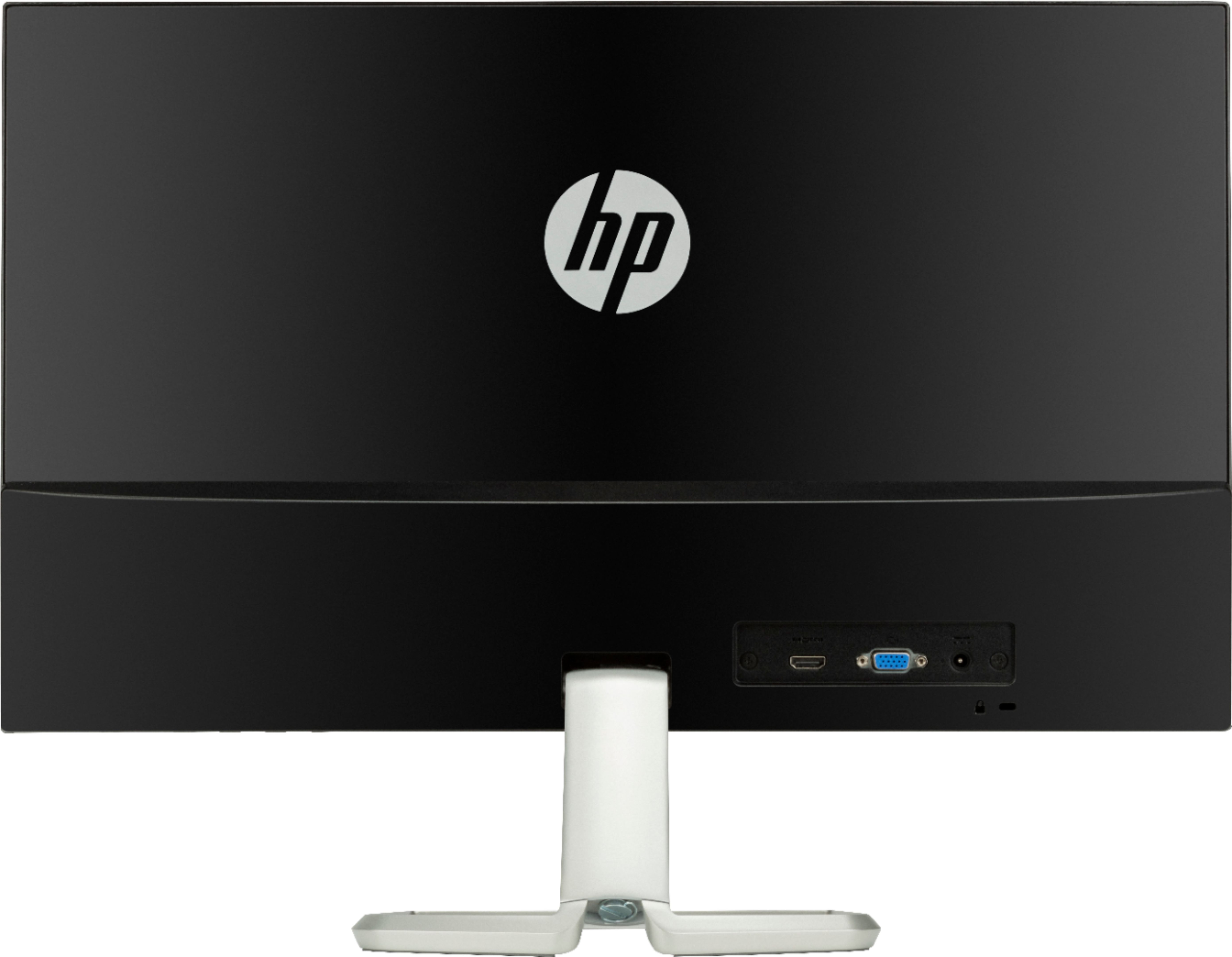
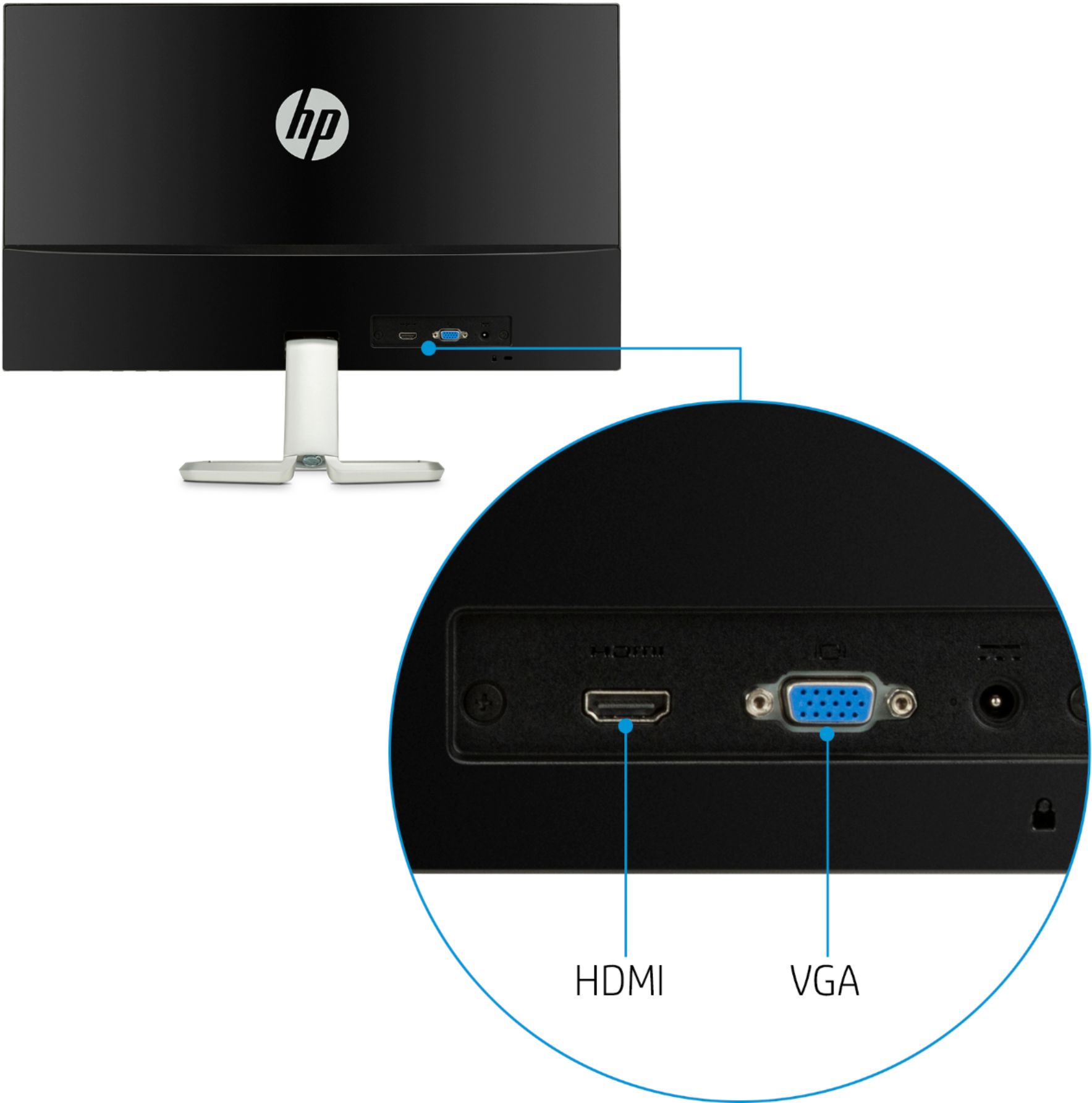
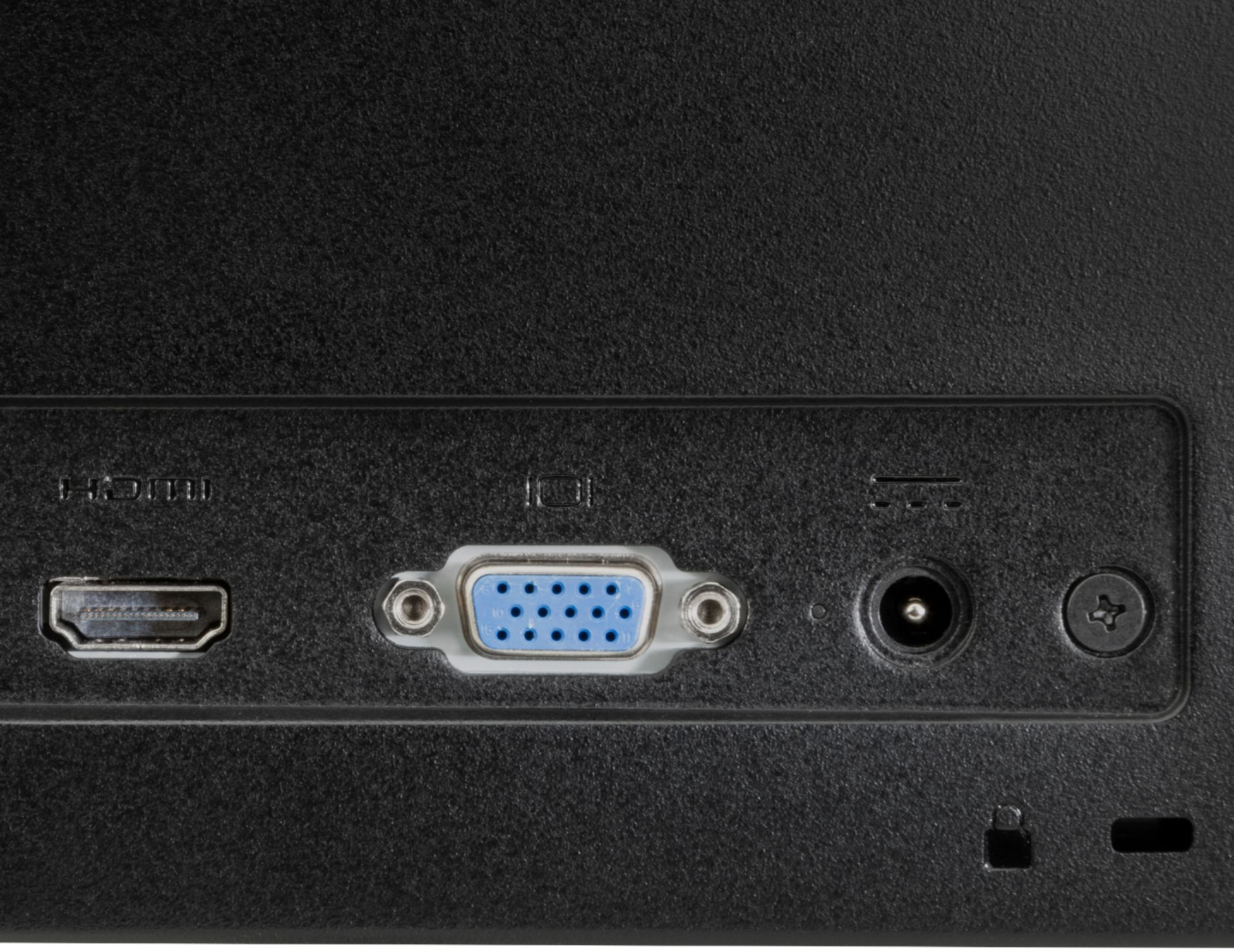
A:AnswerIt depends on what the port on the computer is. If you have a USB-C with displayport or video out, you could use a different docking station which has either VGA or HDMI. The monitor has VGA and HDMI. It comes with an HDMI cable. If your docking station has a USB-C out, you could try a USB-C to HDMI adapter.
A:AnswerWe recommend reaching out to HP Support by visiting https://support.hp.com. Or you can reach out to the Geek Squad at Best Buy for further assistance.
A:AnswerI have mine hooked thru HDMI. Based on the output of the laptop you can do 1 as HDMI and the other USB or VGA. You can also get a plug that splits into two plugs.
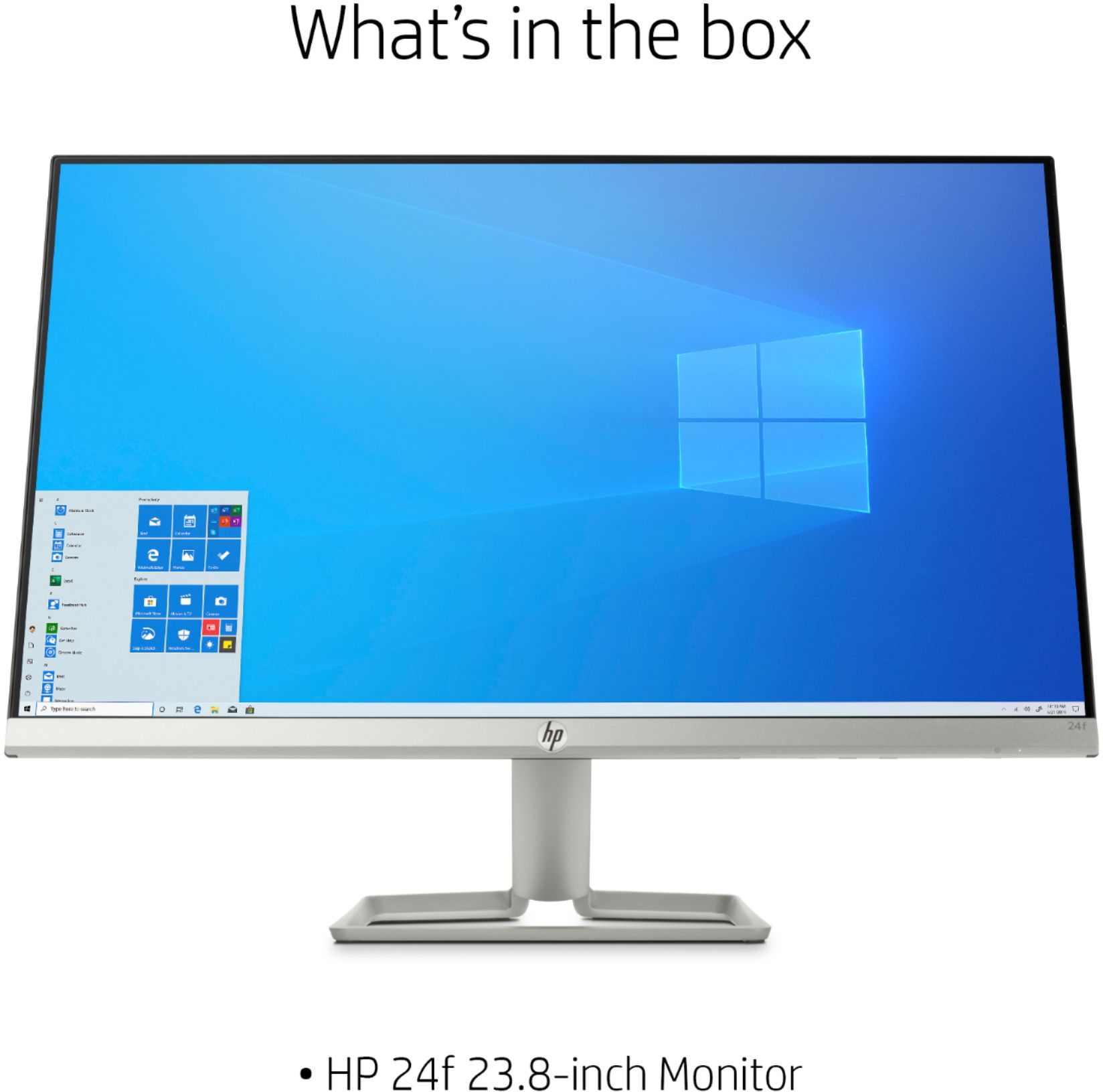
A:AnswerYou can set the monitor to a lower resolution. However, LED-LCD panels really don't like to be driven at anything less than their "native" resolution (which, for this monitor is 1920x1080). You'll almost certainly find that graphics and text will by slightly fuzzy on screen.
A:AnswerThe configuration of the EliteBook range has varied over time, but if yours has either a VGA or HDMI output, you'll be able to connect it directly. If it doesn't, you'll need an adapter to go from the monitor cable to the computer
A:AnswerYes it does, although not wirelessly. I'm using an $18 USB-C to HDMI cable to connect my HP Spectre x360 to the monitor (the matching finish between the laptop and monitor is a nice plus). You could also just get a USB-C to HDMI adapter to use with the HDMI cable that comes with the monitor.
A:AnswerTypically the standard calibration setting built into the monitor's firmware will give very good results for the majority of users. If you've got a specialized use (like graphics design) you may need to make some adjustments.
A:Answerit has an HDMI and a VGA, no display port. you can get a display port to VGA converter for sure, I would assume someone makes a display port to HDMI though too.