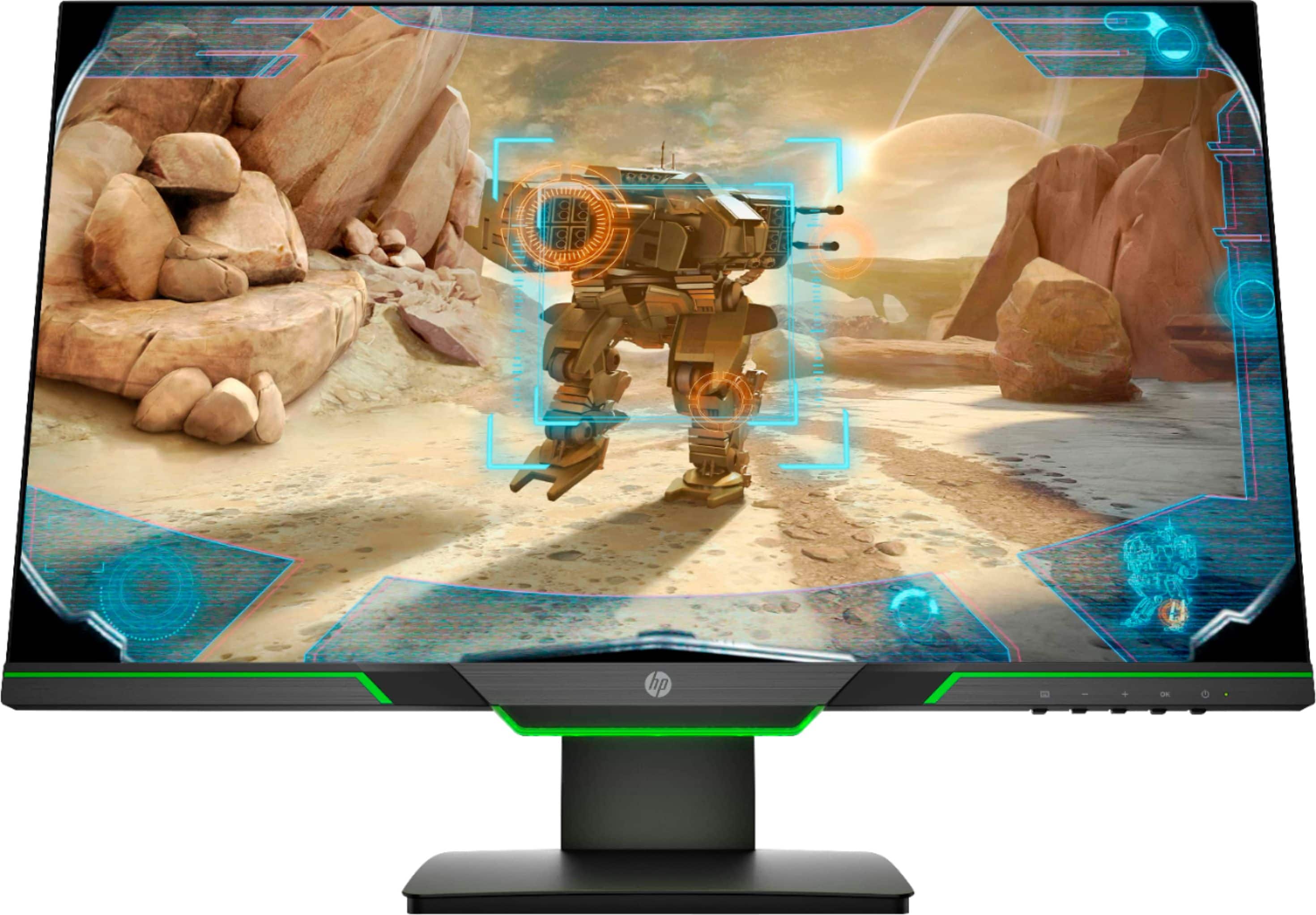
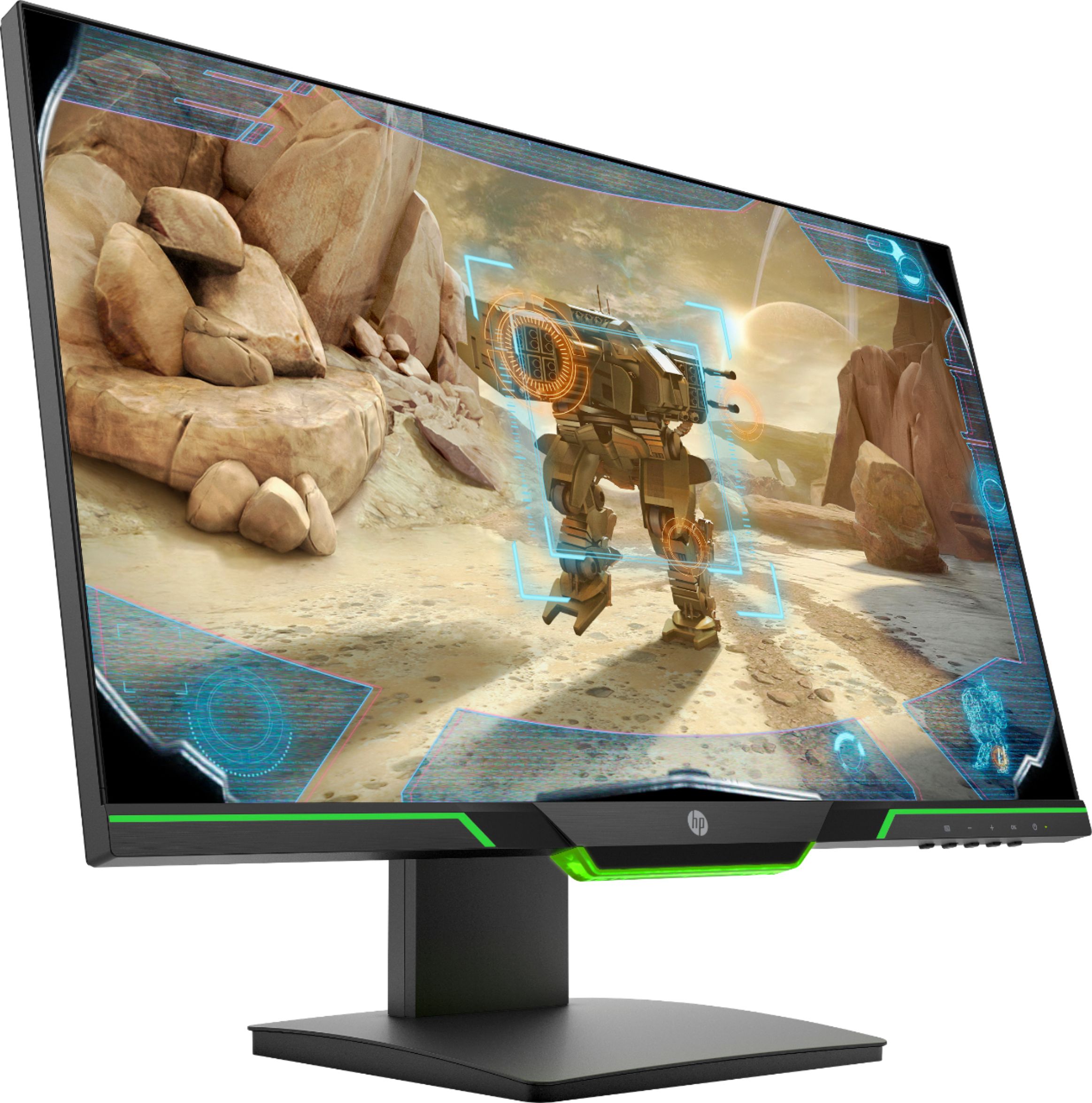
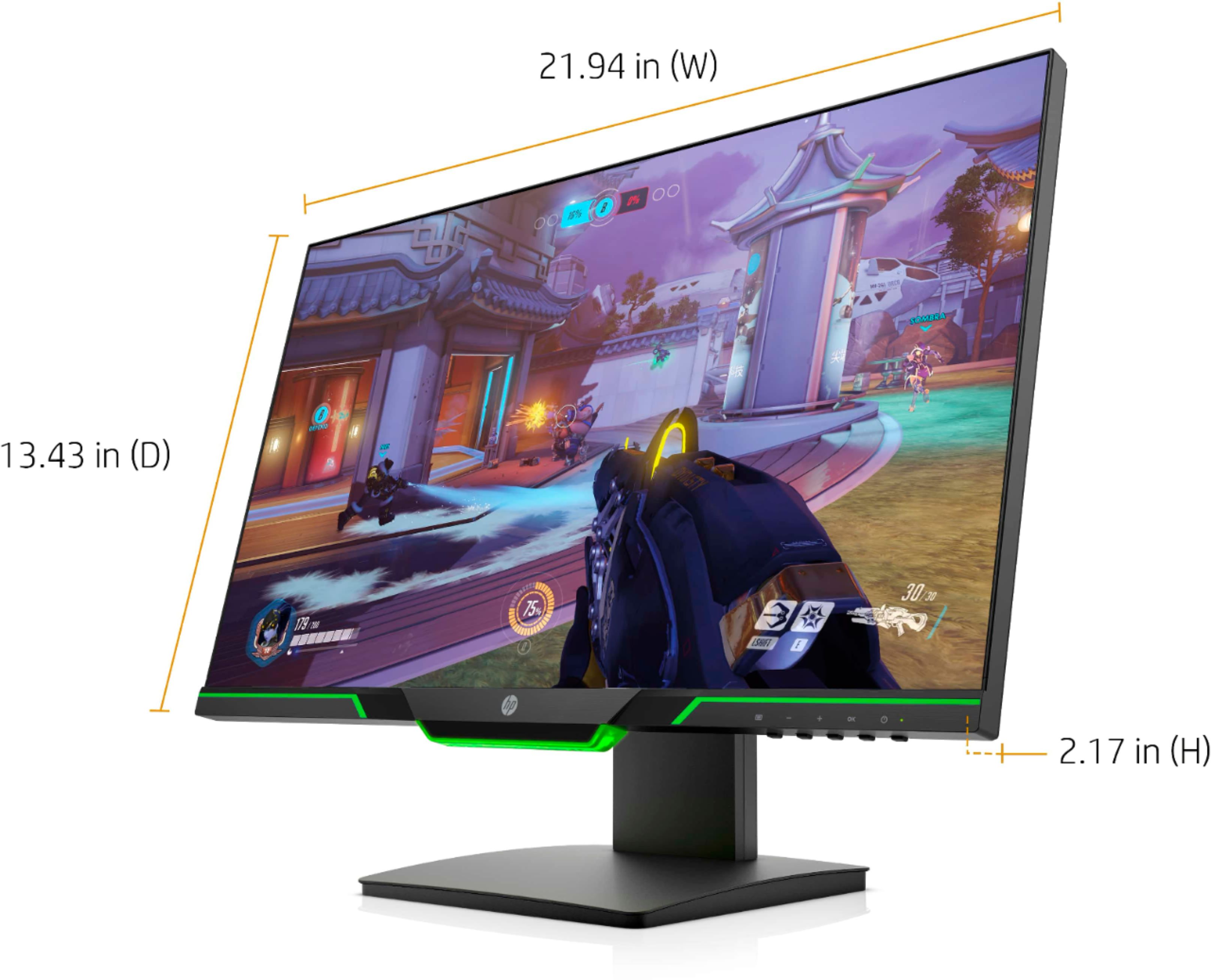
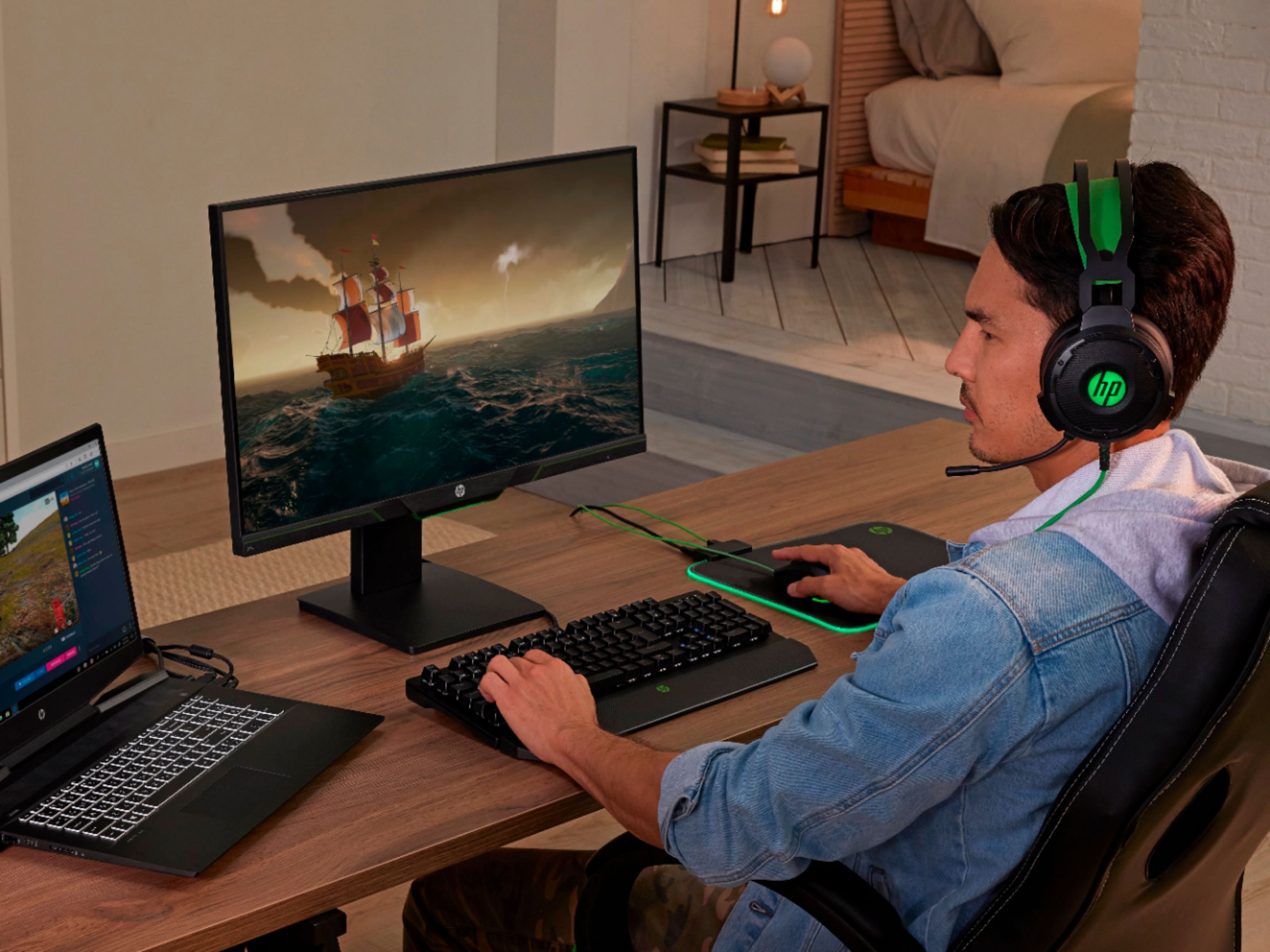
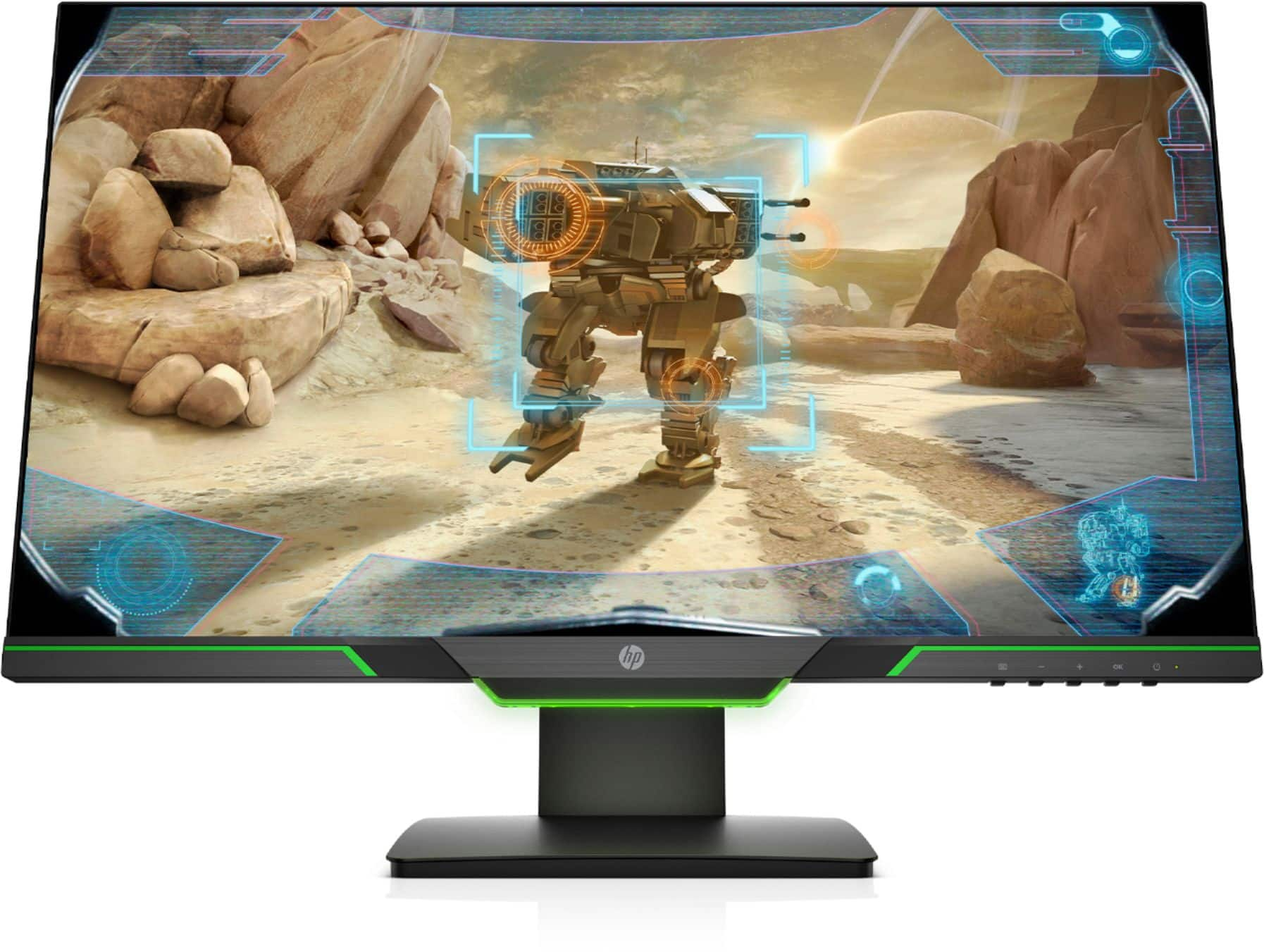
A:AnswerThe lighting is only along the bottom center strip, the Green you're seeing go out along the sides is merely accenting trim. It would have been nice to see either just the single bit being green instead of all along the bottom or just extend it but that just doesn't happen to be the case here.
It's still quite bright and doesn't really seem invasive. You can adjust the lighting option in the OSD though from either Off, On or Breathing.
A:AnswerI hooked this monitor to my video card hdmi output, as the xbox is basically a gaming pc, it will work. Much better resolution than the original monitor.
A:AnswerXbox one x will only recognize monitors that are 120hz. this monitor has to be connected to a computer and set to 1080p 120hz. Once this is done, you can reconnect it to the xbox and it should allow you select 120hz. You can not select 120hz and variable refresh rates as far as I am aware. You can either pick 120hz or variable refresh rate
A:AnswerIn the options for the monitor, go to power settings I believe and inside there it should say ambient lighting. You can select on, pulse, or off I believe.
A:AnswerThis message usually displays when your computer is entering sleep mode. Here is a troubleshooting link for this message:
https://support.hp.com/us-en/document/c00061509