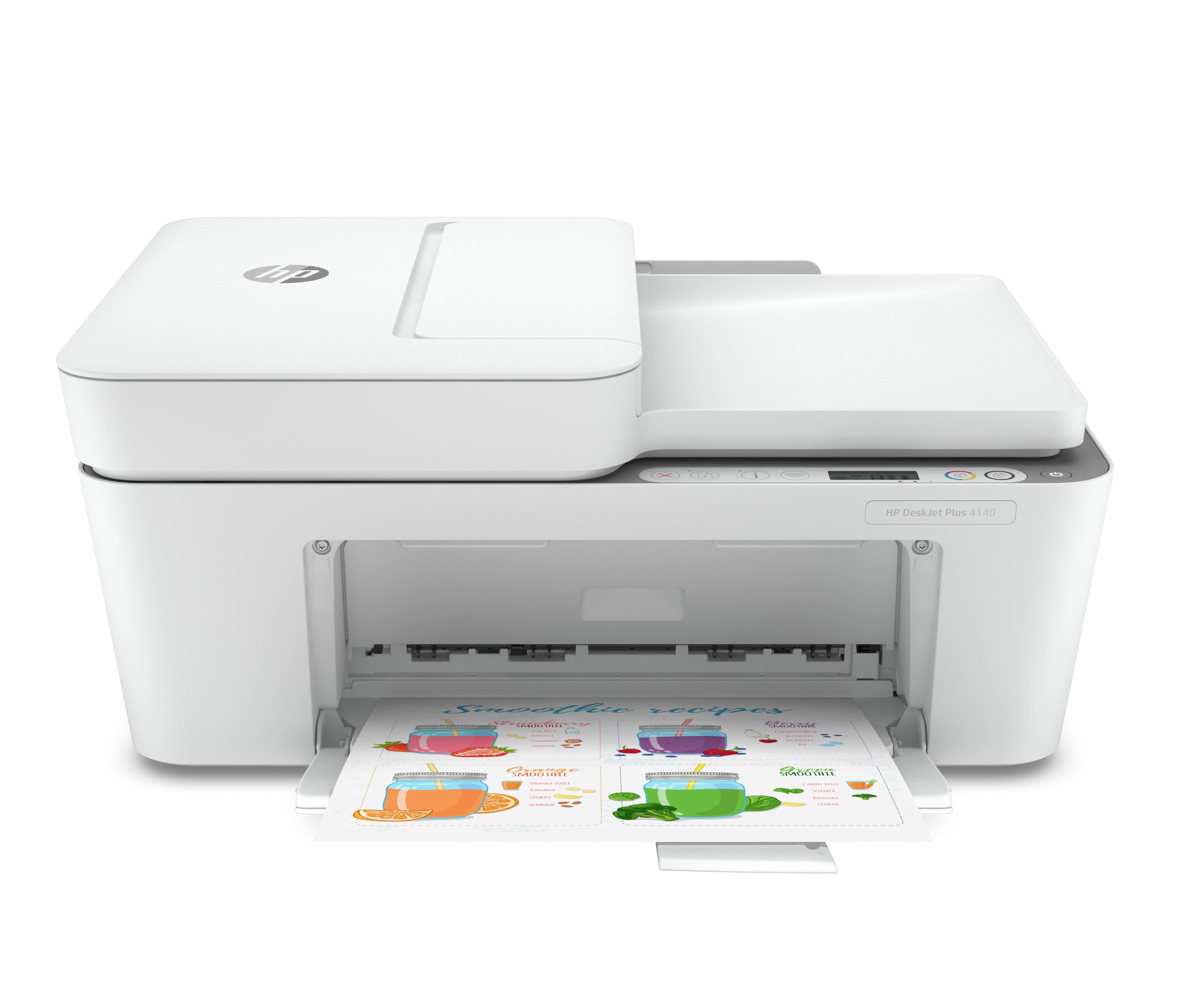
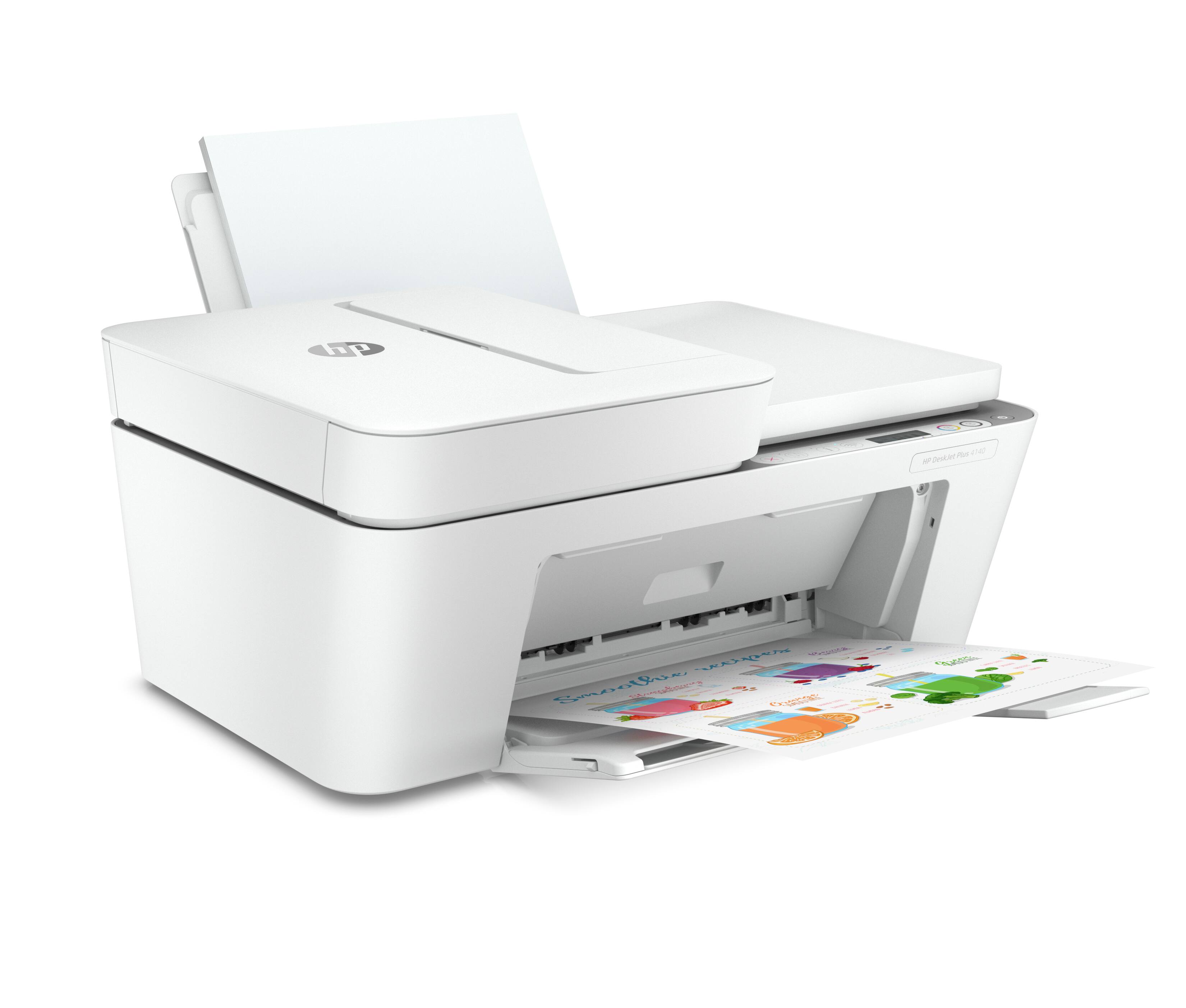
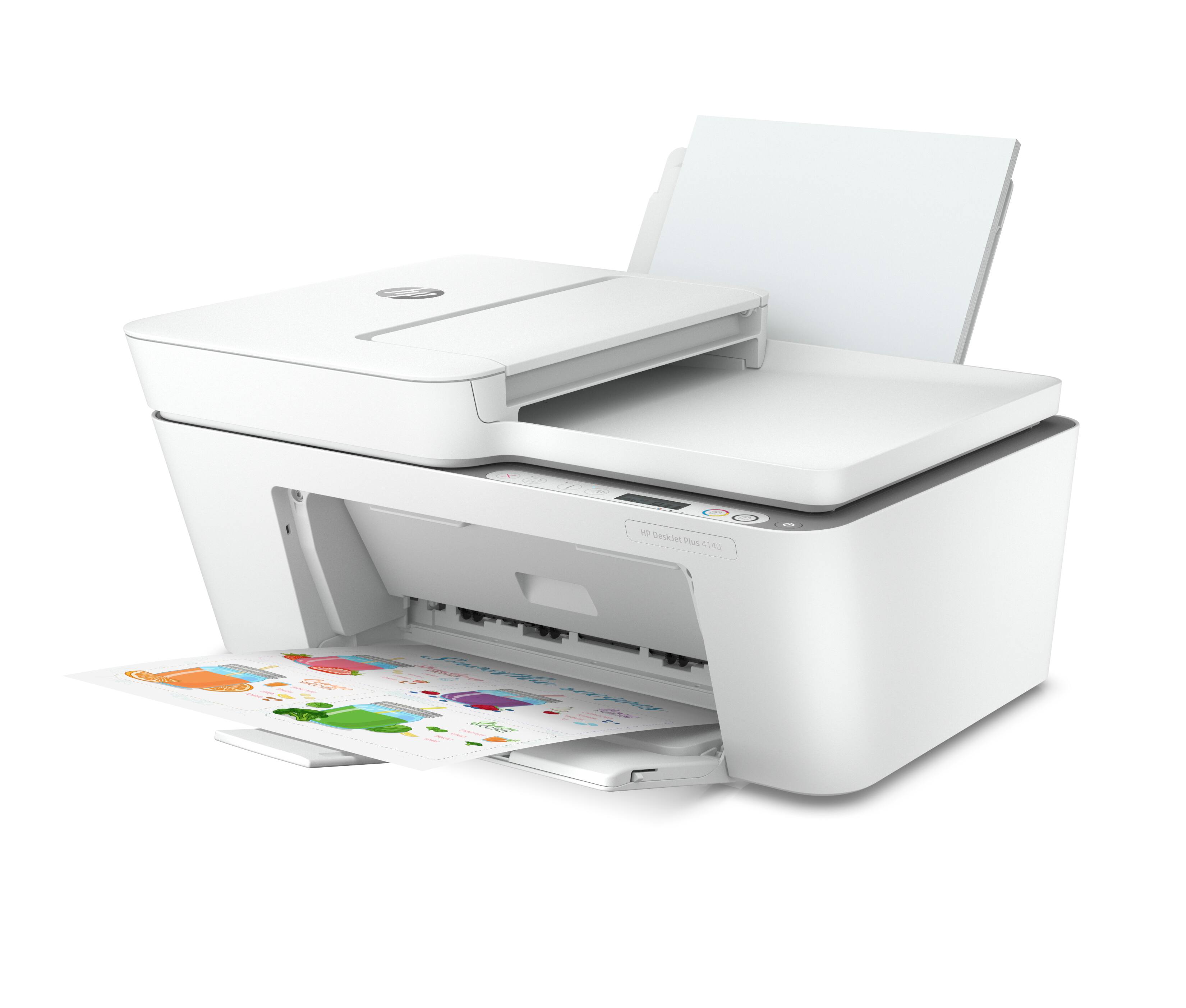
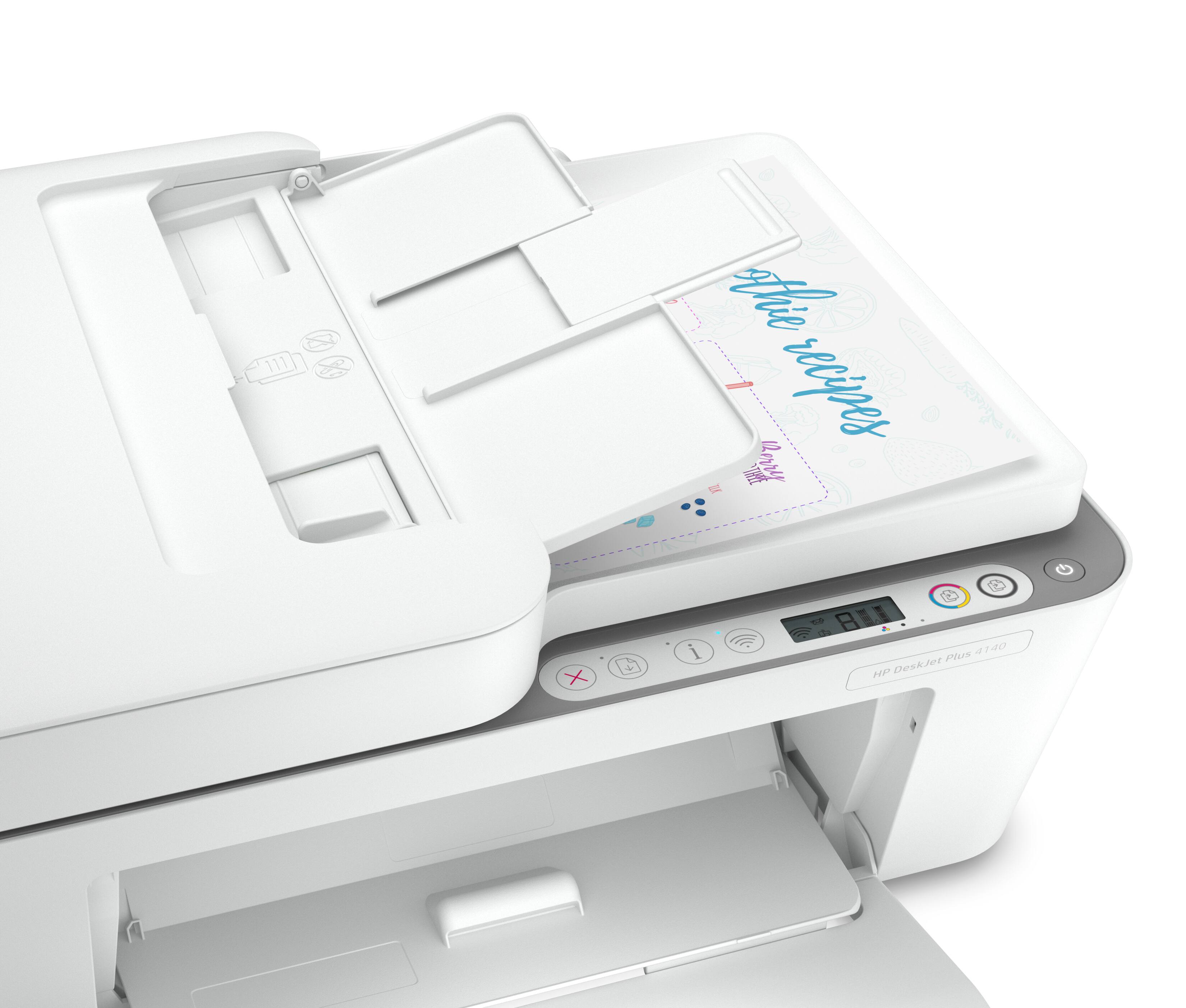
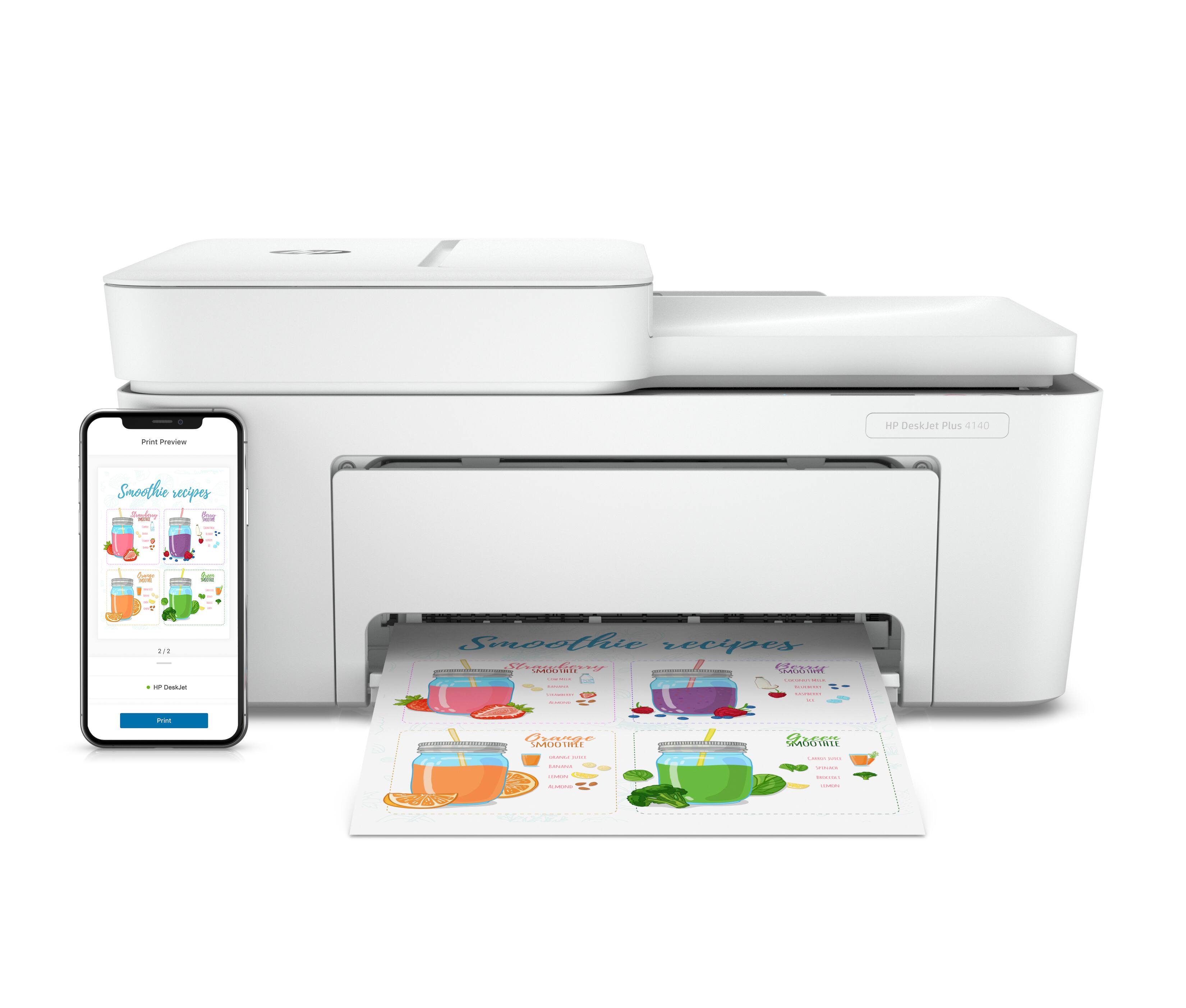
A:AnswerHi Hark, thank you for asking. The answer depends on your operating system. The DeskJet 4140 is compatible with Windows 7, 10, and 11. You can also use the printer with your smartphone using the HP Smart App.
A:AnswerYes, you can sign up for Instant Ink when you set up the printer. It will ask if you want to. Tell it yes, and put in your billing and shipping information to start the program.
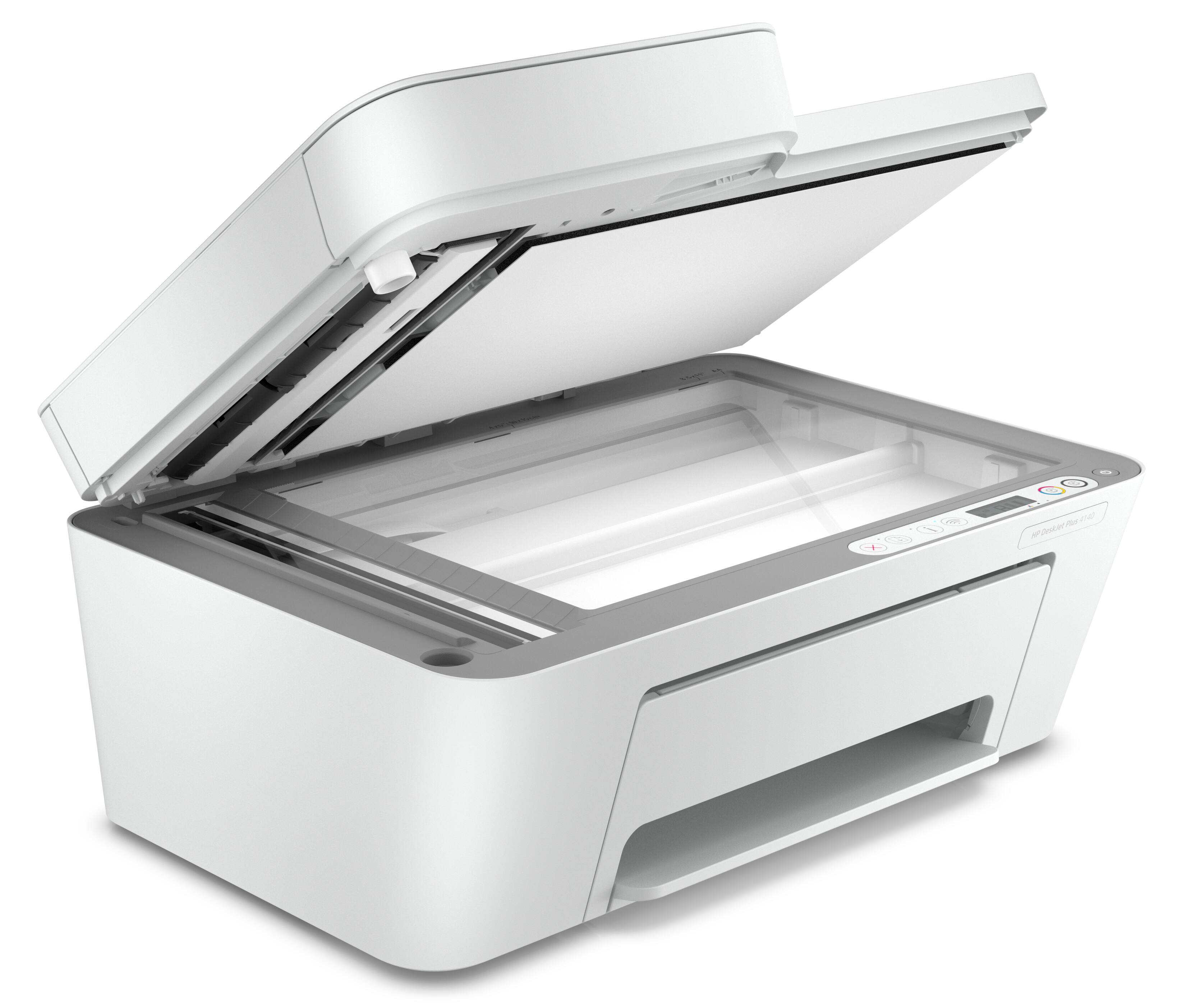
A:AnswerHello. Thanks for your question. Yes, you can scan from the printer and share it via email. You can also choose to save the scanned item on your device. We recommend using the HP Smart app.
A:AnswerThank you for your question, CeCe! This printer does not have a user-USB port for flash / thumb drives. I recommend checking out the OfficeJet Pro 8035e, which has this feature. You can find it here: https://www.bestbuy.com/site/hp-officejet-pro-8035e-wireless-all-in-one-inkjet-printer-with-up-to-12-months-of-instant-ink-included-with-hp-basalt/6450668.p?skuId=6450668
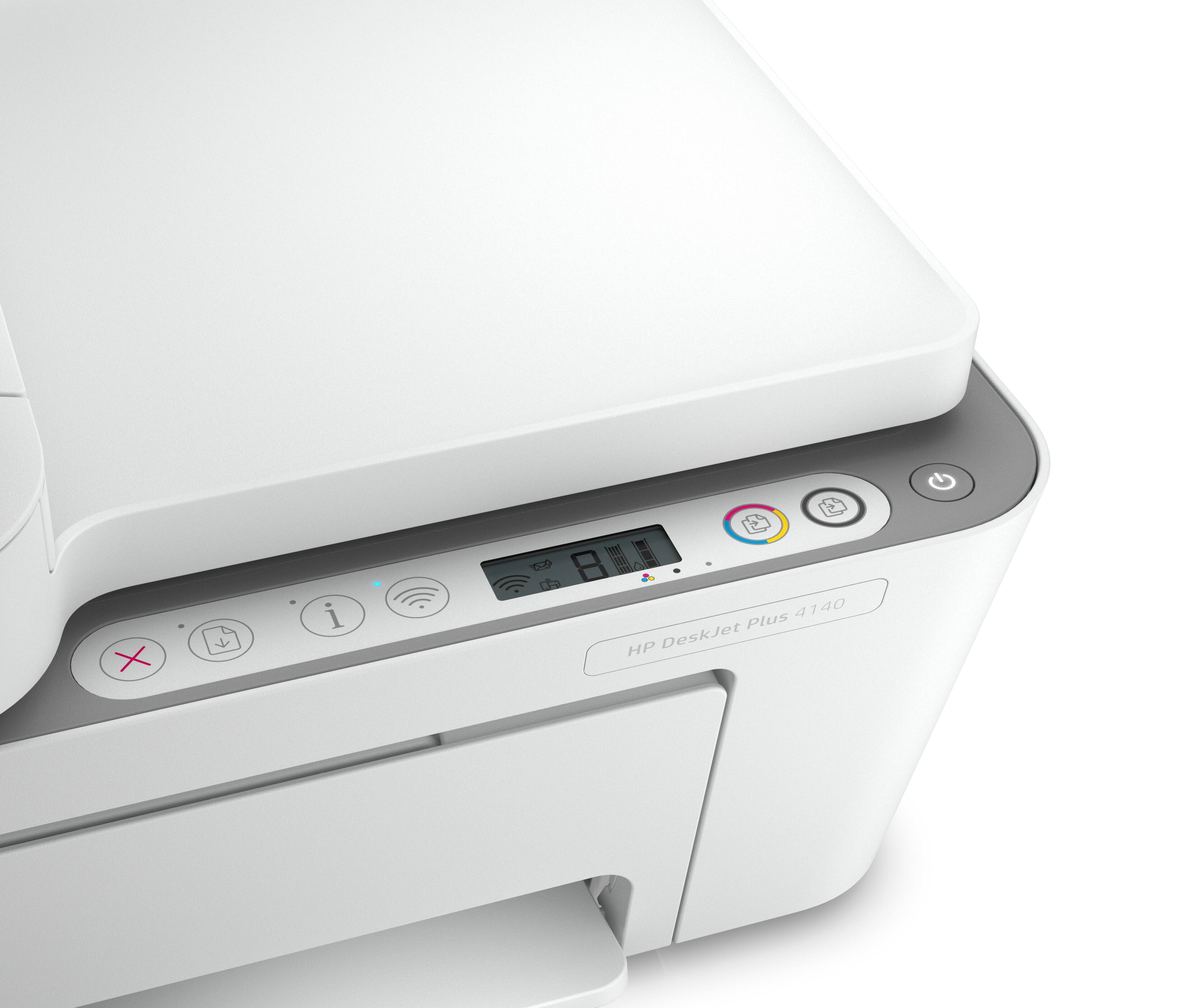
A:AnswerHi Sam, thanks for the question. You can check ink levels using the HP Smart App on your Smartphone or PC. If you are using the printer software, you can open the program on your PC and check ink levels, too.
A:AnswerIt looks like the oldest OS that's supported is 10.14. If you don't already know it won't, you might want to check to see if it can be upgraded to 10.14.
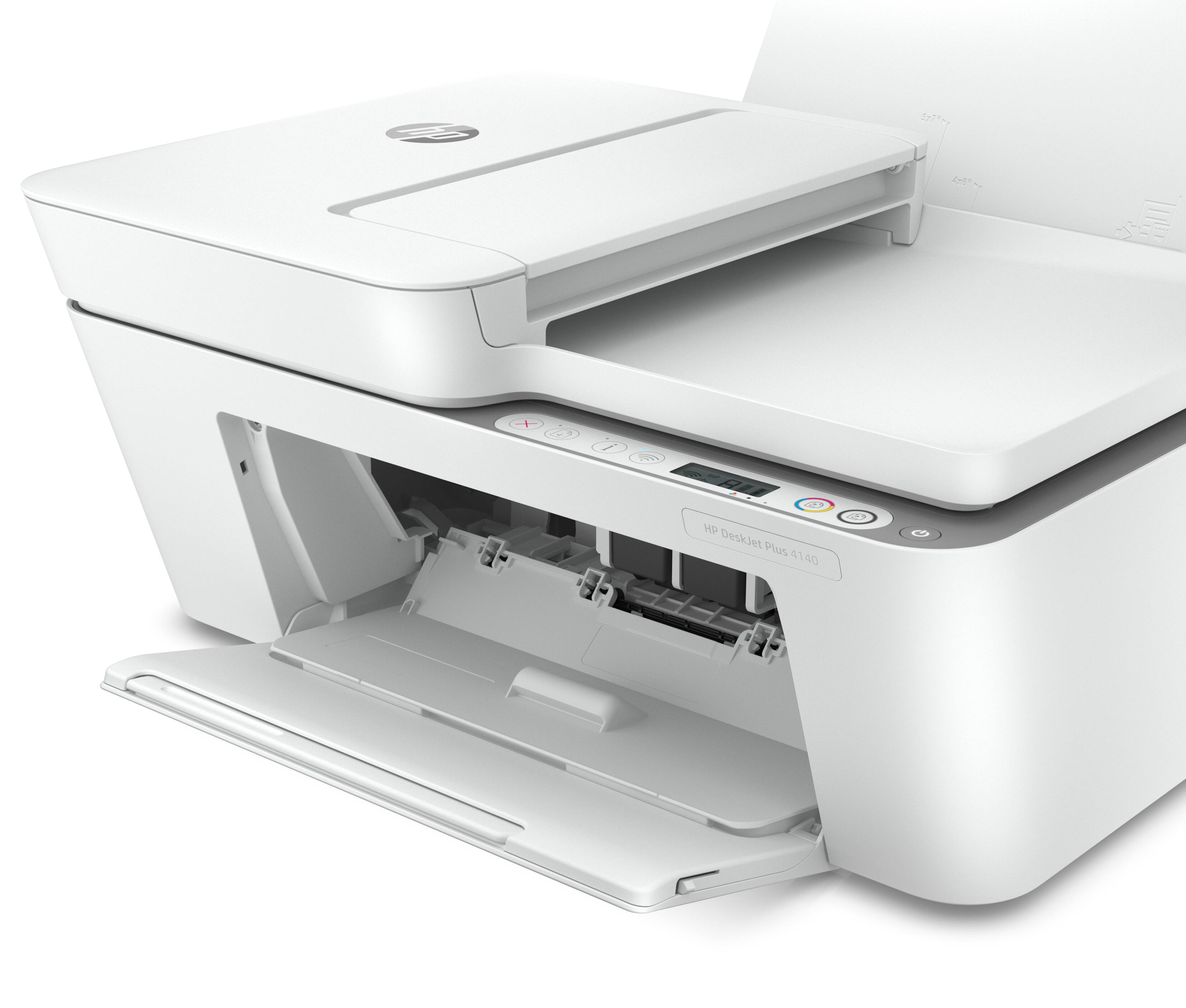
A:AnswerThank you for the question. Yes, if the color cartridge is empty, simply remove it to invoke single-cartridge mode to print in black. Note that the Instant Ink service ensures that you will not run out of ink. Learn more here: https://instantink.hpconnected.com/us/en/l/