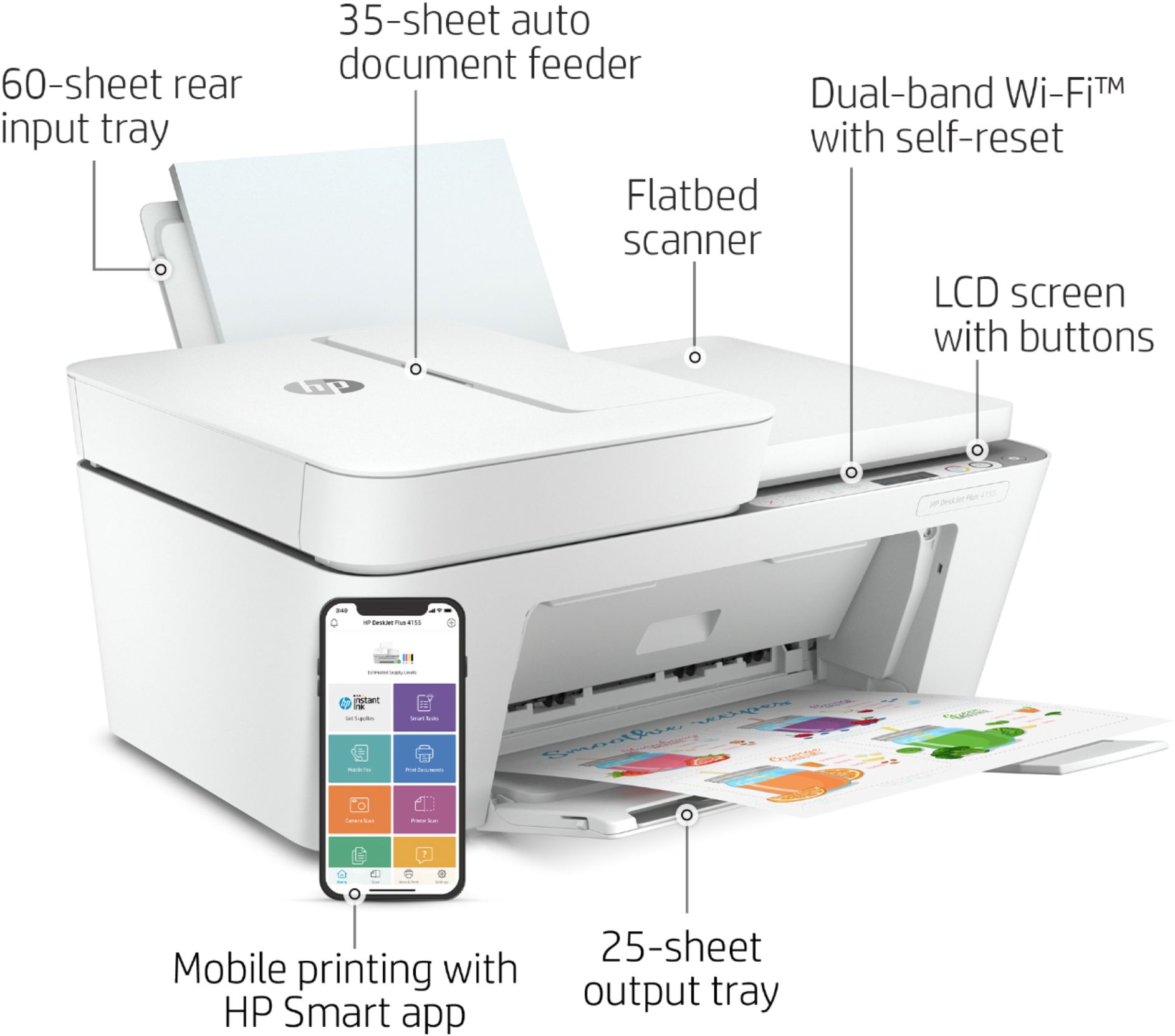
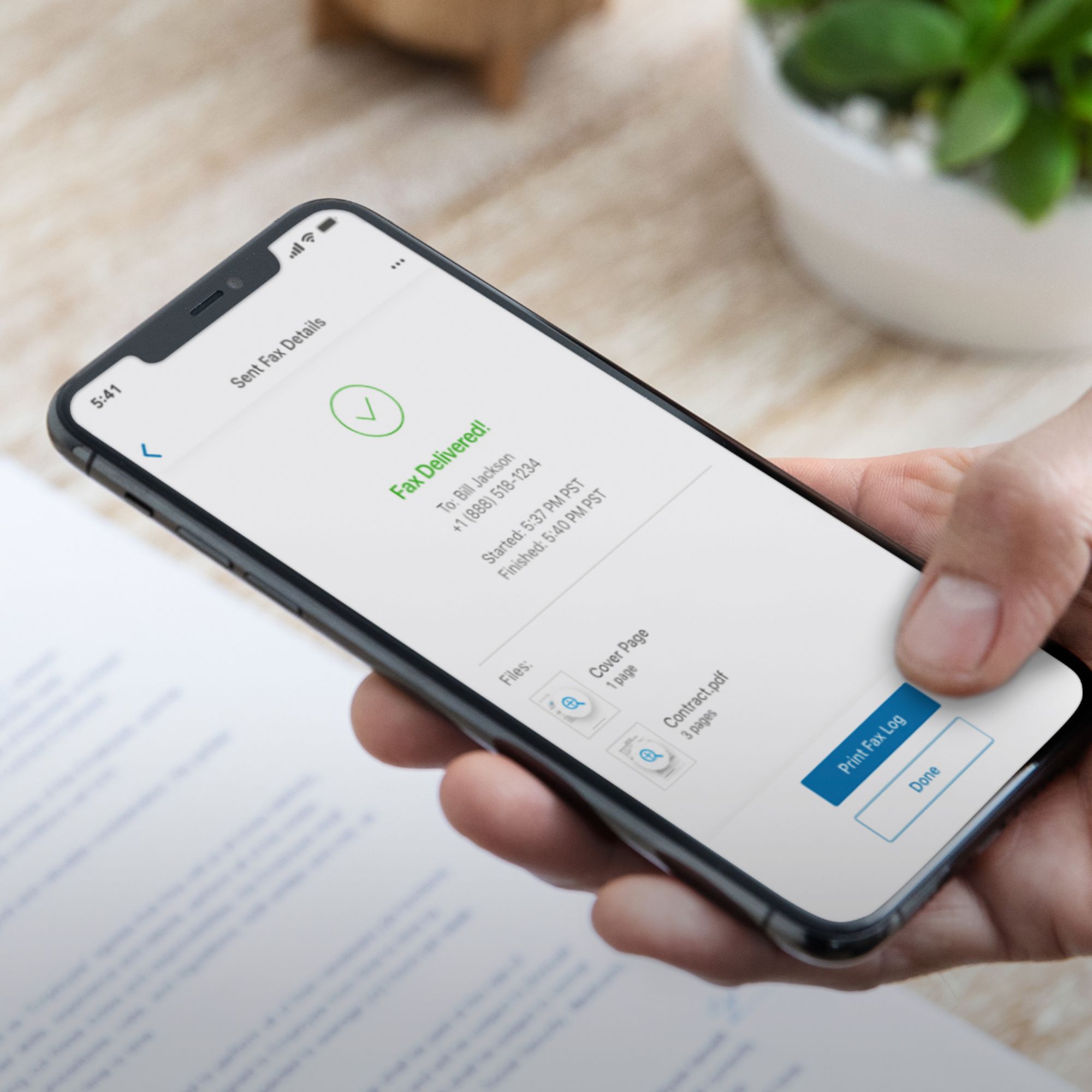
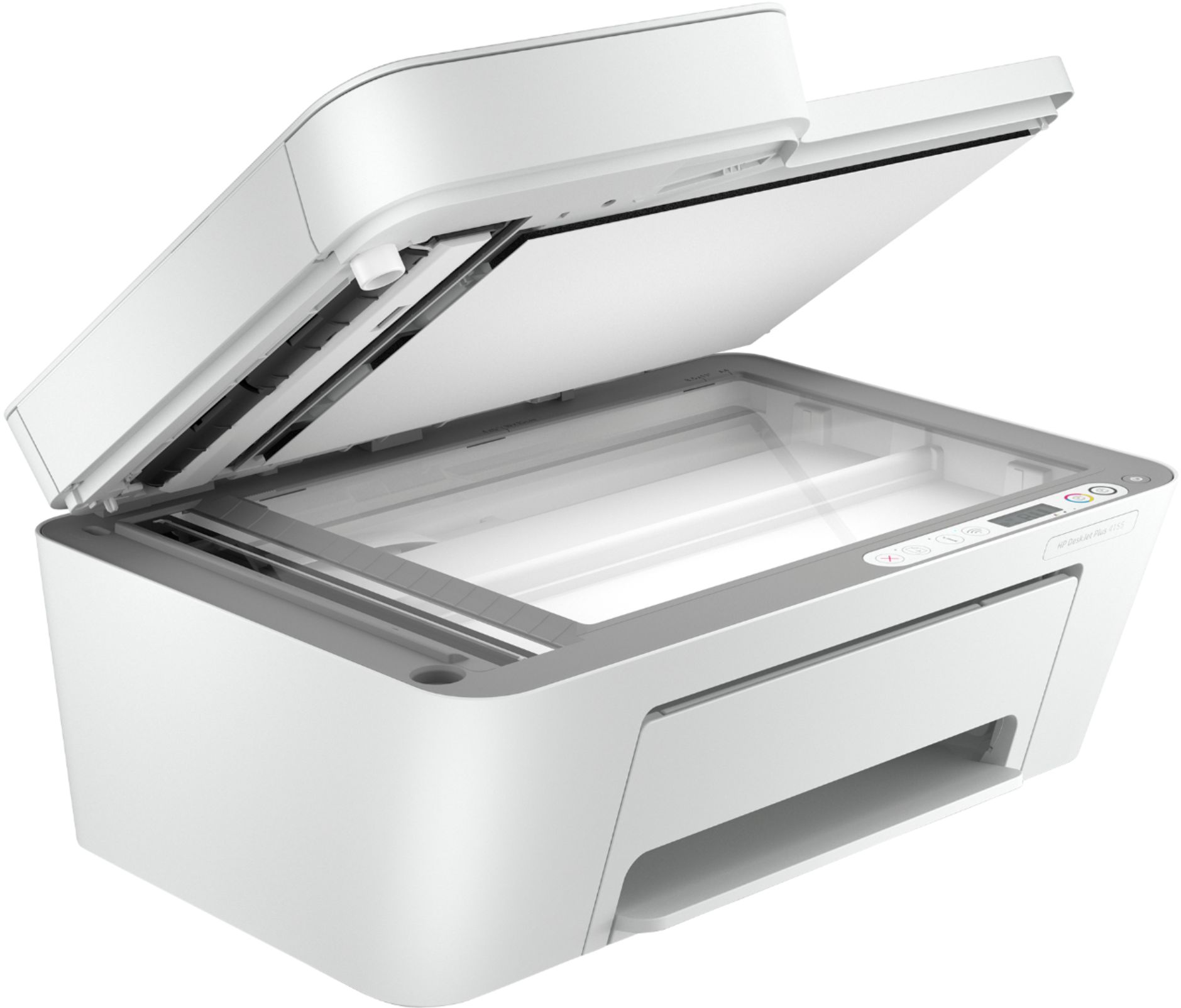
A:AnswerThank you for the question. You can't scan to email from the printer, but you can scan to email using the HP Smart App. You can automate that task so that it is just a click away each time. Here are more details on using Smart Tasks on the HP Smart app: https://support.hp.com/us-en/document/c06211157
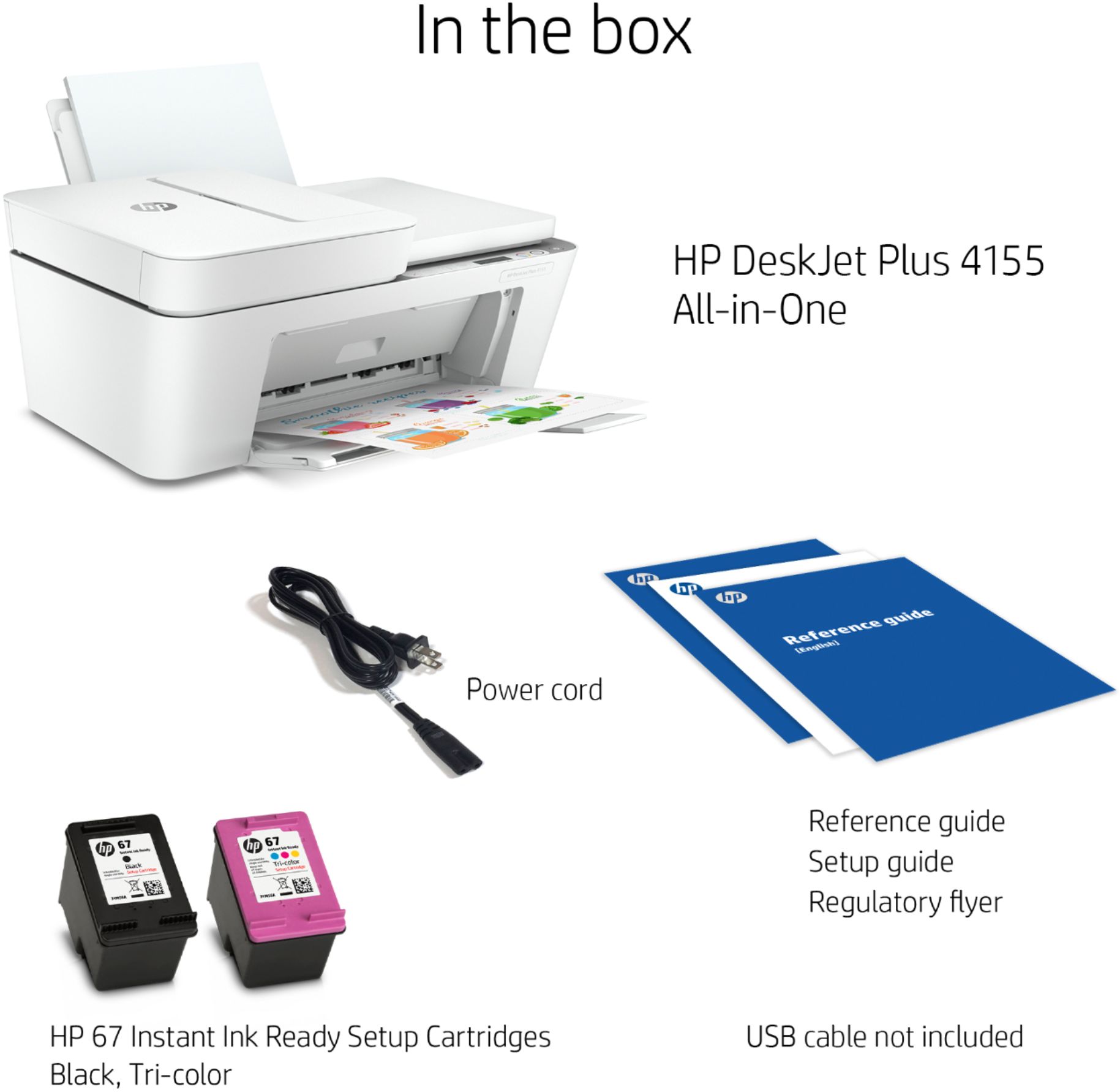
A:AnswerThank you for the question. Yes, there is a USB-B port on the rear for direct connection to your computer. You'll need a USB-A to USB-B cable, not included with the printer.
A:AnswerIt is advisable to run the latest operating system patches for security purposes. I would recommend back up in your computer, use time machine for example, then upgrade to their latest MacOS.
Monterey has drivers for this printer, we’ll find it easy to add. I posted something a moment ago which instructs on how to add the printer to your network, this can easily be done with a head of the phone and the proper application. I was using 12.4 which worked flawlessly.
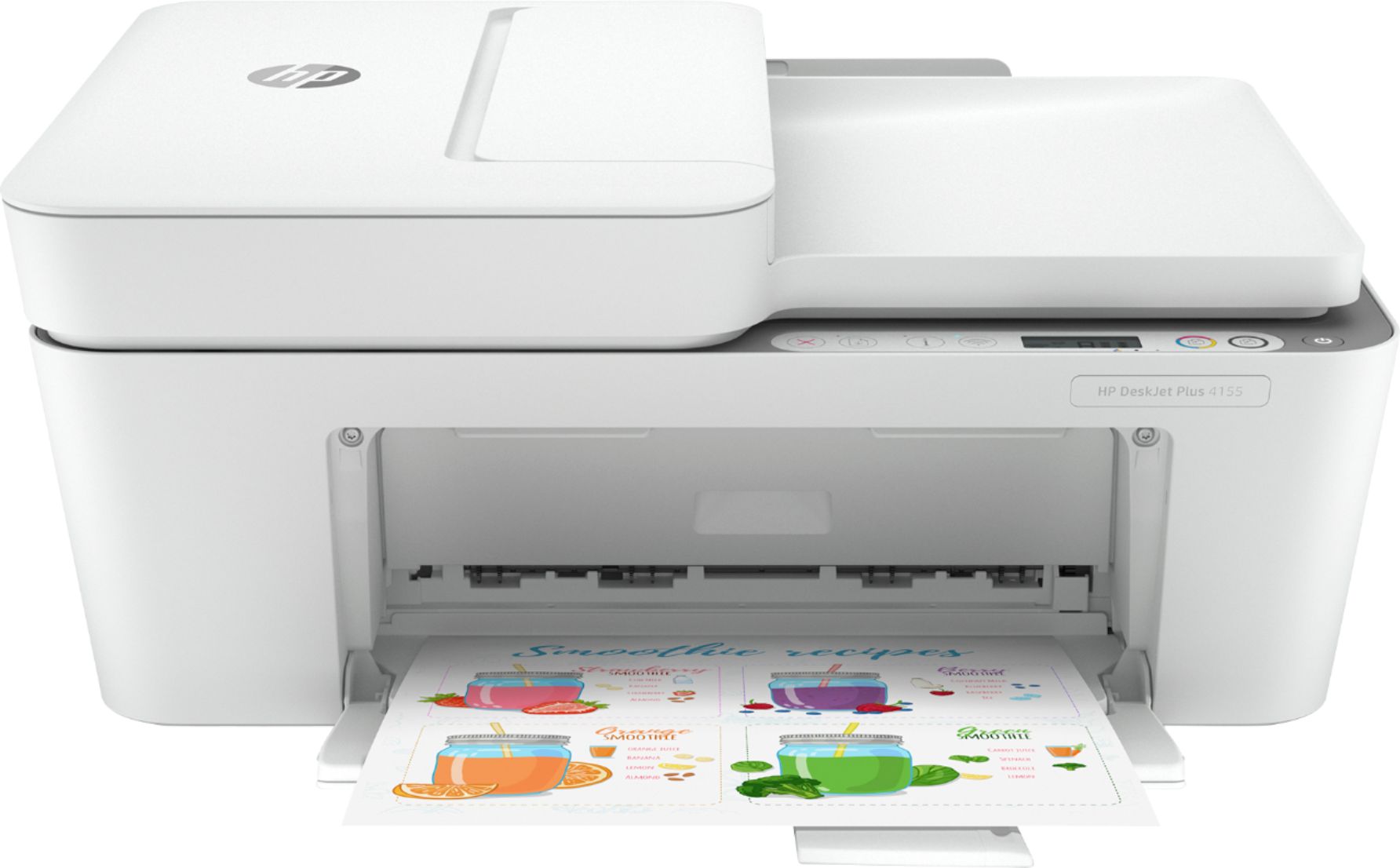
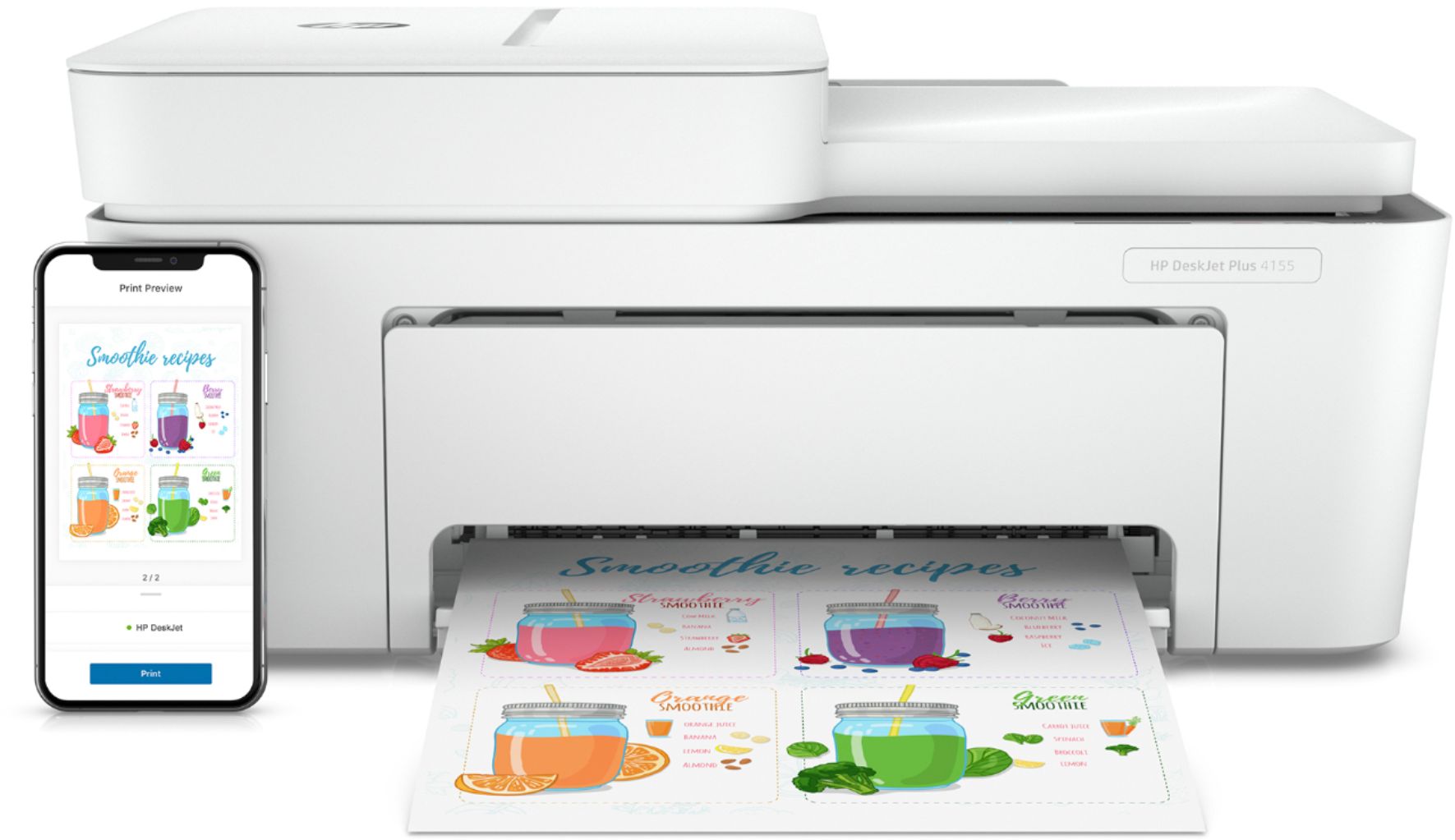
A:AnswerI have an iPhone 12 and have the HP smart app which allows you to do everything from your phone. I’d assume with a Wifi connection and the app it would work.
A:AnswerYou can print to this DeskJet 4155e printer without the need for a computer by using the HP Smart App from your mobile device. You can also use this app for scanning on this printer as well.