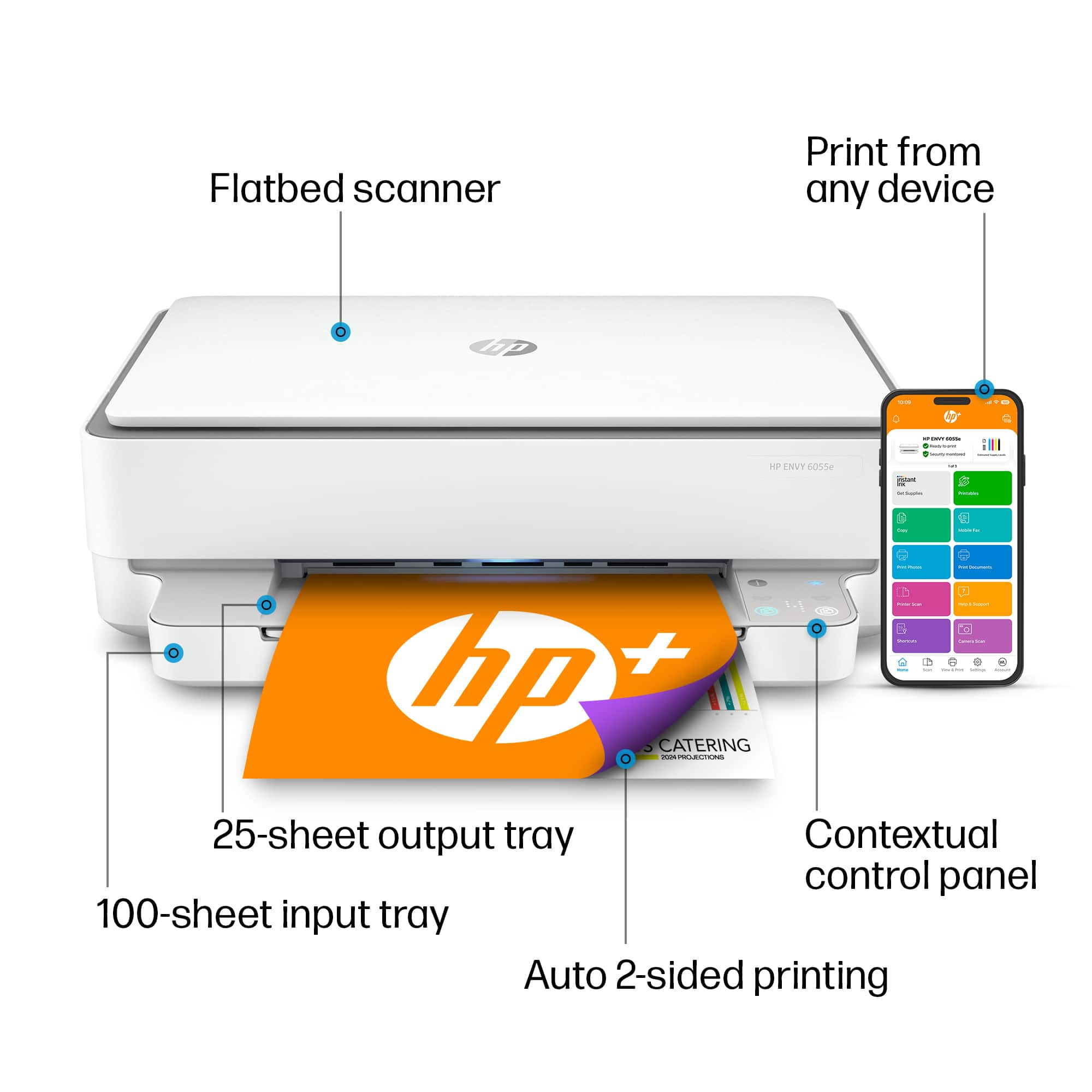
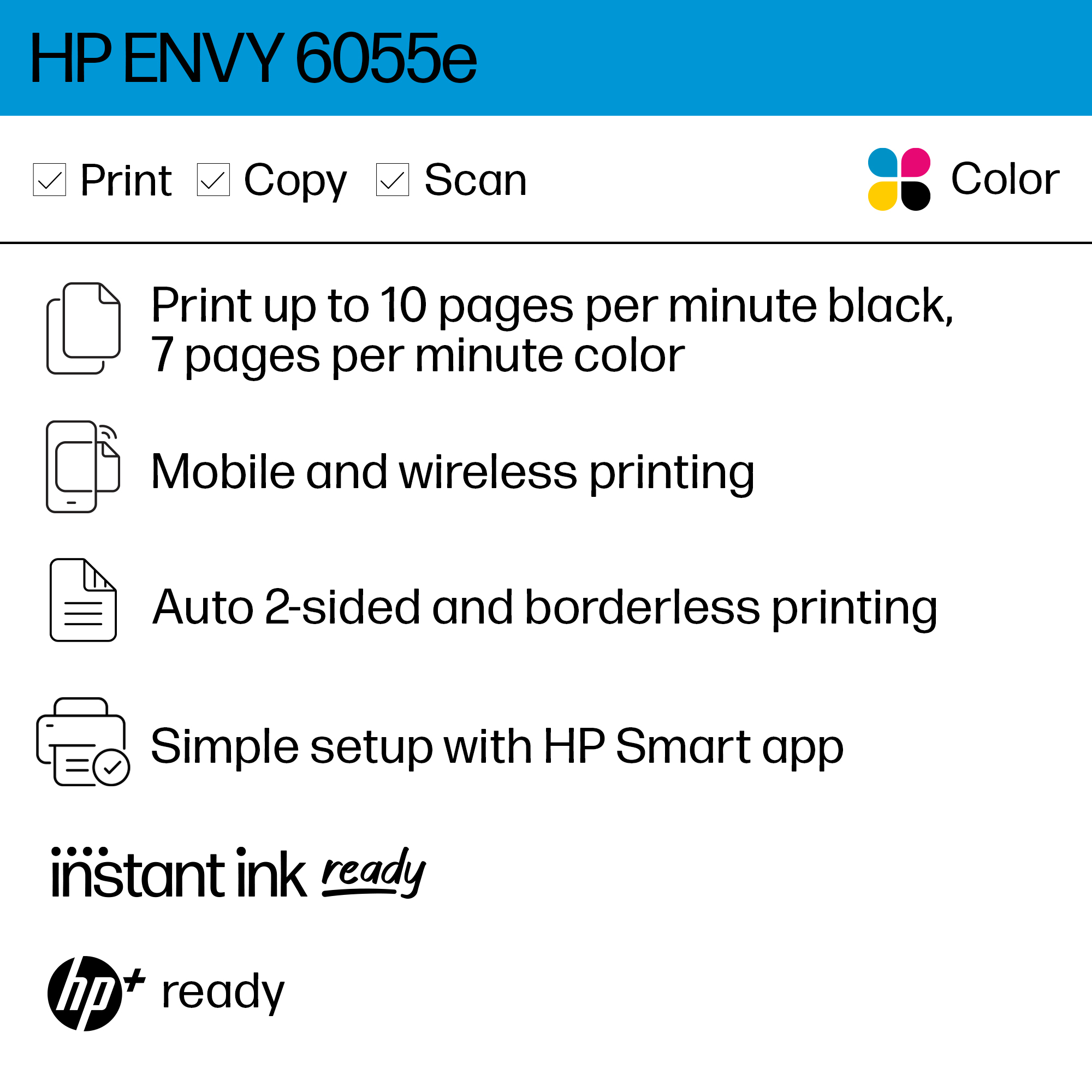
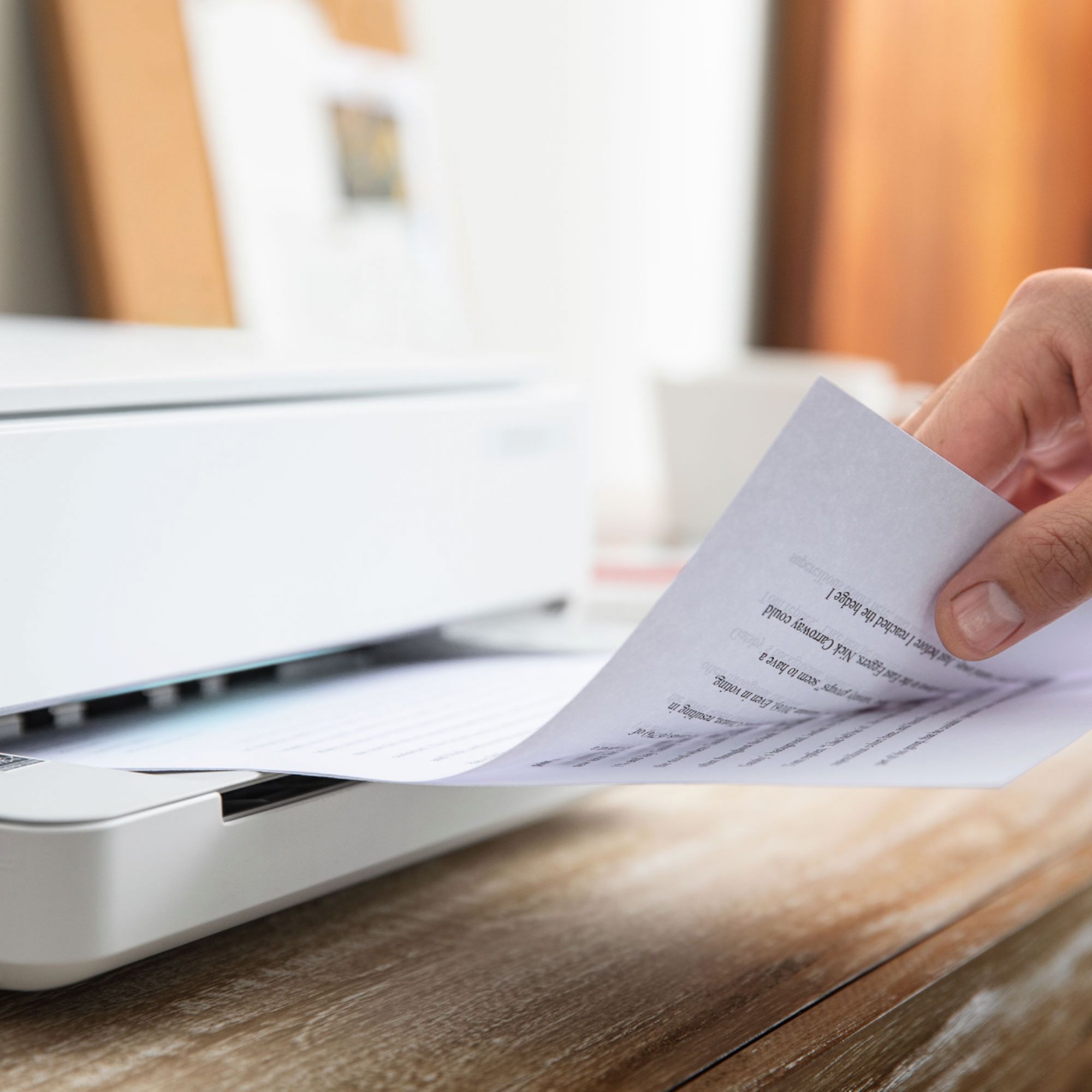
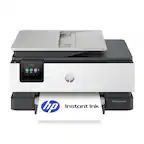
A:AnswerIt can handle duplex printing if the card stock is 53 lb. or less. If it's more than that, there may be issues with the card stock jamming, due to the paper path needed to print on both sides.
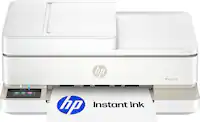
A:AnswerThank you for the question. The Envy 6055e can be connected via a USB-B printer cable and you'll forgo the free ink offer normally redeemed at set-up. You will not be able to avail yourself of the free second year of warranty unless you opt-in at set-up and create an HP account.
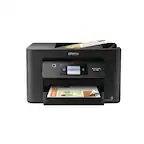
A:AnswerHi Dee, thanks for your question. The ENVY 6055e does not support legal size documents. You will want to look at the HP OfficeJet Pro models, they offer Legal size doucument support.
A:AnswerIf you are printing pages from a file to 8.5x11 paper, it can certainly be done, though confidence is high that you will burn through your ink supply in short order.
A:AnswerThank you for the question. The driver and software are contained in the free HP Smart App, and you can use it from a smartphone or PC, (Windows, Mac, IOS, Android). Get the app at 123.HP.com.
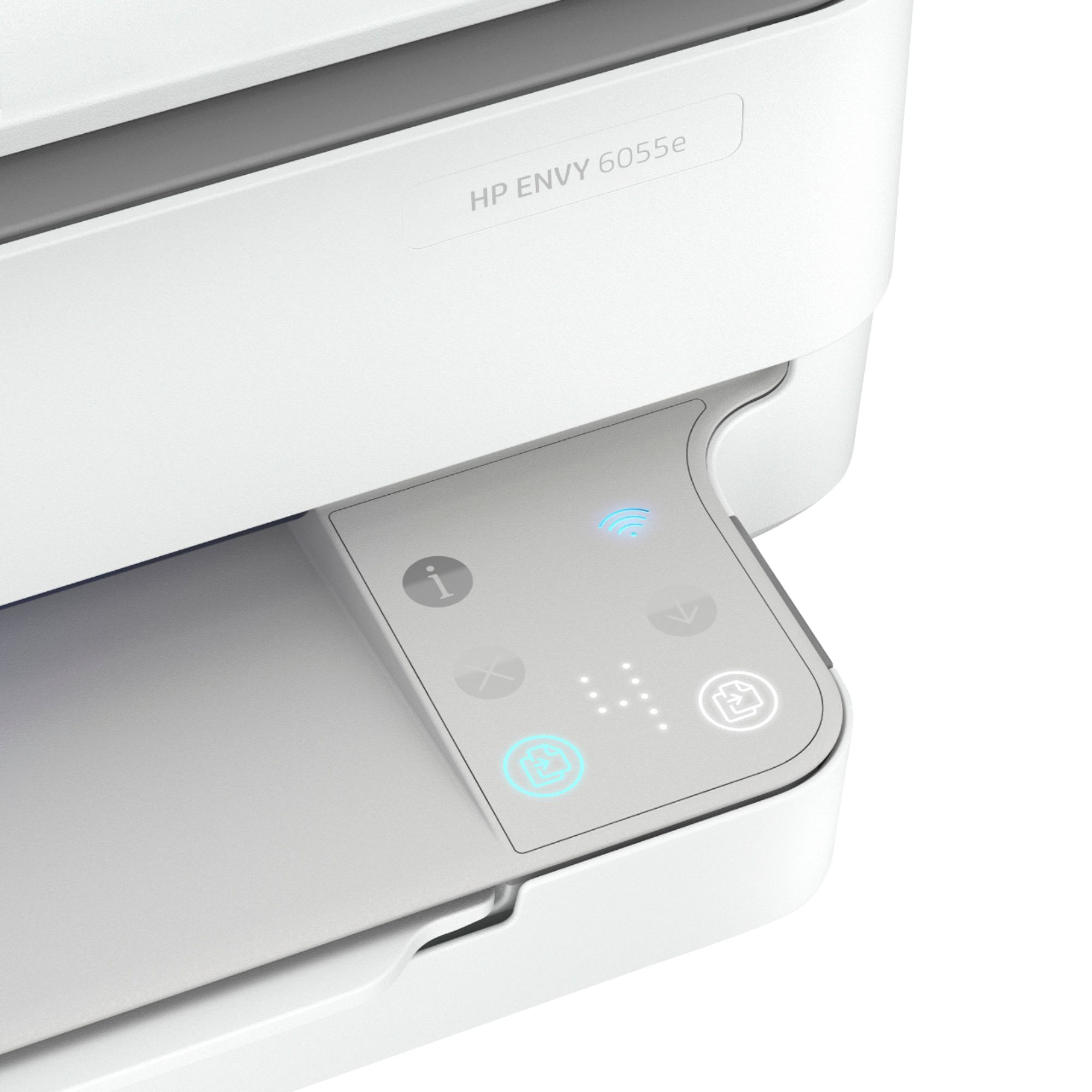
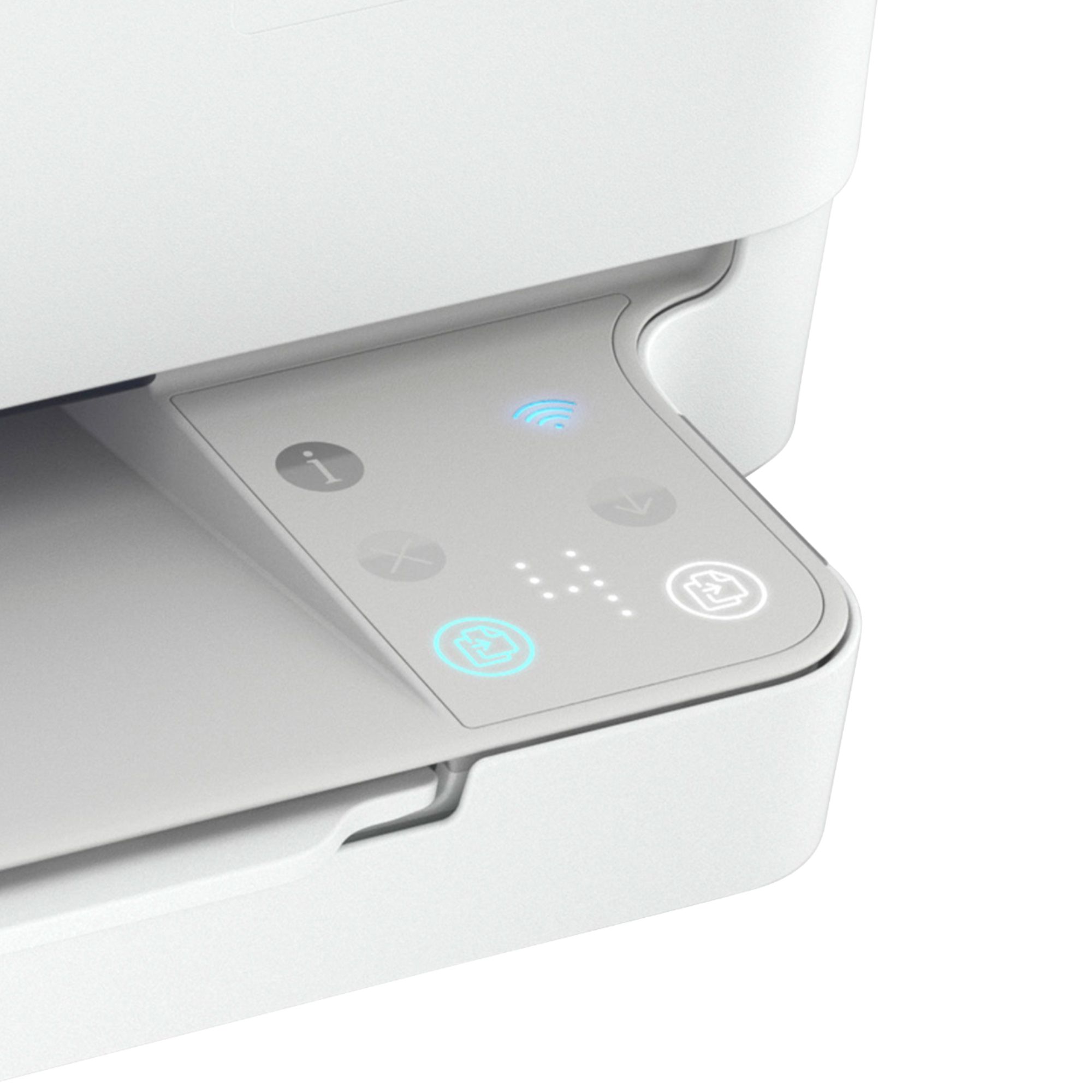
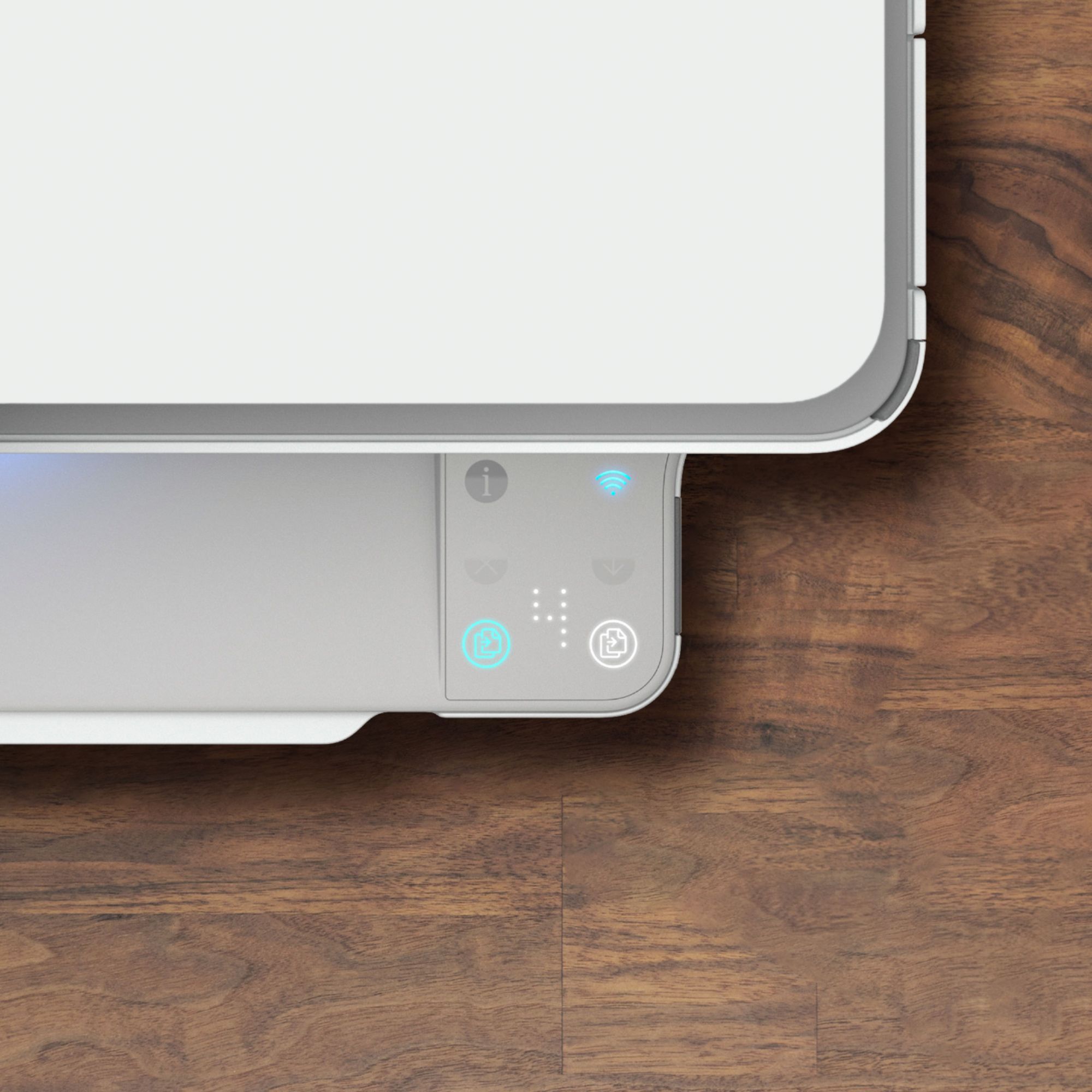
A:AnswerThat is the "information" button. If the button is amber, it indicates that something isn't right, and pressing the button will print an information page detailing the issue
A:AnswerHello and thank you for your question. Yes, you will be able to print to your HP ENVY 6055e with your iPad through either Apple's 'AirPrint' system or by using our 'HP Smart' app which is free to download from the Apple App Store. Just search for 'HP Smart' in the App Store on your iPad.
A:AnswerApologies for what you're experiencing. Please reach out to Support.HP.com or call 800-474-6836 for assistance. Our Tech Support Team will be able to diagnose and recommend a fix for your problem.
A:AnswerYes, it's compatible with Monterey. The computer will probably need to download some files, but it should do that automatically as part of the installation process.
A:AnswerHello, Sandy. Yes, you can scan and save a document on your laptop. We recommend using the HP Smart app. Here are some instructions on how to scan: https://support.hp.com/us-en/document/ish_2275901-2074064-16
A:AnswerYes, you can. You can connect the printer to a computer with a USB printer cable. If you're replacing a printer that was connected that way, you can use the same cable.
A:AnswerHello. We are sorry to hear about the challenges you are experiencing. You would go to https://123.hp.com/setup to install the printer drivers on your MacBook Pro. You can also install the printer with the HP Smart app on the MacBook Pro. Here is more information on the HP Smart app: https://bit.ly/3cEujqO If you need further assistance, visit https://support.hp.com