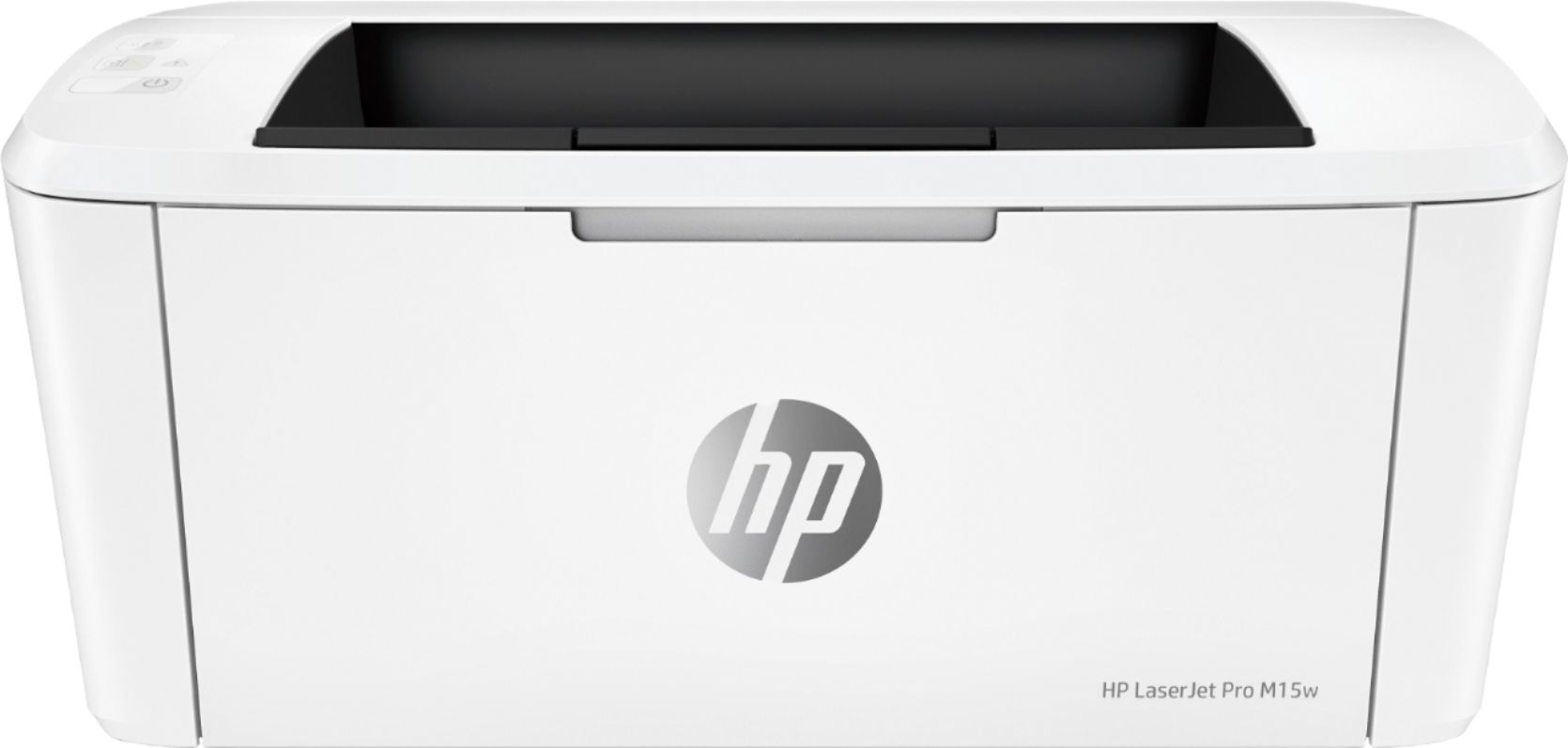
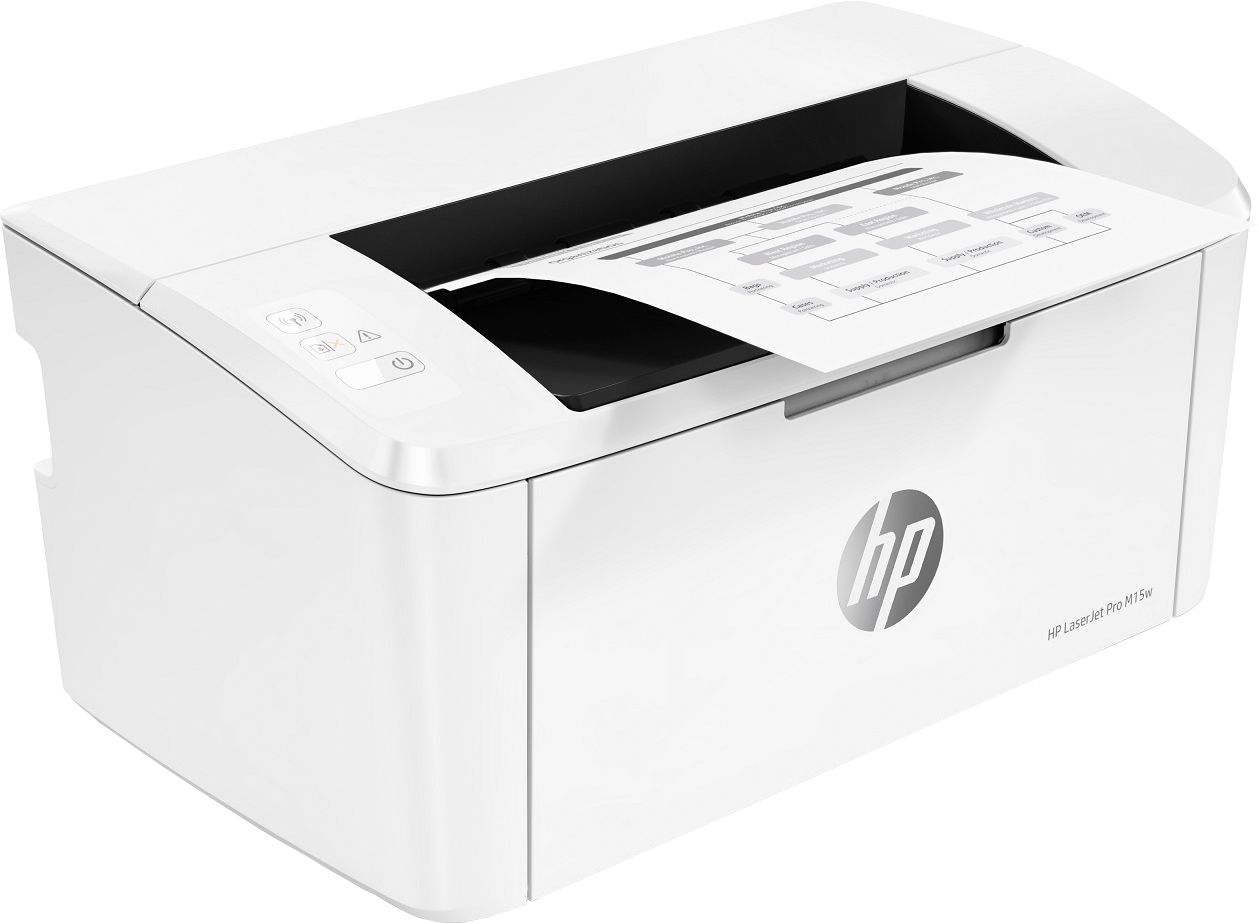
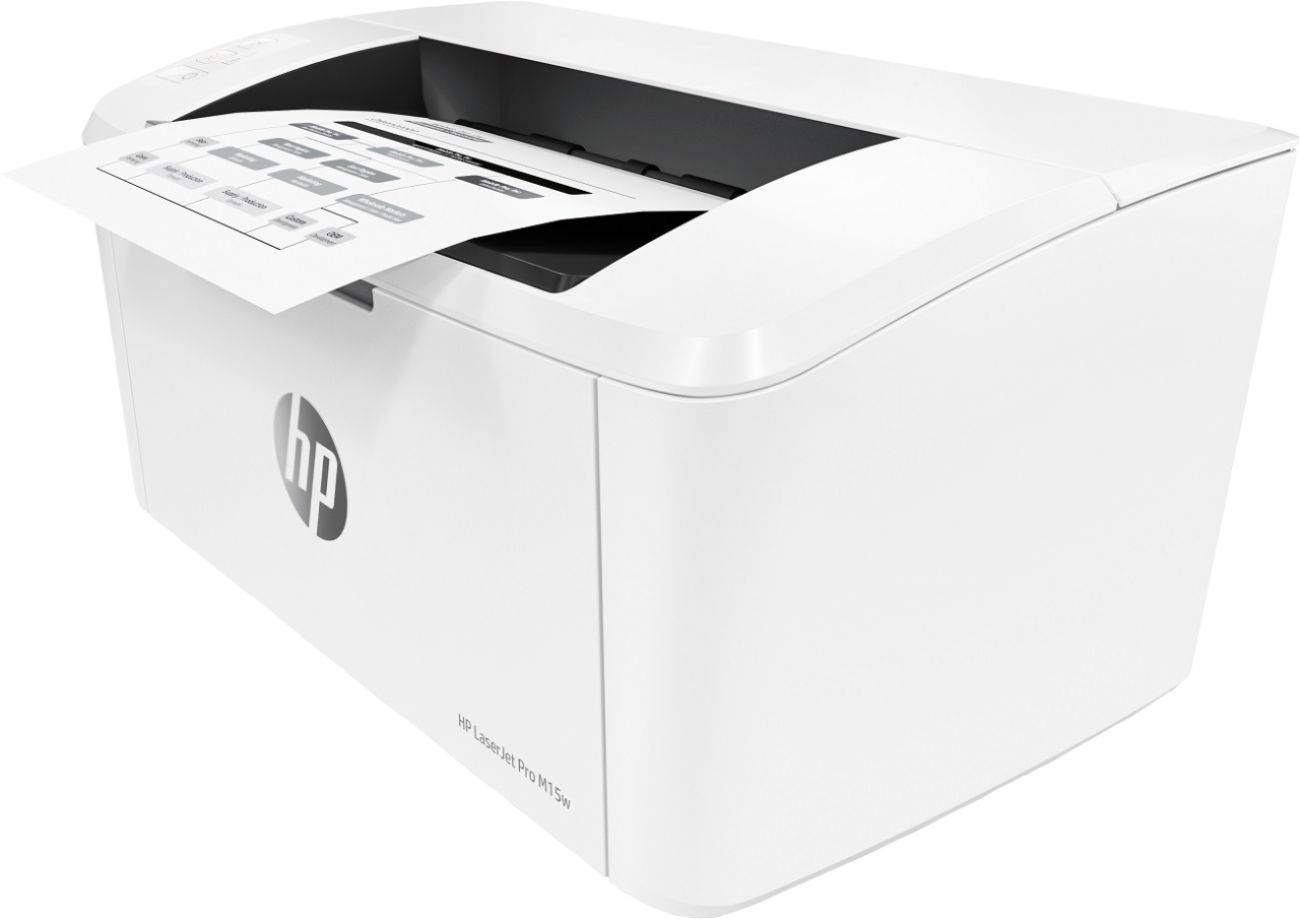
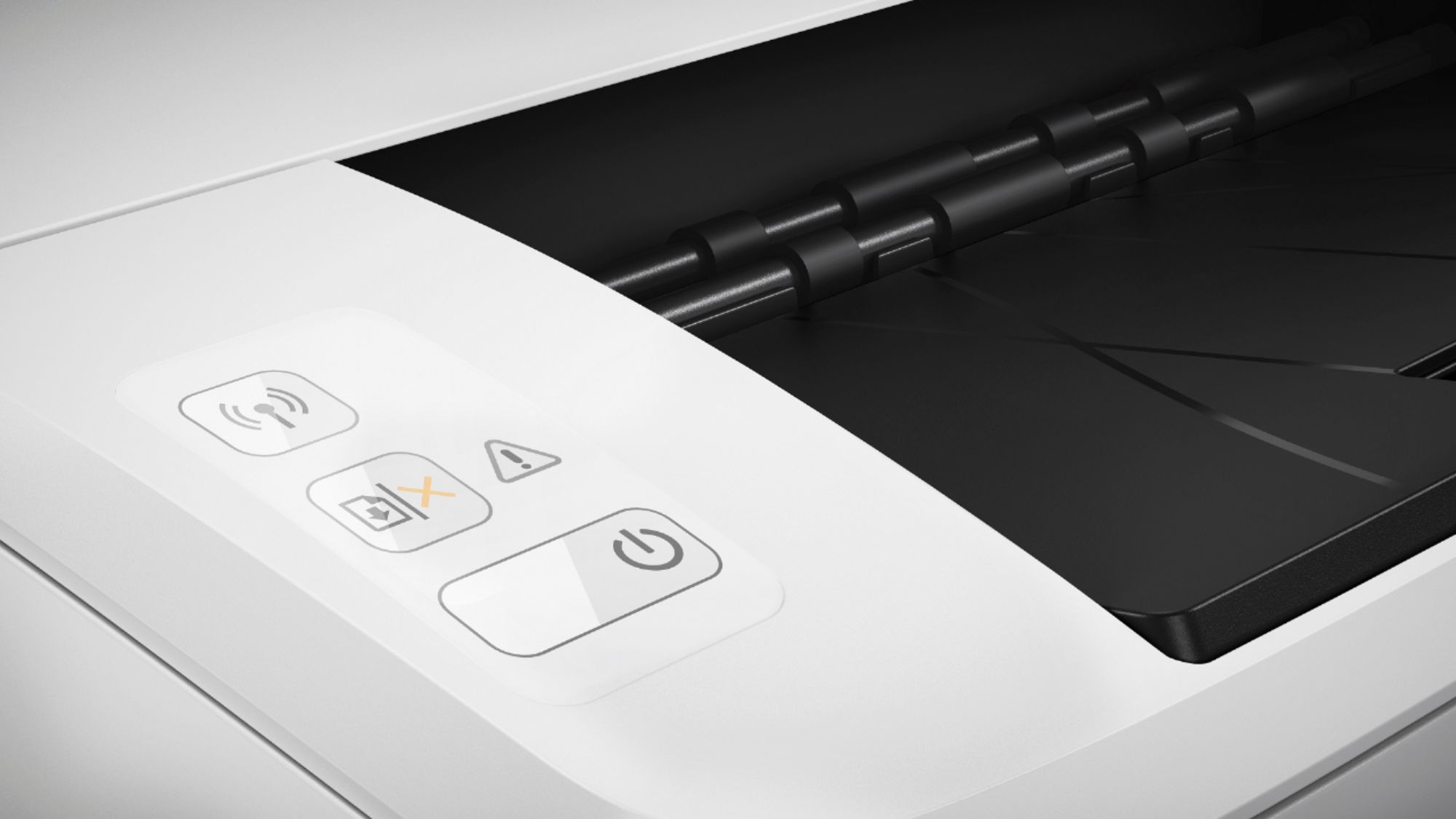
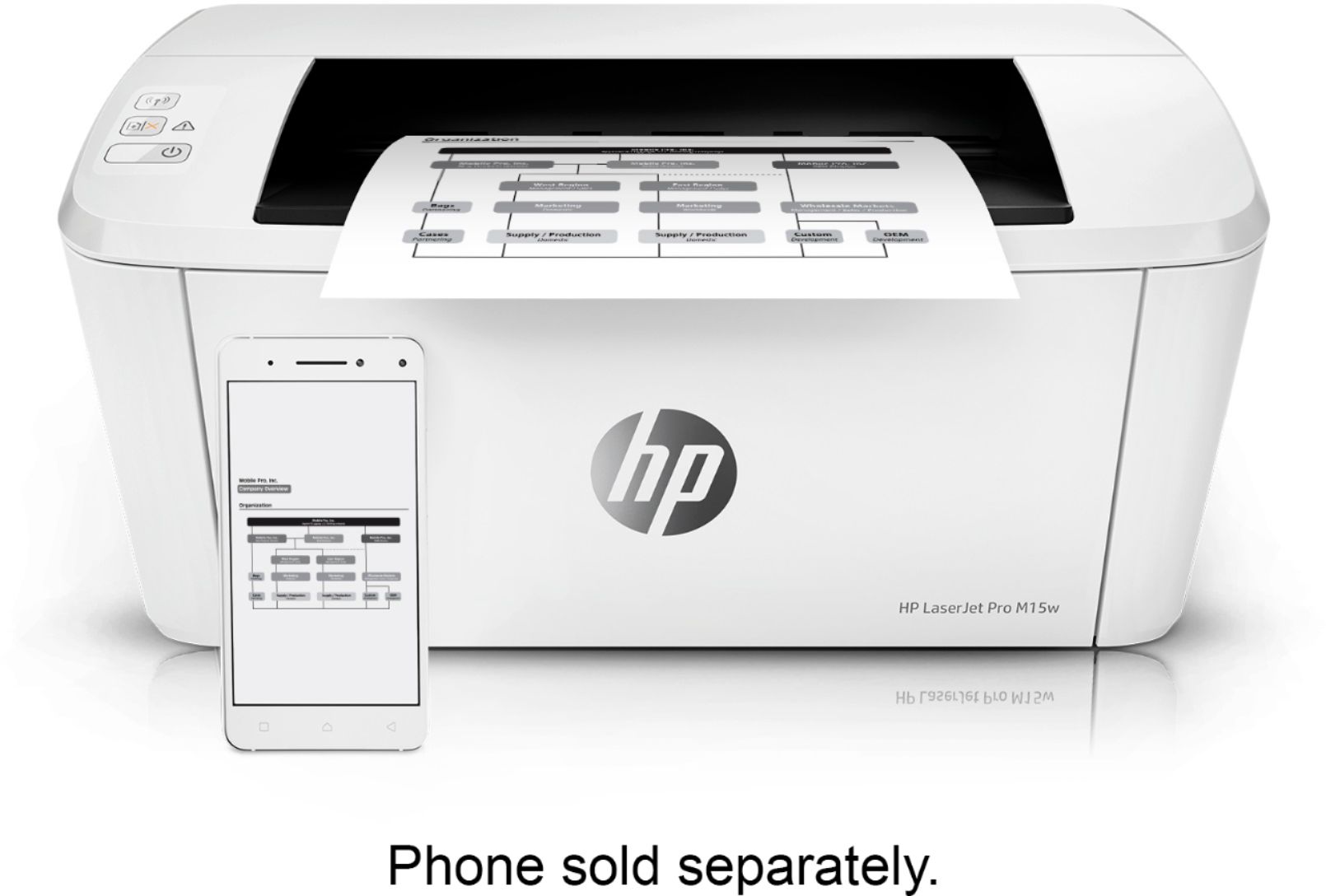
A:AnswerThis may not answer your question but I bought this printer to print without having Wi-Fi. It has its own Wi-Fi signal. I use it with my iPad and iPhone to print wirelessly. I basically turn the printer on and when I go to print the printer shows up under available printers.
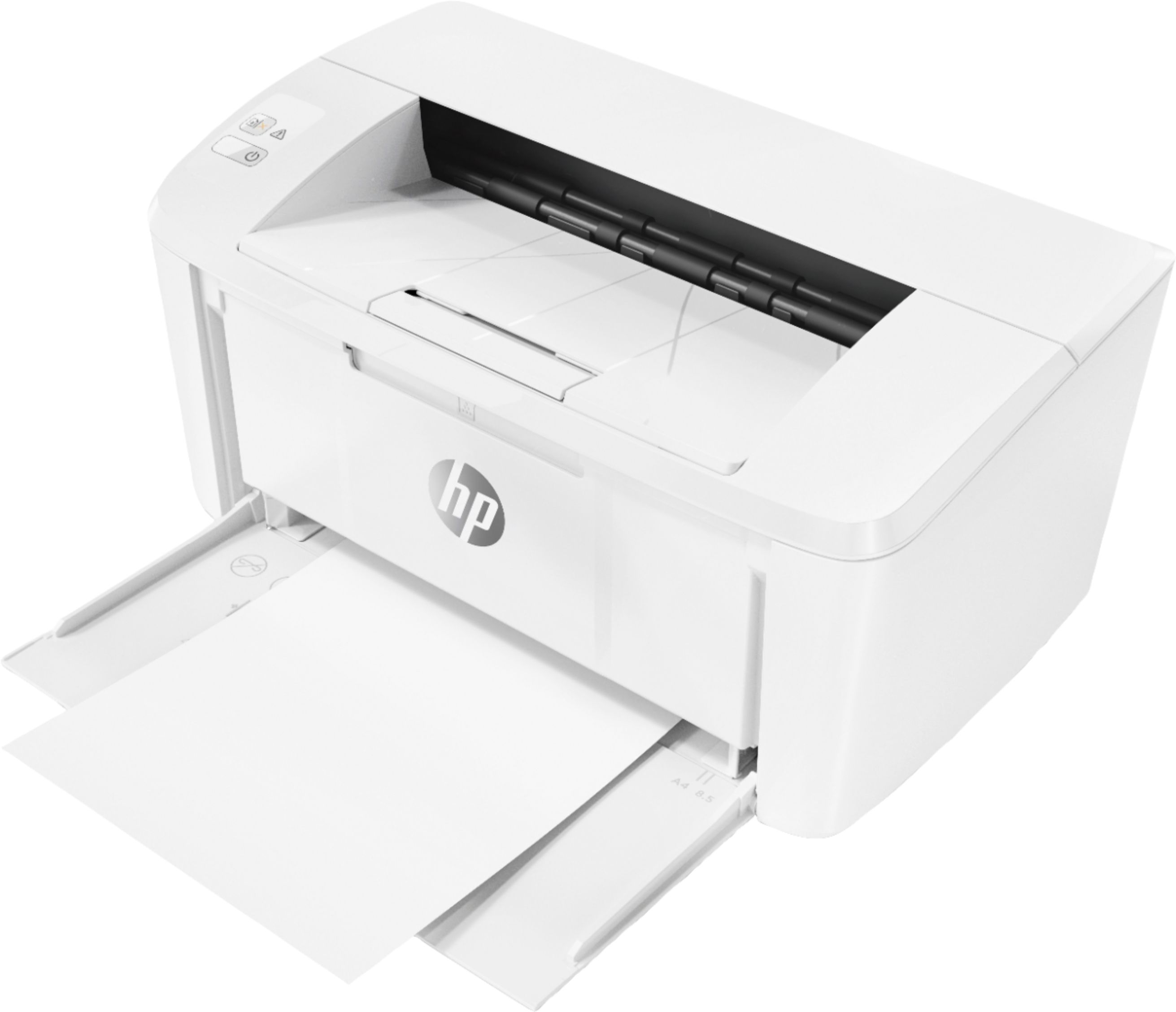
A:AnswerAutomatic Two-Sided Printing means you can print on both sides of the paper, automatically, without having to flip the page over and print on it again. This printer does not have that feature.
A:AnswerSupposedly 1000 but I suspect that depends on whether you are printing images and detailed text or just printing out order sheets, short letters. For the former I suspect you will get less than 1000. I am up over 500+ pages on a new cartridge but the majority of my printed pages have not been photos or detailed, full page tight text.
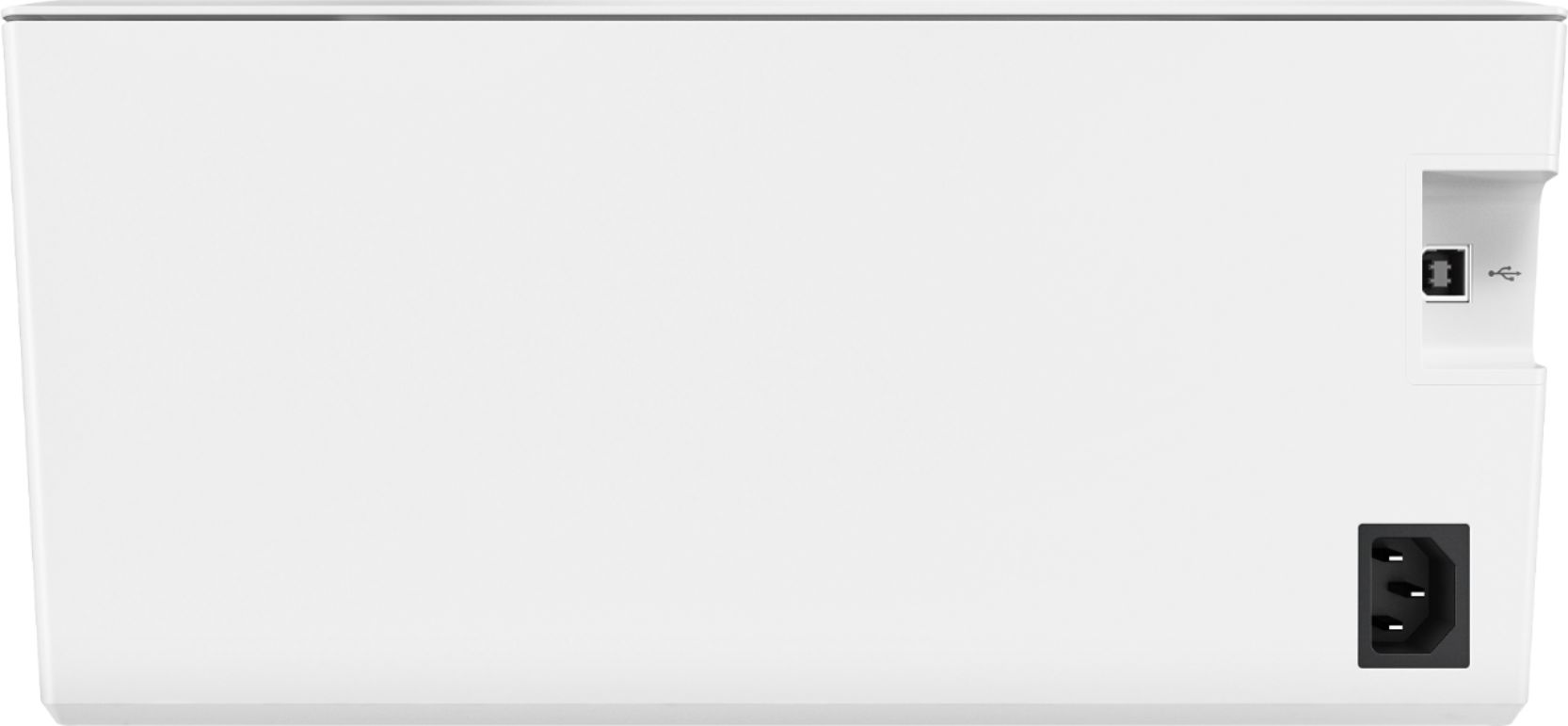
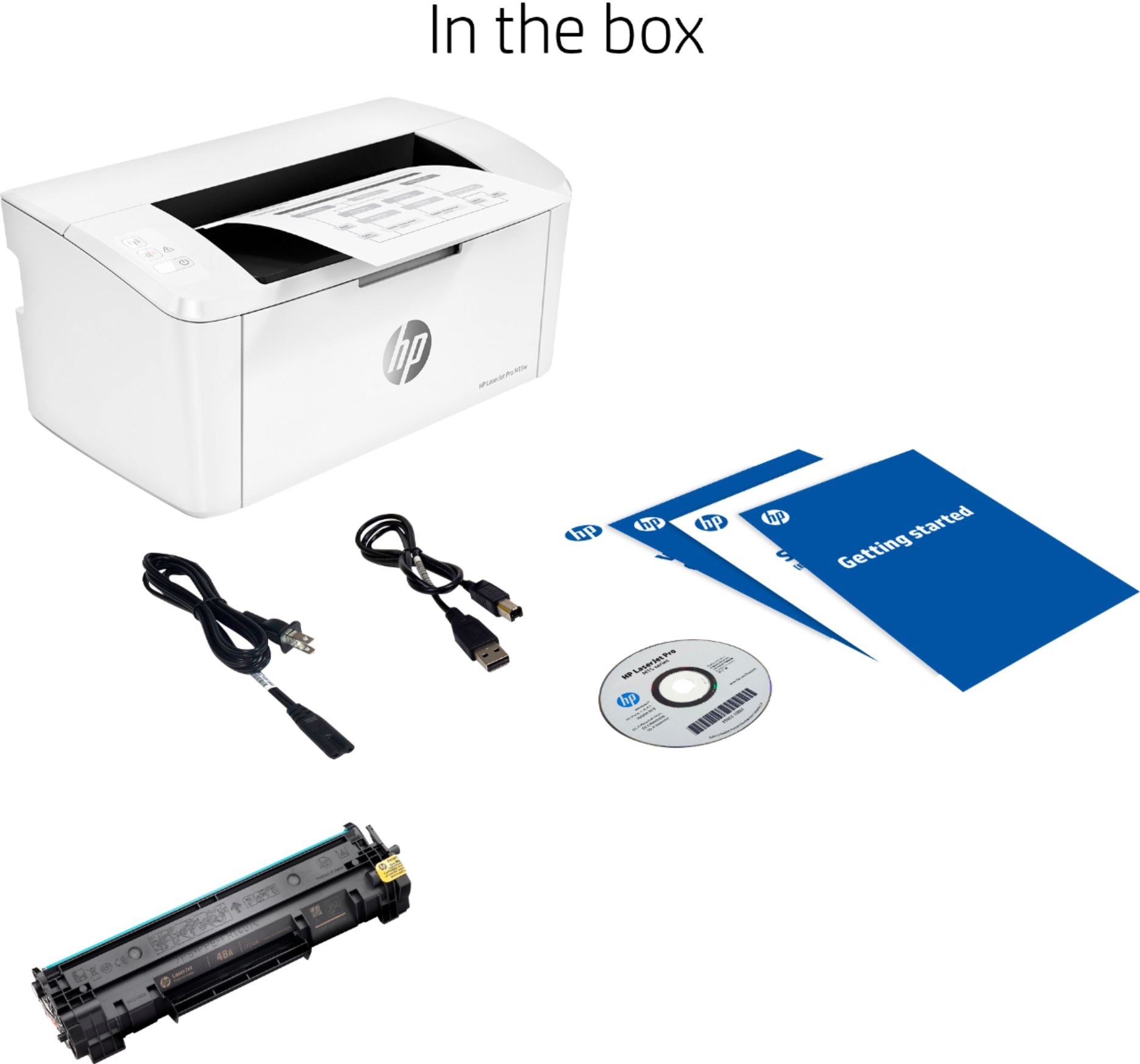
A:AnswerYes, it can be hooked up via USB, as an attached device to a single computer (if the PC has an available USB port). Or it can be defined as a device on a WiFi network and anyone on thar network can print to it. It can also be set up as both simultaneously.
A:AnswerI used mine for printing on 110 cardstock. It was a large job and it bogged down a little but got the job done. I was printing 8.5 x 11 and cutting in half.
A:AnswerThe toner cartridge will get you thousands of copies and lasts way longer than ink jet printers. we have both kinds of printers and use this one for most daily things we need prints of, we keep the ink jet for doing photos and prints we need in color. We use this one for everything else.
A:AnswerNo. But it is easy to do duplex printing. You tell the printer you’re printing on both sides, flip on long edge. It then prints one side of the job. You then move the paper from the output tray to the top of the input area without turning the paper in any way and then the other side of the print job prints. Easy! Not as easy as automatic duplex printing, but still very easy.
A:AnswerThe HP LaserJet Pro M15w can be setup and used with only the printer, a mobile device, and the free HP Smart App. It does not require the use of a computer.
A:AnswerThis printer does not have scan or copy but you can add these features by using the HP Smart app on your phone or tablet to take high quality scans. You can try out the HP Smart App scanning feature on your phone now before you get the printer just to see what you think!