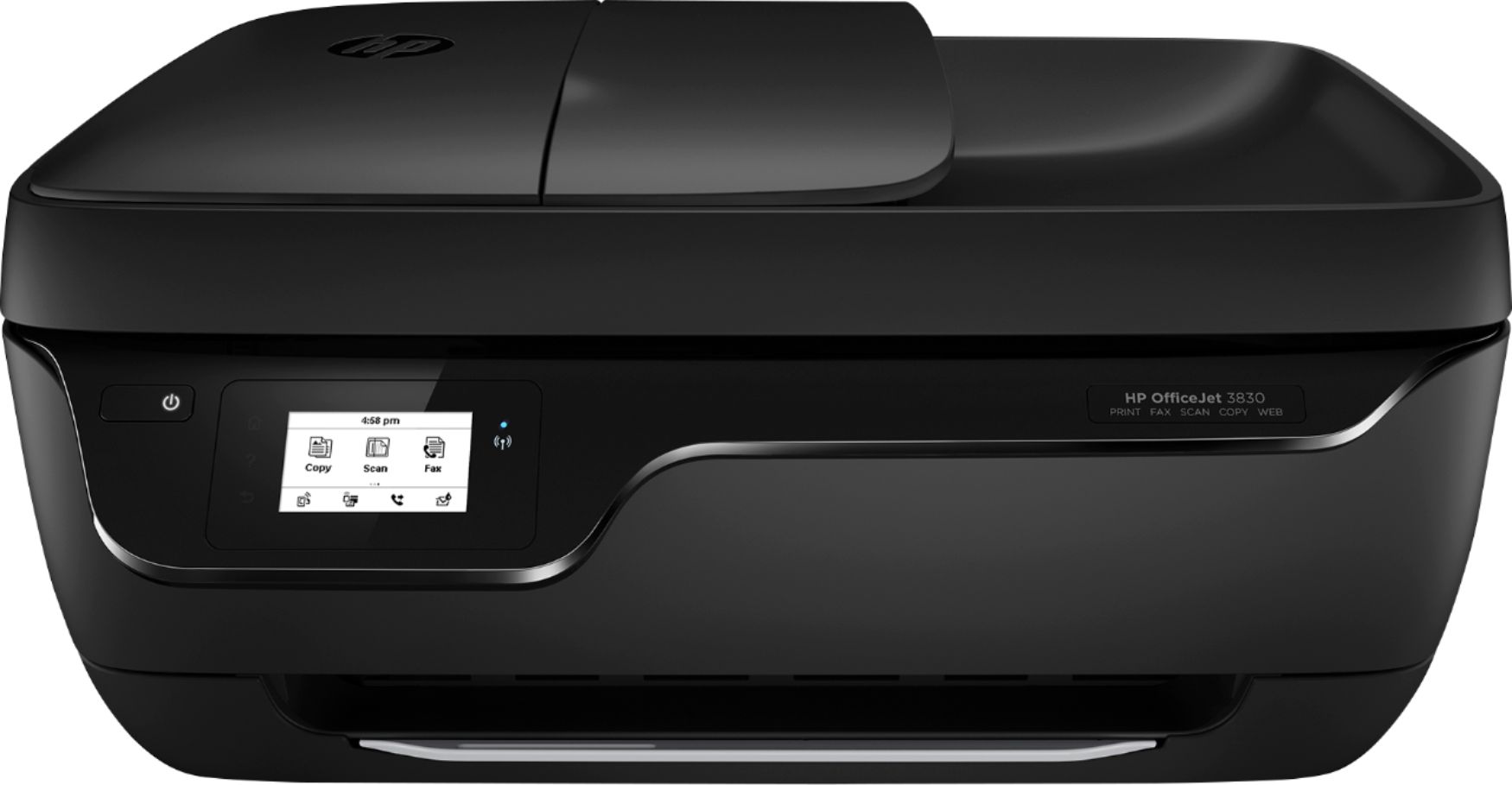
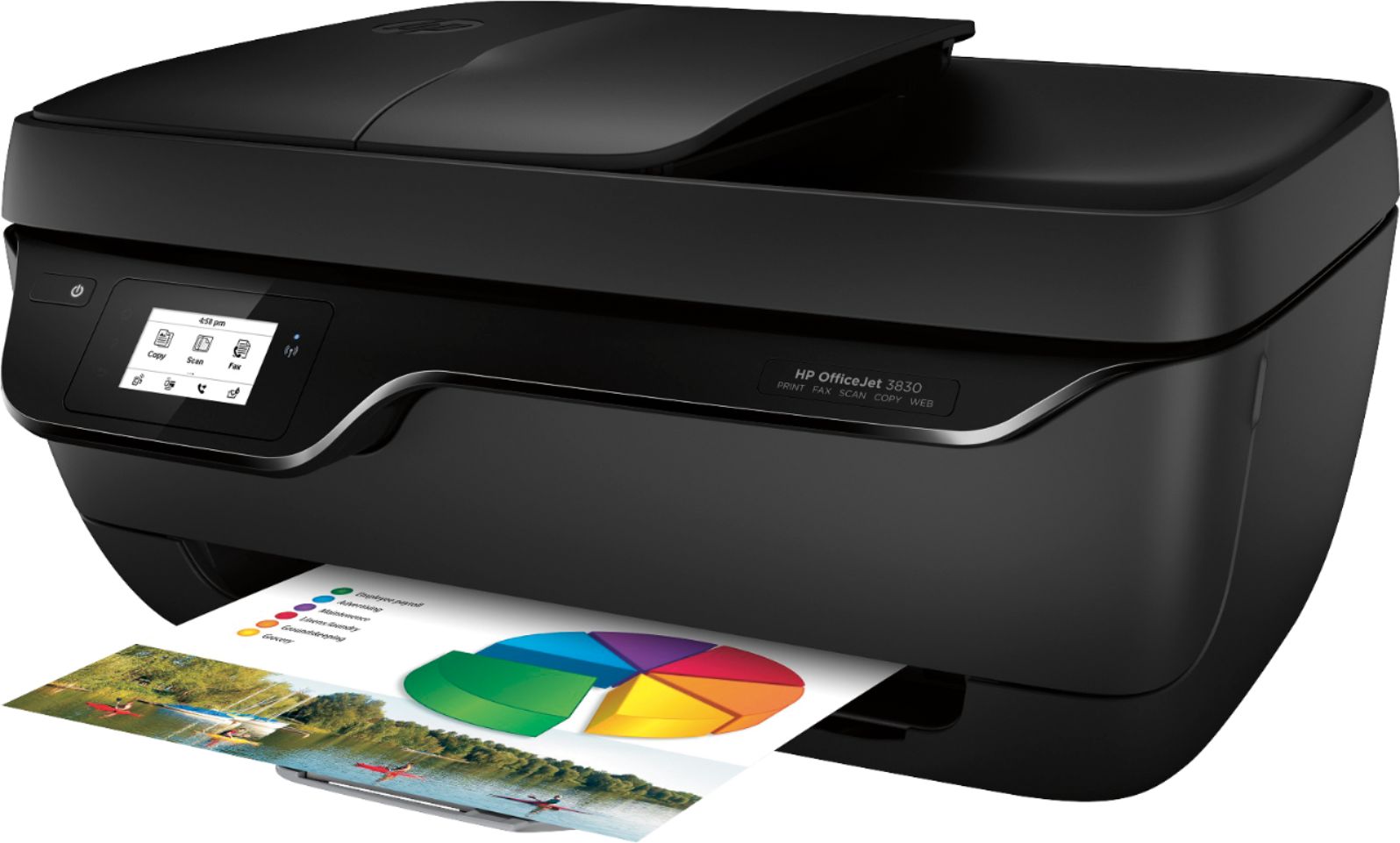
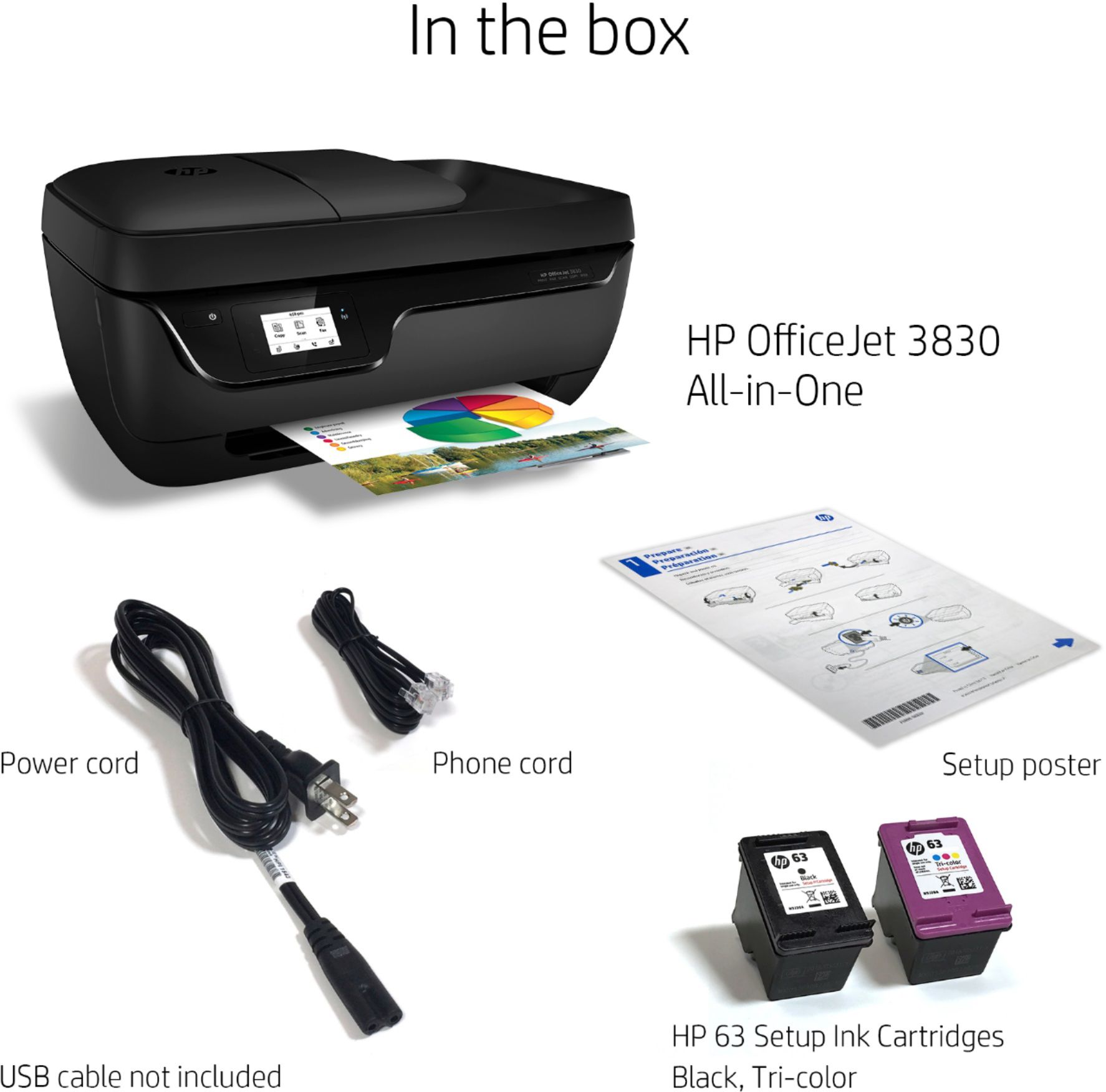
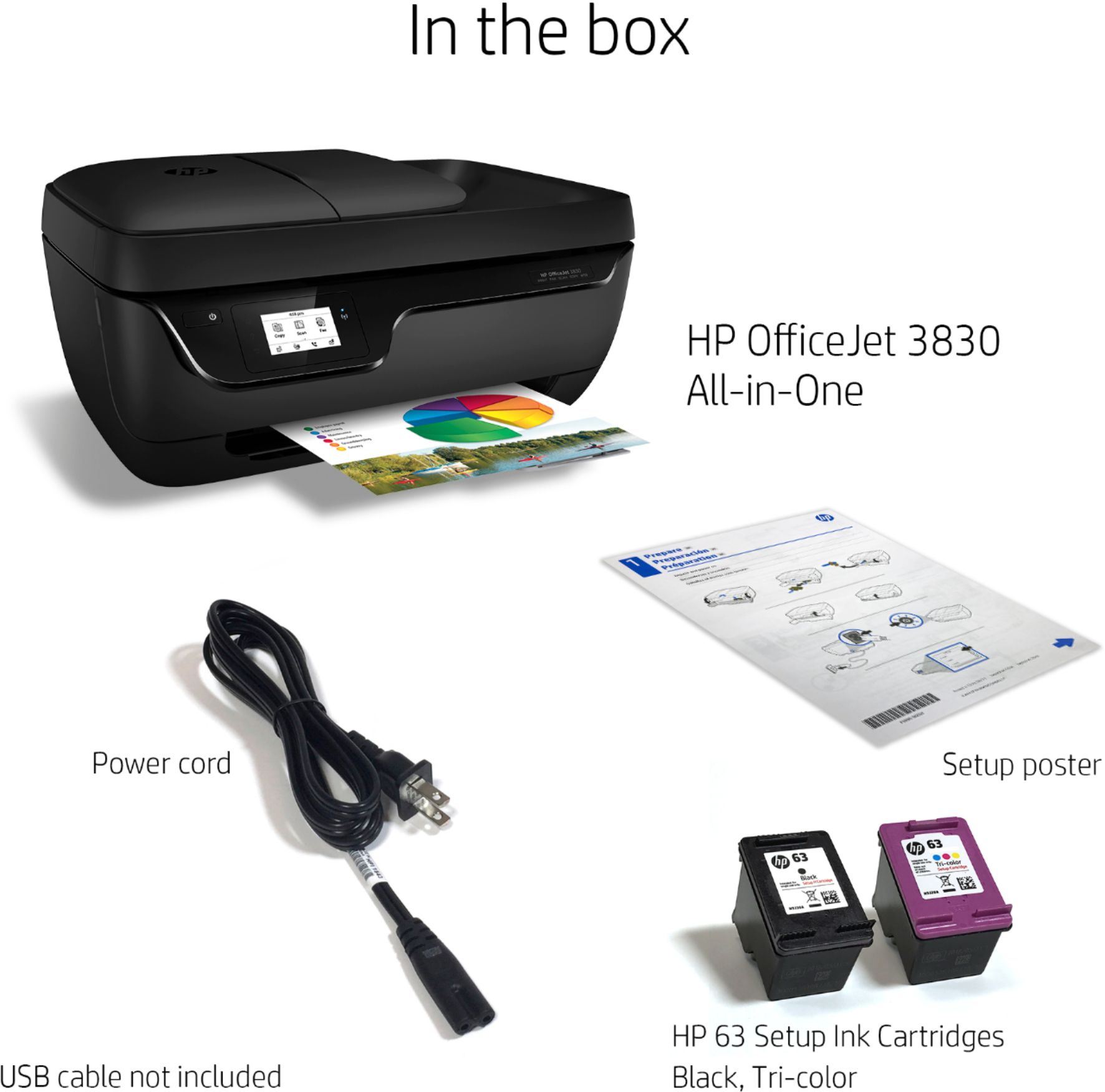
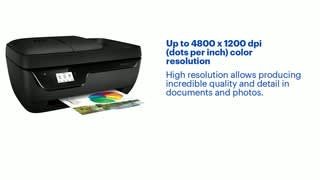
A:AnswerYes it comes with ink but it's just a starter set. But if you sign up for their ink program they will mail you ink with 2 days. It's very cheap and the printer comes with 3 free months
A:AnswerGood question. Yes, this printer has single cartridge mode where you can use just one cartridge to print if one cartridge is out of ink. You have to remove the empty cartridge in order for single cartridge mode to work. This printer has 1 black cartridge and 1 tricolor cartridge.
I hope this helps.
A:AnswerThis printer has a couple of options for scanning. It does have a flatbed scanner. You can also load a sheet of paper on the collapsible top tray and it will feed in once you choose to scan from the top tray. Also, to make your life a whole lot simpler, when you download the drivers from the HP website, be sure and download the software for this printer. You can scan multiple documents and compile them into one PDF file. It makes everything so much simpler.
A:AnswerI don't think so. I am a novice at techy things and was worried about setting it up on my own but it was so easy. Just followed step by step and it was done.
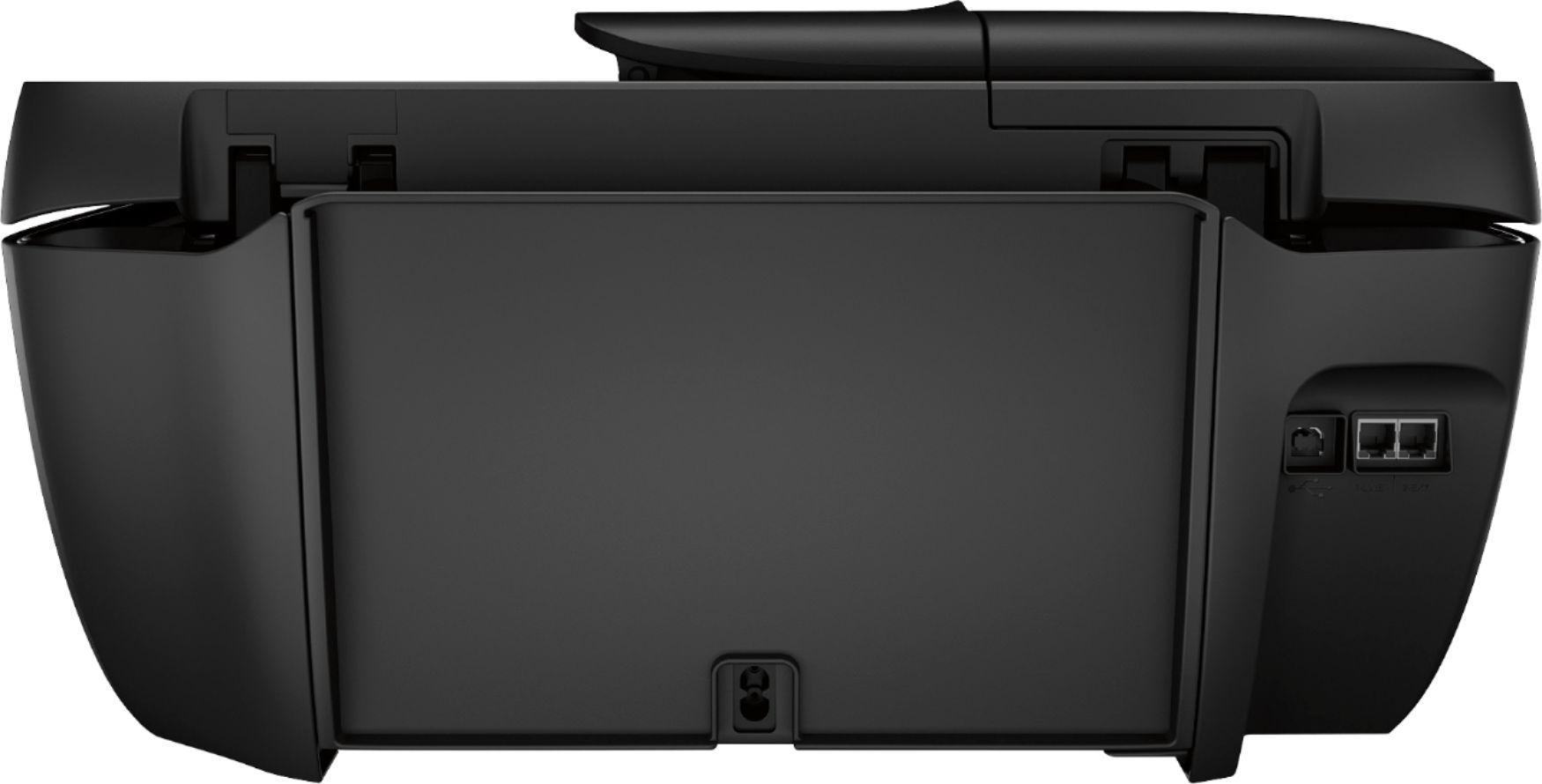
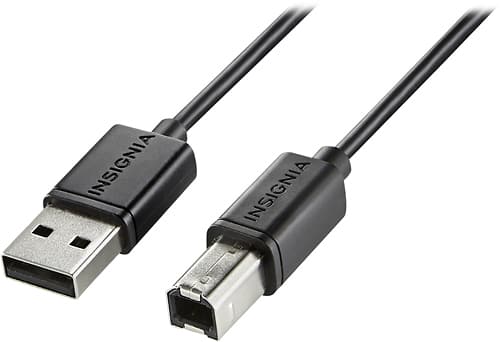
A:AnswerIf you elect to turn the wireless feature on, you can connect to the printer both via USB cable and wireless. Your best option, although somewhat technical, is to set up your printer as a network printer and then you can connect via all your devices. Additionally, with this option, when your friends or family come over, they will be able to connect and print a lot easier with your permission.
A:AnswerIt will print whatever you can see on the screen. Keep in mind that this printer is not a photo printer. If you have difficulty printing a picture from an email, try saving it as a jpeg file and then printing it as a jpeg pasted in a Word document.
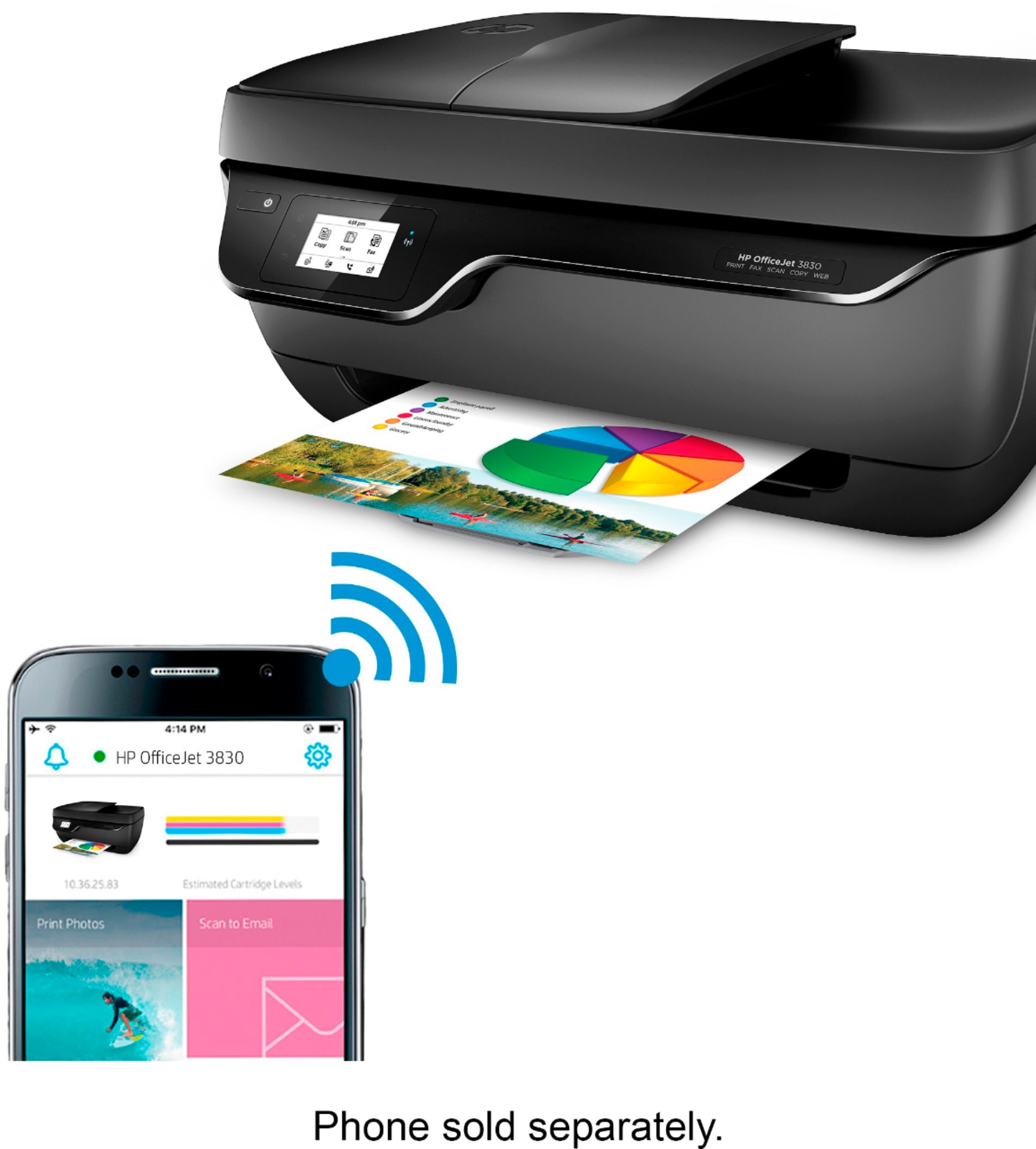
A:AnswerDon't worry, you don't need actual internet to connect to the printer. You will ONLY need to log on to internet once when you first unbox everything because you need to download the Printing Software for your computer( you do that with any printer) . In this case, there isn't a disc included in the box like some other printers, it gives you a leaflet with a website written that you have to go to install the Software. But once you install the software on your computer, you wont need internet ever again. Now, if you are going to print from your mobile phone and not a computer, you wont need to go to the website. Instead, you will download the HP Printing App from Google play Store or Apple Store. I have my laptop with the software and also my phone has the app ( you can print from ANY device).
Now, the way you're always going to connect your printer to your device is with WIFI BUT how it works is you can think of your printer as being the WIFI. Your printer has a WIFI connection that is always running as long as it is on. So for example, let's say you want to print a page from your computer. You will go to your laptop connection settings and connect to your Printer Wifi. Its WIFI name is Direct_HPOfficeJET3830 (and its passcode is on the menu of your printer)and THAT is what you will connect to. Not an internet wifi, but instead the WIFI that is built into the printer. So, don't worry if you have no actual internet Wifi, you don't use internet wifi. THe printer is going to act as the "Wifi Connection" and you are going to connect to that "Wifi connection" (printer) from your device. :)
The description doesn't explain how exactly the WIFI works and people think that it must mean you need an Internet connection to always use the computer and that is false. Hope this helps :)
Also below I have included a picture of the menu on the printer where its written your passcode to its Wifi (Called the WIfi Direct feature). Your passcode will be different than mine but its just an idea for you to see.
And also a link to the Hp "HOW TO PRINT WIFI DIRECT Without Internet connection"
https://support.hp.com/sk-en/document/c04577030
A:AnswerHP stopped making printers that use the HP 61 ink cartridges in 2016. Here is the list of printers that use the HP 61 ink cartridges: HP Deskjet 1010 (CX015A#B1H) ; HP Deskjet 3050A - J611g (CR232A#B1H) ; HP ENVY 4500 (A9T80A#B1H) ; HP Officejet 4630 (B4L03A#B1H) ; HP ENVY 5530 (A9J40A#B1H) ; and HP Deskjet 2540 (A9U22A#B1H).
A:AnswerNo, you cannot put in 2 black cartridges. You can however, remove the color cartridge to just print in black. The printer goes into single cartridge mode (an HP exclusive feature) and will print black only until a color ink cartridge is installed in the color cartridge slot. You an also remove the black cartridge and print in color only.
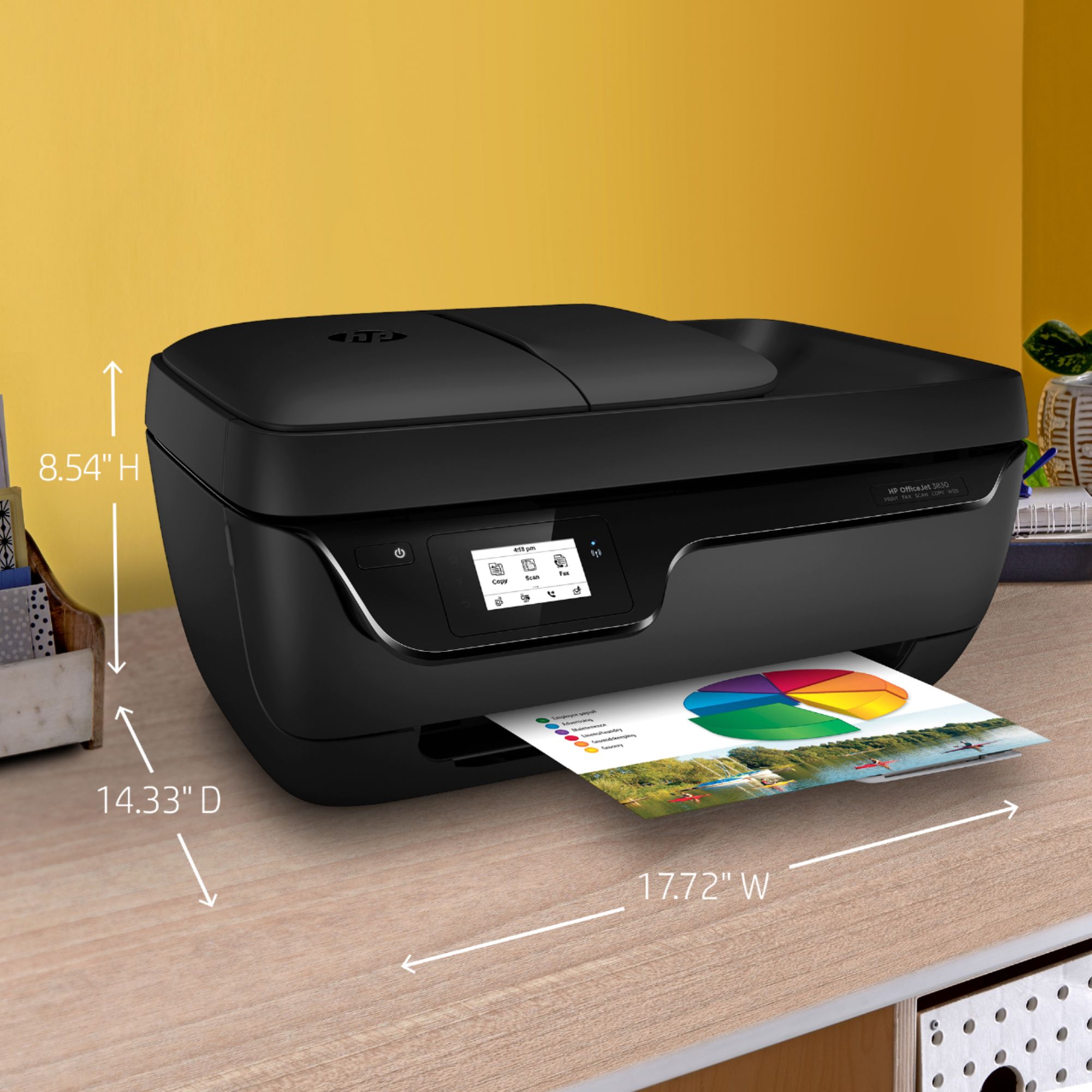
A:AnswerGood question. Here are the dimensions of the printer:
W x D x H: 17.72 x 14.33 x 8.54 in
Maximum: 17.71 x 22.55 x 10.66 in (with trays extended)
I hope this helps.