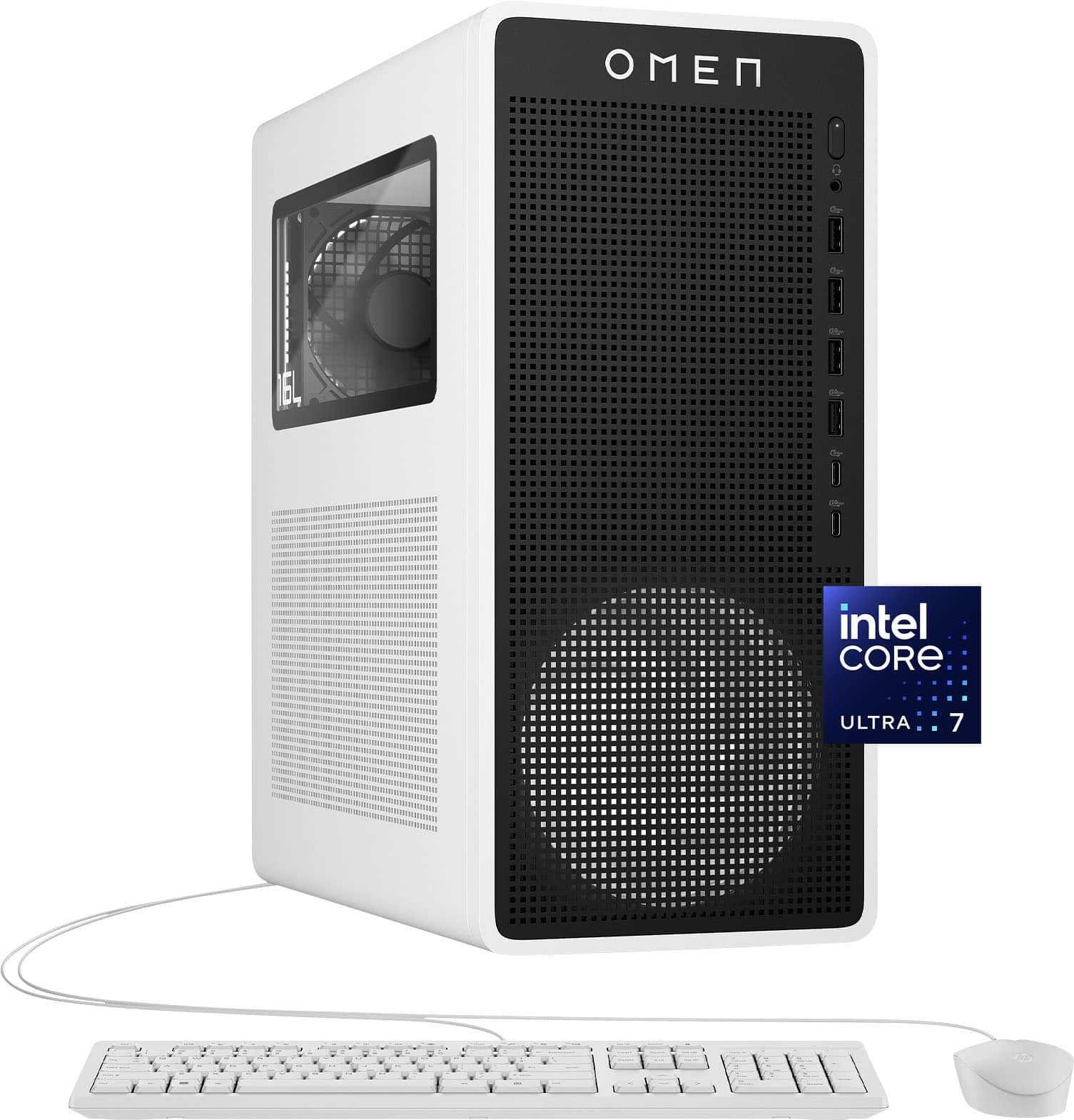
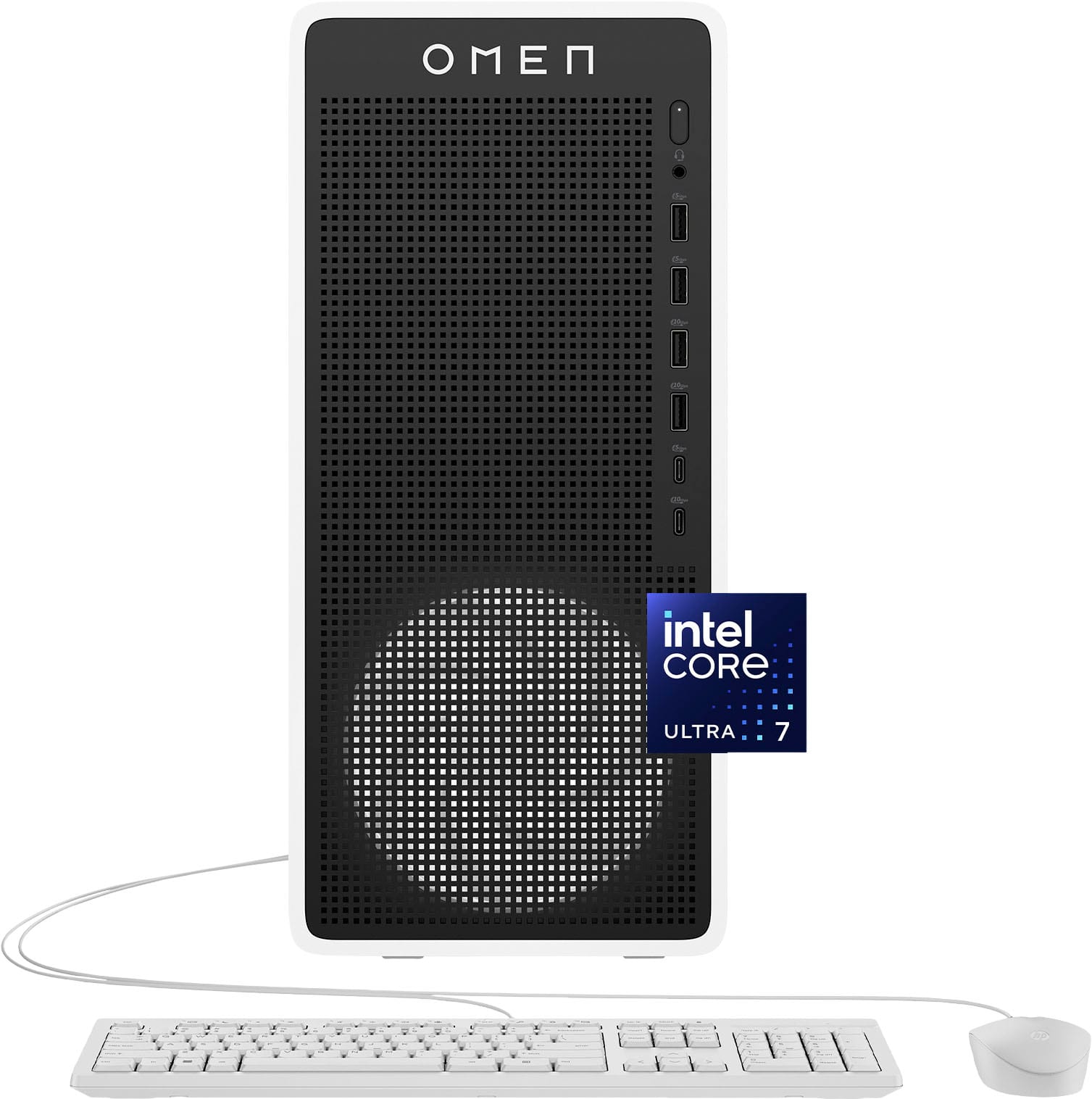
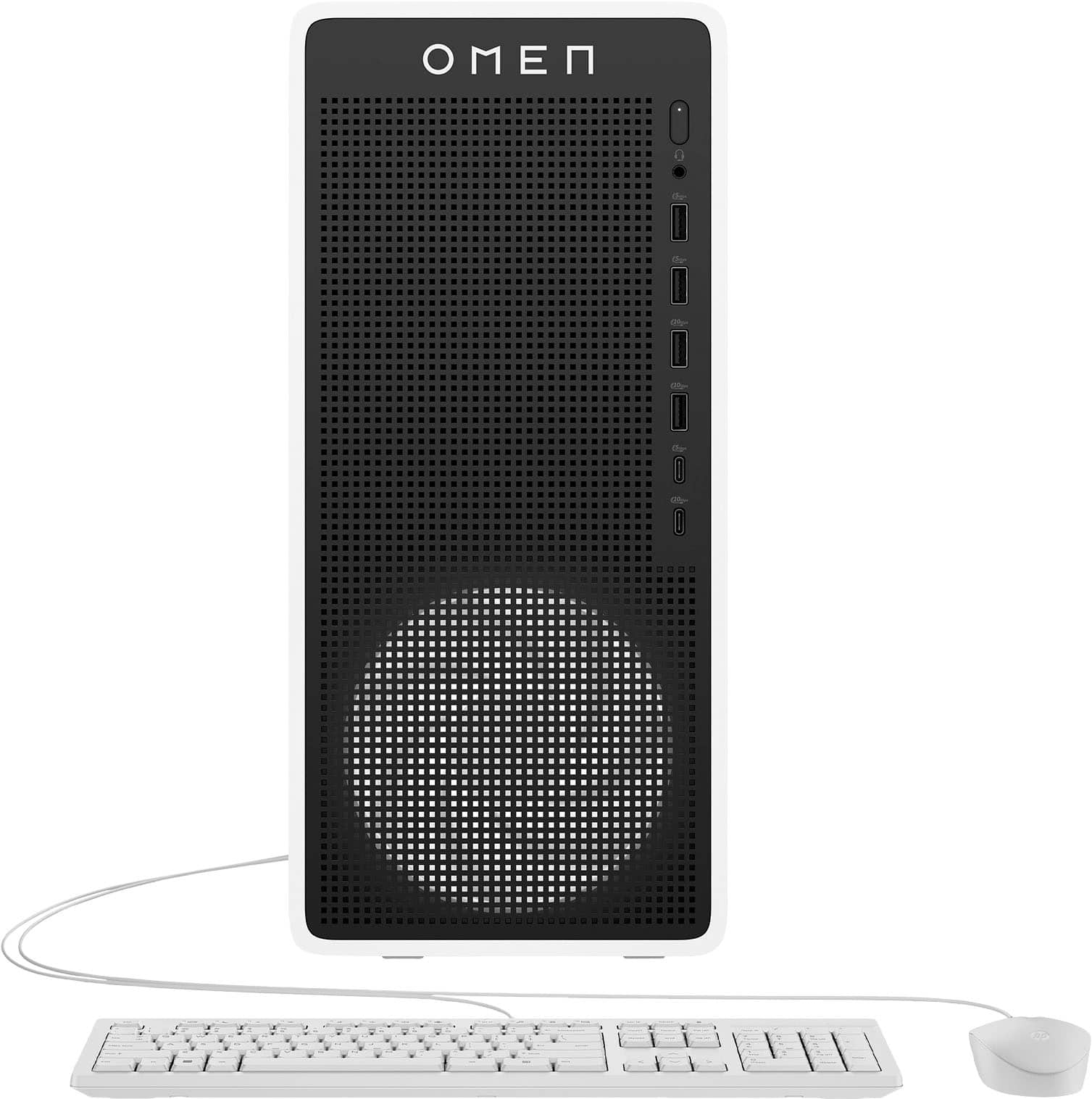
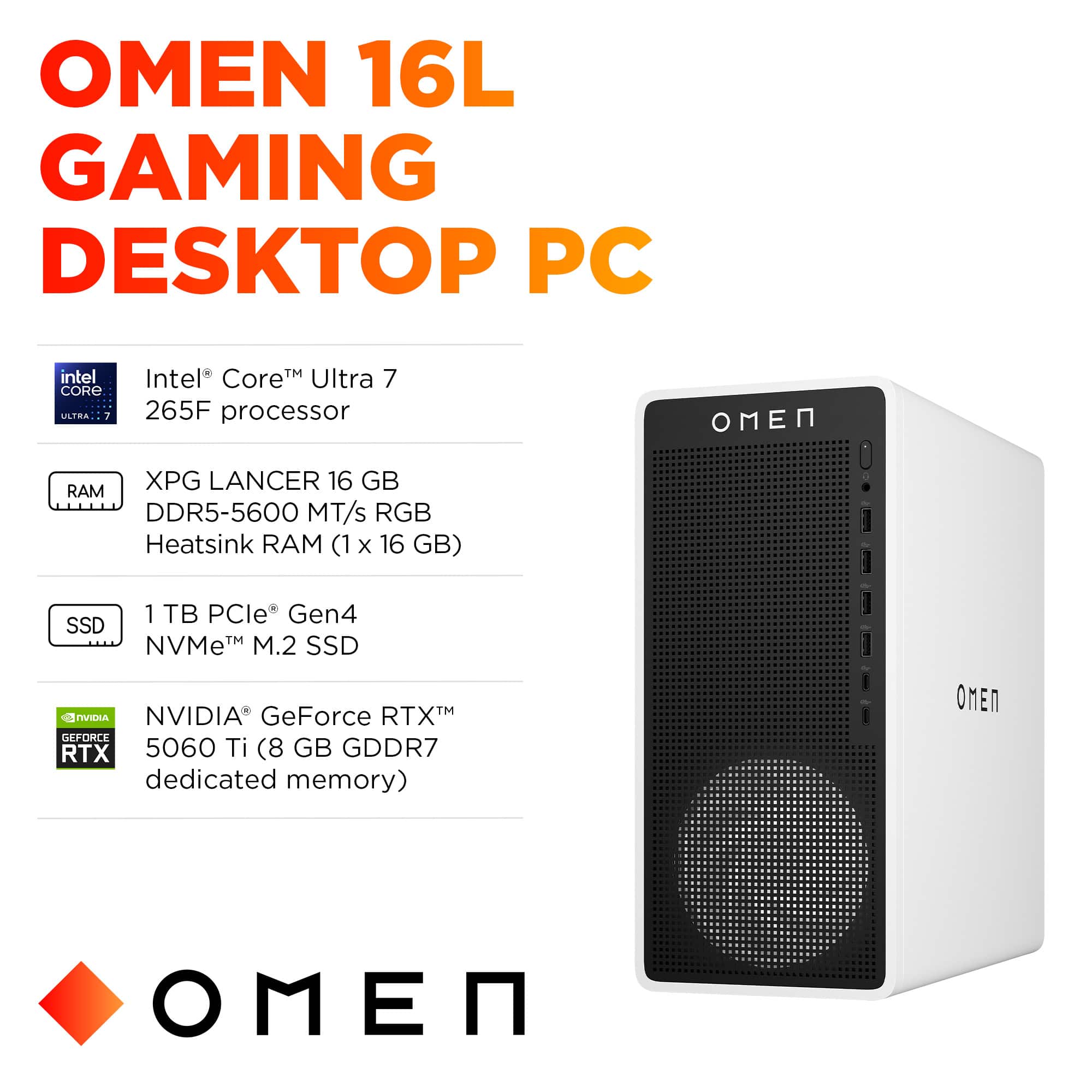
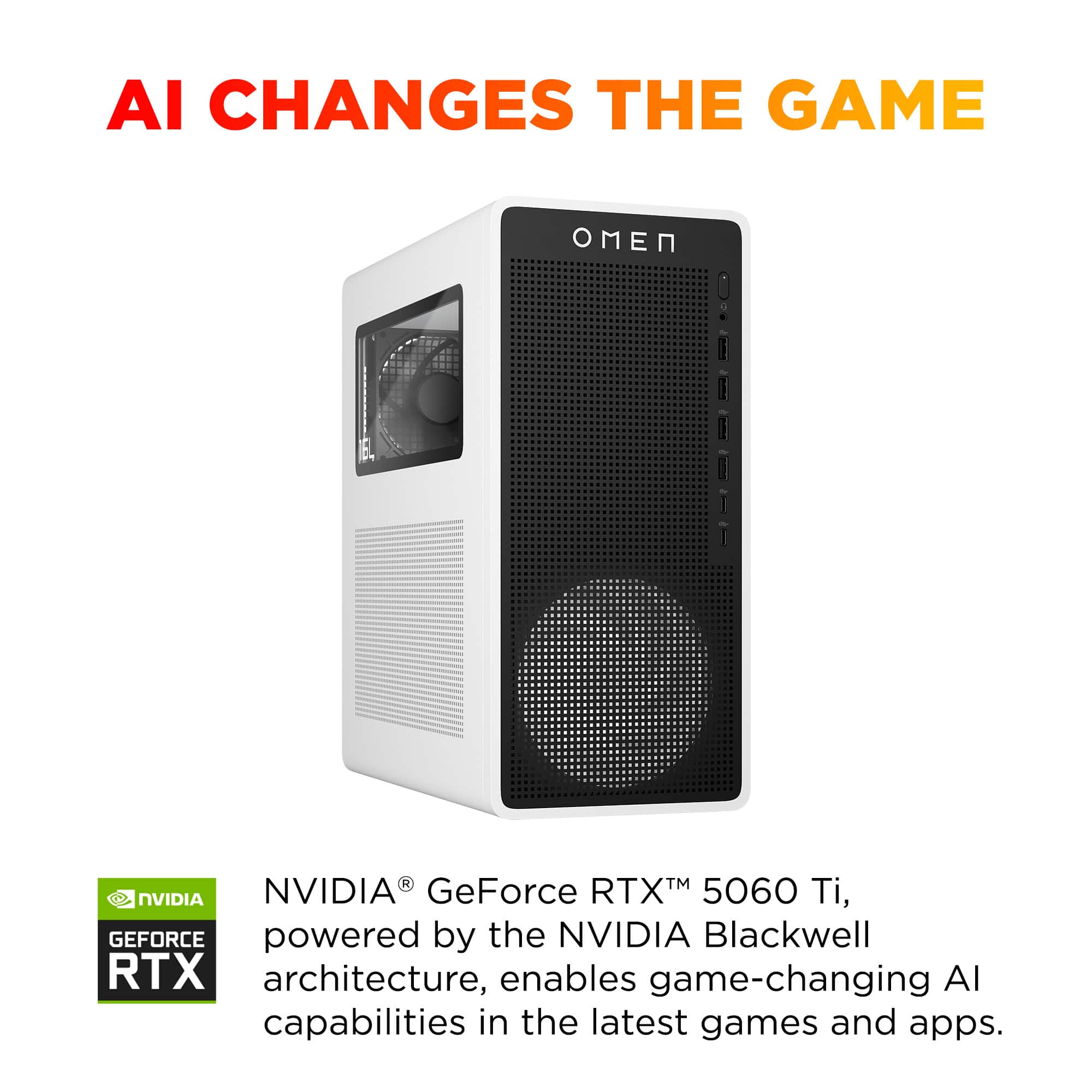
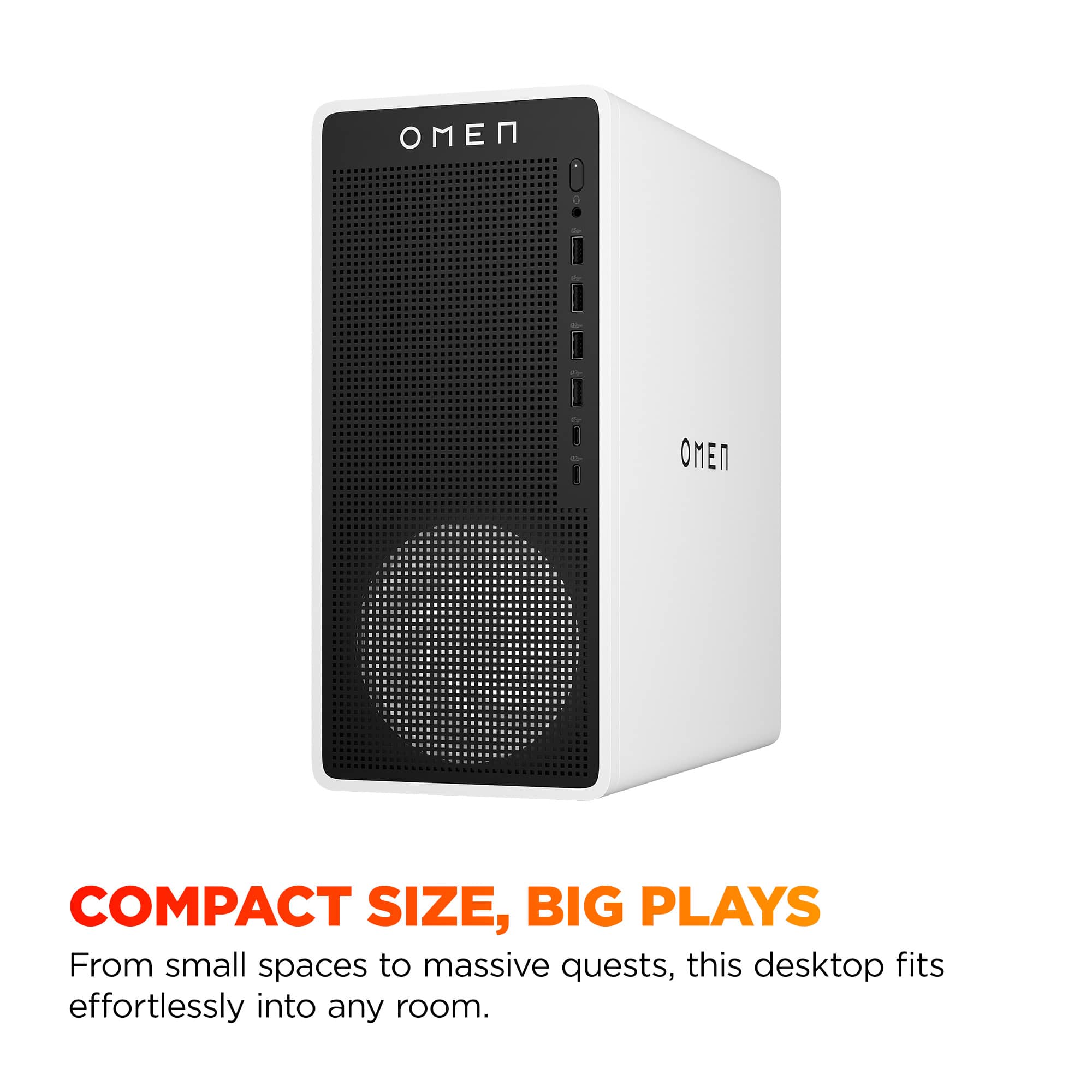
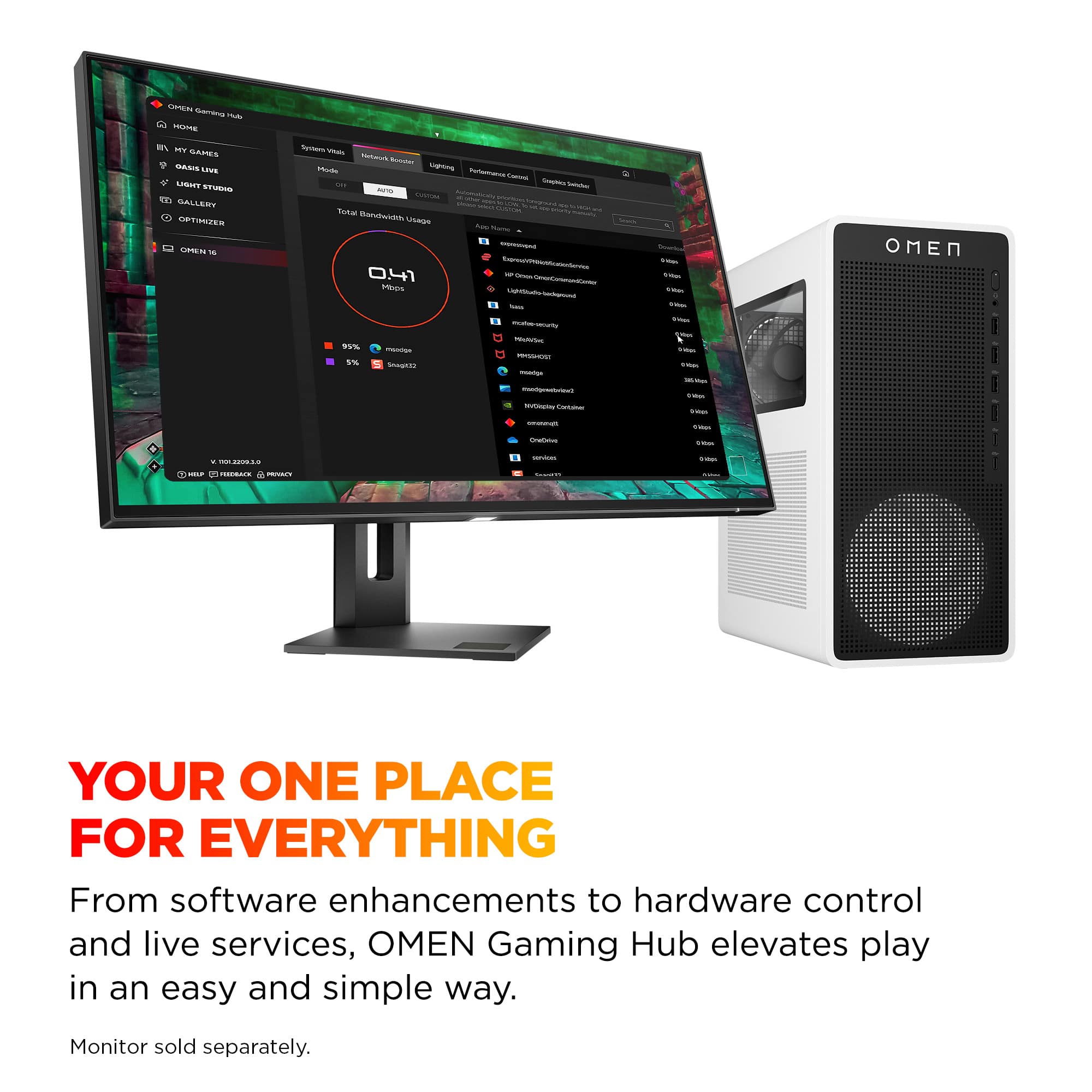
A:Answer The HP Omen 16L uses an HP proprietary motherboard with an Intel LGA 1851 socket (HP doesn't publish a specific model name for it).
For RAM upgrades, you'll need DDR5 desktop memory (UDIMM, 288-pin, Non-ECC) at DDR5-5200 or DDR5-5600 speeds. The system has 2 DIMM slots, each supporting up to 32GB, for a maximum of 64GB total.
Compatible upgrade examples:
32GB Kit: 2 x 16GB DDR5-5600
64GB Kit: 2 x 32GB DDR5-5600
Brands like Crucial, Kingston, Corsair, and G.Skill all make compatible kits. Just make sure it's standard DDR5 UDIMM (not laptop SO-DIMM or ECC server RAM).