A:AnswerThey didn't post exact specs but from my understanding the max overdrive is 1MS while 5MS is the native panel response time. You can estimate that the other two overdrive settings are somewhere in-between those response times.
However, I personally find that any of the overdrive settings have too much ghosting for them to be usable. For me, 5ms is perfectly fine as I am a casual gamer.
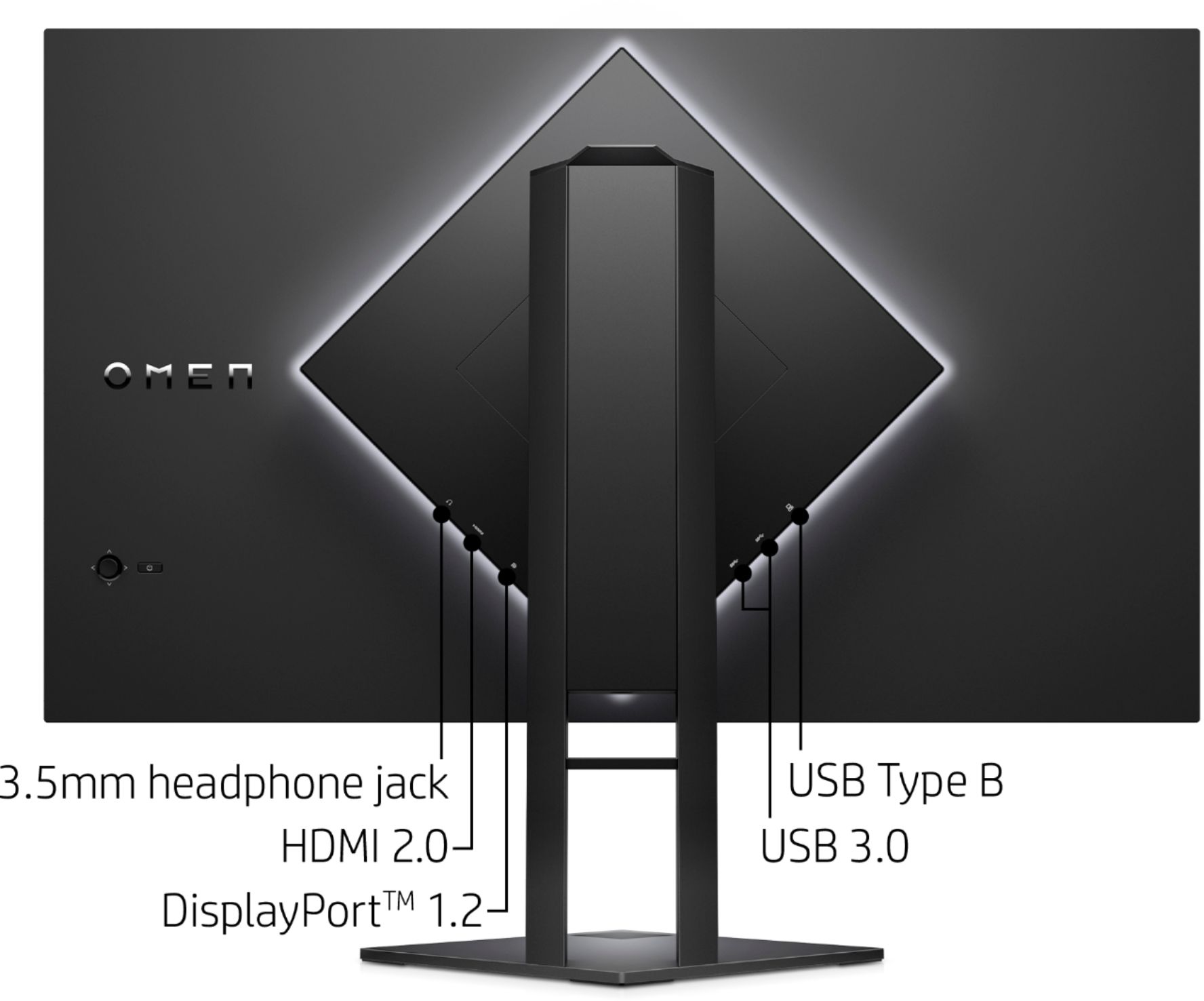
A:AnswerJust in case anyone runs into the same issue as me, the above HP information appears to be incorrect. Over HDMI I could only get 144hz to work, so I decided to check the official product manual on HP's website and it states that 165hz is only available over Display Port. Though this is nothing to worry about as it comes with a Display Port cable which most GPUs can use.
Information found on page 25 of the following PDF.
http://h10032.www1.hp.com/ctg/Manual/c06636426
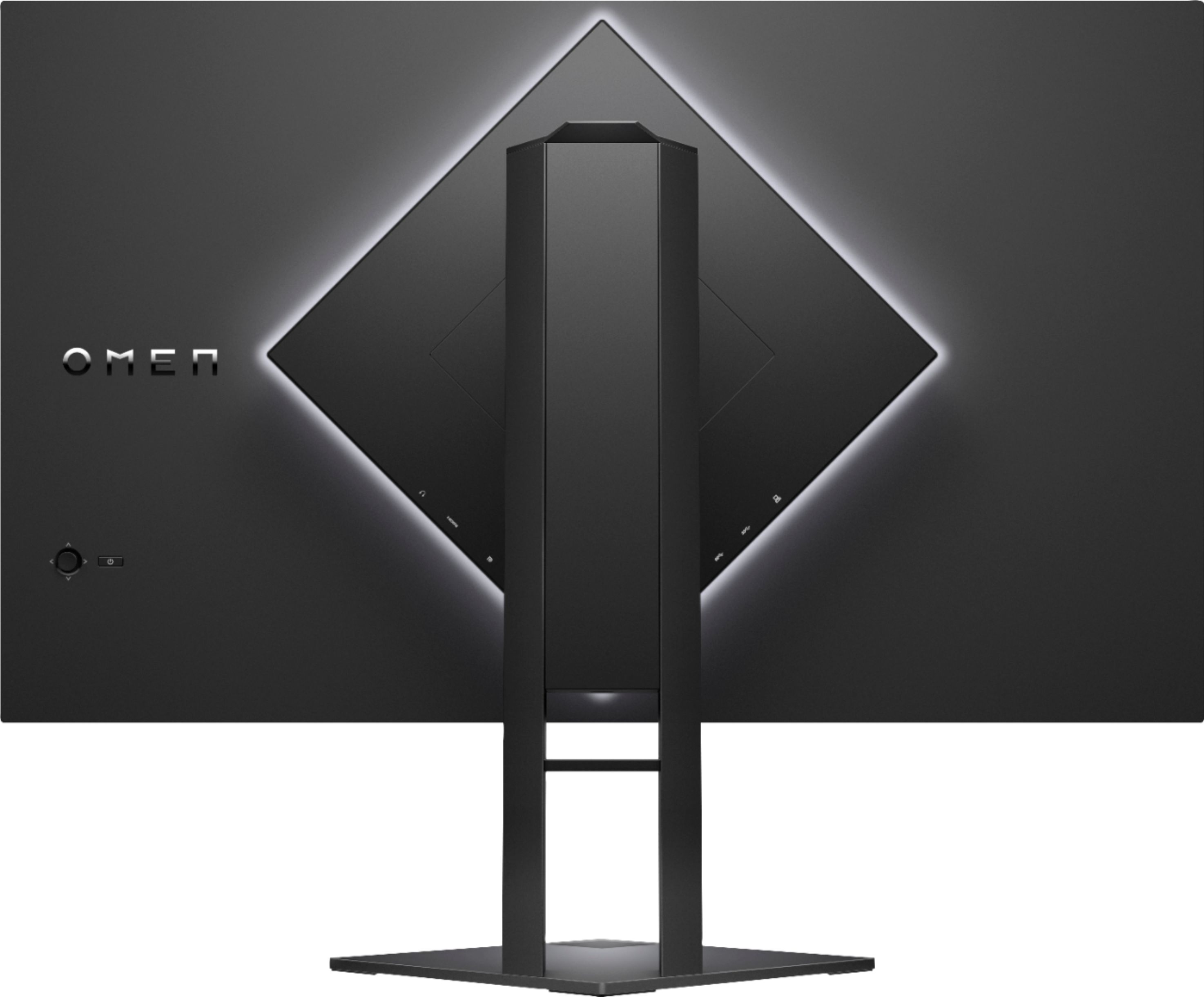
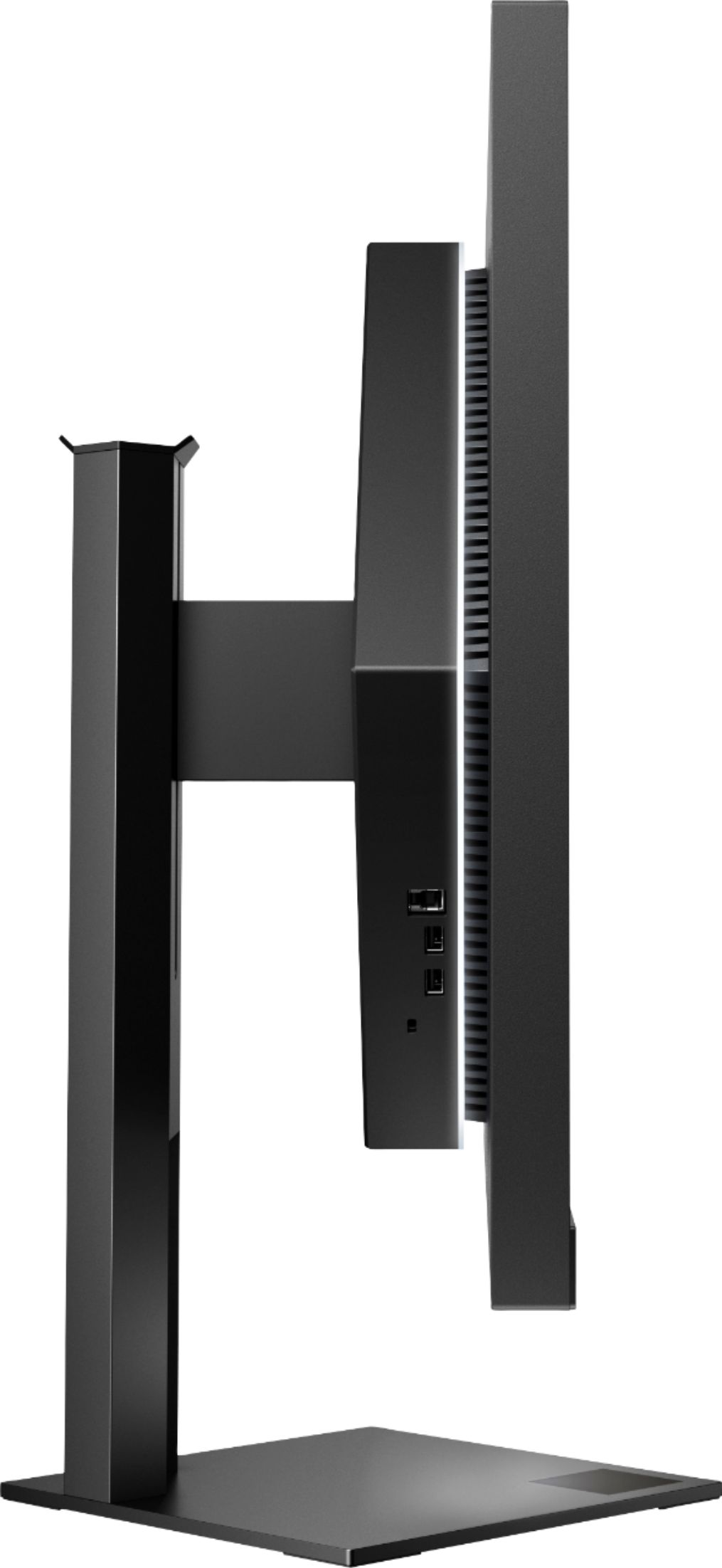
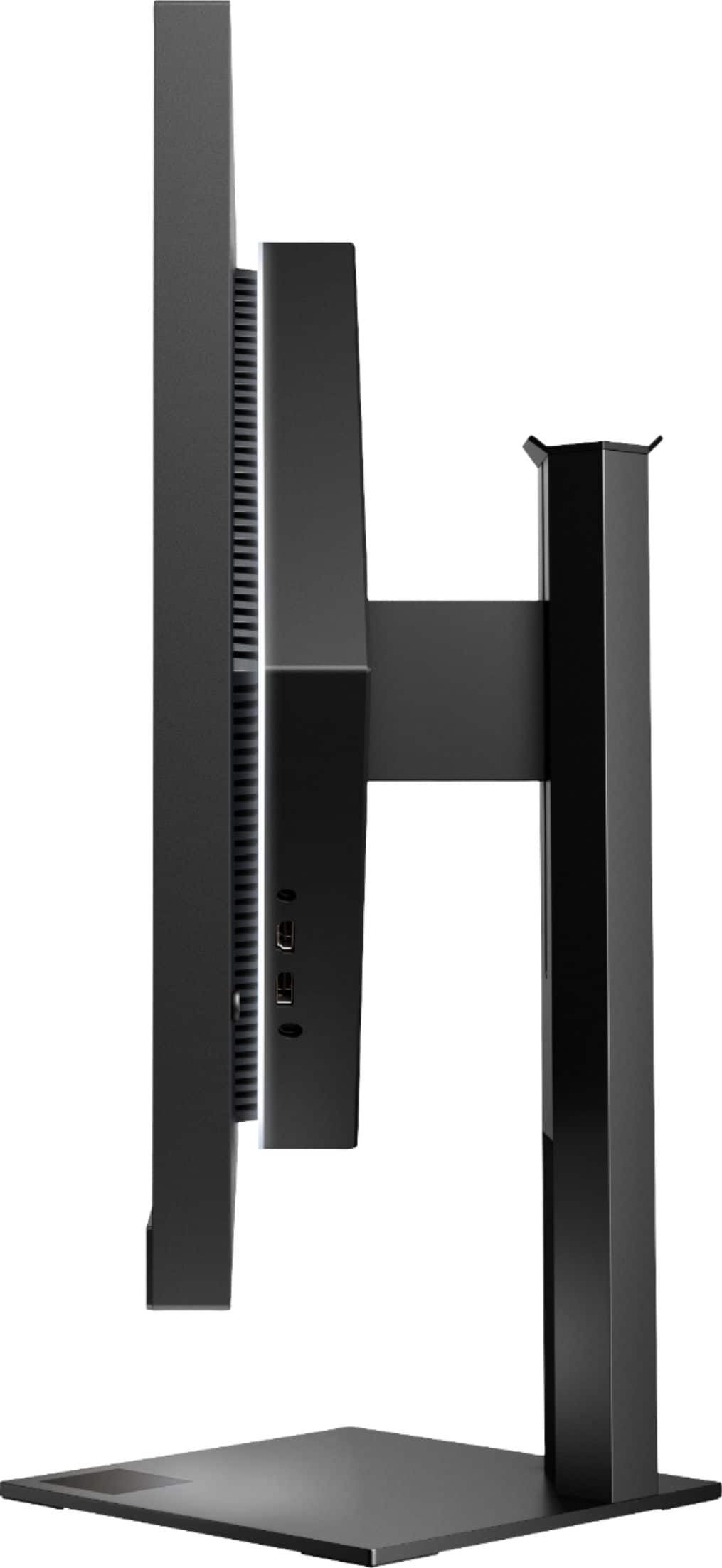
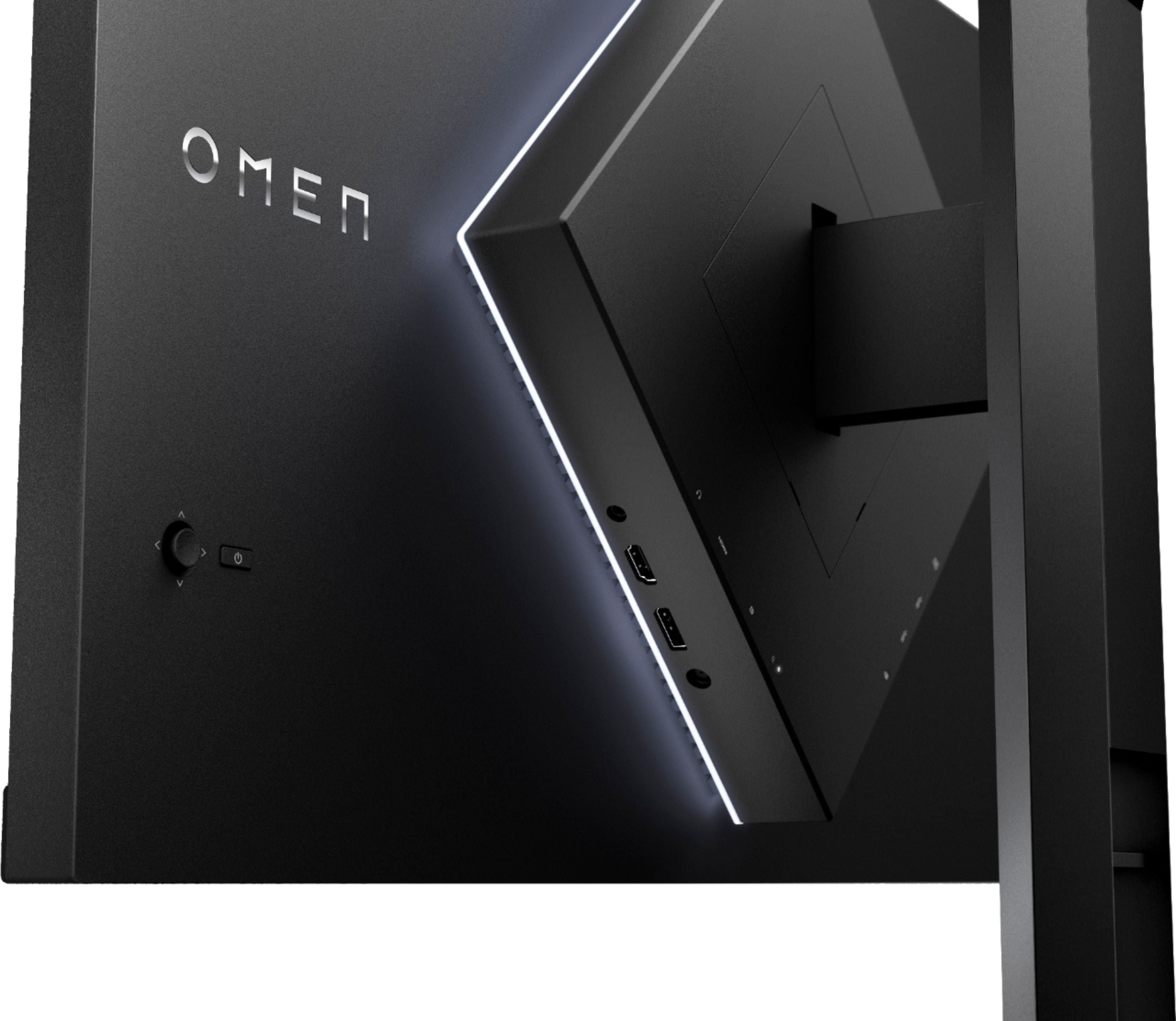
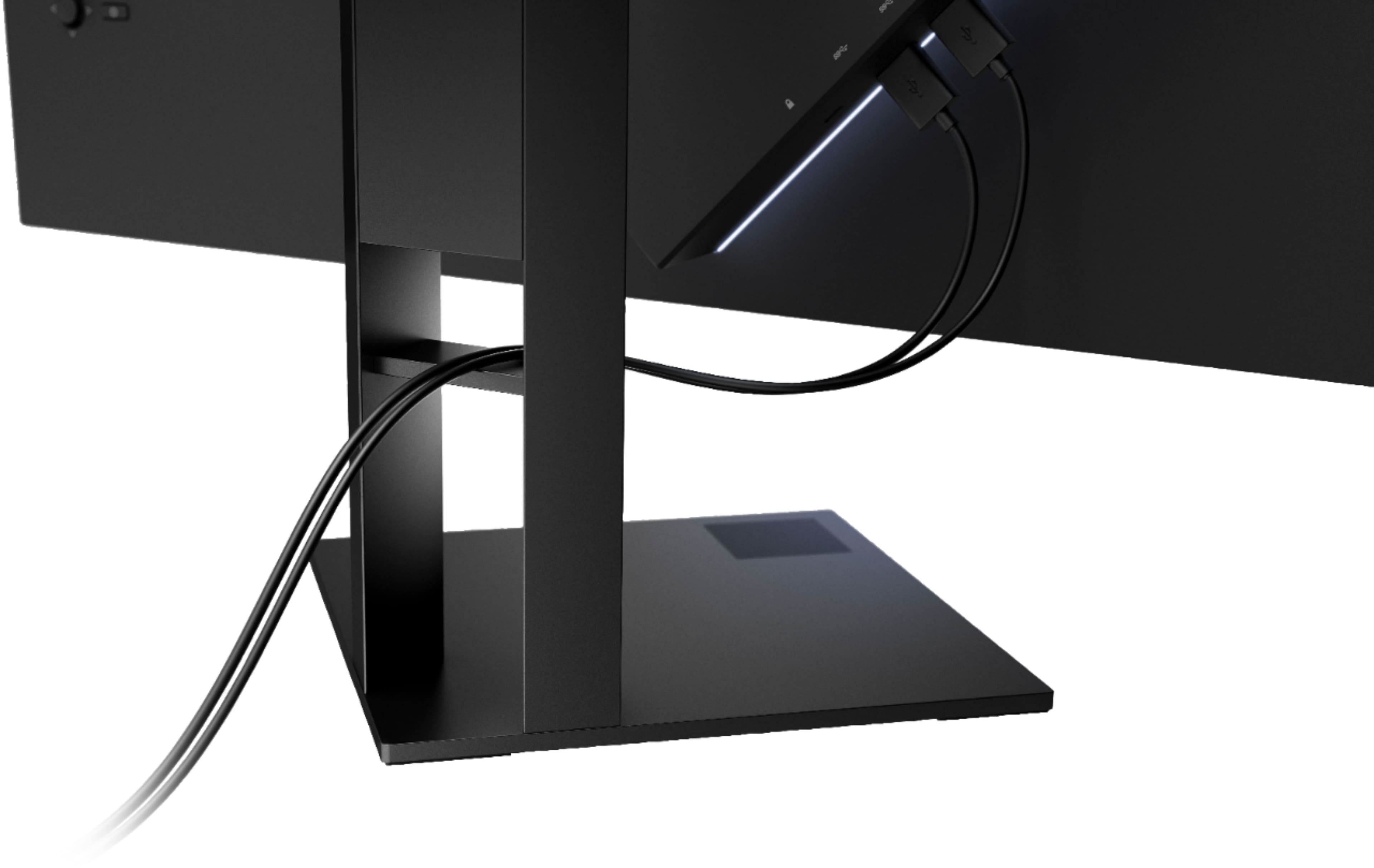
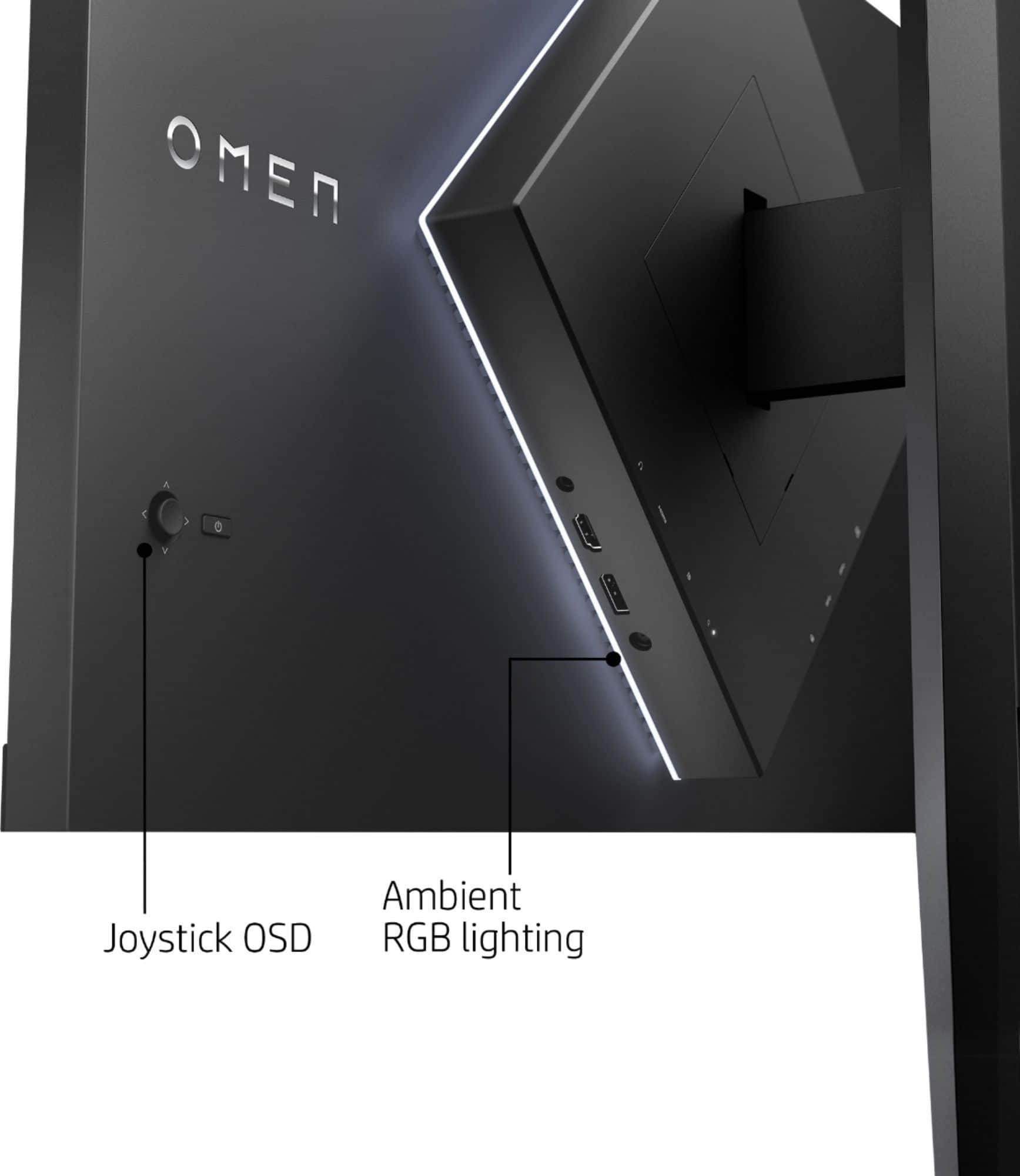
A:AnswerYes you can. There is an option in the menu to turn the power display on /off. You can also control the ambient lighting in the back and bottom of the monitor.
A:AnswerIf you hit the button on the back to bring up the menu, and then click left it should turn the ambient lighting on and off. You can also change the color scheme in the menus as well