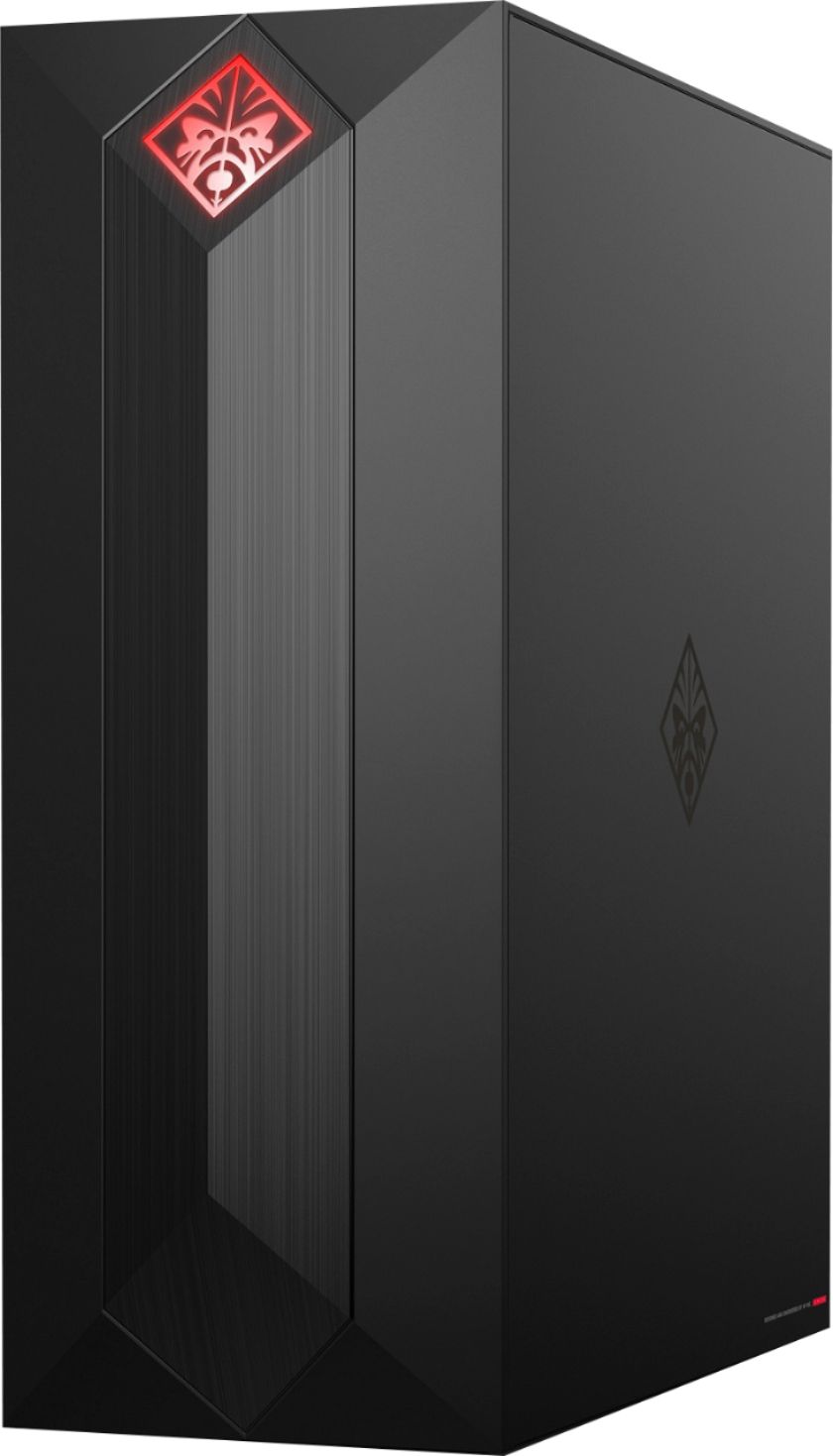
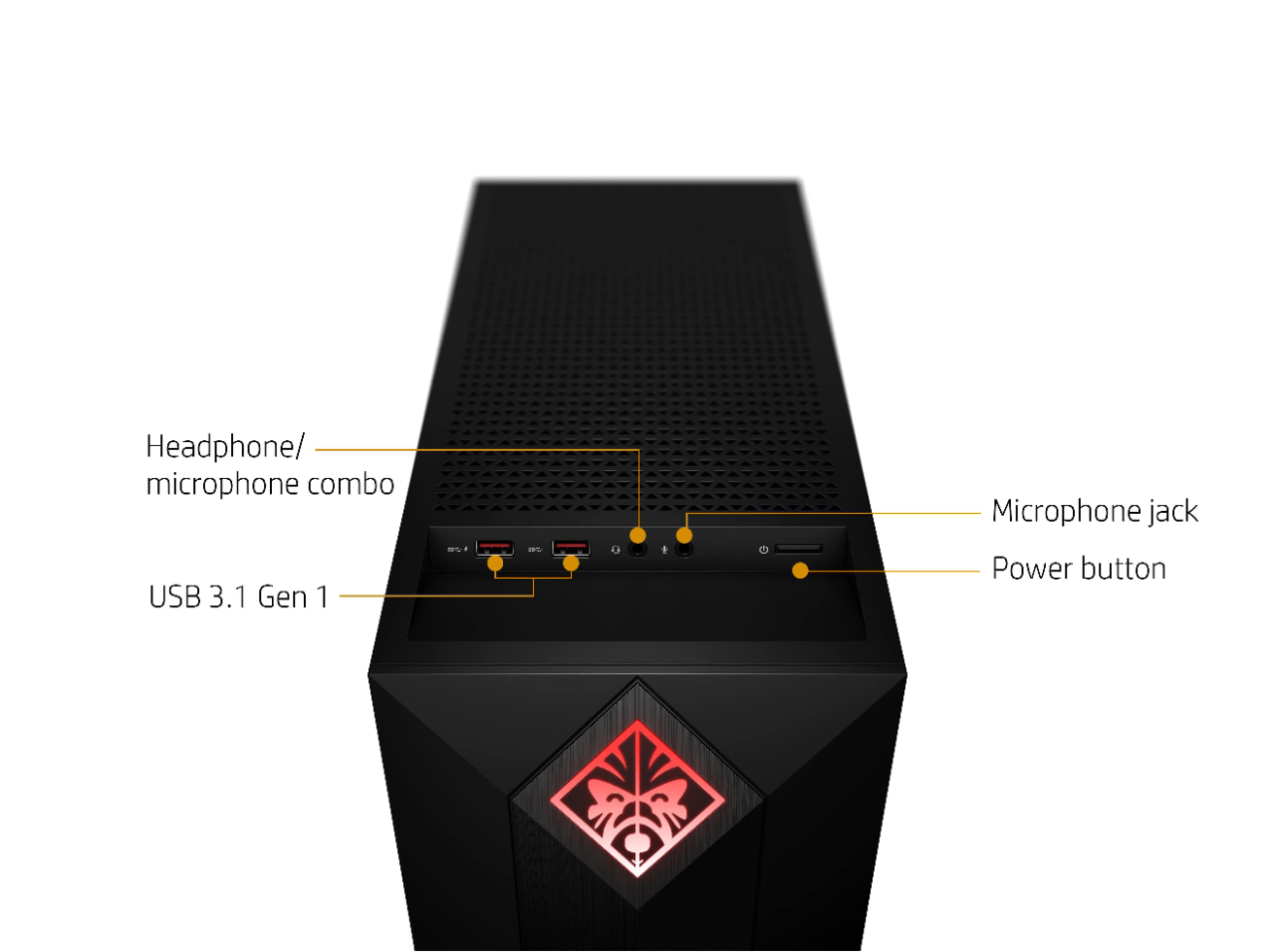
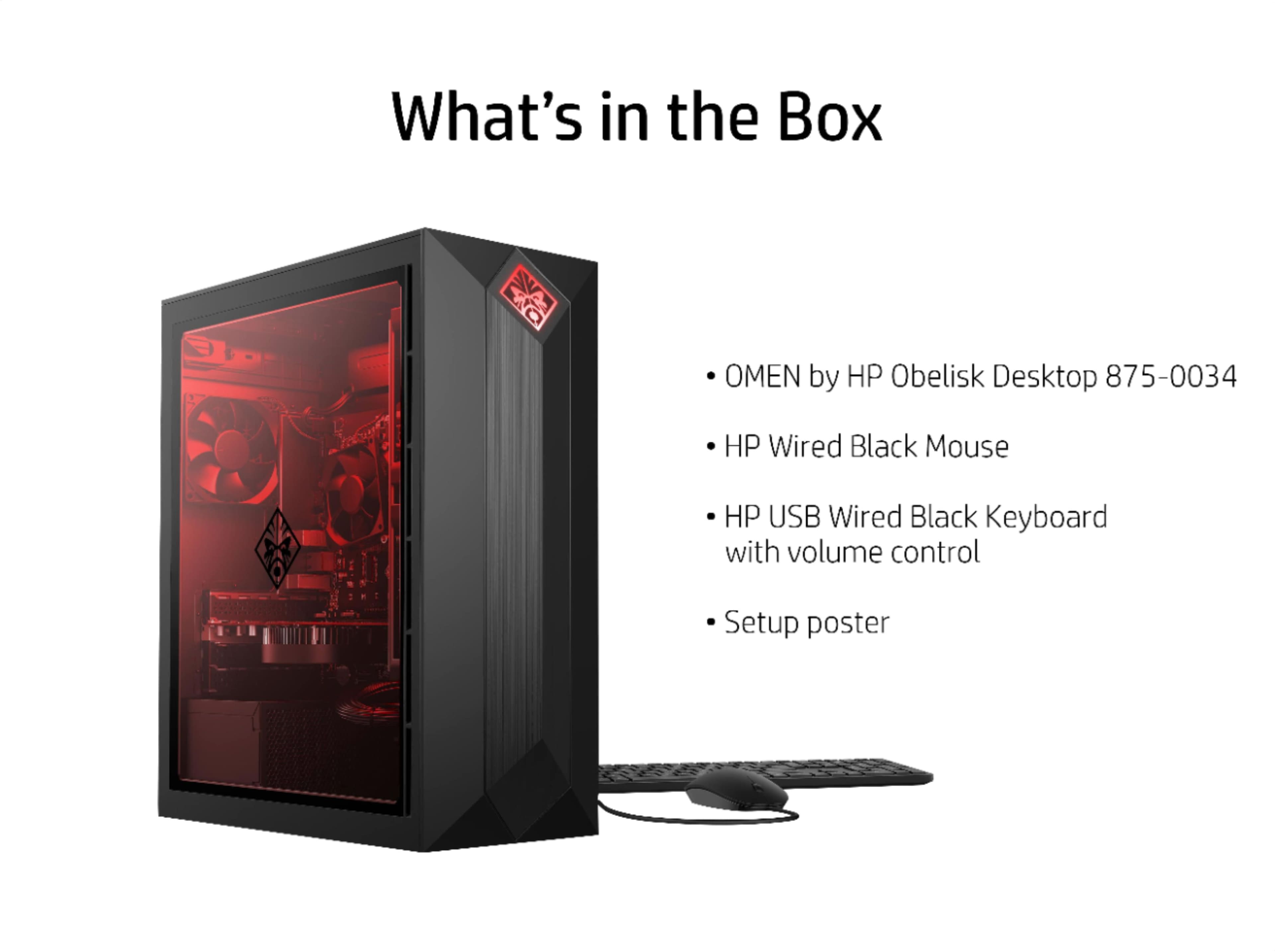
A:AnswerThis model does not have an AMD compatible socket. You would only be able to upgrade it with processors from Intels products which share socket compatibility.
A:AnswerThanks Robob58. I know the system always starts up with the original colors. In my case there are times when I can't change them after it's fully booted. I suspect the omen command center is dependent on the HP Software Component driver. This seems to have been updated several times in the 2 weeks that I've had the computer by both windows update and the HP support assistant; it doesn't appear to be too stable.
A:AnswerTricky. What's loading on boot up? It may not be freezing up but enumerating processes prior to booting. Antivirus is notorious for this but it may more often be whatever is loading at boot time. Check your startup: Run Task Manager by pressing and holding the Ctrl, Shift and Esc keys. Select the Startup tab. Check out the impact rating of different startup programs and try (careful here) to disable all that are showing in the high category. Skip the security related software. Get rid of malware: run a complete malware/anti-virus scan to remove malware from your computer. Hope this helps.
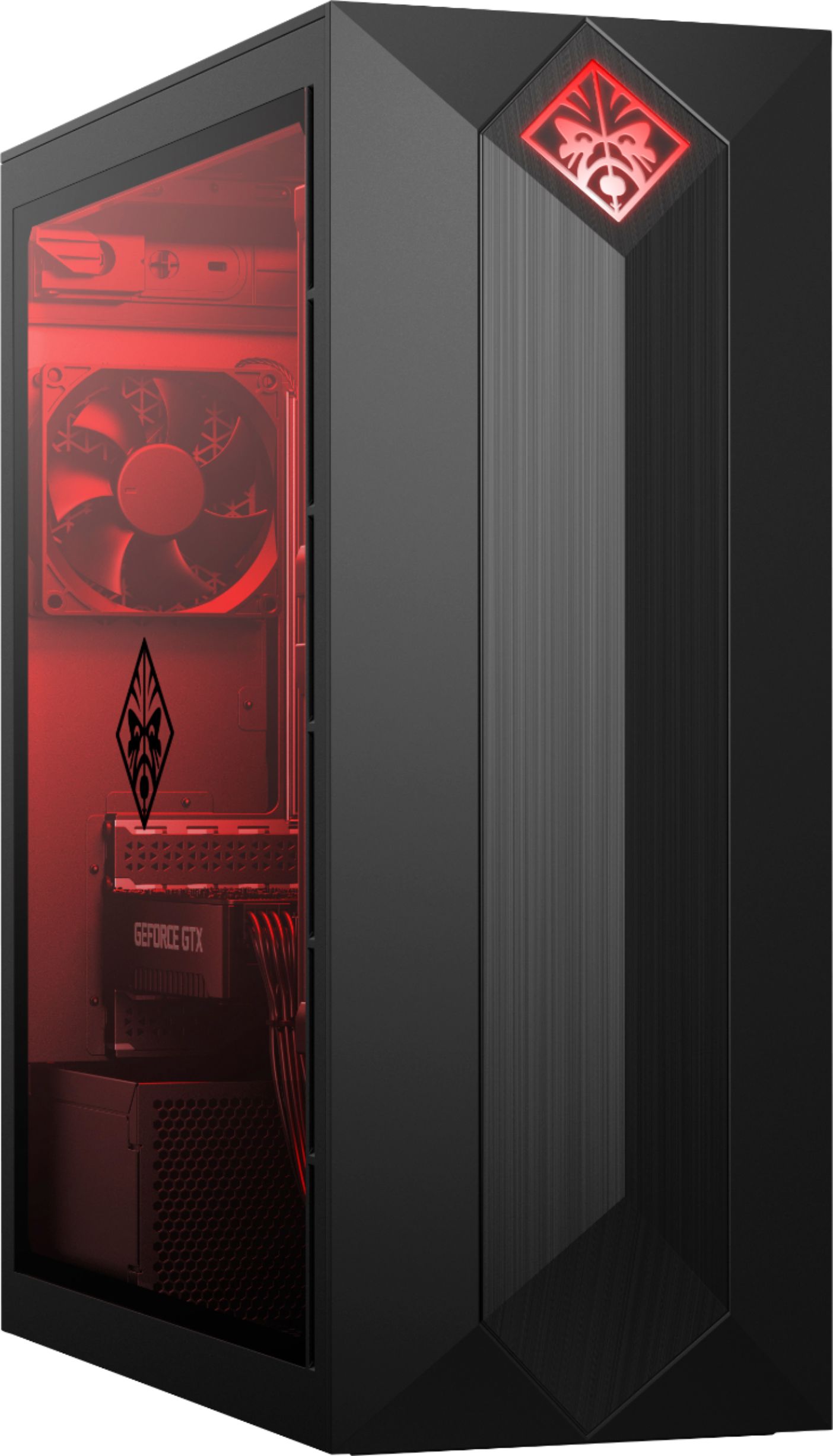
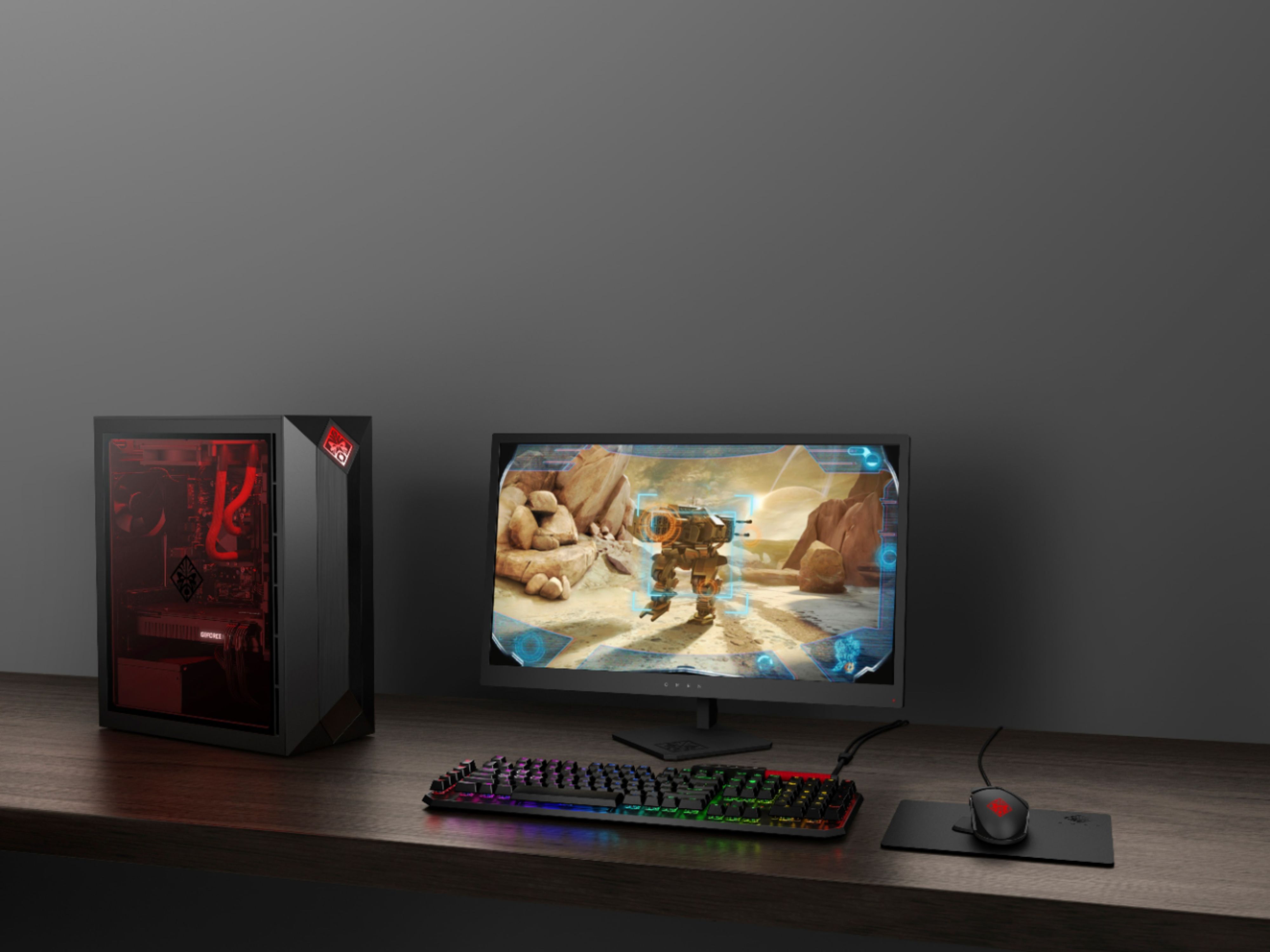
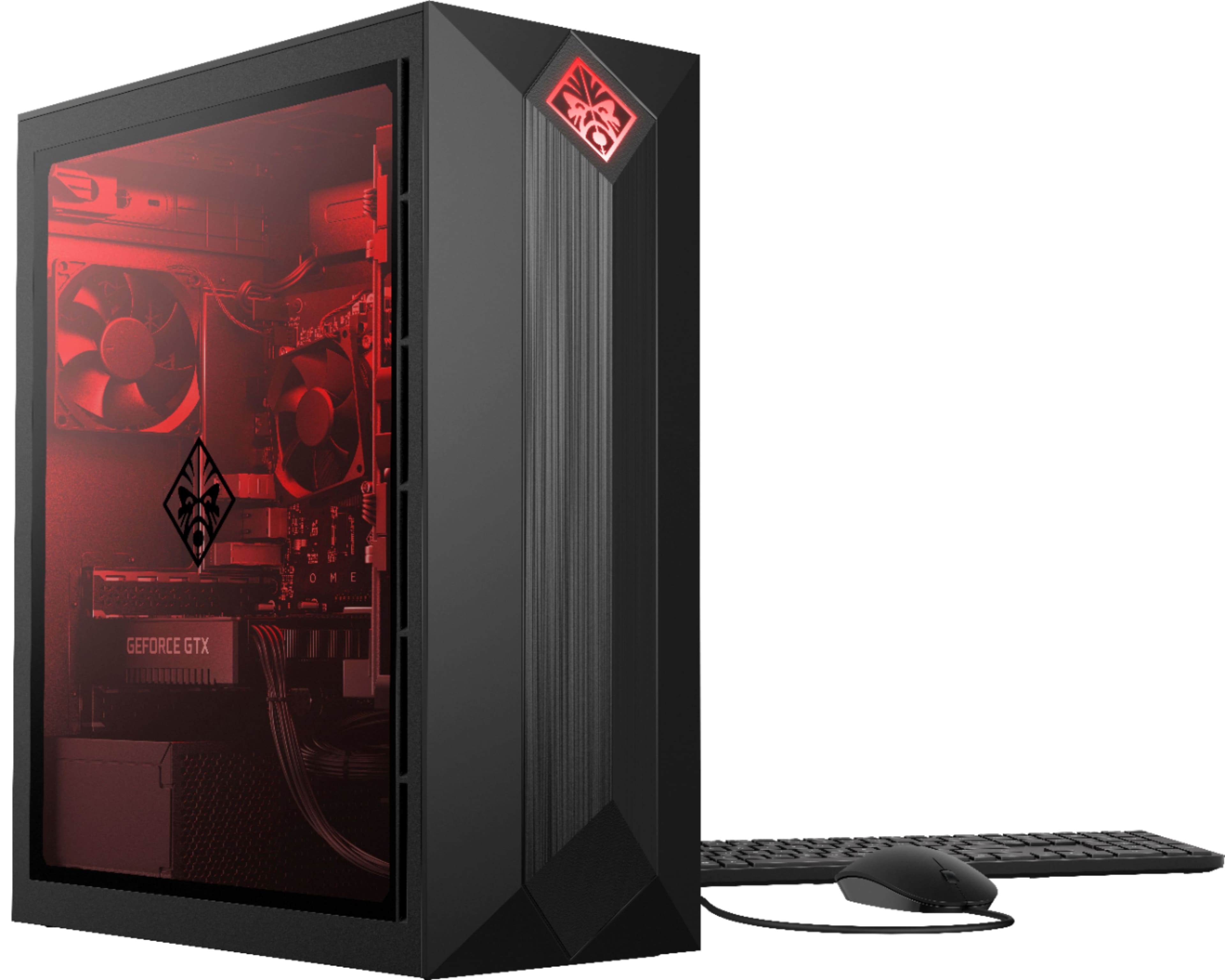
A:AnswerThere isn't a second storage M.2 slot. The ones people are mentioning are a socket 1/key A type M.2 slot and it is occupied by your Wifi/BT card. Unfortunately, there is only one M.2 SSD slot (taken by the 256BG SSD) and there are 2x 3.5" Hard Drive Bays. You could add a 2.5" SSD into one of those two hard drive bays, or upgrade the 256GB SSD to a larger capacity. You'll want an NVME M.2 SSD. Here is the motherboard info link:
https://support.hp.com/us-en/document/c06124984
A:AnswerThe reason the i7-9700f CPU is overheating is due to faulty power allocation which locks the CPU into an over-clocked state (4.6GHz). (This is possibly due to a poorly designed HP motherboard). There is an easy band-aid type fix. To remedy the situation in Windows 10, right-click on the Start Button, go to 'Power Options' , 'Change Plan Settings', Change Advanced Power Settings', scroll down to "Processor Power Management". The 'Maximum Processor State' is by default set to 100%. This is normal on every PC, but on the OMEN the 100% setting locks the CPU into an overclocked 4.6GHZ. Crazy! To lower the CPU temps, you have to adjust the "Maximum Processor State" setting to 90%, which will lower the CPU clock to 2.7 Ghz. At that clock the CPU temps are reasonable.
With any other computer the clock rate varies from 800MHz to 4.6GHz depending upon CPU load, but here it is stuck at one frequency. So the HP Omen is perhaps a defectively engineered product. You can check out all the details of clock-speed and core-temps using MSI AfterBurner software. I wouldn't bother upgrading the fans since that's not the real issue.
I
A:AnswerThere are a couple of options. One would be to create a USB boot drive, or you could use an external drive if you've got a DVD with the operating system on it.
A:AnswerIf you choose to upgrade the existing solid state drive, it would need to be PCIe NVMe M.2 SSD format. There is also one available M.2 slot for a solid state drive on this desktop.