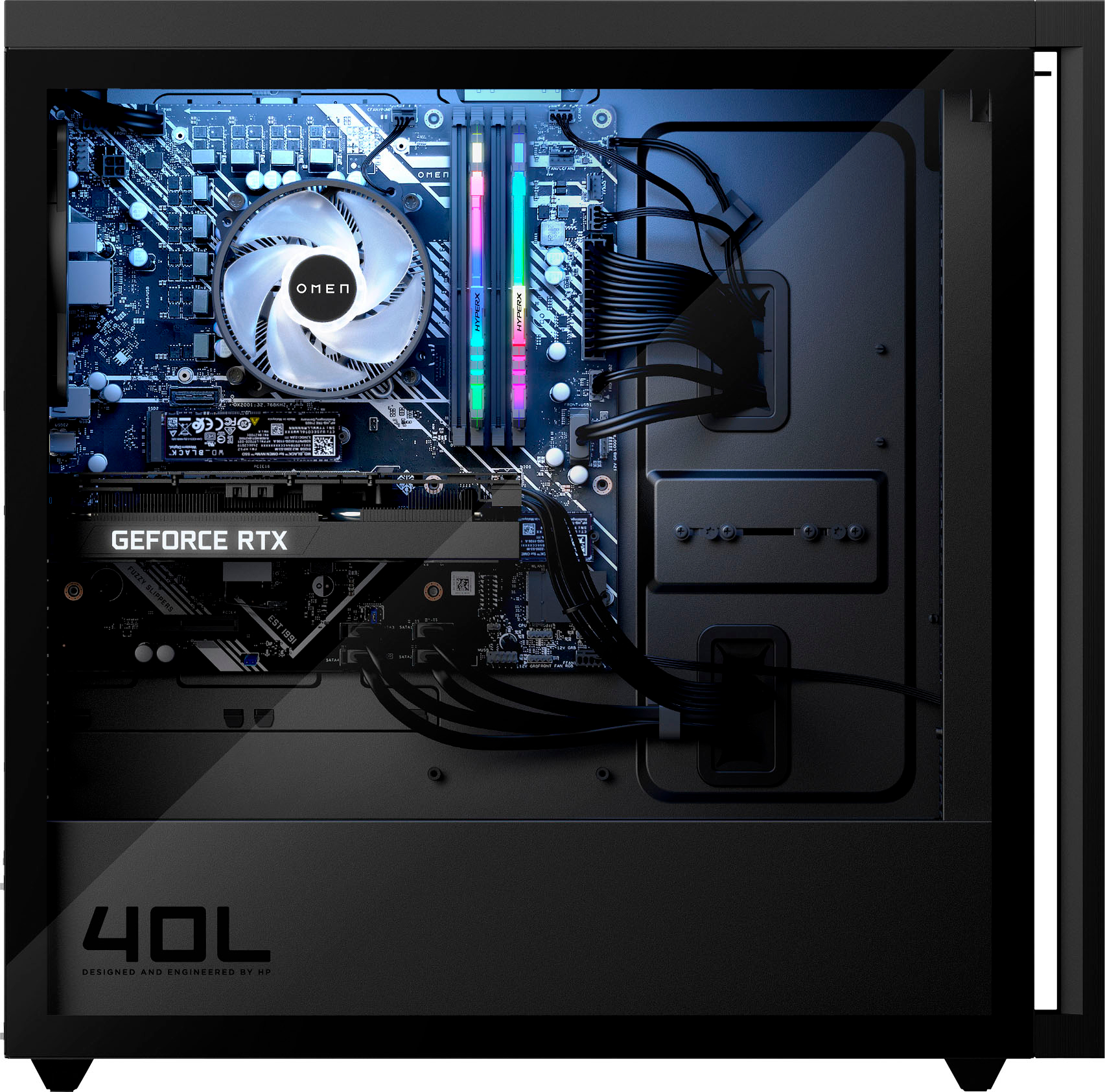
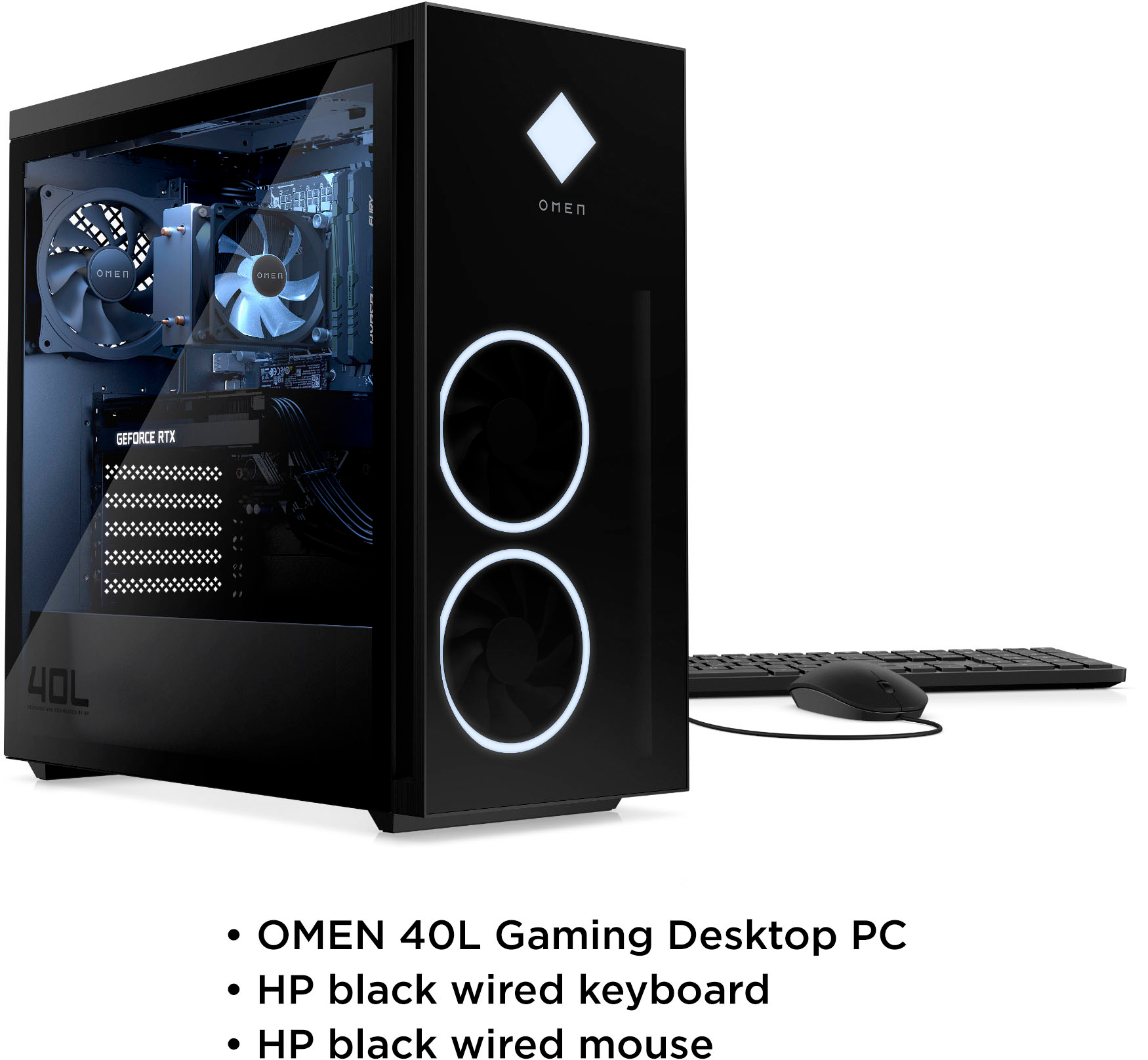
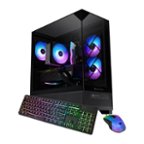
A:AnswerIt looks like Best Buy doesn't carry the exact RAM or fans, so I can't recommend another retailer. However, I can give you the part numbers to look for. For the RAM, it's part # M85223-001. The fan is part # M82878-001
A:AnswerThis specific OMEN does not come with liquid cooling. However, there are OMEN versions that do come with liquid cooling as an option, such as SKU: 6504332. If you are interested in upgrading your OMEN to a liquid cooling system, you can reach out to HP Support or your local Best Buy Geek Squad for more information.
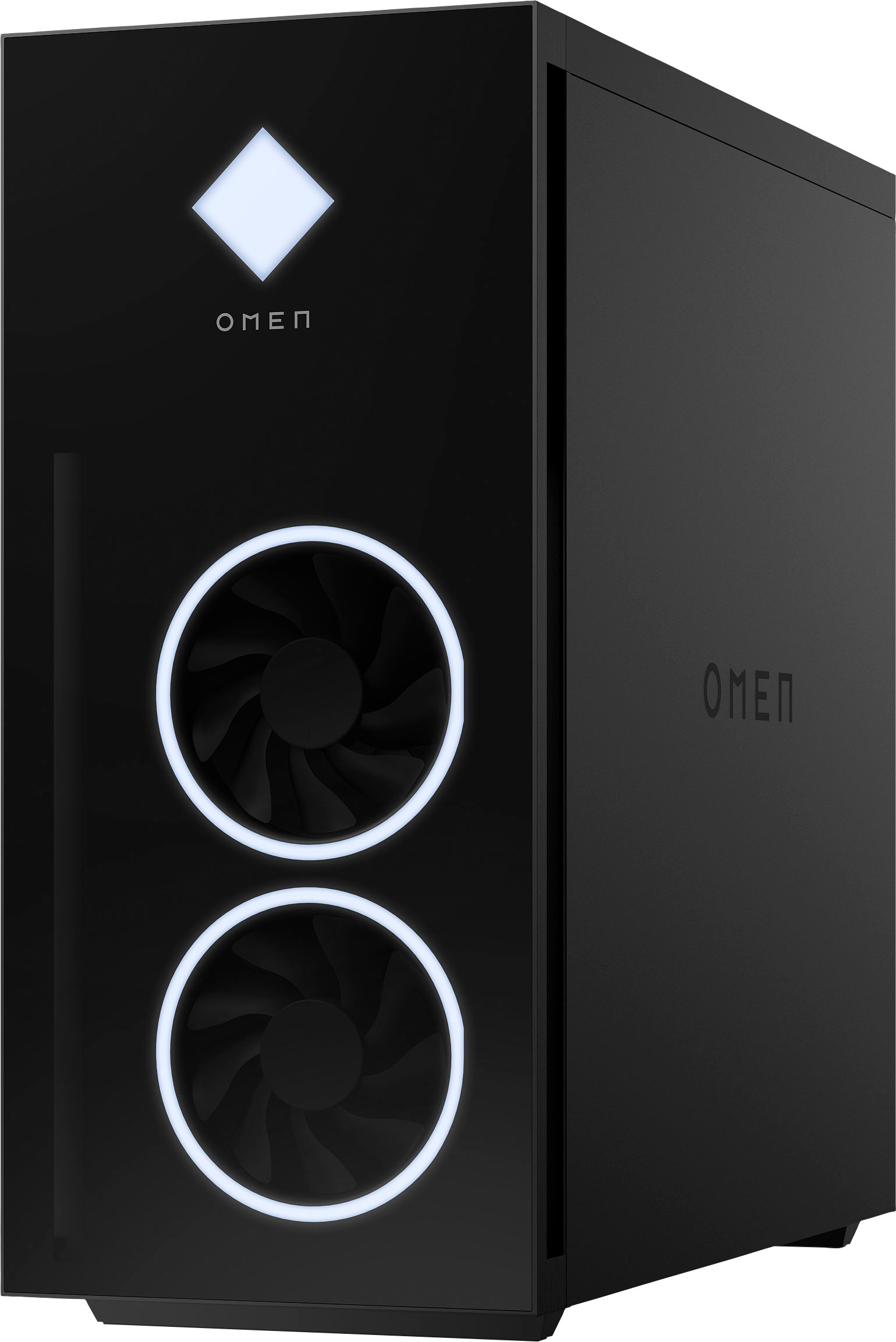
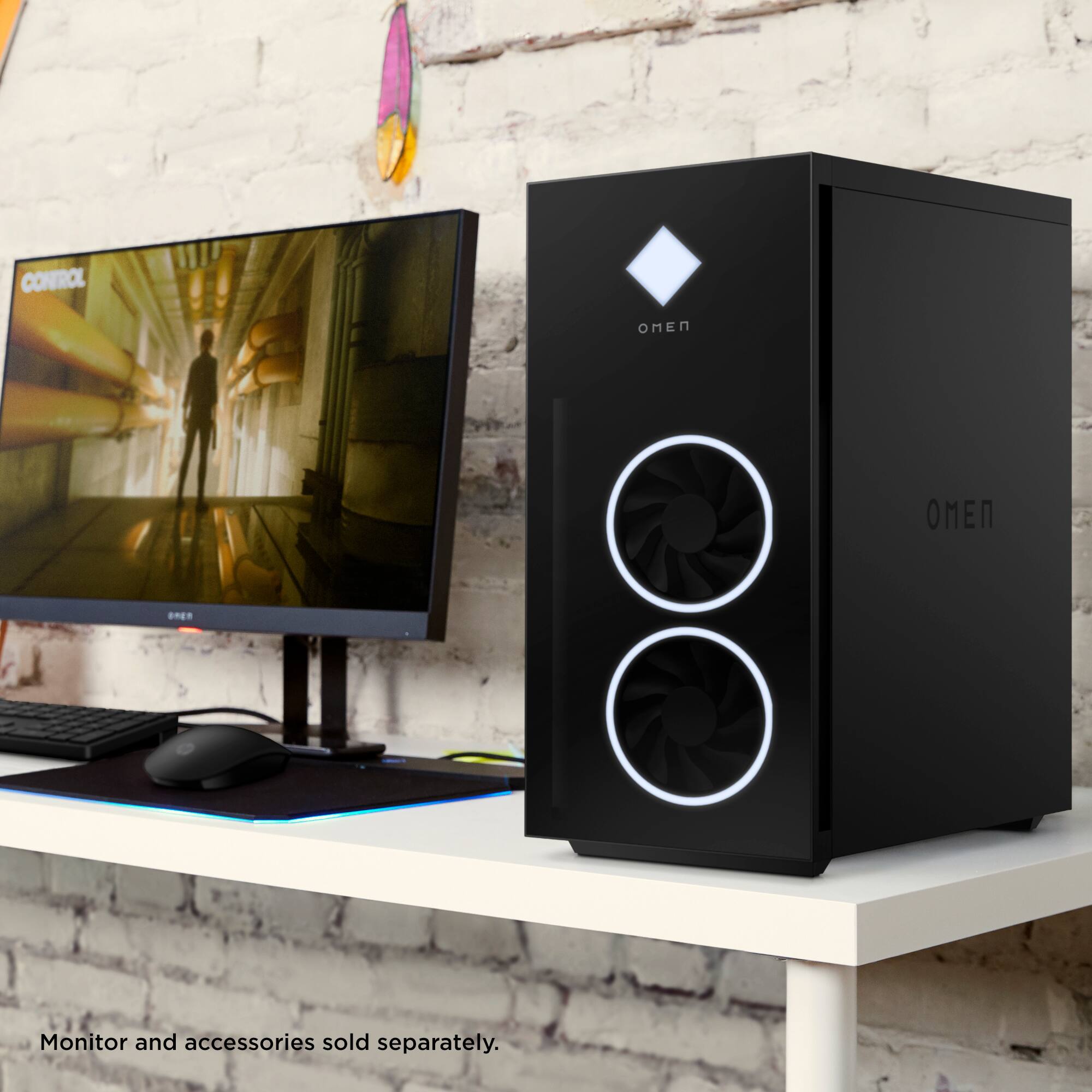
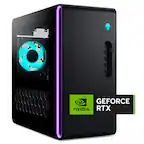
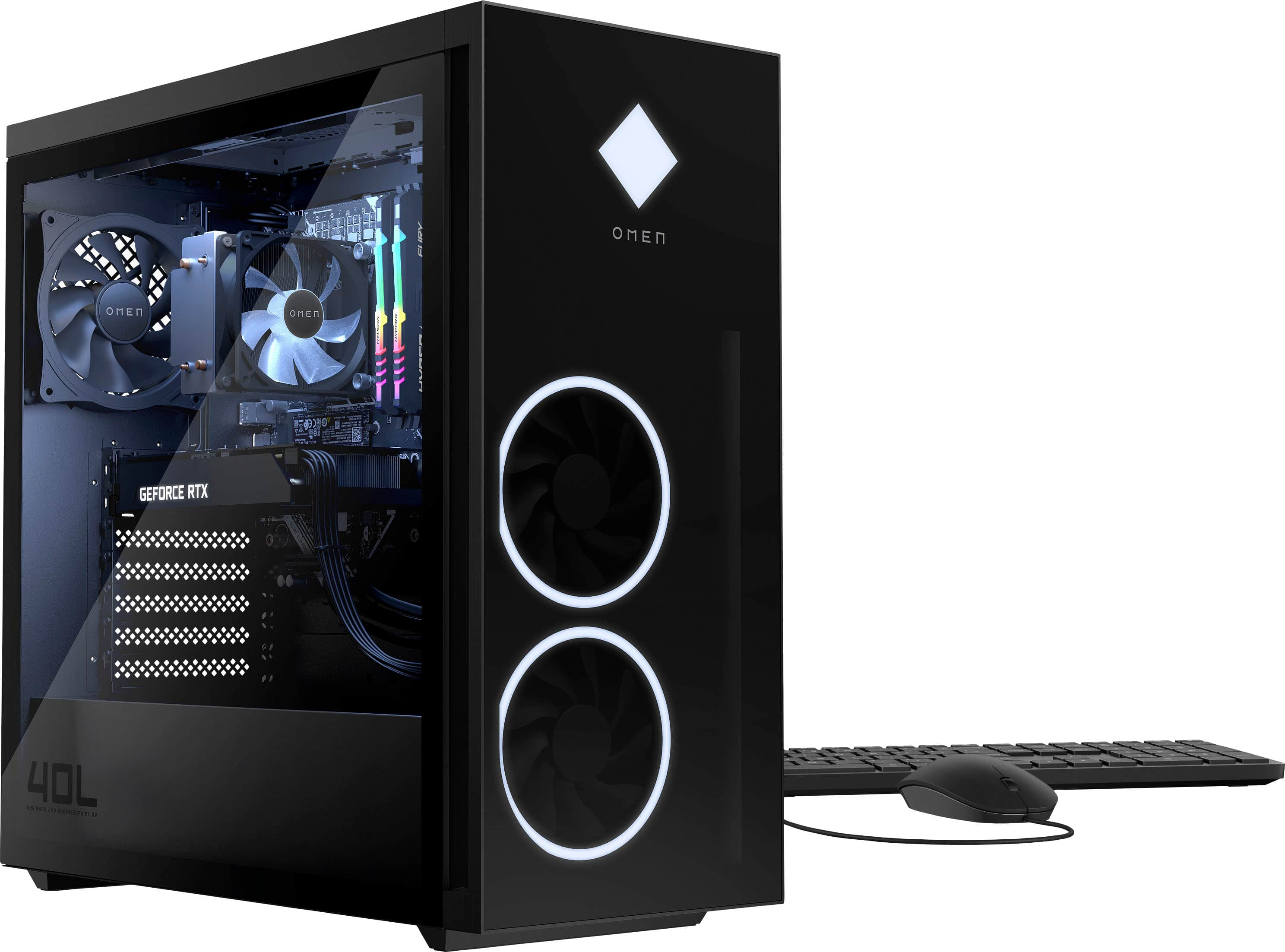
A:AnswerYes, and it's very cool. The picture you see there in the ad, the one with the glass panel, there's no space (like with the Omen 30L and other desktops). But, the other side panel comes off, too, and just as easy. And there's a cool space, underneath that metal box thing that runs horizontal along the bottom, where two 3.5 SATA drives are tucked away! If you look from the front angel at this 40L, you can see that nearly half of that bottom front fan falls below the level of that metal box encasement...the two 3.5 SATA drive bays are directly behind the front bottom fan!! And as your looking in from the back panel, you see to the upper right (kind of behind the RAM slots) there are two 2.5 spots for SATA drives. It was very cool finding them. FYI, even though you only asked about the SATA expansion bays...there is an open M2 slot that is totally hidden behind the GPU! I was frantically looking for that because of the advertised multiple expansion drives. I had to watch some You tube videos showing me how, but then I easily removed the video card and inserted a 2 TB heat-sinked SSD. Hope that helps...great machine!
A:AnswerThank you for the question. You can access the BIOS by repeatedly pressing F10 at start-up. You can also do this from the Windows START menu. Learn more here: https://www.youtube.com/watch?v=GdFCKLlPM3o
A:AnswerThank you for the question. Are you referring to liquid cooling? The Omen 40L is available with liquid cooling pre-installed, or without, and you can add your own (we recommend Coolermaster). Please reach out to your local Best Buy for assistance.
A:AnswerOpen the Omen Gaming Hub app. Click on the "Lighting" button on the left side menu. At the top press the "Lighting" tab. Below the "Lighting" tab, you will see words "Zone" and "Mode". Below the Zone and Mode names are icons. You can press on each of those icons to select the different lights inside and on the face of, your computer. The video card light if the fourth icon under the "Zone" name.