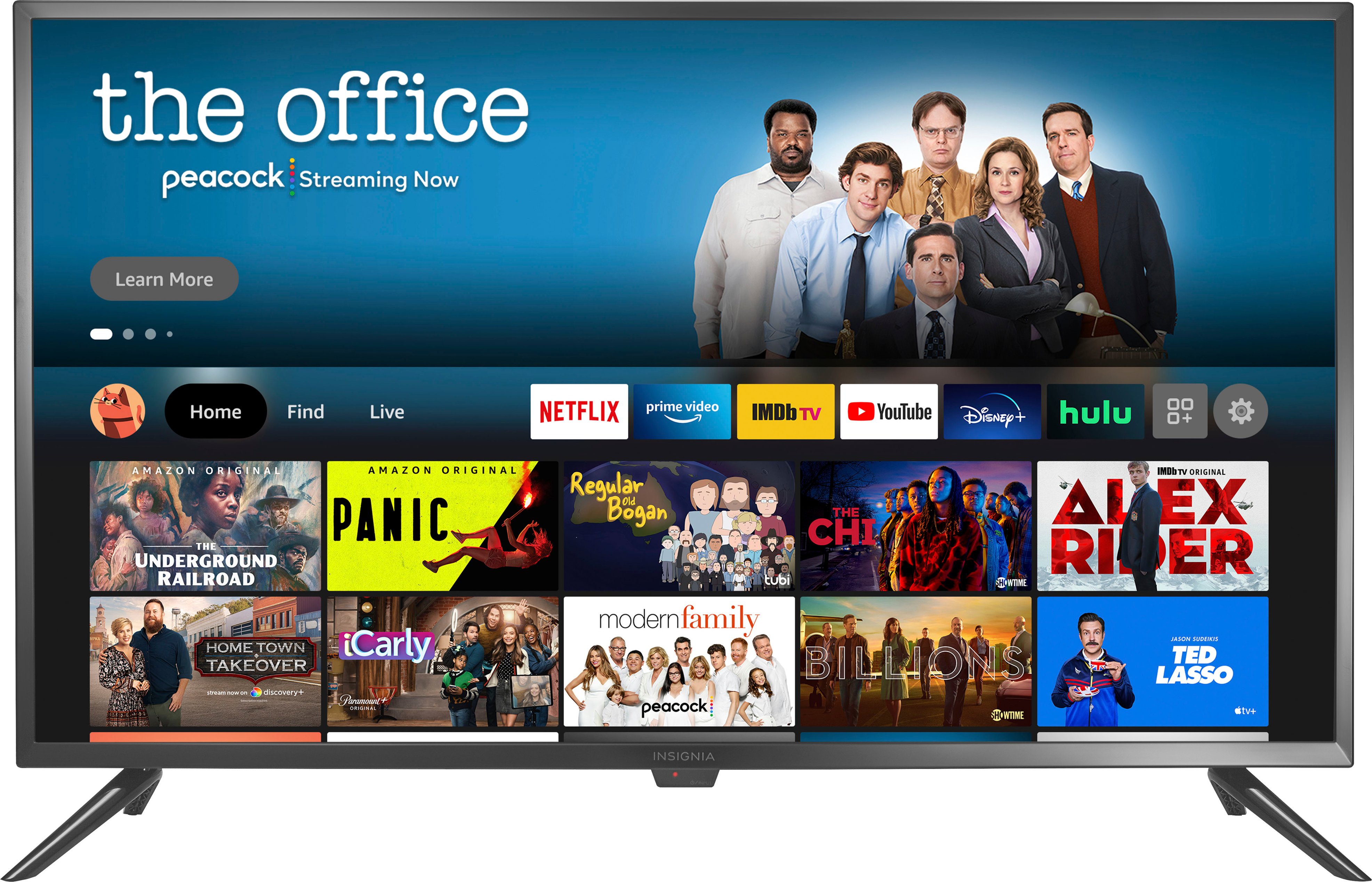
A:AnswerYou cannot connect mobile devices to the TV using Bluetooth. This TV doesn't support Cast nor Mirroring. You can connect a Chromecast device to cast content from your mobile devices.
A:AnswerTry the Power On feature, when enabled, your TV turns on displaying the last used input: go to Settings > Display & Sounds > Power On and select Last Input.
A:AnswerThe link for the User Guide is located under the Overview section, next to Manuals & Guides
https://files.bbystatic.com/w4LeoifjUPb2bumM9KS6CA%3D%3D/Insignia_FireTVEdition_WEB_20-0301_V4_EN_Final_lr.pdf
A:AnswerTry to do a Factory Reset go Home > Settings > Device & Software > Reset to Factory Defaults.
For product support, please visit https://www.insigniaproducts.com/email-us
A:AnswerYes, to activate the Sleep Timer long press the Home button and select Sleep Timer; this function turns off the TV in: 5 , 10 , 15 , 30 , 60, 90, 120, 150, 180 and 240 minutes.
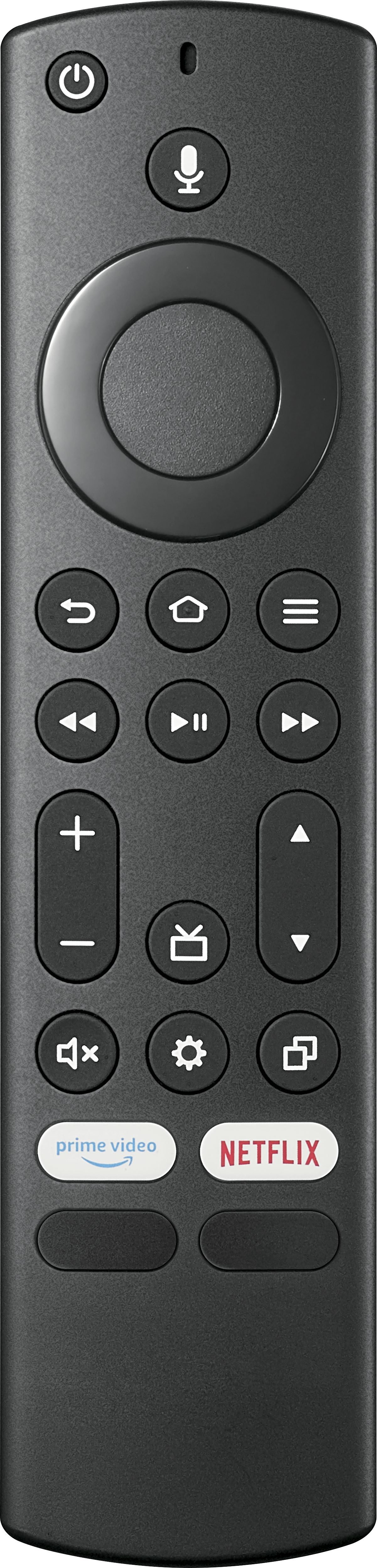
A:AnswerThe included remote cannot be programmed to control other devices. Try the Power On feature, when enabled, the TV turns on displaying the last used input. To activate it, go Home > Settings > Display & Sounds > Power On and select Last Input. Also, go Home > Settings > Display & Sounds > HDMI CEC Device Control and select ON.
A:AnswerI stream Youtube, Pluto, and many other apps and have not had any issues at all. You may need to change your settings on your tv; I found one of mine works well with 5G and the other works better without it.
A:AnswerYou can download for free the Hulu and Disney, etc. apps but they require a monthly subscription fee to watch their content.
There are other apps (like Pluto TV and Tubi TV) that offer free movies and TV shows.
A:AnswerFor more information about the Alexa commands you can use to control your TV, please visit: https://www.amazon.com/gp/help/customer/display.html?nodeId=202174250