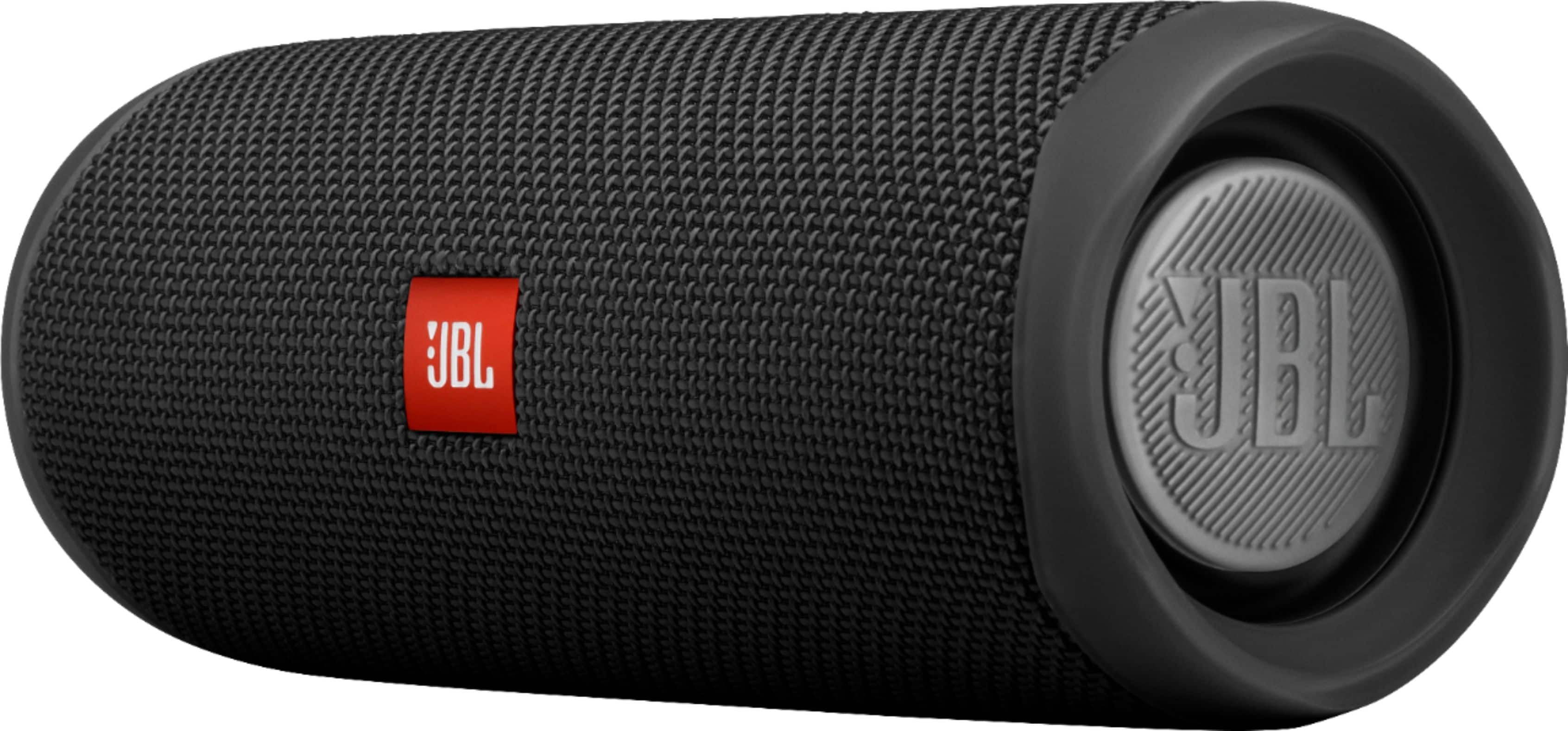
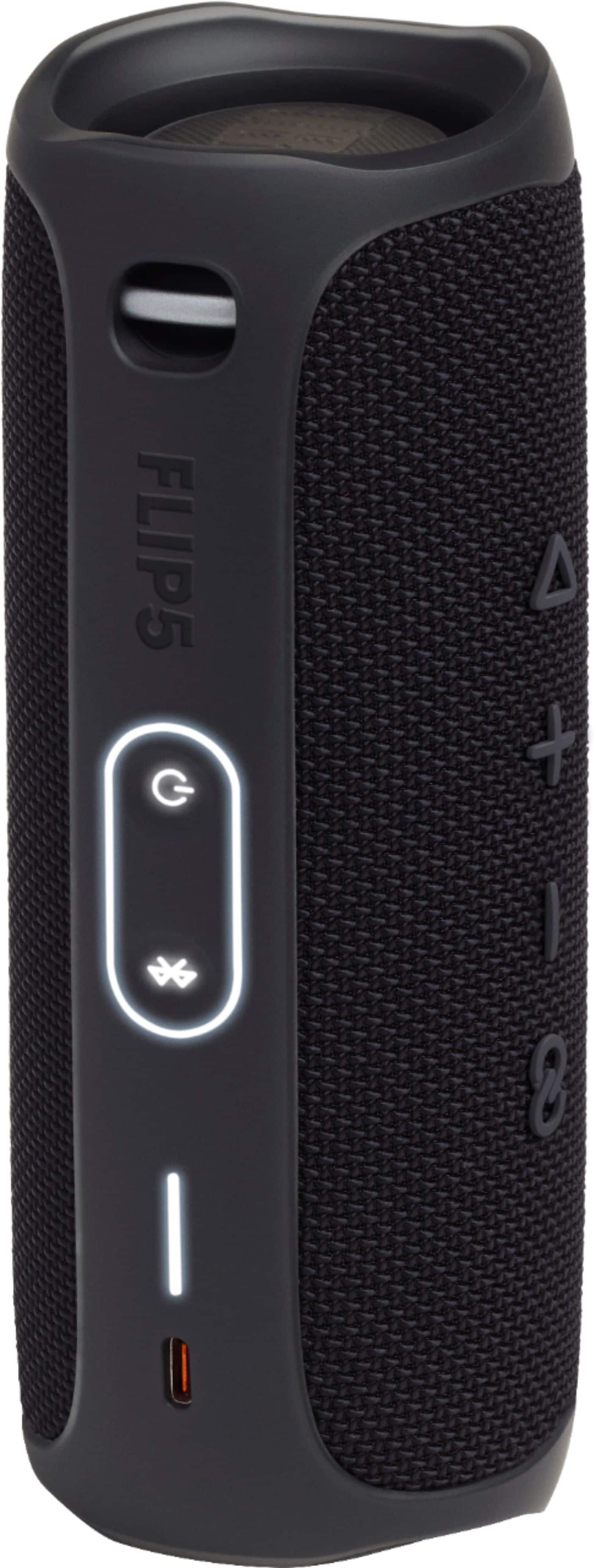
A:AnswerThere is no app to directly adjust the Bass and Treble but you can use the Equalizer from your music application to adjust the sound coming from the device to our JBL Flip 5 instead.
A:AnswerOur JBL Flip 5 doesn't have a sleep timer feature available but has a power saving mode where it turns off if there are no audio signals being sent to the device for 5-10 minutes and it will shut off.
A:AnswerOur JBL Flip 5 doesn't have a microphone input. The type-C USB port on our JBL Flip 5 only serves as a power outlet for the speaker, and it can't be used for connecting a microphone.
A:AnswerThe app JBL recommended to you only does one thing: shows you a battery bar. But your Flip 5 already has that.
There is literally nothing else the app does for your speaker. No equalizer, not even general bass/treble, no volume control, no power, no nothing.
Well, it does tell you if you have the latest firmware. But I've had my speaker for well over a year, and the firmware it came with is still the latest version.
If you're looking for a speaker that the manufacturer cares enough about to create an app that actually lets you control the speaker and customize the sound, the JBL Flip 5 definitely is not it.
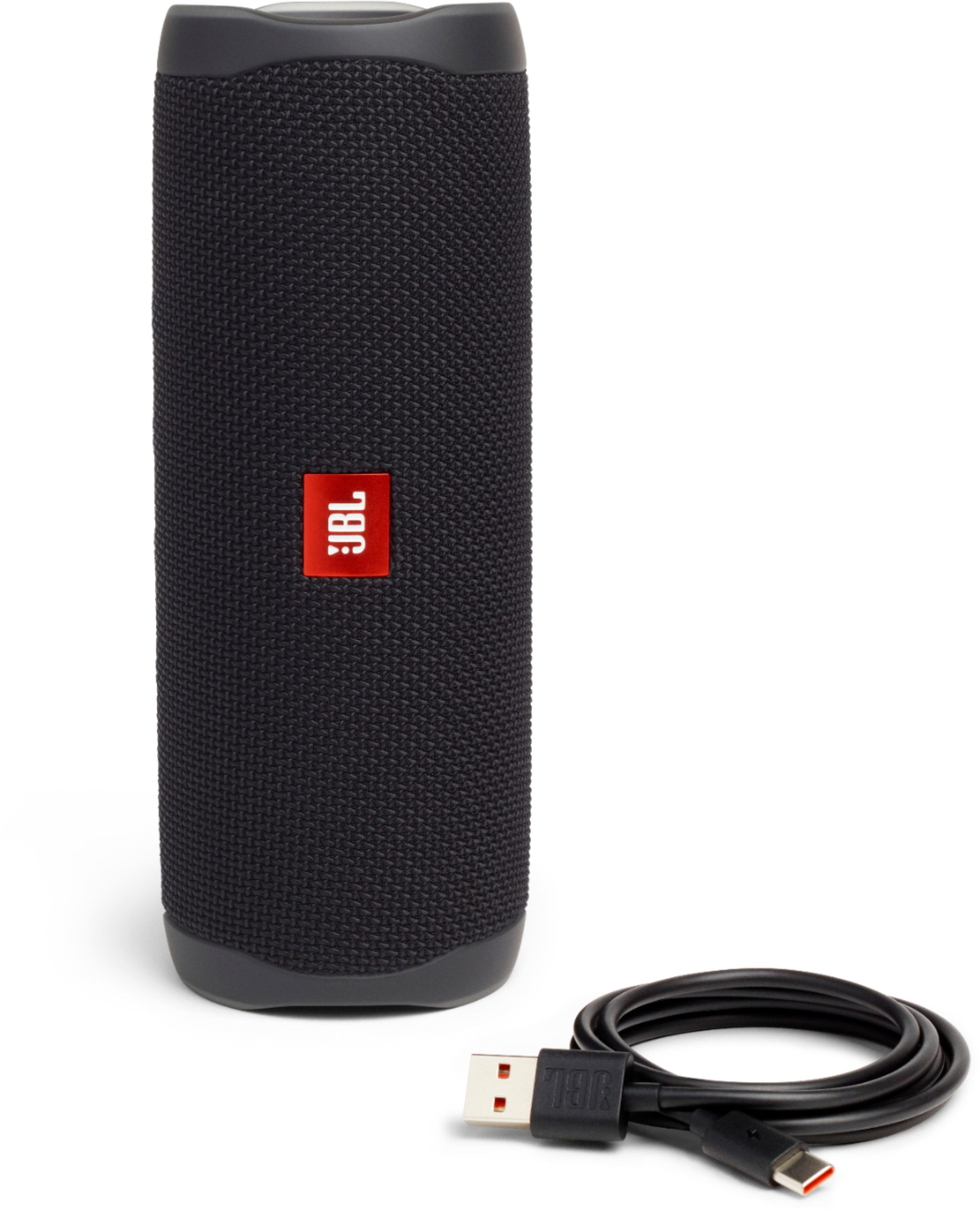
A:AnswerOur JBL Flip 5 comes with a charging cable but doesn't come with a USB block, you can use a phone charger to connect the charging cable and plug it to the wall outlet.
A:AnswerIt is possible if you have a USB-A to USB-C or a USB-C to USB-C cable (depending on the ports your pc has).
1. Connect your speaker to your computer via the cable.
2. Turn on the speaker.
3. Press and hold the Bluetooth button (on the back) and the Play button (on top) simultaneously untill the speaker turns off. It will automatically turn on again.
4. The speaker is now connected to your pc (you might need to select it in your audio settings by the name Zgmicro AUDIO). The buttons on the speaker won't work while using it together with a pc.
Caution! Your speaker will be very loud on standard, so put your volume down to about 10%.
To use it via Bluetooth again, disconnect and connect the speaker again to your PC. Press and hold the Bluetooth and Play button untill it turns off. Now turn the speaker back on and it will work normally via Bluetooth again.
If you want a more clear instruction, LevinsGraphics made a video about this on YouTube.
I hope this helped :)
A:AnswerThe JBL FLIP 5 will automatically shut down when it senses 20 min of inactivity, (battery saving feature),
If the music on spotify continues all night long, non stop, the JBL FLIP 5 should not be shutting down.
The JBL FLIP 5 should not interfere with your alarm, regardless if it is ON or OFF.