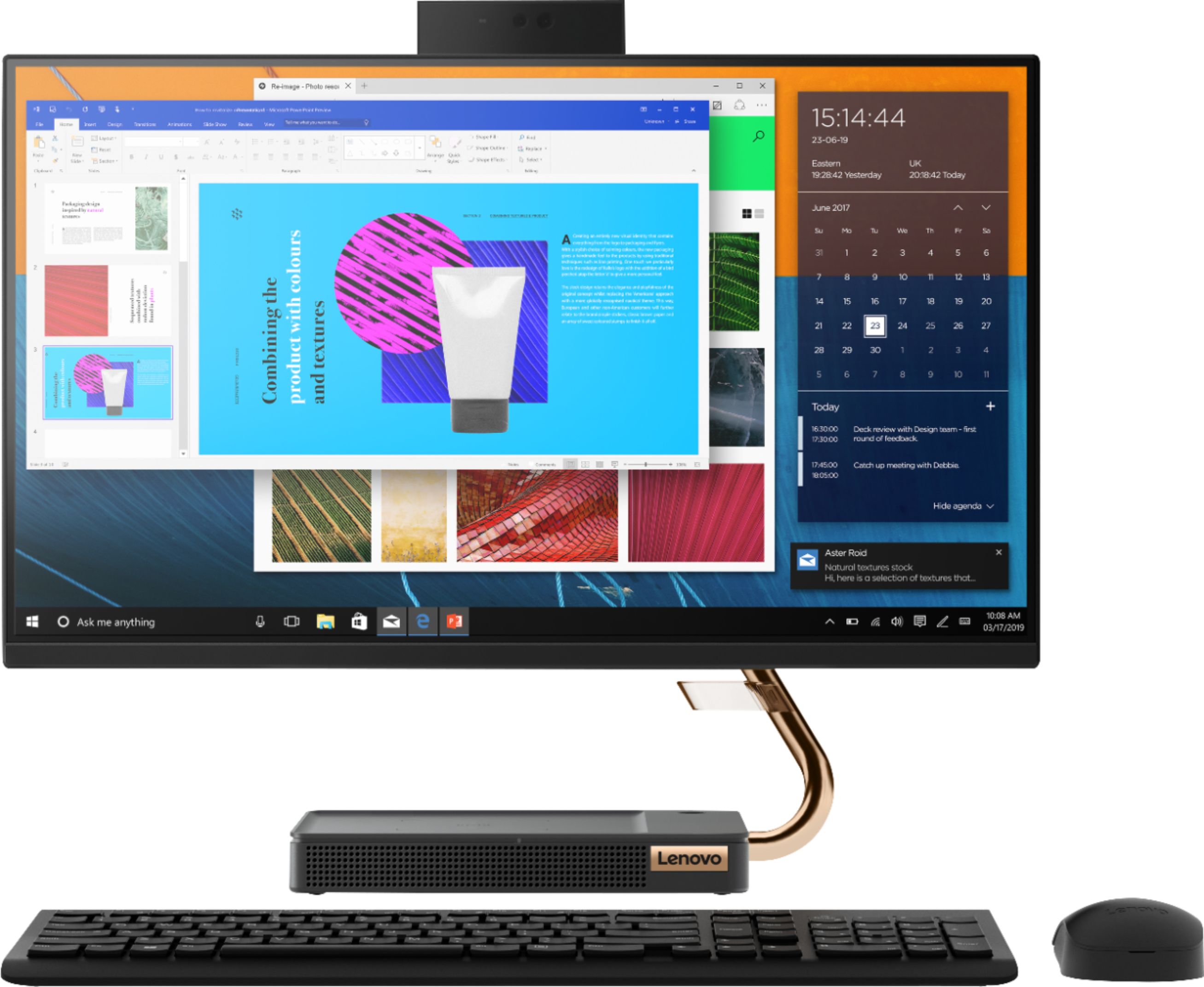
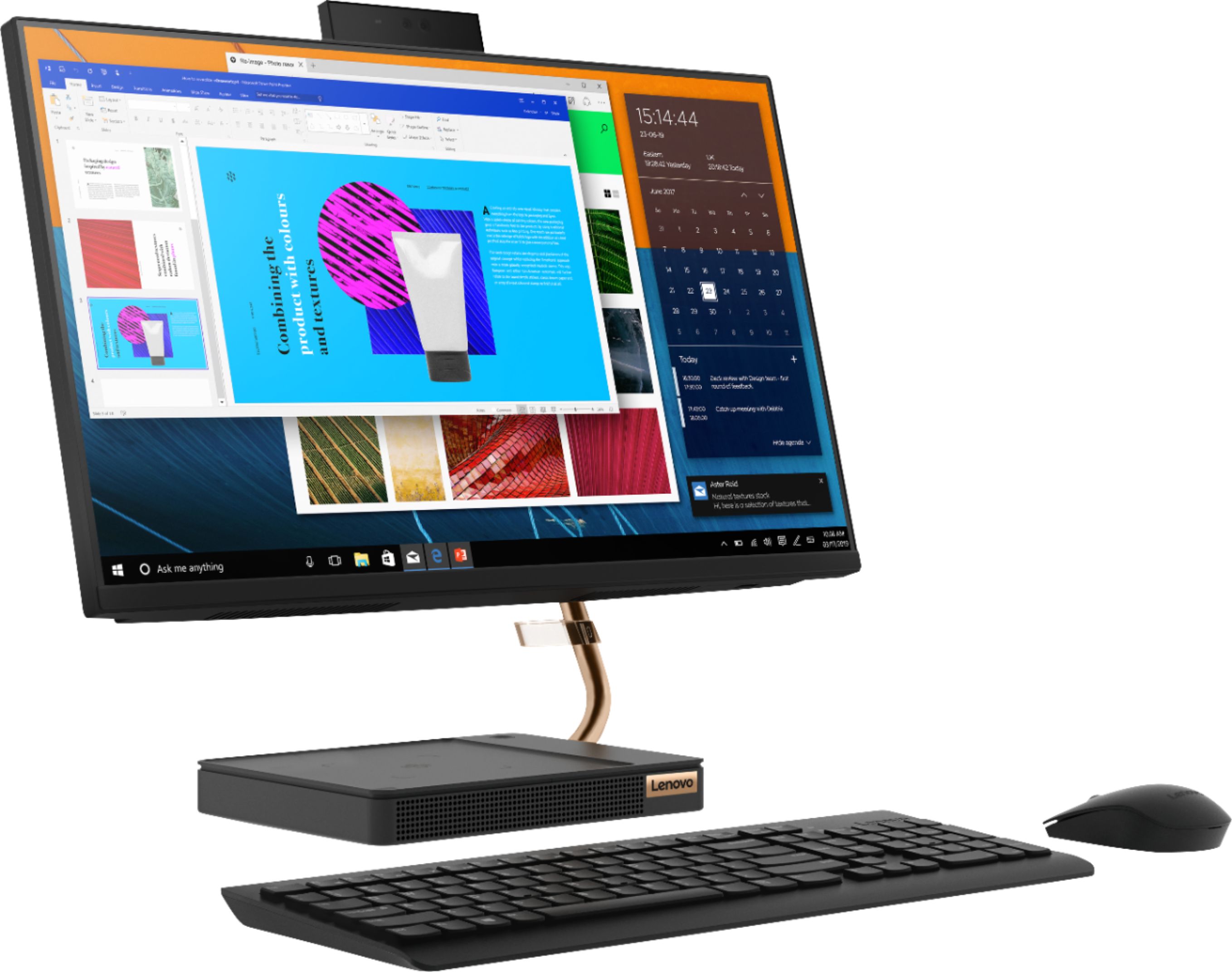
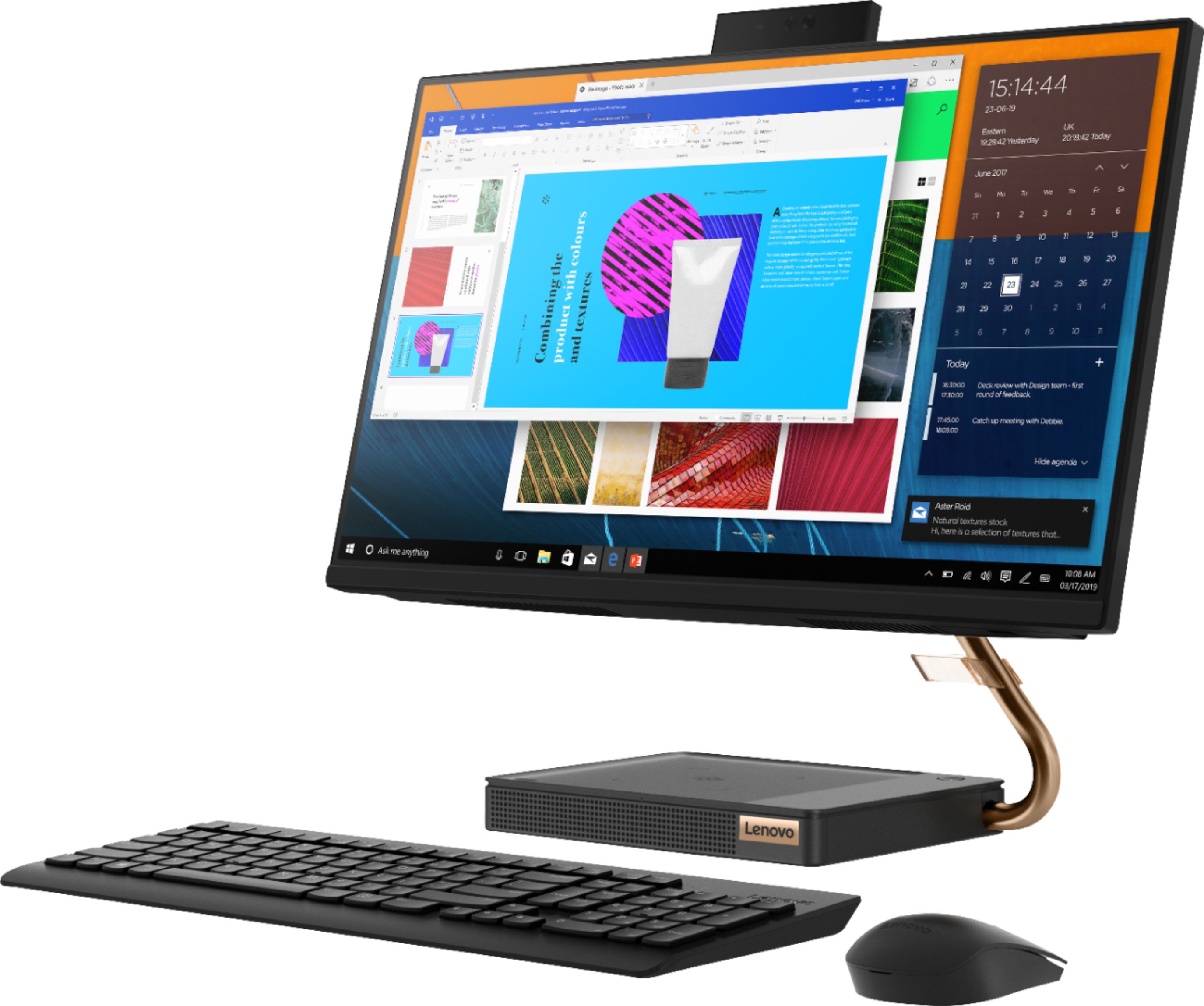
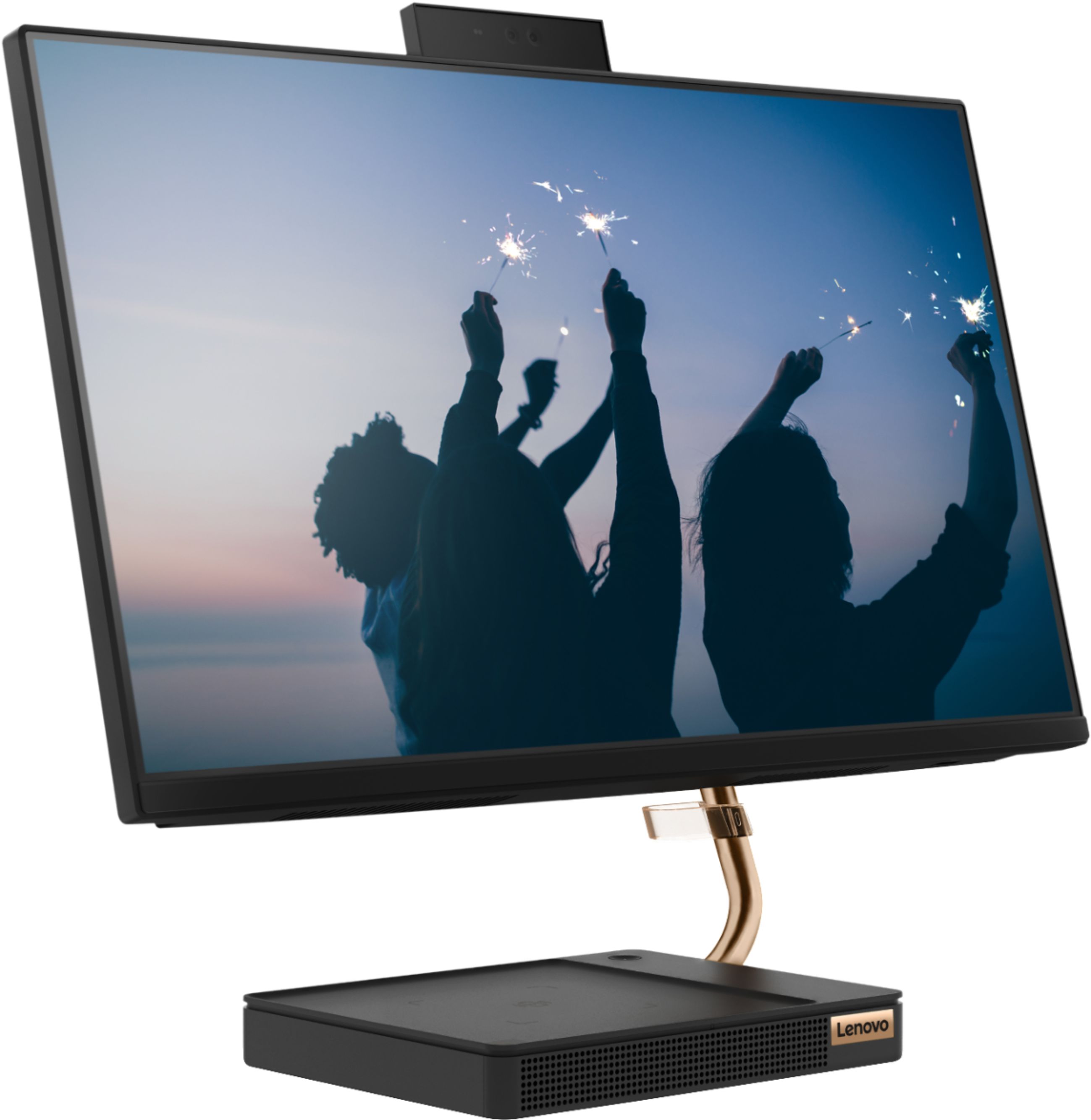
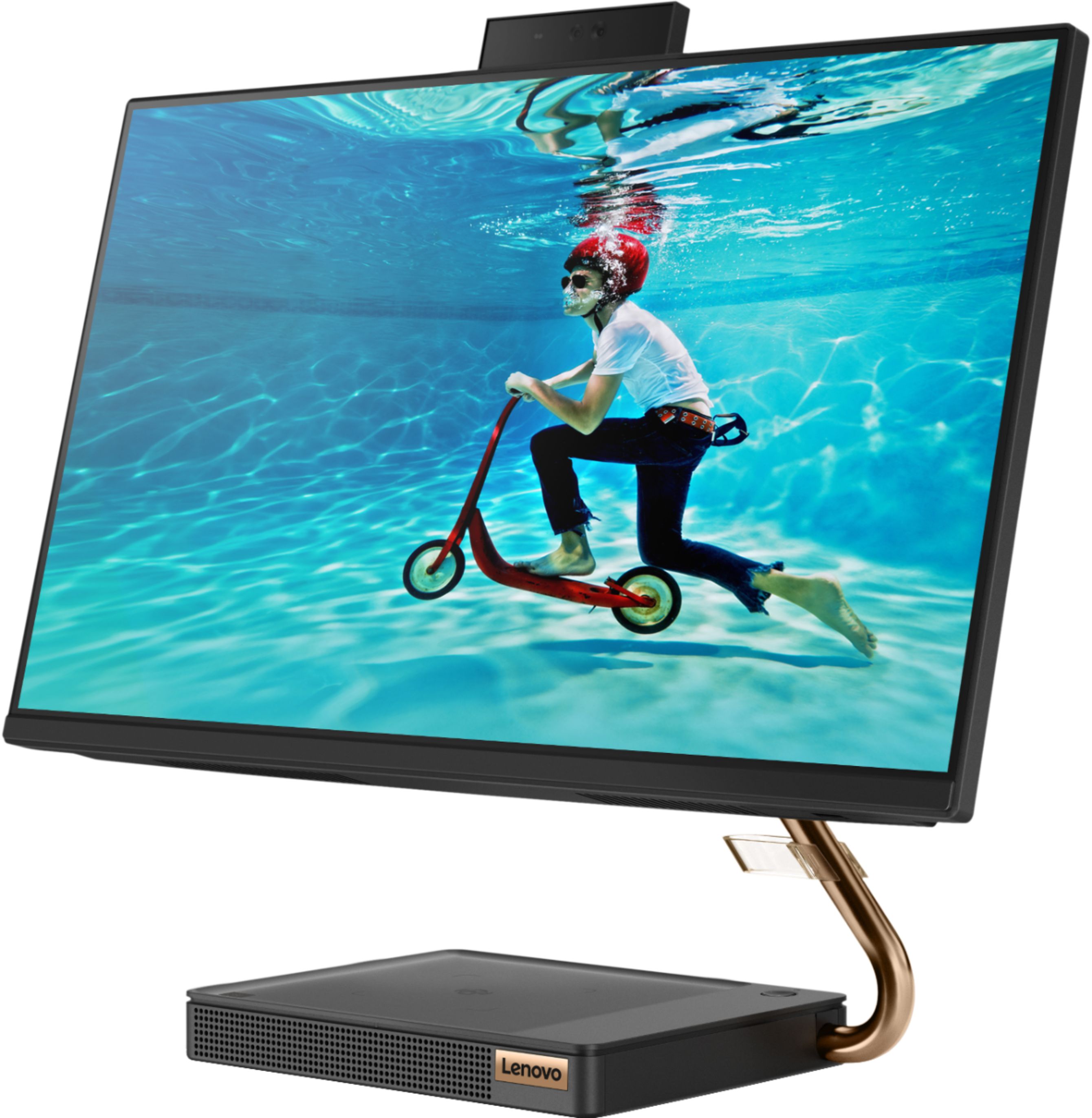
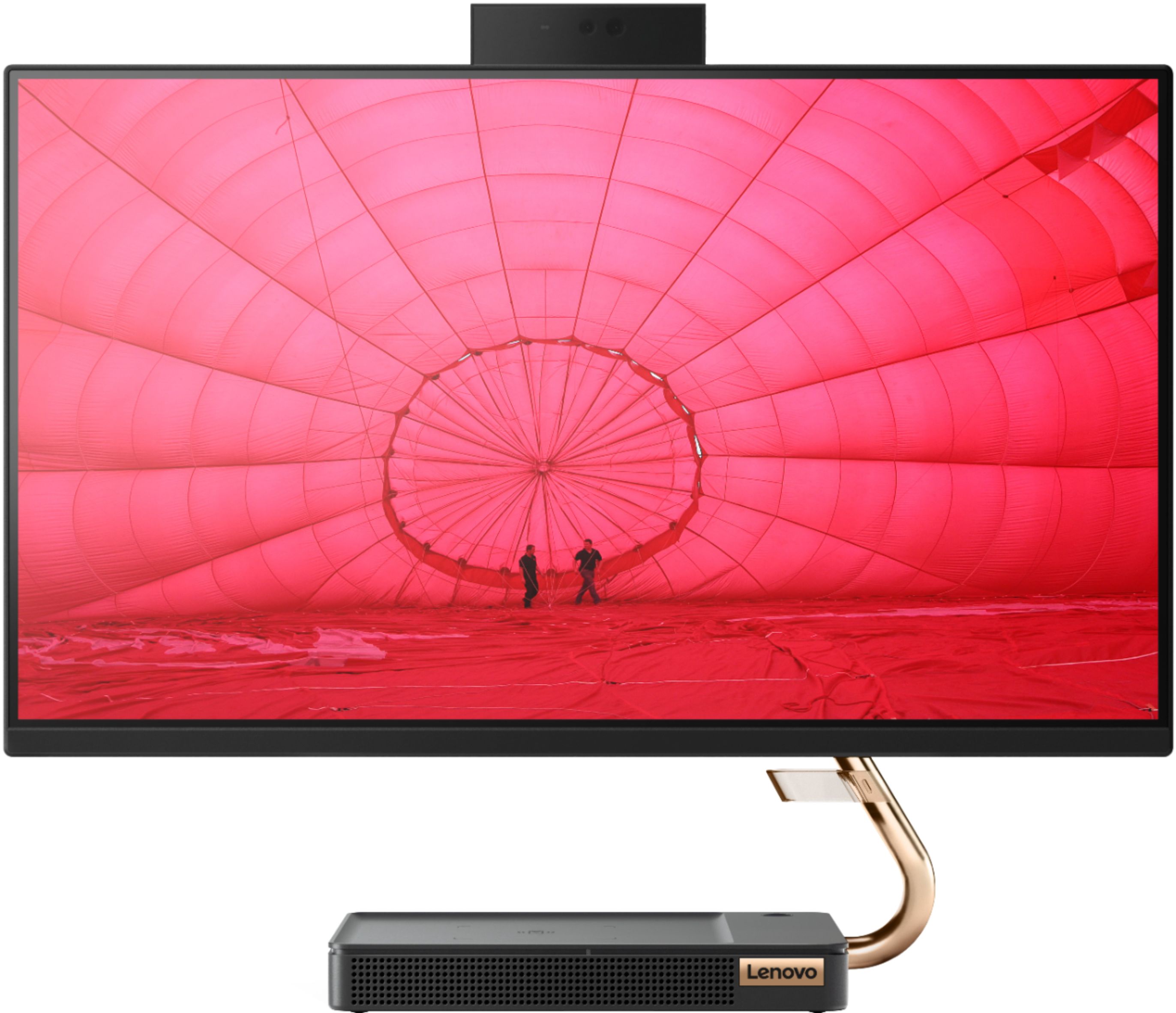
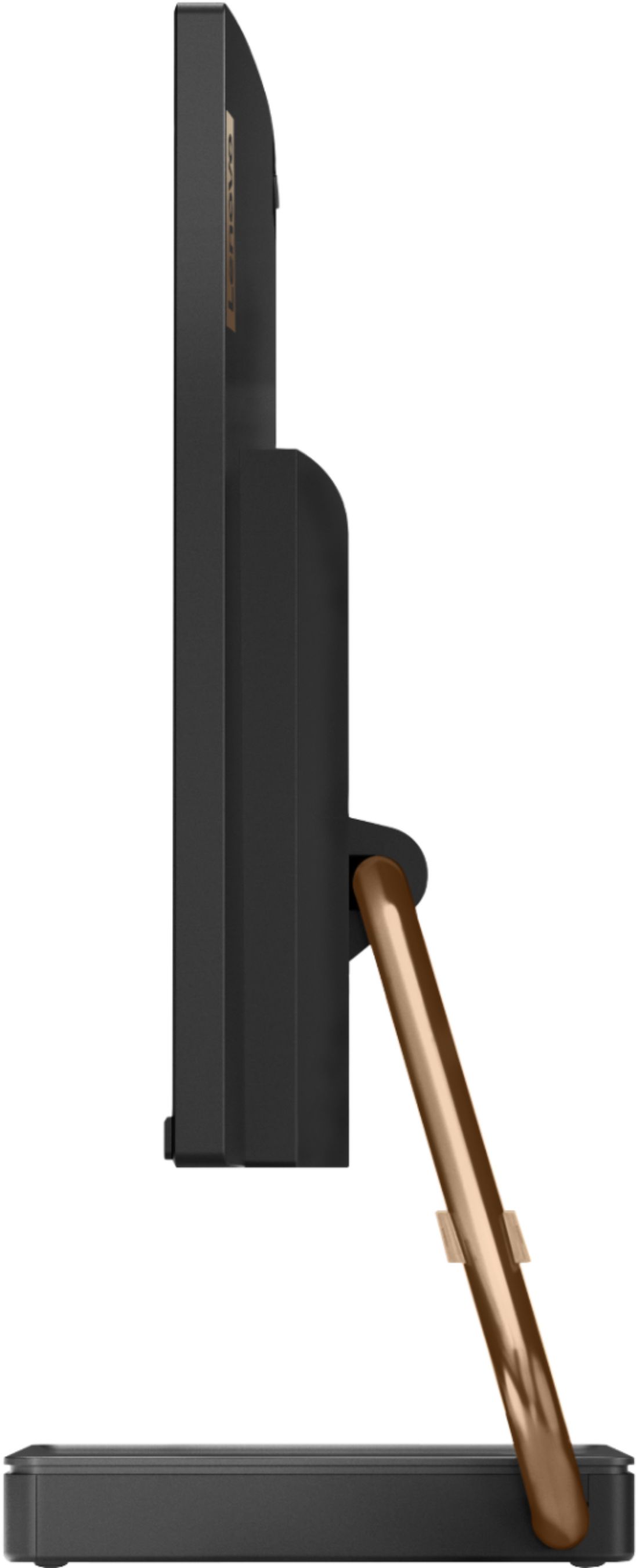
A:AnswerYes. The Lenovo IdeaCentre A540-24 All-In-One system, model number F0EM0003US, has a web cam and a microphone built in. The web cam is equipped with Facial Recognition capability that you can use with Windows Hello Biometric Security as well.
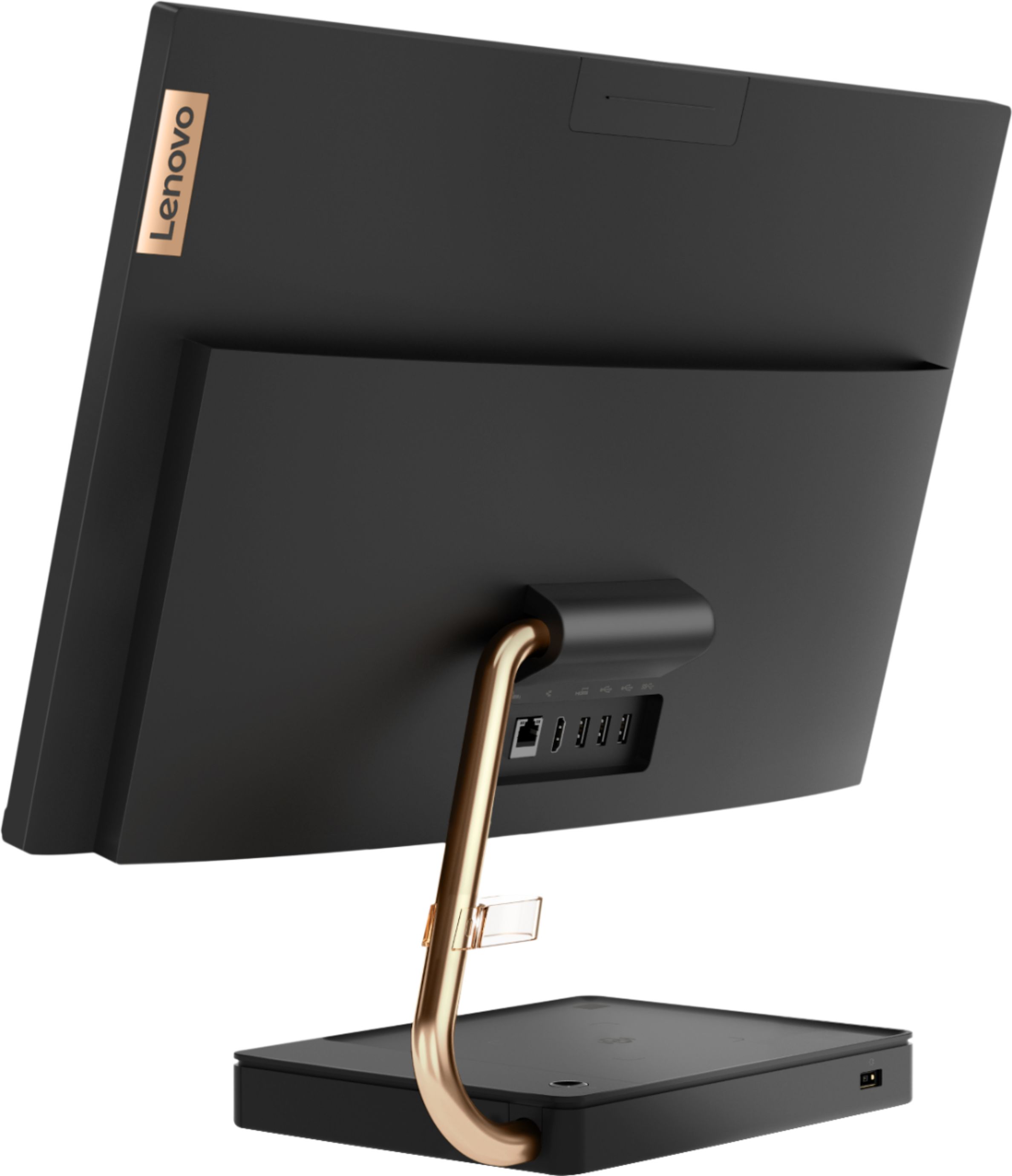
A:AnswerThe Lenovo IdeaCentre A540-24 All-In-One system has both ethernet cable as well as 5G, 802.11AC WiFi connectivity. If you are connecting the IdeaCentre A540-24 AIO via an ethernet cable to your internet service, be sure the cable you are using and the connectors are not damaged. If there is nothing wrong with your ethernet cable and you have a wireless router, try connecting the IdeaCentre A540-24 via WiFi. Also be sure you have the latest version of Windows 10 on the computer, then update all of the BIOS files and drivers up to that latest version of Windows 10. You can easily accomplish this by scanning the computer with the Lenovo Utility software installed on the computer. This system has Lenovo utilities installed to help maintain the health of the device and keep the operating system software up to date. Type "Lenovo Vantage" in the Cortana Search window (if Lenovo Vantage is not installed on your device, you can download the APP and install it now). Select Lenovo Vantage from the list. In the window that opens, click on "Health and Support". In the expanded menu, select "Hardware Scan" In the window that opens, select "Run Quick Tests". This will scan your entire system for errors. Follow any directions that may pop up. If the problem continues after this scan, now click on "System Update". First select Windows update from the menu. Scan your system to be sure you have the latest version of Windows 10. Once that scan is complete, select "Additional Updates". This will scan your device to be sure there are no new BIOS/Driver updates needed. Follow any instructions that may pop up. If the issue still continues after these updates, we recommend you call Lenovo Tech Support at: 877-453-6686 for additional help.
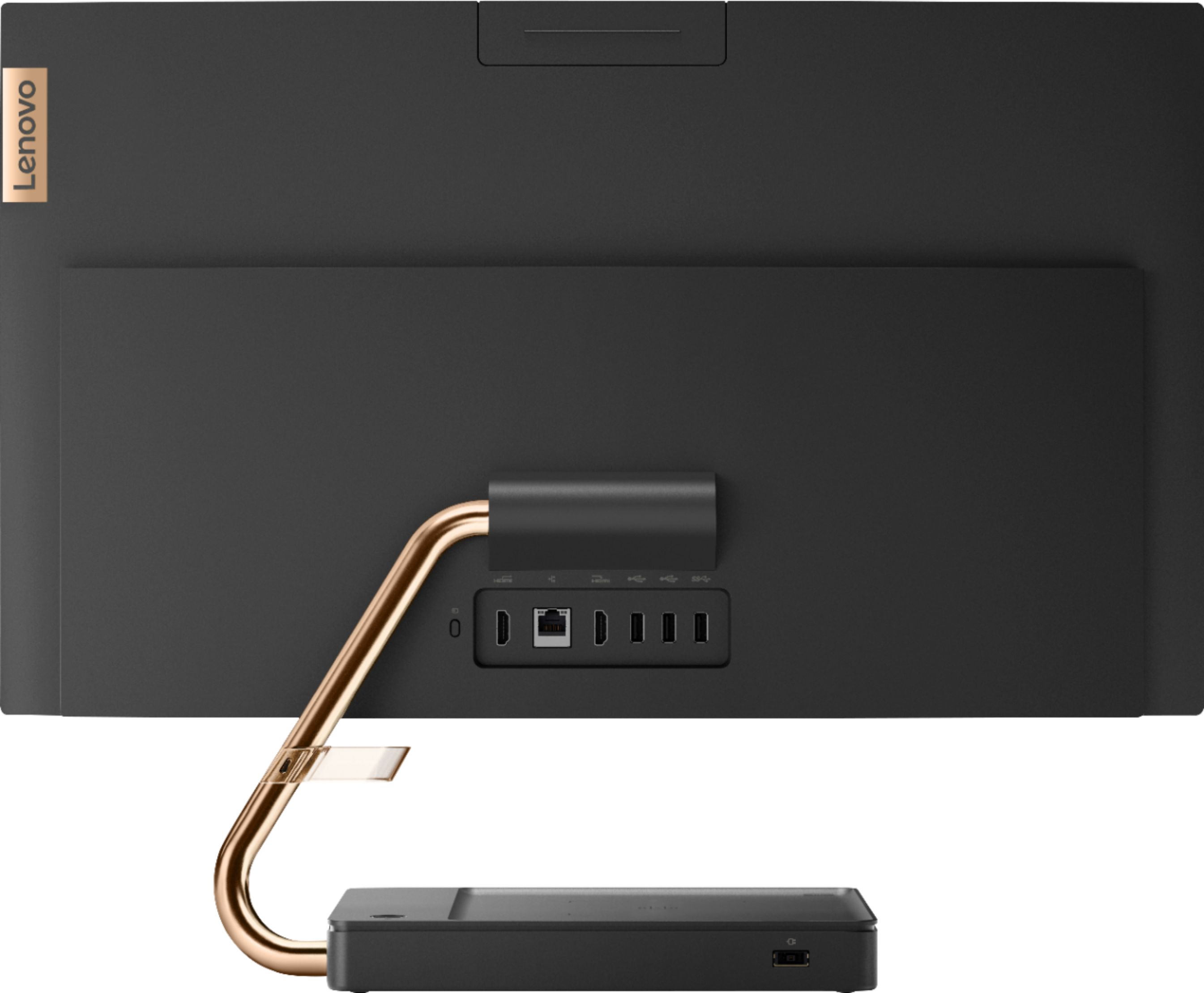
A:AnswerYes! You can use 2 monitors. One HDMI is for input and the other is for output. Hold down the windows key and press P and it will show 4-5 different options for monitor use.
A:AnswerThe Lenovo IdeaCentre A540-24 All-In-One system, model number F0EM0003US, is not compatible with any active/digital pen. You can use a capacitive touch stylus as a finger replacement on the touch screen, but it will not have any digital capabilities. It will solely be a replacement for your finger on the screen.
A:AnswerThe Lenovo IdeaCentre A540-24 All-In-One system uses the Windows 10 Home 64-bit Operating System. Here is a link to a YouTube video introducing Windows 10: https://www.youtube.com/watch?v=FZqKyhfD7-E
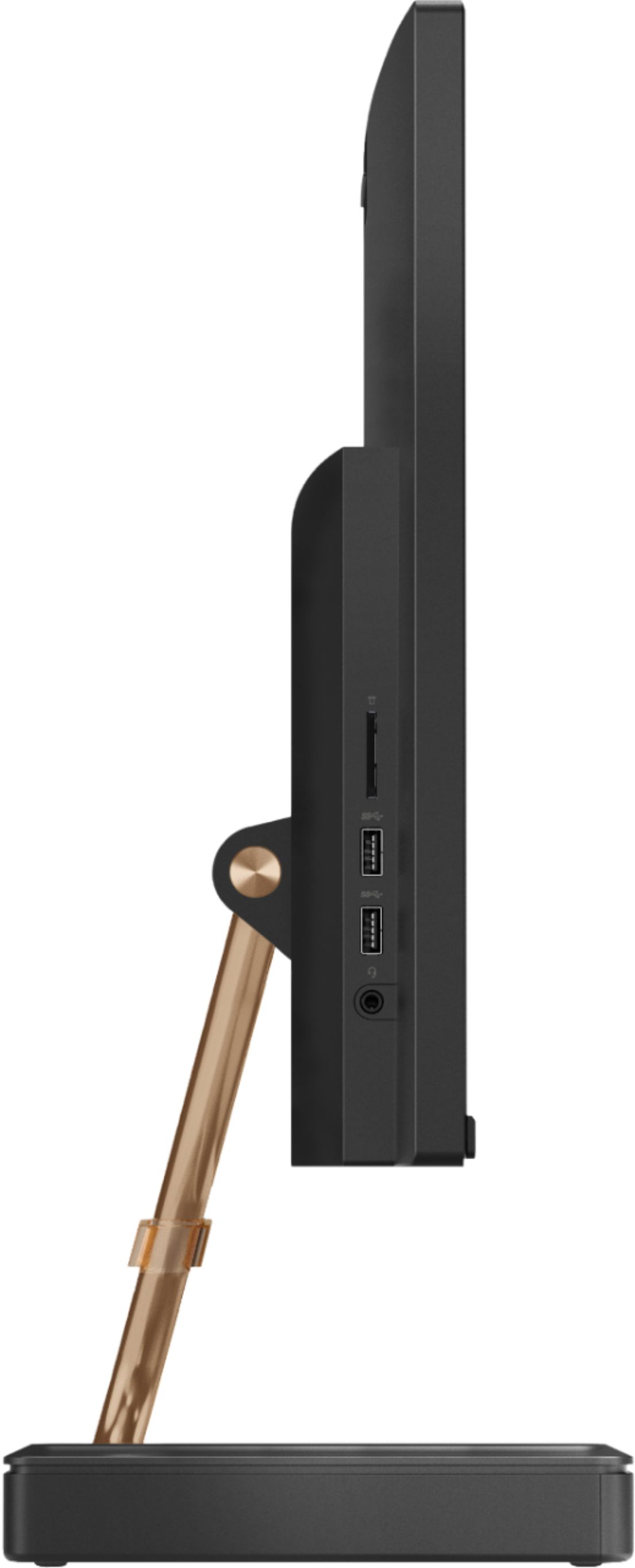
A:AnswerYou can use any USB-based, Windows 10 compatible external hard drive with this model. There is also a 3 in 1 SD card reader that can be used for additional storage. The card reader is compatible with SD, SDHC, SDXC smart cards.
A:AnswerA solid state drive is a hard drive the uses memory chips rather than spinning optical discs to store data. There are no moving parts within a solid state hard drive and a solid state hard drive transfers files quicker than any standard mechanical drive.
A:AnswerThis model is not compatible with any active/digital pen. You can uses a capacitive touch stylus as a finger replacement on the touchscreen, like this one, there are many varieties available: https://www.bestbuy.com/site/insignia-styluses-3-count-black-red-blue/9238026.p?skuId=9238026