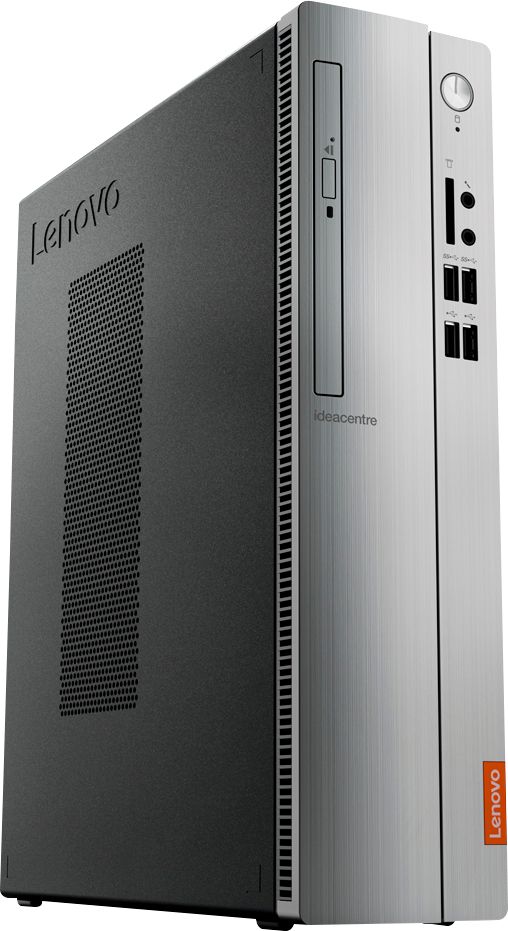
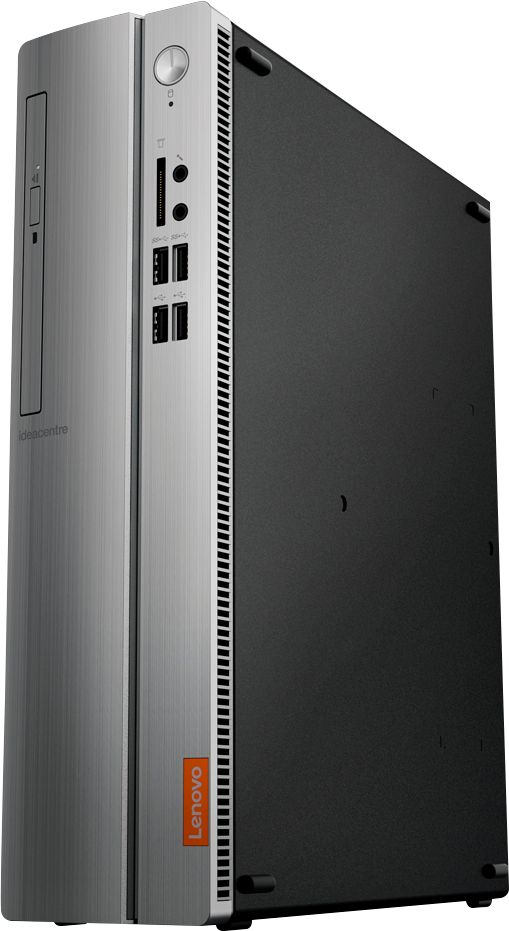
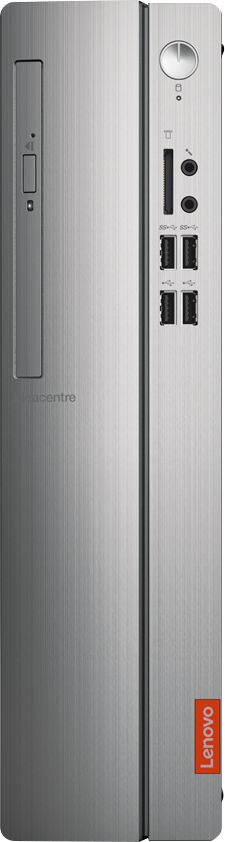
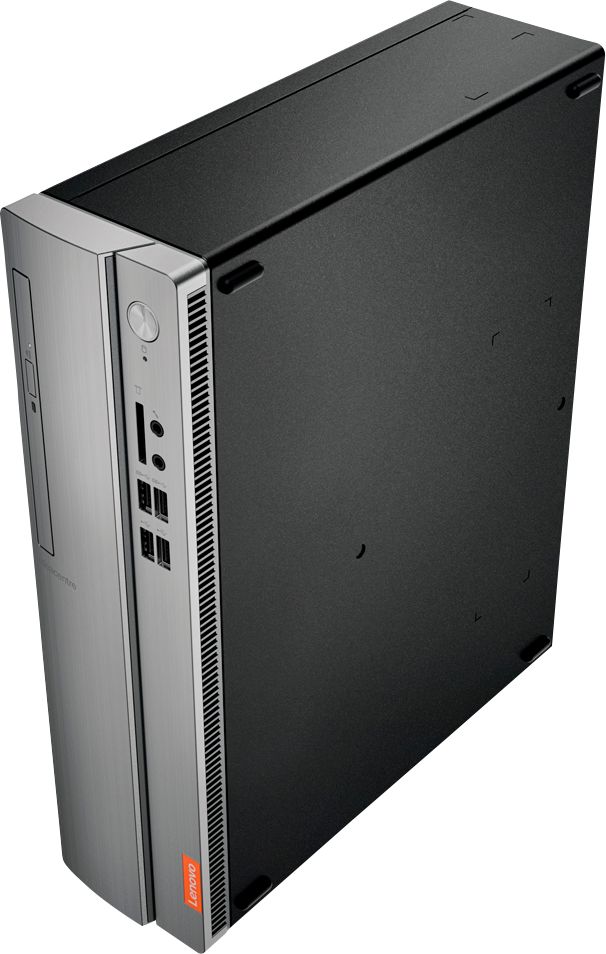
A:AnswerThis model has two RAM memory slots. The Lenovo IdeaCentre 310s ships with 4GB of DDR4-2666MHz RAM in one memory slot. This system can support another 4GB of RAM in the open memory slot.
A:AnswerNot really. It has only integrated graphics, and a slow HD. This model is good for word processing and basic browsing, but not demanding tasks like gaming, photoshop, video editing, etc.
A:AnswerYes the unit does have an ethernet connection, this unit is only a basic computer, ok for office work not any type of gaming, video etc.
It is only a two core processor, more of a small laptop in a desktop case.
A:AnswerNo, the power source is not upgradable. Graphics processing is integrated within the AMD A9-9425 processor. It is the AMD Radeon R5 Graphics version. There is no space for a discrete graphics card within this Slimline configuration.
A:AnswerThat will depend on the connection types on the monitor. The Lenovo IdeaCentre 310s Desktop, model number 90G90068U, has both VGA and HDMI connectors for video out.
A:AnswerDid you try the keyboard in the other usb slots ? .. and then the mouse in the one the keyboard was in ?
If the keyboard is working the usb driver is loaded ..
Shut down the machine, unplug the power and push the ON button (to drain power from the unit)
plug system back in and reboot ..
If the keyboard works in other usb ports but not the mouse ... i would try any other usb device and see if it is working ..
this may also be a power supply issue .. without enough 'juice' to power more than one usb device. (power supplies can cause all kinds of issues.) .c.
A:AnswerYes it can ad two monitors of any connection to this tower. I think you mean a VGA port though. And this computer has both so no adapters needed. Just connect the HDMI to the HDMI and the VGA to the VGA. Do this however with the computer OFF. That way when it reboots it recognizes both. Then right click on the desktop and a screen comes up and you select display settings (on windows 10 - others are similar) like in pic 1. It shows two videos 1 & 2 in the green box. There may also be two separate boxes with a number in each. Either way scroll down to Multiple Displays as in pic 2 and see the box listed as multiple displays. Choose "Duplicate these displays" as shown. That's all there is to it really. It sounds complicated, but you'll find it easy. There are other things you can look at in that box as well before closing. There is a button called Identify that will show which is which on each monitor. But it you're setting them as same, then they both just show a 1|2.
A:AnswerThere are no speakers within this desktop. It does have the necessary hardware and drivers to run external speakers when attached. The external speakers are sold separately.