“I have not been able to play anything on this, no sound, bought speakers plugged in and still nothing. Any recommendations?”
Answer This Question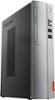
1-2 of 2 Answers
Check your connection to the speakers and the rear of the computer. I am using an old set of Altec Lansing speakers with a floor subwoofer that is probably 15 years old or older and it was plug 'n play. Some of these older speakers are still more powerful in tone and quality than anything you could buy for under $200 today. And this speaker system was under $100 back in the day and still out performs many of the new cordless "marvels" that are twice the price or more. The subwoofer is mounted in a wood box that is about 12"X 6 1/2"X 9" deep and sits off the floor about 1 1/2" and it will resonate the ceiling downstairs so much that I have to keep it tuned down a lot lower than I would like to appease the "neighbors"!! Also, check your settings to make sure that you have your speakers turned on in your computer. The external speakers won't work if the internal speakers are not turned on. Click on "SETTINGS: and "SYSTEM" and then on "SOUND" and make sure your "MASTER VOLUME" is turned up to 100% to start. If you have an external speaker switch to engage, do so or, in some cases, there will be an electronic entry made with the make and model of external speakers you are using. Last scenario, your internal speakers are kaflumped! If you had speakers to begin with, and now neither of the internal or external speakers are working, there may be a repair in order for you to have done. There could be something as simple as a burned diode or a wire that has come undone, If it is a new machine and still under warranty, I would take it back to wherever your bought it and have them take a look. Good luck with your sound system.
Sorry, there was a problem. Please try again later.Try plugging the speakers into the 3.5mm audio jack on the front of the computer. There is a separate 3.5mm jack for a microphone and another for headphones and external speakers. Plug a compatible speaker system into this 3.5mm headphone jack. Be sure the audio is turned on by checking the audio settings. Here is instructions for doing this within Windows 10: https://www.auslogics.com/en/articles/increase-system-volume-in-windows-10/. If the issue continues, we recommend you call Lenovo Tech Support at: 877-453-6686.
Sorry, there was a problem. Please try again later.