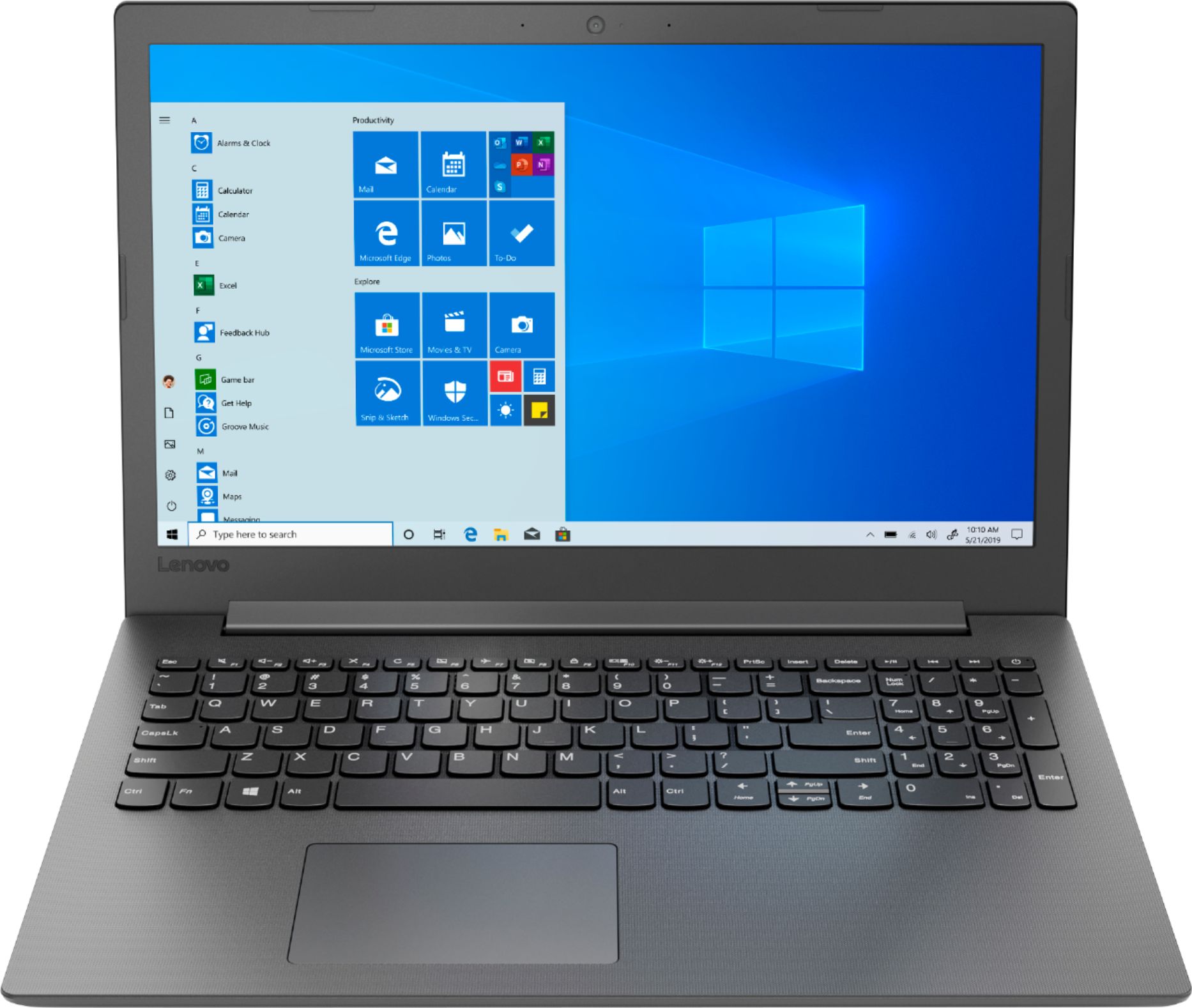
A:AnswerThe laptop does come with Windows 10 "S" mode, but this can be easily switched to regular "Windows 10 Home" edition for free. There is no additional charge at all. In theory, "S" mode protects the computer because it only allows microsoft-trusted apps, and blocks non-microsoft apps from installing (eg. Google Chrome, FireFox browser, etc.) and, thereby, supposedly saves you from uploading potential viruses or other problems to the system. In practice, however, it limits what you can install and use. By getting rid of "S" mode, you can use your own best judgment and install which apps and programs you want to install, rather than allow microsoft to decide for you. ("S" mode is often used in schools to restrict downloadable content, or by novice users who aren't sure which apps they want to use and who are willing to trust microsoft to recommend the safest options.)
To switch out of "S" mode, simply click on the "Start Button", in the lower-left corner of the screen, then "Settings". Next, click on "Update & Security", then the "Activation" tab. There you will see an option to switch out of "S" mode through the "Microsoft Store". While you are online, click to "get" from the "Microsoft Store". A browser window connects you to microsoft where you can choose the option to Switch. (In some cases, microsoft will automatically change the system over to regular Windows 10 Home, but in other cases, the "store" may ask you to first create a Microsoft account. If so, it only takes a moment to fill in the requested name-and-email information, then you'll be good to go.) The change can be verified by entering a search of your computer for "System Information". Before initiating the change-over process, this should indicate the system is running on "S" mode, but after the switch, it should indicate "Windows 10 Home". Once you switch, you can't go back to "S" mode, even if you reset your computer. I made this change and it has not slowed down the system at all.
A:AnswerThis system ships with Windows 10 Home 64-bit operating system. It will update to the latest version available from Microsoft upon initial activation of Windows 10, while connected to the internet.
A:AnswerThe Lenovo IdeaPad 130-15 laptop ships with a 2CELL 30WH, Lithium Polymer battery, with a battery life of up to 4 hours, depending on the work that the device is performing.
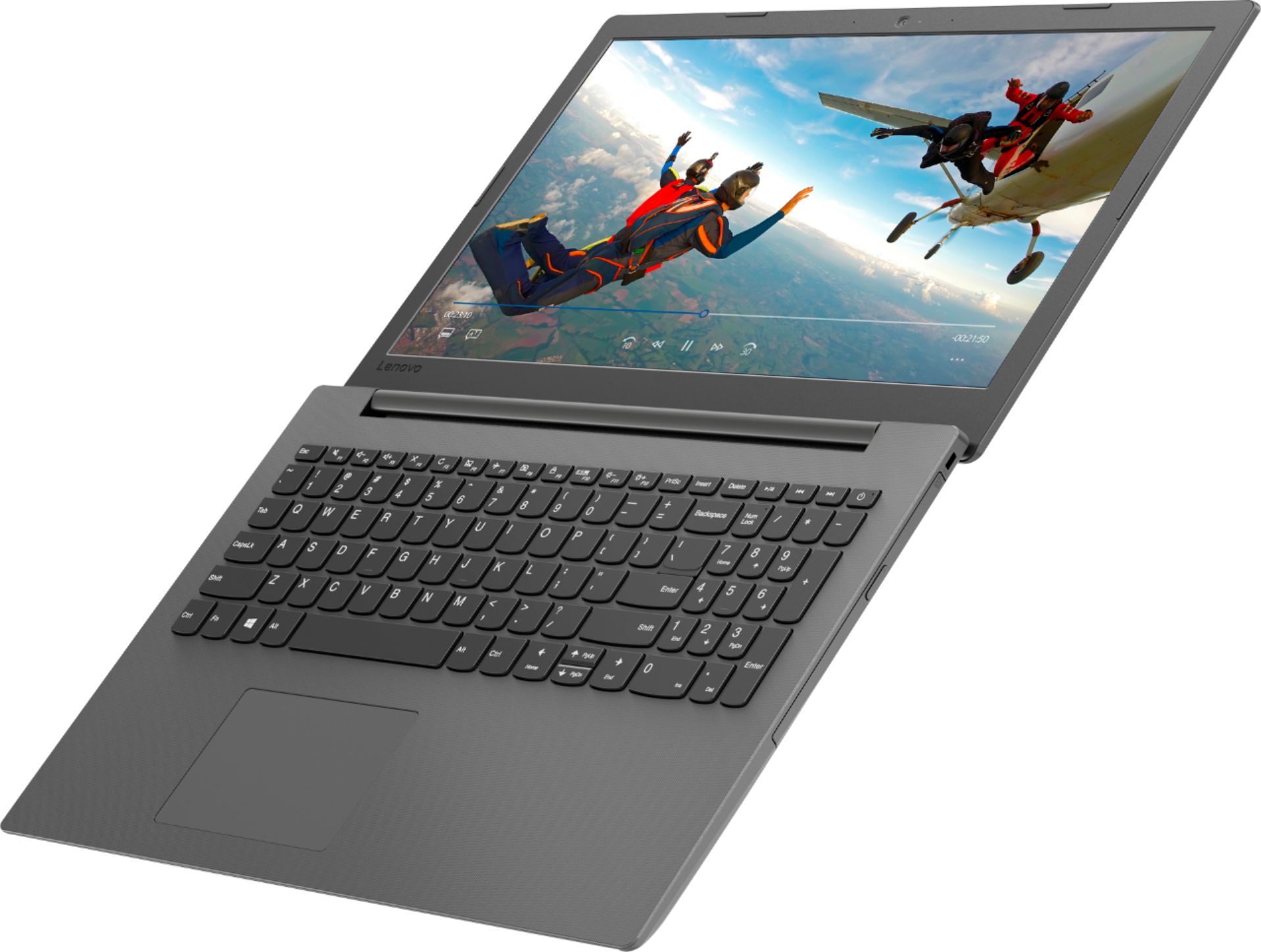
A:AnswerThe Lenovo IdeaPad 130-15 laptop is a mid-level, moderate use configuration, with its AMD A9-9425 processor. This Dual-Core processor has a base speed of 3.1GHz and a boost speed of up to 3.7GHz. This configuration has 4GB of DDR4-1866MHz RAM and a 128GB solid state hard drive. It is good for moderate Microsoft Office type programs. More advanced, resource hungry work with Microsoft Office programs that are extremely large and complicated, may be too much for this configuration.
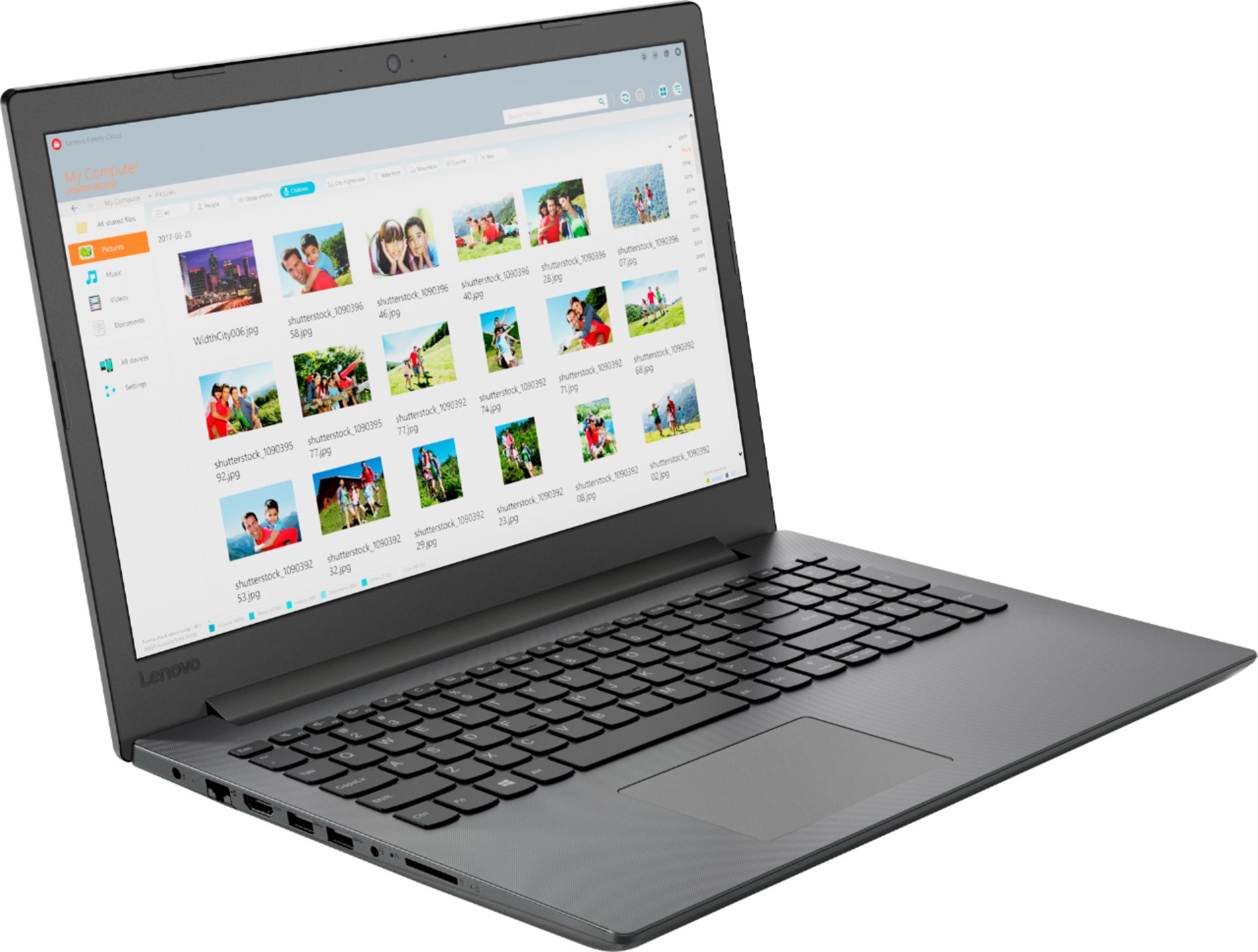
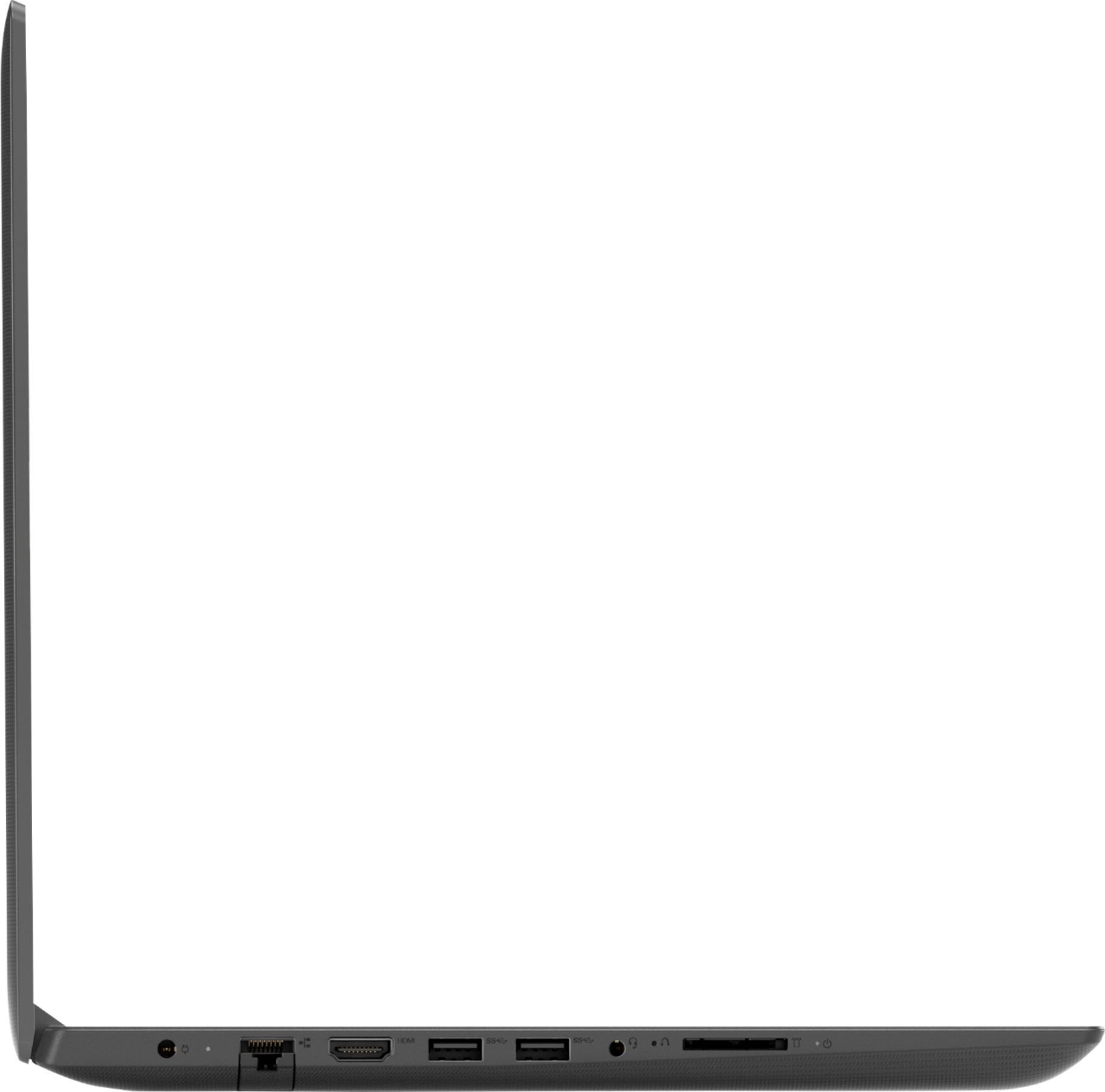
A:AnswerThis model number 81H5002FUS, the Lenovo IdeaPad 130-15 laptop ships with a 4 in 1 SD card slot. The card reader is compatible with: SD, SDHC, SDXC, MMC format smart cards. Windows 10 S-mode, the operating system on this model will be able to read either a 128GB or 256GB micro-SDXC version smart card with an SD size adapter.
A:AnswerModel number 81H5002FUS ships with the AMD A9-9425 processor. This processor has integrated graphics processing, which is the AMD Radeon R5 Integrated Graphics version.