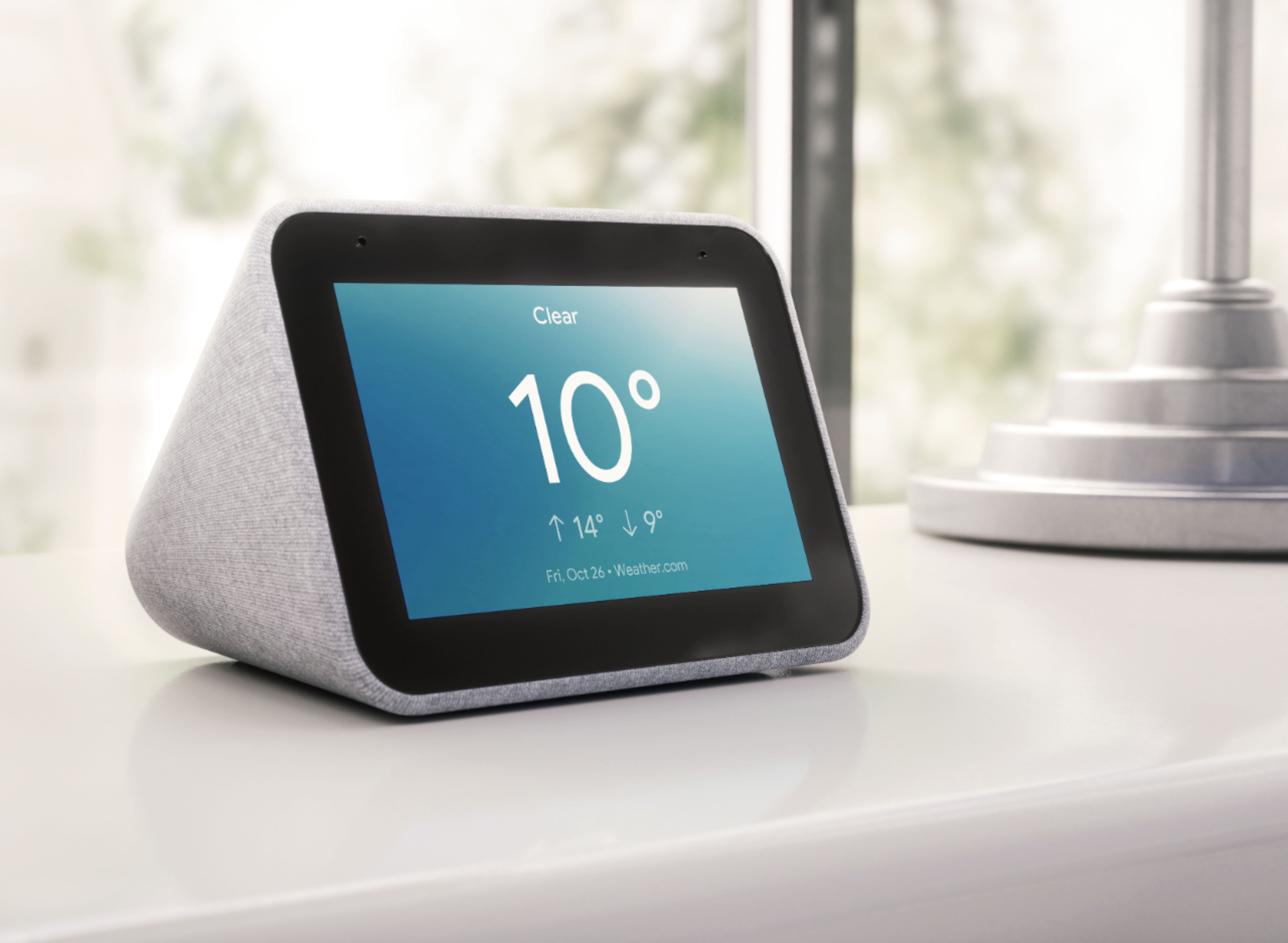
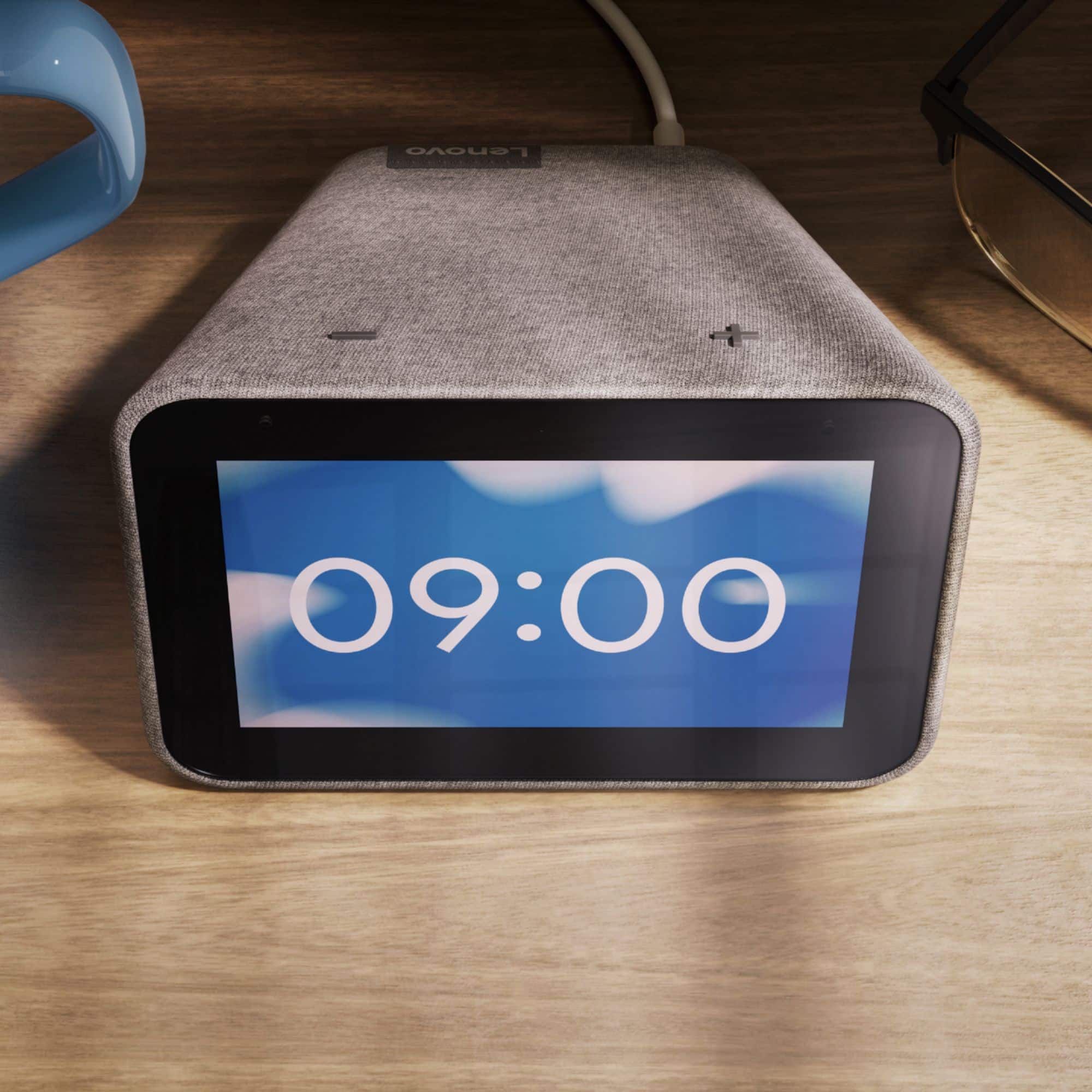
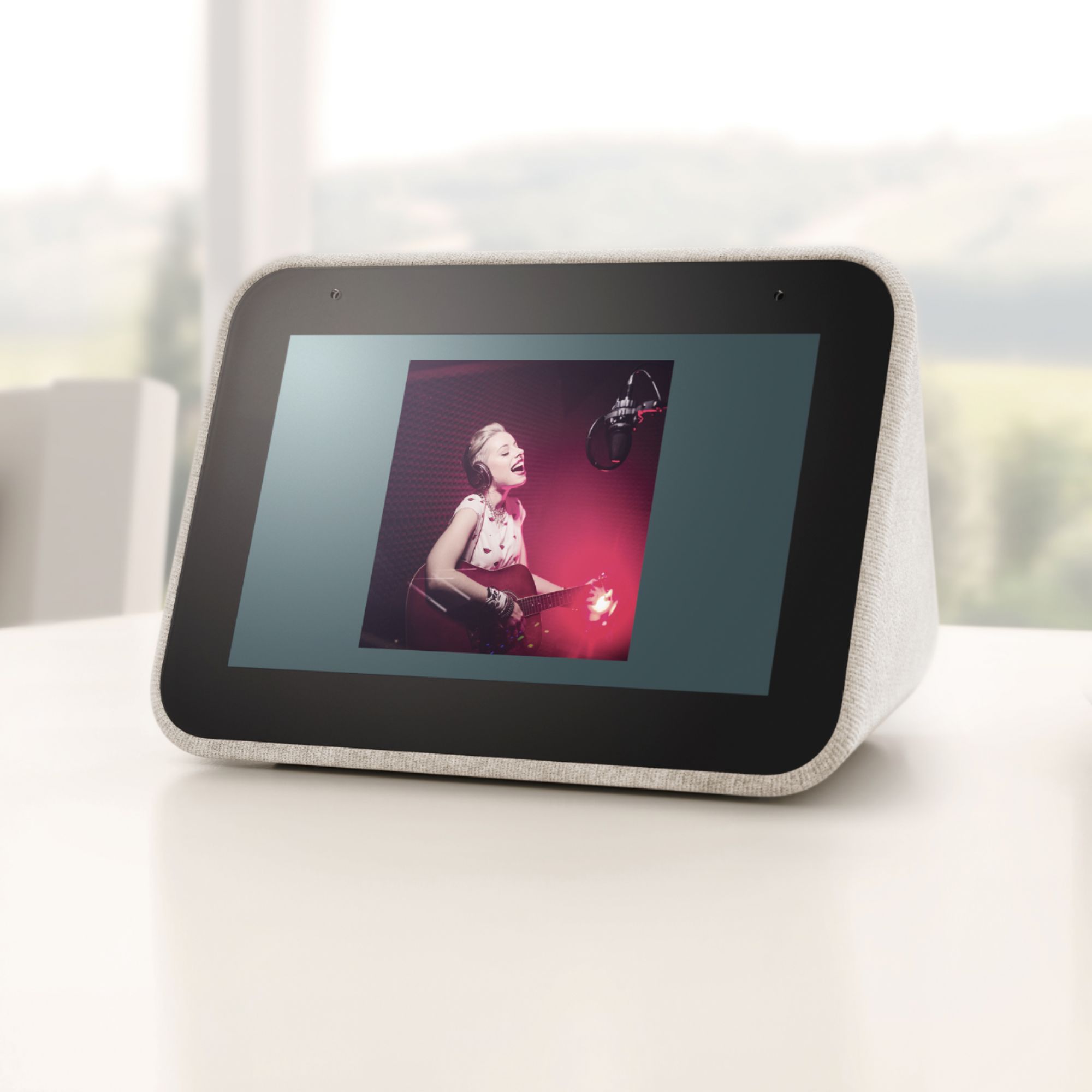
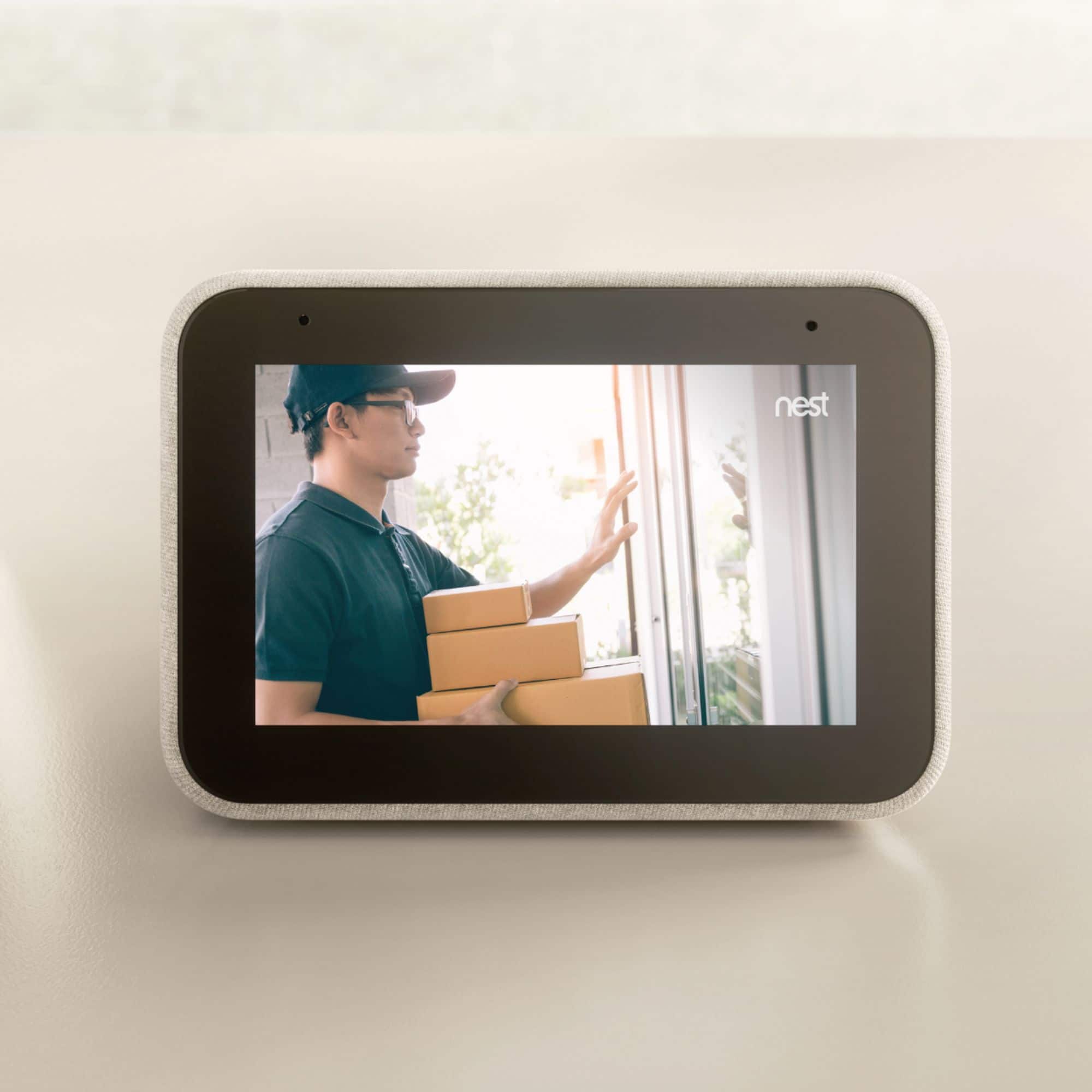
A:AnswerSometimes, routers can overpower the signal from IoT devices like the smart clock. I have mine a room away and do not have many problems connecting. I'm guessing the signal from the smart clock is getting overpowered by the router because of how close it is. There is alot of research done in this field in academia
A:AnswerAs far as I know 30 days but if you are a Tech Suppirt or Elite m mover, I think the return period is extended/. I would consult Best Buy for the answer.
A:AnswerYou can ask the Google Assistant to display a week or month of activities you have planned on your Google Calendar that is synchronized to the Smart Clock through your Google Account that you used to setup the Smart Clock within the Google Home APP. The activities will display on the screen by day and you can use the touchscreen feature to scroll through the days and the activities. You will need to specify which dates you want to see beyond the first two weeks if you ask to see a whole month on the screen.
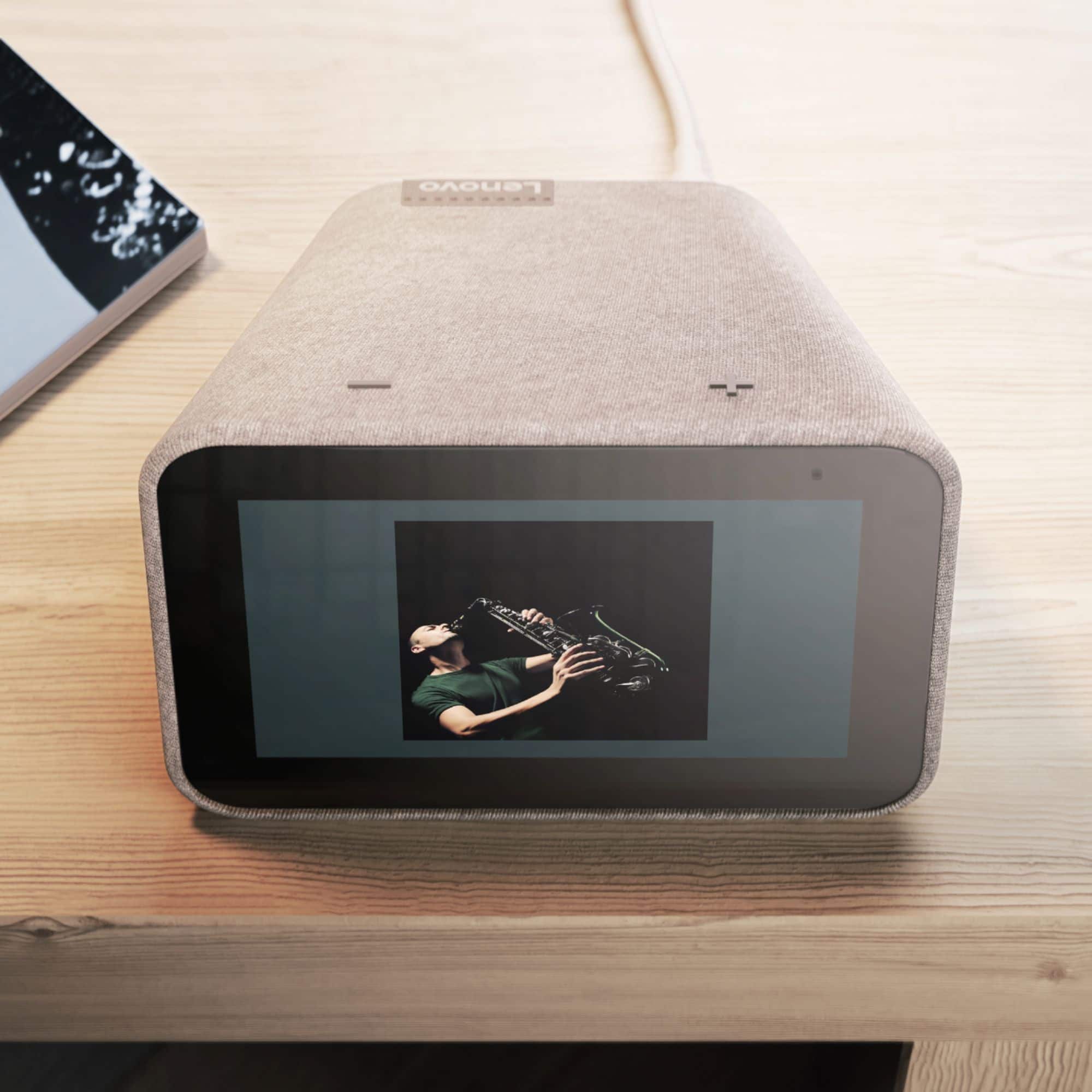
A:AnswerYes. The Lenovo Smart Clock with Google Assistant will display upcoming events you have on your synchronized Google Calendar that you setup with your existing Google Account through the Home Home APP you use to setup the Smart Clock.
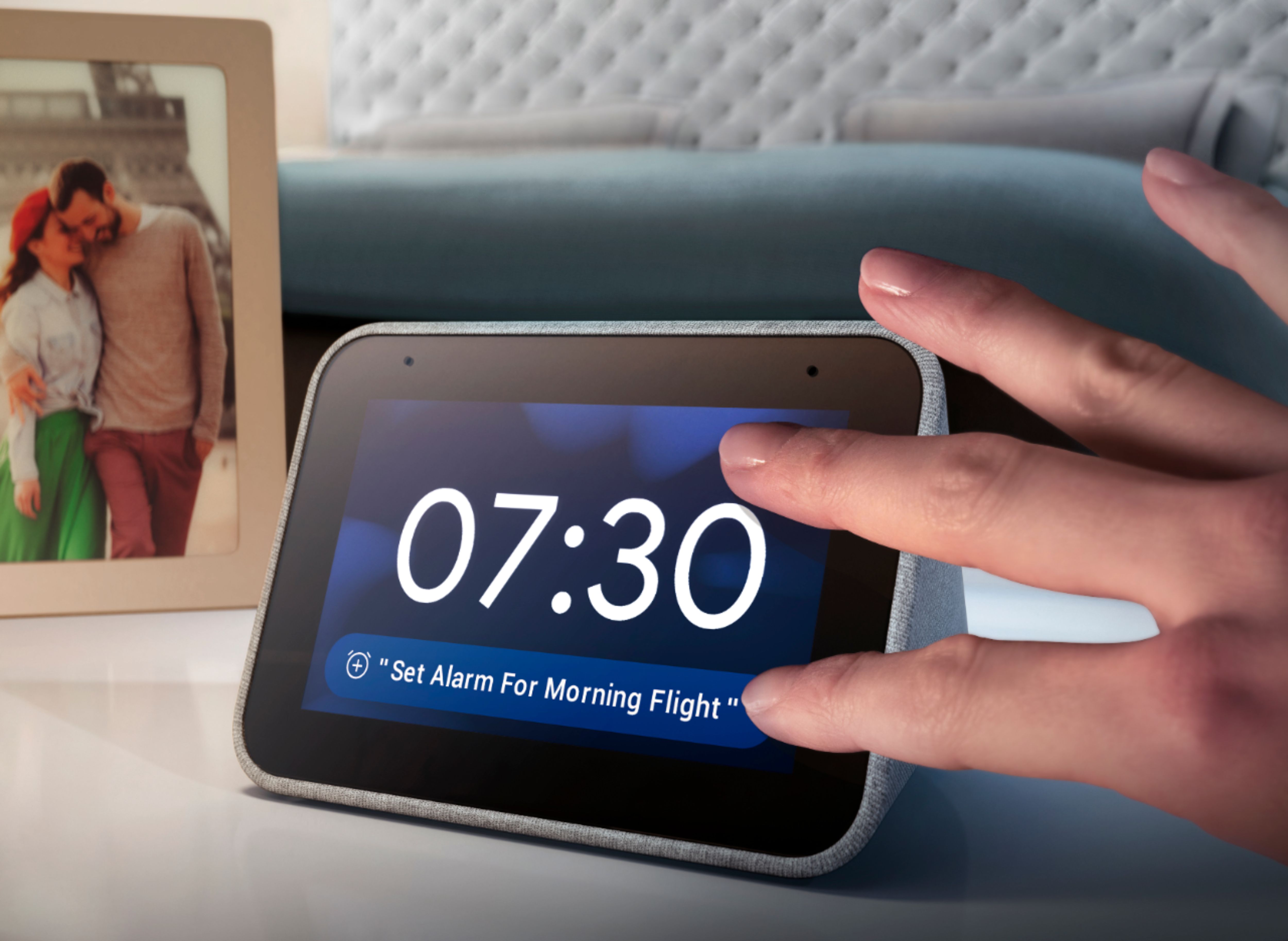
A:AnswerHere is a link to a YouTube Video that demonstrates the alarm function of the Lenovo Smart Clock with Google Assistant: https://www.youtube.com/watch?v=Q1itPkQZ7LM. Here is another link to a more detailed review of the Lenovo Smart Clock with Google Assistant, which describes the alarm function: https://www.cnet.com/reviews/google-assistant-and-a-touchscreen-help-make-a-better-alarm-clock-review/
A:AnswerYou can set a different alarm sound or use a radio station as your alarm. Here is a link to instructions for changing alarms and creating a new alarm on your Smart Clock: https://support.google.com/assistant/answer/9354829?hl=en. If yo continue to have issues, we recommend you contact Lenovo Tech Support for Smart Devices at: 866-426-0911.