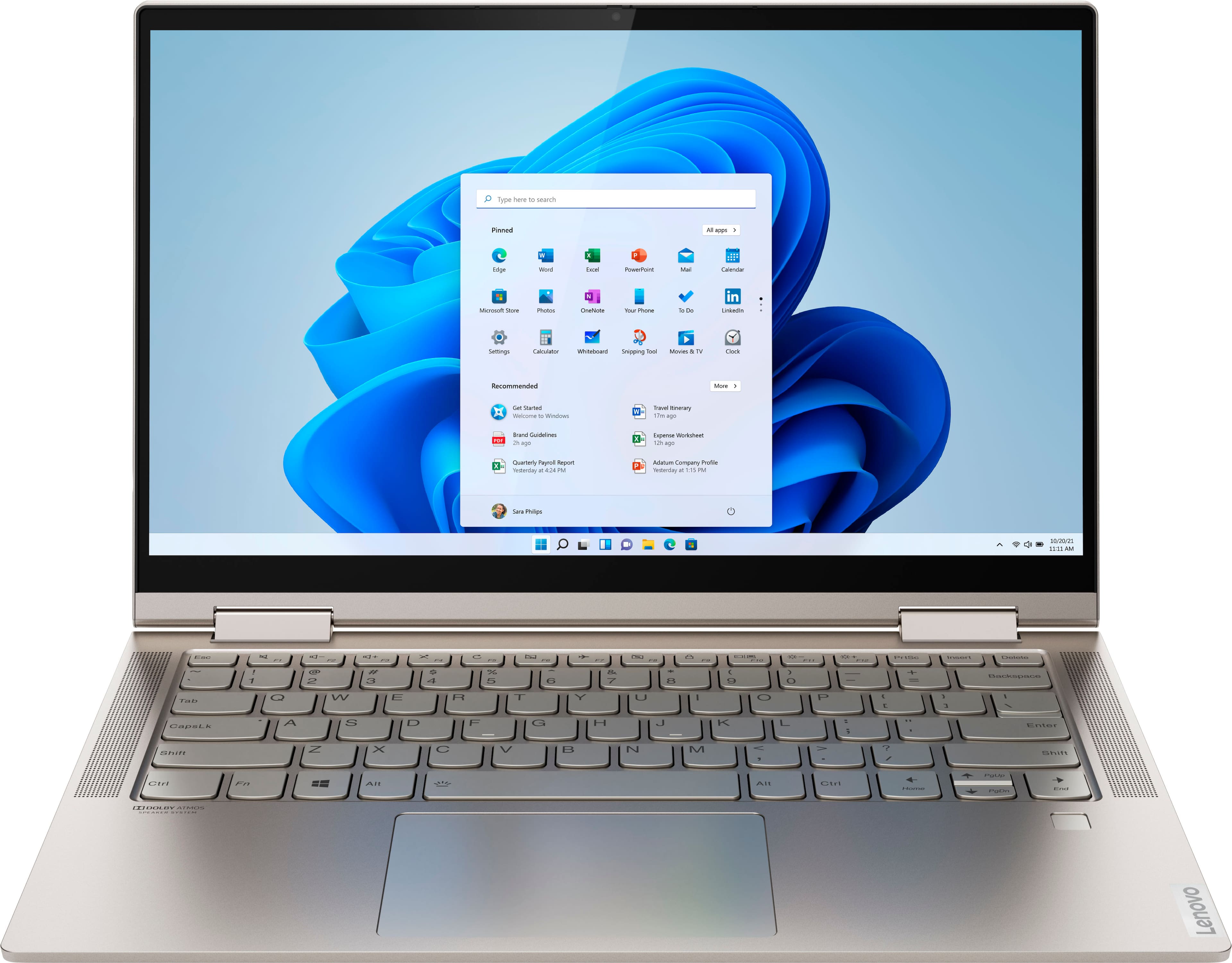
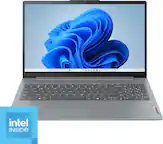
A:AnswerThe Lenovo Yoga C740-14 ships with a Privacy Shutter over the lens of the installed web cam. There is a manual slider just above the web cam lens to open this Privacy Shutter. Be sure this Privacy Shutter is open before you use the web cam. Here is a product tour video for the Yoga C740 Series that also shows the Privacy Shutter. When the shutter is closed there is a red dot over the web cam lens. When the Privacy Shutter is open there is no red dot over the web cam lens. Here's the video: https://www.youtube.com/watch?v=i7gquhzeAhQ. If the issue continues, we recommend you call Lenovo Tech Support at: 877-453-6686.
A:AnswerUnfortunately the Yoga C740-14 does not come with an active pen in the box, the Yoga C940-14 and C940-15 do. However the Yoga lines uses the Wacom digitizer that means the display gives you tilt support enabling it to do shading.
A:AnswerI tried the 30-day trial McAfee LiveSafe, but I found it slow to scan also. I uninstalled it, and downloaded BitDefender AntiVirus Free. So much faster!
A:AnswerYes, this is the 300 nit brightness/Dolby version which is why I purchased it. Ironically, it's 15 inch cousin at Best Buy is only 250 nits which is why I was steered towards this unit more.
A:AnswerYou can let the battery drain to below 60-percent or lower. If you leave toy computer plugged in all the time, use the Battery Conservation Mode Power Setting to preserve the overall battery life. Here is a link to instructions for turning off Battery Conservation Mode:
https://support.lenovo.com/us/en/solutions/ht103159
A:AnswerThe Lenovo Yoga C740-14 does not ships with a built in SD card reader, but you can use an external, USB-based SD card reader with this computer.
A:AnswerFirst, be sure any software you installed is compatible with Windows 10. There is no need to install Microsoft Office software. The software is already part of the operating system, you just need to activate the software with a purchased product key. If you have installed a copy of Microsoft Office, this is conflicting with the existing copy on the system and this will slow your system down. If you have installed a 3rd party anti-virus program, be sure that Windows Defender is turned off and that the trial version of McAfee Anti-Virus software is uninstalled. There can only be one anti-virus program on the system. You may need to restore your system to original factory default settings if any of the programming errors have occurred. You can do that by typing "restore" in the Cortana search window. Just click on the magnifying glass icon at the bottom left of your Windows 10 Desktop. Click on "Reset This PC" Then click on "Get Started" and follow the on screen directions to restore to factory defaults. If there is no incompatible software installed, then be sure you have the latest version of Windows 10 on the computer, then update all of the BIOS files and drivers up to that latest version of Windows 10. You can easily accomplish this by scanning the computer with the Lenovo Utility software available on this computer. This system has Lenovo utilities installed to help maintain the health of the device and keep the operating system software up to date. Type "Lenovo Vantage" in the Cortana Search window (if Lenovo Vantage is not installed on your device, you can download the APP and install it now). Select Lenovo Vantage from the list. In the window that opens, click on "Health and Support". In the expanded menu, select "Hardware Scan" In the window that opens, select "Run Quick Tests". This will scan your entire system for errors. Follow any directions that may pop up. If the problem continues after this scan, now click on "System Update". First select Windows update from the menu. Scan your system to be sure you have the latest version of Windows 10. Once that scan is complete, select "Additional Updates". This will scan your device to be sure there are no new BIOS/Driver updates needed. Follow any instructions that may pop up. If the issue still continues after these updates, we recommend you call Lenovo Tech Support at: 877-453-6686 for additional help.
A:AnswerThe Lenovo Yoga C740-14 ships with a IPS LCD w/LED Backlight (Anti-glare) screen, with a resolution of 1920 x 1080 (FHD) and a brightness level of 300 nits. The 256GB solid state hard drive is M.2 2280 PCIe NVMe architecture.
A:AnswerYes it does. Just hold down the Fn key and while holding the Fn key down, tap the Spacebar. Once to turn on the backlit, twice to increase the brightness, three times to turn off the backlighting.
A:AnswerYes. The Wacom Bamboo Smart Stylus cs323a is compatible with the Lenovo Yoga C740-14: https://www.bestbuy.com/site/wacom-bamboo-ink-smart-stylus-for-windows-ink-2nd-generation-gray/6374981.p?skuId=6374981
A:AnswerThis system is equipped with OneKey Recovery System. There is a very small pin hole on the bottom right side of the device, right near the top right corner of the cooling vent on the bottom of the device. You will need a pin to push this reset button. Plug the device in. Let the battery charge for about 15 minutes. Push the reset button. The system should boot to a choice screen where you can choose "Restore To Factory Default". Select this. It will delete everything from the hard drive except the original factory install of the operating system. You will need to reinstall all programs and files after the reset. If you don't have copies of the files, try to make one before you restore by selecting "Boot to desktop" and trying to back up your files. If the problem persists after the factory reset, we recommend you contact Lenovo Tech Support at: 877-453-6686.
A:AnswerHello, thanks for your question. Yes the Lenovo Yoga C740 model # 81YK000SUS supports dual displays in this manner with an adapter through either the USB-C or USB-A ports. The specific adapter will depend on the connection the monitor requires.
A:AnswerThis active pen is compatible with the Lenovo Yoga C740-14, it is AES protocol with 4,096 level of sensitivity: https://www.bestbuy.com/site/wacom-bamboo-ink-smart-stylus-for-windows-ink-2nd-generation-gray/6374981.p?skuId=6374981