Questions & Answers
- Model:
- 25MS550-B.AUS
- |
- SKU:
- 6577078
Q: QuestionAre you able to tilt the screen to your preference?
Asked by Anonymous.
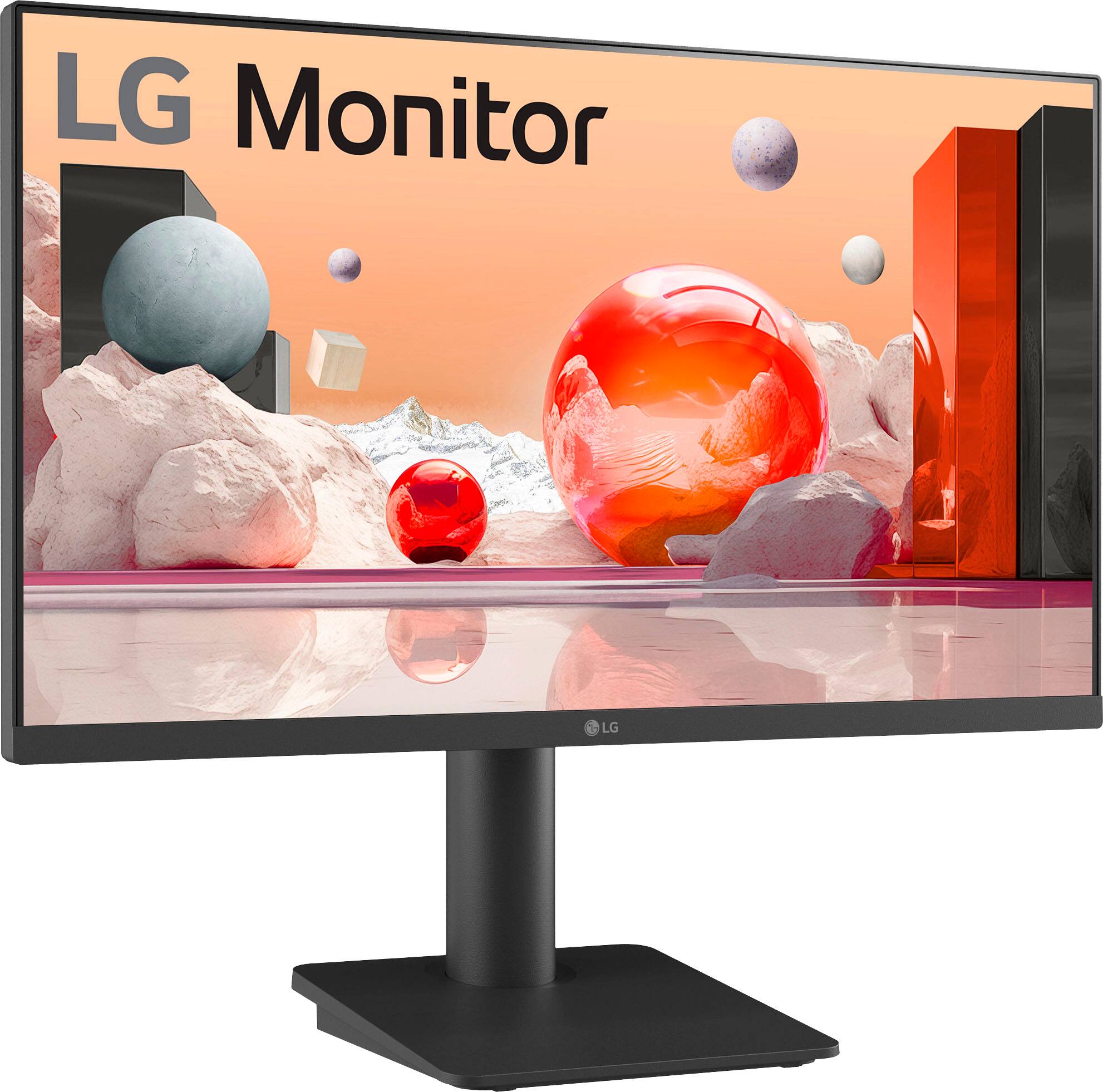
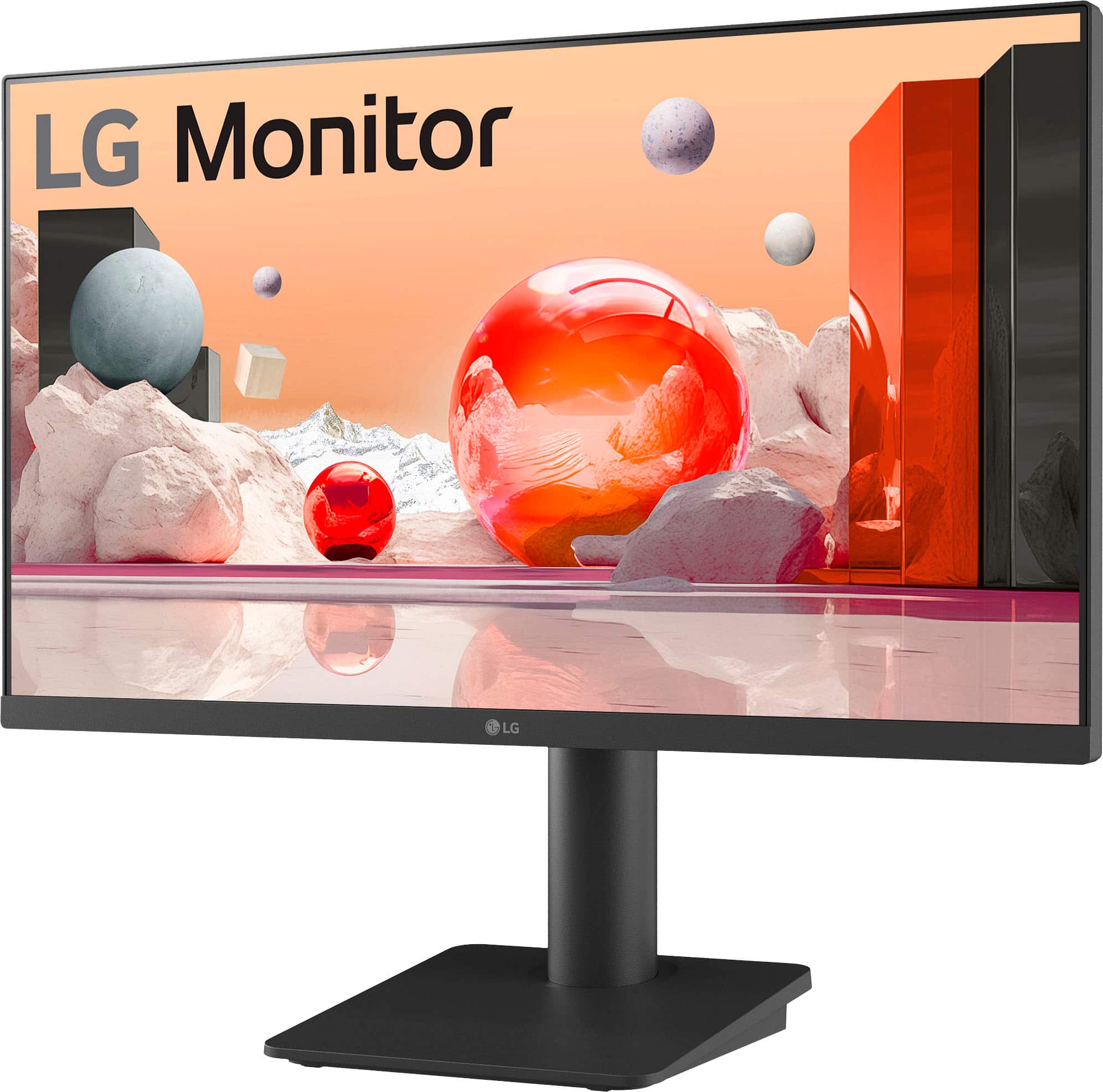
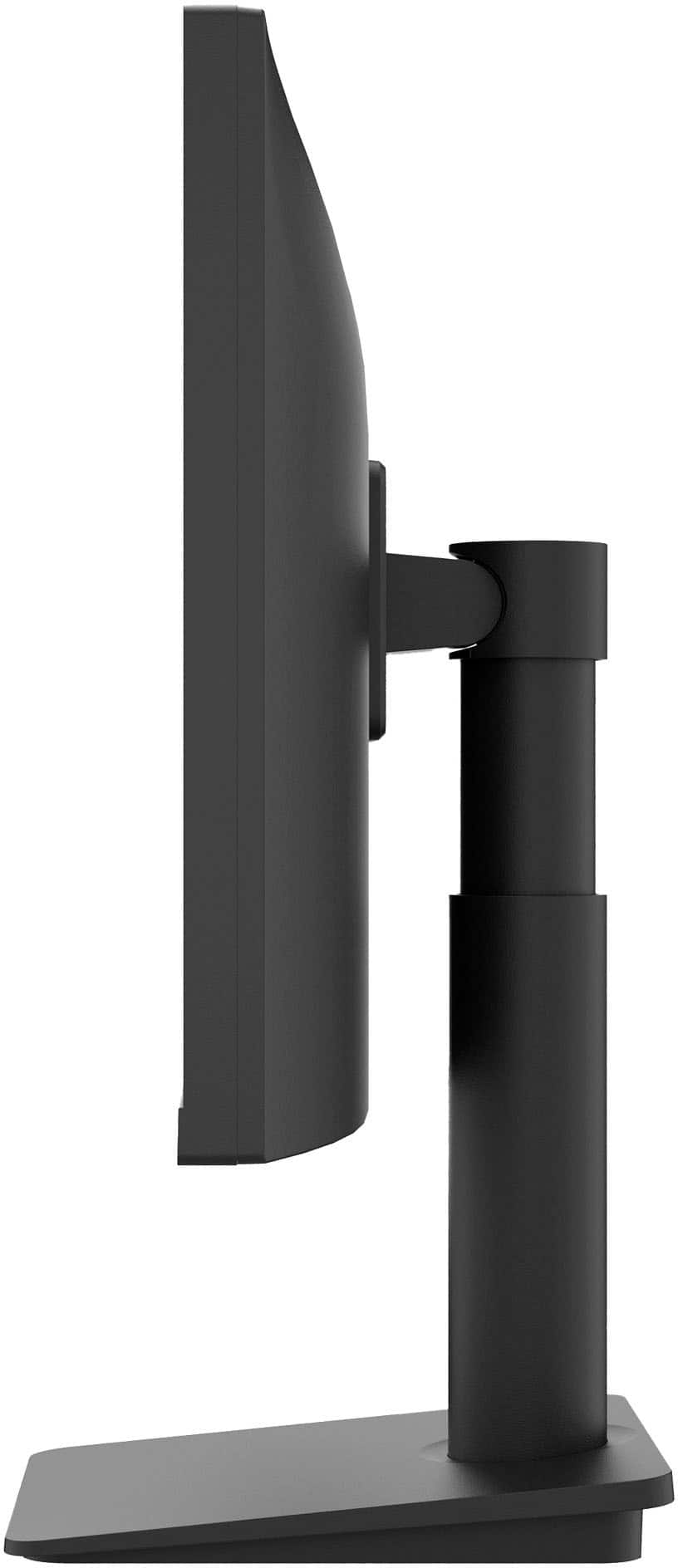
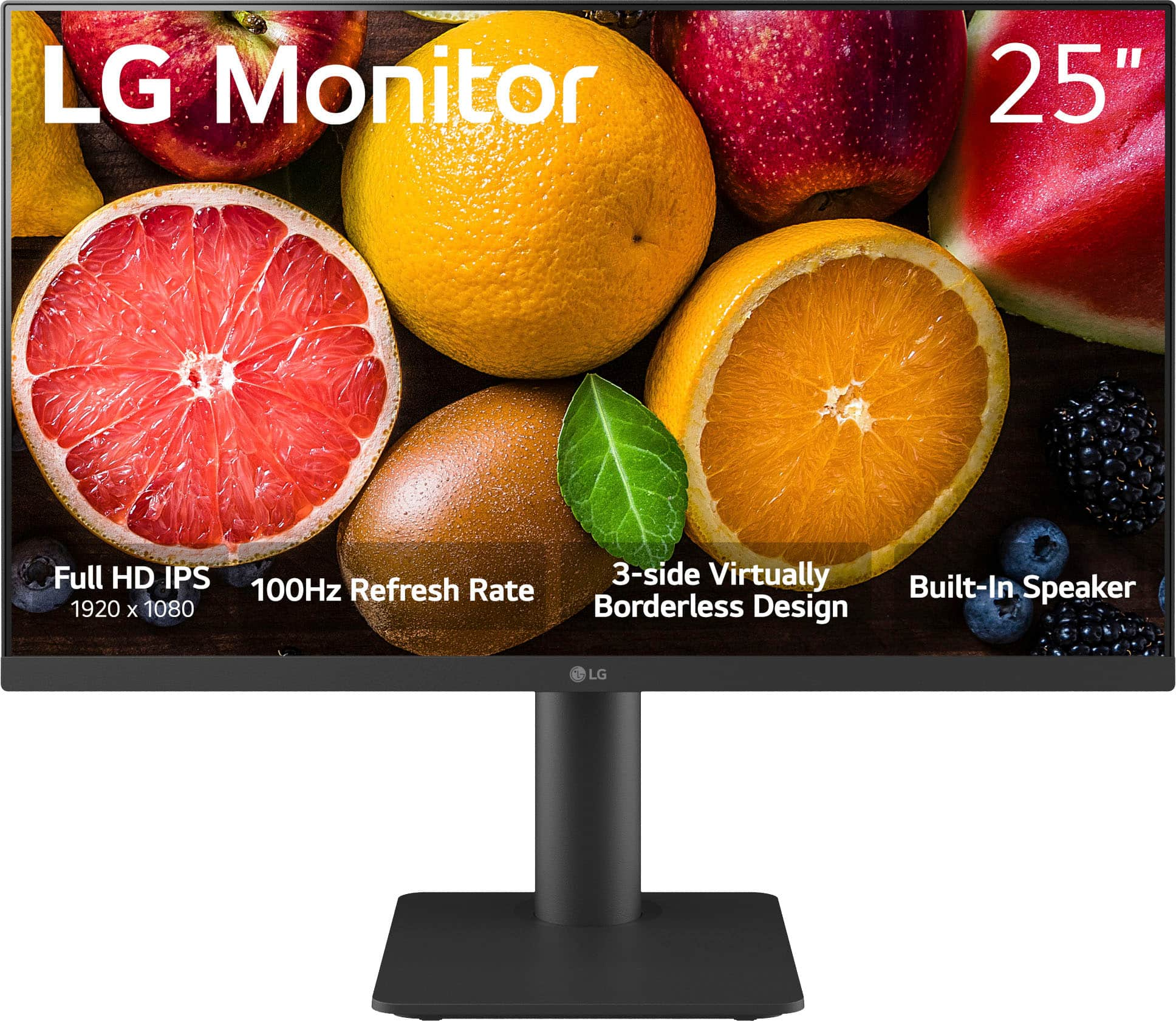
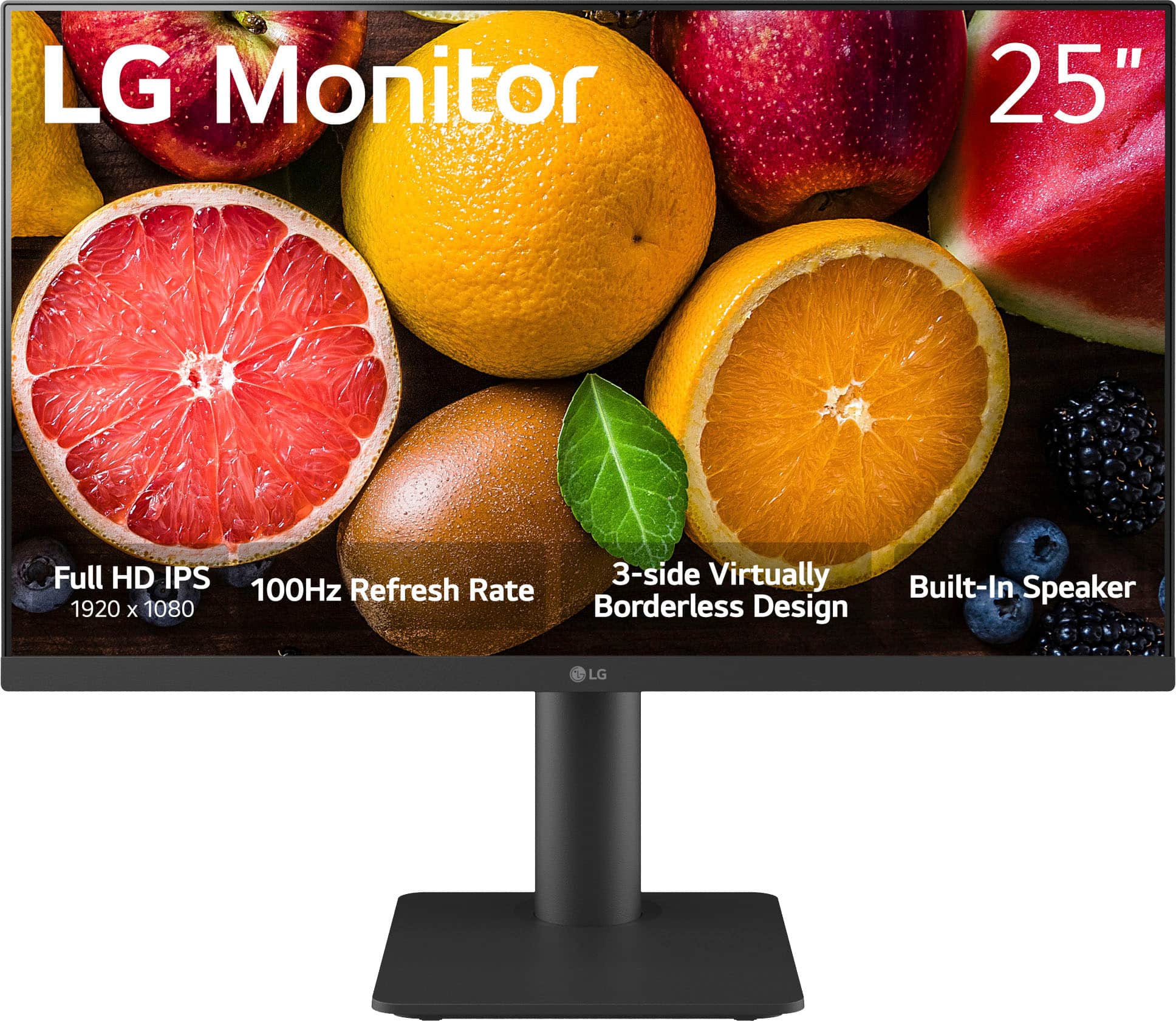
- A:Answer The LG 25" IPS Full HD 100Hz Monitor with OnScreen Control and Built-In Speakers, Model # 25MS550-B can be tilted forward or backward from -5° to 15°...^Ivan.
Answered by LG Digital Customer Care

Q: QuestionCan this monitor be used in Portrait Mode
Asked by KathyB.
- A:Answer Hello, KathyB. With the right mount, any monitor can be used in Portrait Mode. The stand for the LG 25" IPS Full HD 100Hz Monitor with OnScreen Control and Built-In Speakers, Model # 25MS550-B, is height adjustable and allows you to tilt the monitor forward or backward from -5° to 15°. However, the provided stand does not allow you to pivot the monitor 90° from landscape mode to portrait mode. Your Operating System or graphics card will also have to support screen orientation if you want to use the monitor in portrait mode with the right mount...^Ivan.
Answered by LG Digital Customer Care

Q: QuestionIs this monitor compatible with a Samsung Galaxy laptop (13th Gen Intel, 64bit OS)?
Asked by RR77.
- A:Answer Hi, there. Thank your for your interest. The LG Monitor (25MS550-B) model is compatible with most laptops that support the standard HDMI or DisplayPort connections, including your Samsung Galaxy laptop with the 13th Gen Intel processor and 64-bit OS. You’ll just need to check that the laptop has the necessary video output (HDMI, USB-C with DisplayPort Alt mode, or DisplayPort) to connect to the monitor. If your Samsung Galaxy laptop has an HDMI port or USB-C with DisplayPort, you can easily connect it to the LG monitor for a seamless experience. Once connected, you can adjust display settings on your laptop to optimize resolution and other preferences. For more information about the product, you may visit https://www.lg.com/us/monitors/lg-25ms550-b-fhd-monitor. If you need help with the setup or troubleshooting, feel free to send us a private message on social media @LGUSSupport and we’ll be happy to assist you. ^Juvy
Answered by LG Digital Customer Care

Q: QuestionAre there any remotes I can purchase to use to control the volume and hdmi input?
Asked by Remote.
- A:Answer Hello there, thank you for your question! We understand you're looking for a remote control to adjust the volume and HDMI input for the LG 25MS550-B monitor. The LG 25MS550-B monitor does not come with a remote control as part of its standard features. However, you can control the volume and HDMI input using the on-screen menu via the buttons on the monitor itself. For added convenience, you can also use a universal remote control that supports HDMI-CEC (Consumer Electronics Control), which allows you to control certain functions like volume and input switching from a single remote, provided the monitor supports HDMI-CEC. https://www.lg.com/us/monitors/lg-25ms550-b-fhd-monitor#pdp_specs Please send us a private message on Social Media @LGUSSupport if you have any further questions or need assistance with anything else! We appreciate your interest in LG products, and we’re here to help. —Renzo
Answered by LG Digital Customer Care

Q: Questionis this monitor, LG - 25" LED FHD 100Hz Monitor - Black, compatible to a Mac desktop? I need a second monitor. Mac OS: Sequoia 15.1
Asked by Needasecondmonitor.
- A:Answer Hello there! The LG 25" LED FHD 100Hz Monitor (Model: 25MS550-B) is compatible with a Mac desktop running macOS Sequoia 15.1, as long as you use the proper connection method. The monitor has an HDMI input, so as long as your Mac desktop has an HDMI port or if you're using an adapter (such as HDMI to Thunderbolt or USB-C), you should be able to connect it without any issues. This monitor also features an IPS display, which will deliver excellent color accuracy and wide viewing angles, making it a great second monitor for your setup. https://www.lg.com/us/monitors/lg-25ms550-b-fhd-monitor#pdp_specs If you have any other questions or need more details, feel free to send us a private message on Social Media @LGUSSupport. We're happy to assist! —Renzo
Answered by LG Digital Customer Care

Q: QuestionTwo questions: Is there a film on the screen from shipping that I need to remove? What should I use to clean the screen? Thank you.
Asked by CK01.
- A:Answer Hello there! Thank you for your questions. We understand you're wondering about the film on your LG 25MS550-B Monitor and how to clean it. When your monitor arrives, it may have a protective plastic film to ensure it stays in perfect condition during shipping. If you see a thin film on the screen, you can carefully peel it off. However, please make sure to handle it gently to avoid damaging the screen. For cleaning the screen, we recommend using a soft, lint-free microfiber cloth. Avoid using paper towels or harsh materials that could scratch the screen. If needed, dampen the cloth slightly with water or a cleaner specifically designed for electronics, but make sure the screen is turned off and unplugged before cleaning. Gently wipe the surface in circular motions to remove any dust or smudges. https://www.lg.com/us/monitors/lg-25ms550-b-fhd-monitor#pdp_specs If you need further assistance, feel free to send us a private message on Social Media @LGUSSupport, and our team will be happy to help you! We appreciate your patience. —Renzo
Answered by LG Digital Customer Care

Q: QuestionDoes any of the monitors have a built in camera? If not any suggestions?
Asked by Vran12.
- A:Answer Nope, no cameras, a good budget monitor
Answered by KyleS
Q: QuestionWhat is highest height and lowest in inches when in stand top to bottom?
Asked by Bev.
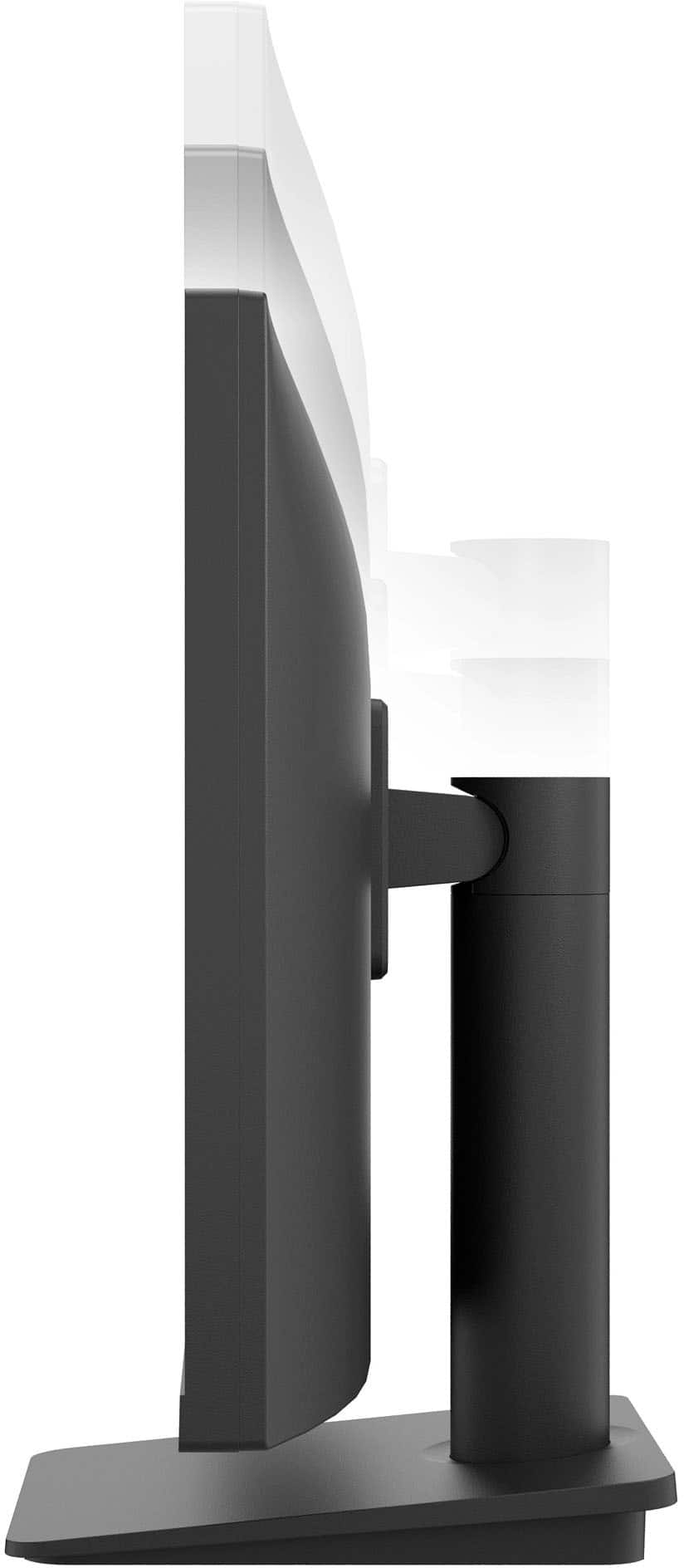
- A:Answer Hi there, Bev. Thank you for reaching out! We understand that you're looking for the height range of the LG 25MS550-B FHD monitor when using the stand. The monitor's height ranges from 12.9 inches (at its lowest) to 18.7 inches (at its highest), measured from the stand base to the top of the monitor. https://www.lg.com/us/monitors/lg-25ms550-b-fhd-monitor#pdp_specs If you need more information or assistance, please send us a private message on social media @LGUSSupport, and we’ll be happy to help. We appreciate your time. —Renzo
Answered by LG Digital Customer Care

Q: QuestionHello. Is the screen matte or glossy?
Asked by Rbek.
- A:Answer Hello there. Thank you for your inquiry about the LG 25MS550-B.AUS. The screen of this model features a matte finish, which helps reduce glare and reflections, making it easier to view in various lighting conditions. If you have any more questions or need further assistance, please feel free to send us a private message on Social Media @LGUSSupport. We’re here to help! —Avril
Answered by LG Digital Customer Care

Q: QuestionDoes the LG monitor 25ms550-b have a vga input? All I see are hdmi input
Asked by David.
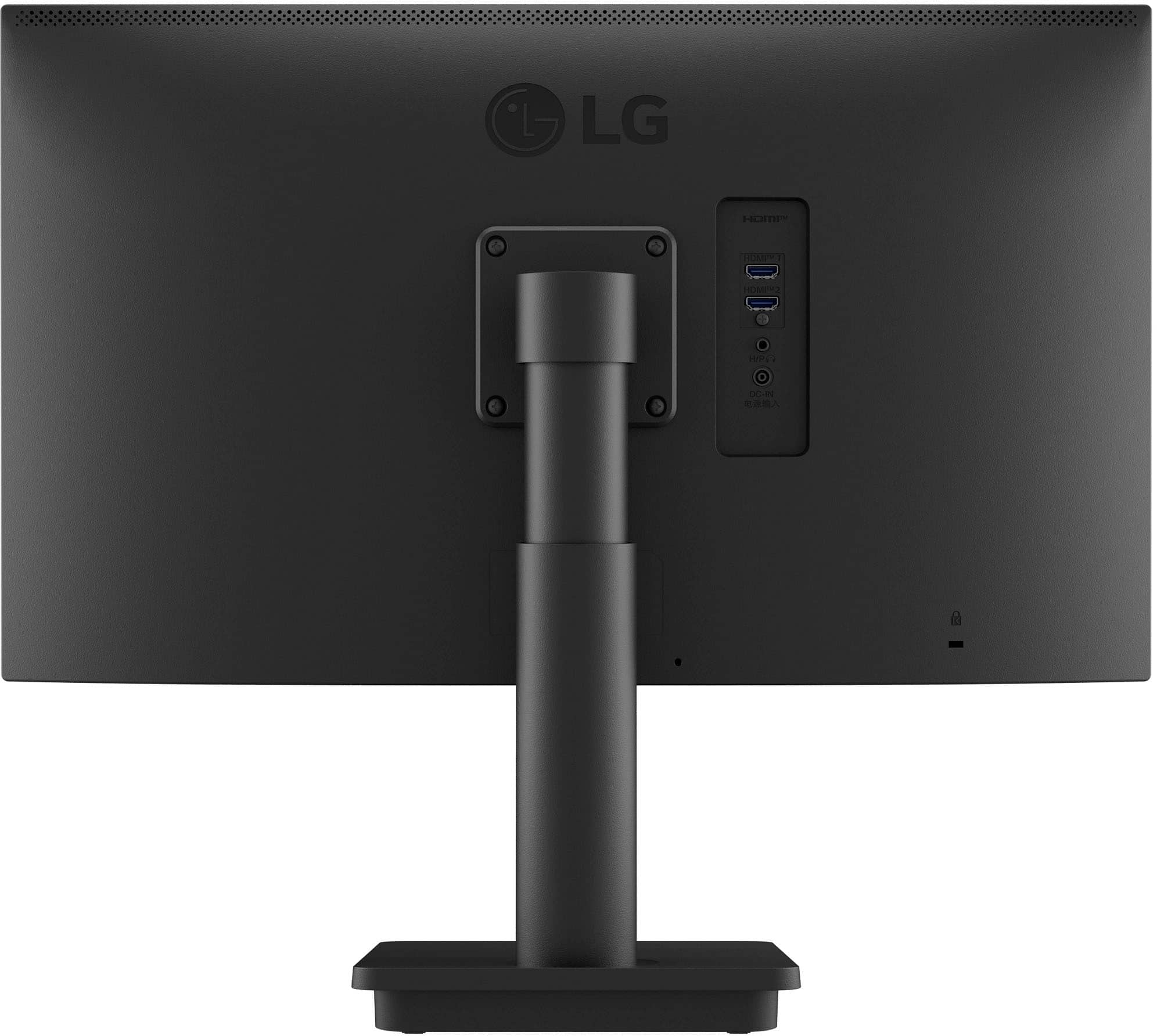
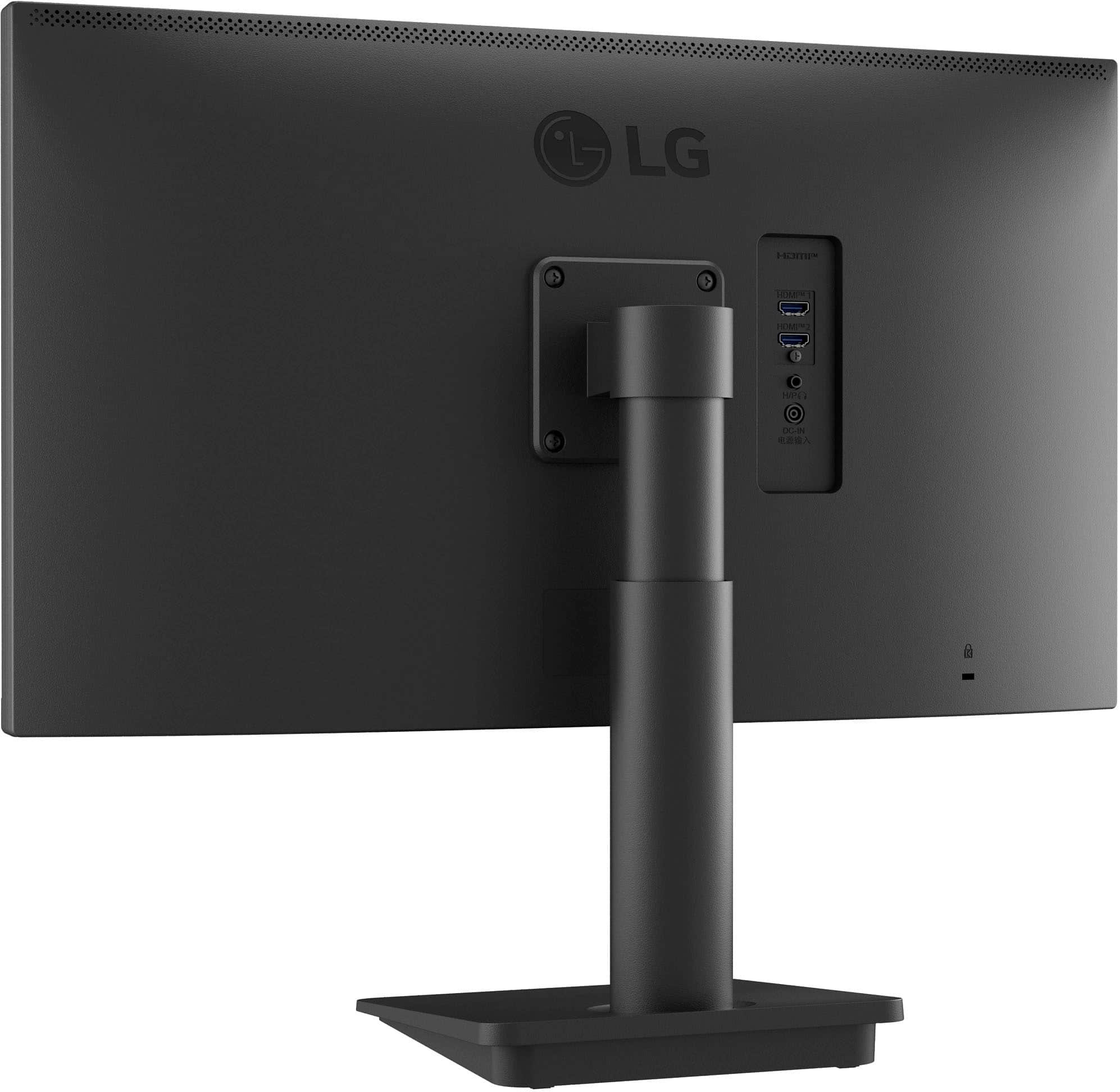
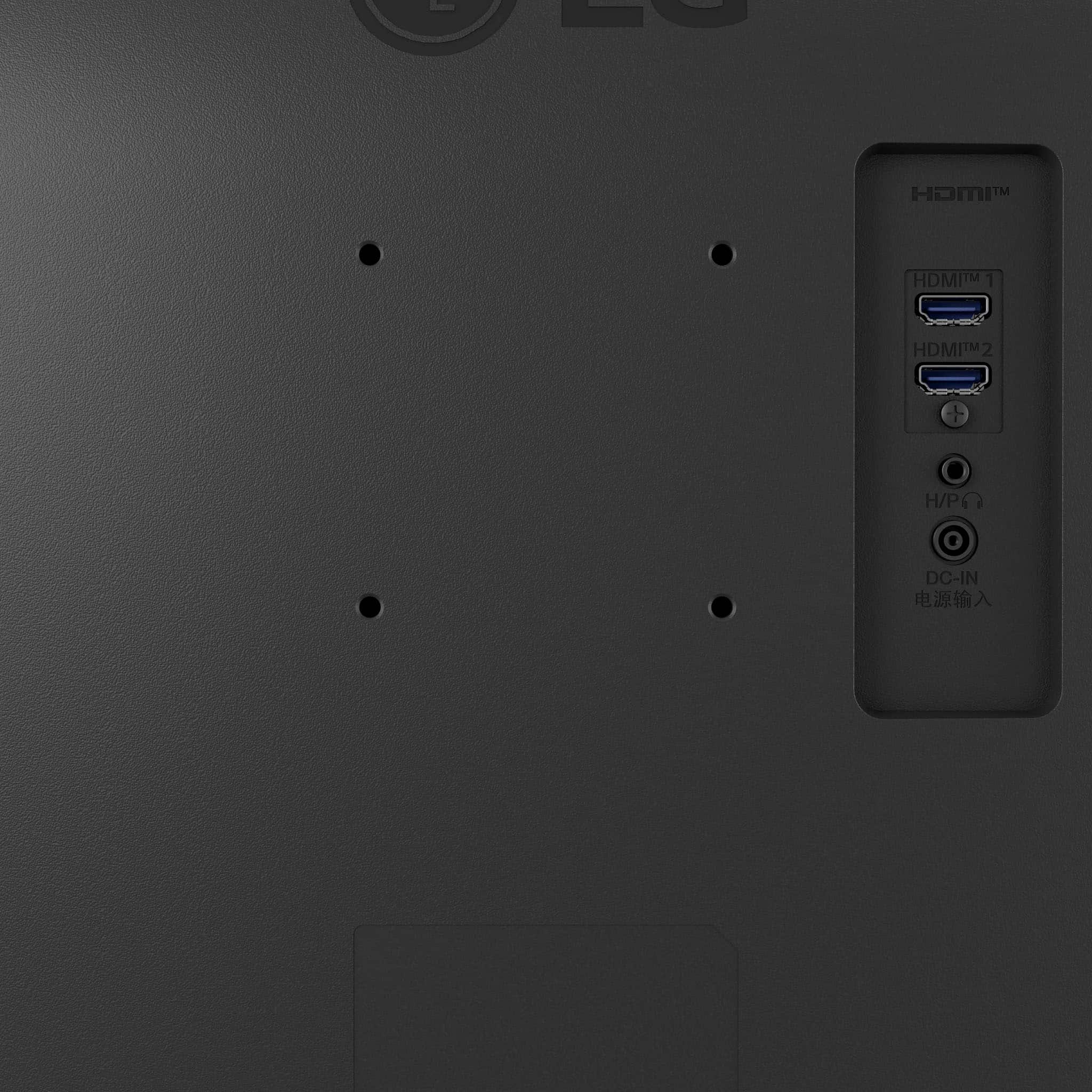
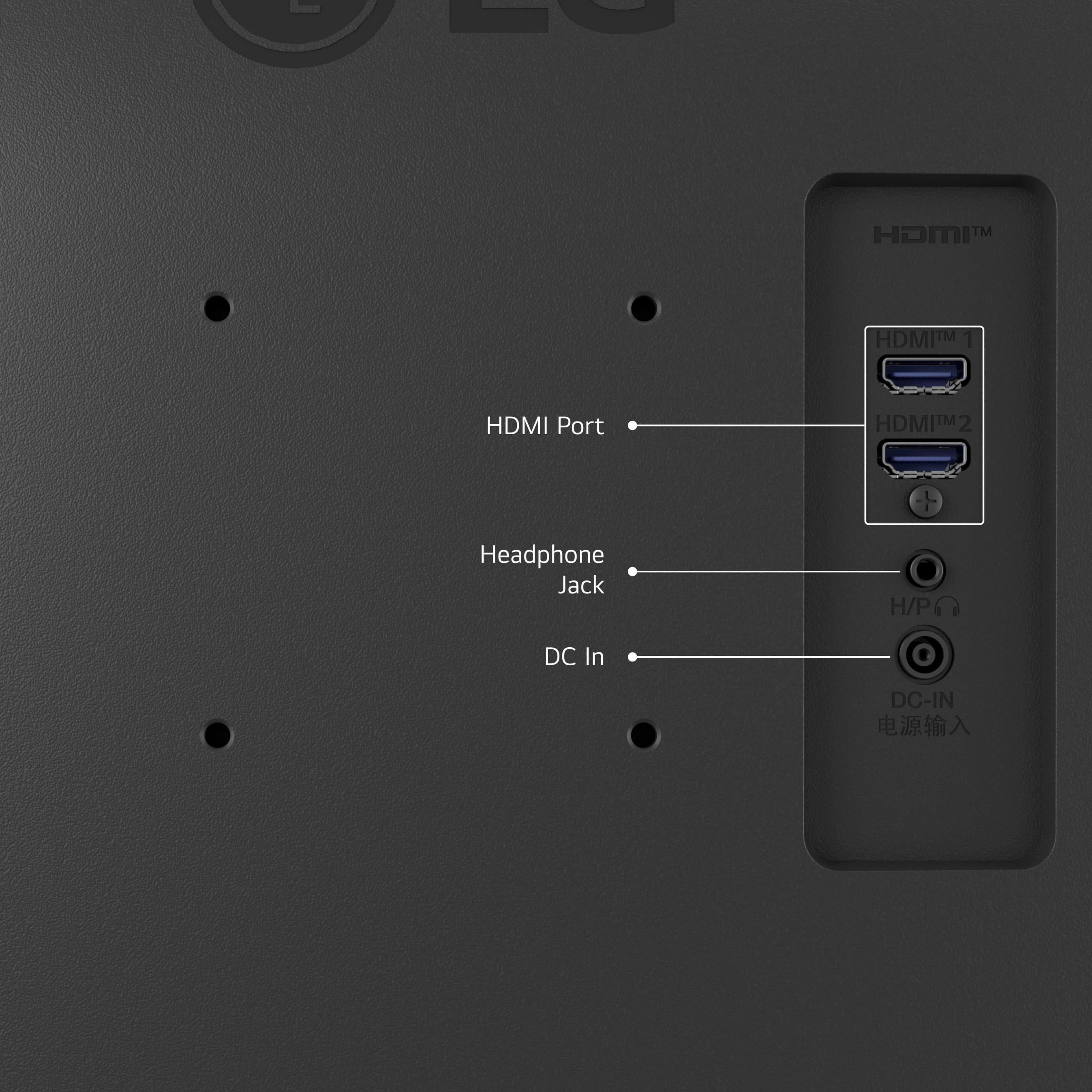
- A:Answer Hi there. Thank you for your question about the 25MS550-B.AUS monitor. We understand you're curious about the input options. While this model features HDMI inputs for a high-quality connection, it does not include a VGA port. If you have an older device with VGA output, you may consider using an HDMI-to-VGA adapter to connect it to the monitor. For further questions or assistance, please send us a private message on social media @LGUSSupport. We're here to help! —Renzo
Answered by LG Digital Customer Care

Q: QuestionDoes this monitor support High-bandwidth Digital Content Protection (HDCP)?
Asked by tngsg1a.
- A:Answer Hello there! Thank you for your inquiry. The LG Monitor Model 25MS550-B.AUS does support High-bandwidth Digital Content Protection (HDCP). This feature ensures that you can view protected content without issues. If you have any other questions or need further assistance, please send us a private message on Social Media @LGUSSupport, and our team will be happy to help. We appreciate your patience. —Renzo
Answered by LG Digital Customer Care

Q: QuestionCan I attach this monitor to my MacBook Pro and then attach a webcam to this monitor so that it can be used as the display during a zoom video meeting rather than using the MacBook camera and display for the zoom meeting?
Asked by FrancesK.
- A:Answer Hello there! Thank you for your question regarding the LG 25MS550-B.AUS monitor. Yes, you can connect this monitor to your MacBook Pro using an HDMI or USB-C adapter, depending on your MacBook's ports. However, the monitor itself doesn’t have a built-in USB hub to directly connect a webcam. You’ll need to connect the webcam directly to your MacBook Pro, but you can still use the monitor as your main display during Zoom meetings by adjusting your display settings on the MacBook. If you have more questions or need assistance with the setup, feel free to send us a private message on Social Media @LGUSSupport, and we’ll be happy to help. We appreciate your time and feedback! —Avril
Answered by LG Digital Customer Care

Q: Questionis the stand adjustable when place on desk
Asked by Anonymous.
- A:Answer The monitor can be raised or lowered while on the stand
Answered by JenG
Q: QuestionIS this Compatible with Macbook?
Asked by jajde.
- A:Answer Thank you for reaching us regarding LG Monitor. Yes, The LG 25MS550-B monitor is compatible with MacBooks. You can download its owner's manual through this link for more information: https://www.lg.com/us/support/product/lg-25MS550-B.AUS. For additional assistance, please reach out to us on social media @LGUSSupport so we can help you further. ^Cris
Answered by LG Digital Customer Care

Q: QuestionSo I got my monitor new series S with it says out of range on 60 hz
Asked by Remi.
- A:Answer Thank you for reaching us regarding LG Monitor. If your LG 25MS550-B monitor is displaying an "Out of Range" message at 60 Hz, try these steps: 1. Check Display Settings: Right-click on your desktop, select Display settings, and ensure the refresh rate is set to 60 Hz. 2. Adjust Resolution: Set the resolution to a supported resolution, such as 1920 x 1080 or 1280 x 720. 3. Check Graphics Settings: If you're using a graphics card, check the graphics control panel and adjust settings to match the desired resolution and refresh rate. 4. Try Safe Mode: Boot your computer in Safe Mode, which uses a basic display driver and lower resolution, allowing you to adjust settings without the error. 5. Check Cable Connections: Ensure the video cable is securely connected to both the monitor and computer. Try using a different cable if possible. 6. Update Graphics Drivers: Make sure your graphics drivers are up to date by downloading the latest drivers from the manufacturer's website. 7. Reset Monitor Settings: If possible, reset the monitor to factory settings using the on-screen menu. By following these steps, you should be able to resolve the "Out of Range" issue on your LG 25MS550-B monitor. You can download its owner's manual through this link for more information: https://www.lg.com/us/support/product/lg-25MS550-B.AUS. For additional assistance, please reach out to us on social media @LGUSSupport so we can help you further. ^Cris
Answered by LG Digital Customer Care

Q: QuestionCan I get the height and width specs in cm please?
Asked by Cati.
- A:Answer Hi there, thank you for your question about the LG 25MS550-B.AUS monitor. The dimensions of this model are approximately 32.9 cm in height and 56.6 cm in width. If you need additional information or have any other questions, please send us a private message on Social Media @LGUSSupport, and our team will be happy to assist. We appreciate your interest in LG products! —Avril
Answered by LG Digital Customer Care

Q: QuestionWhat are the return and replacement policies ?
Asked by Karthik.
- A:Answer Hello there. Thank you for reaching out regarding the Model 25MS550-B.AUS purchased from Best Buy. Return and replacement policies on Best Buy offer a standard return period of 15 days for most products, with Elite and Elite Plus members having extended periods. For specific details tailored to your purchase, we recommend contacting Best Buy directly or visiting their website. If you have any other questions or need further assistance, please send us a private message on Social Media @LGUSSupport. We're here to help. —Renzo
Answered by LG Digital Customer Care

Q: QuestionDoes the cord that hooks to your computer come with it?
Asked by Anonymous.
- A:Answer I purchased this monitor, and the HDMI cable is included. Check this monitor's description on BB under: From the manufacturer > Design > What's in the box, and you will see a picture of what's included.
Answered by Anonymous
Top Rated
- Black Friday Deal$279.99Your price for this item is $279.99
- Black Friday Deal$104.99Your price for this item is $104.99
- Black Friday Deal$86.99Your price for this item is $86.99
- Black Friday Deal$209.99Your price for this item is $209.99
- Black Friday Deal$99.99Your price for this item is $99.99
- Black Friday Deal$259.99Your price for this item is $259.99
- Black Friday Deal$179.99Your price for this item is $179.99
- Black Friday Deal$219.99Your price for this item is $219.99
- Black Friday Deal$79.99Your price for this item is $79.99
- Black Friday Deal$149.99Your price for this item is $149.99
- $279.99Your price for this item is $279.99$499.99The comparable value for this item is $499.99
- $69.99Your price for this item is $69.99$159.99The comparable value for this item is $159.99
- Black Friday Deal$114.99Your price for this item is $114.99
- $179.99Your price for this item is $179.99$389.99The comparable value for this item is $389.99
- Black Friday Deal$1,449.99Your price for this item is $1,449.99
- Black Friday Deal$99.99Your price for this item is $99.99
- $139.99Your price for this item is $139.99$179.99The comparable value for this item is $179.99
- Black Friday Deal$129.99Your price for this item is $129.99
- Black Friday Deal$89.99Your price for this item is $89.99